Record money moved between your own accounts in finerd: transfers, cash withdrawals and deposits, currency exchanges, fees, and fixing a wrong transfer.
A transfer moves money between two of your own accounts, such as from your card to your savings. It isn’t spending or income: one balance goes down, the other goes up by the same amount, and your total stays the same.
finerd asks which account the money left, how much, which account it went to and how much arrived. Then it opens the transfer so you can check it. Nothing is recorded until you select Save.If both accounts use the same currency, finerd fills in the amount that arrived with the amount you sent.
Web
Android
iOS
On the Dashboard or the Transactions page, select Add transaction, then Internal transfer or ATM.
On From which account?, select the account the money left.
Enter the amount on How much did you pay? and select Continue.
On To which account?, select the account the money went to.
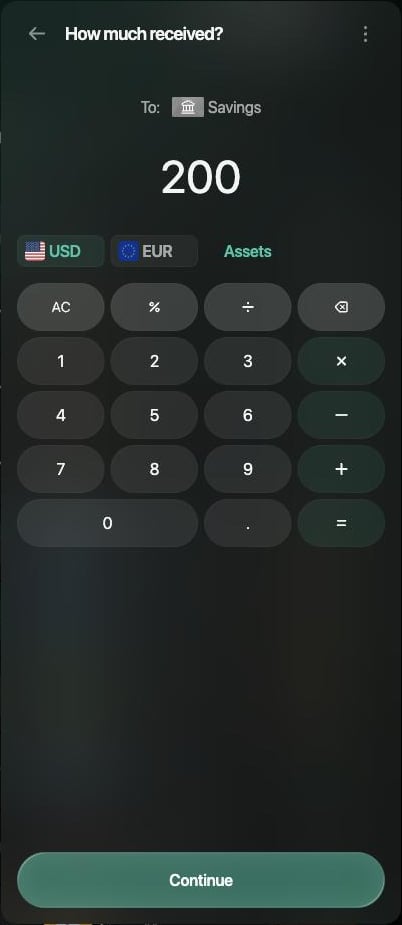
Check the amount on How much received? and select Continue.
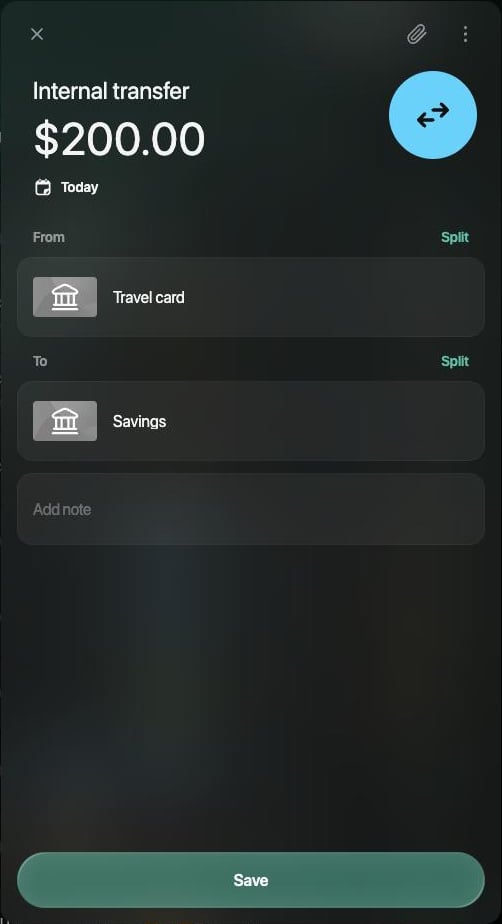
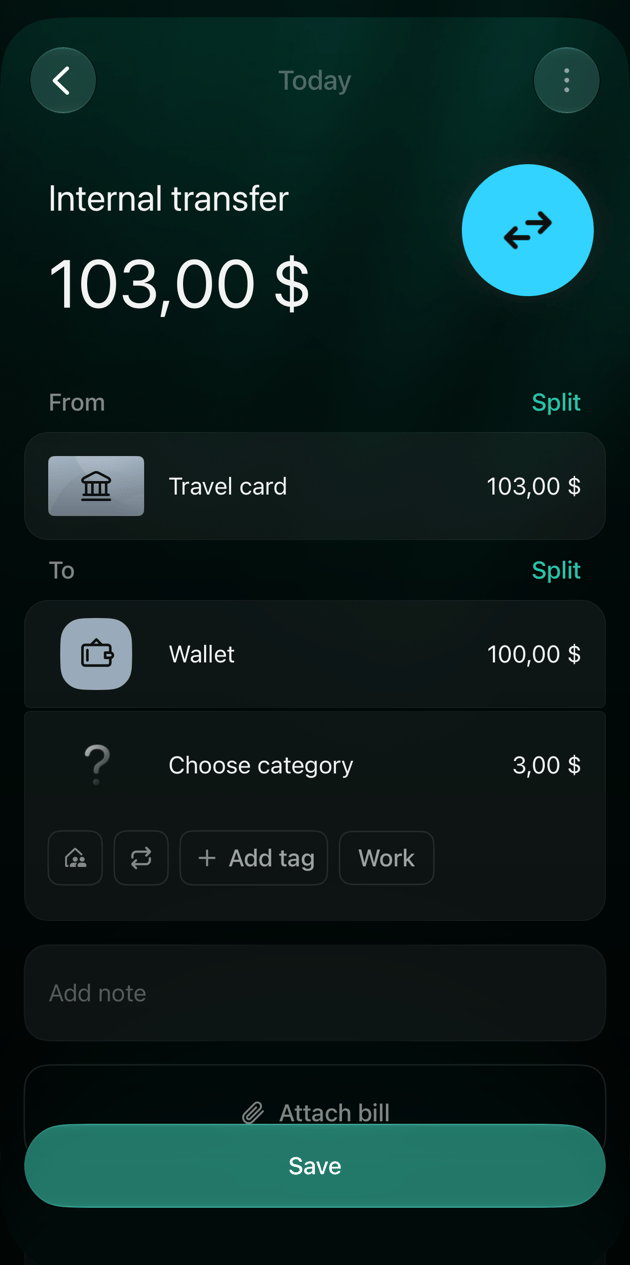
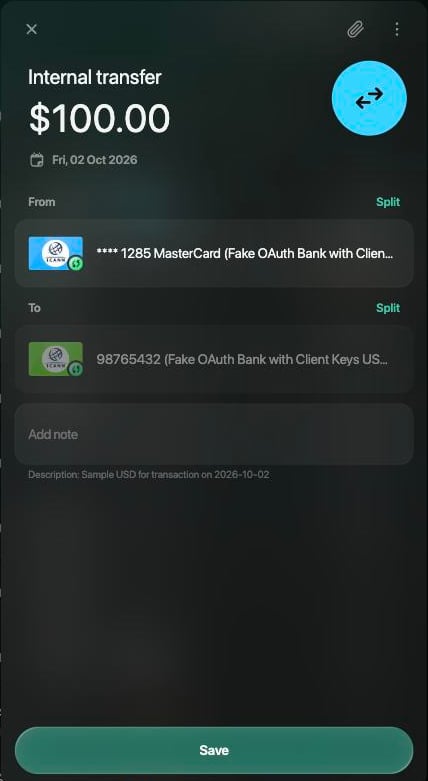
Check the date, From and To. The date is Today; select it to pick another day.
Select Save. finerd confirms with Transaction created on and the date.
Check the amount that arrived.
Check both accounts before saving.
On Dashboard or Transactions, tap +, then Internal transfer or ATM.
On Source transfer account, tap the account the money left. Accounts connected to a bank aren’t in this list.
On Send amount, enter the amount and tap Continue.
On Destination transfer account, tap the account the money went to.
On Receive amount, check the amount and tap Continue.
Check the date, From and To, and tap Save.
On Dashboard or Transactions, tap +, then Internal transfer or ATM.
On From which account?, tap the account the money left. To find it faster, type its name in the search field.
Enter the amount on How much did you pay? and tap Continue.
On To which account?, tap the account the money went to.
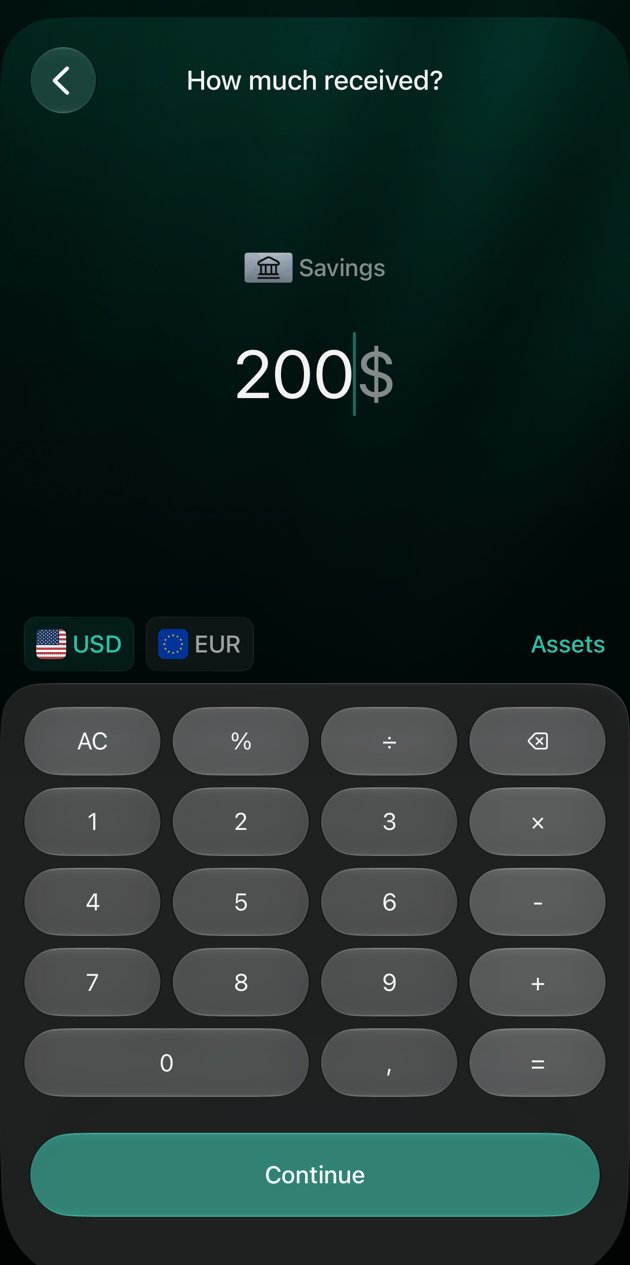
Check the amount on How much received? and tap Continue.
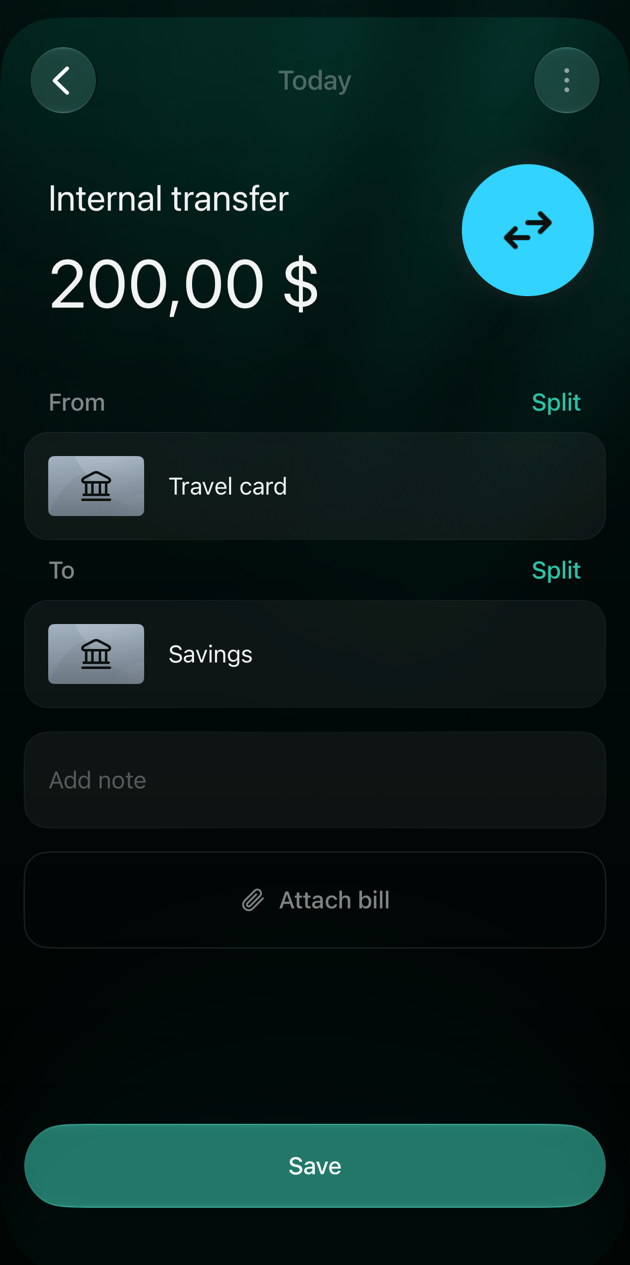
Check From and To. To change the date, tap ⋮ → Change date.
Tap Save.
Check the amount that arrived.
Check both accounts before saving.
The transfer appears in Transactions as Internal transfer. The first account’s balance goes down and the second one’s goes up by the amount. If you close the transfer before saving and choose Discard, nothing is recorded.
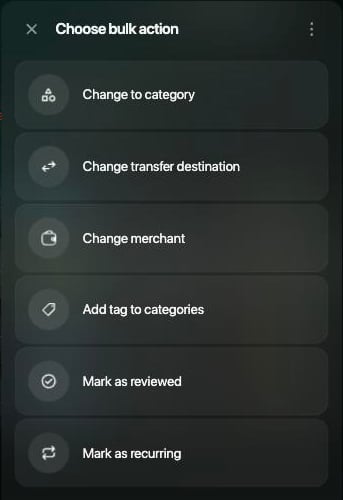
Taking money out of an ATM is a transfer from your bank account to your cash account. It isn’t spending yet: record the expense when you spend the cash. Paying cash into your bank is a transfer the other way.To record it yourself, follow the steps in Move money between your accounts. For a withdrawal, choose your bank account first and your cash account second; for a deposit, the other way round. Cash accounts are under Cash in the list. If you don’t have one yet, add a cash account.If the ATM charged a fee, enter the amount that left the card and the amount you got: see When the amounts differ.If your bank is connected, the withdrawal arrives from the bank. Don’t record it again: open that transaction and, if To shows a category, choose your cash account instead. For a deposit, change From the same way.
Web
Android
iOS
Open Transactions and select the withdrawal from your bank.
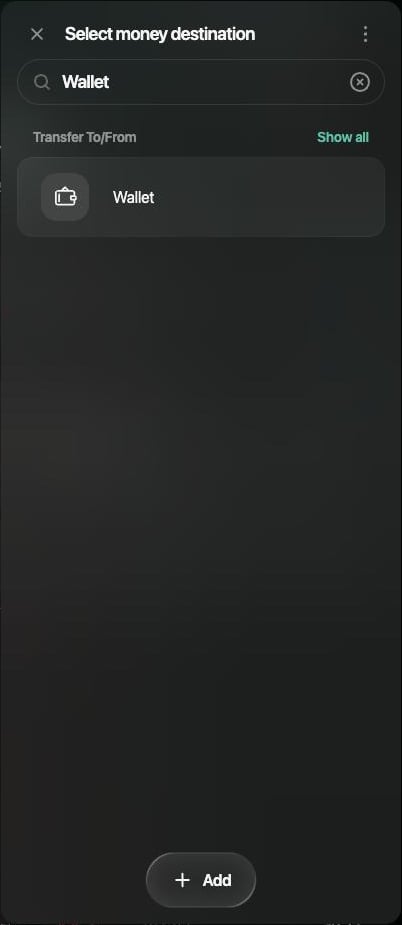
Select the category in To (for a deposit, in From). In the list that opens, find your cash account under Transfer To/From, or type its name in Search, and select it.
Select Save.
Your cash account is under Transfer To/From.
Open Transactions and tap the withdrawal from your bank.
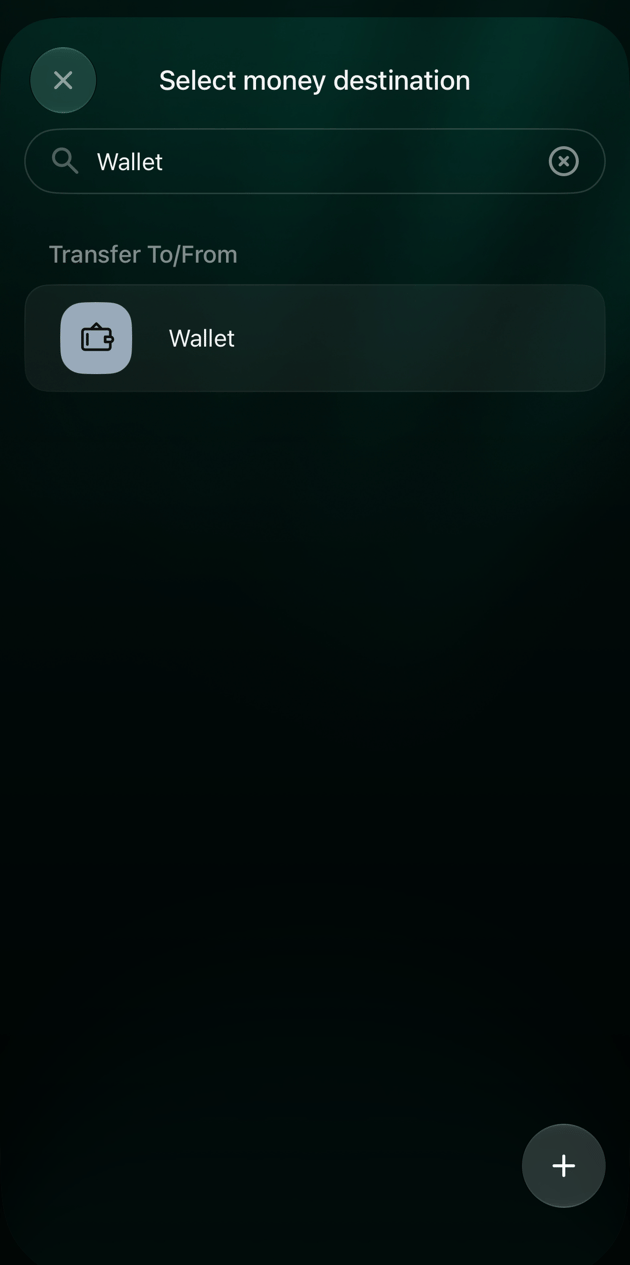
Tap the category in To (for a deposit, in From). Under Transfer To/From, tap your cash account. If it isn’t there, tap Show all.
Tap Save.
Open Transactions and tap the withdrawal from your bank.
Tap the category in To (for a deposit, in From). In the list that opens, open Transfer To/From, or type the account’s name in Search, and tap your cash account.
Tap Save.
Your cash account is under Transfer To/From.
The bank’s line stays as it was. The transaction becomes a transfer, and your cash account’s balance changes by its amount.
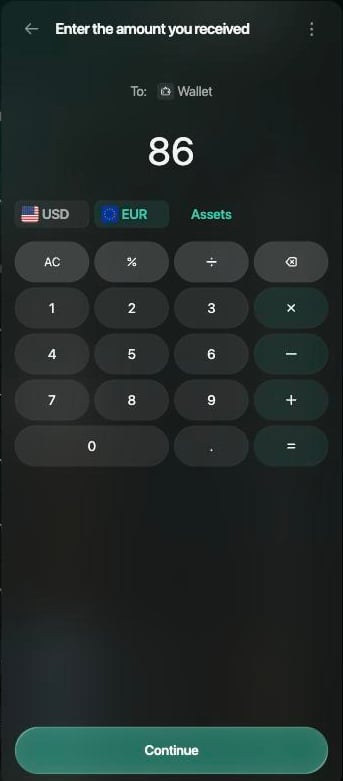
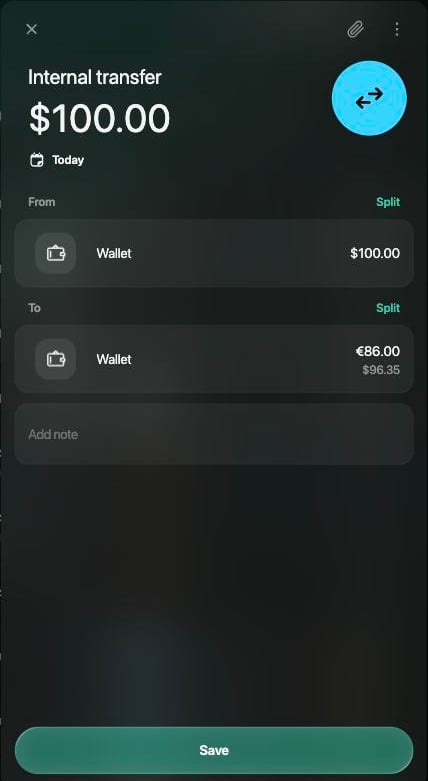
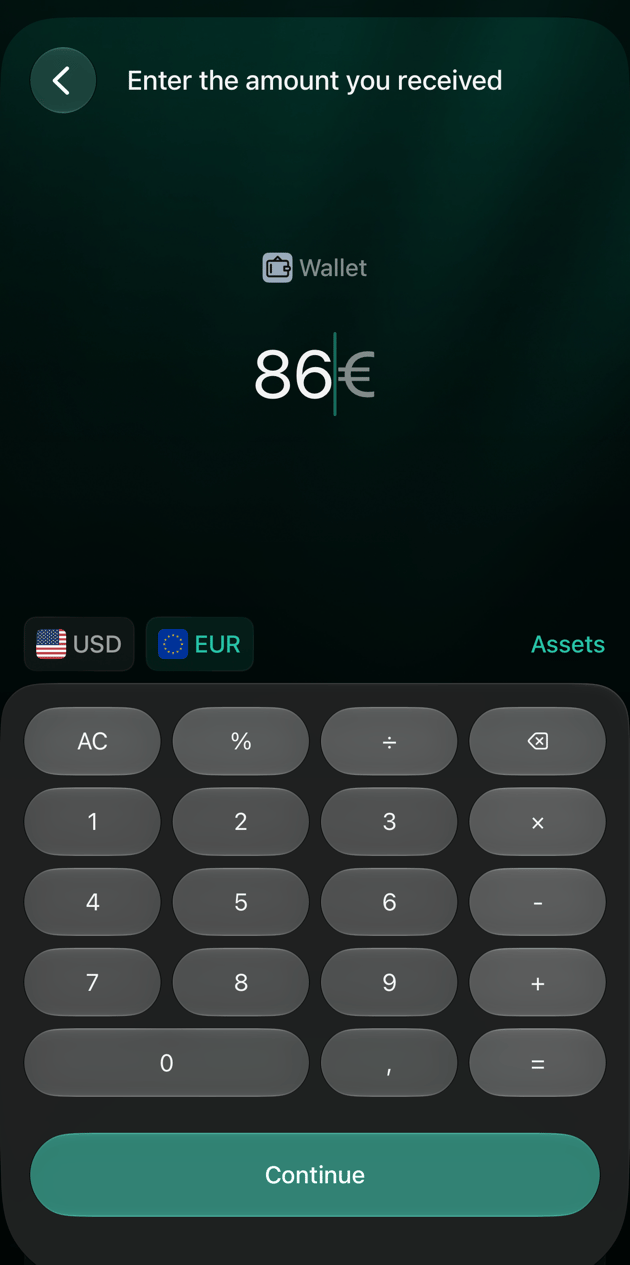
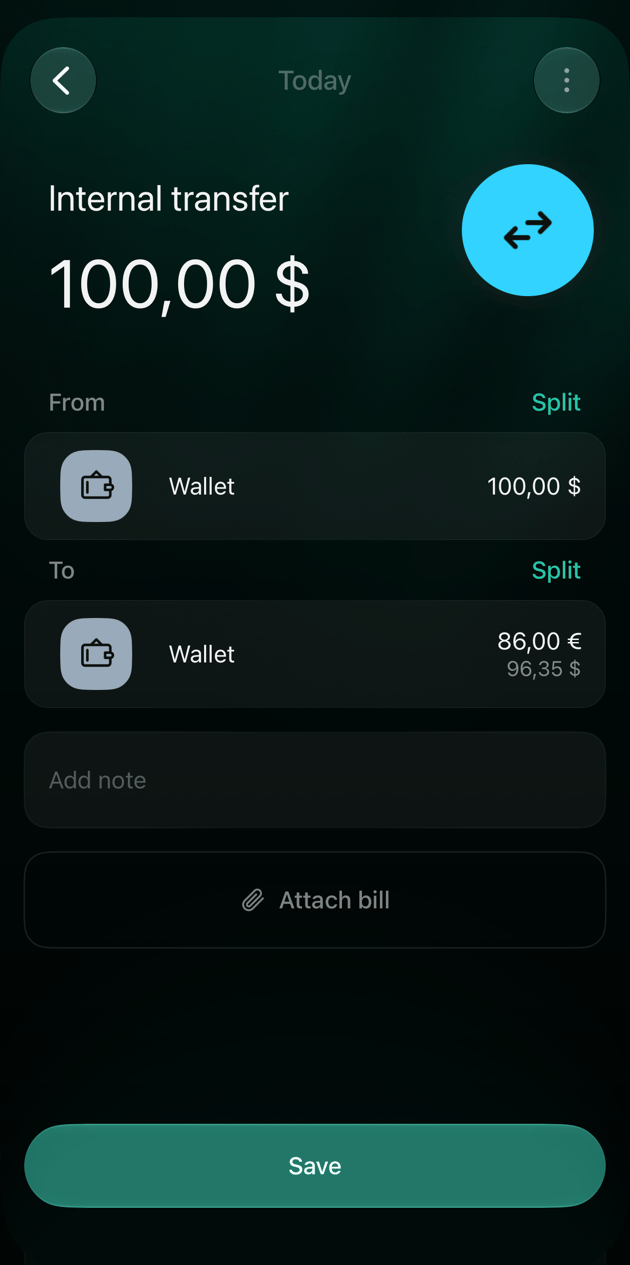
An exchange is a transfer in which the money leaves in one currency and arrives in another, for example 100 USD handed over at an exchange office and 86 EUR received. finerd records both amounts as they were, and each account’s balance changes in its own currency.The money can stay in one account. An account can hold several currencies, so if you exchanged cash in your wallet, choose your cash account on both sides: it keeps a separate balance for each currency.When the account you exchange to holds another currency, the Android and iOS apps show what you’d get at finerd’s current rate, for example 89,26 € at current rate. Tap Apply to use it, or enter the amount you actually received. If your amount is far from finerd’s rate, see When the amounts differ.
Web
Android
iOS
On the Dashboard or the Transactions page, select Add transaction, then Currency exchange.
On Source transfer account, select the account you exchanged from.
On How much are you exchanging?, check the currency, enter the amount and select Continue.
On Exchange to, select the account that got the money. It can be the same account.
On Enter the amount you received, select the currency you got, enter the amount and select Continue.
Check From and To: each shows its own amount. Select Save.
Choose the currency you got.
Each side keeps its own amount.
On Dashboard or Transactions, tap +, then Asset exchange.
On Exchange from, tap the account you exchanged from. Accounts connected to a bank aren’t in this list.
On How much are you exchanging?, enter the amount and tap Continue.
On Exchange to, tap the account that got the money.
On What amount are you receiving?, enter the amount, or tap Apply next to the amount at the current rate. Tap Continue.
Check the exchange and tap Save.
On Dashboard or Transactions, tap +, then Currency exchange.
On Source transfer account, tap the account you exchanged from.
On How much are you exchanging?, enter the amount and tap Continue.
On Exchange to, tap the account that got the money. It can be the same account.
On Enter the amount you received, tap the currency you got and enter the amount, or tap Apply if finerd suggests one at the current rate. Tap Continue.
Check From and To and tap Save.
Choose the currency you got.
Each side keeps its own amount.
The exchange appears in Transactions as Internal transfer. In the account, each currency has its own balance: after this example the wallet holds 86 EUR more and 100 USD less. Internal transfer or ATM and Currency exchange record the same kind of transaction; the exchange only names its steps differently.
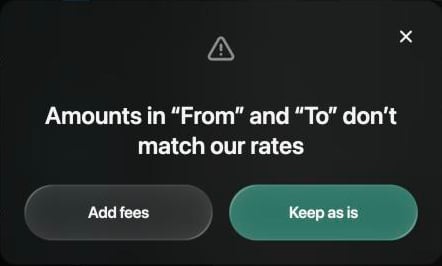
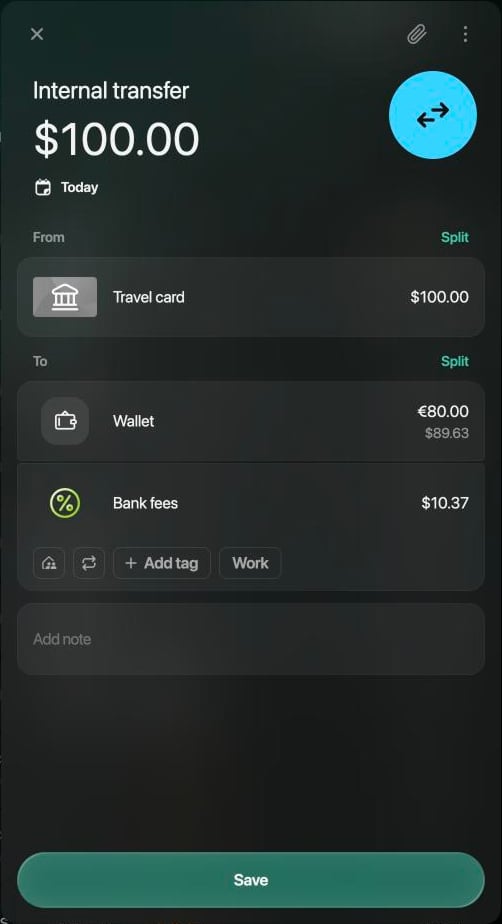
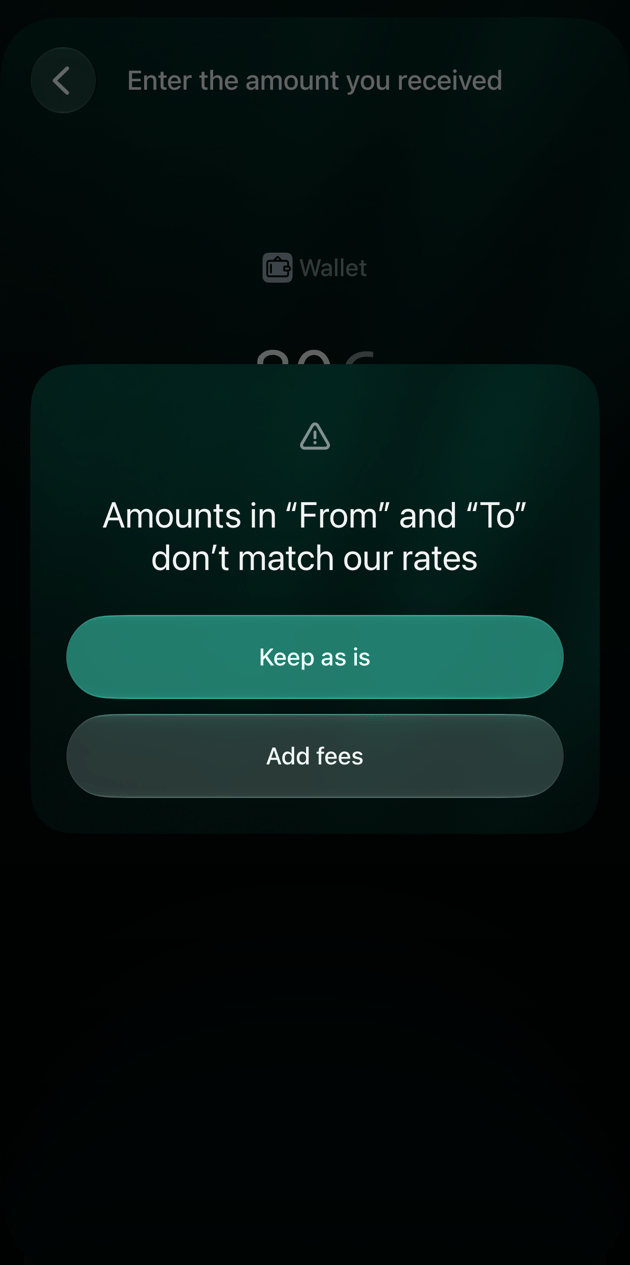
Sometimes less arrives than left: the ATM charged a fee, or the exchange office took a commission. finerd records the difference as a separate expense line in To, so it counts in your spending, and picks a category for it, such as Bank fees. Check that line before saving: if it shows Uncategorized Expense or Choose category, choose the category yourself. If more arrived than left, finerd adds the extra to From as income, such as Cashback & Rewards.In one currency, the Android and iOS apps add the fee line as soon as the amounts differ. On the web, a small difference shows as … left unassigned under To, and Save stops with Transaction Inconsistent until you add the line yourself.In different currencies, finerd compares the two amounts with its exchange rate. A small gap is saved as entered. If the gap is large, finerd asks whether the difference is a fee:
Add fees records the difference as a fee line in To.
Keep as is records only the two amounts. finerd then values what you received at exactly what you paid, and the difference doesn’t count as spending. On the web, Save asks again with Exchange rate difference; select Keep as is to save.
Web
Android
iOS
If Amounts in “From” and “To” don’t match our rates appears, select Add fees or Keep as is.
If … left unassigned appears under To, select Split next to To, choose a category for the fee, then select its amount and enter the difference. See Split a transaction.
Check the category of the fee line and select Save.
Choose whether the difference is a fee.
The fee is a separate line in To.
If Amount differs significantly from the rate we know appears, tap Add fees or Keep as is.
Check the fee line in To and tap it to change its category.
Tap Save.
If Amounts in “From” and “To” don’t match our rates appears, tap Add fees or Keep as is.
If the fee line in To says Choose category, tap it and choose one. If you leave it, the transaction is saved as Uncategorized Expense and shows Needs review.
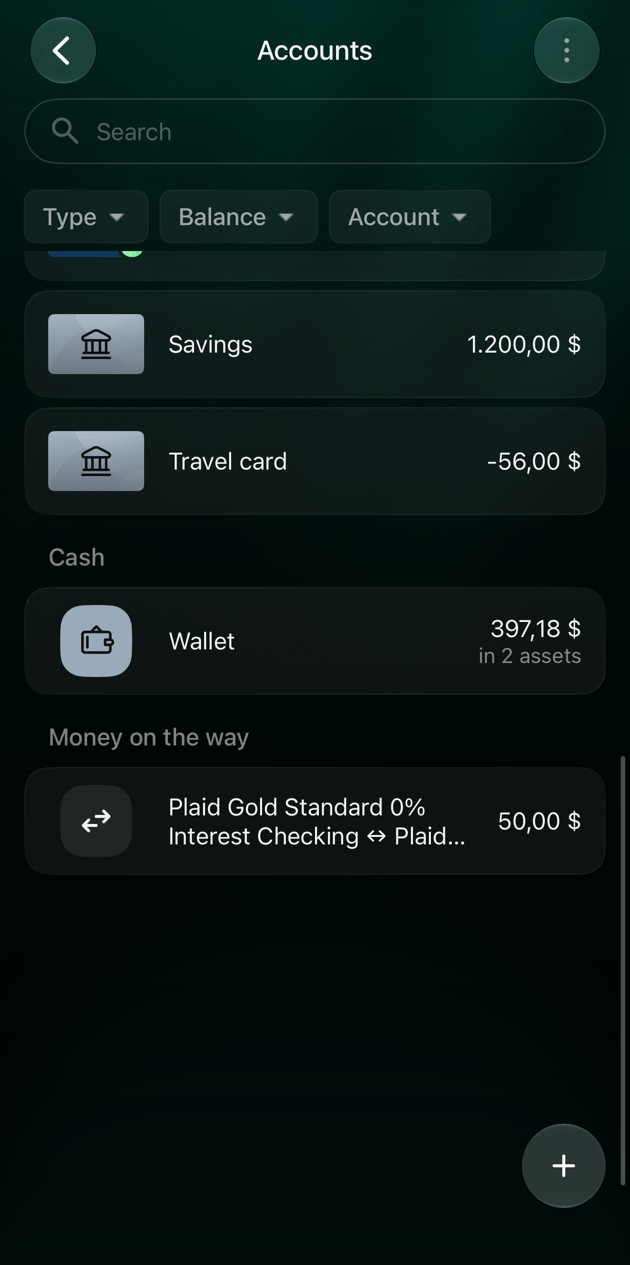
When both accounts are connected, each bank sends its own half of the transfer: the money leaving one account and the money arriving in the other. finerd looks for the matching half, even in another currency or a few days later, and joins the two into one Internal transfer. You don’t need to record such a transfer yourself. If the halves arrived as separate income and spending, see If a transfer is recorded wrong.Until both halves meet, finerd keeps the amount in Money on the way. It’s an account finerd creates for each pair of your accounts and names after both of them; you can’t choose it in a transaction or edit it. When the other bank’s half arrives and finerd matches it, the amount leaves Money on the way.If you record a transfer between two connected accounts yourself, it shows Pending until the banks confirm it, and the amount waits in Money on the way too. The sending account’s balance already counts the transfer, and Current under it shows the balance the bank reports.
Web
Android
iOS
Open Accounts. Money on the way is a separate group at the end of the list, with one account for each pair, such as “Checking -> Savings”.
An amount still on its way between two accounts.
Open Accounts from More or the tab bar. Money on the way is a separate group in the list, with one account for each pair.
Open Accounts from More or the tab bar. Money on the way is a separate group at the end of the list, with one account for each pair, such as “Checking ↔ Savings”.
A transaction from your bank keeps the bank’s account, amount and date. What you can change is the other side: the category, or the account it went to or came from.
What happened
What to do
Money you moved between your accounts shows as income or spending
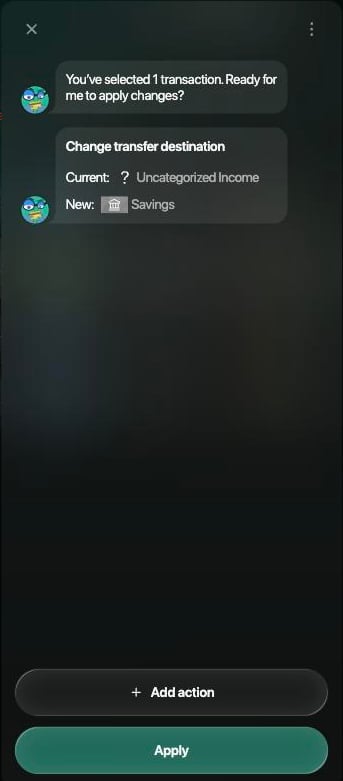
Open the transaction and, in place of the category, choose your other account under Transfer To/From. It becomes Internal transfer. If the other half also arrived as separate spending or income, change it the same way. The steps are the same as in Withdraw or deposit cash.
finerd recorded a purchase or income as a transfer
Open the transaction and choose a category in place of your account. The merchant stays Internal transfer: select it at the top and choose the real merchant.
You recorded a transfer that the banks also sent
Delete your own copy: see Delete a transaction. Transactions from a connected bank can’t be deleted.
finerd joined two transactions that aren’t one transfer
There’s no command to separate them. Open the transaction and select ⋮ → Contact support.
A bank income turned into a transfer by choosing your other account in From.