Find finerd notifications in Inbox, turn push notifications on or off on your phone, search the help centre and contact support by chat or email.
finerd tells you about events in your space, such as a finished import, a bank connection that needs attention or a pending payment you’re watching, in Inbox, and on your phone also with push notifications. If you need help, search this help centre or write to the finerd team in the in-app chat or at support@finerd.ai.Inbox, the help centre and support are free on every plan and work on the web, Android and iOS. Push notifications come only to the Android and iOS apps; the web app doesn’t send browser notifications.
In-app chat
The fastest way to reach the finerd team. Sign in, open Help & support and write to us.
Email
Write to support@finerd.ai if you can’t sign in or prefer to keep the conversation in your inbox.
Check your Inbox
Inbox is a feed of messages from finerd about your space: the fridge door of your finances, where finerd leaves its notes. The to-do list lives elsewhere: transactions to check are under Needs review, see Find transactions that need review.Each space has its own Inbox, and each person in a space sees their own copy with their own read and unread messages. To see another space’s messages, switch to that space.
Web
Android
iOS
Select the Inbox icon at the top right of the page, next to Add transaction. The number on it is how many messages you haven’t read. The icon appears once the space has at least one message.
The Inbox icon with three unread messages.
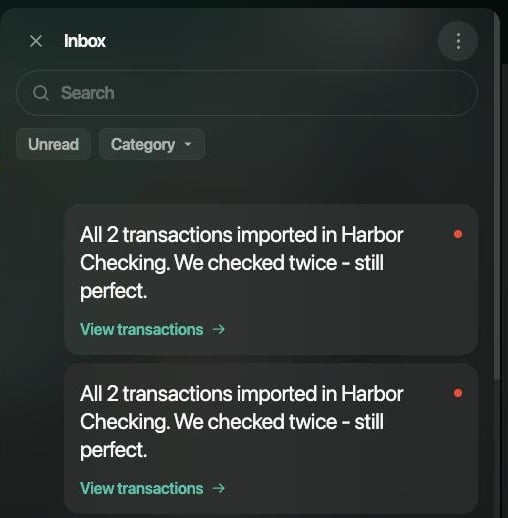
Inbox opens as a panel on the right. Messages are grouped by day, newest first, and a red dot marks an unread one.
Inbox on the web with three unread messages.
Tap the bell at the top of Dashboard, Transactions, Reports, Accounts or More. The number on it is how many messages you haven’t read. The bell appears once the space has at least one message.Messages are grouped by day, newest first, and a dot marks an unread one.
Tap the bell at the top right of Dashboard. A red dot on it means you have unread messages.
The bell on Dashboard opens Inbox.
Messages are grouped by day, newest first.
In Inbox you can:
Search messages by their text.
Select Unread to see only messages you haven’t read.
Select Category, then Only personal for messages about your own data or Only announcements for news from the finerd team. On Android and iOS, then tap Apply.
Select a message, or its link such as View transactions, to open what it’s about.
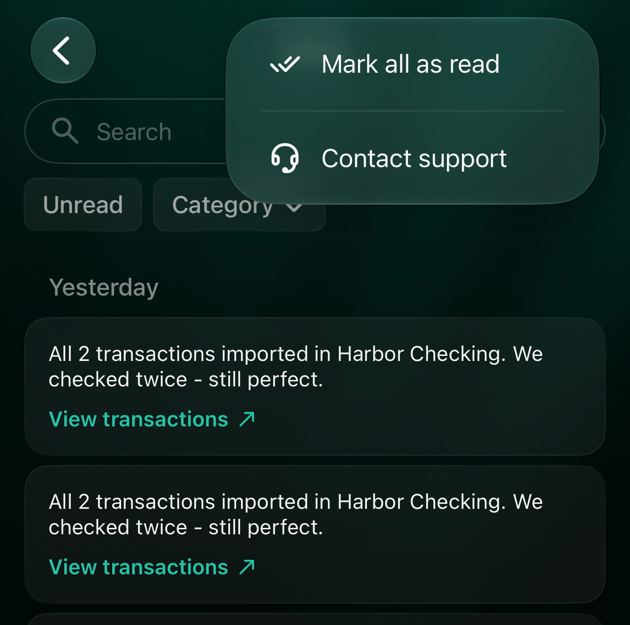
Select ⋮ → Mark all as read, or Contact support to write to us.
A message is marked as read once you’ve scrolled to it, so the count drops as you read. You can’t delete messages.
Web
Android
iOS
Mark all as read appears in the ⋮ menu only while you have unread messages; Contact support is always there.
Messages you’ve read are sent as read when you leave Inbox.
The ⋮ menu in Inbox.
Pull the list down to refresh it.
What finerd notifies you about
Personal messages are about something that happened in your space. Select one to open the place where you can act on it:
What happened
Selecting the message opens
A bank connection needs attention or a new one is ready (for example, “Harbor Bank will disconnect in 7 days”)
A file, a bank statement or a migration from another app was imported or couldn’t be imported (for example, “All 7 transactions imported in Harbor Checking. We checked twice - still perfect.”)
View transactions: the account’s transactions. If finerd couldn’t read the file, View CSV sample opens a sample file to compare with.
A connected mailbox stopped syncing or receipts arrived by email (for example, “Email sync has stopped”)
Manage connected emails or View bills.
A pending payment you’re watching was posted or removed by the bank (for example, “$12.00 charge posted…”)
finerd suggests closing a debt (for example, “Alex Morgan’s remaining balance is $5.00. You can close this debt.”)
On the web and Android, selecting this Close debt message closes the debt at once and writes off what’s left. On iOS it opens the settlement sheet. See Write off a debt.
Your partner joined your family (for example, “Your partner … joined the family.”)
Announcements are news from the finerd team, such as a new feature; Open link opens the page about it.On Android, View CSV sample doesn’t open the sample yet; open the message on the web or iOS.
Push notifications on your phone
The Android and iOS apps can also show some of these events as push notifications, so you hear about them without opening finerd: a finished or failed import, a bank connection that’s about to stop or is ready, a new bank connection, and a pending payment you’re watching. Tap a notification to open finerd. Messages still arrive in Inbox whether notifications are on or off.finerd has no notification settings of its own: you allow or turn off its notifications in your phone’s settings, all at once. The browser doesn’t get notifications from finerd.
Web
Android
iOS
The web app doesn’t send browser notifications. Check Inbox for new messages, or install the Android or iOS app.
On Android 13 and later, finerd asks for permission to send notifications after you sign in. If you declined, or want to turn them off:
Open your phone’s Settings → Apps → Finerd → Notifications. The exact path depends on your phone.
Turn notifications on or off. finerd has one notification category, Notifications.
finerd asks for permission to send notifications when you open the app for the first time. If you declined, or want to turn them off:
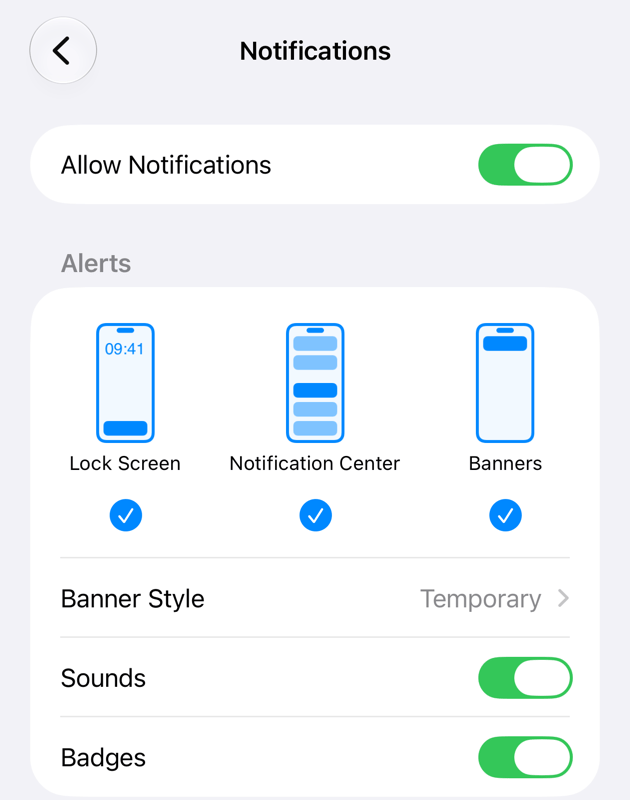
Open the iPhone Settings → Apps → finerd → Notifications.
Turn Allow Notifications on or off.
finerd's notification settings on iPhone.
The number on the finerd app icon is how many transactions need review, not unread Inbox messages. To hide it, turn off Badges on the same screen.
Find answers in the help centre
This help centre has step-by-step articles for the web, Android and iOS. Use Search at the top of any page, or ask a question in the box on the home page to get an answer drawn from the articles.If support needs to see your data to answer, the owner of the space can let them view it for a few hours: see Give finerd support access to your data.
Web
Android
iOS
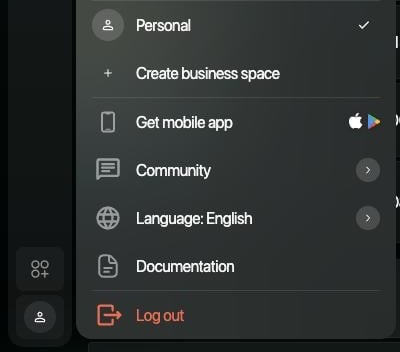
Select your profile at the bottom of the sidebar, then Documentation. The help centre opens in a new tab, in Ukrainian if finerd is in Ukrainian and in English otherwise.
Documentation in the profile menu.
Community in the same menu opens the finerd community on Telegram or Discord.
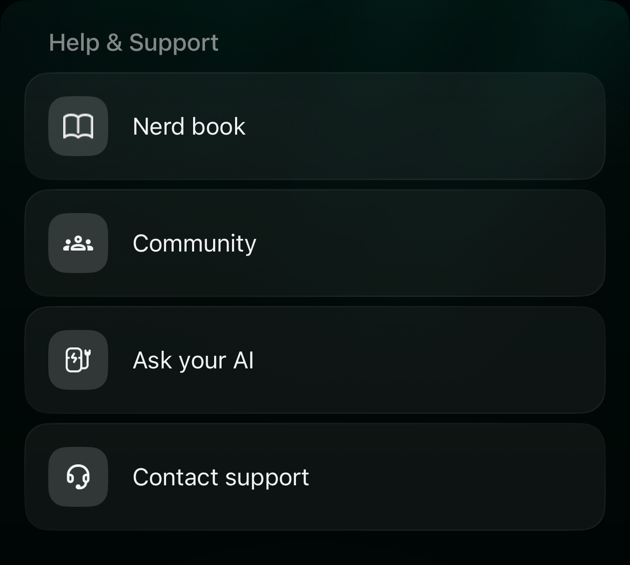
Open More → Help & Support → Nerd book.The same list has Community, which opens the finerd community on Telegram or Discord, and Ask your AI, about connecting finerd to your AI assistant (see Work with your finances through AI).
Open More → Help & Support → Nerd book. The help centre opens in Safari.
Help & Support on iOS.
The same list has Community, which opens the finerd community on Telegram or Discord, and Ask your AI, about connecting finerd to your AI assistant (see Work with your finances through AI).
Chat with support
The support chat is the fastest way to reach the finerd team. It’s available when you’re signed in, and the team sees which account you’re writing from, so you don’t need to explain who you are. Describe what you were doing and what happened; you can attach screenshots in the chat.
Web
Android
iOS
Select More in the sidebar (the icon above your profile).
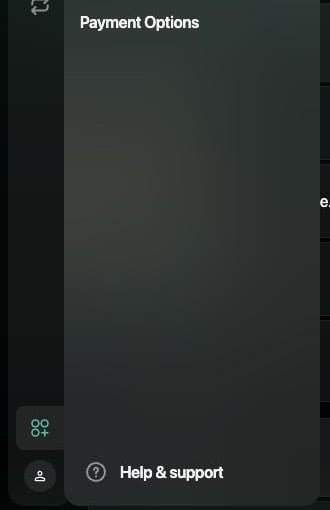
Select Help & support at the bottom of the panel.
In the Support chat that opens, write your message and select the send icon or press Enter. To add photos or videos, select the paperclip icon.
Billy, finerd’s AI assistant, answers right away, and the finerd team steps in when needed.
Help & support at the bottom of the More panel.
Open More → Help & Support.
Tap Contact support and write your message.
Open More → Help & Support.
Tap Contact support and write your message.
Contact support is also in the ⋮ menu of many screens, such as Inbox, accounts, categories, merchants and connected banks, so you can write to us from the screen where you’re stuck. Replies come to the same chat.
Email support
If you can’t sign in, or the issue is about your account itself, email support@finerd.ai. You don’t need to sign in to do this.To help us answer faster, include:
The email address you use to sign in to finerd.
What you were trying to do and what happened instead.
Your platform (web, Android or iOS) and, if the problem is visible on screen, screenshots.
{"docsConfig":{"theme":"mint","$schema":"https://mintlify.com/docs.json","name":"finerd","description":"finerd helps financially savvy people manage complex personal, family, business, and international finances with accounting precision without accounting complexity.","colors":{"primary":"#38f7ff","light":"#38f7ff","dark":"#b98cff"},"logo":{"light":"https://finerd.ai/logo.svg","dark":"https://finerd.ai/logo.svg","href":"/"},"favicon":"https://finerd.ai/logo.svg","appearance":{"default":"dark","strict":true},"background":{"decoration":"grid","color":{"light":"#08090f","dark":"#08090f"}},"navbar":{"links":[{"href":"https://finerd.ai","label":"finerd.ai"}]},"seo":{"metatags":{"google-site-verification":"haq__cDMEelH2BlpExqZZ7DqIbXEtZMZDA_2Rn4amf8"}},"fonts":{"family":"Inter"},"styling":{"eyebrows":"breadcrumbs","latex":true},"contextual":{"options":["copy","view"],"display":"header"},"navigation":{"languages":[{"language":"en","footer":{"links":[{"items":[{"label":"YouTube","href":"https://www.youtube.com/@realFinerd"},{"label":"Reddit","href":"https://www.reddit.com/r/finerds"},{"label":"TikTok","href":"https://www.tiktok.com/@real.finerd"}]}]},"navbar":{"links":[{"href":"https://finerd.ai","label":"finerd.ai"}],"primary":{"type":"button","label":"Contact support","href":"/contact-us"}},"href":""},{"language":"uk","footer":{"links":[{"items":[{"label":"YouTube","href":"https://www.youtube.com/@finerd.ukraine"},{"label":"Telegram","href":"https://t.me/+TESz5VfXr50yNTRi"}]}]},"navbar":{"links":[{"href":"https://finerd.ai","label":"finerd.ai"}],"primary":{"type":"button","label":"Зв'язатися з підтримкою","href":"/uk/contact-us"}},"href":"uk"},{"language":"es","footer":{"links":[{"items":[{"label":"YouTube","href":"https://www.youtube.com/@realFinerd"},{"label":"Reddit","href":"https://www.reddit.com/r/finerds"},{"label":"TikTok","href":"https://www.tiktok.com/@real.finerd"}]}]},"navbar":{"links":[{"href":"https://finerd.ai","label":"finerd.ai"}],"primary":{"type":"button","label":"Contactar soporte","href":"/es/contact-us"}},"href":"es"},{"language":"ja","footer":{"links":[{"items":[{"label":"YouTube","href":"https://www.youtube.com/@realFinerd"},{"label":"Reddit","href":"https://www.reddit.com/r/finerds"},{"label":"TikTok","href":"https://www.tiktok.com/@real.finerd"}]}]},"navbar":{"links":[{"href":"https://finerd.ai","label":"finerd.ai"}],"primary":{"type":"button","label":"サポートに連絡","href":"/ja/contact-us"}},"href":"ja"},{"language":"pl","footer":{"links":[{"items":[{"label":"YouTube","href":"https://www.youtube.com/@realFinerd"},{"label":"Reddit","href":"https://www.reddit.com/r/finerds"},{"label":"TikTok","href":"https://www.tiktok.com/@real.finerd"}]}]},"navbar":{"links":[{"href":"https://finerd.ai","label":"finerd.ai"}],"primary":{"type":"button","label":"Kontakt z pomocą","href":"/pl/contact-us"}},"href":"pl"},{"language":"cs","footer":{"links":[{"items":[{"label":"YouTube","href":"https://www.youtube.com/@realFinerd"},{"label":"Reddit","href":"https://www.reddit.com/r/finerds"},{"label":"TikTok","href":"https://www.tiktok.com/@real.finerd"}]}]},"navbar":{"links":[{"href":"https://finerd.ai","label":"finerd.ai"}],"primary":{"type":"button","label":"Kontaktovat podporu","href":"/cs/contact-us"}},"href":"cs"},{"language":"it","footer":{"links":[{"items":[{"label":"YouTube","href":"https://www.youtube.com/@realFinerd"},{"label":"Reddit","href":"https://www.reddit.com/r/finerds"},{"label":"TikTok","href":"https://www.tiktok.com/@real.finerd"}]}]},"navbar":{"links":[{"href":"https://finerd.ai","label":"finerd.ai"}],"primary":{"type":"button","label":"Contatta assistenza","href":"/it/contact-us"}},"href":"it"},{"language":"fr","footer":{"links":[{"items":[{"label":"YouTube","href":"https://www.youtube.com/@realFinerd"},{"label":"Reddit","href":"https://www.reddit.com/r/finerds"},{"label":"TikTok","href":"https://www.tiktok.com/@real.finerd"}]}]},"navbar":{"links":[{"href":"https://finerd.ai","label":"finerd.ai"}],"primary":{"type":"button","label":"Contacter le support","href":"/fr/contact-us"}},"href":"fr"},{"language":"de","footer":{"links":[{"items":[{"label":"YouTube","href":"https://www.youtube.com/@realFinerd"},{"label":"Reddit","href":"https://www.reddit.com/r/finerds"},{"label":"TikTok","href":"https://www.tiktok.com/@real.finerd"}]}]},"navbar":{"links":[{"href":"https://finerd.ai","label":"finerd.ai"}],"primary":{"type":"button","label":"Support kontaktieren","href":"/de/contact-us"}},"href":"de"},{"language":"pt","footer":{"links":[{"items":[{"label":"YouTube","href":"https://www.youtube.com/@realFinerd"},{"label":"Reddit","href":"https://www.reddit.com/r/finerds"},{"label":"TikTok","href":"https://www.tiktok.com/@real.finerd"}]}]},"navbar":{"links":[{"href":"https://finerd.ai","label":"finerd.ai"}],"primary":{"type":"button","label":"Falar com suporte","href":"/pt/contact-us"}},"href":"pt"},{"language":"zh-Hant","footer":{"links":[{"items":[{"label":"YouTube","href":"https://www.youtube.com/@realFinerd"},{"label":"Reddit","href":"https://www.reddit.com/r/finerds"},{"label":"TikTok","href":"https://www.tiktok.com/@real.finerd"}]}]},"navbar":{"links":[{"href":"https://finerd.ai","label":"finerd.ai"}],"primary":{"type":"button","label":"聯絡客服","href":"/zh-Hant/contact-us"}},"href":"zh-Hant"},{"language":"ko","footer":{"links":[{"items":[{"label":"YouTube","href":"https://www.youtube.com/@realFinerd"},{"label":"Reddit","href":"https://www.reddit.com/r/finerds"},{"label":"TikTok","href":"https://www.tiktok.com/@real.finerd"}]}]},"navbar":{"links":[{"href":"https://finerd.ai","label":"finerd.ai"}],"primary":{"type":"button","label":"고객 지원 문의","href":"/ko/contact-us"}},"href":"ko"},{"language":"zh-Hans","footer":{"links":[{"items":[{"label":"YouTube","href":"https://www.youtube.com/@realFinerd"},{"label":"Reddit","href":"https://www.reddit.com/r/finerds"},{"label":"TikTok","href":"https://www.tiktok.com/@real.finerd"}]}]},"navbar":{"links":[{"href":"https://finerd.ai","label":"finerd.ai"}],"primary":{"type":"button","label":"联系支持","href":"/zh-Hans/contact-us"}},"href":"zh-Hans"},{"language":"nl","footer":{"links":[{"items":[{"label":"YouTube","href":"https://www.youtube.com/@realFinerd"},{"label":"Reddit","href":"https://www.reddit.com/r/finerds"},{"label":"TikTok","href":"https://www.tiktok.com/@real.finerd"}]}]},"navbar":{"links":[{"href":"https://finerd.ai","label":"finerd.ai"}],"primary":{"type":"button","label":"Neem contact op met support","href":"/nl/contact-us"}},"href":"nl"}]}},"deployment":{"deploymentMetadataValue":{"subdomain":"finerdai","hasAudioNarration":false,"actualSubdomain":"finerdai","customDomains":["help.finerd.ai"],"gitSource":{"type":"gitlab","owner":"finerd.ai/web","repo":"help","deployBranch":"main","contentDirectory":"","isPrivate":true,"projectId":85636094,"mountPath":"","label":""},"feedback":{"thumbs":true},"entitlements":{"AI_CHAT":{"status":"DISABLED"}},"buildId":"6b00a7593c4bb12541ace472","clientVersion":"0.0.4270","searchFilterCounts":[{"language":"en","tag":"Accounts \u0026 balances","count":8},{"language":"cs","tag":"Účty a zůstatky","count":8},{"language":"de","tag":"Konten und Salden","count":8},{"language":"es","tag":"Cuentas y saldos","count":8},{"language":"fr","tag":"Comptes et soldes","count":8},{"language":"it","tag":"Conti e saldi","count":8},{"language":"ja","tag":"口座と残高","count":8},{"language":"ko","tag":"계좌와 잔액","count":8},{"language":"nl","tag":"Rekeningen en saldi","count":8},{"language":"pl","tag":"Konta i salda","count":8},{"language":"pt","tag":"Contas e saldos","count":8},{"language":"uk","tag":"Рахунки та баланси","count":8},{"language":"zh-Hans","tag":"账户与余额","count":8},{"language":"zh-Hant","tag":"帳戶與餘額","count":8},{"language":"en","tag":"AI assistants","count":7},{"language":"en","tag":"Family \u0026 shared expenses","count":7},{"language":"en","tag":"Transactions","count":7},{"language":"cs","tag":"AI asistenti","count":7},{"language":"cs","tag":"Rodina a sdílené výdaje","count":7},{"language":"cs","tag":"Transakce","count":7},{"language":"de","tag":"AI-Assistenten","count":7},{"language":"de","tag":"Familie und geteilte Ausgaben","count":7},{"language":"de","tag":"Transaktionen","count":7},{"language":"es","tag":"Asistentes de AI","count":7},{"language":"es","tag":"Familia y gastos compartidos","count":7},{"language":"es","tag":"Transacciones","count":7},{"language":"fr","tag":"Assistants AI","count":7},{"language":"fr","tag":"Famille et dépenses partagées","count":7},{"language":"fr","tag":"Transactions","count":7},{"language":"it","tag":"Assistenti AI","count":7},{"language":"it","tag":"Famiglia e spese condivise","count":7},{"language":"it","tag":"Transazioni","count":7},{"language":"ja","tag":"AIアシスタント","count":7},{"language":"ja","tag":"ファミリーと共通の支出","count":7},{"language":"ja","tag":"取引","count":7},{"language":"ko","tag":"AI 어시스턴트","count":7},{"language":"ko","tag":"가족과 공유 지출","count":7},{"language":"ko","tag":"거래","count":7},{"language":"nl","tag":"AI-assistenten","count":7},{"language":"nl","tag":"Gezin en gedeelde uitgaven","count":7},{"language":"nl","tag":"Transacties","count":7},{"language":"pl","tag":"Asystenci AI","count":7},{"language":"pl","tag":"Rodzina i wspólne wydatki","count":7},{"language":"pl","tag":"Transakcje","count":7},{"language":"pt","tag":"Assistentes de AI","count":7},{"language":"pt","tag":"Família e despesas compartilhadas","count":7},{"language":"pt","tag":"Transações","count":7},{"language":"uk","tag":"ШІ-асистенти","count":7},{"language":"uk","tag":"Сім'я та спільні витрати","count":7},{"language":"uk","tag":"Транзакції","count":7},{"language":"zh-Hans","tag":"AI 助手","count":7},{"language":"zh-Hans","tag":"家庭与共同支出","count":7},{"language":"zh-Hans","tag":"交易","count":7},{"language":"zh-Hant","tag":"AI 助理","count":7},{"language":"zh-Hant","tag":"家庭與共享支出","count":7},{"language":"zh-Hant","tag":"交易","count":7},{"language":"en","tag":"Planning","count":6},{"language":"cs","tag":"Plánování","count":6},{"language":"de","tag":"Planung","count":6},{"language":"es","tag":"Planificación","count":6},{"language":"fr","tag":"Planification","count":6},{"language":"it","tag":"Pianificazione","count":6},{"language":"ja","tag":"プランニング","count":6},{"language":"ko","tag":"재무 설계","count":6},{"language":"nl","tag":"Financiële planning","count":6},{"language":"pl","tag":"Planowanie","count":6},{"language":"pt","tag":"Planejamento","count":6},{"language":"uk","tag":"Планування","count":6},{"language":"zh-Hans","tag":"财务规划","count":6},{"language":"zh-Hant","tag":"財務規劃","count":6},{"language":"en","tag":"Bills \u0026 receipts","count":5},{"language":"en","tag":"Get started","count":5},{"language":"cs","tag":"Účtenky","count":5},{"language":"cs","tag":"Začínáme","count":5},{"language":"de","tag":"Rechnungen und Kassenbons","count":5},{"language":"de","tag":"Erste Schritte","count":5},{"language":"es","tag":"Recibos","count":5},{"language":"es","tag":"Primeros pasos","count":5},{"language":"fr","tag":"Factures et tickets de caisse","count":5},{"language":"fr","tag":"Premiers pas","count":5},{"language":"it","tag":"Ricevute","count":5},{"language":"it","tag":"Primi passi","count":5},{"language":"ja","tag":"レシート","count":5},{"language":"ja","tag":"はじめに","count":5},{"language":"ko","tag":"영수증","count":5},{"language":"ko","tag":"시작하기","count":5},{"language":"nl","tag":"Bonnen","count":5},{"language":"nl","tag":"Aan de slag","count":5},{"language":"pl","tag":"Rachunki i paragony","count":5},{"language":"pl","tag":"Pierwsze kroki","count":5},{"language":"pt","tag":"Recibos de compra","count":5},{"language":"pt","tag":"Primeiros passos","count":5},{"language":"uk","tag":"Чеки","count":5},{"language":"uk","tag":"Початок роботи","count":5},{"language":"zh-Hans","tag":"小票","count":5},{"language":"zh-Hans","tag":"开始使用","count":5},{"language":"zh-Hant","tag":"收據","count":5},{"language":"zh-Hant","tag":"開始使用","count":5},{"language":"en","tag":"Account \u0026 subscription","count":4},{"language":"en","tag":"Business","count":4},{"language":"en","tag":"Investments \u0026 property","count":4},{"language":"cs","tag":"Účet a předplatné","count":4},{"language":"cs","tag":"Podnikání","count":4},{"language":"cs","tag":"Investice a majetek","count":4},{"language":"de","tag":"Konto und Abo","count":4},{"language":"de","tag":"Business","count":4},{"language":"de","tag":"Investments und Vermögenswerte","count":4},{"language":"es","tag":"Cuenta y suscripción","count":4},{"language":"es","tag":"Negocios","count":4},{"language":"es","tag":"Inversiones y patrimonio","count":4},{"language":"fr","tag":"Compte et abonnement","count":4},{"language":"fr","tag":"Entreprise","count":4},{"language":"fr","tag":"Investissements et patrimoine","count":4},{"language":"it","tag":"Account e abbonamento","count":4},{"language":"it","tag":"Business","count":4},{"language":"it","tag":"Investimenti e proprietà","count":4},{"language":"ja","tag":"アカウントとサブスクリプション","count":4},{"language":"ja","tag":"ビジネス","count":4},{"language":"ja","tag":"投資と資産","count":4},{"language":"ko","tag":"계정과 구독","count":4},{"language":"ko","tag":"비즈니스","count":4},{"language":"ko","tag":"투자와 재산","count":4},{"language":"nl","tag":"Account en abonnement","count":4},{"language":"nl","tag":"Zakelijk","count":4},{"language":"nl","tag":"Beleggingen en eigendommen","count":4},{"language":"pl","tag":"Konto i subskrypcja","count":4},{"language":"pl","tag":"Biznes","count":4},{"language":"pl","tag":"Inwestycje i majątek","count":4},{"language":"pt","tag":"Conta e assinatura","count":4},{"language":"pt","tag":"Negócios","count":4},{"language":"pt","tag":"Investimentos e patrimônio","count":4},{"language":"uk","tag":"Акаунт і підписка","count":4},{"language":"uk","tag":"Бізнес","count":4},{"language":"uk","tag":"Інвестиції й майно","count":4},{"language":"zh-Hans","tag":"账号与订阅","count":4},{"language":"zh-Hans","tag":"商业","count":4},{"language":"zh-Hans","tag":"投资与财产","count":4},{"language":"zh-Hant","tag":"會員帳號與訂閱","count":4},{"language":"zh-Hant","tag":"商務","count":4},{"language":"zh-Hant","tag":"投資與財產","count":4}]},"assistantConfig":{"enableAskAiButton":false,"enableStarterQuestions":false,"enableContextualStarterQuestions":false,"enableAskAiSearchBar":true},"basePath":"","hasChatPermissions":false,"hasWebMcpPermissions":false,"toggles":[{"name":"kill-isr","enabled":true,"variant":{"name":"disabled","enabled":false,"feature_enabled":true},"impressionData":false},{"name":"custom-rbac-roles","enabled":true,"variant":{"name":"disabled","enabled":false,"feature_enabled":true},"impressionData":false},{"name":"agent-mintlify-slack","enabled":true,"variant":{"name":"disabled","enabled":false,"feature_enabled":true},"impressionData":false},{"name":"agent-integrations-settings","enabled":true,"variant":{"name":"disabled","enabled":false,"feature_enabled":true},"impressionData":false},{"name":"rbac-expansion","enabled":true,"variant":{"name":"disabled","enabled":false,"feature_enabled":true},"impressionData":false},{"name":"automations-pr-grouping","enabled":true,"variant":{"name":"disabled","enabled":false,"feature_enabled":true},"impressionData":false},{"name":"custom-prefix","enabled":true,"variant":{"name":"disabled","enabled":false,"feature_enabled":true},"impressionData":false},{"name":"analytics-v7","enabled":true,"variant":{"name":"disabled","enabled":false,"feature_enabled":true},"impressionData":false},{"name":"user-flows-analytics","enabled":true,"variant":{"name":"disabled","enabled":false,"feature_enabled":true},"impressionData":false},{"name":"no-publish-flow","enabled":true,"variant":{"name":"disabled","enabled":false,"feature_enabled":true},"impressionData":false},{"name":"workos-onboarding","enabled":true,"variant":{"name":"disabled","enabled":false,"feature_enabled":true},"impressionData":false},{"name":"snapshot-serving-live","enabled":true,"variant":{"name":"disabled","enabled":false,"feature_enabled":true},"impressionData":false},{"name":"stripTemperatureMiddleware","enabled":true,"variant":{"name":"disabled","enabled":false,"feature_enabled":true},"impressionData":false},{"name":"support-platform-pylon-zendesk","enabled":true,"variant":{"name":"disabled","enabled":false,"feature_enabled":true},"impressionData":false},{"name":"snapshot-serving","enabled":true,"variant":{"name":"disabled","enabled":false,"feature_enabled":true},"impressionData":false},{"name":"instant-rollback","enabled":true,"variant":{"name":"disabled","enabled":false,"feature_enabled":true},"impressionData":false},{"name":"granular-notifications-server","enabled":true,"variant":{"name":"disabled","enabled":false,"feature_enabled":true},"impressionData":false},{"name":"granular-notifications","enabled":true,"variant":{"name":"disabled","enabled":false,"feature_enabled":true},"impressionData":false},{"name":"automations-fable","enabled":true,"variant":{"name":"disabled","enabled":false,"feature_enabled":true},"impressionData":false},{"name":"fixed-ai-action-pricing","enabled":true,"variant":{"name":"disabled","enabled":false,"feature_enabled":true},"impressionData":false},{"name":"site-roles","enabled":true,"variant":{"name":"disabled","enabled":false,"feature_enabled":true},"impressionData":false},{"name":"automation-resolve-merge-conflict","enabled":true,"variant":{"name":"disabled","enabled":false,"feature_enabled":true},"impressionData":false},{"name":"scoped-publishing","enabled":true,"variant":{"name":"disabled","enabled":false,"feature_enabled":true},"impressionData":false},{"name":"mintql","enabled":true,"variant":{"name":"disabled","enabled":false,"feature_enabled":true},"impressionData":false},{"name":"page-level-analytics","enabled":true,"variant":{"name":"disabled","enabled":false,"feature_enabled":true},"impressionData":false},{"name":"editor-version-history-v2","enabled":true,"variant":{"name":"disabled","enabled":false,"feature_enabled":true},"impressionData":false},{"name":"billing-page-v2","enabled":true,"variant":{"name":"disabled","enabled":false,"feature_enabled":true},"impressionData":false},{"name":"full-page-search","enabled":true,"variant":{"name":"disabled","enabled":false,"feature_enabled":true},"impressionData":false},{"name":"workspace-projects","enabled":true,"variant":{"name":"disabled","enabled":false,"feature_enabled":true},"impressionData":false},{"name":"assistant-v5","enabled":true,"variant":{"name":"disabled","enabled":false,"feature_enabled":true},"impressionData":false},{"name":"fork-pr-previews","enabled":true,"variant":{"name":"disabled","enabled":false,"feature_enabled":true},"impressionData":false},{"name":"revalidation-jwt","enabled":true,"variant":{"name":"disabled","enabled":false,"feature_enabled":true},"impressionData":false},{"name":"workos-sso-scim","enabled":true,"variant":{"name":"disabled","enabled":false,"feature_enabled":true},"impressionData":false},{"name":"hobby-abuse-scan","enabled":true,"variant":{"name":"disabled","enabled":false,"feature_enabled":true},"impressionData":false},{"name":"dashboard-inbox","enabled":true,"variant":{"name":"disabled","enabled":false,"feature_enabled":true},"impressionData":false},{"name":"workos-signup","enabled":true,"variant":{"name":"disabled","enabled":false,"feature_enabled":true},"impressionData":false},{"name":"turbopuffer-dual-write","enabled":true,"variant":{"name":"disabled","enabled":false,"feature_enabled":true},"impressionData":false},{"name":"workos-enabled","enabled":true,"variant":{"name":"disabled","enabled":false,"feature_enabled":true},"impressionData":false},{"name":"approve-review-flow","enabled":true,"variant":{"name":"disabled","enabled":false,"feature_enabled":true},"impressionData":false},{"name":"editor-metadata","enabled":true,"variant":{"name":"disabled","enabled":false,"feature_enabled":true},"impressionData":false},{"name":"sso-setup-deadline-banner","enabled":true,"variant":{"name":"disabled","enabled":false,"feature_enabled":true},"impressionData":false},{"name":"turbopuffer-serve","enabled":true,"variant":{"name":"disabled","enabled":false,"feature_enabled":true},"impressionData":false},{"name":"live-agents","enabled":true,"variant":{"name":"disabled","enabled":false,"feature_enabled":true},"impressionData":false},{"name":"starter-pricing","enabled":true,"variant":{"name":"treatment","enabled":true,"payload":{"type":"string","value":"treatment"},"feature_enabled":true},"impressionData":false},{"name":"llms-txt-v2","enabled":true,"variant":{"name":"disabled","enabled":false,"feature_enabled":true},"impressionData":false},{"name":"wildcard-email-auth","enabled":true,"variant":{"name":"disabled","enabled":false,"feature_enabled":true},"impressionData":false}],"googleFontsInlined":false},"customCss":[{"filePath":"style.css","content":".tab-container>ul[role=\"tablist\"]>li[role=\"tab\"]>div{font-size:1rem;line-height:1.75rem}.tab-container>ul[role=\"tablist\"]>li[role=\"tab\"]{padding-bottom:0.25rem}.tab-container .tab-container>ul[role=\"tablist\"]>li[role=\"tab\"]>div{font-size:0.875rem;line-height:1.5rem}#topbar-cta-button a>span:first-child{background:transparent;box-shadow:inset 0 0 0 1px rgb(0 0 0 / 0.15)}#topbar-cta-button a .text-white{color:rgb(17 24 39)}#topbar-cta-button a:hover>span:first-child{background:rgb(0 0 0 / 0.04)}.dark #topbar-cta-button a>span:first-child{box-shadow:inset 0 0 0 1px rgb(255 255 255 / 0.2)}.dark #topbar-cta-button a .text-white{color:rgb(243 244 246)}.dark #topbar-cta-button a:hover>span:first-child{background:rgb(255 255 255 / 0.06)}#header nav[aria-label=\"Breadcrumb\"]:not(.fh-crumbs){display:none}.fh-crumbs{display:flex;flex-wrap:wrap;align-items:center;gap:0.375rem;font-size:0.875rem;line-height:1.25rem;color:rgb(107 114 128)}.dark .fh-crumbs{color:rgb(156 163 175)}.fh-crumbs a{color:inherit;text-decoration:none;border:none}.fh-crumbs a:hover{color:rgb(8 145 178)}.dark .fh-crumbs a:hover{color:#38f7ff}.fh-video{width:100%;aspect-ratio:1804 / 1080;overflow:hidden;border-radius:12px;background:#000}.fh-video iframe{display:block;width:100%;height:100%;border:0}.fh-video-intro{display:grid;gap:1.5rem;align-items:center;margin:1.5rem 0 2rem;padding:1.25rem;border-radius:16px;box-shadow:inset 0 0 0 1px rgb(0 0 0 / 0.08)}.dark .fh-video-intro{background:#ffffff08;box-shadow:inset 0 0 0 1px rgb(255 255 255 / 0.08)}@media (min-width: 640px){.fh-video-intro{grid-template-columns:12rem minmax(0, 1fr);gap:2rem}}.fh-video-frame{width:100%;max-width:12rem;margin:0 auto;aspect-ratio:9 / 16;overflow:hidden;border-radius:12px;background:#000}.fh-video-frame iframe{display:block;width:100%;height:100%;border:0}.fh-video-text>:first-child{margin-top:0}.fh-video-text>:last-child{margin-bottom:0}.card{border:none!important;background:url(\"/images/home/card-gradient.png\") 0 0 / 100% 100% no-repeat,\n rgb(0 0 0 / 0.03)!important}.dark .card{background-color:#ffffff0d!important}.card:hover{background-color:rgb(0 0 0 / 0.05)!important}.dark .card:hover{background-color:#ffffff14!important}.card::before{content:\"\";position:absolute;inset:0;padding:1px;border-radius:inherit;background:linear-gradient(\n 147.14deg,\n rgb(0 0 0 / 0.12) 0%,\n rgb(0 0 0 / 0.04) 31.25%,\n rgb(0 0 0 / 0.04) 69.23%,\n rgb(0 0 0 / 0.12) 100%\n );-webkit-mask:linear-gradient(#fff 0 0) content-box,\n linear-gradient(#fff 0 0);-webkit-mask-composite:xor;mask-composite:exclude;pointer-events:none;z-index:1}.dark .card::before{background:linear-gradient(\n 147.14deg,\n rgb(255 255 255 / 0.05) 0%,\n rgb(255 255 255 / 0.015) 31.25%,\n rgb(255 255 255 / 0.015) 69.23%,\n rgb(255 255 255 / 0.05) 100%\n )}.dark .card [data-component-part=\"card-title\"]{color:#fffffff2}.dark .card [data-component-part=\"card-content\"]{color:#ffffff80}#navbar div:has(>#localization-select-trigger){display:flex!important}html:has(.fh-home) #search-bar-entry{visibility:hidden}html:has(.fh-home) #navbar button.h-14{display:none}@media (min-width: 768px){html:has(.fh-home) .fixed:has(>[role=\"dialog\"] [data-component-part=\"search-header\"]){padding-top:var(--fh-search-top, 3rem)!important}html:has(.fh-home) [role=\"dialog\"]:has([data-component-part=\"search-header\"]){margin-top:0!important;max-width:40rem!important;border-radius:1.5rem!important;transition:none!important;transform:none!important;scale:none!important;opacity:1!important}html:has(.fh-home) [data-component-part=\"search-header\"]{height:3.5rem!important;padding:0!important}html:has(.fh-home) [data-component-part=\"search-input-container\"]{padding:0 1rem 0 1.25rem!important;border:none!important;border-radius:9999px!important;background:rgb(0 0 0 / 0.04)!important;box-shadow:inset 0 0 0 1px rgb(56 247 255 / 0.5)!important}html.dark:has(.fh-home) [data-component-part=\"search-input-container\"]{background:rgb(255 255 255 / 0.05)!important}html:has(.fh-home) [data-component-part=\"search-input-container\"]>svg{left:1.25rem!important;width:1.125rem!important;height:1.125rem!important}html:has(.fh-home) [data-component-part=\"search-input\"]{padding-left:2.125rem!important;font-size:1.0625rem!important;font-weight:400!important}html:has(.fh-home) .fixed.inset-0[class*=\"bg-black/40\"]{opacity:0!important}html:has(.fh-home):has([data-component-part=\"search-input\"]) .fh-search{visibility:hidden}}.fh-home{--fh-text: rgb(17 24 39);--fh-muted: rgb(75 85 99);--fh-line: rgb(0 0 0 / 0.1);--fh-hover: rgb(0 0 0 / 0.04);display:flex;flex-direction:column;align-items:center;gap:4rem;max-width:64rem;margin:0 auto;padding:4rem 1rem 5rem;color:var(--fh-text)}.dark .fh-home{--fh-text: rgb(243 244 246);--fh-muted: rgb(156 163 175);--fh-line: rgb(255 255 255 / 0.1);--fh-hover: rgb(255 255 255 / 0.05)}.fh-home h1,.fh-home h2,.fh-home p,.fh-home ul{margin:0}.fh-home ul{padding:0;list-style:none}.fh-home li{margin:0;padding:0}.fh-home a{color:inherit;text-decoration:none;border:none}.fh-hero{position:relative;display:flex;flex-direction:column;align-items:center;gap:0.75rem;width:100%;text-align:center}.fh-hero::before{content:\"\";position:absolute;inset:-4rem 0 auto;height:22rem;background:radial-gradient(40% 60% at 30% 30%, rgb(56 247 255 / 0.14), transparent 70%),\n radial-gradient(40% 60% at 70% 30%, rgb(185 140 255 / 0.16), transparent 70%);pointer-events:none;z-index:-1}.fh-hero h1{font-size:clamp(2.25rem, 5vw, 3.5rem);line-height:1.1;font-weight:600;letter-spacing:-0.03em}.fh-accent{background:linear-gradient(90deg, #38f7ff, #b98cff);-webkit-background-clip:text;background-clip:text;color:transparent}.fh-hero p{font-size:1.125rem;color:var(--fh-muted)}.fh-search{display:flex;align-items:center;gap:0.75rem;width:100%;max-width:40rem;height:3.5rem;margin-top:2rem;padding:0 1.25rem;border-radius:9999px;background:var(--fh-hover);box-shadow:inset 0 0 0 1px var(--fh-line);color:var(--fh-muted);font-size:1.0625rem;cursor:pointer;text-align:left}.fh-search:hover{box-shadow:inset 0 0 0 1px rgb(56 247 255 / 0.5)}.fh-search span{flex:1;min-width:0;overflow:hidden;text-overflow:ellipsis;white-space:nowrap}.fh-search kbd{font-size:0.75rem;font-weight:600;font-family:inherit}.fh-label{margin-bottom:1rem!important;font-size:1rem;font-weight:600;text-align:center}.fh-chips{display:flex;flex-wrap:wrap;justify-content:center;gap:0.75rem;max-width:56rem}.fh-chips a{display:inline-flex;align-items:center;gap:0.625rem;padding:0.625rem 1.125rem;border-radius:9999px;box-shadow:inset 0 0 0 1px var(--fh-line);font-size:1rem;line-height:1.5rem}.fh-chips a:hover{background:var(--fh-hover);box-shadow:inset 0 0 0 1px rgb(56 247 255 / 0.4)}.fh-chips svg{flex:none}.fh-topics{display:grid;grid-template-columns:repeat(2, minmax(0, 1fr));gap:0.75rem;width:100%;max-width:56rem;margin:0 auto!important}.fh-topics li:last-child:nth-child(odd){grid-column:1 / -1}@media (max-width: 767px){.fh-home .fh-topics a{padding:1rem 1.125rem}}@media (min-width: 768px){.fh-topics{grid-template-columns:repeat(3, minmax(0, 1fr))}.fh-topics li:last-child:nth-child(odd){grid-column:auto}}.fh-topics a{position:relative;z-index:0;display:flex;flex-direction:column;gap:0.25rem;height:100%;padding:1.25rem 1.5rem;overflow:hidden;border-radius:16px;background:url(\"/images/home/card-gradient.png\") 0 0 / 100% 100% no-repeat,\n rgb(0 0 0 / 0.03);color:var(--fh-text)}.dark .fh-topics a{background-color:#ffffff0d}.fh-topics a:hover{background-color:rgb(0 0 0 / 0.05)}.dark .fh-topics a:hover{background-color:#ffffff14}.fh-topics a::before{content:\"\";position:absolute;inset:0;padding:1px;border-radius:inherit;background:linear-gradient(\n 147.14deg,\n rgb(0 0 0 / 0.12) 0%,\n rgb(0 0 0 / 0.04) 31.25%,\n rgb(0 0 0 / 0.04) 69.23%,\n rgb(0 0 0 / 0.12) 100%\n );-webkit-mask:linear-gradient(#fff 0 0) content-box,\n linear-gradient(#fff 0 0);-webkit-mask-composite:xor;mask-composite:exclude;pointer-events:none;z-index:1}.dark .fh-topics a::before{background:linear-gradient(\n 147.14deg,\n rgb(255 255 255 / 0.05) 0%,\n rgb(255 255 255 / 0.015) 31.25%,\n rgb(255 255 255 / 0.015) 69.23%,\n rgb(255 255 255 / 0.05) 100%\n )}.fh-topics strong{font-size:1rem;font-weight:600;line-height:1.5rem}.dark .fh-topics strong{color:#fffffff2}.fh-topics span{font-size:0.9375rem;line-height:1.375rem;color:var(--fh-muted)}.dark .fh-topics span{color:#ffffff80}.fh-lang{margin:0!important;font-size:0.9375rem;text-align:center}.fh-lang a{color:var(--fh-muted);text-decoration:underline;text-underline-offset:0.2em}.fh-lang a:hover{color:var(--fh-text)}"}]}
{"page":{"pagePath":"contact-us","slug":"/contact-us","pageMetadata":{"title":"Notifications and support","description":"Find finerd notifications in Inbox, turn push notifications on or off on your phone, search the help centre and contact support by chat or email.","icon":"headset","keywords":["notifications","inbox","notification center","bell","messages","alerts","unread","mark all as read","push notifications","turn off notifications","notification settings","app badge","support","help","contact","contact support","chat","live chat","email support","support email","help centre","help center","Nerd book","Documentation","can't sign in","bug","feedback","Community","Discord","Telegram"],"boost":1.5,"href":"/contact-us"},"description":{"compiledSource":"\"use strict\";\nconst {jsx: _jsx} = arguments[0];\nconst {useMDXComponents: _provideComponents} = arguments[0];\nfunction _createMdxContent(props) {\n const _components = {\n p: \"p\",\n ..._provideComponents(),\n ...props.components\n };\n return _jsx(_components.p, {\n children: \"Find finerd notifications in Inbox, turn push notifications on or off on your phone, search the help centre and contact support by chat or email.\"\n });\n}\nfunction MDXContent(props = {}) {\n const {wrapper: MDXLayout} = {\n ..._provideComponents(),\n ...props.components\n };\n return MDXLayout ? _jsx(MDXLayout, {\n ...props,\n children: _jsx(_createMdxContent, {\n ...props\n })\n }) : _createMdxContent(props);\n}\nreturn {\n default: MDXContent\n};\n","frontmatter":{},"scope":{}},"pageType":"default","mdx":{"mdxSource":{"compiledSource":"\"use strict\";const{Fragment:_Fragment,jsx:_jsx,jsxs:_jsxs}=arguments[0];const{useMDXComponents:_provideComponents}=arguments[0];function _createMdxContent(props){const _components={a:`a`,li:`li`,ol:`ol`,p:`p`,strong:`strong`,tbody:`tbody`,td:`td`,th:`th`,thead:`thead`,tr:`tr`,ul:`ul`,..._provideComponents(),...props.components},{Card,CardGroup,Frame,Heading,OptimizedImage,Tab,Table,Tabs}=_components;if(!Card)_missingMdxReference(`Card`,true);if(!CardGroup)_missingMdxReference(`CardGroup`,true);if(!Frame)_missingMdxReference(`Frame`,true);if(!Heading)_missingMdxReference(`Heading`,true);if(!OptimizedImage)_missingMdxReference(`OptimizedImage`,true);if(!Tab)_missingMdxReference(`Tab`,true);if(!Table)_missingMdxReference(`Table`,true);if(!Tabs)_missingMdxReference(`Tabs`,true);return _jsxs(_Fragment,{children:[_jsxs(_components.p,{children:[`finerd tells you about events in your space, such as a finished import, a bank connection that needs attention or a pending payment you’re watching, in `,_jsx(_components.strong,{children:`Inbox`}),`, and on your phone also with push notifications. If you need help, search this help centre or write to the finerd team in the in-app chat or at `,_jsx(_components.a,{href:`mailto:support@finerd.ai`,children:`support@finerd.ai`}),`.`]}),`\n`,_jsx(_components.p,{children:`Inbox, the help centre and support are free on every plan and work on the web, Android and iOS. Push notifications come only to the Android and iOS apps; the web app doesn’t send browser notifications.`}),`\n`,_jsxs(CardGroup,{cols:2,children:[_jsx(Card,{title:`In-app chat`,icon:`comments`,href:`#in-app-chat`,children:_jsxs(_components.p,{children:[`The fastest way to reach the finerd team. Sign in, open `,_jsx(_components.strong,{children:`Help \u0026 support`}),` and write to us.`]})}),_jsx(Card,{title:`Email`,icon:`envelope`,href:`mailto:support@finerd.ai`,children:_jsxs(_components.p,{children:[`Write to `,_jsx(_components.strong,{children:_jsx(_components.a,{href:`mailto:support@finerd.ai`,children:`support@finerd.ai`})}),` if you can’t sign in or prefer to keep the conversation in your inbox.`]})})]}),`\n`,_jsx(Heading,{level:`2`,id:`inbox`,children:`Check your Inbox`}),`\n`,_jsxs(_components.p,{children:[_jsx(_components.strong,{children:`Inbox`}),` is a feed of messages from finerd about your space: the fridge door of your finances, where finerd leaves its notes. The to-do list lives elsewhere: transactions to check are under `,_jsx(_components.strong,{children:`Needs review`}),`, see `,_jsx(_components.a,{href:`/transactions/review-imported-transactions#needs-review`,children:`Find transactions that need review`}),`.`]}),`\n`,_jsx(_components.p,{children:`Each space has its own Inbox, and each person in a space sees their own copy with their own read and unread messages. To see another space’s messages, switch to that space.`}),`\n`,_jsxs(Tabs,{children:[_jsxs(Tab,{title:`Web`,id:`web`,children:[_jsxs(_components.p,{children:[`Select the Inbox icon at the top right of the page, next to `,_jsx(_components.strong,{children:`Add transaction`}),`. The number on it is how many messages you haven’t read. The icon appears once the space has at least one message.`]}),_jsx(Frame,{caption:`The Inbox icon with three unread messages.`,children:_jsx(OptimizedImage,{src:`https://mintcdn.com/finerdai/4VwbJo9Wb2Gbg44S/images/support/notifications-and-support/web-inbox-button.jpg?fit=max\u0026auto=format\u0026n=4VwbJo9Wb2Gbg44S\u0026q=85\u0026s=c77bd7bbcc67718599174714d0d61a90`,alt:`The page header on the web: a speech-bubble Inbox icon with a red 3, the Add transaction button and the ⋮ menu`,width:`300`,\"data-og-width\":`300`,\"data-og-height\":`52`,\"data-path\":`images/support/notifications-and-support/web-inbox-button.jpg`,\"data-optimize\":`true`,\"data-opv\":`3`,srcset:`https://mintcdn.com/finerdai/4VwbJo9Wb2Gbg44S/images/support/notifications-and-support/web-inbox-button.jpg?w=280\u0026fit=max\u0026auto=format\u0026n=4VwbJo9Wb2Gbg44S\u0026q=85\u0026s=a43ed97042cf6b945e4a979906685d2c 280w, https://mintcdn.com/finerdai/4VwbJo9Wb2Gbg44S/images/support/notifications-and-support/web-inbox-button.jpg?w=560\u0026fit=max\u0026auto=format\u0026n=4VwbJo9Wb2Gbg44S\u0026q=85\u0026s=3f89d2a10c88730026d447dd8f6ff595 560w, https://mintcdn.com/finerdai/4VwbJo9Wb2Gbg44S/images/support/notifications-and-support/web-inbox-button.jpg?w=840\u0026fit=max\u0026auto=format\u0026n=4VwbJo9Wb2Gbg44S\u0026q=85\u0026s=28e2e37f77c5166de1c61fccedccde69 840w, https://mintcdn.com/finerdai/4VwbJo9Wb2Gbg44S/images/support/notifications-and-support/web-inbox-button.jpg?w=1100\u0026fit=max\u0026auto=format\u0026n=4VwbJo9Wb2Gbg44S\u0026q=85\u0026s=b0ab2311e0a7e2f0bd289f1ac6beb9c5 1100w, https://mintcdn.com/finerdai/4VwbJo9Wb2Gbg44S/images/support/notifications-and-support/web-inbox-button.jpg?w=1650\u0026fit=max\u0026auto=format\u0026n=4VwbJo9Wb2Gbg44S\u0026q=85\u0026s=a39de247bd5c24240a3f2546f452dd69 1650w, https://mintcdn.com/finerdai/4VwbJo9Wb2Gbg44S/images/support/notifications-and-support/web-inbox-button.jpg?w=2500\u0026fit=max\u0026auto=format\u0026n=4VwbJo9Wb2Gbg44S\u0026q=85\u0026s=946b9be58948690d952784206657d46c 2500w`})}),_jsx(_components.p,{children:`Inbox opens as a panel on the right. Messages are grouped by day, newest first, and a red dot marks an unread one.`}),_jsx(Frame,{caption:`Inbox on the web with three unread messages.`,children:_jsx(OptimizedImage,{src:`https://mintcdn.com/finerdai/4VwbJo9Wb2Gbg44S/images/support/notifications-and-support/web-inbox.jpg?fit=max\u0026auto=format\u0026n=4VwbJo9Wb2Gbg44S\u0026q=85\u0026s=98410699bba41258bbac9c4e0a73aace`,alt:`The Inbox panel: Search, the Unread and Category filters, and import messages with a View transactions link and a red unread dot`,width:`340`,\"data-og-width\":`508`,\"data-og-height\":`518`,\"data-path\":`images/support/notifications-and-support/web-inbox.jpg`,\"data-optimize\":`true`,\"data-opv\":`3`,srcset:`https://mintcdn.com/finerdai/4VwbJo9Wb2Gbg44S/images/support/notifications-and-support/web-inbox.jpg?w=280\u0026fit=max\u0026auto=format\u0026n=4VwbJo9Wb2Gbg44S\u0026q=85\u0026s=b71e666fe5817619806001c0082c22ce 280w, https://mintcdn.com/finerdai/4VwbJo9Wb2Gbg44S/images/support/notifications-and-support/web-inbox.jpg?w=560\u0026fit=max\u0026auto=format\u0026n=4VwbJo9Wb2Gbg44S\u0026q=85\u0026s=e827b25309e7d569cc24e9c5a2f7fd0d 560w, https://mintcdn.com/finerdai/4VwbJo9Wb2Gbg44S/images/support/notifications-and-support/web-inbox.jpg?w=840\u0026fit=max\u0026auto=format\u0026n=4VwbJo9Wb2Gbg44S\u0026q=85\u0026s=d141060827a100fc1cf4721476269bd3 840w, https://mintcdn.com/finerdai/4VwbJo9Wb2Gbg44S/images/support/notifications-and-support/web-inbox.jpg?w=1100\u0026fit=max\u0026auto=format\u0026n=4VwbJo9Wb2Gbg44S\u0026q=85\u0026s=b2165b89f7b67a7d052bf962676269ab 1100w, https://mintcdn.com/finerdai/4VwbJo9Wb2Gbg44S/images/support/notifications-and-support/web-inbox.jpg?w=1650\u0026fit=max\u0026auto=format\u0026n=4VwbJo9Wb2Gbg44S\u0026q=85\u0026s=8f7cf60bc79f00af6ef871f2d4a2c519 1650w, https://mintcdn.com/finerdai/4VwbJo9Wb2Gbg44S/images/support/notifications-and-support/web-inbox.jpg?w=2500\u0026fit=max\u0026auto=format\u0026n=4VwbJo9Wb2Gbg44S\u0026q=85\u0026s=c45c78af5155cfbbdf0fc53a1d55b1ec 2500w`})})]}),_jsxs(Tab,{title:`Android`,id:`android`,children:[_jsxs(_components.p,{children:[`Tap the bell at the top of `,_jsx(_components.strong,{children:`Dashboard`}),`, `,_jsx(_components.strong,{children:`Transactions`}),`, `,_jsx(_components.strong,{children:`Reports`}),`, `,_jsx(_components.strong,{children:`Accounts`}),` or `,_jsx(_components.strong,{children:`More`}),`. The number on it is how many messages you haven’t read. The bell appears once the space has at least one message.`]}),_jsx(_components.p,{children:`Messages are grouped by day, newest first, and a dot marks an unread one.`})]}),_jsxs(Tab,{title:`iOS`,id:`ios`,children:[_jsxs(_components.p,{children:[`Tap the bell at the top right of `,_jsx(_components.strong,{children:`Dashboard`}),`. A red dot on it means you have unread messages.`]}),_jsx(Frame,{caption:`The bell on Dashboard opens Inbox.`,children:_jsx(OptimizedImage,{src:`https://mintcdn.com/finerdai/4VwbJo9Wb2Gbg44S/images/support/notifications-and-support/ios-dashboard-bell.png?fit=max\u0026auto=format\u0026n=4VwbJo9Wb2Gbg44S\u0026q=85\u0026s=b17ec1ce210e907ced9bb9ace582abe8`,alt:`The top of the Dashboard on iOS with the bell button in the top-right corner`,width:`300`,\"data-og-width\":`630`,\"data-og-height\":`115`,\"data-path\":`images/support/notifications-and-support/ios-dashboard-bell.png`,\"data-optimize\":`true`,\"data-opv\":`3`,srcset:`https://mintcdn.com/finerdai/4VwbJo9Wb2Gbg44S/images/support/notifications-and-support/ios-dashboard-bell.png?w=280\u0026fit=max\u0026auto=format\u0026n=4VwbJo9Wb2Gbg44S\u0026q=85\u0026s=a91d9992a60c4ea2f355a5c37aca22fe 280w, https://mintcdn.com/finerdai/4VwbJo9Wb2Gbg44S/images/support/notifications-and-support/ios-dashboard-bell.png?w=560\u0026fit=max\u0026auto=format\u0026n=4VwbJo9Wb2Gbg44S\u0026q=85\u0026s=b5b834fbf4c84fd5ce86f75a895bbb6e 560w, https://mintcdn.com/finerdai/4VwbJo9Wb2Gbg44S/images/support/notifications-and-support/ios-dashboard-bell.png?w=840\u0026fit=max\u0026auto=format\u0026n=4VwbJo9Wb2Gbg44S\u0026q=85\u0026s=0898c7d8765194bfdca77ee62fff527d 840w, https://mintcdn.com/finerdai/4VwbJo9Wb2Gbg44S/images/support/notifications-and-support/ios-dashboard-bell.png?w=1100\u0026fit=max\u0026auto=format\u0026n=4VwbJo9Wb2Gbg44S\u0026q=85\u0026s=48c646958ceda7cd55b46439016407e3 1100w, https://mintcdn.com/finerdai/4VwbJo9Wb2Gbg44S/images/support/notifications-and-support/ios-dashboard-bell.png?w=1650\u0026fit=max\u0026auto=format\u0026n=4VwbJo9Wb2Gbg44S\u0026q=85\u0026s=294fe5f750186cb84223913cc6a419f9 1650w, https://mintcdn.com/finerdai/4VwbJo9Wb2Gbg44S/images/support/notifications-and-support/ios-dashboard-bell.png?w=2500\u0026fit=max\u0026auto=format\u0026n=4VwbJo9Wb2Gbg44S\u0026q=85\u0026s=5062cbd39dbed02f9f58b8a303c08b0b 2500w`})}),_jsx(_components.p,{children:`Messages are grouped by day, newest first.`})]})]}),`\n`,_jsx(_components.p,{children:`In Inbox you can:`}),`\n`,_jsxs(_components.ul,{children:[`\n`,_jsxs(_components.li,{children:[_jsx(_components.strong,{children:`Search`}),` messages by their text.`]}),`\n`,_jsxs(_components.li,{children:[`Select `,_jsx(_components.strong,{children:`Unread`}),` to see only messages you haven’t read.`]}),`\n`,_jsxs(_components.li,{children:[`Select `,_jsx(_components.strong,{children:`Category`}),`, then `,_jsx(_components.strong,{children:`Only personal`}),` for messages about your own data or `,_jsx(_components.strong,{children:`Only announcements`}),` for news from the finerd team. On Android and iOS, then tap `,_jsx(_components.strong,{children:`Apply`}),`.`]}),`\n`,_jsxs(_components.li,{children:[`Select a message, or its link such as `,_jsx(_components.strong,{children:`View transactions`}),`, to open what it’s about.`]}),`\n`,_jsxs(_components.li,{children:[`Select `,_jsx(_components.strong,{children:`⋮`}),` → `,_jsx(_components.strong,{children:`Mark all as read`}),`, or `,_jsx(_components.strong,{children:`Contact support`}),` to write to us.`]}),`\n`]}),`\n`,_jsx(_components.p,{children:`A message is marked as read once you’ve scrolled to it, so the count drops as you read. You can’t delete messages.`}),`\n`,_jsxs(Tabs,{children:[_jsx(Tab,{title:`Web`,id:`web-2`,children:_jsxs(_components.p,{children:[_jsx(_components.strong,{children:`Mark all as read`}),` appears in the `,_jsx(_components.strong,{children:`⋮`}),` menu only while you have unread messages; `,_jsx(_components.strong,{children:`Contact support`}),` is always there.`]})}),_jsx(Tab,{title:`Android`,id:`android-2`,children:_jsx(_components.p,{children:`Messages you’ve read are sent as read when you leave Inbox.`})}),_jsxs(Tab,{title:`iOS`,id:`ios-2`,children:[_jsx(Frame,{caption:`The ⋮ menu in Inbox.`,children:_jsx(OptimizedImage,{src:`https://mintcdn.com/finerdai/4VwbJo9Wb2Gbg44S/images/support/notifications-and-support/ios-inbox.png?fit=max\u0026auto=format\u0026n=4VwbJo9Wb2Gbg44S\u0026q=85\u0026s=0e410e73d1be3ed15a80285875d1a5cf`,alt:`Inbox on iOS with the ⋮ menu open: Mark all as read and Contact support, above Search, the Unread and Category filters and import messages`,width:`300`,\"data-og-width\":`630`,\"data-og-height\":`625`,\"data-path\":`images/support/notifications-and-support/ios-inbox.png`,\"data-optimize\":`true`,\"data-opv\":`3`,srcset:`https://mintcdn.com/finerdai/4VwbJo9Wb2Gbg44S/images/support/notifications-and-support/ios-inbox.png?w=280\u0026fit=max\u0026auto=format\u0026n=4VwbJo9Wb2Gbg44S\u0026q=85\u0026s=f7a0dfd6d35619aafefc5245a2594e10 280w, https://mintcdn.com/finerdai/4VwbJo9Wb2Gbg44S/images/support/notifications-and-support/ios-inbox.png?w=560\u0026fit=max\u0026auto=format\u0026n=4VwbJo9Wb2Gbg44S\u0026q=85\u0026s=1e3c27a48b208519cd8fecc1d418e6bd 560w, https://mintcdn.com/finerdai/4VwbJo9Wb2Gbg44S/images/support/notifications-and-support/ios-inbox.png?w=840\u0026fit=max\u0026auto=format\u0026n=4VwbJo9Wb2Gbg44S\u0026q=85\u0026s=47268cd394179a1f92c8bf208ff7b5d7 840w, https://mintcdn.com/finerdai/4VwbJo9Wb2Gbg44S/images/support/notifications-and-support/ios-inbox.png?w=1100\u0026fit=max\u0026auto=format\u0026n=4VwbJo9Wb2Gbg44S\u0026q=85\u0026s=165aa62b011d395ac387f88570825cd1 1100w, https://mintcdn.com/finerdai/4VwbJo9Wb2Gbg44S/images/support/notifications-and-support/ios-inbox.png?w=1650\u0026fit=max\u0026auto=format\u0026n=4VwbJo9Wb2Gbg44S\u0026q=85\u0026s=1852286e3c3dfa9820b49d26ec2dd675 1650w, https://mintcdn.com/finerdai/4VwbJo9Wb2Gbg44S/images/support/notifications-and-support/ios-inbox.png?w=2500\u0026fit=max\u0026auto=format\u0026n=4VwbJo9Wb2Gbg44S\u0026q=85\u0026s=99ec6767eafd05d1e9cb4020f56660ce 2500w`})}),_jsx(_components.p,{children:`Pull the list down to refresh it.`})]})]}),`\n`,_jsx(Heading,{level:`2`,id:`events`,children:`What finerd notifies you about`}),`\n`,_jsx(_components.p,{children:`Personal messages are about something that happened in your space. Select one to open the place where you can act on it:`}),`\n`,_jsxs(Table,{children:[_jsx(_components.thead,{children:_jsxs(_components.tr,{children:[_jsx(_components.th,{children:`What happened`}),_jsx(_components.th,{children:`Selecting the message opens`})]})}),_jsxs(_components.tbody,{children:[_jsxs(_components.tr,{children:[_jsx(_components.td,{children:`A bank connection needs attention or a new one is ready (for example, “Harbor Bank will disconnect in 7 days”)`}),_jsxs(_components.td,{children:[`The connection, so you can reconnect it or choose accounts. See `,_jsx(_components.a,{href:`/institutions/reconnect-institution`,children:`Fix or reconnect a bank connection`}),`.`]})]}),_jsxs(_components.tr,{children:[_jsx(_components.td,{children:`A file, a bank statement or a migration from another app was imported or couldn’t be imported (for example, “All 7 transactions imported in Harbor Checking. We checked twice - still perfect.”)`}),_jsxs(_components.td,{children:[_jsx(_components.strong,{children:`View transactions`}),`: the account’s transactions. If finerd couldn’t read the file, `,_jsx(_components.strong,{children:`View CSV sample`}),` opens a sample file to compare with.`]})]}),_jsxs(_components.tr,{children:[_jsx(_components.td,{children:`A connected mailbox stopped syncing or receipts arrived by email (for example, “Email sync has stopped”)`}),_jsxs(_components.td,{children:[_jsx(_components.strong,{children:`Manage connected emails`}),` or `,_jsx(_components.strong,{children:`View bills`}),`.`]})]}),_jsxs(_components.tr,{children:[_jsx(_components.td,{children:`A pending payment you’re watching was posted or removed by the bank (for example, “$12.00 charge posted…”)`}),_jsxs(_components.td,{children:[`The transaction. See `,_jsx(_components.a,{href:`/transactions/review-imported-transactions#pending`,children:`Pending and posted transactions`}),`.`]})]}),_jsxs(_components.tr,{children:[_jsx(_components.td,{children:`Your trial or subscription ended (for example, “Your free trial has ended”)`}),_jsxs(_components.td,{children:[_jsx(_components.strong,{children:`Upgrade`}),`, or your connections. See `,_jsx(_components.a,{href:`/account/manage-subscription#ends`,children:`When Pro ends`}),`.`]})]}),_jsxs(_components.tr,{children:[_jsx(_components.td,{children:`finerd suggests closing a debt (for example, “Alex Morgan’s remaining balance is $5.00. You can close this debt.”)`}),_jsxs(_components.td,{children:[`On the web and Android, selecting this `,_jsx(_components.strong,{children:`Close debt`}),` message closes the debt at once and writes off what’s left. On iOS it opens the settlement sheet. See `,_jsx(_components.a,{href:`/debts/track-debts#write-off`,children:`Write off a debt`}),`.`]})]}),_jsxs(_components.tr,{children:[_jsx(_components.td,{children:`Your partner joined your family (for example, “Your partner … joined the family.”)`}),_jsxs(_components.td,{children:[`Nothing to open: see `,_jsx(_components.a,{href:`/family-accounting`,children:`Set up family accounting`}),`.`]})]})]})]}),`\n`,_jsxs(_components.p,{children:[_jsx(_components.strong,{children:`Announcements`}),` are news from the finerd team, such as a new feature; `,_jsx(_components.strong,{children:`Open link`}),` opens the page about it.`]}),`\n`,_jsxs(_components.p,{children:[`On Android, `,_jsx(_components.strong,{children:`View CSV sample`}),` doesn’t open the sample yet; open the message on the web or iOS.`]}),`\n`,_jsx(Heading,{level:`2`,id:`push`,children:`Push notifications on your phone`}),`\n`,_jsx(_components.p,{children:`The Android and iOS apps can also show some of these events as push notifications, so you hear about them without opening finerd: a finished or failed import, a bank connection that’s about to stop or is ready, a new bank connection, and a pending payment you’re watching. Tap a notification to open finerd. Messages still arrive in Inbox whether notifications are on or off.`}),`\n`,_jsx(_components.p,{children:`finerd has no notification settings of its own: you allow or turn off its notifications in your phone’s settings, all at once. The browser doesn’t get notifications from finerd.`}),`\n`,_jsxs(Tabs,{children:[_jsx(Tab,{title:`Web`,id:`web-3`,children:_jsxs(_components.p,{children:[`The web app doesn’t send browser notifications. Check `,_jsx(_components.strong,{children:`Inbox`}),` for new messages, or install the Android or iOS app.`]})}),_jsxs(Tab,{title:`Android`,id:`android-3`,children:[_jsx(_components.p,{children:`On Android 13 and later, finerd asks for permission to send notifications after you sign in. If you declined, or want to turn them off:`}),_jsxs(_components.ol,{children:[`\n`,_jsxs(_components.li,{children:[`Open your phone’s `,_jsx(_components.strong,{children:`Settings`}),` → `,_jsx(_components.strong,{children:`Apps`}),` → `,_jsx(_components.strong,{children:`Finerd`}),` → `,_jsx(_components.strong,{children:`Notifications`}),`. The exact path depends on your phone.`]}),`\n`,_jsxs(_components.li,{children:[`Turn notifications on or off. finerd has one notification category, `,_jsx(_components.strong,{children:`Notifications`}),`.`]}),`\n`]})]}),_jsxs(Tab,{title:`iOS`,id:`ios-3`,children:[_jsx(_components.p,{children:`finerd asks for permission to send notifications when you open the app for the first time. If you declined, or want to turn them off:`}),_jsxs(_components.ol,{children:[`\n`,_jsxs(_components.li,{children:[`Open the iPhone `,_jsx(_components.strong,{children:`Settings`}),` → `,_jsx(_components.strong,{children:`Apps`}),` → `,_jsx(_components.strong,{children:`finerd`}),` → `,_jsx(_components.strong,{children:`Notifications`}),`.`]}),`\n`,_jsxs(_components.li,{children:[`Turn `,_jsx(_components.strong,{children:`Allow Notifications`}),` on or off.`]}),`\n`]}),_jsx(Frame,{caption:`finerd's notification settings on iPhone.`,children:_jsx(OptimizedImage,{src:`https://mintcdn.com/finerdai/4VwbJo9Wb2Gbg44S/images/support/notifications-and-support/ios-notification-settings.png?fit=max\u0026auto=format\u0026n=4VwbJo9Wb2Gbg44S\u0026q=85\u0026s=c7060cdaa7ed5423e504e61162dcc195`,alt:`iPhone Settings, Notifications for finerd: Allow Notifications on, Lock Screen, Notification Center and Banners, Banner Style, Sounds and Badges`,width:`300`,\"data-og-width\":`630`,\"data-og-height\":`800`,\"data-path\":`images/support/notifications-and-support/ios-notification-settings.png`,\"data-optimize\":`true`,\"data-opv\":`3`,srcset:`https://mintcdn.com/finerdai/4VwbJo9Wb2Gbg44S/images/support/notifications-and-support/ios-notification-settings.png?w=280\u0026fit=max\u0026auto=format\u0026n=4VwbJo9Wb2Gbg44S\u0026q=85\u0026s=2a90ba1a81402b45582d4009bf555d07 280w, https://mintcdn.com/finerdai/4VwbJo9Wb2Gbg44S/images/support/notifications-and-support/ios-notification-settings.png?w=560\u0026fit=max\u0026auto=format\u0026n=4VwbJo9Wb2Gbg44S\u0026q=85\u0026s=eeaca64a96ef3b1e2e2e59fee26a386e 560w, https://mintcdn.com/finerdai/4VwbJo9Wb2Gbg44S/images/support/notifications-and-support/ios-notification-settings.png?w=840\u0026fit=max\u0026auto=format\u0026n=4VwbJo9Wb2Gbg44S\u0026q=85\u0026s=506399fcb20a13b6d4f11f4bf854775c 840w, https://mintcdn.com/finerdai/4VwbJo9Wb2Gbg44S/images/support/notifications-and-support/ios-notification-settings.png?w=1100\u0026fit=max\u0026auto=format\u0026n=4VwbJo9Wb2Gbg44S\u0026q=85\u0026s=06e1cbe20e8a14baabeefd560858c818 1100w, https://mintcdn.com/finerdai/4VwbJo9Wb2Gbg44S/images/support/notifications-and-support/ios-notification-settings.png?w=1650\u0026fit=max\u0026auto=format\u0026n=4VwbJo9Wb2Gbg44S\u0026q=85\u0026s=e44bfdec0751f14535a53c2dca03414e 1650w, https://mintcdn.com/finerdai/4VwbJo9Wb2Gbg44S/images/support/notifications-and-support/ios-notification-settings.png?w=2500\u0026fit=max\u0026auto=format\u0026n=4VwbJo9Wb2Gbg44S\u0026q=85\u0026s=6385bf1fa0f74c77b64fab4021338e5b 2500w`})}),_jsxs(_components.p,{children:[`The number on the finerd app icon is how many transactions need review, not unread Inbox messages. To hide it, turn off `,_jsx(_components.strong,{children:`Badges`}),` on the same screen.`]})]})]}),`\n`,_jsx(Heading,{level:`2`,id:`help-centre`,children:`Find answers in the help centre`}),`\n`,_jsxs(_components.p,{children:[`This help centre has step-by-step articles for the web, Android and iOS. Use `,_jsx(_components.strong,{children:`Search`}),` at the top of any page, or ask a question in the box on the `,_jsx(_components.a,{href:`/`,children:`home page`}),` to get an answer drawn from the articles.`]}),`\n`,_jsxs(_components.p,{children:[`If support needs to see your data to answer, the owner of the space can let them view it for a few hours: see `,_jsx(_components.a,{href:`/support/support-access`,children:`Give finerd support access to your data`}),`.`]}),`\n`,_jsxs(Tabs,{children:[_jsxs(Tab,{title:`Web`,id:`web-4`,children:[_jsxs(_components.p,{children:[`Select your profile at the bottom of the sidebar, then `,_jsx(_components.strong,{children:`Documentation`}),`. The help centre opens in a new tab, in Ukrainian if finerd is in Ukrainian and in English otherwise.`]}),_jsx(Frame,{caption:`Documentation in the profile menu.`,children:_jsx(OptimizedImage,{src:`https://mintcdn.com/finerdai/4VwbJo9Wb2Gbg44S/images/support/notifications-and-support/web-documentation.jpg?fit=max\u0026auto=format\u0026n=4VwbJo9Wb2Gbg44S\u0026q=85\u0026s=8f1fea29986a2e4dec1c4bf5e123f3b1`,alt:`The profile menu on the web: Personal, Create business space, Get mobile app, Community, Language: English, Documentation and Log out`,width:`300`,\"data-og-width\":`400`,\"data-og-height\":`352`,\"data-path\":`images/support/notifications-and-support/web-documentation.jpg`,\"data-optimize\":`true`,\"data-opv\":`3`,srcset:`https://mintcdn.com/finerdai/4VwbJo9Wb2Gbg44S/images/support/notifications-and-support/web-documentation.jpg?w=280\u0026fit=max\u0026auto=format\u0026n=4VwbJo9Wb2Gbg44S\u0026q=85\u0026s=f5ed07ba9eec36621011a8aae24a6ec4 280w, https://mintcdn.com/finerdai/4VwbJo9Wb2Gbg44S/images/support/notifications-and-support/web-documentation.jpg?w=560\u0026fit=max\u0026auto=format\u0026n=4VwbJo9Wb2Gbg44S\u0026q=85\u0026s=9a854812bcf546e3a7d96c449e7d6818 560w, https://mintcdn.com/finerdai/4VwbJo9Wb2Gbg44S/images/support/notifications-and-support/web-documentation.jpg?w=840\u0026fit=max\u0026auto=format\u0026n=4VwbJo9Wb2Gbg44S\u0026q=85\u0026s=1a499ce48db158c123b6c3dbe6a6b1ba 840w, https://mintcdn.com/finerdai/4VwbJo9Wb2Gbg44S/images/support/notifications-and-support/web-documentation.jpg?w=1100\u0026fit=max\u0026auto=format\u0026n=4VwbJo9Wb2Gbg44S\u0026q=85\u0026s=99ad23561107b79f0fd34990df400c44 1100w, https://mintcdn.com/finerdai/4VwbJo9Wb2Gbg44S/images/support/notifications-and-support/web-documentation.jpg?w=1650\u0026fit=max\u0026auto=format\u0026n=4VwbJo9Wb2Gbg44S\u0026q=85\u0026s=634a3bc4cc3bbc11b81309da0b4446d1 1650w, https://mintcdn.com/finerdai/4VwbJo9Wb2Gbg44S/images/support/notifications-and-support/web-documentation.jpg?w=2500\u0026fit=max\u0026auto=format\u0026n=4VwbJo9Wb2Gbg44S\u0026q=85\u0026s=9d17a560f3a0746857edf59d5fcec1f7 2500w`})}),_jsxs(_components.p,{children:[_jsx(_components.strong,{children:`Community`}),` in the same menu opens the finerd community on Telegram or Discord.`]})]}),_jsxs(Tab,{title:`Android`,id:`android-4`,children:[_jsxs(_components.p,{children:[`Open `,_jsx(_components.strong,{children:`More`}),` → `,_jsx(_components.strong,{children:`Help \u0026 Support`}),` → `,_jsx(_components.strong,{children:`Nerd book`}),`.`]}),_jsxs(_components.p,{children:[`The same list has `,_jsx(_components.strong,{children:`Community`}),`, which opens the finerd community on Telegram or Discord, and `,_jsx(_components.strong,{children:`Ask your AI`}),`, about connecting finerd to your AI assistant (see `,_jsx(_components.a,{href:`/ai`,children:`Work with your finances through AI`}),`).`]})]}),_jsxs(Tab,{title:`iOS`,id:`ios-4`,children:[_jsxs(_components.p,{children:[`Open `,_jsx(_components.strong,{children:`More`}),` → `,_jsx(_components.strong,{children:`Help \u0026 Support`}),` → `,_jsx(_components.strong,{children:`Nerd book`}),`. The help centre opens in Safari.`]}),_jsx(Frame,{caption:`Help \u0026 Support on iOS.`,children:_jsx(OptimizedImage,{src:`https://mintcdn.com/finerdai/4VwbJo9Wb2Gbg44S/images/support/notifications-and-support/ios-help-support.png?fit=max\u0026auto=format\u0026n=4VwbJo9Wb2Gbg44S\u0026q=85\u0026s=d3b3bd23bdf480e8389247a8676ee3df`,alt:`The Help \u0026 Support list on iOS: Nerd book, Community, Ask your AI and Contact support`,width:`300`,\"data-og-width\":`630`,\"data-og-height\":`565`,\"data-path\":`images/support/notifications-and-support/ios-help-support.png`,\"data-optimize\":`true`,\"data-opv\":`3`,srcset:`https://mintcdn.com/finerdai/4VwbJo9Wb2Gbg44S/images/support/notifications-and-support/ios-help-support.png?w=280\u0026fit=max\u0026auto=format\u0026n=4VwbJo9Wb2Gbg44S\u0026q=85\u0026s=dff61997a5176886a21644a5cc304459 280w, https://mintcdn.com/finerdai/4VwbJo9Wb2Gbg44S/images/support/notifications-and-support/ios-help-support.png?w=560\u0026fit=max\u0026auto=format\u0026n=4VwbJo9Wb2Gbg44S\u0026q=85\u0026s=5a2d9b77b60aae7e3fa982cb6cd0ae05 560w, https://mintcdn.com/finerdai/4VwbJo9Wb2Gbg44S/images/support/notifications-and-support/ios-help-support.png?w=840\u0026fit=max\u0026auto=format\u0026n=4VwbJo9Wb2Gbg44S\u0026q=85\u0026s=bdb9e22c13f68407d377ad404398e264 840w, https://mintcdn.com/finerdai/4VwbJo9Wb2Gbg44S/images/support/notifications-and-support/ios-help-support.png?w=1100\u0026fit=max\u0026auto=format\u0026n=4VwbJo9Wb2Gbg44S\u0026q=85\u0026s=1ba8dd6c11b5cc672d1a18768a7cc910 1100w, https://mintcdn.com/finerdai/4VwbJo9Wb2Gbg44S/images/support/notifications-and-support/ios-help-support.png?w=1650\u0026fit=max\u0026auto=format\u0026n=4VwbJo9Wb2Gbg44S\u0026q=85\u0026s=2e704040127381ef9dec518505ce9055 1650w, https://mintcdn.com/finerdai/4VwbJo9Wb2Gbg44S/images/support/notifications-and-support/ios-help-support.png?w=2500\u0026fit=max\u0026auto=format\u0026n=4VwbJo9Wb2Gbg44S\u0026q=85\u0026s=dfc0647d5cf0d2f67c17107199b64f07 2500w`})}),_jsxs(_components.p,{children:[`The same list has `,_jsx(_components.strong,{children:`Community`}),`, which opens the finerd community on Telegram or Discord, and `,_jsx(_components.strong,{children:`Ask your AI`}),`, about connecting finerd to your AI assistant (see `,_jsx(_components.a,{href:`/ai`,children:`Work with your finances through AI`}),`).`]})]})]}),`\n`,_jsx(Heading,{level:`2`,id:`in-app-chat`,children:`Chat with support`}),`\n`,_jsx(_components.p,{children:`The support chat is the fastest way to reach the finerd team. It’s available when you’re signed in, and the team sees which account you’re writing from, so you don’t need to explain who you are. Describe what you were doing and what happened; you can attach screenshots in the chat.`}),`\n`,_jsxs(Tabs,{children:[_jsxs(Tab,{title:`Web`,id:`web-5`,children:[_jsxs(_components.ol,{children:[`\n`,_jsxs(_components.li,{children:[`Select `,_jsx(_components.strong,{children:`More`}),` in the sidebar (the icon above your profile).`]}),`\n`,_jsxs(_components.li,{children:[`Select `,_jsx(_components.strong,{children:`Help \u0026 support`}),` at the bottom of the panel.`]}),`\n`,_jsxs(_components.li,{children:[`In the `,_jsx(_components.strong,{children:`Support`}),` chat that opens, write your message and select the send icon or press Enter. To add photos or videos, select the paperclip icon.`]}),`\n`]}),_jsx(_components.p,{children:`Billy, finerd’s AI assistant, answers right away, and the finerd team steps in when needed.`}),_jsx(Frame,{caption:`Help \u0026 support at the bottom of the More panel.`,children:_jsx(OptimizedImage,{src:`https://mintcdn.com/finerdai/4VwbJo9Wb2Gbg44S/images/support/notifications-and-support/web-help-support.jpg?fit=max\u0026auto=format\u0026n=4VwbJo9Wb2Gbg44S\u0026q=85\u0026s=2eb705b2effe695be1077a743c5f91d8`,alt:`The More panel on the web: Categories, Merchants, Tags, Payment Options and, at the bottom, Help \u0026 support`,\"data-og-width\":`330`,width:`330`,\"data-og-height\":`510`,height:`510`,\"data-path\":`images/support/notifications-and-support/web-help-support.jpg`,\"data-optimize\":`true`,\"data-opv\":`3`,srcset:`https://mintcdn.com/finerdai/4VwbJo9Wb2Gbg44S/images/support/notifications-and-support/web-help-support.jpg?w=280\u0026fit=max\u0026auto=format\u0026n=4VwbJo9Wb2Gbg44S\u0026q=85\u0026s=47ced13df85a069ce1bd1645e6431aad 280w, https://mintcdn.com/finerdai/4VwbJo9Wb2Gbg44S/images/support/notifications-and-support/web-help-support.jpg?w=560\u0026fit=max\u0026auto=format\u0026n=4VwbJo9Wb2Gbg44S\u0026q=85\u0026s=9ca4e07597759d9de487e87b9880da73 560w, https://mintcdn.com/finerdai/4VwbJo9Wb2Gbg44S/images/support/notifications-and-support/web-help-support.jpg?w=840\u0026fit=max\u0026auto=format\u0026n=4VwbJo9Wb2Gbg44S\u0026q=85\u0026s=f8d5e301f80ca7883fbf0635a9102adb 840w, https://mintcdn.com/finerdai/4VwbJo9Wb2Gbg44S/images/support/notifications-and-support/web-help-support.jpg?w=1100\u0026fit=max\u0026auto=format\u0026n=4VwbJo9Wb2Gbg44S\u0026q=85\u0026s=059e372aa794bec845d54e36f0bf8e89 1100w, https://mintcdn.com/finerdai/4VwbJo9Wb2Gbg44S/images/support/notifications-and-support/web-help-support.jpg?w=1650\u0026fit=max\u0026auto=format\u0026n=4VwbJo9Wb2Gbg44S\u0026q=85\u0026s=5f2ac145fc99acce5abfb85edbf51634 1650w, https://mintcdn.com/finerdai/4VwbJo9Wb2Gbg44S/images/support/notifications-and-support/web-help-support.jpg?w=2500\u0026fit=max\u0026auto=format\u0026n=4VwbJo9Wb2Gbg44S\u0026q=85\u0026s=1461ff17207e5a20d48c572b03e73e14 2500w`})})]}),_jsx(Tab,{title:`Android`,id:`android-5`,children:_jsxs(_components.ol,{children:[`\n`,_jsxs(_components.li,{children:[`Open `,_jsx(_components.strong,{children:`More`}),` → `,_jsx(_components.strong,{children:`Help \u0026 Support`}),`.`]}),`\n`,_jsxs(_components.li,{children:[`Tap `,_jsx(_components.strong,{children:`Contact support`}),` and write your message.`]}),`\n`]})}),_jsx(Tab,{title:`iOS`,id:`ios-5`,children:_jsxs(_components.ol,{children:[`\n`,_jsxs(_components.li,{children:[`Open `,_jsx(_components.strong,{children:`More`}),` → `,_jsx(_components.strong,{children:`Help \u0026 Support`}),`.`]}),`\n`,_jsxs(_components.li,{children:[`Tap `,_jsx(_components.strong,{children:`Contact support`}),` and write your message.`]}),`\n`]})})]}),`\n`,_jsxs(_components.p,{children:[_jsx(_components.strong,{children:`Contact support`}),` is also in the `,_jsx(_components.strong,{children:`⋮`}),` menu of many screens, such as Inbox, accounts, categories, merchants and connected banks, so you can write to us from the screen where you’re stuck. Replies come to the same chat.`]}),`\n`,_jsx(Heading,{level:`2`,id:`email`,children:`Email support`}),`\n`,_jsxs(_components.p,{children:[`If you can’t sign in, or the issue is about your account itself, email `,_jsx(_components.a,{href:`mailto:support@finerd.ai`,children:`support@finerd.ai`}),`. You don’t need to sign in to do this.`]}),`\n`,_jsx(_components.p,{children:`To help us answer faster, include:`}),`\n`,_jsxs(_components.ul,{children:[`\n`,_jsx(_components.li,{children:`The email address you use to sign in to finerd.`}),`\n`,_jsx(_components.li,{children:`What you were trying to do and what happened instead.`}),`\n`,_jsx(_components.li,{children:`Your platform (web, Android or iOS) and, if the problem is visible on screen, screenshots.`}),`\n`]}),`\n`,_jsx(Heading,{level:`2`,id:`related-articles`,children:`Related articles`}),`\n`,_jsxs(_components.ul,{children:[`\n`,_jsx(_components.li,{children:_jsx(_components.a,{href:`/support/support-access`,children:`Give finerd support access to your data`})}),`\n`,_jsx(_components.li,{children:_jsx(_components.a,{href:`/transactions/review-imported-transactions#needs-review`,children:`Find transactions that need review`})}),`\n`,_jsx(_components.li,{children:_jsx(_components.a,{href:`/institutions/reconnect-institution`,children:`Fix or reconnect a bank connection`})}),`\n`,_jsx(_components.li,{children:_jsx(_components.a,{href:`/getting-started/sign-up-and-sign-in`,children:`Sign up and sign in`})}),`\n`,_jsx(_components.li,{children:_jsx(_components.a,{href:`/account/manage-subscription`,children:`Manage your finerd subscription`})}),`\n`]})]})}function MDXContent(props={}){const{wrapper:MDXLayout}={..._provideComponents(),...props.components};return MDXLayout?_jsx(MDXLayout,{...props,children:_jsx(_createMdxContent,{...props})}):_createMdxContent(props)}return{default:MDXContent};function _missingMdxReference(id,component){throw new Error(`Expected `+(component?`component`:`object`)+\" `\"+id+\"` to be defined: you likely forgot to import, pass, or provide it.\")}","frontmatter":{},"scope":{"config":{},"pageMetadata":{"title":"Notifications and support","description":"Find finerd notifications in Inbox, turn push notifications on or off on your phone, search the help centre and contact support by chat or email.","icon":"headset","keywords":["notifications","inbox","notification center","bell","messages","alerts","unread","mark all as read","push notifications","turn off notifications","notification settings","app badge","support","help","contact","contact support","chat","live chat","email support","support email","help centre","help center","Nerd book","Documentation","can't sign in","bug","feedback","Community","Discord","Telegram"],"boost":1.5,"href":"/contact-us"}}},"mdxSourceWithNoJs":null},"mdxExtracts":{"tableOfContents":[{"title":"Check your Inbox","slug":"inbox","depth":2,"children":[]},{"title":"What finerd notifies you about","slug":"events","depth":2,"children":[]},{"title":"Push notifications on your phone","slug":"push","depth":2,"children":[]},{"title":"Find answers in the help centre","slug":"help-centre","depth":2,"children":[]},{"title":"Chat with support","slug":"in-app-chat","depth":2,"children":[]},{"title":"Email support","slug":"email","depth":2,"children":[]},{"title":"Related articles","slug":"related-articles","depth":2,"children":[]}],"codeExamples":{}},"jsLinks":["/_mintlify/custom/finerdai/2881c869d4bf7355/navigation.js","/_mintlify/custom/finerdai/478ffae39ccf7bd6/search.js"],"subdomain":"finerdai","siteName":"finerd","title":"Notifications and support - finerd","navMaps":{"firstHrefInVersion":{},"firstHrefInLanguage":{"en":{"href":"/contact-us","matchLevel":0},"uk":{"href":"/uk/contact-us","matchLevel":1},"es":{"href":"/es/contact-us","matchLevel":1},"ja":{"href":"/ja/contact-us","matchLevel":1},"pl":{"href":"/pl/contact-us","matchLevel":1},"cs":{"href":"/cs/contact-us","matchLevel":1},"it":{"href":"/it/contact-us","matchLevel":1},"fr":{"href":"/fr/contact-us","matchLevel":1},"de":{"href":"/de/contact-us","matchLevel":1},"pt":{"href":"/pt/contact-us","matchLevel":1},"zh-Hant":{"href":"/zh-Hant/contact-us","matchLevel":1},"ko":{"href":"/ko/contact-us","matchLevel":1},"zh-Hans":{"href":"/zh-Hans/contact-us","matchLevel":1},"nl":{"href":"/nl/contact-us","matchLevel":1}}},"lastModified":"2026-10-29T12:26:41.951Z","originalFileLocation":"contact-us.mdx","locale":"en"},"headHtml":"\u003cscript data-mint-head>(function(){var d=document.documentElement,p=\"dark\";if(!p){try{p=localStorage.getItem(\"isDarkMode\")}catch(e){}if(p==='true')p='dark';else if(p==='false')p='light';if(p!=='light'\u0026\u0026p!=='dark'\u0026\u0026p!=='system')p=\"dark\"}var r=p==='system'?(matchMedia(\"(prefers-color-scheme: dark)\").matches?'dark':'light'):p;d.classList.remove(r==='dark'?'light':'dark');d.classList.add(r);d.setAttribute(\"data-theme-preference\",p)})();\u003c/script>\u003cmeta data-mint-head name=\"description\" content=\"Find finerd notifications in Inbox, turn push notifications on or off on your phone, search the help centre and contact support by chat or email.\">\u003cmeta data-mint-head name=\"application-name\" content=\"finerd\">\u003cmeta data-mint-head name=\"generator\" content=\"Mintlify\">\u003clink data-mint-head rel=\"apple-touch-icon\" type=\"image/svg+xml\" sizes=\"180x180\" href=\"https://finerd.ai/logo.svg\">\u003clink data-mint-head rel=\"icon\" type=\"image/svg+xml\" sizes=\"32x32\" href=\"https://finerd.ai/logo.svg\">\u003clink data-mint-head rel=\"icon\" type=\"image/svg+xml\" sizes=\"16x16\" href=\"https://finerd.ai/logo.svg\">\u003clink data-mint-head rel=\"shortcut icon\" type=\"image/svg+xml\" href=\"https://finerd.ai/logo.svg\">\u003cmeta data-mint-head property=\"og:title\" content=\"Notifications and support - finerd\">\u003cmeta data-mint-head property=\"og:description\" content=\"Find finerd notifications in Inbox, turn push notifications on or off on your phone, search the help centre and contact support by chat or email.\">\u003cmeta data-mint-head property=\"og:site_name\" content=\"finerd\">\u003cmeta data-mint-head property=\"og:url\" content=\"https://help.finerd.ai/contact-us\">\u003cmeta data-mint-head property=\"og:type\" content=\"website\">\u003cmeta data-mint-head property=\"og:image\" content=\"https://finerdai.mintlify.site/_mintlify/api/og/v2?division=Support\u0026amp;title=Notifications+and+support\u0026amp;description=Find+finerd+notifications+in+Inbox%2C+turn+push+notifications+on+or+off+on+your+phone%2C+search+the+help+centre+and+contact+support+by+chat+or+email.\u0026amp;theme=ab72892c1009f3eed2e27227\u0026amp;signature=5452afb2fce482b23ca3dd655edac7e6febc71cbfe78c909c671fdfd2912a311\">\u003cmeta data-mint-head property=\"og:image:width\" content=\"1200\">\u003cmeta data-mint-head property=\"og:image:height\" content=\"630\">\u003cmeta data-mint-head name=\"twitter:card\" content=\"summary_large_image\">\u003cmeta data-mint-head name=\"twitter:title\" content=\"Notifications and support - finerd\">\u003cmeta data-mint-head name=\"twitter:description\" content=\"Find finerd notifications in Inbox, turn push notifications on or off on your phone, search the help centre and contact support by chat or email.\">\u003cmeta data-mint-head name=\"twitter:image\" content=\"https://finerdai.mintlify.site/_mintlify/api/og/v2?division=Support\u0026amp;title=Notifications+and+support\u0026amp;description=Find+finerd+notifications+in+Inbox%2C+turn+push+notifications+on+or+off+on+your+phone%2C+search+the+help+centre+and+contact+support+by+chat+or+email.\u0026amp;theme=ab72892c1009f3eed2e27227\u0026amp;signature=5452afb2fce482b23ca3dd655edac7e6febc71cbfe78c909c671fdfd2912a311\">\u003cmeta data-mint-head name=\"twitter:image:width\" content=\"1200\">\u003cmeta data-mint-head name=\"twitter:image:height\" content=\"630\">\u003cmeta data-mint-head name=\"msapplication-config\" content=\"https://mintlify.s3.us-west-1.amazonaws.com/finerdai/_generated/favicon/browserconfig.xml?v=3\">\u003cmeta data-mint-head name=\"apple-mobile-web-app-title\" content=\"finerd\">\u003cmeta data-mint-head name=\"msapplication-TileColor\" content=\"#38f7ff\">\u003cmeta data-mint-head name=\"google-site-verification\" content=\"haq__cDMEelH2BlpExqZZ7DqIbXEtZMZDA_2Rn4amf8\">\u003clink data-mint-head rel=\"canonical\" href=\"https://help.finerd.ai/contact-us\">\u003clink data-mint-head rel=\"alternate\" type=\"application/xml\" href=\"/sitemap.xml\">\u003clink data-mint-head rel=\"alternate\" type=\"text/markdown\" href=\"/contact-us.md\">\u003clink data-mint-head rel=\"alternate\" hreflang=\"en\" href=\"https://help.finerd.ai/contact-us\">\u003clink data-mint-head rel=\"alternate\" hreflang=\"uk\" href=\"https://help.finerd.ai/uk/contact-us\">\u003clink data-mint-head rel=\"alternate\" hreflang=\"es\" href=\"https://help.finerd.ai/es/contact-us\">\u003clink data-mint-head rel=\"alternate\" hreflang=\"ja\" href=\"https://help.finerd.ai/ja/contact-us\">\u003clink data-mint-head rel=\"alternate\" hreflang=\"pl\" href=\"https://help.finerd.ai/pl/contact-us\">\u003clink data-mint-head rel=\"alternate\" hreflang=\"cs\" href=\"https://help.finerd.ai/cs/contact-us\">\u003clink data-mint-head rel=\"alternate\" hreflang=\"it\" href=\"https://help.finerd.ai/it/contact-us\">\u003clink data-mint-head rel=\"alternate\" hreflang=\"fr\" href=\"https://help.finerd.ai/fr/contact-us\">\u003clink data-mint-head rel=\"alternate\" hreflang=\"de\" href=\"https://help.finerd.ai/de/contact-us\">\u003clink data-mint-head rel=\"alternate\" hreflang=\"pt\" href=\"https://help.finerd.ai/pt/contact-us\">\u003clink data-mint-head rel=\"alternate\" hreflang=\"zh-Hant\" href=\"https://help.finerd.ai/zh-Hant/contact-us\">\u003clink data-mint-head rel=\"alternate\" hreflang=\"ko\" href=\"https://help.finerd.ai/ko/contact-us\">\u003clink data-mint-head rel=\"alternate\" hreflang=\"zh-Hans\" href=\"https://help.finerd.ai/zh-Hans/contact-us\">\u003clink data-mint-head rel=\"alternate\" hreflang=\"nl\" href=\"https://help.finerd.ai/nl/contact-us\">\u003clink data-mint-head rel=\"alternate\" hreflang=\"x-default\" href=\"https://help.finerd.ai/contact-us\">\u003cscript data-mint-head type=\"application/ld+json\">{\"@context\":\"https://schema.org\",\"@graph\":[{\"@type\":\"Organization\",\"@id\":\"https://help.finerd.ai/#organization\",\"name\":\"finerd\",\"url\":\"https://help.finerd.ai\",\"logo\":{\"@type\":\"ImageObject\",\"url\":\"https://finerd.ai/logo.svg\"}},{\"@type\":\"WebSite\",\"@id\":\"https://help.finerd.ai#website\",\"name\":\"finerd\",\"url\":\"https://help.finerd.ai\",\"publisher\":{\"@id\":\"https://help.finerd.ai/#organization\"}},{\"@type\":\"WebPage\",\"@id\":\"https://help.finerd.ai/contact-us#webpage\",\"url\":\"https://help.finerd.ai/contact-us\",\"name\":\"Notifications and support\",\"description\":\"Find finerd notifications in Inbox, turn push notifications on or off on your phone, search the help centre and contact support by chat or email.\",\"dateModified\":\"2026-10-29T12:26:41.951Z\",\"isPartOf\":{\"@id\":\"https://help.finerd.ai#website\"},\"breadcrumb\":{\"@id\":\"https://help.finerd.ai/contact-us#breadcrumb\"}},{\"@type\":\"BreadcrumbList\",\"@id\":\"https://help.finerd.ai/contact-us#breadcrumb\",\"itemListElement\":[{\"@type\":\"ListItem\",\"position\":1,\"name\":\"finerd\",\"item\":\"https://help.finerd.ai\"},{\"@type\":\"ListItem\",\"position\":2,\"name\":\"Notifications and support\",\"item\":\"https://help.finerd.ai/contact-us\"}]},{\"@type\":[\"Article\",\"TechArticle\"],\"@id\":\"https://help.finerd.ai/contact-us#article\",\"headline\":\"Notifications and support\",\"name\":\"Notifications and support\",\"description\":\"Find finerd notifications in Inbox, turn push notifications on or off on your phone, search the help centre and contact support by chat or email.\",\"url\":\"https://help.finerd.ai/contact-us\",\"mainEntityOfPage\":{\"@id\":\"https://help.finerd.ai/contact-us#webpage\"},\"dateModified\":\"2026-10-29T12:26:41.951Z\",\"keywords\":\"notifications, inbox, notification center, bell, messages, alerts, unread, mark all as read, push notifications, turn off notifications, notification settings, app badge, support, help, contact, contact support, chat, live chat, email support, support email, help centre, help center, Nerd book, Documentation, can't sign in, bug, feedback, Community, Discord, Telegram\",\"publisher\":{\"@id\":\"https://help.finerd.ai/#organization\"},\"isPartOf\":{\"@id\":\"https://help.finerd.ai#website\"}}]}\u003c/script>\u003cscript data-mint-head type=\"application/ld+json\">{\"@context\":\"https://schema.org\",\"@type\":\"WebSite\",\"name\":\"finerd\",\"publisher\":{\"@type\":\"Organization\",\"name\":\"finerd\"},\"provider\":{\"@type\":\"Organization\",\"name\":\"Mintlify\",\"url\":\"https://mintlify.com\"}}\u003c/script>","agentPointerHref":"/contact-us.md","siteName":"finerd","nav":{"global":null,"languages":[{"language":"en","footer":{"links":[{"items":[{"label":"YouTube","href":"https://www.youtube.com/@realFinerd"},{"label":"Reddit","href":"https://www.reddit.com/r/finerds"},{"label":"TikTok","href":"https://www.tiktok.com/@real.finerd"}]}]},"navbar":{"links":[{"href":"https://finerd.ai","label":"finerd.ai"}],"primary":{"type":"button","label":"Contact support","href":"/contact-us"}},"groups":[{"group":"Overview","pages":[{"title":"finerd Help Center","sidebarTitle":"Home","icon":"house","mode":"custom","href":""},{"title":"What is finerd?","icon":"sparkles","href":"/what-is-finerd"}]},{"group":"Get started","icon":"rocket","pages":[{"title":"Sign up and sign in to finerd","sidebarTitle":"Sign up and sign in","icon":"right-to-bracket","href":"/getting-started/sign-up-and-sign-in"},{"title":"Currency and time zone","icon":"globe","href":"/getting-started/initial-setup"},{"title":"Start fresh or import history","icon":"file-import","href":"/getting-started/choose-how-to-start"},{"title":"Connect a bank, pick goals and check your first accounts","sidebarTitle":"Banks, goals and first accounts","icon":"wallet","href":"/getting-started/first-account"},{"title":"Customize your dashboard","sidebarTitle":"Dashboard","icon":"table-cells-large","href":"/getting-started/customize-dashboard"}]},{"group":"Automatic import","icon":"arrows-rotate","pages":[{"title":"Track Apple Pay payments","href":"/apple-pay"},{"title":"Track Google Wallet payments","href":"/google-wallet"}]},{"group":"Accounts \u0026 balances","icon":"wallet","pages":[{"title":"Create and set up an account","href":"/accounts/create-account"},{"title":"Track cash in finerd","href":"/accounts/track-cash"},{"title":"Connect a bank","href":"/institutions/connect-institution"},{"title":"Bank connections by country","sidebarTitle":"Supported countries","href":"/institutions/supported-countries"},{"title":"Connect PrivatBank through email","href":"/institutions/connect-privatbank"},{"title":"Fix or reconnect a bank connection","href":"/institutions/reconnect-institution"},{"title":"Disconnect a bank","href":"/institutions/disconnect-institution"},{"title":"Verified balance","href":"/verified-balance"}]},{"group":"Transactions","icon":"arrow-right-arrow-left","pages":[{"title":"Add or edit a transaction","href":"/transactions/add-transaction"},{"title":"Record a transfer or currency exchange","href":"/transactions/transfer-or-exchange"},{"title":"Record a refund","href":"/transactions/record-refund"},{"title":"Split a transaction","href":"/transactions/split-transaction"},{"title":"Review imported transactions","href":"/transactions/review-imported-transactions"},{"title":"Set up categories, merchants and tags","sidebarTitle":"Categories, merchants and tags","href":"/transactions/categories-merchants-tags"},{"title":"How finerd processes transactions automatically","sidebarTitle":"Automatic processing","href":"/transactions/auto-processing"}]},{"group":"Bills \u0026 receipts","icon":"file-invoice","pages":[{"title":"Add a receipt to your records","sidebarTitle":"Add a receipt","href":"/bills"},{"title":"Connect Gmail to import receipts","sidebarTitle":"Connect your email","href":"/bills/connect-email"},{"title":"Forward email receipts to finerd","sidebarTitle":"Forward receipts","href":"/bills/forward-email"},{"title":"Import a bank statement","sidebarTitle":"Import a statement","href":"/bills/import-statement"},{"title":"Move your data from another app or spreadsheet","sidebarTitle":"Move from another app","href":"/bills/move-your-data"}]},{"group":"Family \u0026 shared expenses","icon":"users","pages":[{"title":"Set up family accounting","sidebarTitle":"Set up family accounting","href":"/family-accounting"},{"title":"Manage personal and family transactions","sidebarTitle":"Personal and family transactions","href":"/family-accounting/family-transactions"},{"title":"Track debts","href":"/debts/track-debts"},{"title":"Settle up with people","href":"/debts/settle-up-with-people"},{"title":"Split expenses in an iMessage group chat","sidebarTitle":"Split in iMessage","icon":"message","href":"/debts/split-expenses-in-imessage"},{"group":"Split a bill: CheckPie","icon":"receipt","root":{"title":"Split a bill with CheckPie","sidebarTitle":"Split a bill with CheckPie","href":"/checkpie"},"pages":[{"title":"Join a CheckPie and select your items","sidebarTitle":"Join and select items","href":"/checkpie/select-your-items"},{"title":"Settle up after a CheckPie","sidebarTitle":"Settle up","href":"/checkpie/settle-up"}]}]},{"group":"Recurring \u0026 budget","icon":"calendar-days","pages":[{"title":"Track recurring payments","sidebarTitle":"Recurring payments","href":"/recurring/track-recurring-payments"},{"title":"Create and track a budget","href":"/budget/create-budget"},{"title":"Adjust your budget when plans change","href":"/budget/adjust-budget"}]},{"group":"Reports","icon":"chart-pie","pages":[{"title":"Analyze income, expenses and cash flow","sidebarTitle":"Income, expenses and cash flow","href":"/reports/income-expenses-cash-flow"},{"title":"Understand your net worth","sidebarTitle":"Net worth","href":"/reports/net-worth"},{"title":"Customize a report","sidebarTitle":"Customize a report","href":"/reports/customize-report"}]},{"group":"Investments \u0026 property","icon":"arrow-trend-up","pages":[{"title":"Track your investments","sidebarTitle":"Track investments","href":"/investments/track-investments"},{"title":"Track your property","sidebarTitle":"Track property","href":"/investments/track-property"},{"title":"Track a loan or mortgage","sidebarTitle":"Track a loan","href":"/investments/track-loan"},{"title":"Track rewards and loyalty points","sidebarTitle":"Rewards and points","href":"/investments/track-rewards"}]},{"group":"Planning","icon":"chart-line","pages":[{"title":"Financial Plan","sidebarTitle":"Overview","href":"/financial-plan"},{"title":"Build a financial plan","sidebarTitle":"Build a plan","href":"/financial-plan/build-financial-plan"},{"title":"Add future events to your plan","sidebarTitle":"Add future events","href":"/financial-plan/add-future-events"},{"title":"Compare and update scenarios","sidebarTitle":"Compare scenarios","href":"/financial-plan/compare-scenarios"},{"title":"Why build a financial plan?","href":"/financial-plan/why-build-a-financial-plan"},{"title":"What $1,000 can become","href":"/financial-plan/what-1000-can-become"}]},{"group":"AI assistants","icon":"robot","pages":[{"title":"Work with your finances through AI","sidebarTitle":"Work with AI","icon":"robot","href":"/ai"},{"title":"Connect Finerd to Claude","icon":"comment","href":"/ai/connect-claude"},{"title":"Connect finerd to ChatGPT","icon":"comment-dots","href":"/ai/connect-chatgpt"},{"title":"Connect Finerd to Gemini","icon":"gem","href":"/ai/connect-gemini"},{"title":"Manage AI access","sidebarTitle":"Manage AI access","icon":"shield-halved","href":"/ai/manage-access"},{"title":"Connect the Telegram bot","sidebarTitle":"Connect Telegram","icon":"telegram","href":"/ai/connect-telegram"},{"title":"Use finerd with Siri and Shortcuts on iPhone","sidebarTitle":"Siri and Shortcuts","href":"/ai/siri"}]},{"group":"Business","icon":"briefcase","pages":[{"title":"Create a business space in finerd","sidebarTitle":"Create a business space","href":"/business/create-business-space"},{"title":"Invite and manage business-space members","sidebarTitle":"Members and roles","href":"/business/manage-members"},{"title":"Track business equity in finerd","sidebarTitle":"Track business equity","href":"/business/track-equity"},{"title":"View business reports in finerd","sidebarTitle":"Business reports","href":"/business/business-reports"}]},{"group":"Account \u0026 subscription","icon":"credit-card","pages":[{"title":"Manage your profile and sign-in methods","sidebarTitle":"Profile and sign-in methods","icon":"id-card","href":"/account/profile-and-sign-in-methods"},{"title":"Manage your finerd subscription","sidebarTitle":"Manage your subscription","href":"/account/manage-subscription"},{"title":"Export your data from finerd","sidebarTitle":"Export your data","href":"/account/export-data"},{"title":"Delete a space or your finerd account","sidebarTitle":"Delete a space or account","description":"Delete your finerd account or a business space, or clear a space and start over: what each one removes, what blocks it and what to do first.","href":"/account/delete-space-or-account"}]},{"group":"Support","icon":"headset","pages":[{"title":"Notifications and support","icon":"headset","href":"/contact-us"},{"title":"Give finerd support access to your data","sidebarTitle":"finerd support access","description":"Let finerd support view one space's data for 1 to 24 hours to look into your question, then revoke access or let it end by itself.","href":"/support/support-access"}]}]},{"language":"uk","footer":{"links":[{"items":[{"label":"YouTube","href":"https://www.youtube.com/@finerd.ukraine"},{"label":"Telegram","href":"https://t.me/+TESz5VfXr50yNTRi"}]}]},"navbar":{"links":[{"href":"https://finerd.ai","label":"finerd.ai"}],"primary":{"type":"button","label":"Зв'язатися з підтримкою","href":"/uk/contact-us"}},"pages":[{"title":"uk","href":"/uk/contact-us"}]},{"language":"es","footer":{"links":[{"items":[{"label":"YouTube","href":"https://www.youtube.com/@realFinerd"},{"label":"Reddit","href":"https://www.reddit.com/r/finerds"},{"label":"TikTok","href":"https://www.tiktok.com/@real.finerd"}]}]},"navbar":{"links":[{"href":"https://finerd.ai","label":"finerd.ai"}],"primary":{"type":"button","label":"Contactar soporte","href":"/es/contact-us"}},"pages":[{"title":"es","href":"/es/contact-us"}]},{"language":"ja","footer":{"links":[{"items":[{"label":"YouTube","href":"https://www.youtube.com/@realFinerd"},{"label":"Reddit","href":"https://www.reddit.com/r/finerds"},{"label":"TikTok","href":"https://www.tiktok.com/@real.finerd"}]}]},"navbar":{"links":[{"href":"https://finerd.ai","label":"finerd.ai"}],"primary":{"type":"button","label":"サポートに連絡","href":"/ja/contact-us"}},"pages":[{"title":"ja","href":"/ja/contact-us"}]},{"language":"pl","footer":{"links":[{"items":[{"label":"YouTube","href":"https://www.youtube.com/@realFinerd"},{"label":"Reddit","href":"https://www.reddit.com/r/finerds"},{"label":"TikTok","href":"https://www.tiktok.com/@real.finerd"}]}]},"navbar":{"links":[{"href":"https://finerd.ai","label":"finerd.ai"}],"primary":{"type":"button","label":"Kontakt z pomocą","href":"/pl/contact-us"}},"pages":[{"title":"pl","href":"/pl/contact-us"}]},{"language":"cs","footer":{"links":[{"items":[{"label":"YouTube","href":"https://www.youtube.com/@realFinerd"},{"label":"Reddit","href":"https://www.reddit.com/r/finerds"},{"label":"TikTok","href":"https://www.tiktok.com/@real.finerd"}]}]},"navbar":{"links":[{"href":"https://finerd.ai","label":"finerd.ai"}],"primary":{"type":"button","label":"Kontaktovat podporu","href":"/cs/contact-us"}},"pages":[{"title":"cs","href":"/cs/contact-us"}]},{"language":"it","footer":{"links":[{"items":[{"label":"YouTube","href":"https://www.youtube.com/@realFinerd"},{"label":"Reddit","href":"https://www.reddit.com/r/finerds"},{"label":"TikTok","href":"https://www.tiktok.com/@real.finerd"}]}]},"navbar":{"links":[{"href":"https://finerd.ai","label":"finerd.ai"}],"primary":{"type":"button","label":"Contatta assistenza","href":"/it/contact-us"}},"pages":[{"title":"it","href":"/it/contact-us"}]},{"language":"fr","footer":{"links":[{"items":[{"label":"YouTube","href":"https://www.youtube.com/@realFinerd"},{"label":"Reddit","href":"https://www.reddit.com/r/finerds"},{"label":"TikTok","href":"https://www.tiktok.com/@real.finerd"}]}]},"navbar":{"links":[{"href":"https://finerd.ai","label":"finerd.ai"}],"primary":{"type":"button","label":"Contacter le support","href":"/fr/contact-us"}},"pages":[{"title":"fr","href":"/fr/contact-us"}]},{"language":"de","footer":{"links":[{"items":[{"label":"YouTube","href":"https://www.youtube.com/@realFinerd"},{"label":"Reddit","href":"https://www.reddit.com/r/finerds"},{"label":"TikTok","href":"https://www.tiktok.com/@real.finerd"}]}]},"navbar":{"links":[{"href":"https://finerd.ai","label":"finerd.ai"}],"primary":{"type":"button","label":"Support kontaktieren","href":"/de/contact-us"}},"pages":[{"title":"de","href":"/de/contact-us"}]},{"language":"pt","footer":{"links":[{"items":[{"label":"YouTube","href":"https://www.youtube.com/@realFinerd"},{"label":"Reddit","href":"https://www.reddit.com/r/finerds"},{"label":"TikTok","href":"https://www.tiktok.com/@real.finerd"}]}]},"navbar":{"links":[{"href":"https://finerd.ai","label":"finerd.ai"}],"primary":{"type":"button","label":"Falar com suporte","href":"/pt/contact-us"}},"pages":[{"title":"pt","href":"/pt/contact-us"}]},{"language":"zh-Hant","footer":{"links":[{"items":[{"label":"YouTube","href":"https://www.youtube.com/@realFinerd"},{"label":"Reddit","href":"https://www.reddit.com/r/finerds"},{"label":"TikTok","href":"https://www.tiktok.com/@real.finerd"}]}]},"navbar":{"links":[{"href":"https://finerd.ai","label":"finerd.ai"}],"primary":{"type":"button","label":"聯絡客服","href":"/zh-Hant/contact-us"}},"pages":[{"title":"zh-Hant","href":"/zh-Hant/contact-us"}]},{"language":"ko","footer":{"links":[{"items":[{"label":"YouTube","href":"https://www.youtube.com/@realFinerd"},{"label":"Reddit","href":"https://www.reddit.com/r/finerds"},{"label":"TikTok","href":"https://www.tiktok.com/@real.finerd"}]}]},"navbar":{"links":[{"href":"https://finerd.ai","label":"finerd.ai"}],"primary":{"type":"button","label":"고객 지원 문의","href":"/ko/contact-us"}},"pages":[{"title":"ko","href":"/ko/contact-us"}]},{"language":"zh-Hans","footer":{"links":[{"items":[{"label":"YouTube","href":"https://www.youtube.com/@realFinerd"},{"label":"Reddit","href":"https://www.reddit.com/r/finerds"},{"label":"TikTok","href":"https://www.tiktok.com/@real.finerd"}]}]},"navbar":{"links":[{"href":"https://finerd.ai","label":"finerd.ai"}],"primary":{"type":"button","label":"联系支持","href":"/zh-Hans/contact-us"}},"pages":[{"title":"zh-Hans","href":"/zh-Hans/contact-us"}]},{"language":"nl","footer":{"links":[{"items":[{"label":"YouTube","href":"https://www.youtube.com/@realFinerd"},{"label":"Reddit","href":"https://www.reddit.com/r/finerds"},{"label":"TikTok","href":"https://www.tiktok.com/@real.finerd"}]}]},"navbar":{"links":[{"href":"https://finerd.ai","label":"finerd.ai"}],"primary":{"type":"button","label":"Neem contact op met support","href":"/nl/contact-us"}},"pages":[{"title":"nl","href":"/nl/contact-us"}]}]},"basePath":"","title":"Notifications and support - finerd","deploymentId":"dpl_DyXGnKeCjZyA3sUdfMJ7FjkdBefg","buildId":"dpl_DyXGnKeCjZyA3sUdfMJ7FjkdBefg","dynamics":["07c022d89b","a74be98ba7","a9bb46feb3"],"chunks":["Frame-D0FT0qQs.js","DynamicMarkdown-CQM9Bhbv.js","zoom-image-lightbox-BQ4tbj_9.js","lightbox-handle-r17bVUz3.js","Markdown-CX2QY19L.js","AssistantPageLink-CY3bFglh.js","dist-Dl6_zDnT.js","lib-DMeTj1gb.js","lib-B8HbPgcC.js","katex-Dbtb6Wk7.js","html-void-elements-mCSPHezU.js","marked.esm-CZWythHk.js"]}