Find transactions that need review
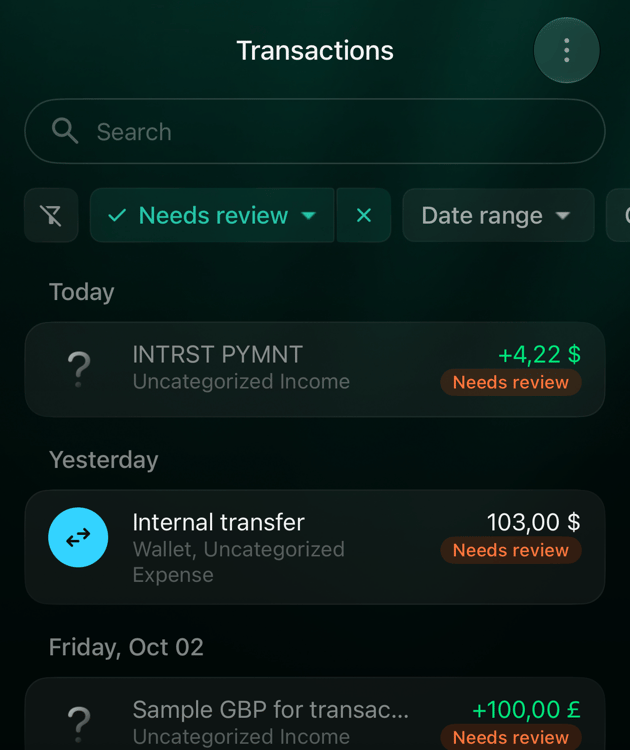
A transaction that needs a look shows Needs review next to its amount in Transactions. On the Dashboard, the Transactions to review widget shows how many are waiting; select it to open them.- Web
- Android
- iOS
- Open Transactions.
- Above the list, select Needs review. It shows how many transactions are waiting, and the list keeps only those.
- To see every transaction again, select Needs review again or Clear filters.
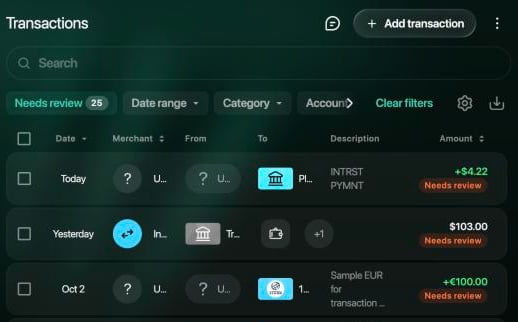
Needs review shows how many transactions are waiting.
Why a transaction needs review
On the web and iOS, the transaction itself tells you why when the reason isn’t obvious. Android shows the Needs review label without the message.Confirm or fix a transaction
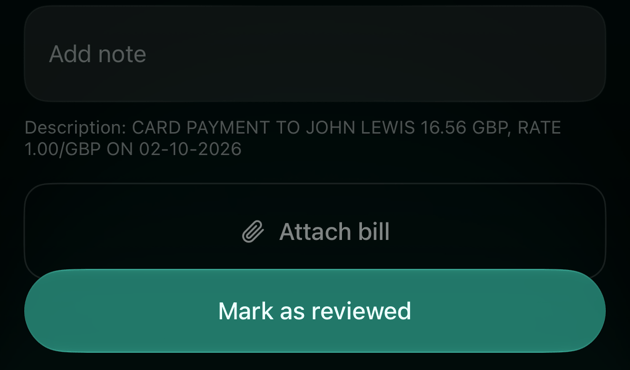
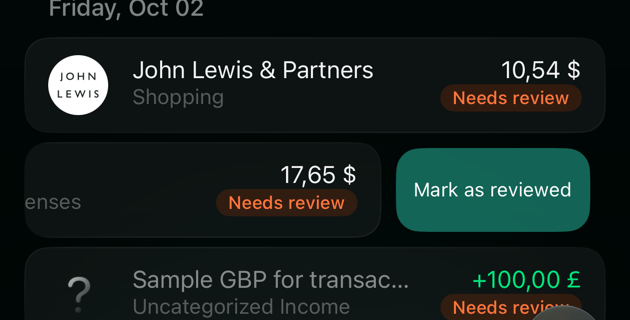
Open a transaction that needs review and check its category, merchant and amount.- If everything is right, select Mark as reviewed. The button replaces Save while you haven’t changed anything. It appears for transactions waiting in Zero Inbox, a watched transaction that has been posted, and a transaction your partner changed.
- If something is wrong, fix it and select Save. Saving a change marks the transaction as reviewed too. To see what you can change in a transaction from your bank, see Edit a transaction.
- Web
- Android
- iOS
- Open the transaction in Transactions, or select it in the Transactions to review widget on the Dashboard. From the widget, Skip moves to the next transaction without changing this one.
- Check the transaction.
- Select Mark as reviewed, or make your changes and select Save.
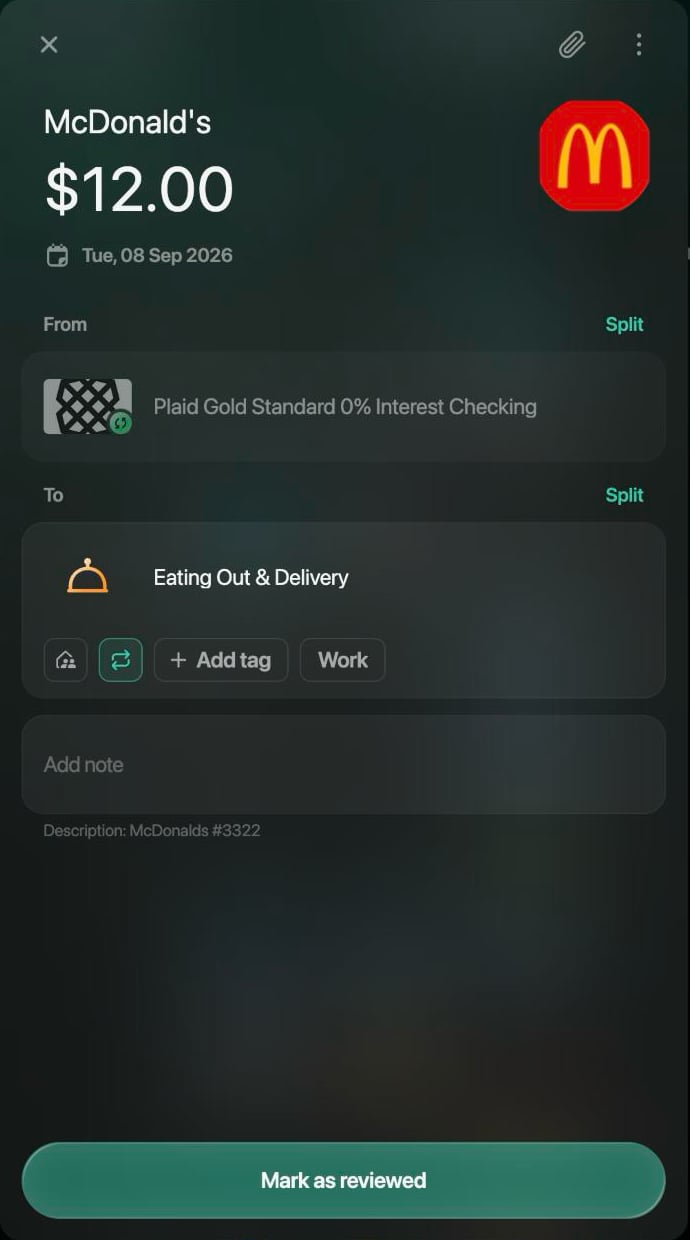
Mark as reviewed confirms the transaction as it is.
Review every new transaction with Zero Inbox
In Zero Inbox mode, every transaction that arrives from your bank is marked Needs review until you confirm or change it. Without it, finerd marks only the transactions it needs your help with, such as uncategorized ones. Zero Inbox needs Pro and is set for your Personal space as a whole. When you turn it on, finerd asks whether to review the transactions you already have:- Review everything also marks the imported transactions you haven’t changed or reviewed yet.
- Only new ones starts with the next transactions your bank sends.
- Web
- Android
- iOS
- Select your profile at the bottom of the sidebar, then select the settings icon next to your space.
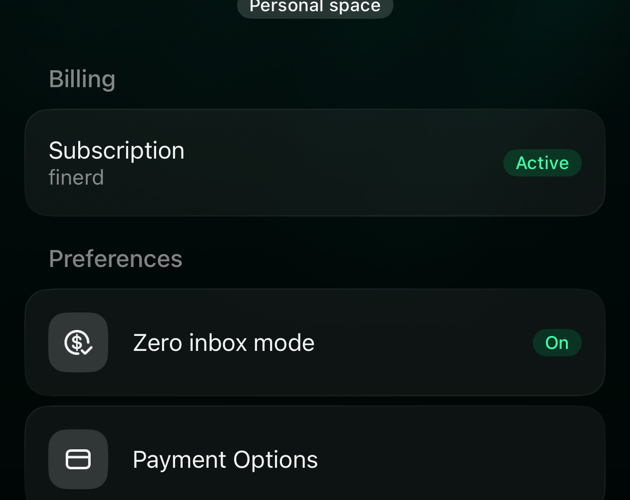
- Under Preferences, select Zero inbox mode. On or Off shows its current state.
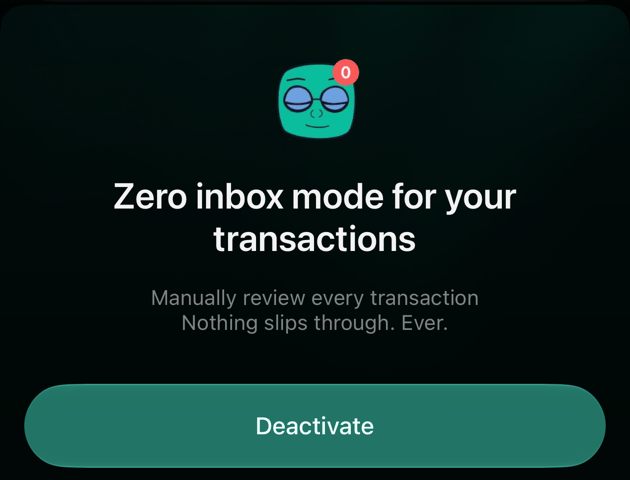
- Select Activate zero inbox mode, then Review everything or Only new ones.
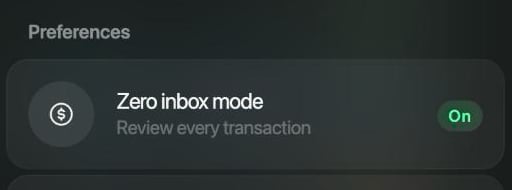
Zero inbox mode in the space settings.
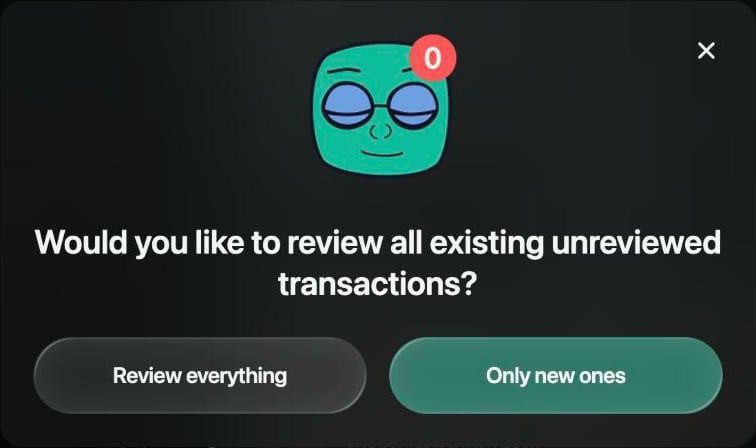
Choose which transactions to review.
Pending and posted transactions
When you pay by card, your bank often reports the payment at once as pending and confirms it later, when the money actually leaves your account: the payment is then posted. finerd shows Pending under the amount in Transactions and under the bank account inside the transaction.- You can work with a pending transaction as usual: choose its category, split it or add a note. When the bank posts it, the amount and date become the ones the bank posted, so check it again then.
- After the bank posts it, its date and the bank’s side can’t be changed. See Edit a transaction.
- If a payment stays pending for more than 7 days, finerd marks it Needs review and suggests checking with your bank.
- If the bank cancels a pending payment you haven’t changed, it disappears from finerd. One you’ve changed stays, so check it with your bank.
- Web
- Android
- iOS
- Open the pending transaction.
- Select ⋮, then Watch this transaction.
- Select Keep me updated.
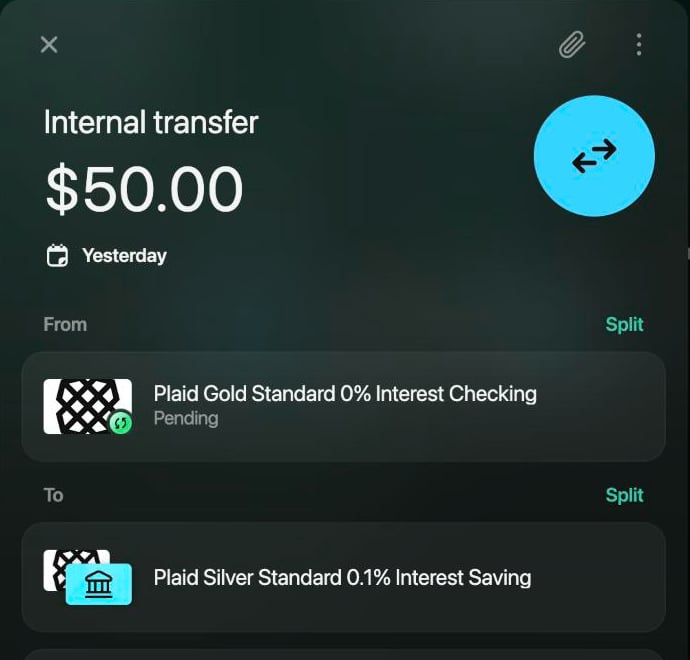
Pending under the bank account.
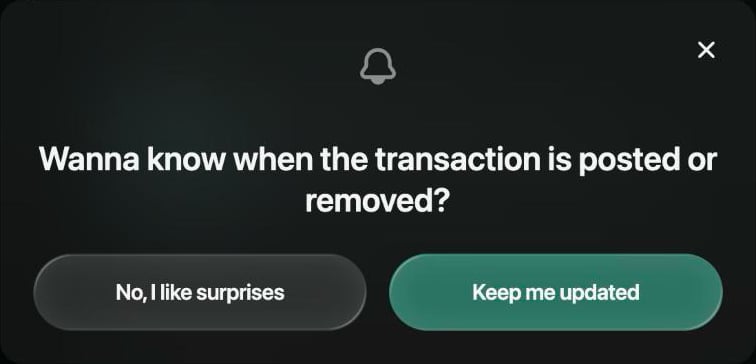
Keep me updated turns on notifications for it.
Search and filter transactions
Search above the list finds transactions by merchant, the description your bank sent, your note or the amount. For example, «773» finds a Boots payment whose bank description reads «02 OCT 26 BOOTS 773 LONDON», and «17.65» finds it by its amount. Search doesn’t look at category or account names: use the filters for those. The filters sit in a row under Search, and you can combine them:- Web
- Android
- iOS
- Open Transactions.
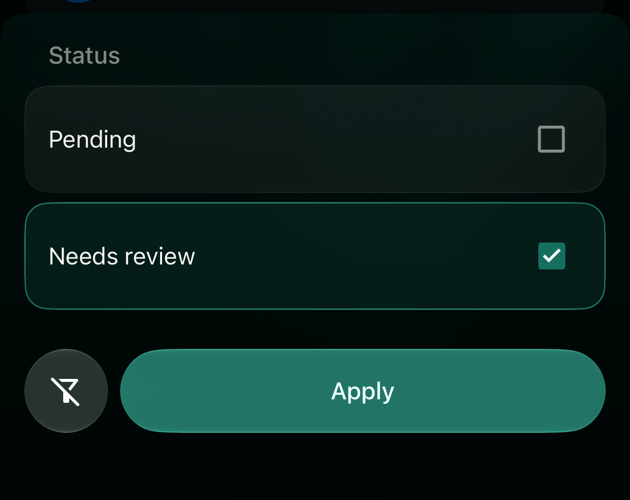
- Type in Search, or select a filter under it. More filters appear when you scroll the row with the arrows. Needs review is its own filter; Pending is under Type → Status.
- To remove every filter, select Clear filters.
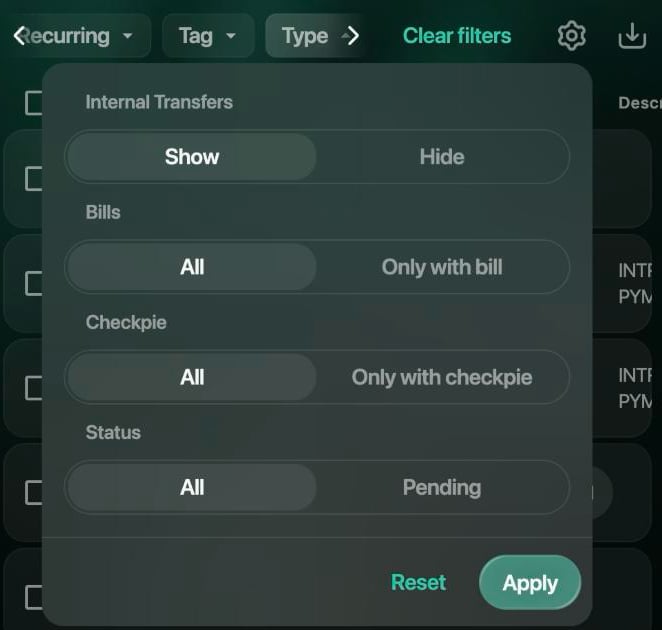
Type hides transfers or keeps only pending transactions.
Change several transactions at once
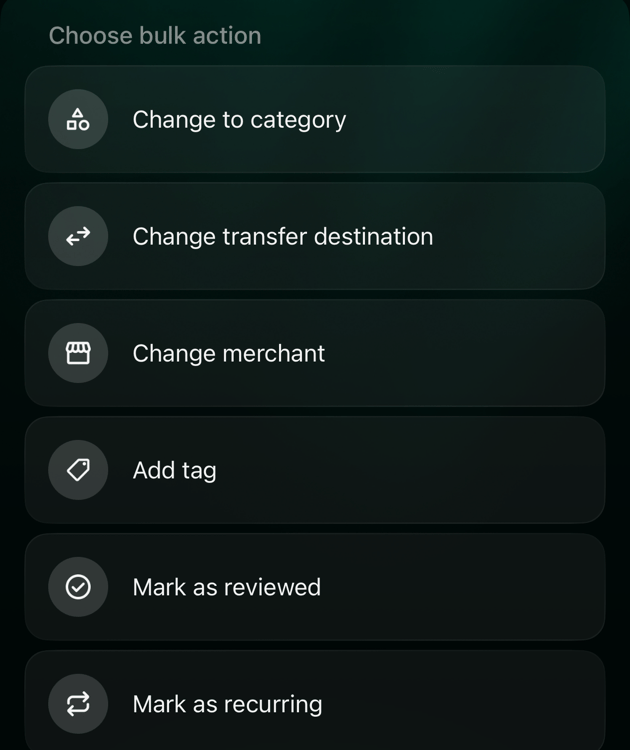
Select several transactions to change them together: for example, give every coffee-shop payment the same category, or confirm a whole batch waiting in Zero Inbox. Choose bulk action offers:- Change to category: one category for all of them.
- Change transfer destination: turns them into transfers to one of your accounts.
- Change merchant.
- Add tag to categories (iOS: Add tag): adds a tag.
- Mark as reviewed: removes Needs review from imported transactions. An uncategorized transaction keeps it until it gets a category.
- Mark as family, if you use family access.
- Mark as recurring, with Pro.
- Web
- Android
- iOS
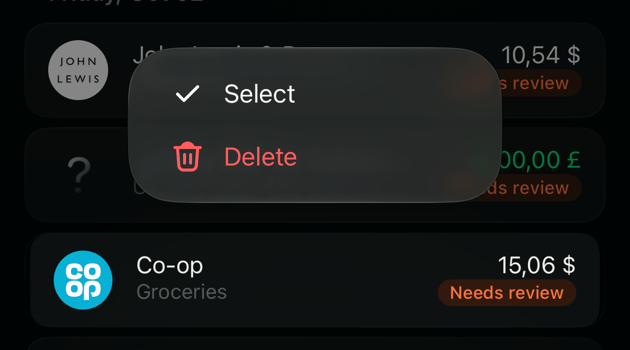
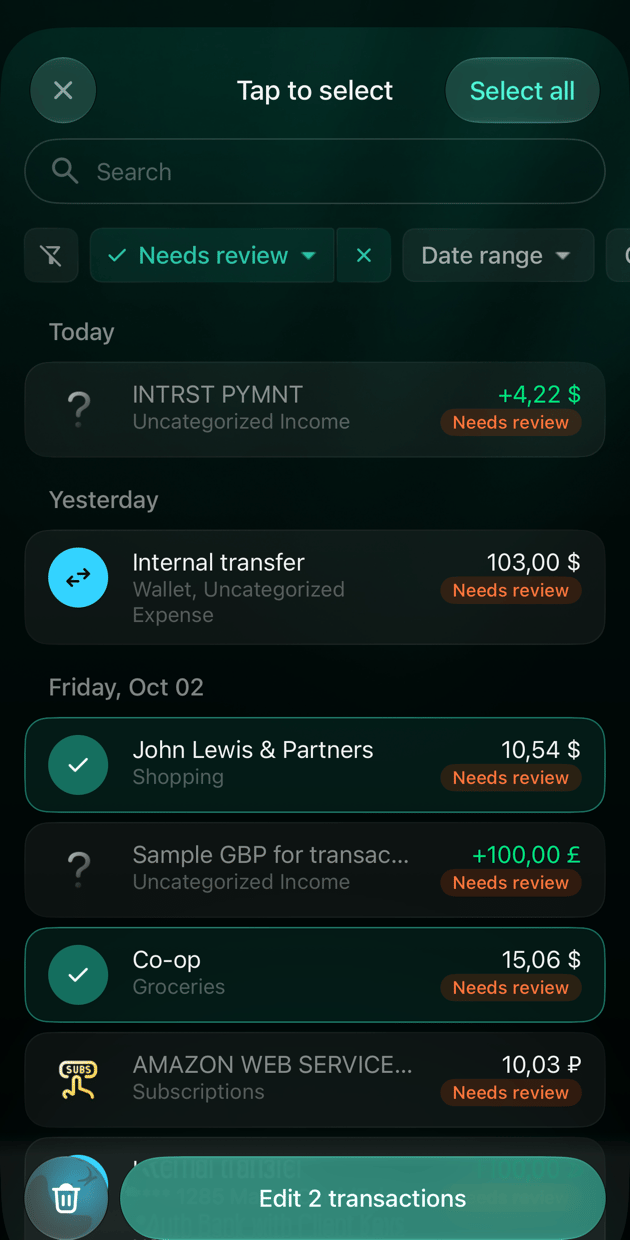
- In Transactions, tick the box next to each transaction. The box in the header selects all of them.
- In the bar above the list, select Edit.
- On Choose bulk action, select an action and set its value. To add another, select Add action.
- Select Apply.
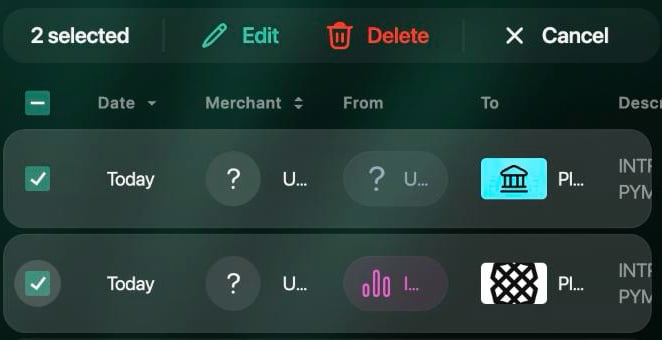
The bar shows how many are selected.
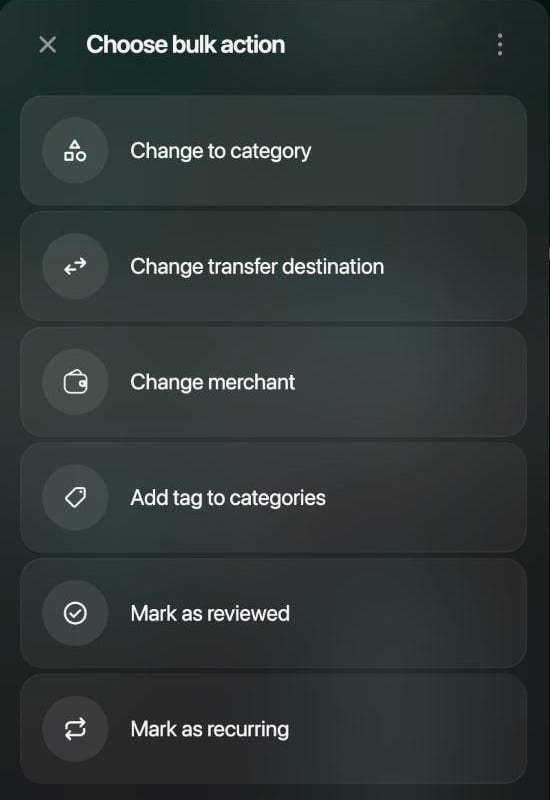
Choose what to change.
Reimport a transaction
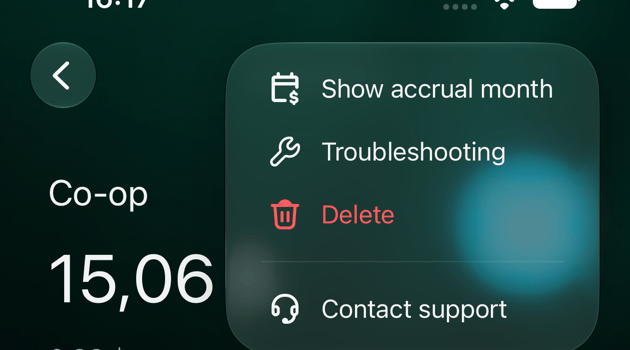
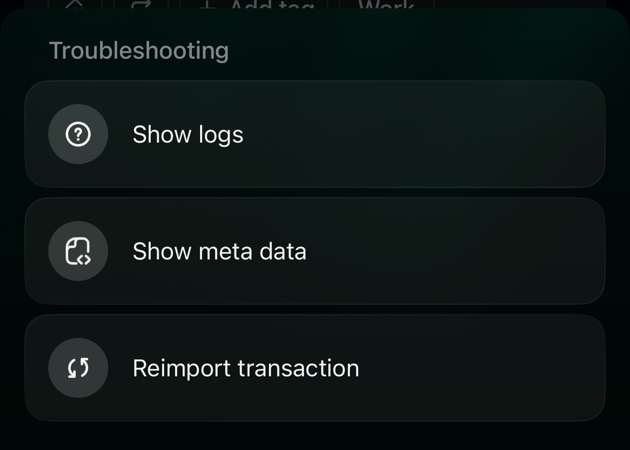
Reimport asks your bank’s connection for one transaction again and processes it as if it had just arrived. Use it when a transaction from your bank looks wrong in a way you can’t fix by editing it, or when support asks you to. Reimport works only for transactions from a connected bank. finerd shows Reimport request sent successfully. and updates the transaction in the background.- Web
- Android
- iOS
- Open the transaction.
- Select ⋮, then Reimport.
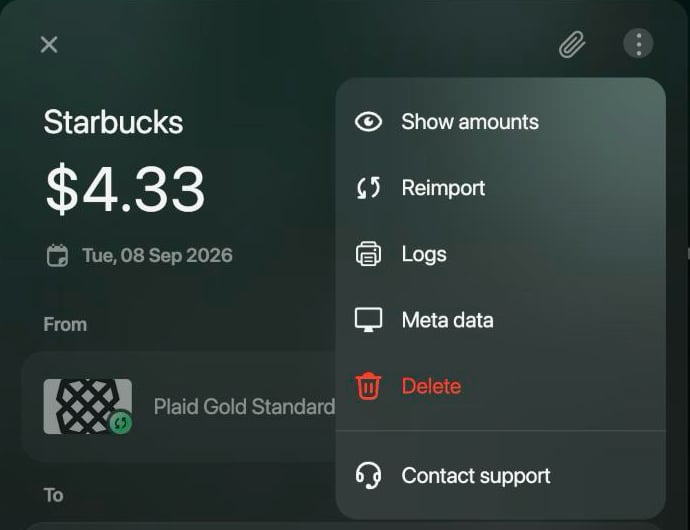
Reimport in the transaction's ⋮ menu.