
Choose read only or read & write
When you connect an assistant, finerd opens a page in your browser with the assistant’s name, the finerd account it asks for and Choose access level:
Select Allow to connect with the access you chose, or Deny to cancel.
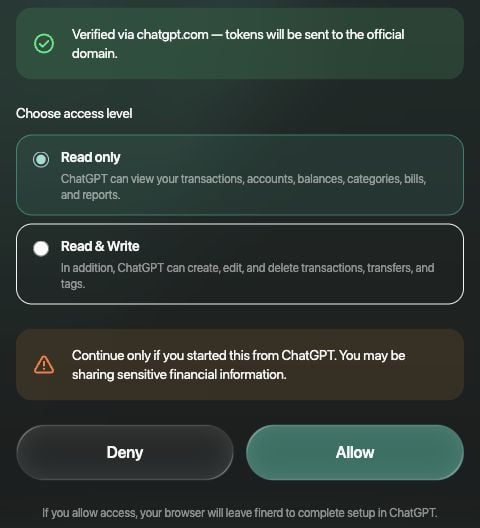
Choose the access level before you select Allow.
Which spaces the assistant sees
One connection covers every finerd space you’re a member of: your Personal space and any business spaces. You don’t pick a space when you connect. The assistant works in one space at a time and asks which one to use when you have several; name the space in your question, for example “in my Business space”, and name another to switch. You don’t need to reconnect. If you leave a space or it’s deleted, the assistant loses access to it within a minute. Ask it to list your spaces again. Pro is checked for each space you ask about; in a business space, for your seat in it. In a space without Pro, the assistant can still list your spaces, but every request for data gets the reply “This feature needs a paid Finerd plan” with a link to upgrade. See Manage your finerd subscription.Family data
Family accounting links your Personal space with your partner’s; it isn’t a separate space. Through your connection, the assistant sees what you see in your own space:- your accounts and transactions, private ones included;
- the copies of transactions your partner marked as Family;
- the accounts your partner marked as Joint, with their transactions from the start date.
- It can’t delete the copy of a transaction your partner shared with you.
- Marking a transaction as Family adds a copy to your partner’s space. Removing the mark removes the copy, together with the category, split or debt your partner set on it.
- Renaming a category you share with your partner renames it for them too.
Security and privacy
- You sign in to finerd, not to the assistant. The sign-in and access page opens in your browser on finerd’s own site. The assistant gets a key for your finerd records, never your email code.
- Check the page before you select Allow. It shows the finerd account the assistant asks for and where the key will go: Verified via a known domain, such as chatgpt.com, for a recognized assistant; Identified by the app itself when only the app vouches for its name; Unknown app otherwise. If you didn’t start the connection, or the account isn’t yours, select Deny.
- finerd sends the key only to a known address: Claude, ChatGPT, Google’s AI services, or an app on your own computer, such as Claude Code or the Gemini CLI.
- The connection stays signed in while you use it. If you don’t use it for 30 days, the assistant asks you to sign in to finerd again.
- finerd doesn’t receive your conversation, only the assistant’s requests for data. The records the assistant reads go to the AI service and are handled under its terms. See finerd’s Privacy Policy and Security pages.
Disconnect an assistant
Remove finerd in the assistant you connected. These steps come from each service’s own help:
The assistant then stops using finerd. finerd isn’t notified when you remove it, and finerd has no list of connections you could end yourself. If you think someone else has connected to your finerd, contact support.
Disconnecting doesn’t undo changes the assistant has already made. To connect again, with the same or a different access level, follow the steps for your assistant in Connect an AI assistant.
Fix connection problems
If an error repeats, contact support with the question you asked, the time and the
traceId from the error if there is one.