
Find finerd’s shortcuts
finerd adds four ready-made shortcuts to Siri and the Shortcuts app:
To see them, open the Shortcuts app, tap Library, then finerd under Apps. Tap a shortcut to run it. To run one by voice, ask Siri for the shortcut and name finerd. If Siri doesn’t run finerd’s shortcuts, tap ⓘ at the top right of finerd’s page in Shortcuts and check that Siri is on.
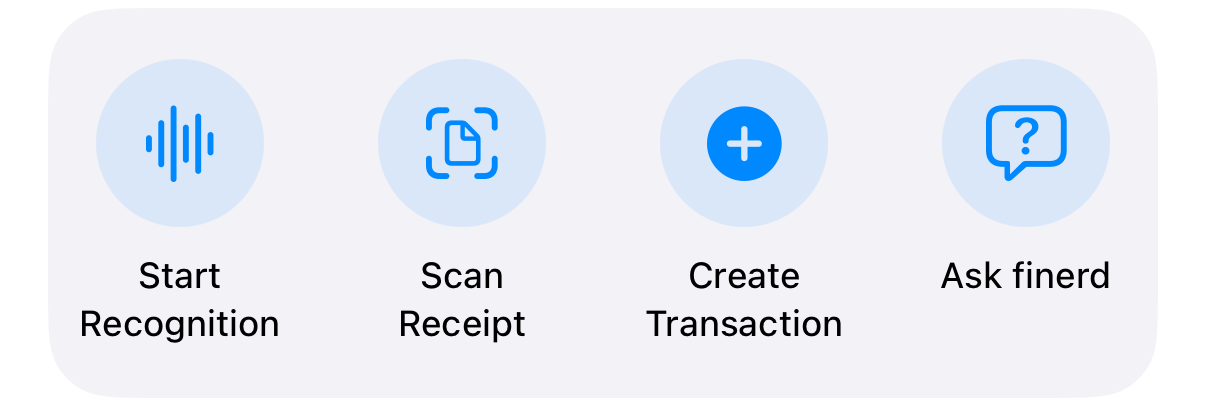
finerd's shortcuts in the Shortcuts app.
Ask finerd about your money
Ask finerd answers questions about balances, spending and budgets, such as how much you spent on groceries this month. Siri asks “What would you like to know?”. finerd answers about the space that’s open in the finerd app; to ask about another space, switch to it in finerd first.- If your iPhone is locked, Siri asks you to unlock it first, so your finances aren’t read out to someone else.
- Keep the question to a sentence or two. finerd only answers questions about your finances.
- finerd doesn’t keep a history of these questions.
Add a transaction by voice
Create Transaction asks “What’s the transaction?”. Say or type what you paid for and how much, for example “coffee 4.50”. finerd works out the amount, currency, merchant, category and account, saves the transaction in the space that’s open in the app, and keeps what you said as its comment. Siri shows “Transaction created.” with the merchant and amount. Check the transaction in finerd and correct it if needed; see Add a transaction. To check the details before saving, use Start Recognition instead. It opens finerd’s voice screen; describe the transaction and finerd shows it for you to review. Start Recognition can’t ask for microphone access itself. The first time, open finerd, tap +, choose Dictate under Select transaction type and allow the microphone there. If you turned microphone access off, finerd asks you to turn it back on in Settings.Scan a receipt
Scan Receipt opens the camera in finerd to scan a receipt. finerd reads it and you check the transaction before saving. See Bills and receipts.Find accounts and categories in Spotlight
Search for an account or category name from your Home Screen, and finerd’s results appear in Spotlight. Tap an account to open it in finerd; tap a category to see its transactions. Spotlight shows names and account types, never balances or amounts. Spotlight lists the active accounts and the categories of the space that’s open in finerd. Debts and family members’ accounts aren’t listed. When you switch spaces or sign out, finerd removes its results from Spotlight.Controls and widgets
finerd has three controls for Control Center and the Lock Screen:- Create expense opens a new expense.
- Scan bill opens the receipt scanner.
- CheckPie opens a new CheckPie to split a bill with friends.
What needs Apple Intelligence
Siri, finerd’s shortcuts, Spotlight, controls and widgets work without Apple Intelligence. Visual Intelligence needs an iPhone with Apple Intelligence. Open it on a screenshot or photo of a receipt, and finerd offers Add as expense (scan it as a bill) or Split with CheckPie; see Apple’s guide to Visual Intelligence. finerd recognizes a receipt when its text has at least four lines and two amounts with two decimal places, such as 4.50. Apple Intelligence also helps finerd’s Apple Pay automation read bank notifications on your iPhone; without it, finerd’s own AI reads them. See Track Apple Pay payments.If your iPhone has iOS 26
If your iPhone has iOS 26
finerd’s shortcuts, Spotlight, controls, widgets and Visual Intelligence work the same on iOS 26, though the Shortcuts app’s screens may look different. Only the Apple Pay automation differs: on iOS 26 you build it yourself and it sends each payment by email. See Track Apple Pay payments.