In family accounting, every part of a transaction is either personal or family. A family part appears in your partner’s space as a shared expense; a personal part counts only in your expenses. A personal purchase from your private account stays hidden from your partner, but one from a joint account doesn’t: they still see the payment. You decide this per transaction: share a household expense you paid from your own card, keep one purchase from a joint account to yourself, or share only part of a receipt. Family accounting is a Pro feature of a Personal space (your partner’s access is free) and works on the web, Android and iOS. This article assumes the two of you are already linked; to invite your partner or make an account joint, see Set up family accounting.

How a transaction becomes family

The family mark belongs to a part of a transaction, not to the whole payment. Only expense and income parts can be family: a transfer between accounts, a debt or an asset part can’t. Where the money comes from decides the starting point: Your partner gets a copy of each family part. In their space it comes from the account that stands for you (named Partner by default), or from their copy of the joint account. Your private account, its name and its balance stay hidden. On their copy your partner can choose the category, add tags and a note, and split the shared amount between their own categories. They can’t change the amount you paid, the date or the account it came from: those follow your original. What each side sees in filters and reports is in What your partner sees.
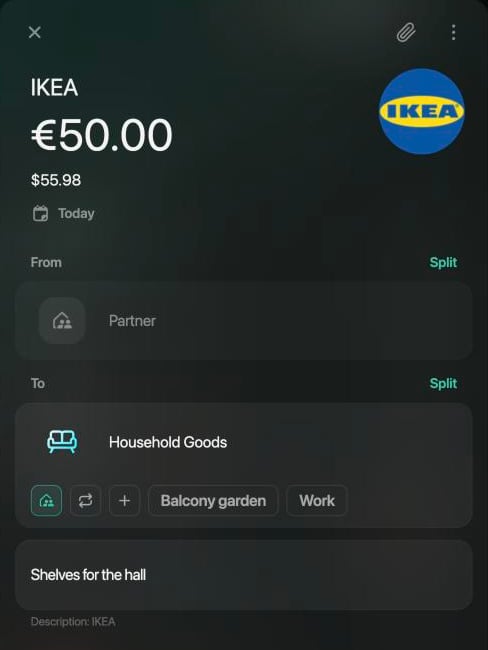
A received IKEA transaction of €50.00 on the web: From Partner, To Household Goods with the family icon highlighted, the note Shelves for the hall and the description IKEA.

Your partner's copy on the web: it comes from the Partner account.
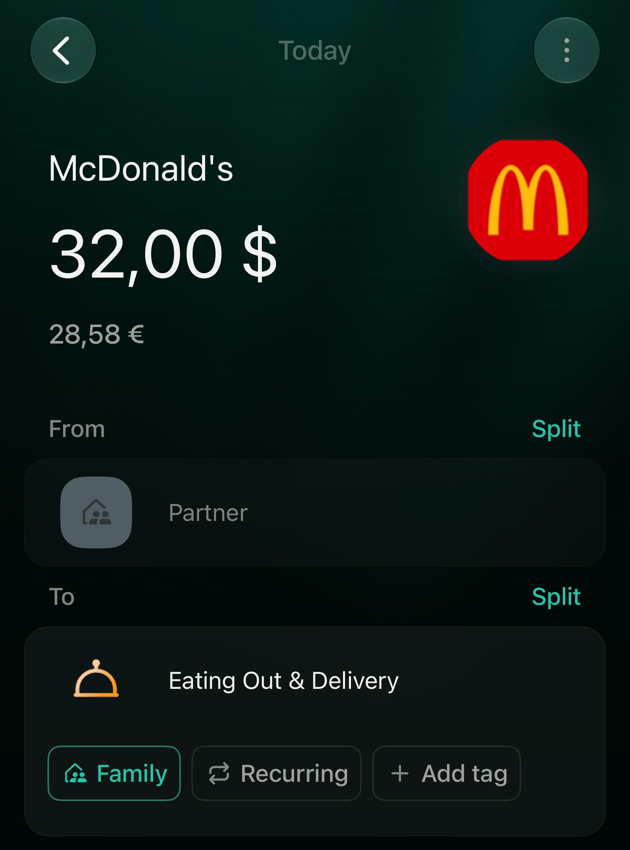
A received McDonald's transaction of 32 dollars on iOS: From Partner, greyed out, To Eating Out & Delivery with Family selected, Recurring and Add tag.

The same kind of copy on iOS: amount and source are fixed.

Share an expense from a private account

Use this for a household expense you paid from an account you don’t share, such as dinner for both of you on your own card. You share the expense, not the account.
  1. Open the transaction in Transactions.
  2. Under the category in To, select the family icon, the first button under the category. Point at it to see Mark as Family; when no tags are shown under the category, the button also reads Family.
  3. Select Save.
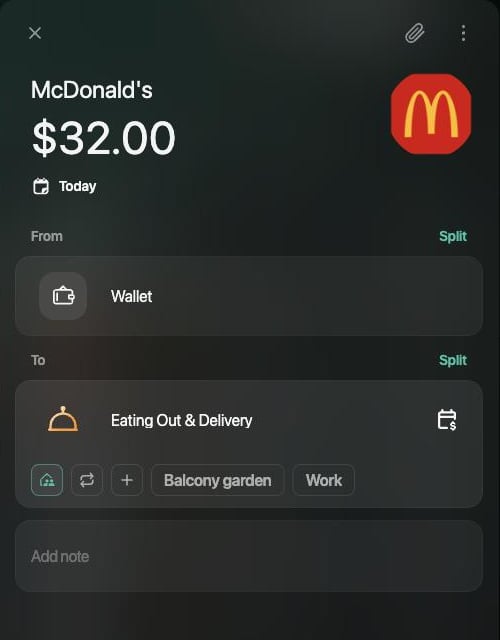
McDonald's transaction of $32.00 on the web: From Wallet, To Eating Out & Delivery with the family icon highlighted under the category.

The family icon is highlighted: this part will be shared.
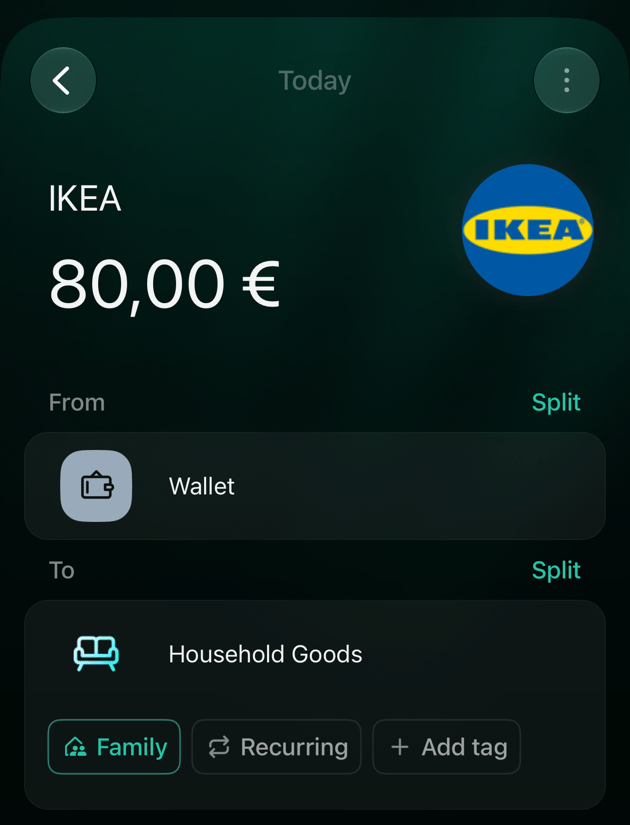
Your partner now sees the expense in their transactions with the family badge. They see only the family part, and it comes from the account that stands for you, not from your card. To mark several transactions at once, select them in Transactions, then Edit → Mark as family (on mobile, in the bulk actions of the selection). Bulk edit only adds the mark; you remove it one transaction at a time.

Keep a joint-account transaction private

Every new transaction on a joint account is family. If one purchase is just yours, such as a present for your partner paid from the shared card, remove the mark:
  1. Open the transaction.
  2. Select the highlighted family icon under the category so it’s no longer highlighted. Do this for each part you want to keep personal.
  3. Select Save.
The money still left the joint account, so your partner still sees the payment, its amount and the merchant name, but not as a family expense: in their space it’s a transfer from the joint account to the account that stands for you, without a category. It doesn’t count in their expenses. Only the person who records transactions on the joint account can do this: on a bank-connected joint account, the partner who shared it; on a manual one, either of you.
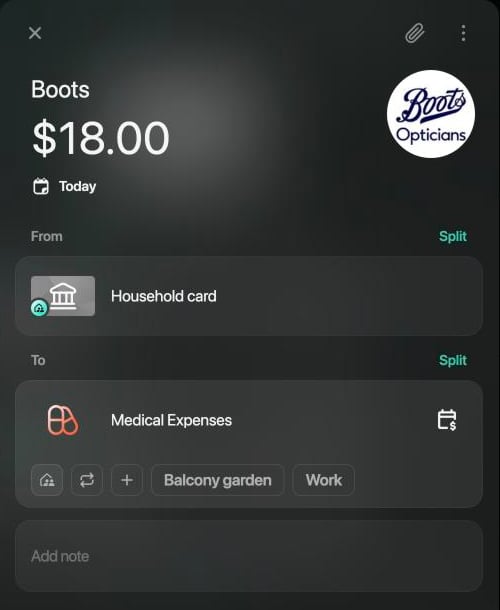
Boots transaction of $18.00 on the web: From Household card with the family badge, To Medical Expenses with the family icon not highlighted.

Your side: the family icon is off for a purchase from the joint card.
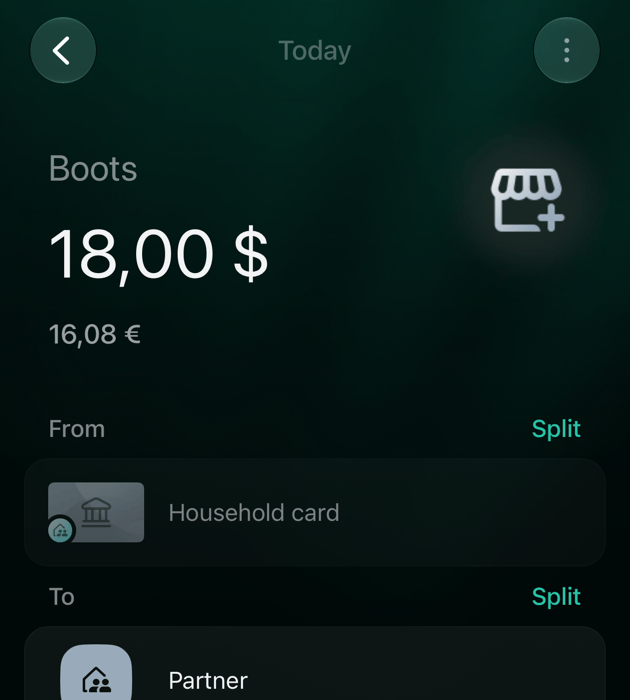
The partner's view on iOS: Boots 18 dollars from Household card to Partner, with no category.

Your partner's side: a transfer to your account, not an expense.

Share only part of a transaction

When one payment mixes household and personal things, split it into parts and mark only the household part as family. Example: an IKEA payment of €80 split into Household Goods €60 (family) and Shopping €20 (personal). Your partner gets an expense of €60; the €20 stays yours.
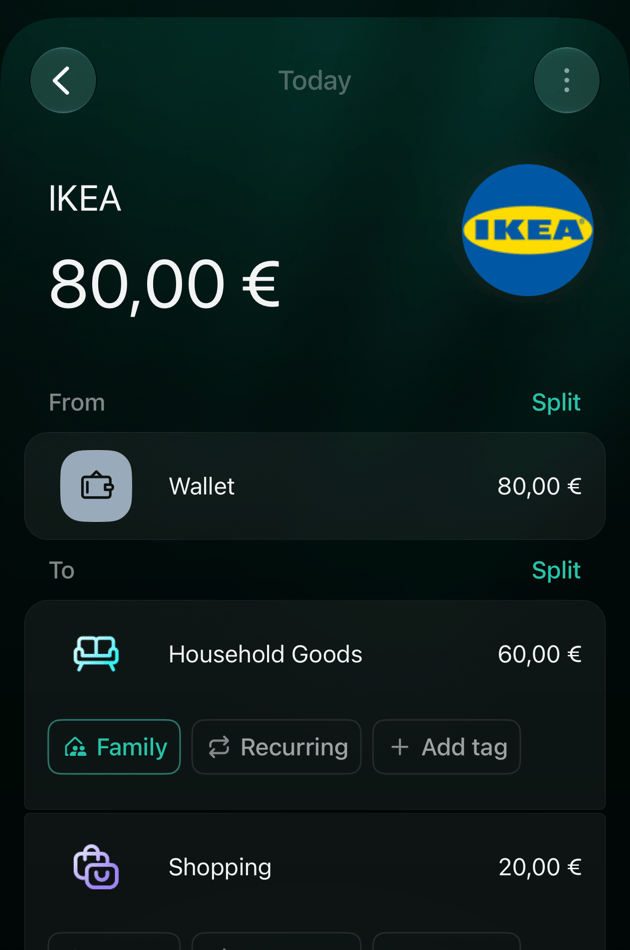
An IKEA expense of 80 euros on iOS split into Household Goods 60 euros with Family selected and Shopping 20 euros with Family not selected.

Only Household Goods is family; Shopping stays personal.

On a joint account it works the other way round: the parts start as family, and you remove the mark from the personal part. Your partner sees that part as a transfer to the account that stands for you. Your partner can split their copy between their own categories, but can’t add another source: finerd answers Can’t split ‘From’ on the family transaction.

Categories on a shared transaction

Whose categories apply depends on Share categories & tags in Family access (how to switch it):
  • On (the default for a new family): a shared transaction arrives with your category and tags. If either of you changes the category, it changes for both, and the other person’s transaction is flagged for review.
  • Off: each of you categorizes shared transactions separately, and a category you change updates only your own reports.
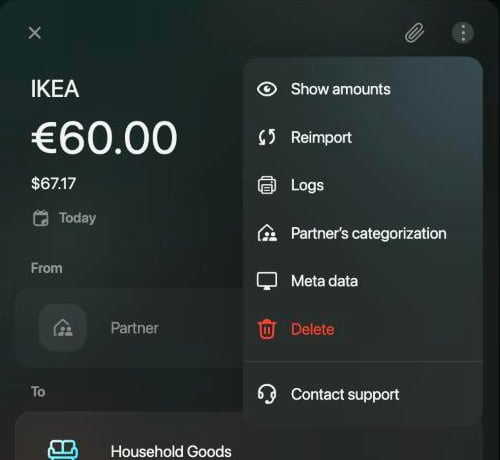
To see how your partner filed a transaction they paid, open it and select ⋮ → Partner’s categorization (web and iOS).
The ⋮ menu of a received IKEA transaction on the web: Show amounts, Reimport, Logs, Partner's categorization, Meta data, Delete, Contact support.

Partner's categorization in the ⋮ menu of a received transaction.

Android doesn’t have the switch or Partner’s categorization yet.

When your partner changes a shared transaction

The partner who paid owns the original, and your copy follows it. When they change the amount or the split, your copy changes too. If you had already edited your copy, for example added a note, it’s flagged for review with the reason Your partner updated this transaction; your own category, tags and note stay. Open it, check what changed, then select Mark as reviewed or save a change of your own. See Find transactions that need review.
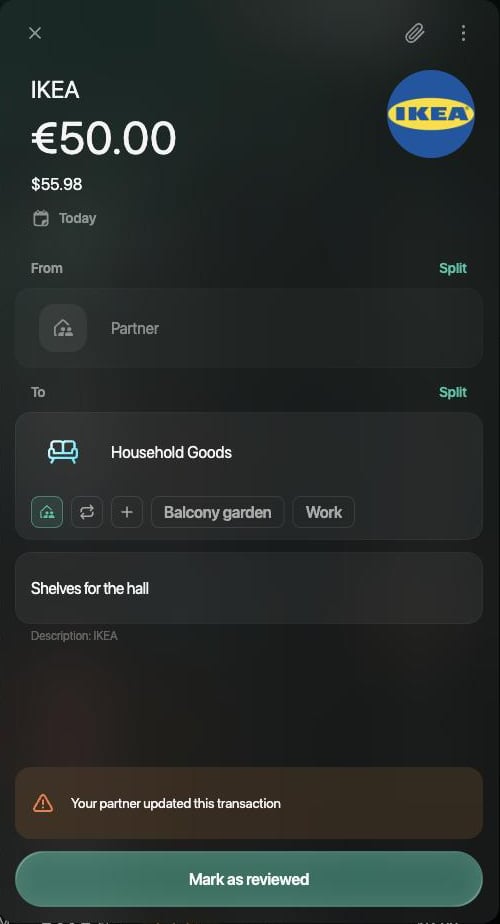
A received IKEA transaction of €50.00 on the web with the note Shelves for the hall and the warning Your partner updated this transaction above Mark as reviewed.

The amount changed from €60 to €50; the receiver's note stayed.
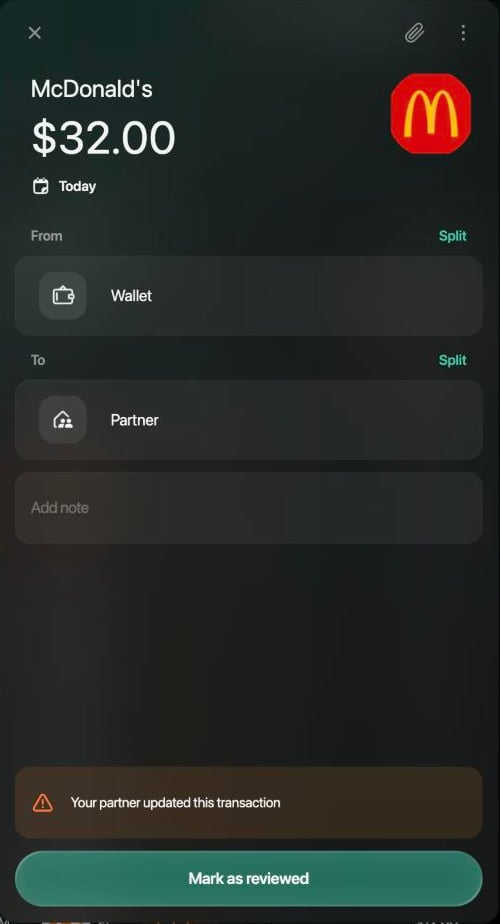
It works the other way too. When you change your copy in a way that reaches the original, such as the category with shared categories on, your partner’s transaction is flagged with the same reason. If your partner removes the family mark from their copy (web and iOS), finerd treats the purchase as theirs. Your original turns into a transfer from your account to theirs, and you get the review flag. On Android the receiver can’t remove the mark: the app asks them to ask the payer.
McDonald's transaction of $32.00 on the web: From Wallet, To Partner, with the warning Your partner updated this transaction and the Mark as reviewed button.

Your original after your partner removed the family mark from their copy.
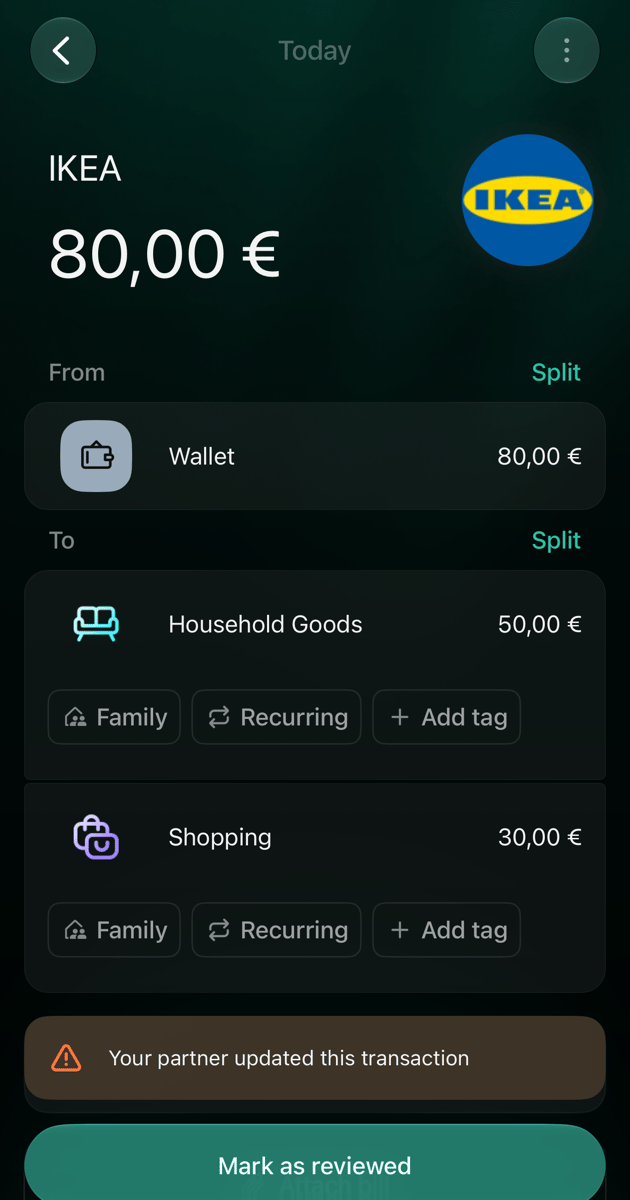
If you delete a copy of an expense your partner paid from a private account, the sharing stops: their original becomes personal again and gets the same review flag.
IKEA expense of 80 euros on iOS split into Household Goods 50 euros and Shopping 30 euros, both without Family, with the warning Your partner updated this transaction and Mark as reviewed.

Your partner's original after you deleted your copy: Household Goods is no longer family.
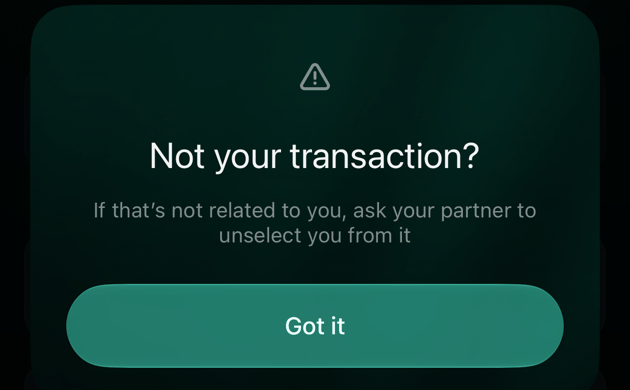
A copy from a joint account can’t be deleted from the receiving side: finerd says Not your transaction? and asks you to ask your partner to remove you from it.
Dialog on iOS: Not your transaction? If that's not related to you, ask your partner to unselect you from it, with the Got it button.

Deleting a copy of a joint-account transaction on iOS.

On Android a changed transaction shows the review dot and Mark as reviewed, without the reason text.

Transfers between private and joint accounts

A transfer moves money; it’s never a family expense. What your partner sees depends on where the money goes: To give money to your partner, choose their account under Transfer To/From (web: in the Family accounts group) as the destination, so it isn’t counted as your expense. Their account can’t be the source of a transaction you add.
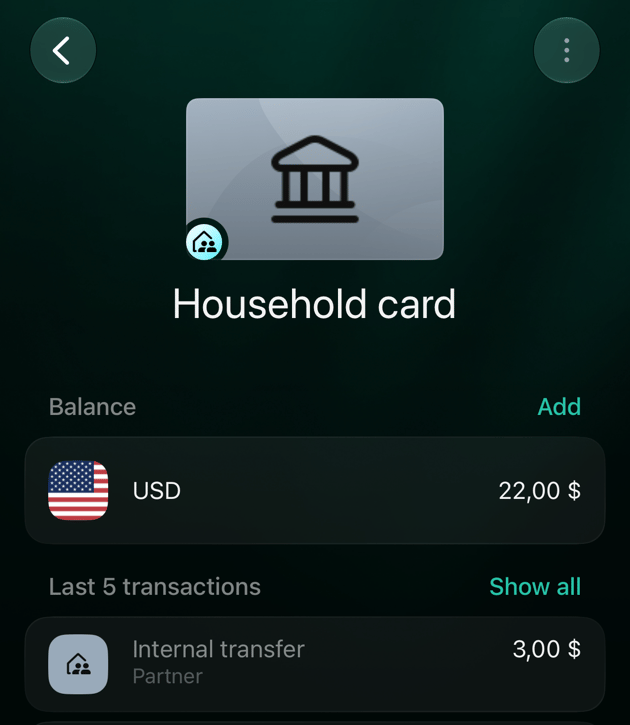
Household card on the partner's iOS: Internal transfer 3 dollars to Partner and Boots 18 dollars to Partner.

The joint card on the partner's side: your transfer to your own account and your private purchase.
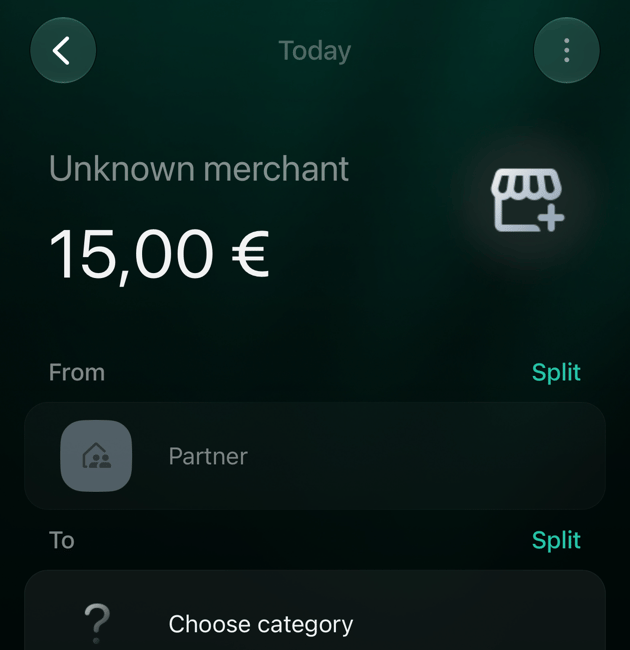
A received transaction of 15 euros on iOS from Partner with Choose category under To.

Money you sent arrives without a category; your partner picks where it went.