Split a transaction in finerd between categories, accounts or people, by receipt items or for a bank payment, and see how each part counts in reports.
Split a transaction in finerd when one payment covers different things, such as furniture and a coffee at IKEA: each part then counts in its own category. The amount, the date and the account stay the same.Splitting is free and works on the web, Android and iOS.
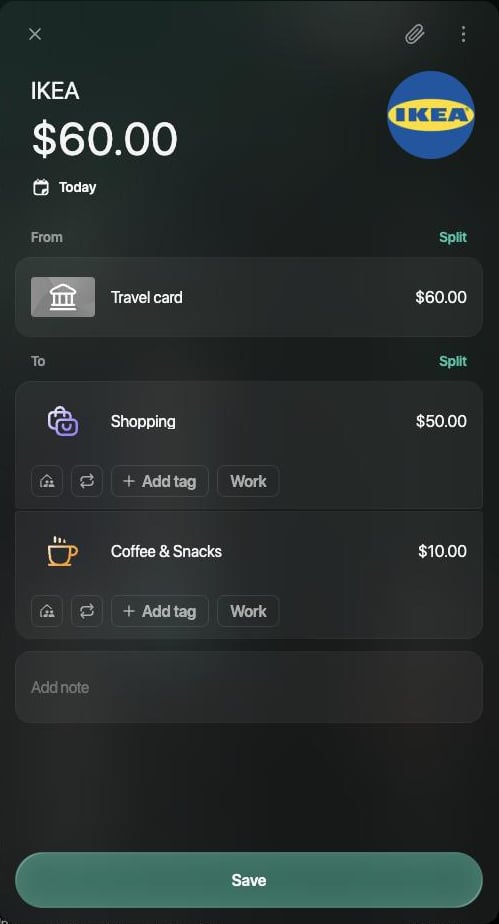
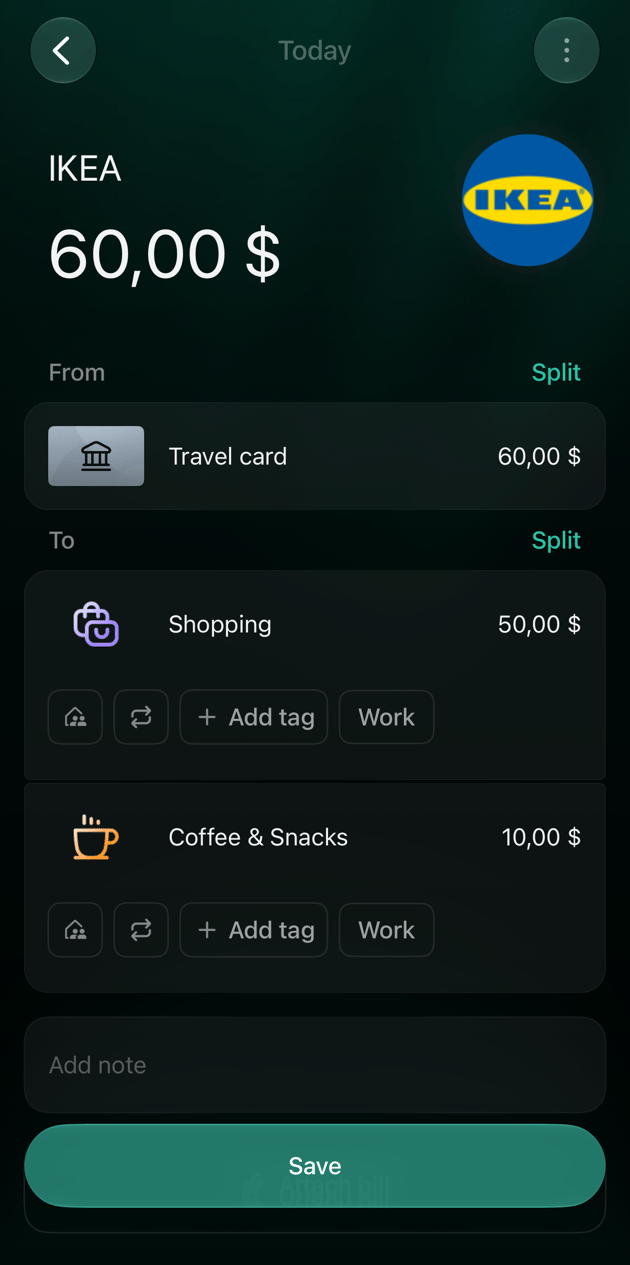
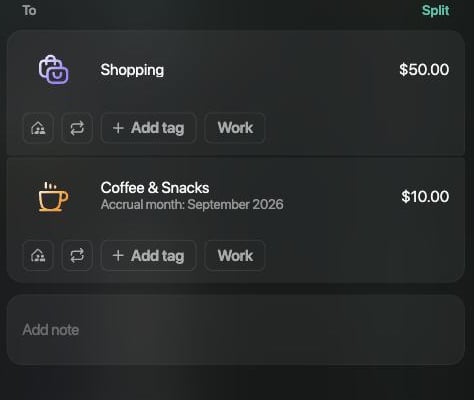
A transaction has two sides: From, where the money came from, and To, where it went. To split an expense, add parts to To. The first category takes whatever is left, so you only enter the amounts of the parts you add.Example: a 60IKEApaymentfrom∗∗Travelcard∗∗becomes∗∗Shopping∗∗50 and Coffee & Snacks $10.You can split a transaction you’ve already recorded or a new one before you save it.
Web
Android
iOS
Open the transaction in Transactions.
Next to To, select Split.
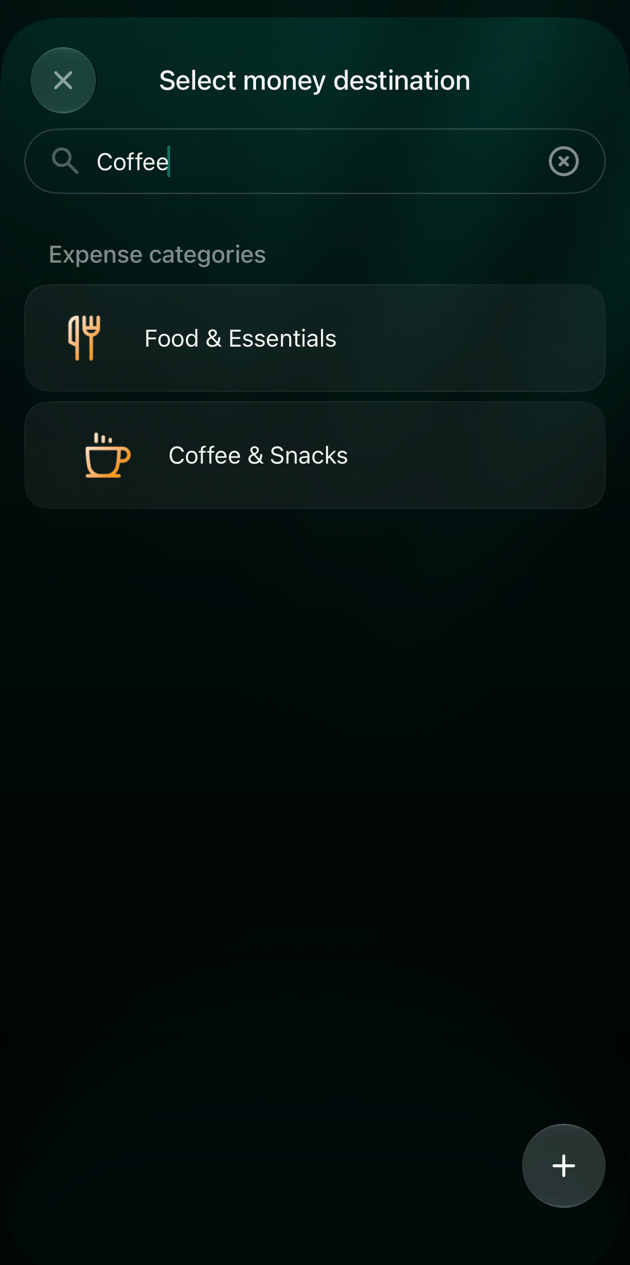
On Select money destination, type the category in Search and select it.
Enter the amount of this part and press Enter. The first category now shows the rest: Shopping $50.00.
Add more parts the same way, then select Save.
The first category takes the rest of the amount.
Open the transaction in Transactions.
Next to To, tap Split.
Choose the category.
Enter the amount of this part. The first category now shows the rest.
Add more parts the same way, then tap Save.
Open the transaction in Transactions.
Next to To, tap Split.
On Select money destination, type the category in Search and tap it.
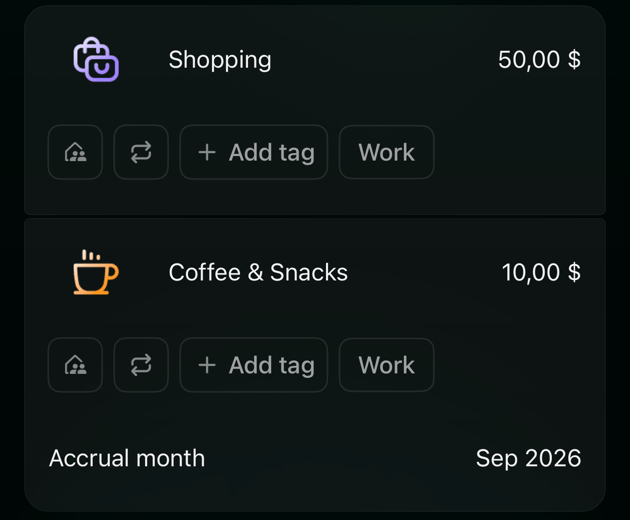
Enter the amount of this part and tap Apply. The first category now shows the rest: Shopping 50,00 $.
Add more parts the same way, then tap Save.
Choose the category for the new part.
The first category takes the rest of the amount.
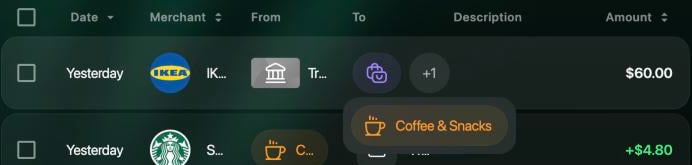
On the web, the To column in Transactions shows the first category’s icon and the number of other parts, such as +1; point at it to see their names. The mobile apps list every category in the row, for example Shopping, Coffee & Snacks.
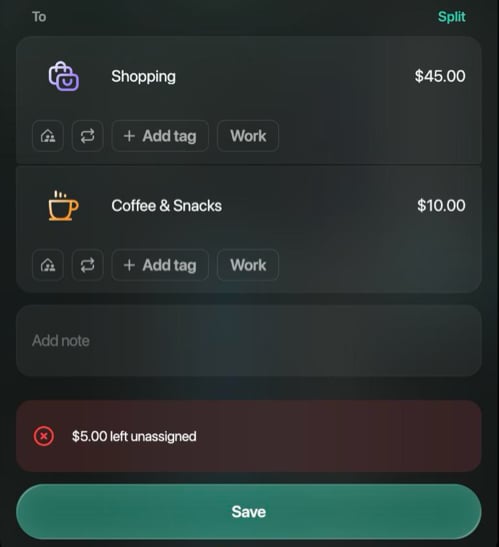
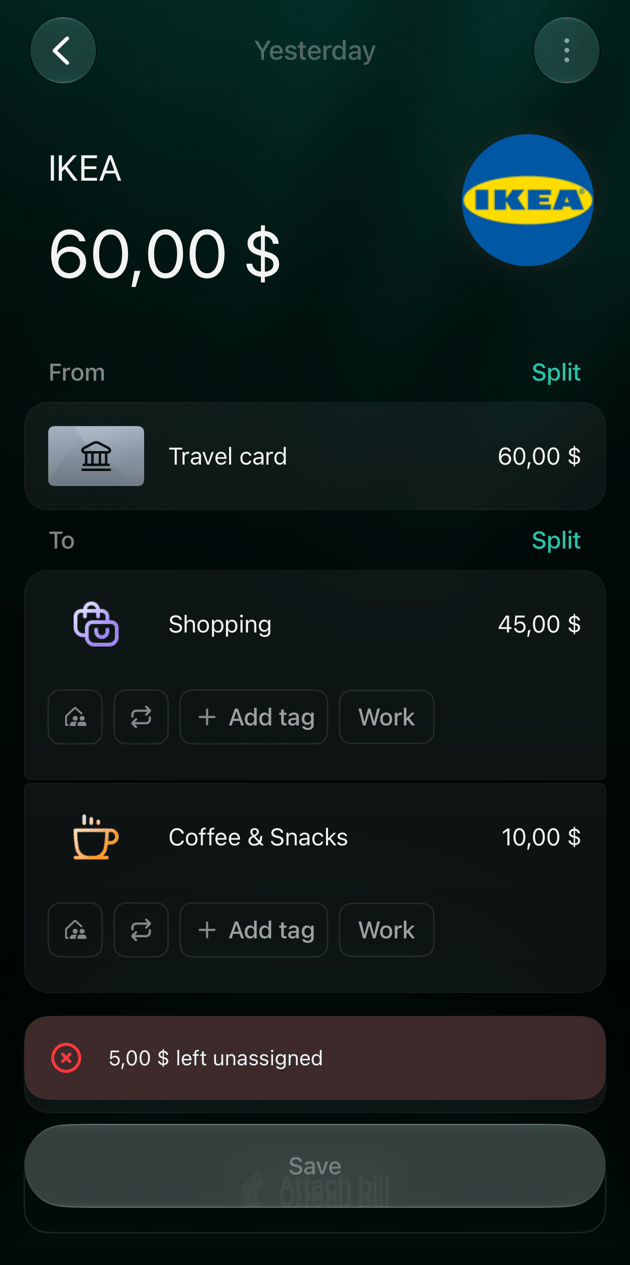
The parts in To must add up to the amount of the transaction. Once you change the first category’s amount yourself, it stops taking the rest, so the parts can end up short of the total or over it. finerd shows the difference under the parts:
Change the amounts of the parts until the message disappears, then save.
Web
Android
iOS
The message appears above Save. If you select Save anyway, finerd shows Transaction Inconsistent and doesn’t save. Select Edit amounts and correct the parts.
The parts are $5 short of the total.
The Android app doesn’t show the difference while you edit. When you tap Save, it shows Exchange rate difference, even when every part is in the same currency, and doesn’t save. Tap Edit amounts and correct the parts.
The message appears above Save, and Save stays inactive until the parts add up.
Open the transaction in Transactions to change its parts, then save.
Another category for a part: select the part and choose the category.
Another amount: select the part’s amount and enter the new one.
Remove a part: delete it. Its amount goes back to the first category. If … left unassigned appears instead, see When the parts don’t add up.
Undo the split: delete parts until only one is left. The last part can’t be deleted.
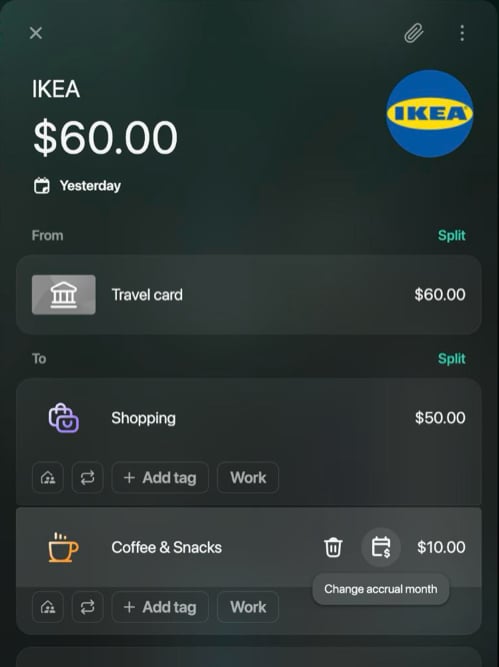
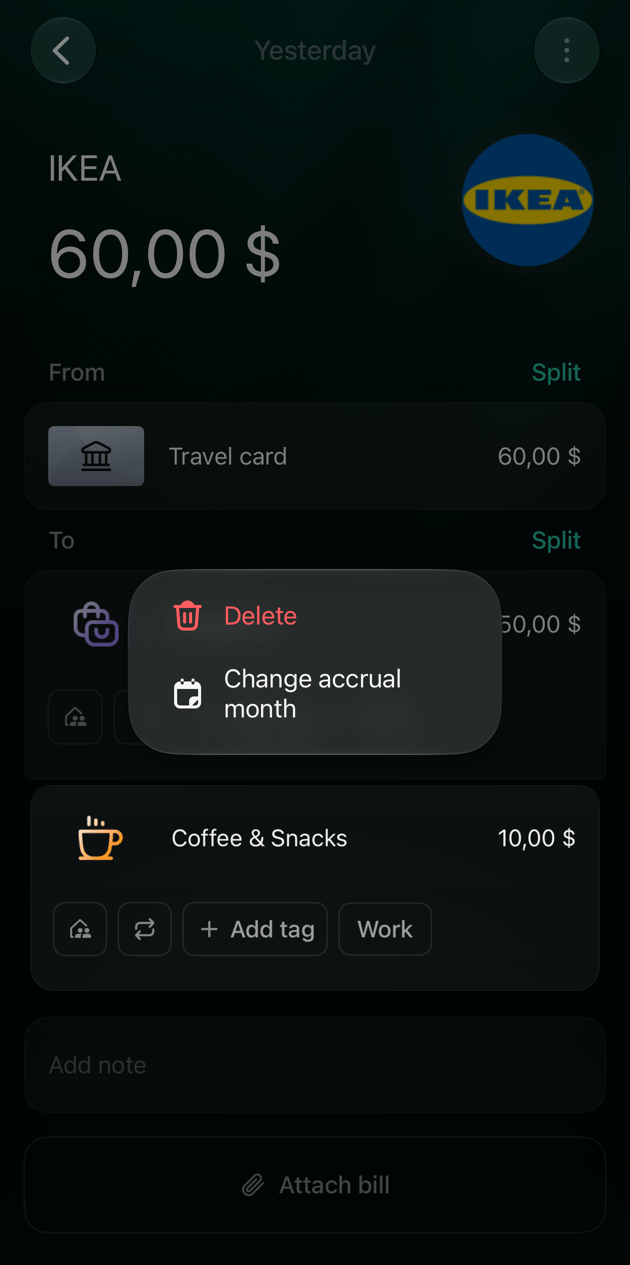
The delete control stays hidden until you point at a part on the web or touch and hold it in the apps. The same place has Change accrual month for a part with a category: it sets the month in which that part counts in reports.
Web
Android
iOS
Point at a part, and two icons appear on its right:
the trash icon deletes the part (shown only when there are two or more parts);
the calendar icon, Change accrual month, picks the part’s month.
After the changes, select Save.
Point at a part to show its icons.
Touch and hold a part to open its menu:
Delete removes the part;
Change accrual month picks the part’s month (a part with a category);
Assign items assigns items from the attached receipt to the part (only when a receipt is attached).
After the changes, tap Save.
Touch and hold a part to open its menu:
Delete removes the part (not offered for the last one);
Change accrual month picks the part’s month (a part with a category).
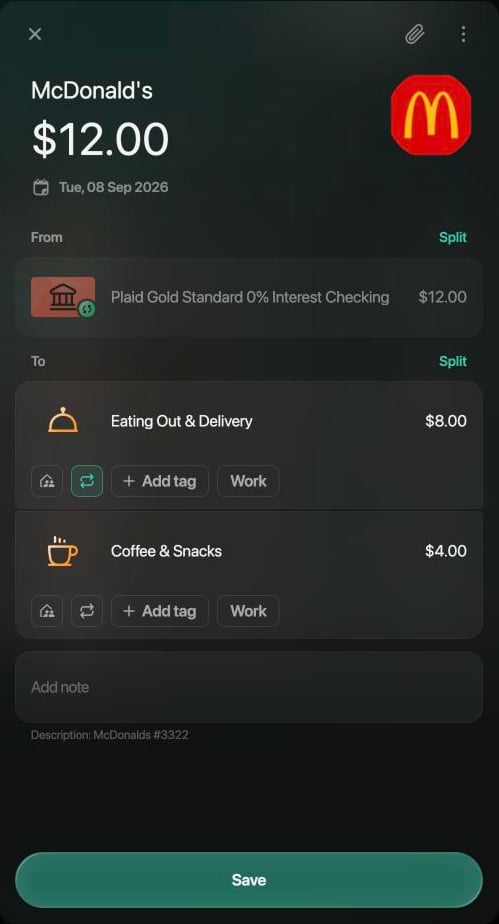
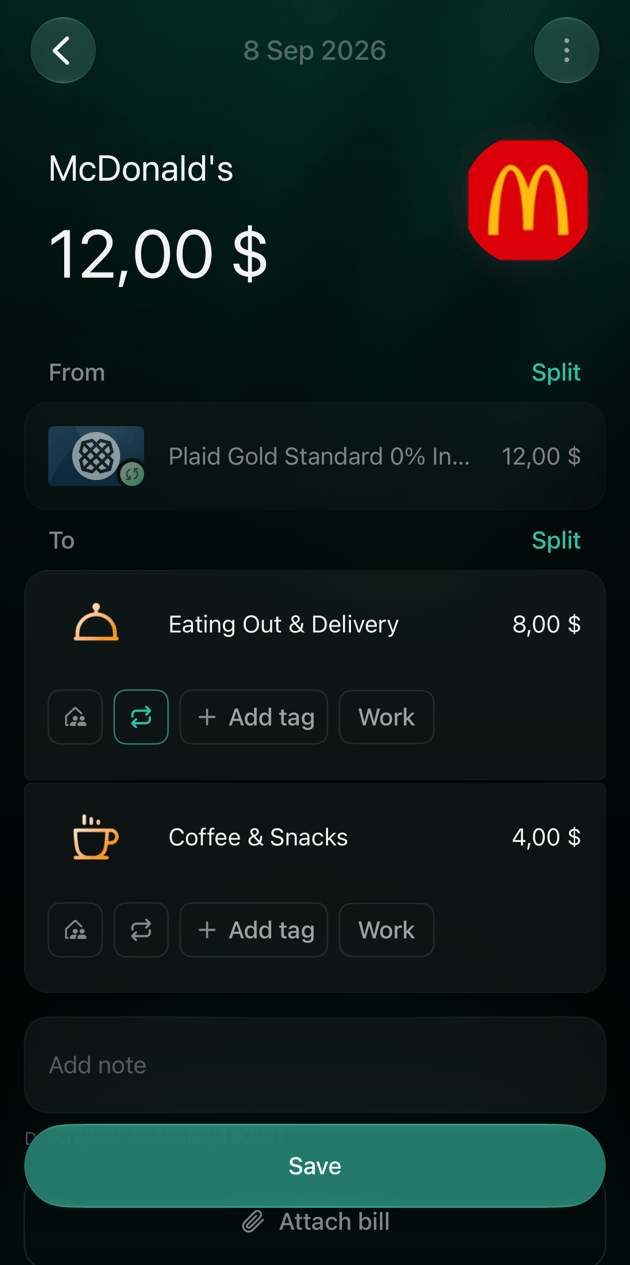
A transaction from a connected bank can be split too. Only the category side changes: the bank’s line in From keeps the account and amount the bank sent, so the parts in To must add up to the bank amount.Example: a 12 McDonald's payment from a connected account becomes **Eating Out & Delivery** 8 and Coffee & Snacks $4.
One side can’t hold two connected accounts. If you choose another connected account with Split next to From, the web and iOS apps show Can’t split to another synced account. Create a new transaction instead.
Web
Android
iOS
The bank’s line is dimmed and can’t be selected.
The bank's line stays as it is; only To is split.
The bank’s line is dimmed and can’t be selected.
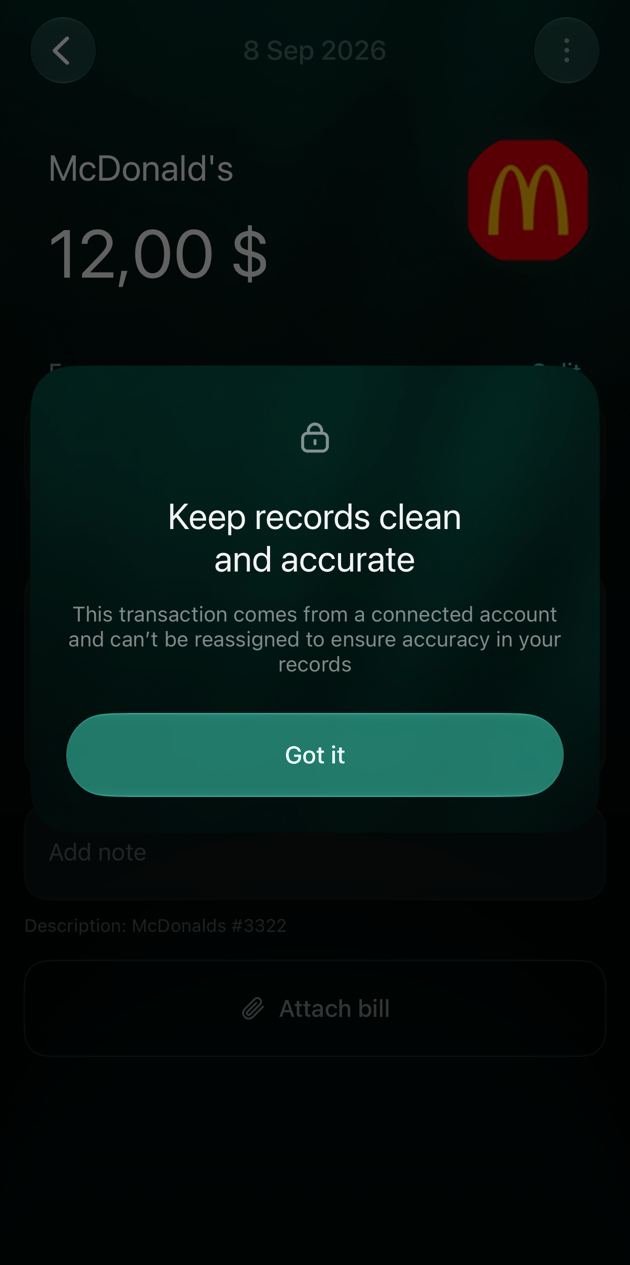
If you tap the bank’s line, finerd shows Keep records clean and accurate: the transaction comes from a connected account, and its account can’t be changed. Tap Got it.
A part doesn’t have to be a category. In Select money destination you can also choose:
Transfer To/From: one of your accounts. Example: you took $20 cash back at the checkout, so that part goes to your cash account.
Debts & Reimbursements: a person who owes you their share. If they aren’t in the list, add them with +.
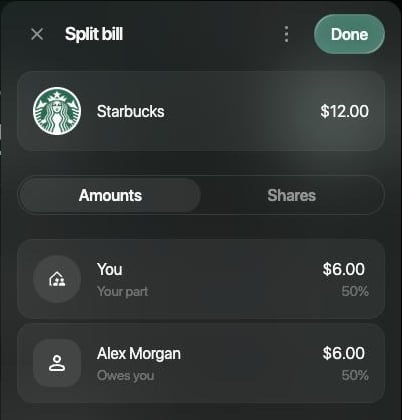
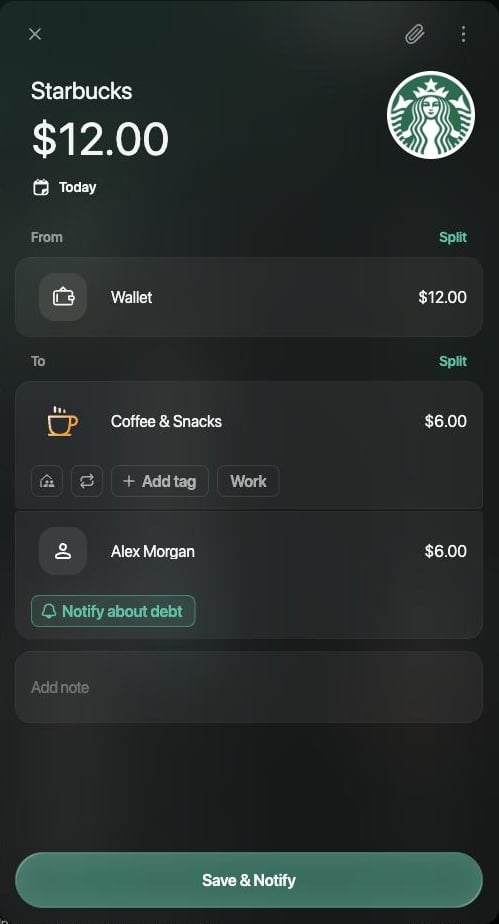
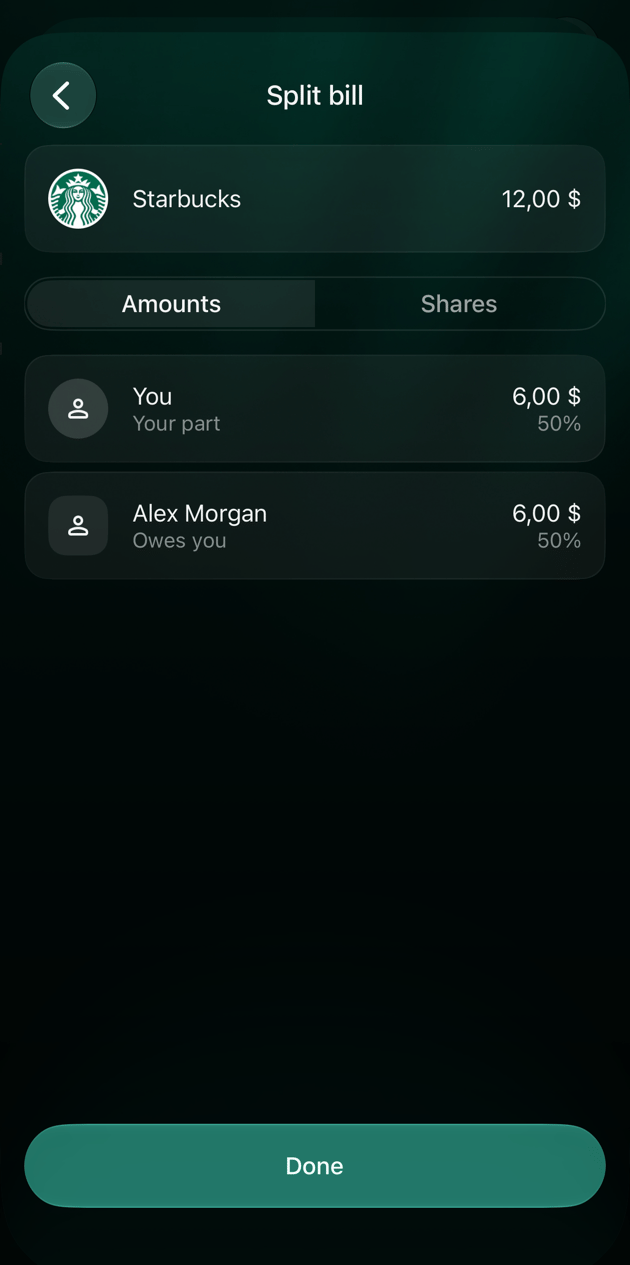
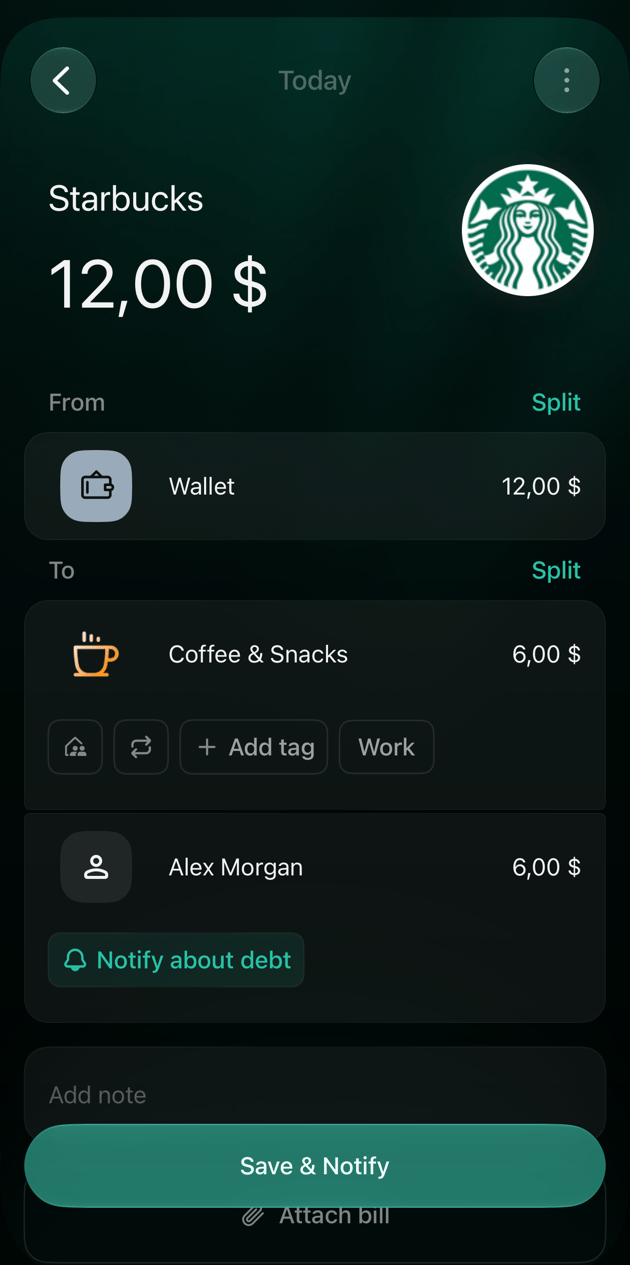
Share a bill with someone. In a Personal space on the web and in the iOS app, when you add a person from Debts & Reimbursements to a transaction with one category, finerd opens Split bill. It divides the amount equally between You (Your part) and the person (Owes you). Change the person’s amount, and your part takes the rest; or switch to Shares to divide by shares. Then select Done. Your part stays in the category; the person’s part becomes their debt to you, with Notify about debt under it. While Notify about debt is selected, the save button reads Save & Notify.Settings of each part. Under a category part are its own settings:
A part that goes to an account or a debt has none of these settings.
Web
Android
iOS
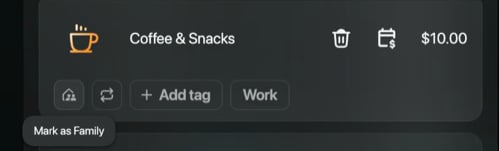
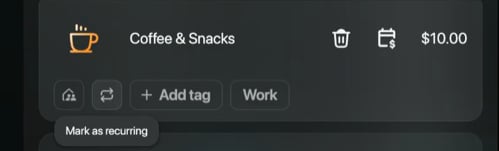
Split bill opens on top of the transaction; Done is in its top-right corner. Point at the family and recurring icons to see their names.
Split bill divides the amount between you and the person.
Your part stays in the category, the rest becomes a debt.
The family icon of a part.
The recurring icon of a part.
The Android app doesn’t have Split bill: a person you choose is added as a part like any other, and you enter their amount yourself. The family and recurring icons under a category part have no labels.
Split bill opens as a separate screen; Done is at the bottom. The family and recurring icons under a category part have no labels.
Split bill divides the amount between you and the person.
Your part stays in the category, the rest becomes a debt.
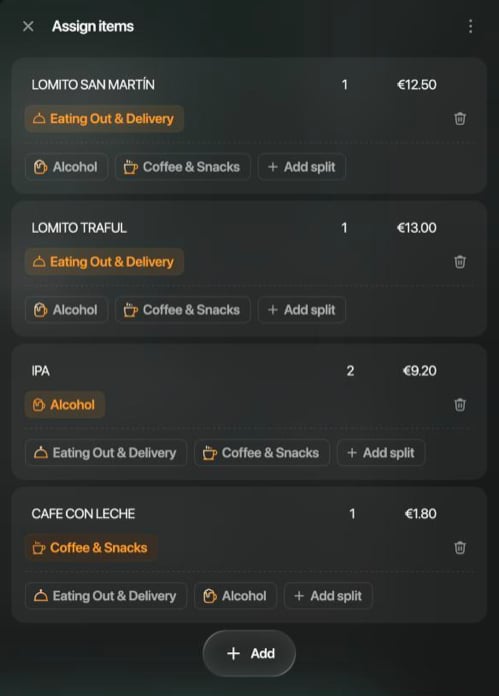
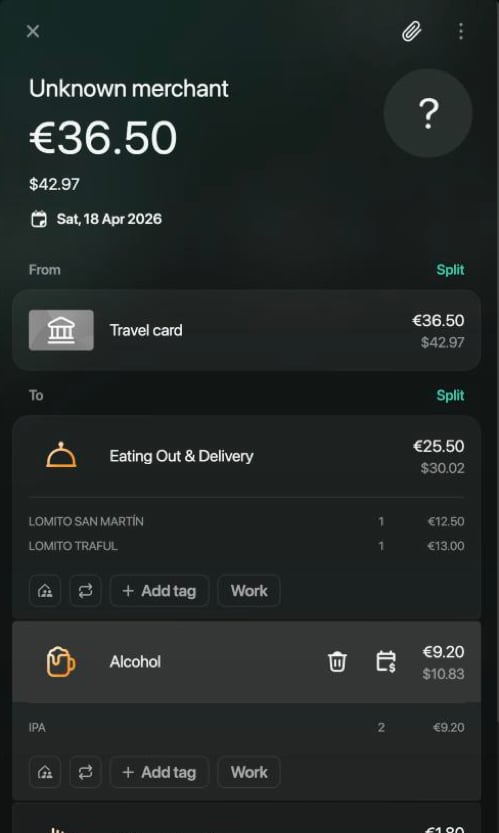
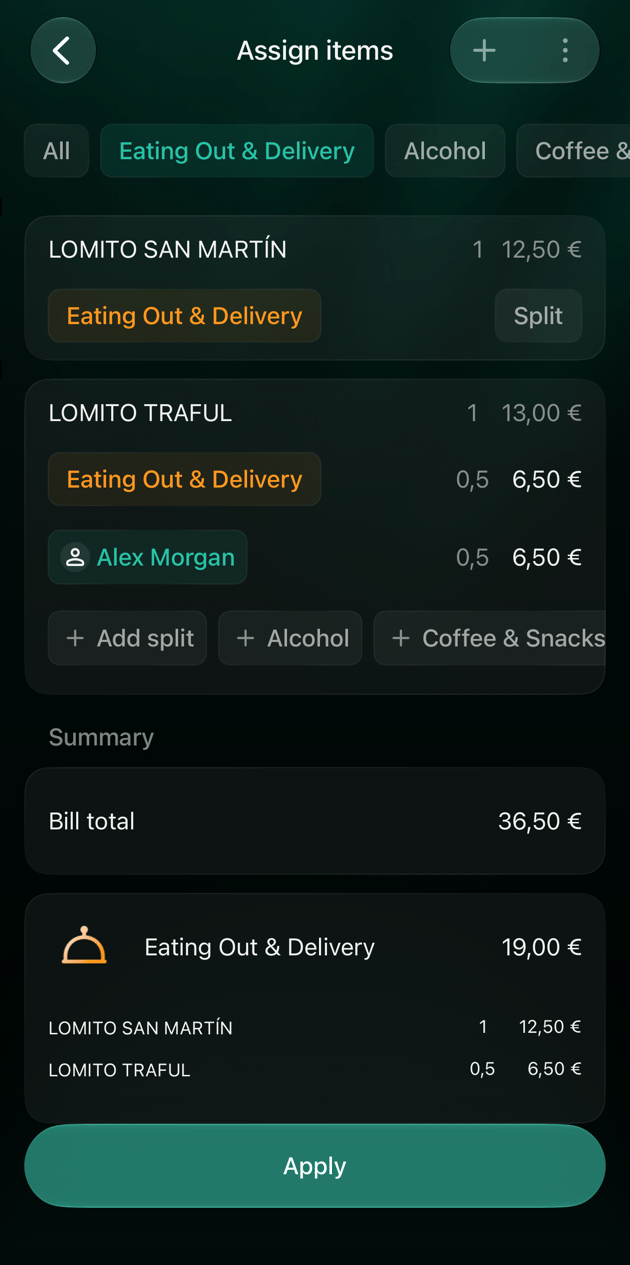
If a receipt with items is attached to the transaction, split it by the items: each item goes to the part of its category, and finerd builds the parts and their amounts from the items. Example: a €36.50 restaurant receipt becomes Eating Out & Delivery €25.50 for two mains, Alcohol €9.20 for two beers and Coffee & Snacks €1.80 for a coffee.To get a receipt into finerd and attach it to a transaction, see Add a receipt to your records. finerd can suggest different categories for the receipt items; check them before saving.
Open Assign items (see your platform below).
Each item shows the category it’s assigned to. To move an item, select its category and choose another one.
To divide one item between two parts, for example one of two beers that a friend owes you, select Add split (iOS: Split) under the item and choose where the other half goes. finerd divides the item’s quantity in half.
Check Summary at the bottom: the total of each category and its items.
Save the assignment, then save the transaction.
Each part in To then lists its items under it.
Web
Android
iOS
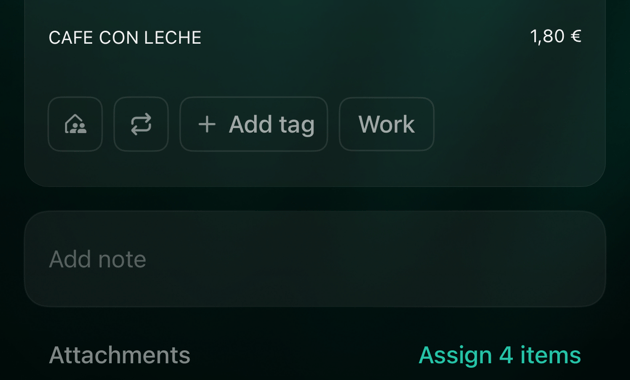
Assign 4 items (with the number of items) is under the receipt image next to the transaction. The same Assign items button is in the calculator that opens when you select a part’s amount. Save the assignment with Save at the bottom of Assign items.
Each item goes to the category you choose.
The parts and their items in the transaction.
Touch and hold a part in To and tap Assign items: the menu offers it only when a receipt is attached. Select the items that belong to this part and tap Done.
Assign 4 items (with the number of items) is next to Attachments, above the receipt image. Tapping the items listed under a part opens Assign items for that part’s category. Save the assignment with Apply.
In reports each part counts on its own: in its category and in its accrual month. The account still shows one payment of the full amount.
Categories. In the Expenses report each category gets only its part. The restaurant receipt from Split by receipt items counts separately in Eating Out & Delivery, Alcohol and Coffee & Snacks.
Months. A part counts in the month of the transaction until you change its accrual month (see Change or undo a split). Example: the IKEA payment is dated October 5 and its Coffee & Snacks part is moved to September. With the default Accrual month setting, Expenses shows the 10 in **Coffee & Snacks** for September, and the 50 in Shopping stays in October. With Transaction date, the whole payment counts in October. To switch the setting, see How a refund is counted.
Web
Android
iOS
A part’s accrual month appears under its category when it differs from the transaction’s month, for example Accrual month: September 2026.
This part counts in September.
A part’s accrual month appears under it as Accrual month when it differs from the transaction’s month.
A part’s accrual month appears under it as Accrual month with the month, for example Sep 2026.