
How family accounting works
A family in finerd is two Personal spaces linked together. Nothing is merged: your partner’s accounts, balances and history stay in their space, and yours stay in yours. One space can be in one family at a time. Linking changes nothing by itself. Your transactions stay private until you share them in one of two ways:- Mark a transaction as Family. The line appears in your partner’s space as well, paid by you. Use it for a household expense from a private account; see Share household expenses from a private account.
- Mark an account as Joint. Every transaction on that account from a start date is shared automatically, and your partner sees the balance. See Share a whole account as joint below.
Invite your partner
You need Pro in your Personal space. Your partner needs a finerd account of their own, or they create one from your link. The link works for 3 days, and one invitation can be active at a time.- Web
- Android
- iOS
- Open More at the bottom of the sidebar and select Family access.
- Select How it works and read the slides with Next. The last Next opens Invite your partner.
- Select Copy invite link and send the link to your partner, or let them scan the QR code with their phone. Link copied confirms the copy.
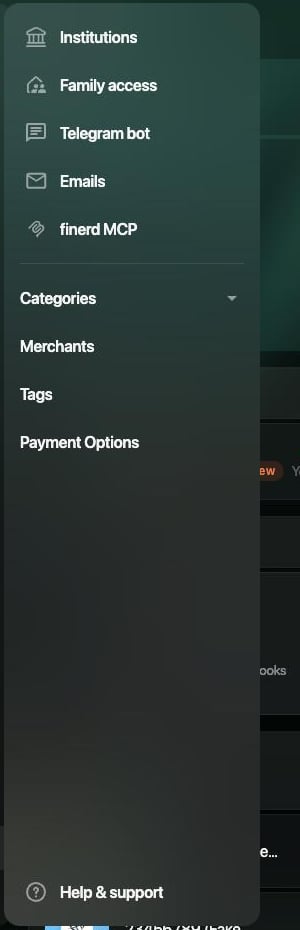
More → Family access opens the invitation.
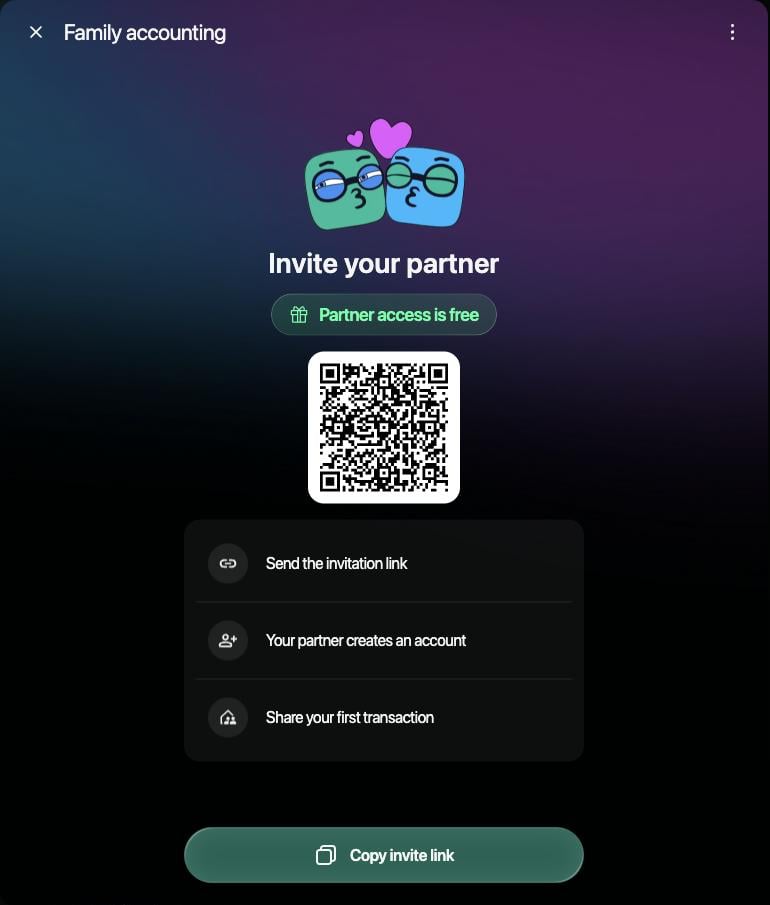
Invite your partner: QR code, the three steps and Copy invite link.
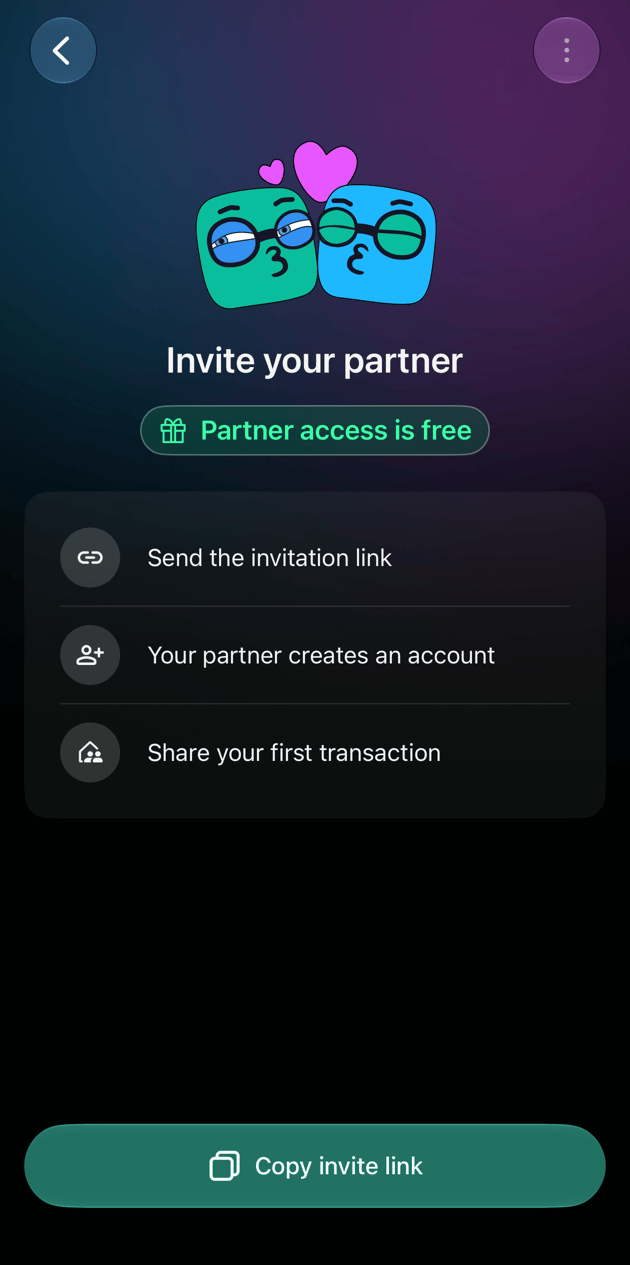
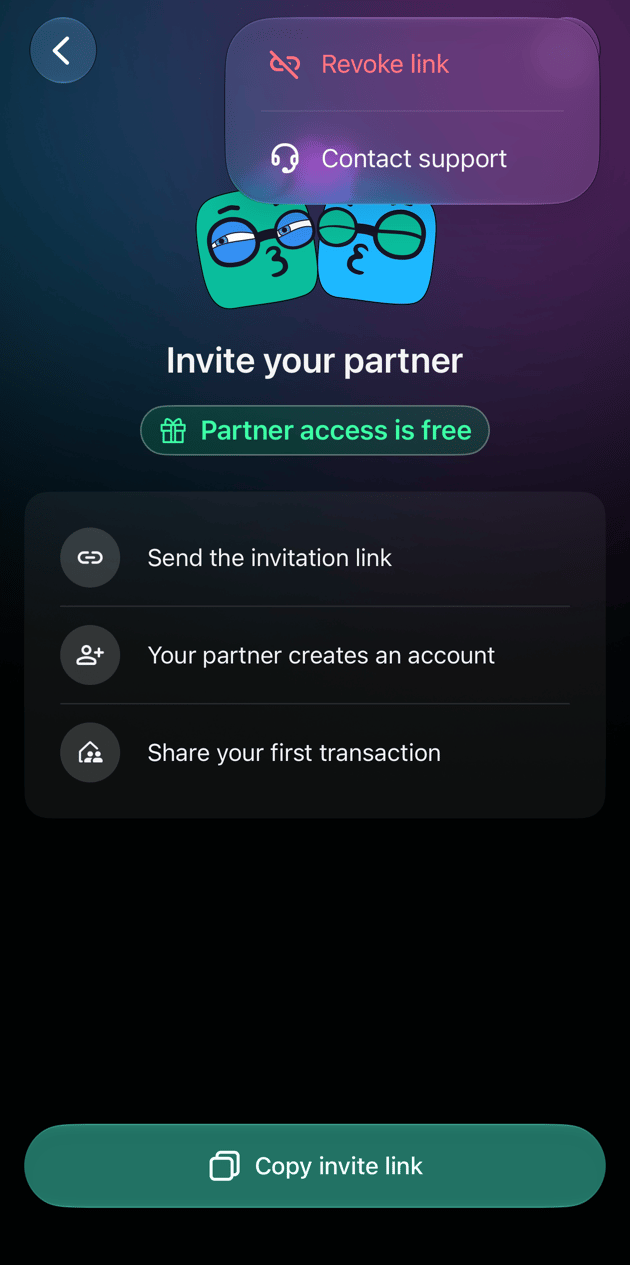
Accept the invitation
Your partner opens the link on any device. If they don’t have finerd yet, the page offers Get started to create an account first; the invitation is kept until they finish signing up. If they are signed in, they see You’ve been invited to manage family finances with your email and Your access is free, and they select Accept invite. The invitation always joins their Personal space, so it can’t be accepted while a Business space is open.
The invitation on iOS: Accept invite.
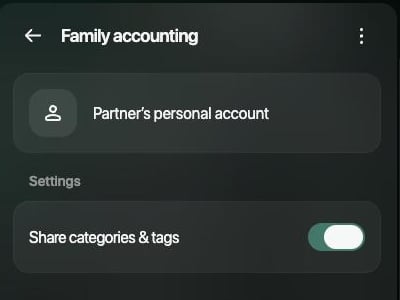
Family accounting on the web after the partner joined.
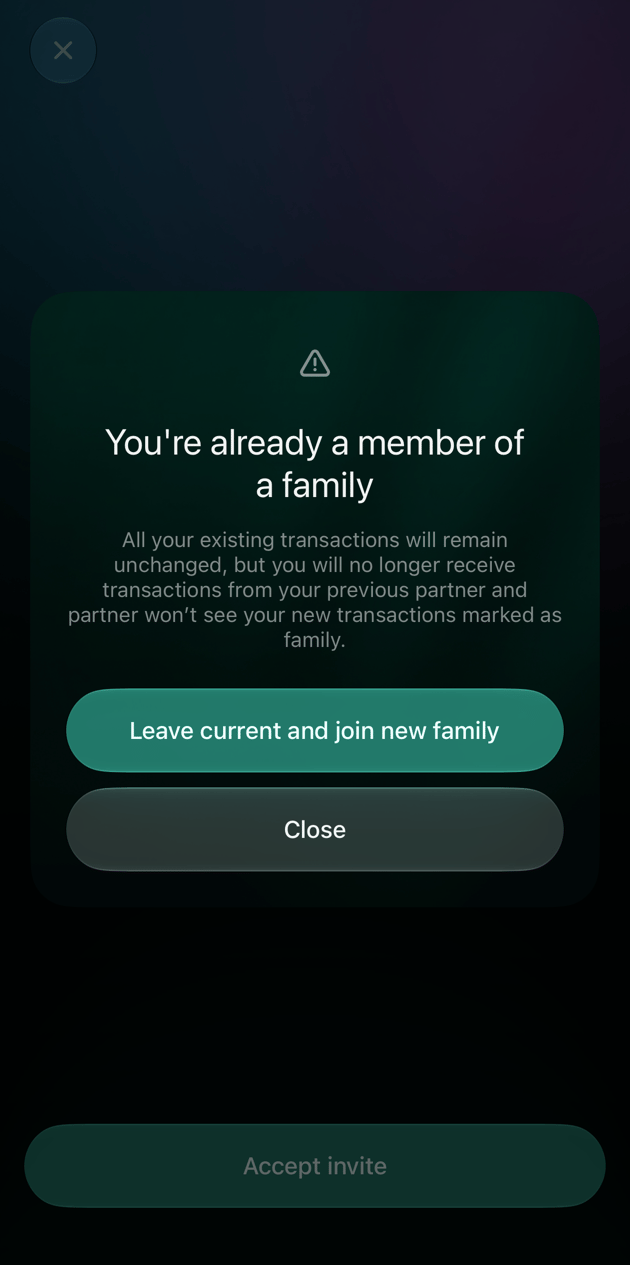
A partner who is already in a family has to leave it before joining yours.
What your partner sees
Until you share something, your partner sees nothing from your space: no accounts, balances, transactions, categories or reports. Each thing you share appears in their space as its own record: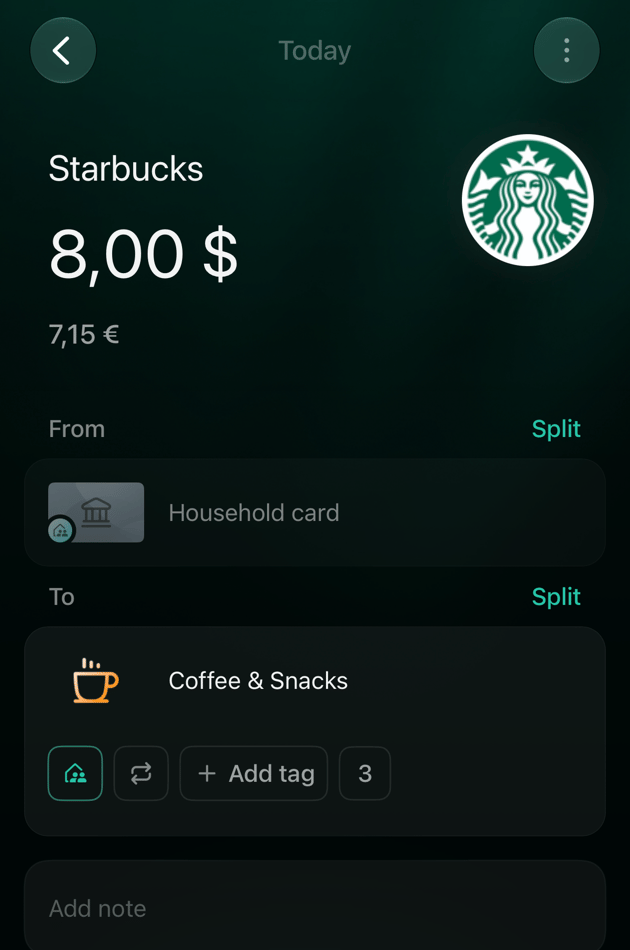
The partner's side: a shared Starbucks expense from the joint Household card.
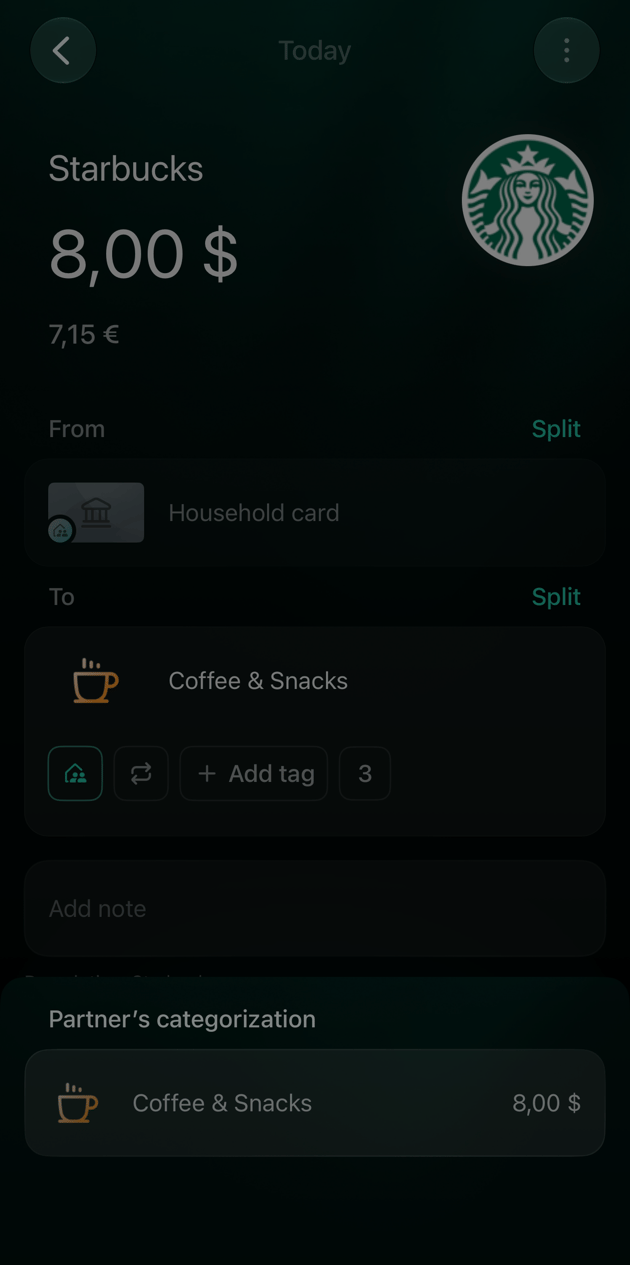
Partner's categorization: how your partner filed a shared transaction.
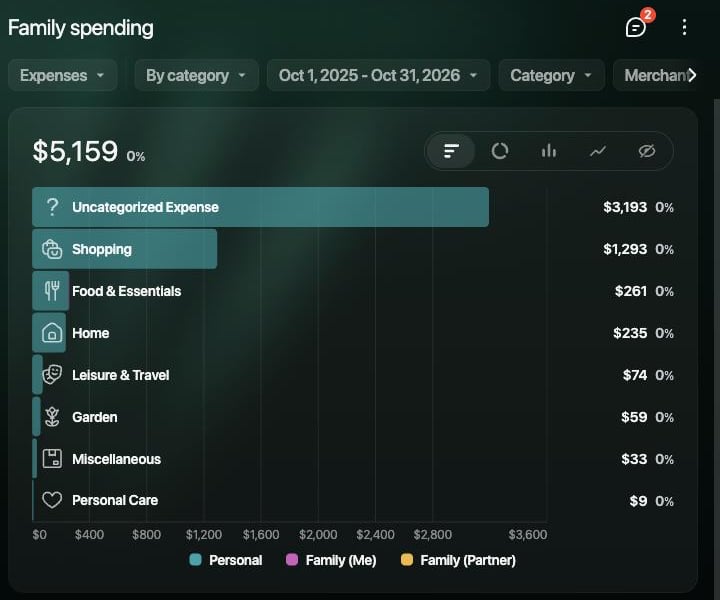
Family spending on the web: shared expenses next to personal ones.
Share a whole account as joint
Mark an account as joint when your partner should see its balance and every transaction, for example a shared card or the household savings. The bank doesn’t need to know the account as joint: finerd treats any of your accounts the same way. What you can’t share this way: a Debt account, Money on the way, the partner account itself, and a debt account linked with another person. Everything else, including bank, cash, investment, property and loan accounts, can be joint.- Web
- Android
- iOS
- Open Accounts and the account you want to share.
- Select ⋮, then Mark as Joint.
- Under Sharing transactions with your partner, set the Start date. Today is selected by default.
- Select Mark as Joint.
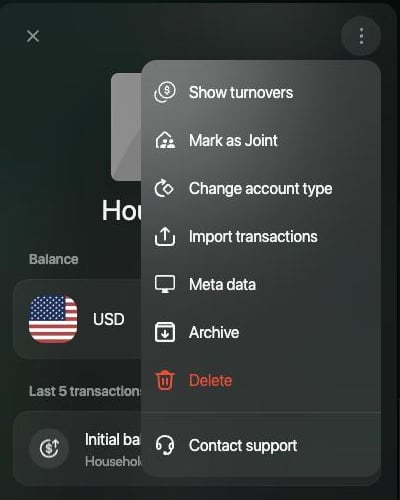
⋮ on an account: Mark as Joint.
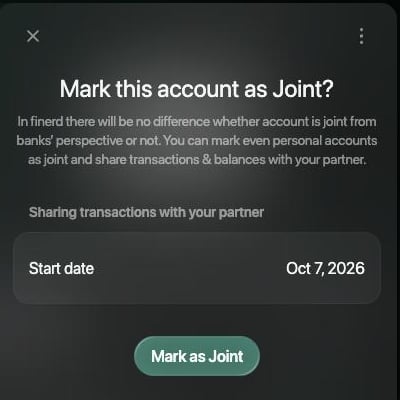
Mark this account as Joint? with the start date.
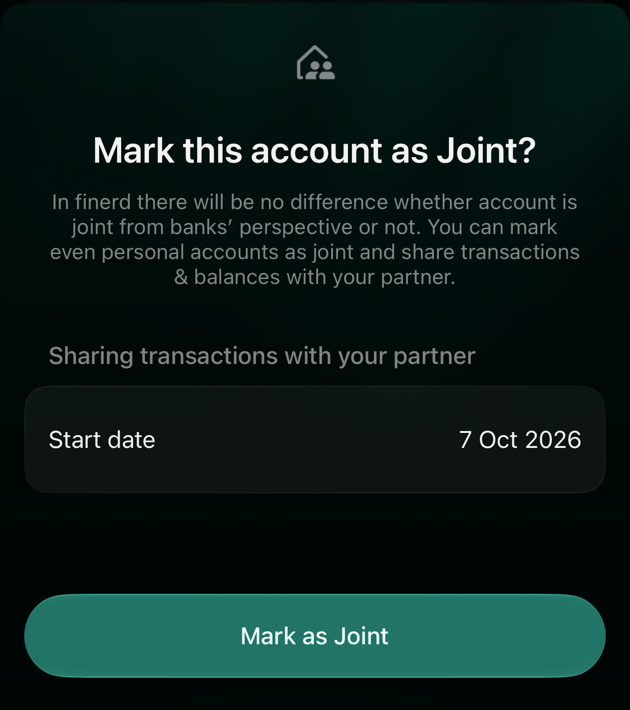
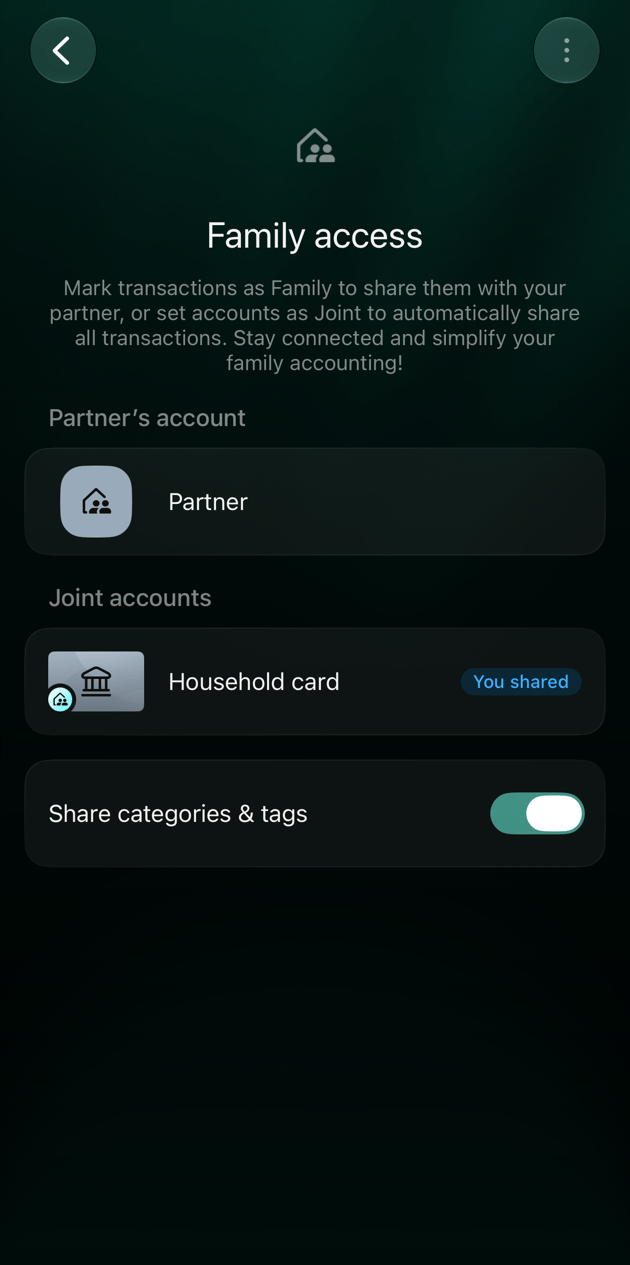
Family access with a joint account.
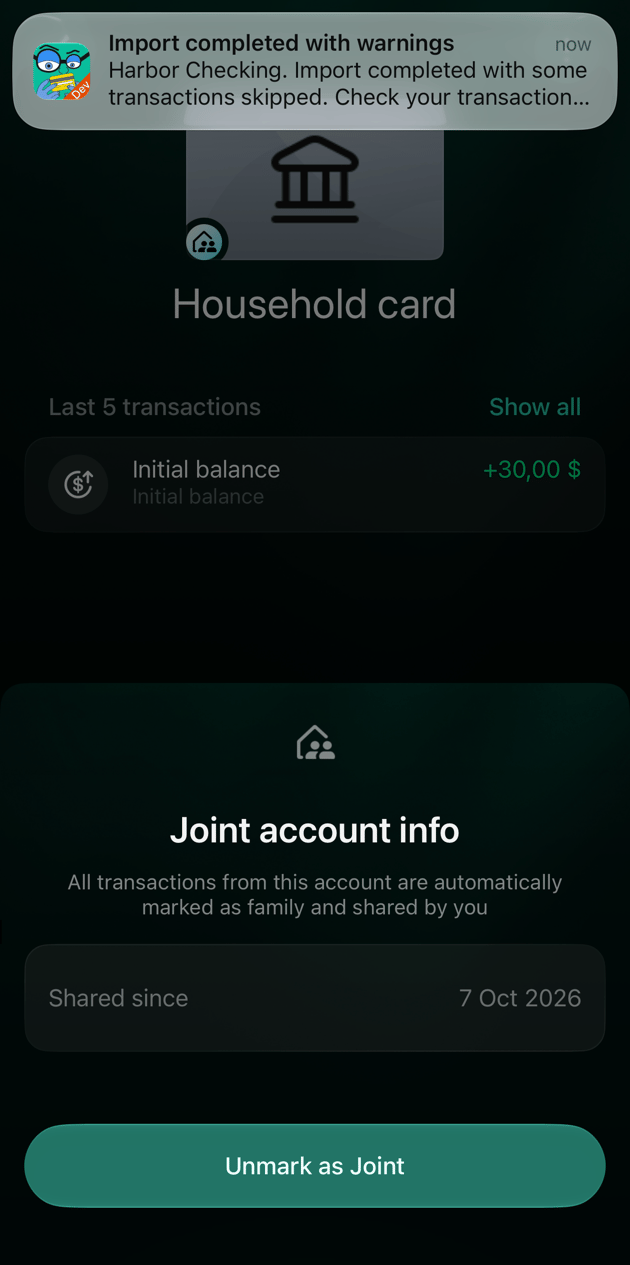
Joint account info on iOS: Shared since and Unmark as Joint.
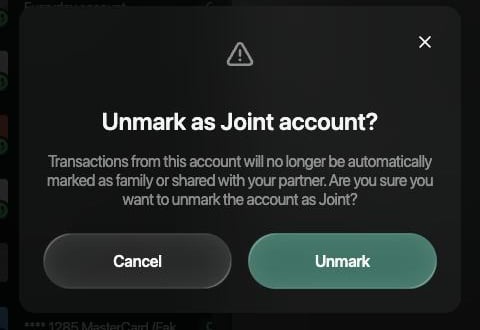
Joint account info and the Unmark as Joint confirmation on the web.
Share categories and tags
Share categories & tags in Family access (web and iOS; Android doesn’t have the switch yet) decides whether a shared transaction keeps one category and one set of tags in both spaces. It is on for a new family: a transaction you share arrives in your partner’s space with your category, and a category or tag either of you edits changes for both. Turn it off when you want to file shared transactions your own way: select the switch and confirm Turn off sharing. finerd warns that your reports and budgets may then differ from your partner’s. From then on, each of you categorizes shared transactions independently, and Partner’s categorization shows the other side’s choice. Turning it back on replaces your partner’s categorization of family transactions with yours; finerd asks you to confirm with Share anyway.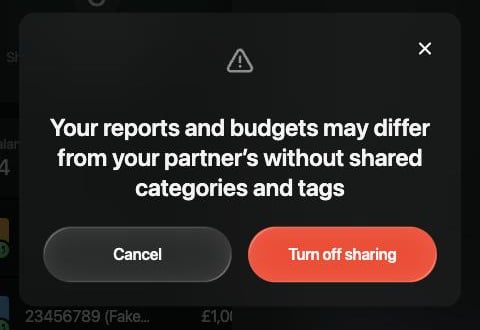
Turning off shared categories and tags on the web.
End shared access
- A link you sent by mistake: revoke it as described in Invite your partner. A link that was already accepted can’t be revoked.
- The whole family: either partner can leave. Open Family access, select ⋮ in the header, then Leave family and confirm Leave. There is no way to remove a partner from your side: leaving is the only option, and it works the same for both of you.
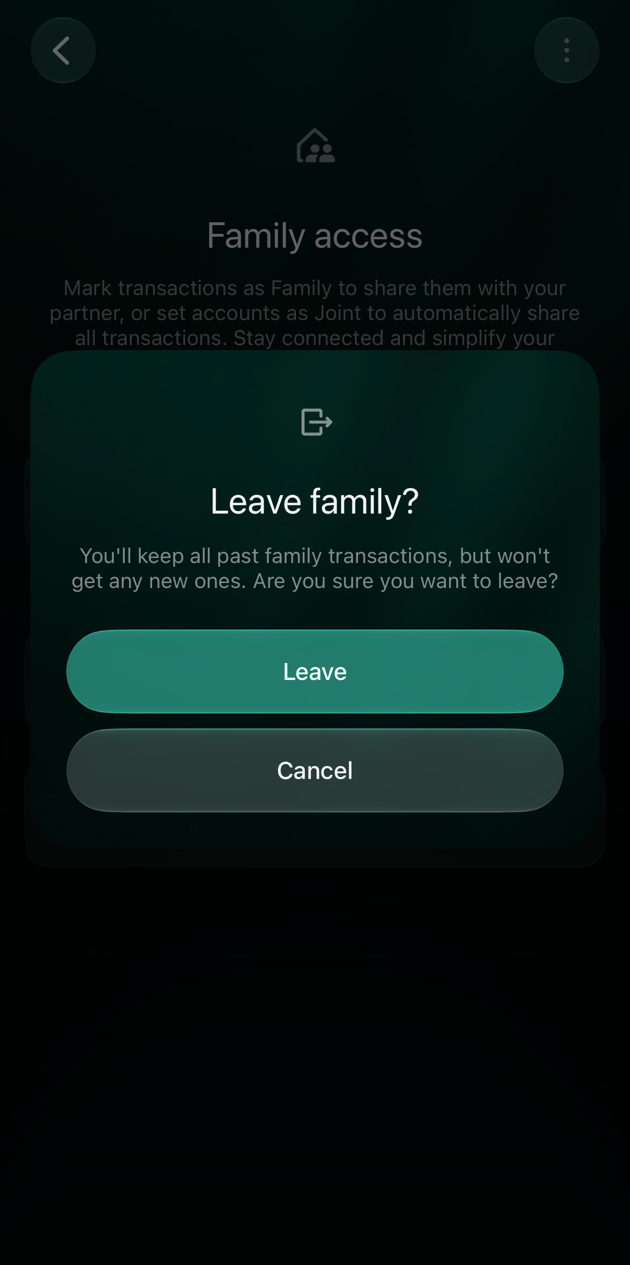
Leave family? on iOS.
- Both of you keep every family transaction you already have; the copies become ordinary transactions you can edit or delete. No new transactions are shared.
- Joint accounts are unmarked. The copy in your partner’s space stays as a normal account.
- The partner account is archived in both spaces and can’t be unarchived.
- Shared categories and tags stop syncing.