
Export a space
An export covers one space: the one that’s open when you request it. If you have a Personal space and a Business space, export each separately. In a Business space, the owner, admins and accountants can export; members and viewers can’t.- Web
- Android
- iOS
- Select your profile at the bottom of the sidebar, then the settings icon next to your space.
- Select Data.
- Select Export data.
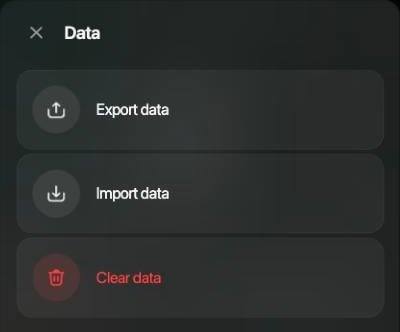
Space settings › Data on the web.

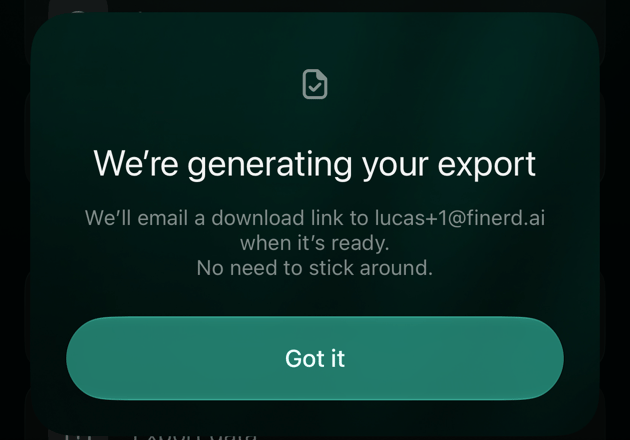
The export has started; the link will arrive by email.
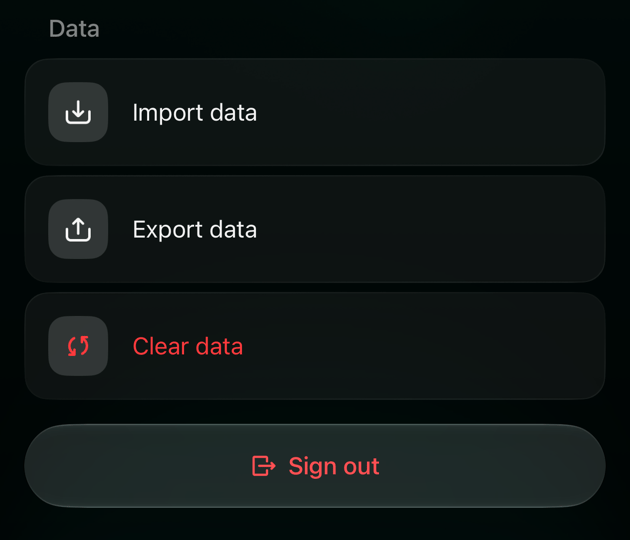
Download the export
When the export is ready, usually within a few minutes, an email from finerd Team arrives with the subject Your report is ready!. Select Download Backup in it to download the ZIP file, named after the space and the date, for examplePersonal_Backup_2026-10-08.zip.
The link works for 3 days. After that, request a new export in the app; the old link can’t be renewed.
If the email hasn’t arrived after half an hour, check your spam or junk folder, then select Export data again. finerd sends the email to the address you sign in with, the one the app shows when you start the export.
What the export contains
The ZIP file holds one CSV file for each of these:
Report amounts are in the space’s primary currency. The column headings are in English whatever language the app uses.
In the transactions file, each transaction takes one row per side: a coffee you paid for by card has a row for the card account and a row for the category, both with the same Transaction ID. A transfer or a split has a row for each account and category it involves. Each row shows the amount and currency of that side, along with the transaction’s date, merchant, description, tags, accrual month and notes, and whether it was reviewed.
The export doesn’t include separate lists of your accounts, categories, merchants or tags, or your budgets, recurring payments, debts and settings.
The files are plain CSV in UTF-8, separated by commas. To open one in Excel, use Data › From Text/CSV and choose UTF-8 so that letters outside English, such as Cyrillic, display correctly. Google Sheets and Numbers open the files directly.
Download a table as CSV on the web
On the web, the Transactions, Recurring and Bills pages can download what you see as a CSV file right away, without waiting for an email. Recurring payments and Bills are Pro features; see Manage your subscription.- Open the page and narrow the list with search and filters, for example a Date range and an Account.
- Scroll down until every row you need has loaded. finerd loads the list as you scroll, and the file includes only the rows that are loaded.
- Select the download icon to the right of the Columns settings icon.
- Under Export columns, switch columns on or off and drag them by the handle to change their order. The window shows how many rows will be exported, for example 50 rows will be exported.
- Select Download CSV to save a file such as
transactions-2026-10-08.csv, or Copy to copy the table and paste it into a spreadsheet.
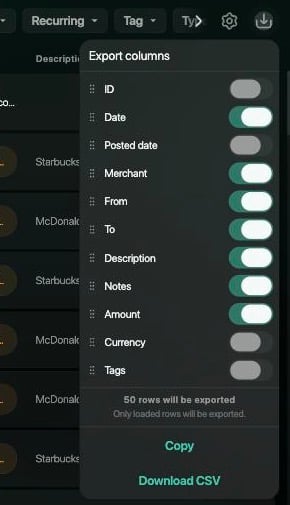
Export columns on the Transactions page. The column choice is separate from the columns shown on screen.
- Transactions: one row per transaction. The category is in From or To, and a split transaction lists all its categories in one cell. Amount is in the transaction’s own currency; switch on Currency to see which one.
- Recurring: the download icon appears in the list view, not the calendar. Annual spend is in the space’s primary currency.
- Bills: the download icon appears in the table view, not the grid.
- The column headings are in the language of the app.