Configure widgets
Choose the information you want to see on Dashboard, such as account balances, expenses, income, or recent transactions. Available settings depend on the widget type.- Web
- iOS
- Open the ⋮ menu in the top-right corner of Dashboard and select Add widget.
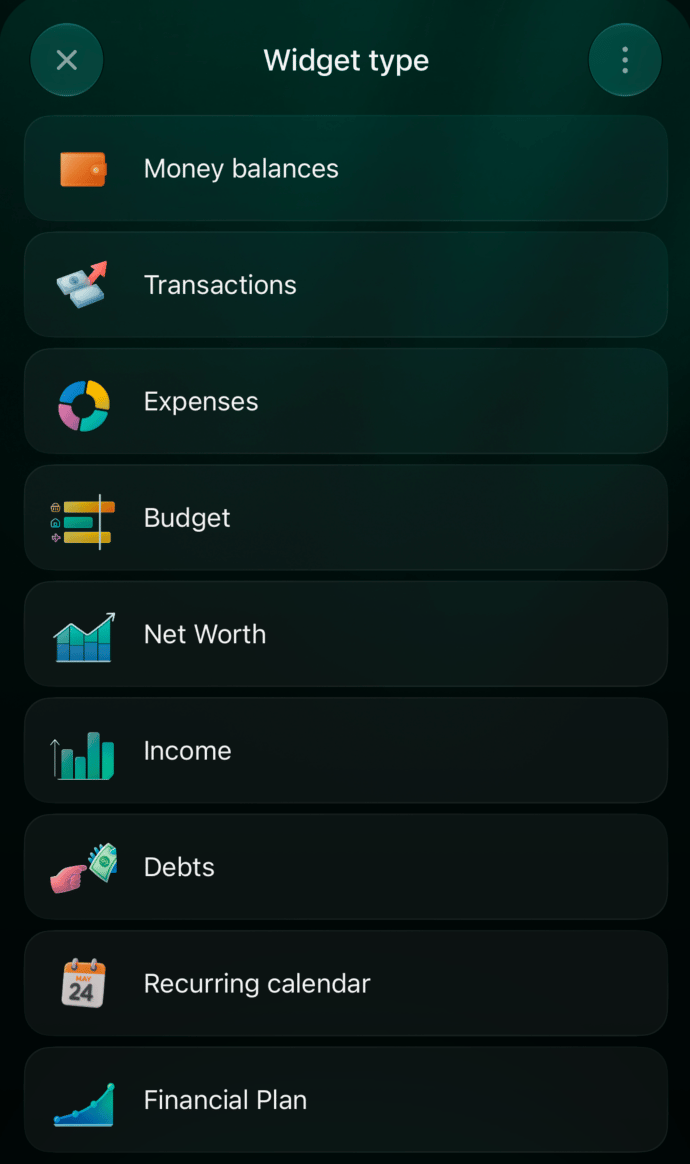
- Choose a widget type, such as Expenses, Income, Money balances, or Transactions.
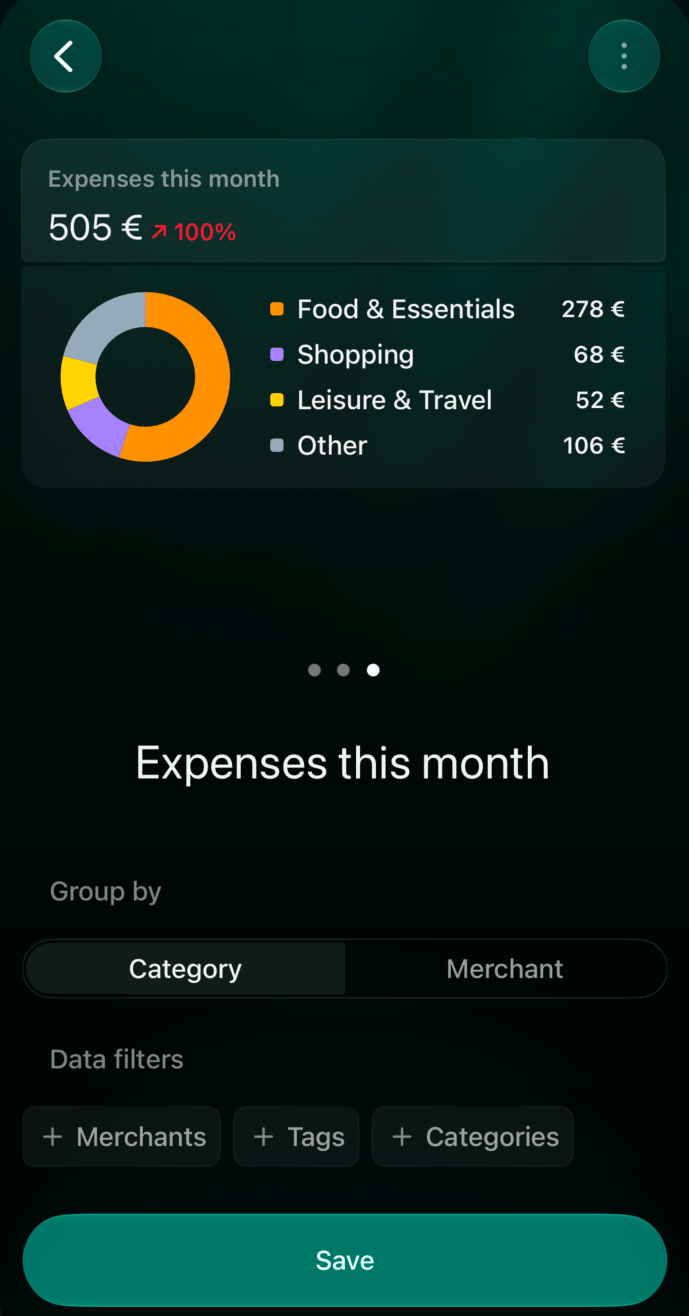
- Configure the data to display. For example, Expenses offers Category or Merchant under Group by, and Data filters for merchants, tags, or categories.
- Select Save to add the widget.
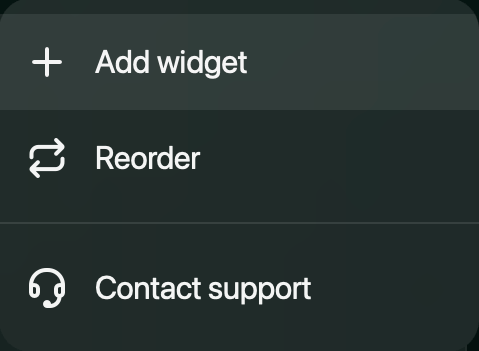
Dashboard menu: add widgets or change their order.
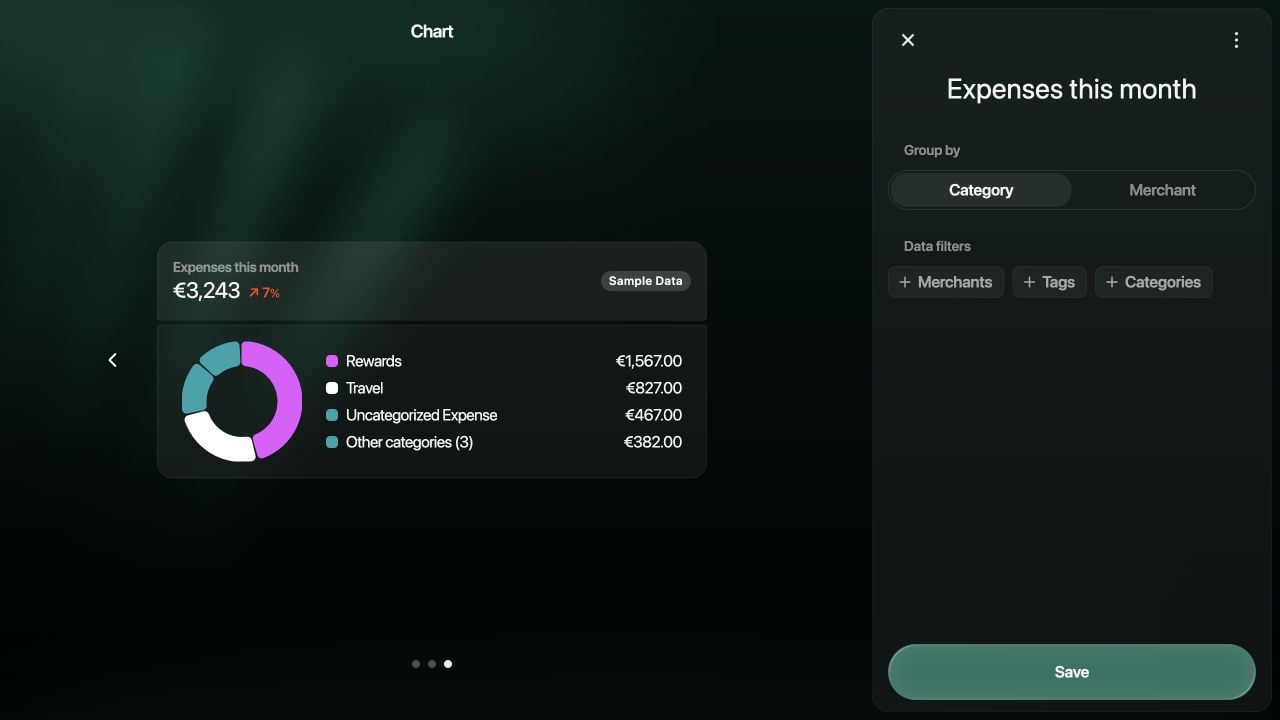
Example Expenses settings. The preview marked Sample Data uses demonstration data.