
How a plan works
A scenario starts from your finances today and repeats the same calculation for every year (or month, or quarter) ahead:- Assets, such as bank accounts, cash, stocks and crypto, real estate and vehicles, grow or lose value at their own rate.
- Liabilities, such as loans, mortgages and debts you owe, grow with interest and shrink with the payments you plan.
- Income minus expenses is what you have left each year. The part you choose to invest goes into your assets; the rest stays in your plan as cash.
- Future events, such as a pension from your retirement date, change these amounts from a given date. See Add future events to your plan.
Create your first scenario
When you create a scenario, finerd copies the current balances of your accounts and your income and expenses by category into it. Nothing in your accounts changes: the scenario is a separate copy you can edit.- Web
- iOS
- Open Reports and select Financial plan.
- Select Create first scenario.
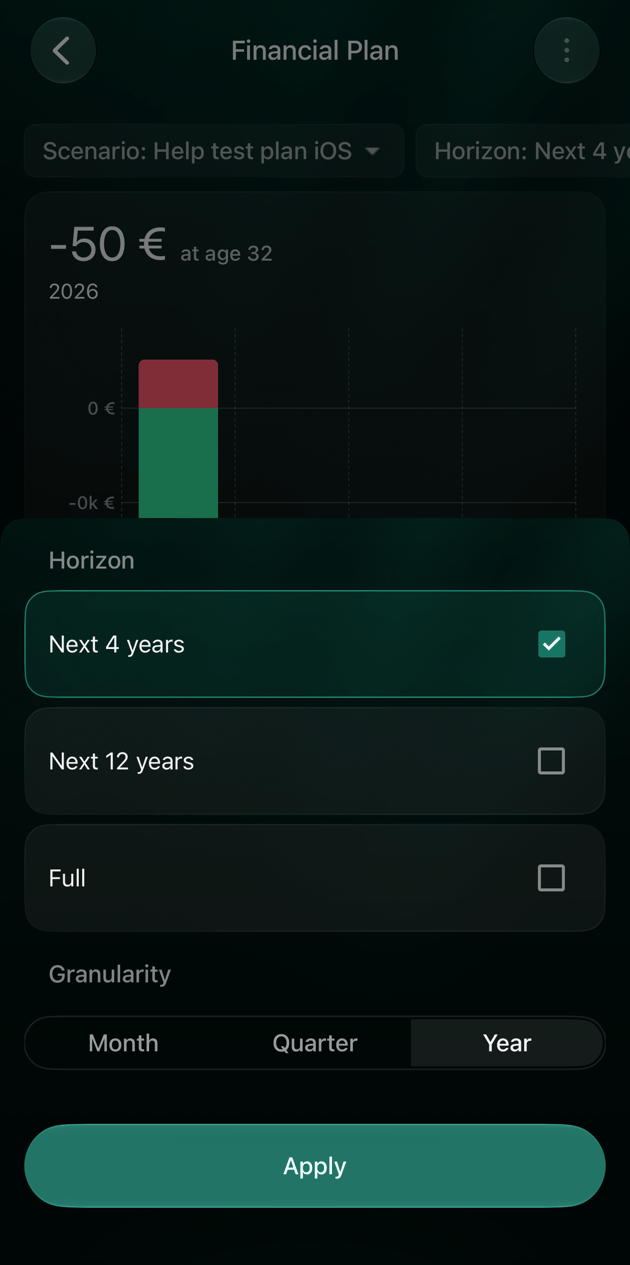
- Choose Month, Quarter or Year, then select Apply. Every amount in the scenario is per month, per quarter or per year. You can’t change this later.
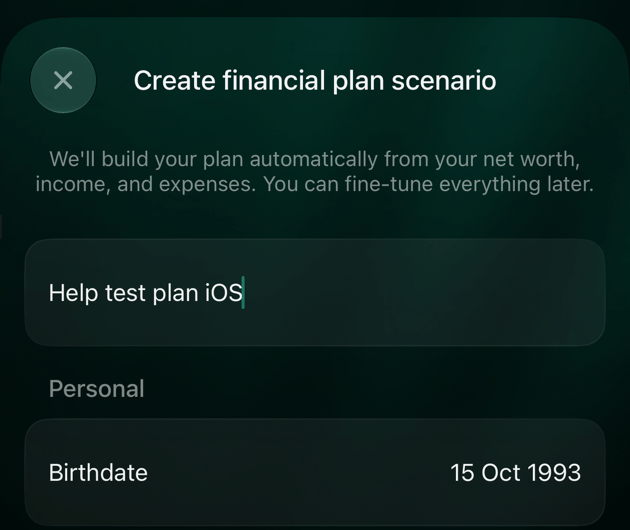
- Enter a name in Scenario name, such as Base plan.
- Select Birthdate and choose your date of birth. finerd suggests a date 20 years ago, so change it.
- Check the other settings in the sections below, then select Save.
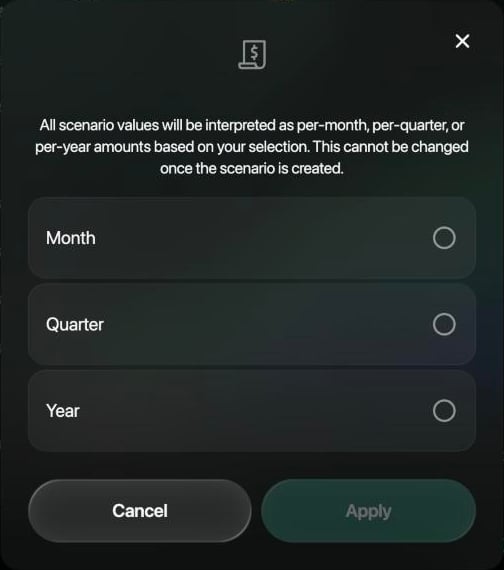
Choose whether the amounts are per month, quarter or year.
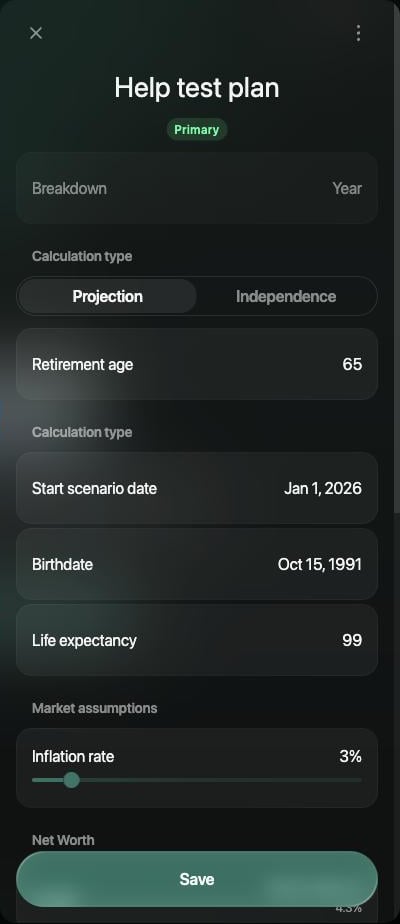
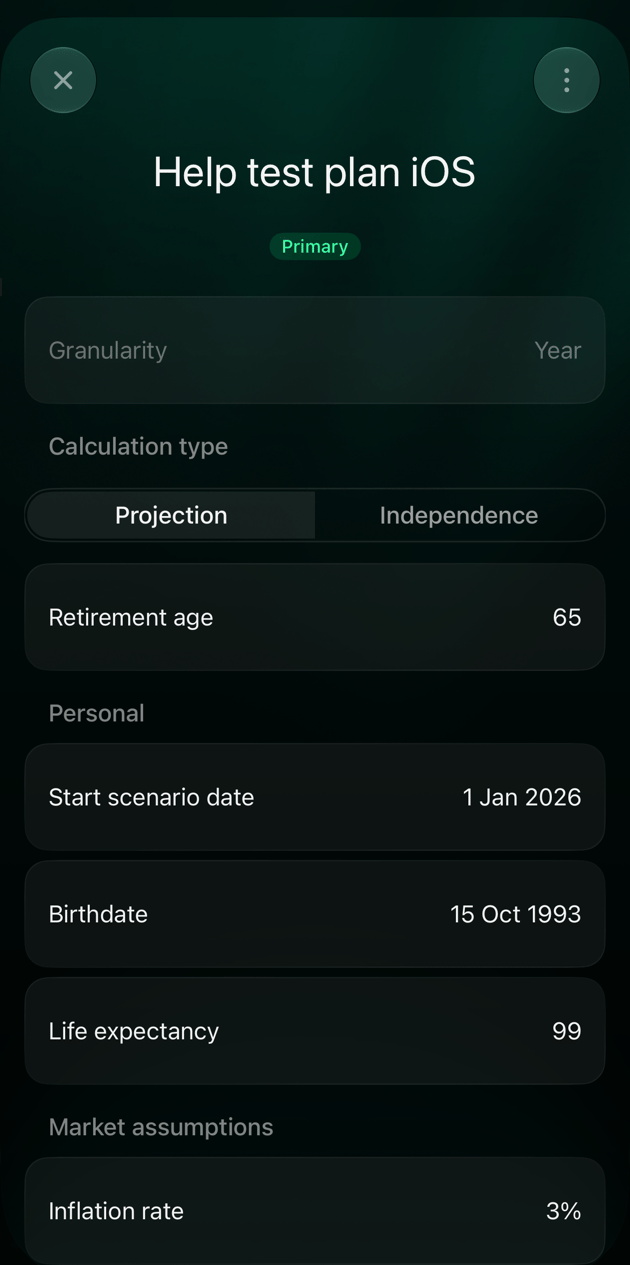
A new scenario. The settings below the name are explained in the next sections.
Set your age and timeline
These settings decide how long the plan runs and when you retire.- Calculation type: Projection uses the Retirement age you enter (65 at first). Independence works out the earliest age you could stop working instead; see Find your financial independence age.
- Start scenario date: Beginning of current year or Today. On iOS, changing it fills the scenario in again from your accounts and replaces the amounts you edited.
- Birthdate: sets your age in each year of the plan.
- Life expectancy: the plan runs until this age (99 at first). Born in 1991 with a life expectancy of 99, your plan ends in 2090.
Check assets and liabilities
Select Assets or Liabilities under Net Worth to see the accounts finerd added. Each line shows the balance and a yearly rate. Select an account to change its amount or rate.
Belongings such as furniture and electronics aren’t in the Assets list, so you can’t set their rates. The chart can still show them at their current value.
Set a bank account’s rate to the interest it pays, and an investment’s to the return you expect. Property and loans have their own articles: Track property and Track a loan or mortgage.
Plan how loans are paid off
finerd adds each loan with its interest rate but no payments. Until you set them, the loan grows every year and pulls your net worth down. For each loan, open it and under Payoff choose:- Amount, then enter the payment in Annual pay, or
- Period (years), then enter how many years are left in Pay years. finerd works out equal payments that clear the loan in that time.
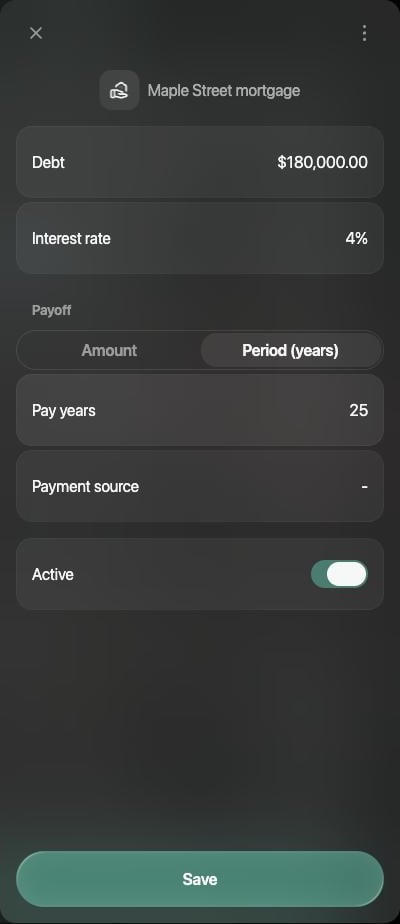
A mortgage paid off over 25 years.
Leave an account out
To keep an account out of the plan without deleting it, turn it off:- Web: open the account and turn off Active.
- iOS: swipe left on the account and tap Ignore (Not ignore brings it back), or open it and turn off Active in scenario.
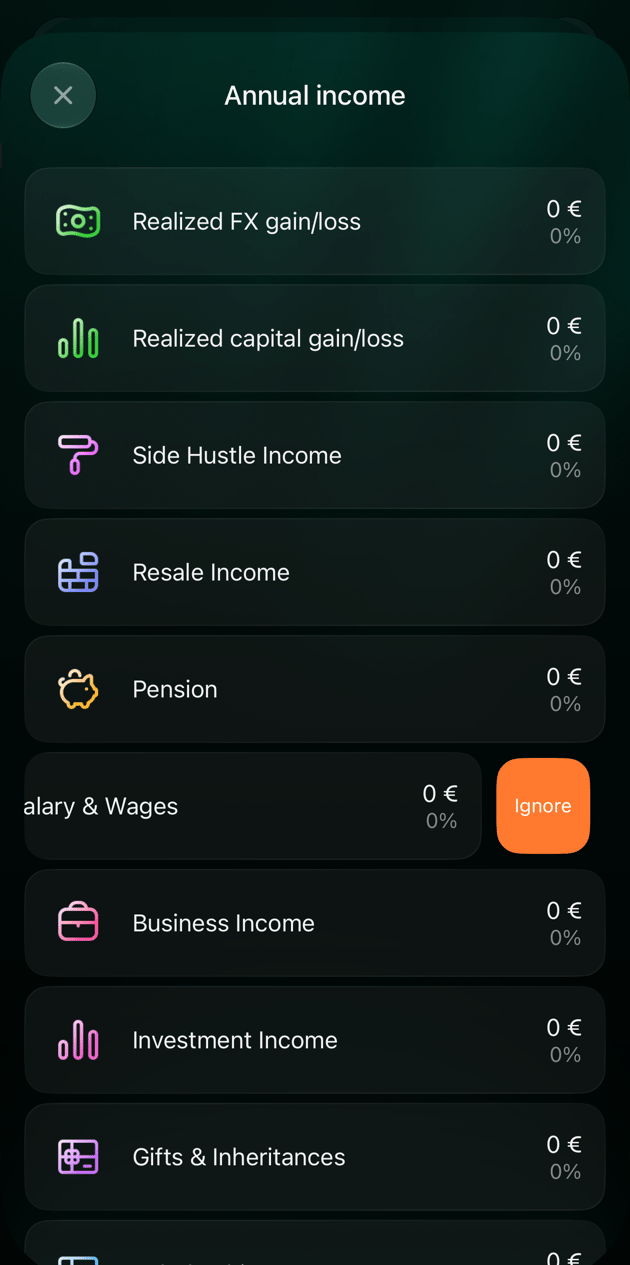
On iOS, swipe left on a line to ignore it.
Set income and expenses
Under Profit & Loss, Annual income and Annual expenses hold your income and spending by category, based on your recent transactions. In a monthly or quarterly scenario, they’re called Monthly or Quarterly income and expenses. Select either to see the categories. Open a category to change its amount or how fast it grows: Income growth rate or Expense growth rate, 3% a year at first. A category with an amount of 0 is removed from the scenario when you save. To change income or expenses from a future date, such as a raise, a new child or your pension, add an event instead; see Add future events to your plan.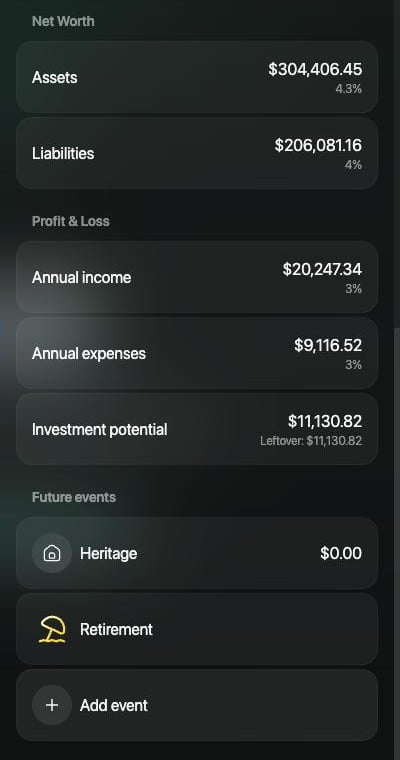
Totals the plan starts from: net worth, income, expenses and what's left to invest.
Set inflation and growth rates
Inflation rate under Market assumptions is 3% at first. finerd uses it in two ways:- It takes inflation off the growth of your assets, so the plan shows them in today’s money.
- It’s the growth rate for any income or expense without its own rate.
Invest available money
Investment potential is your income minus your expenses: what’s left to invest each year. Leftover is the part you haven’t assigned yet. To plan regular investing:- Select Investment potential.
- Select the asset to invest in, such as a brokerage account.
- Under Annual contribution plan (or Monthly or Quarterly), choose:
- Amount, then enter how much you add each year, or
- Percentage, then choose an income category, such as your salary, and enter its share.
- Select Save (on iOS, Apply), then save the scenario.
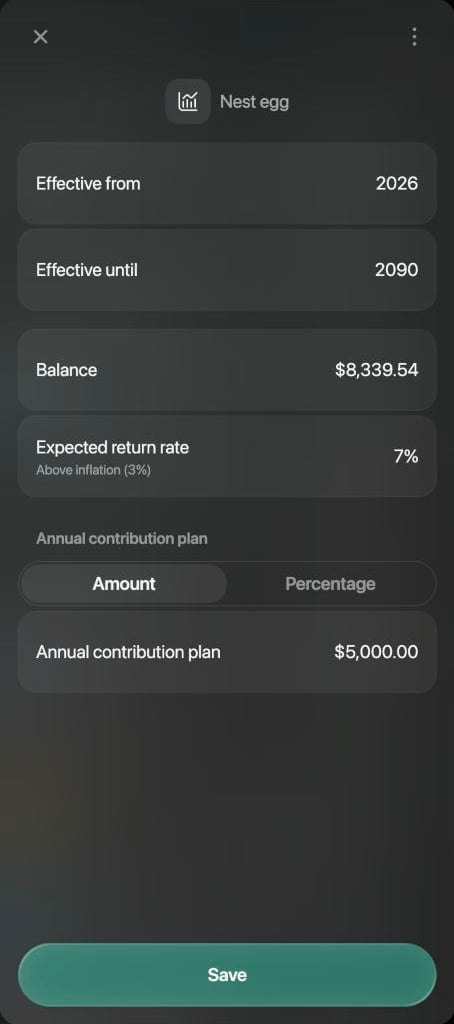
5,000 USD a year into an investment account at an expected 7%.
Read your plan
The chart shows your net worth for every year of the plan: assets above zero, liabilities below it.- Web
- iOS
- Starting net worth is where the plan begins. Net Worth at Retirement Age is the plan’s value in your retirement year, with the change from the start. It appears when the view is set to Year.
- An umbrella icon marks your retirement year.
- Point at a bar to see your age that year, the plan for each type of account and, for past and current years, your actual amounts with how far they are from the plan.
- Year next to the scenario name switches the chart to months or quarters.
- The eye icon hides the chart. The table under it lists the plan for each account type and account, year by year. Copy copies the table.
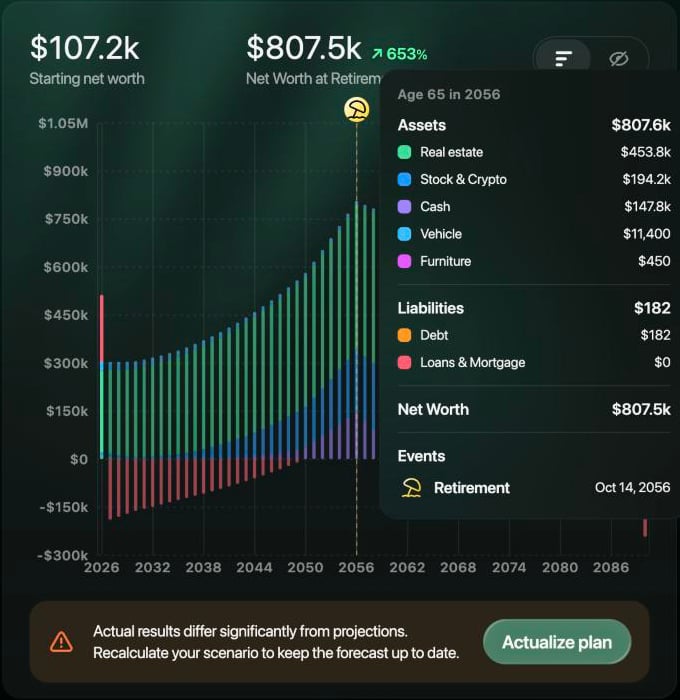
Point at a bar to see that year's plan. Here, the retirement year: the mortgage is paid off and the savings are at their peak.
Next steps
- Add future events to your plan: a home or car purchase, a child, a new job, a loan or your pension.
- Compare and update scenarios: copy a scenario to try another choice, compare scenarios side by side, find your financial independence age and keep the plan in line with your actual results.
- What $1,000 can become: how compound growth works.