
Before you move your data
Use a fresh space. finerd moves your data only into a space without transactions from a connected bank or an imported statement. Transactions you added yourself don’t get in the way. The easiest moment is right after you sign up, before you connect a bank: the setup on the web offers to move your data (see Start fresh or import history). If you’ve already connected a bank, add older history to each account with Import a bank statement instead. For a business, you can move the data into a new business space. Know what finerd creates. From your files, finerd creates:- Accounts, with the names in your files. If the space already has an account with the same name and type, finerd adds the transactions to it instead of creating another one.
- Categories and subcategories, named as in your files. Categories in the space that have no transactions and aren’t in your files are removed, so your category list matches your old one.
- Tags and merchants from your files. Merchants that finerd knows, such as Starbucks or IKEA, get their logo.
- Transactions, with the date, amount, currency, notes and, where your files have it, the accrual month.
Prepare your files
finerd takes CSV files. If your data is in Excel, Numbers or Google Sheets, save or download each sheet as CSV first. Excel workbooks (.xls, .xlsx) and PDF files can’t be used.
A spreadsheet or another app’s export doesn’t need renamed or rearranged columns: finerd works out what each column holds. Each row should be one transaction with at least a date and an amount. finerd also uses these columns when it finds them:
- The account the money went from or to. A transaction without one goes to an account named Imported account.
- The category, and a parent category if you use subcategories. A transaction without one is recorded as Uncategorized Expense or Uncategorized Income.
- The merchant or payee, description, currency, notes and tags.
- Money in and out as one column with a minus for spending, or as an amount plus a column that says whether it’s income or an expense.
Move your data
- Web
- Android
- iOS
- Select your profile at the bottom of the sidebar, then the settings icon next to your space.
- Select Data, then Import data.
- Under Where are you migrating from?, select Saldo, Finerd, My spreadsheets or Other. For Other, enter the app’s name under Where are you importing from? Select Continue.
- Under Upload your data from …, select Upload and choose your files, or drag them onto the page. They appear under Files to import.
- Select Continue. finerd shows Reading your files… and then Migration in progress… It’ll take some time. Select Go to Dashboard.
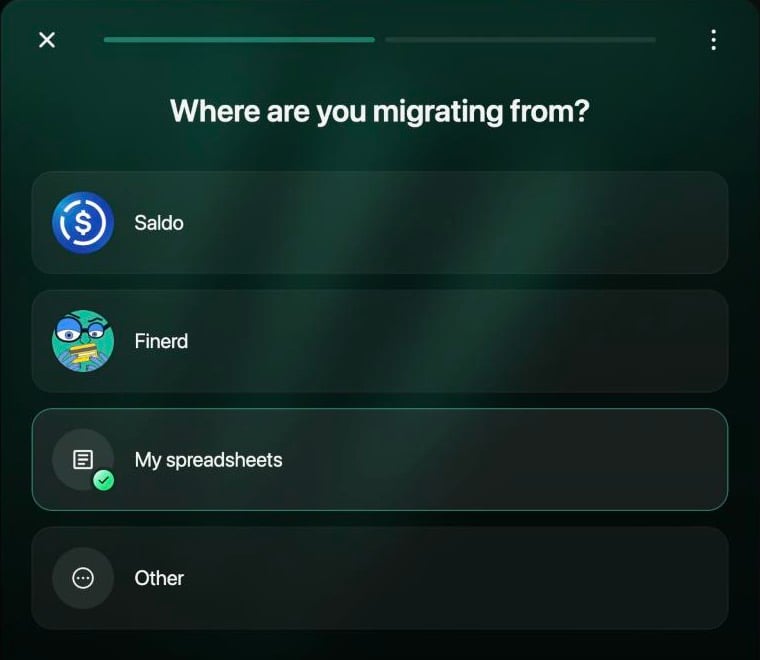
Choose where your data comes from.
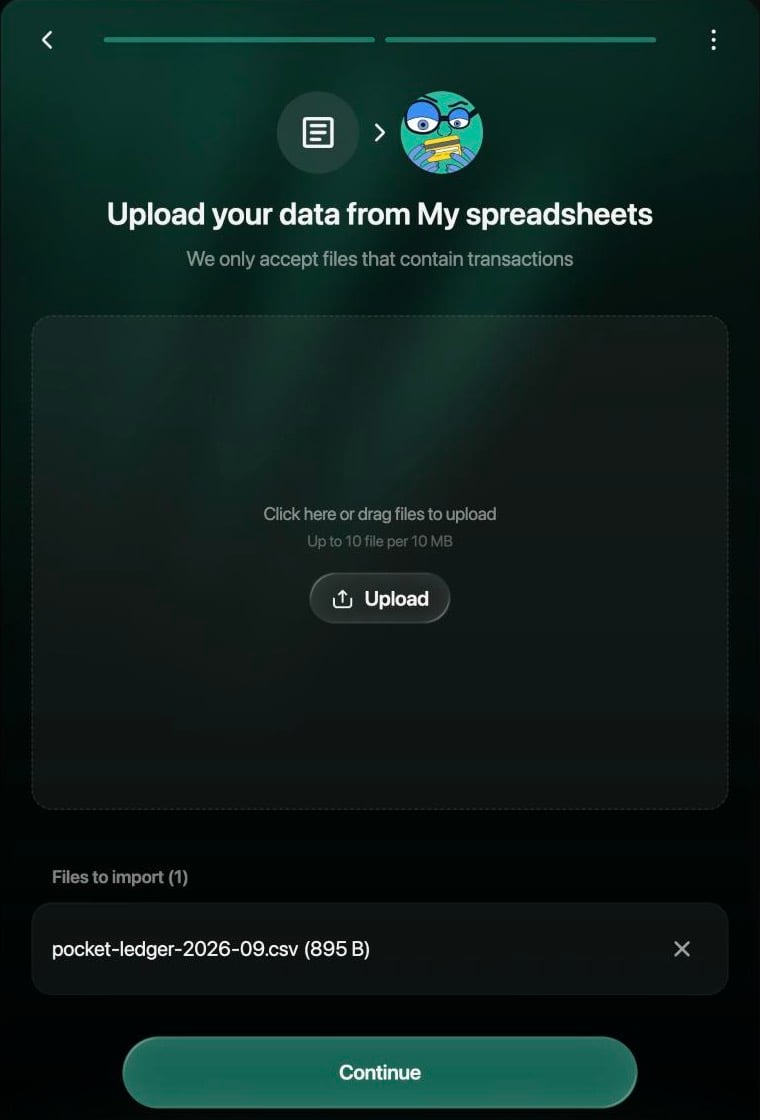
Add up to 10 CSV files, then select Continue.
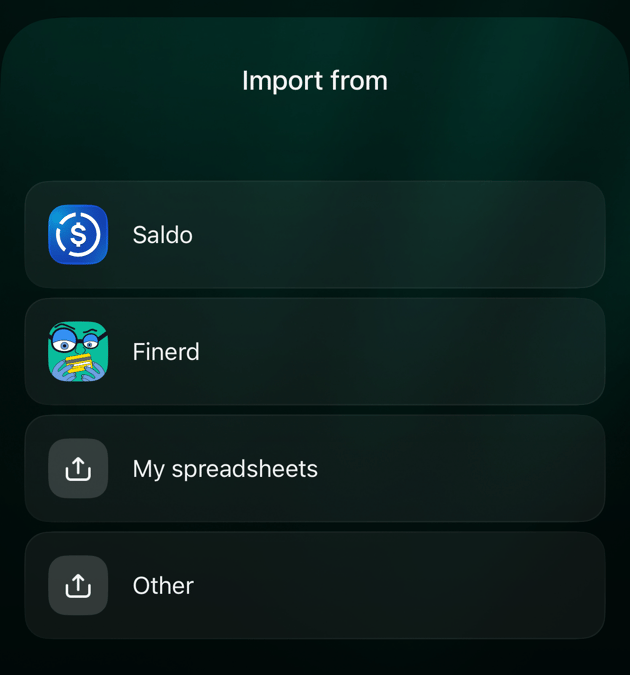
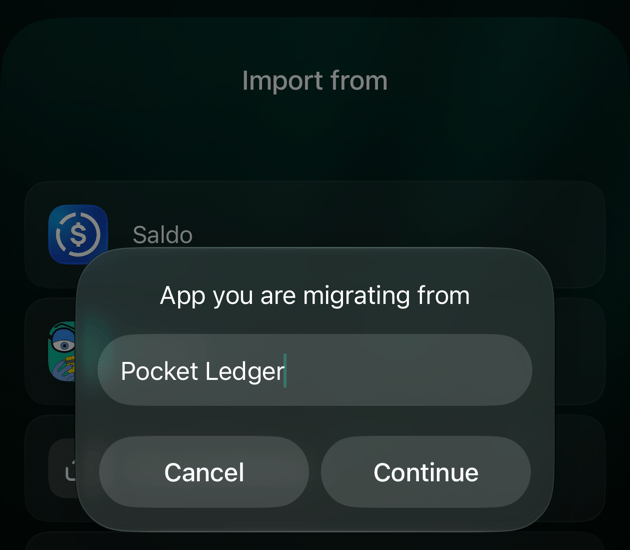
Follow the migration
You can keep using finerd while your data is moved. A small file takes about a minute; a long history takes longer. A migration can’t be stopped once it has started, and while it runs you can’t start another import or connect a bank in that space.- Web
- Android
- iOS
Active processes at the top of the page shows Data migrating… with a progress bar and the number of transactions imported, failed and in total.
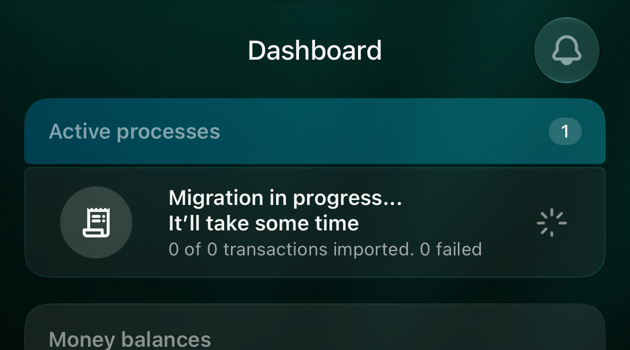
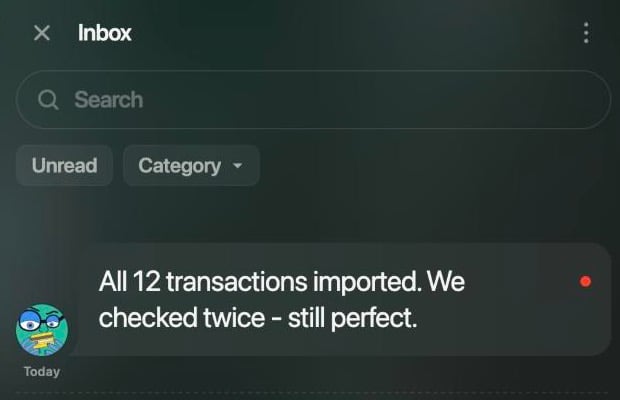
The result arrives in Inbox.
Check the result
Open Accounts or the Dashboard to see what was created, and compare it with your old app:- Balances. Each account’s balance is the sum of the transactions moved into it. Compare it with the balance in your old app; if they differ, look for missing or doubled transactions, or set the balance your bank shows with a verified balance.
- Categories. Your categories have the names from your files. Rename, merge or archive them as described in Categories, merchants and tags.
- Transfers. Check that money moved between your accounts shows as transfers, especially if your data came from a spreadsheet.
- Uncategorized and Imported account. Transactions without a category or an account in your files end up in Uncategorized Expense or Uncategorized Income, or in Imported account. Open them and choose the right category or account.
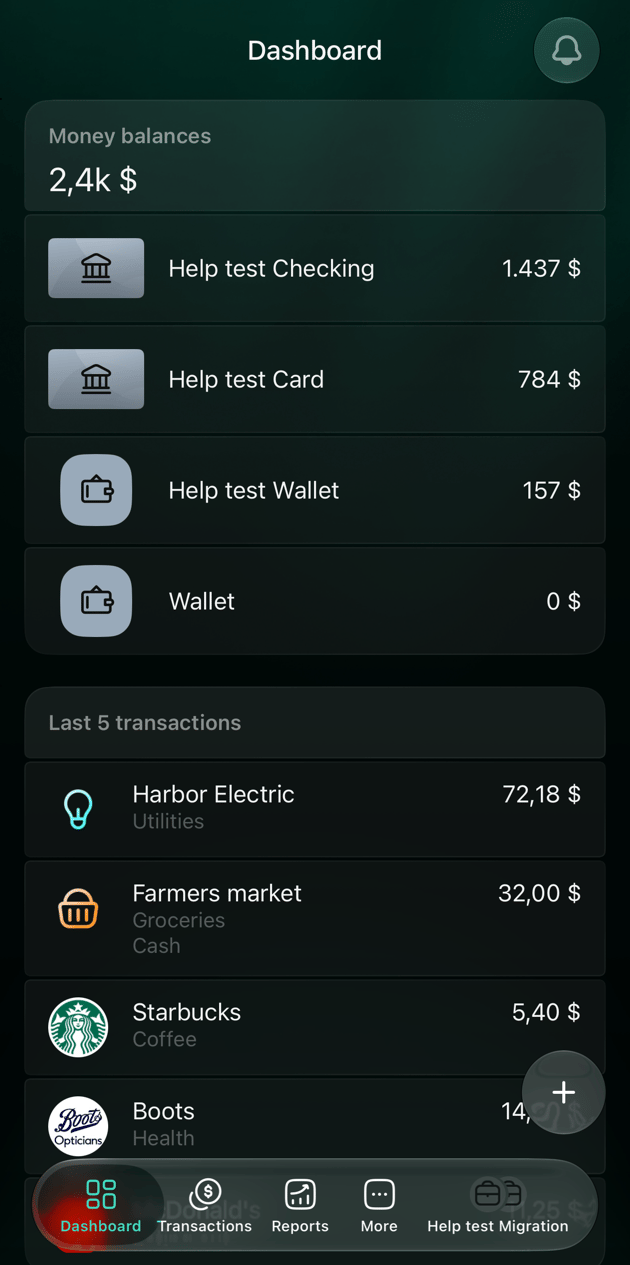
Accounts and transactions created from a spreadsheet.
If the migration fails
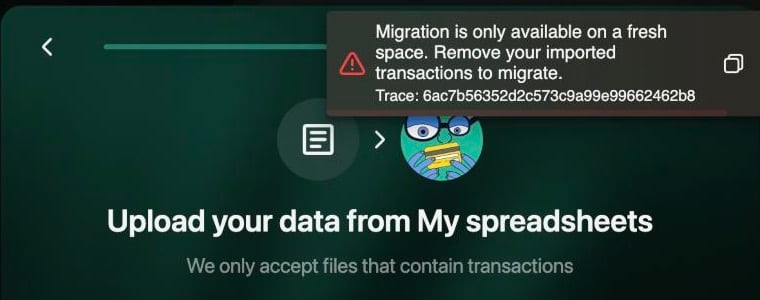
On the web, a space with bank or imported transactions can't take a migration.
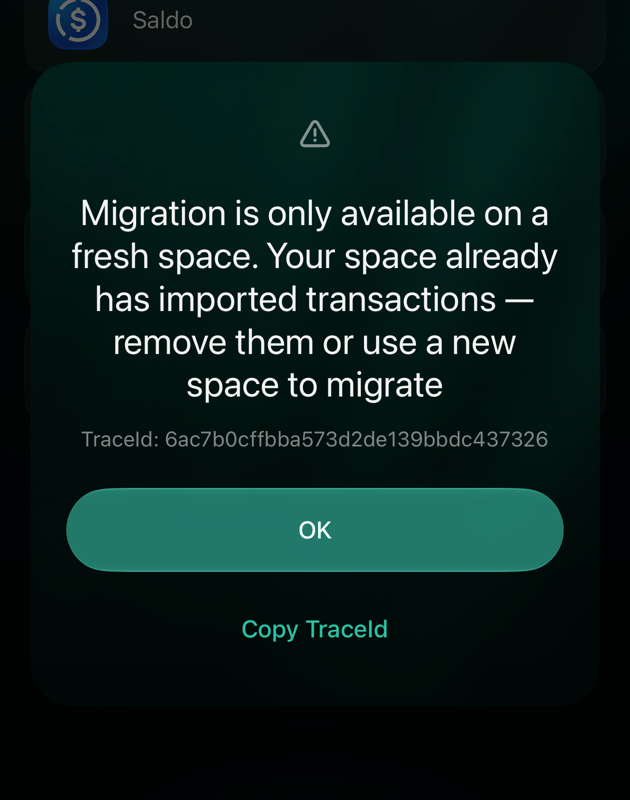
The iOS app shows the same check as a dialog.
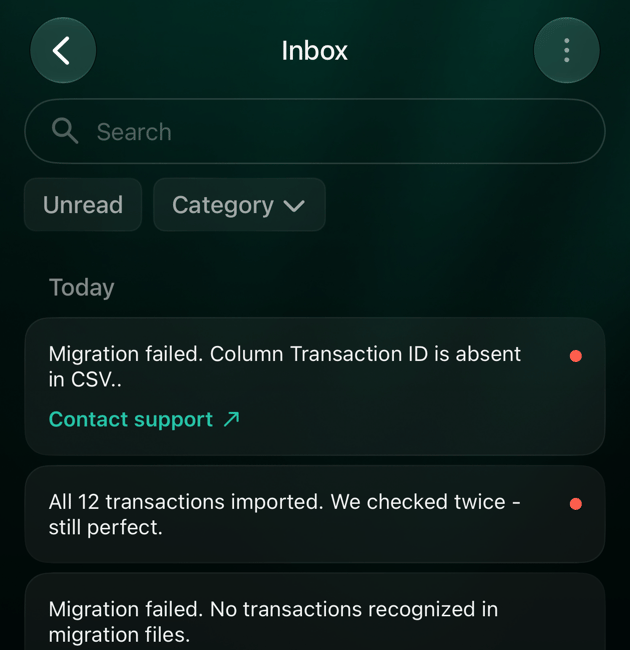
Failed migrations in Inbox, each with a Contact support link.
Related articles
- Start fresh or import history when you set up finerd.
- Import a bank statement into one account.
- Export your data from finerd to move a finerd space.
- Categories, merchants and tags to tidy up after the move.