Resolve budget alerts in finerd, add a one-off amount, move budget between categories for one month, or change the plan from this month on.
When a month doesn’t go to plan, you can adjust its budget in finerd without rewriting it: add a one-off amount for an unexpected expense, move budget from a category that has money left, or change the plan from this month on. In the current month, finerd also warns you when a category is over its plan or on track to go over, and offers these fixes.Adjusting a budget is free and works on the web, Android and iOS, in any month that has a budget, from the current month on. The web calls the warnings Conflicts; Android and iOS call them Budget alerts.
In the current month, finerd compares each planned category, and Other, with your transactions whenever a transaction or the budget changes. It warns you when:
Over budget: you’ve already spent noticeably more than planned.
Projected to exceed: from the 15th of the month, your pace points to going over by the end of the month. finerd takes into account how your spending is usually spread across a month, so a large payment that always comes early, such as rent, doesn’t raise it on its own.
Projected shortfall: you’re on track to receive less income than planned.
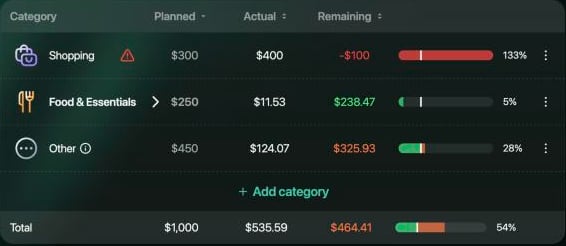
Small differences don’t raise an alert: the difference has to be more than 15% of the category’s plan or 5% of the budget’s total, whichever is less. In the example, Shopping has $300 of a $1,000 budget, so it gets an alert once it’s more than $45 over. A $81.22 birthday present brought Shopping to $400 in October, $100 over the plan.Alerts appear only in the current month. finerd doesn’t send notifications about them: you see them when you open the budget.
Web
Android
iOS
A warning sign next to the category’s name marks an alert: red when the category is already over the plan, orange when it’s projected to go over. Conflicts under Summary lists every alert with its amount: how far the category is, or is projected to be, over the plan. Hover over the ⓘ next to an alert’s name to see what it means.
Shopping is $100 over its plan.
Conflicts lists every alert of the month.
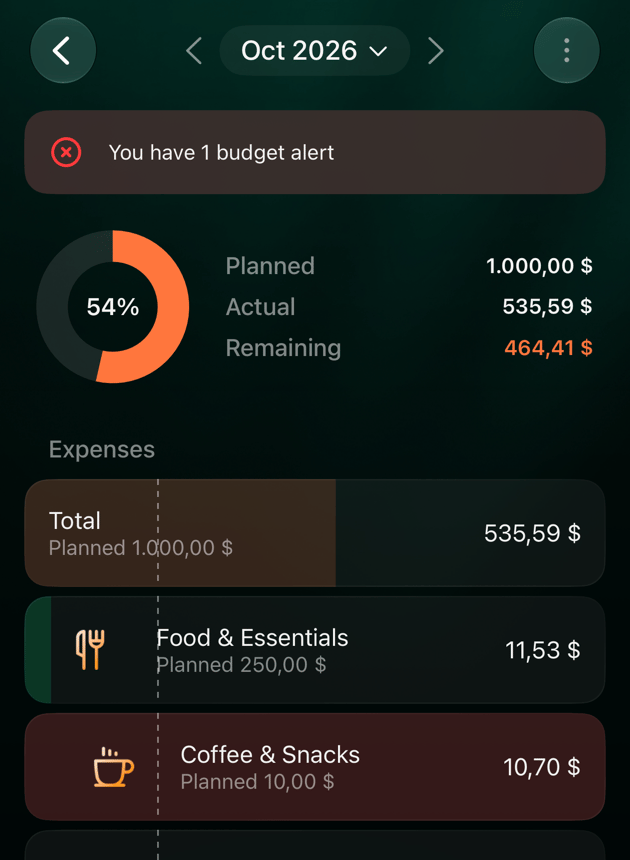
A banner above the chart says You have 1 budget alert, or how many you have: red if a category is already over its plan, orange otherwise. A warning sign on the category’s icon marks its row. Tap the banner to open Budget alerts, where each alert shows its amount, such as $100 over budget or Projected $40 over.
A banner above the chart says You have 1 budget alert, or how many you have: red if a category is already over its plan, orange otherwise. The category’s row shows Overspent or Projected over under the amount (Projected short for income). Tap the banner to open Budget alerts, where each alert shows its amount, such as $100 over budget or Projected $40 over.
Open the alert and choose what to do with the difference. finerd offers only the options that fit the alert:
Web
Android and iOS
What it does
Log a one-off
Mark as one-time adjustment
Adds a one-off amount to the category for this month, filled in with the alert’s amount. You can add a description.
Move budget from another category
Move budget from another category
Moves budget from a category with money left, for this month. Not offered for Other or when no category has money left.
Adjust the plan
Increase budget
Opens New planned amount with a suggested amount and changes the plan from this month on.
Ignore
Dismiss alert
Closes the alert without changing the budget. There’s no confirmation.
When an event or a new plan covers the difference, the alert disappears. An ignored alert comes back if the category is still over the plan the next time a transaction or the budget changes it.When you move budget from an alert, finerd can suggest where to take it from under Suggested categories; select or tap Show all categories to see the rest.
Web
Android
iOS
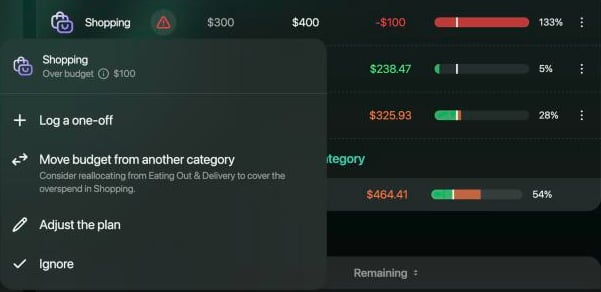
Select the warning sign in the category’s row, or the alert under Conflicts, then choose an option. Under Move budget from another category, finerd can add a line suggesting which category to take the money from.
The options for an alert on Shopping.
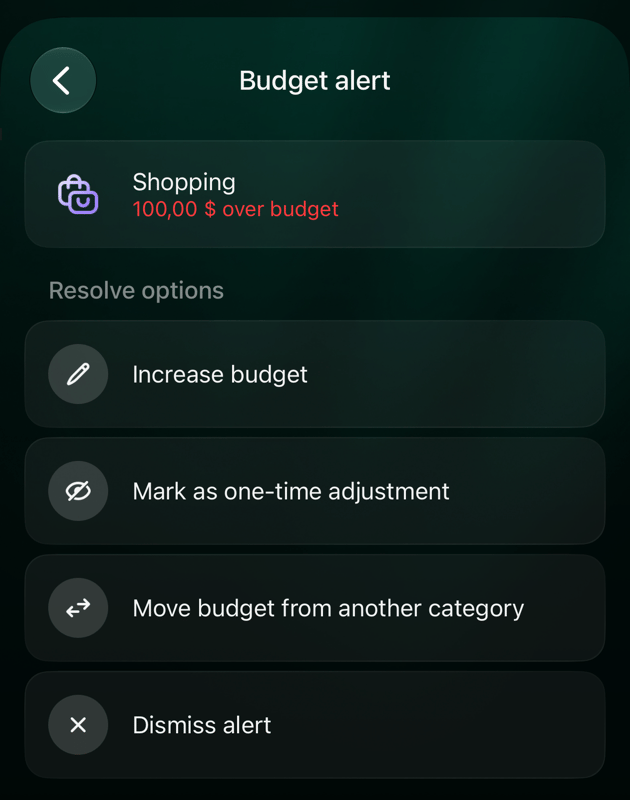
Tap the banner, then the alert. Budget alert lists the Resolve options; tap one, enter or check the amount and tap Continue. Dismiss alert works at once.
Tap the banner, then the alert. Budget alert lists the Resolve options; tap one, enter or check the amount and tap Continue. Dismiss alert works at once.
The options for an alert on Shopping.
Mark as one-time adjustment fills in the overspend.
Add a one-off amount for an expense you didn’t plan, or a larger one than usual, without waiting for an alert. It raises the category’s planned amount and the budget’s total for that month only; Other keeps its amount. A one-off on Other raises Other and the total.
Web
Android
iOS
In the category’s row, select ⋮, then Add event. For Other, it’s the only item in its menu.
Select Log a one-off. If no other category has money left, finerd skips this step.
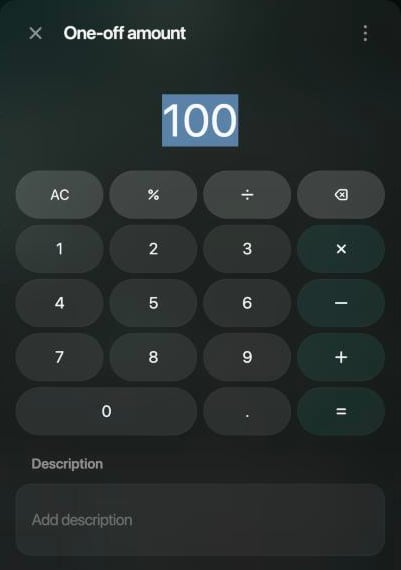
Enter the amount, add a description if you like, and select Continue.
The row shows the new planned amount and a lightning icon.
Enter the amount and, if you like, what it's for.
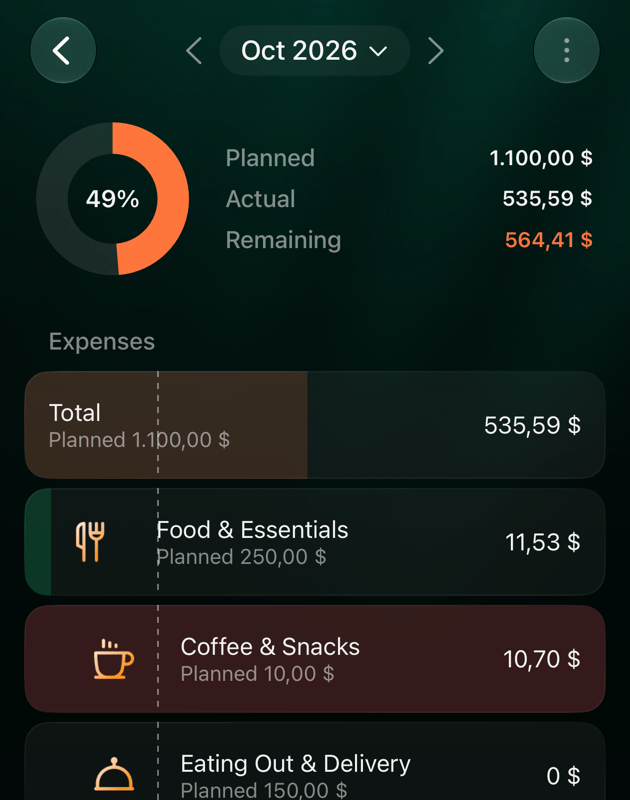
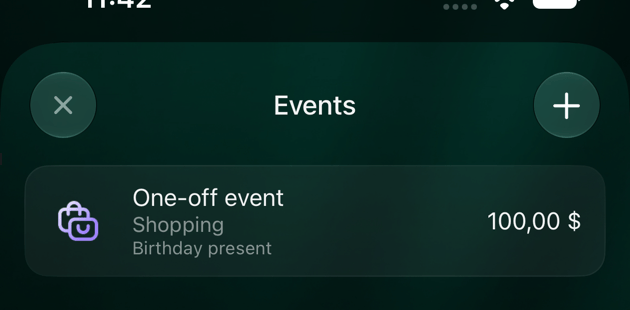
Tap ⋮ at the top of the budget, then Events.
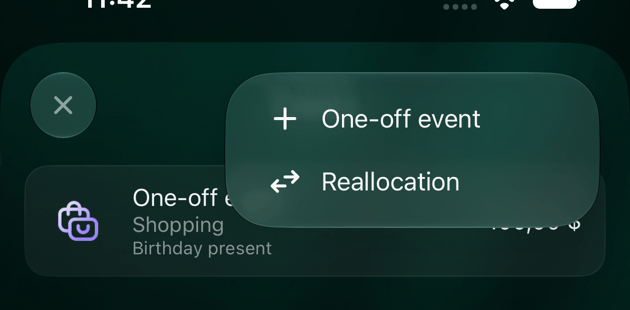
Tap +, then One-off event.
Under Select category, choose a planned category or Other.
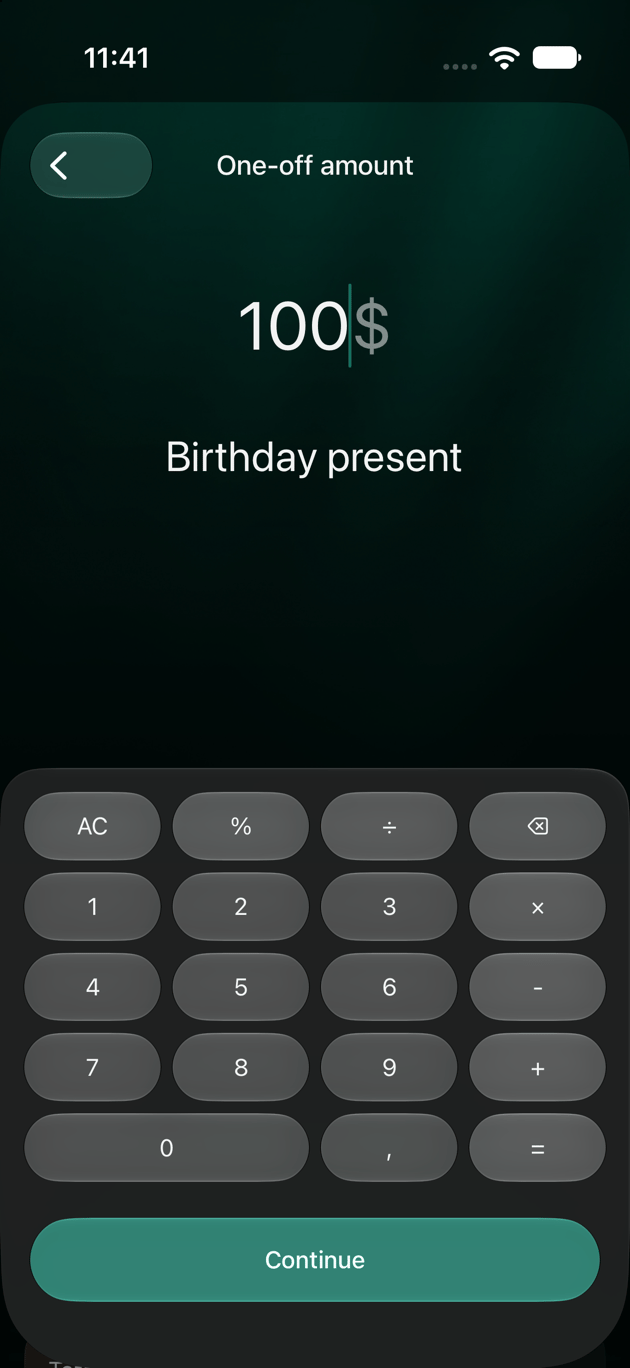
Enter the amount under One-off amount, add a description if you like, and tap Continue.
The category’s row shows the new planned amount and a green lightning badge on its icon.
Tap ⋮ at the top of the budget, then Events.
Tap +, then One-off event.
Under Select category, choose a planned category or Other.
Enter the amount under One-off amount, add a description if you like, and tap Continue.
The category’s row shows the new planned amount and a green Event line.
Add an event from the Events screen.
After a $100 one-off, Shopping is planned at $400.
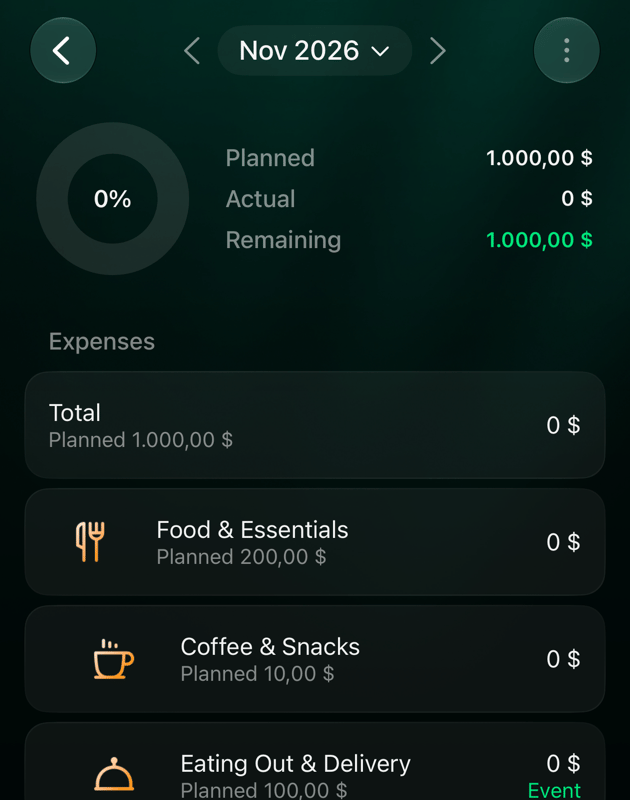
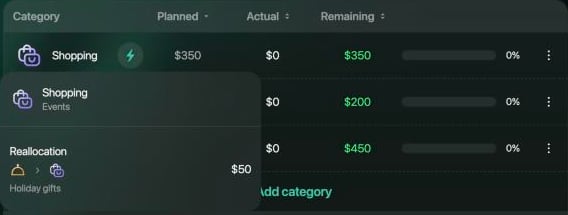
Move budget when one expense category needs more this month and another one has money left. The category you move from gets less and the one you move to gets more, for that month only, and the total stays the same.Example: in November, $50 for holiday gifts moves from Eating Out & Delivery to Shopping. Shopping’s plan becomes $350, Food & Essentials, which contains Eating Out & Delivery, becomes $200, and the total stays $1,000.
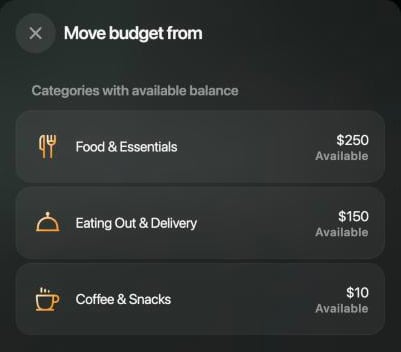
You can take money from a category that has some left: its planned amount minus what you’ve already spent this month, shown as Available. You can’t move more than that.
Between income categories the limit is different: finerd compares the amount with how much more the receiving category has already earned than planned, so it can refuse an amount shown as Available. The steps below are for expenses.
You can’t move budget to or from Other, or between a category and its own subcategory.
Web
Android
iOS
In the row of the category that needs more, select ⋮, then Add event.
Select Move budget from another category.
Under Categories with available balance, choose where to take the money from.
Enter the amount under Amount to move, add a description if you like, and select Continue.
If the amount is more than the category has available, finerd doesn’t save it and says The amount exceeds what’s available in the source category.
Choose the category to take the money from.
Tap ⋮ at the top of the budget, then Events.
Tap +, then Reallocation.
Under Select category, choose the category that needs more.
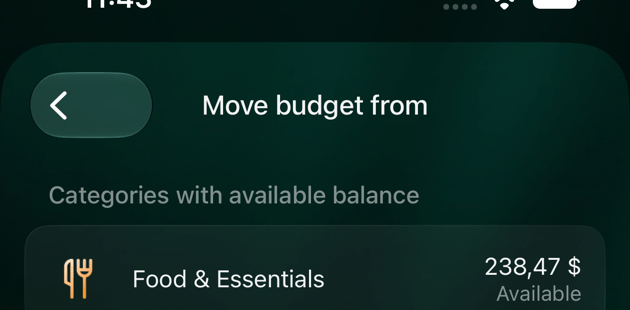
Under Move budget from, choose where to take the money from. Each category shows how much is Available.
Enter the amount under Amount to move, add a description if you like, and tap Continue.
If no other category has money left, the list says No categories with available balance. If the amount is more than the category has available, finerd says The amount exceeds the category’s available balance.
Tap ⋮ at the top of the budget, then Events.
Tap +, then Reallocation.
Under Select category, choose the category that needs more.
Under Move budget from, choose where to take the money from. Each category shows how much is Available.
Enter the amount under Amount to move, add a description if you like, and tap Continue.
If the amount is more than the category has available, finerd says The amount exceeds the category’s available balance.
You can add, change and delete events in the current month and later months. Past months show their events but can’t be changed.
The next month starts without them: only the plan carries over.
On the web and Android, Edit budget shows your plan without events.
You can change an event’s amount and description, but not its categories. To use other categories, delete the event and add a new one.
Deleting a one-off you added for an alert brings the alert back if the category is still over its plan.
Web
Android
iOS
Select the lightning icon in a category’s row to see its events: One-off event or Reallocation, with the amount and description. A move appears in both categories’ rows.
Change an event: select it, change the amount or description and select Continue.
Delete an event: select it, then ⋮ and Delete, and confirm Delete this event?
A move shows the categories it goes from and to.
Tap ⋮ at the top of the budget, then Events, to see every event of the month: One-off event with its category, or Reallocation with From → To, the amount and the description.
Change an event: tap it, change the amount or description and tap Save.
Delete an event: tap it, then the bin at the top, and confirm Delete this event?
Tap ⋮ at the top of the budget, then Events, to see every event of the month: One-off event with its category, or Reallocation with From → To, the amount and the description.
Change an event: tap it, change the amount or description and tap Save.
Delete an event: tap it, then the bin at the top, and confirm Delete this event?
The month's events.
On iOS, Edit budget shows the amounts with the month’s events already included. If you save it, those amounts become the plan while the events stay, so they count twice. To change the plan of a month with events, use the web or Android, or delete the events first.
When the change is here to stay, change the plan instead of adding events: use Adjust the plan (web) or Increase budget (Android, iOS) on an alert, or change the category’s amount as described in Change or delete a budget.
The new amount applies from the month you change it in. Later months that don’t have a plan of their own carry it over; a later month you’ve already changed, or added an event to, keeps its own plan.
Changing a top-level category changes the total by the same amount, so Other keeps its amount.
In a month with events, the amount you save is the plan before events, and the month’s events are added on top of it. On the web, Edit in a category’s row starts from the amount that already includes them: with a $50 move into Shopping it shows $350, and saving $370 makes Shopping $420 for that month.