Choose an account type in finerd, add an account manually or connect it, hold several currencies, rename it, change its type, archive or delete it.
In finerd, an account holds money, assets or liabilities inside a space: a bank card, the cash in your wallet, an investment portfolio, a mortgage or a car.
The type groups the account in Accounts and decides what finerd asks for when you add it. For example, a bank account starts with a search for your bank, and a debt starts with the person or company it’s with.
Type
Use it for
Bank accounts
Current and savings accounts and payment cards. You can connect your bank or track the account manually.
Stock & Crypto
Brokerage accounts, investment portfolios and crypto.
Money a person or company owes you, or that you owe them.
Loans & Mortgage
Loans and mortgages, such as a car loan.
Property
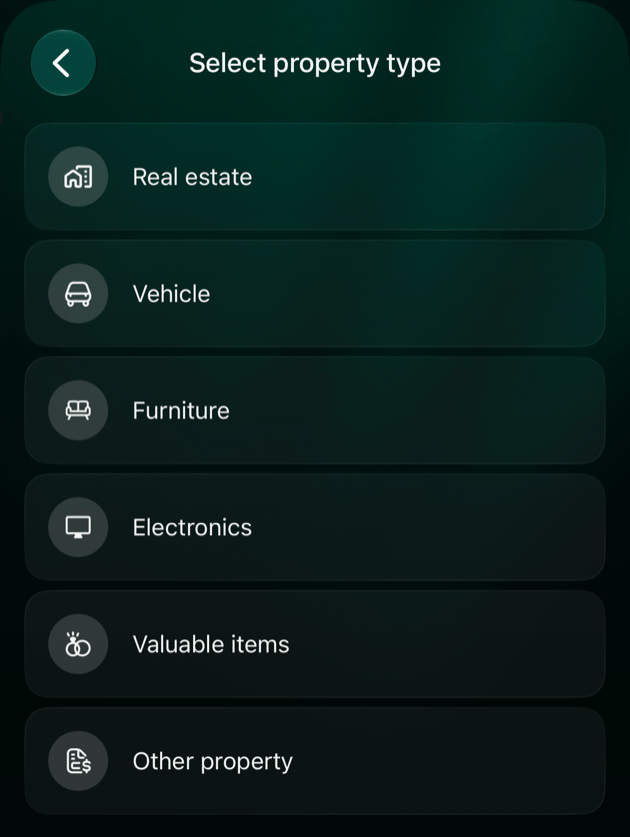
For things you own that won’t fit in a wallet — a flat, a car, even a sofa. Choose Real estate, Vehicle, Furniture, Electronics, Valuable items or Other property.
Rewards
Loyalty points, such as hotel or airline points. Personal spaces only.
Equity
Owners’ equity in a Business space, such as dividends.
finerd creates some accounts itself, so they aren’t in the list. These include Money on the way, which finerd uses for transfers between your accounts, and Family accounts if you use family access.
Web
Android
iOS
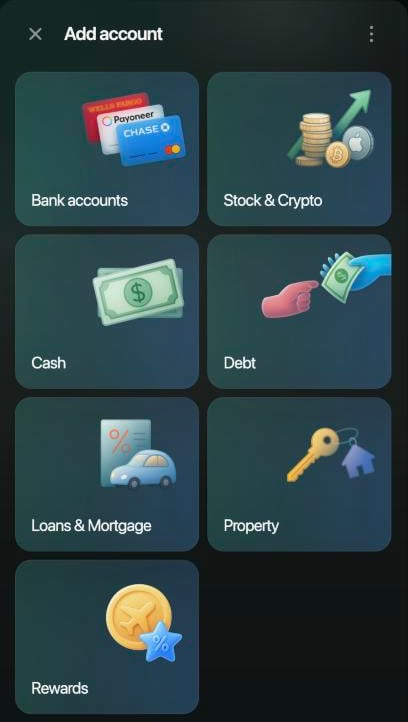
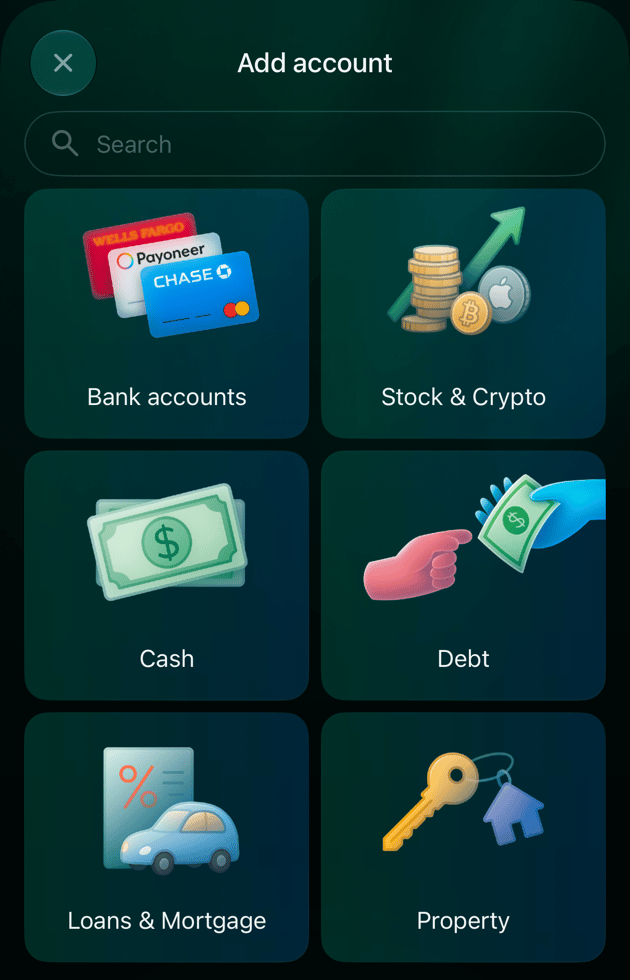
Open Accounts and select Add account. For Property, choose the kind of property on Select property type.If Rewards isn’t listed in a Personal space, turn on Rewards & loyalty points in the space settings: select your profile at the bottom of the sidebar, then the settings icon.
Account types in Add account.
Open Accounts from More or the tab bar and tap +. The list shows Bank accounts, Stock & Crypto, Cash, Debt, Loans & Mortgage and Property. Tap Property to choose the kind of property.Rewards and Equity accounts can’t be added on Android. Use the web or iOS app for them.
Open Accounts from More or the tab bar and tap +. For Property, choose the kind of property on Select property type.If Rewards isn’t listed in a Personal space, open More, tap the space icon in the top-right corner, then Appearance, and turn on Show reward accounts and reports. The iOS app keeps this setting separately from the web. It’s on by default only when your iPhone’s region is the United States or Canada.
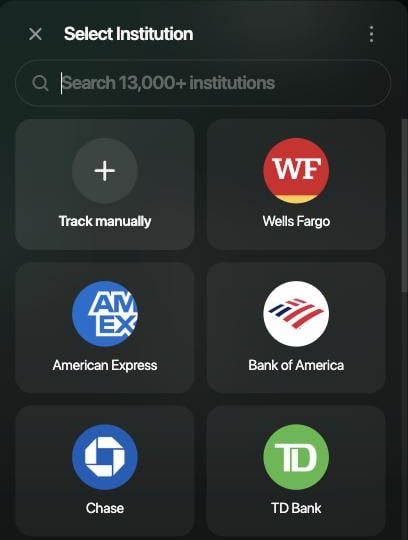
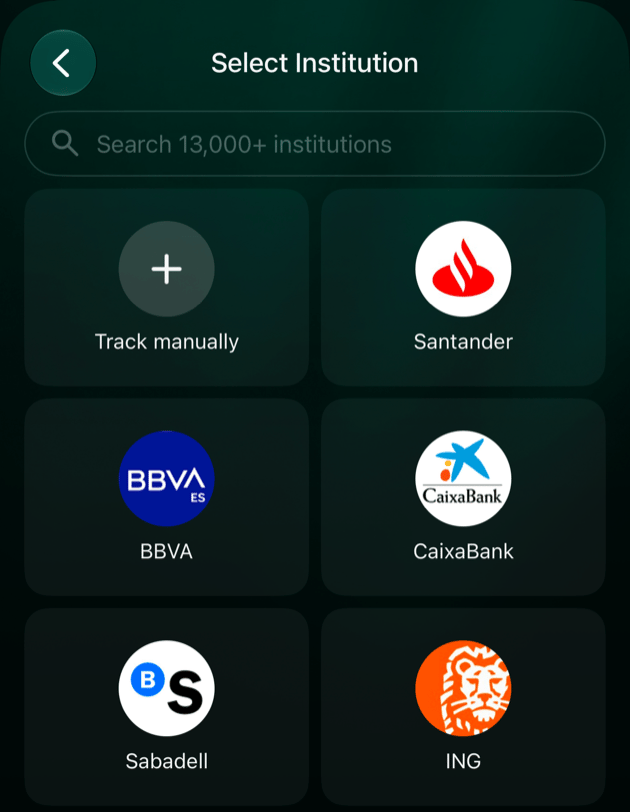
When you choose Bank accounts or Stock & Crypto, finerd first shows a list of institutions. To connect, choose yours and follow Connect a bank. Most connections need finerd Pro. To keep the account yourself, choose Track manually. If you’ve typed a name in the search, the option reads Track “name” manually and uses that name for the account.You can start manually and connect later. When you connect the institution, finerd offers to link its account to the one you already track.
Web
Android
iOS
Open Accounts, select Add account, then Bank accounts or Stock & Crypto. On Select Institution or Select investment platform, choose your institution or Track manually.
Choose your bank or Track manually.
Open Accounts from More or the tab bar, tap +, then Bank accounts. Choose your bank or Track manually.Stock & Crypto opens a manual account straight away. To connect an investment platform, open More → Institutions and follow Connect a bank.
Open Accounts from More or the tab bar, tap +, then Bank accounts or Stock & Crypto. On Select Institution or Select investment platform, choose your institution or Track manually.If finerd doesn’t support your bank yet, the search offers Track manually and Track through Apple Wallet. See Track Apple Pay payments.
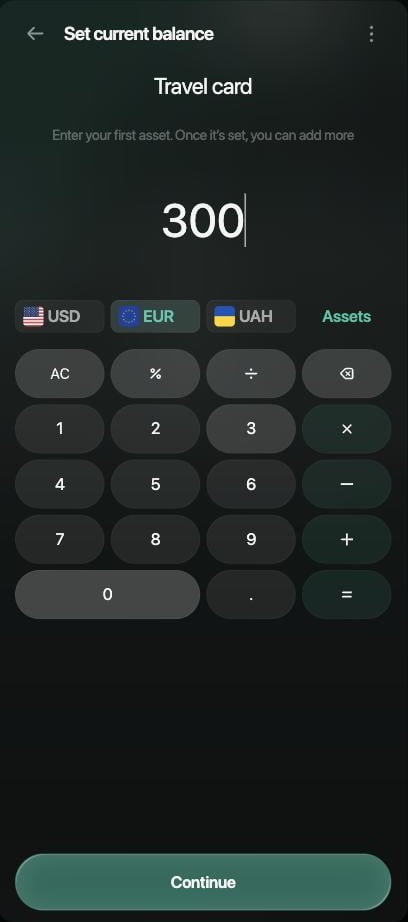
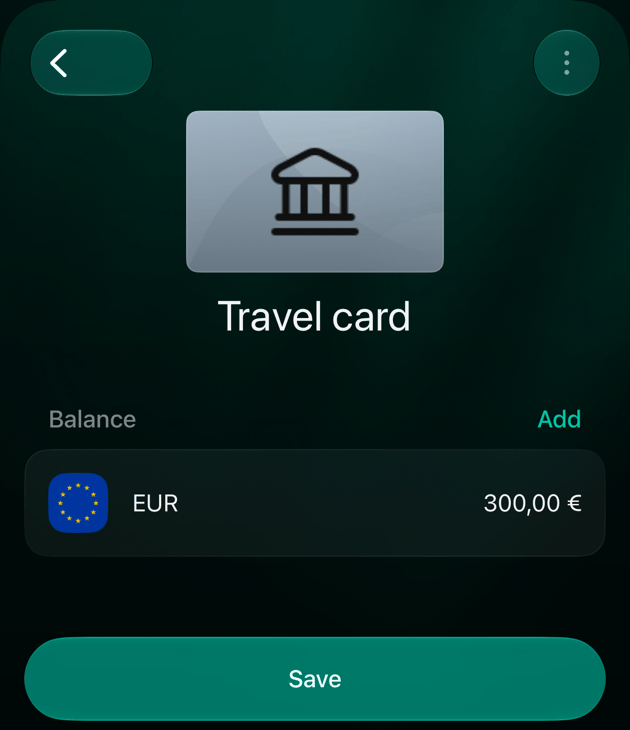
The steps are the same for every type you track yourself. In the example, a card used abroad is tracked manually as Travel card with 300 EUR. For cash, see Track cash in finerd.
Web
Android
iOS
Open Accounts, select Add account and choose the type. For Bank accounts or Stock & Crypto, select Track manually.
Enter a name, such as Travel card, then select Continue.
On Set current balance, choose the currency and enter the amount in the account now. Use Assets if the currency isn’t shown. For example, select EUR, enter 300 and select Continue. To start from zero, select Skip.
Select Save.
Choose the currency and enter the amount.
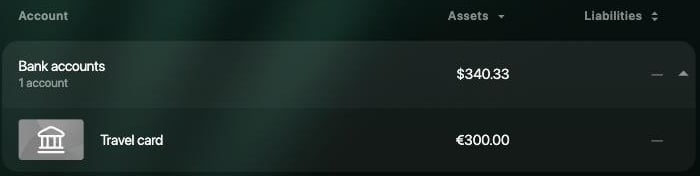
The new account in Accounts.
Open Accounts from More or the tab bar, tap + and choose the type. For Bank accounts, tap Track manually.
Enter a name, such as Travel card.
finerd adds a zero balance in your space’s primary currency. Tap that row under Balance, choose the currency, enter the amount and tap Done. Tap More assets if the currency isn’t shown. To start from zero, leave the balance at zero.
Tap Save.
Open Accounts from More or the tab bar, tap + and choose the type. For Bank accounts or Stock & Crypto, tap Track manually.
Enter a name, such as Travel card, then tap Save.
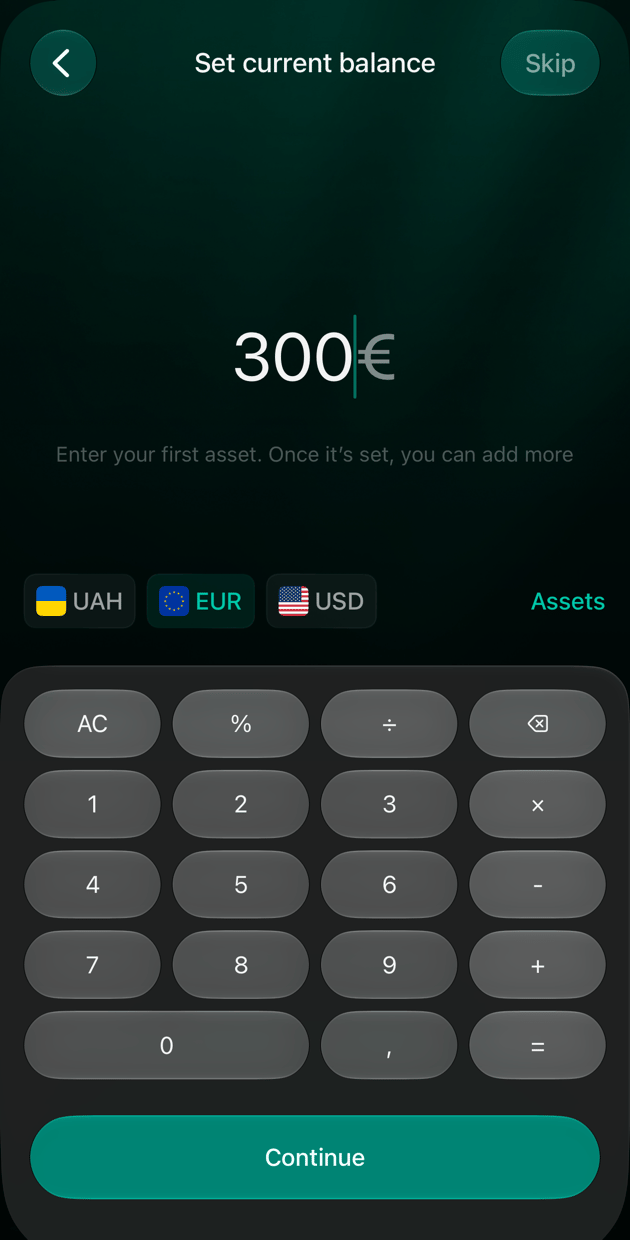
On Set current balance, choose the currency and enter the amount. Tap Assets if the currency isn’t shown. Tap Continue, or Skip to start from zero.
Review the account and tap Save.
Select EUR, enter 300, then tap Continue.
Review the account, then tap Save.
The account appears in Accounts under its type, such as Bank accounts. The amount you enter is saved as the account’s first verified balance. The group total is shown in your space’s primary currency.Two types ask for more before the balance:
Debt: first choose who the debt is with. Then choose Owes me or I owe and enter the amount. A debt account holds one currency.
Rewards: first choose the loyalty program that gives you the points.
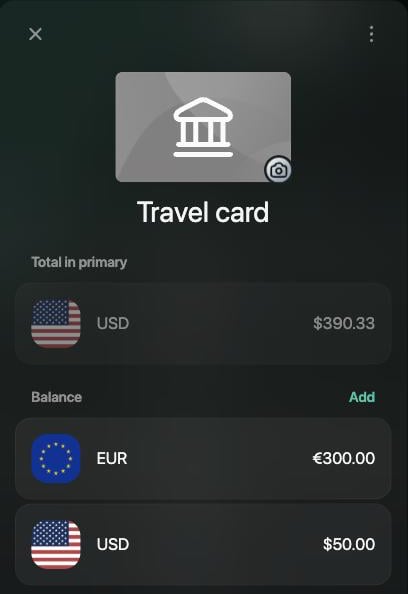
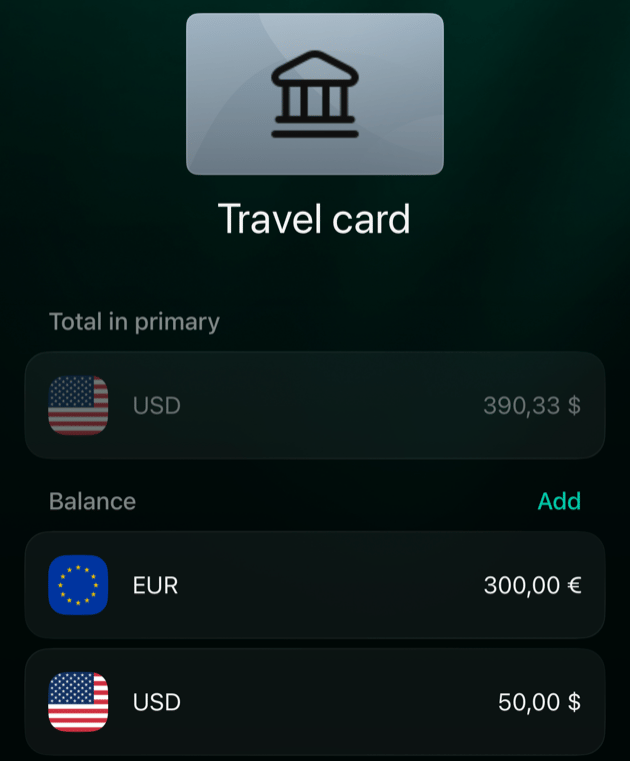
One account can hold several currencies or assets. Travel card can keep 300 EUR and 50 USD as separate balances, and an investment account can hold shares or crypto. Each has its own balance, and finerd adds them up in your space’s primary currency.To add another currency or asset to an account:
Web
Android
iOS
Open the account in Accounts.
Select Add beside Balance.
Choose the currency or asset. Use Search to find others, such as shares.
Enter the amount you hold now, then select Save.
Each currency gets its own balance.
Open the account from Accounts in More or the tab bar.
Tap Add beside Balance and choose the currency or asset.
Open the account from Accounts in More or the tab bar.
Tap Add beside Balance.
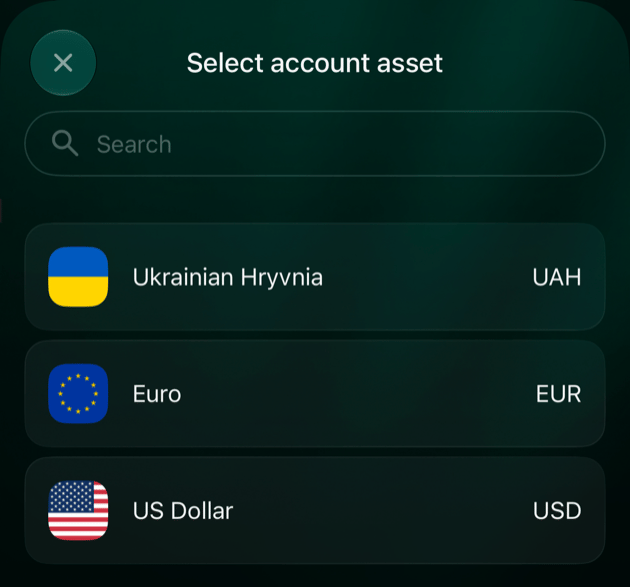
In Select account asset, choose the currency or asset, enter the amount, then tap Done.
Each currency gets its own balance.
Choose the currency or asset to add.
Each amount you add is saved as a verified balance for that currency. Total in primary shows the combined value, and Accounts shows it with the number of assets, such as “in 2 assets.” To update an amount later, add a new verified balance for that currency. When you record a transaction, choose the currency it was made in.Add isn’t available for:
Connected accounts. Their balances come from the institution.
Give each account a name and an icon you’ll recognize at a glance. You can change both at any time. Balances and transactions stay as they are.
Web
Android
iOS
Open the account in Accounts.
To rename it, select the name, type a new one, then select Save.
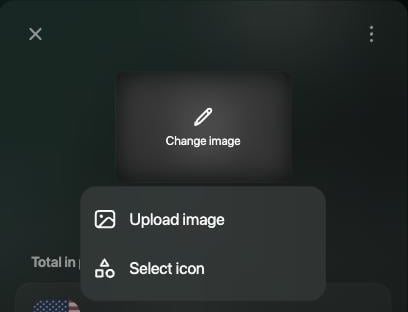
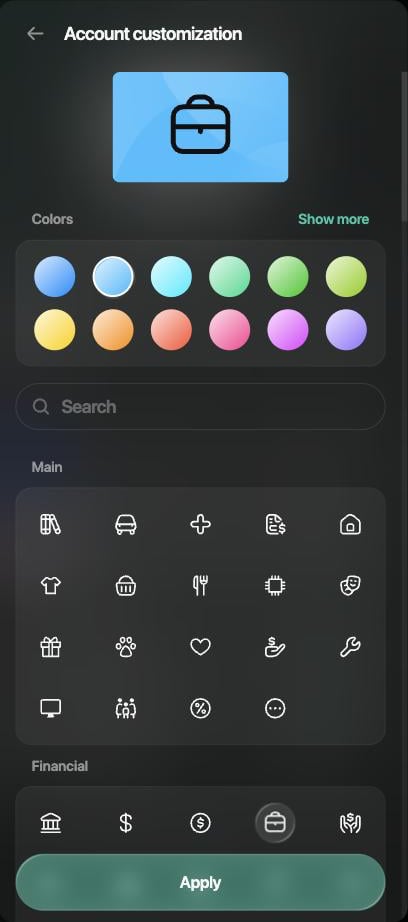
To change the icon, select the image, then Select icon. Choose a color in Colors and an icon, select Apply, then Save. To use your own picture, choose Upload image instead.
Select the image to change it.
Choose a color and an icon, then select Apply.
Open the account from Accounts in More or the tab bar.
To rename it, tap the name and type a new one.
To change the icon, tap it. On Select icon, choose a color in Colors and an icon, or use Gallery or Camera for your own picture, then tap Apply.
Tap Save.
Open the account from Accounts in More or the tab bar.
To rename it, tap the name and type a new one.
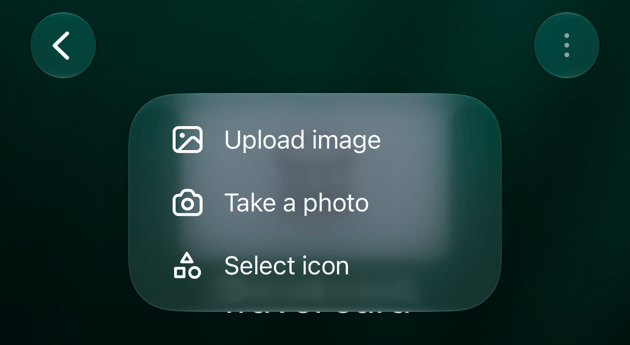
To change the icon, tap it, then choose Select icon, Upload image or Take a photo. If you’ve set your own icon, Reset to default brings back the standard one.
Tap Save.
Tap the icon to change it.
On the web and iOS, a debt with a company from finerd’s merchant list keeps that company’s name and icon; they can’t be changed.
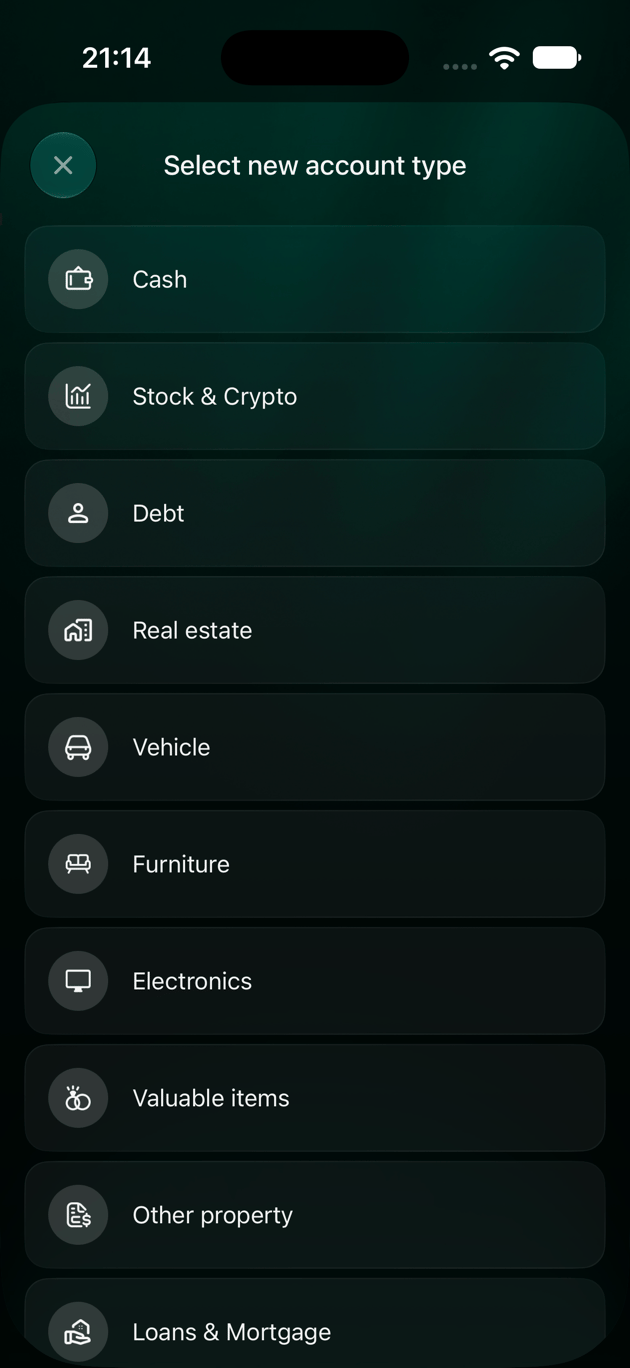
If you picked the wrong type, you can change it for a manual account. Balances and transactions stay in the account.You can change the type of Bank accounts, Cash, Stock & Crypto and Property accounts, and on Android and iOS also Loans & Mortgage. The new type can be any of these or Debt.
Connected and archived accounts can’t change type. On Android and iOS, neither can joint accounts.
Debt, Rewards and Equity accounts keep their type.
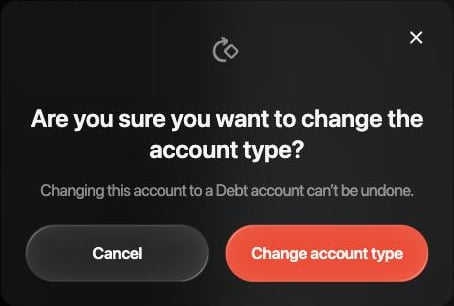
Changing to Debt can’t be undone, and the account must hold only one currency.
The only cash account in a space can’t change type.
If finerd says the type of this account can’t be changed, the account is linked to a Money on the way account.
Web
Android
iOS
Open the account in Accounts and select ⋮ > Change account type.
Choose the new type.
Confirm with Change account type.
Choose the new type.
Changing to Debt can't be undone.
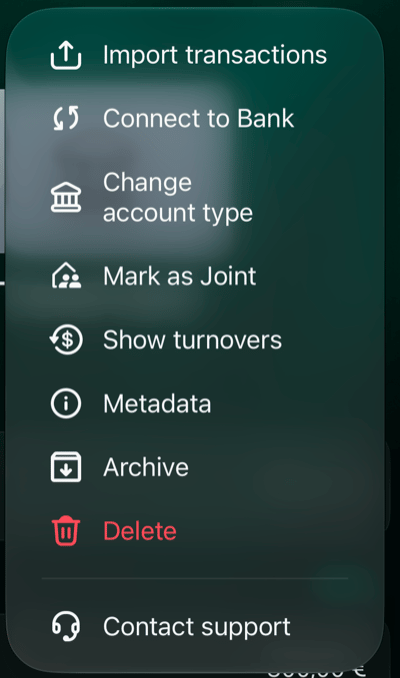
Open the account from Accounts in More or the tab bar and tap ⋮ > Change account type.
Choose the new type. For Debt, confirm with Continue.
Open the account from Accounts in More or the tab bar and tap ⋮ > Change account type.
On Select new account type, choose the type. For Debt, confirm with Continue.
Archive an account you no longer use, such as a closed card. Archiving is a drawer, not a shredder: the account is out of sight, but its history stays. finerd moves it to Archive and keeps its transactions and balances, but it no longer appears in Accounts or in the totals there. You can restore it at any time.
Connected accounts must be disconnected first. When you archive one, finerd offers Disconnect.
Debt accounts use Write off / Archive instead.
An archived account can’t get a new currency or type until you restore it.
Web
Android
iOS
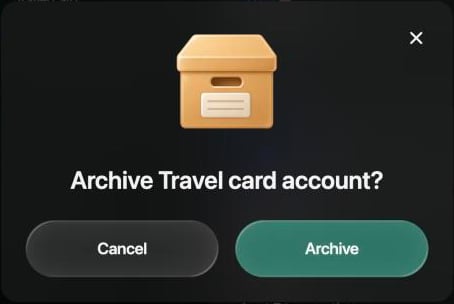
To archive, open the account in Accounts, select ⋮ > Archive and confirm with Archive.
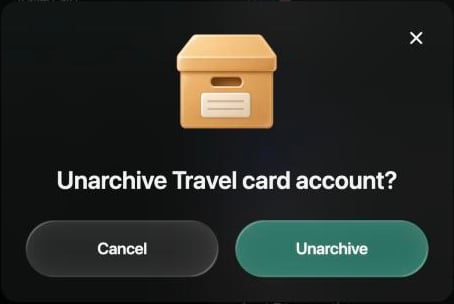
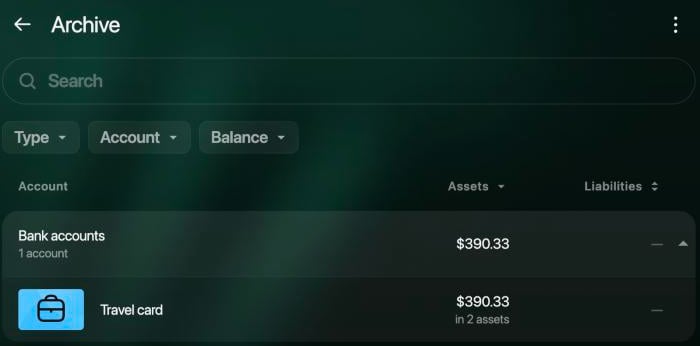
To restore, in Accounts select ⋮ > Show archive, open the account, select ⋮ > Unarchive and confirm with Unarchive.
Confirm to archive.
Confirm to restore.
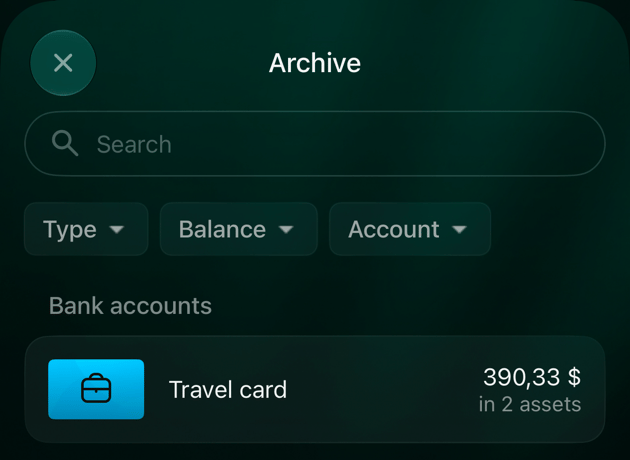
Archived accounts are in Archive.
To archive, open the account from Accounts in More or the tab bar and tap ⋮ > Archive. You can also touch and hold the account in the list, then tap Archive.
To restore, in Accounts tap ⋮ > Show archive, open the account and tap ⋮ > Unarchive.
To archive, open the account from Accounts in More or the tab bar and tap ⋮ > Archive. You can also touch and hold the account in the list, then tap Archive.
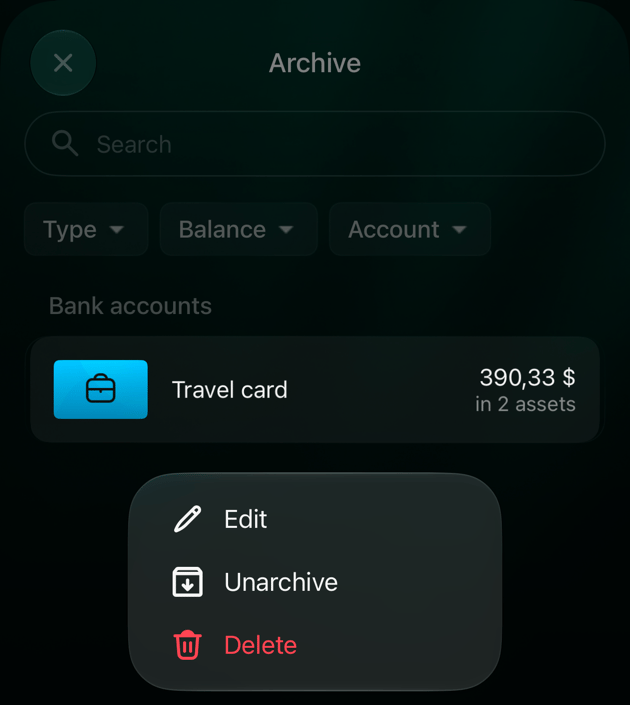
To restore, in Accounts tap ⋮ > Show archive, touch and hold the account, then tap Unarchive.
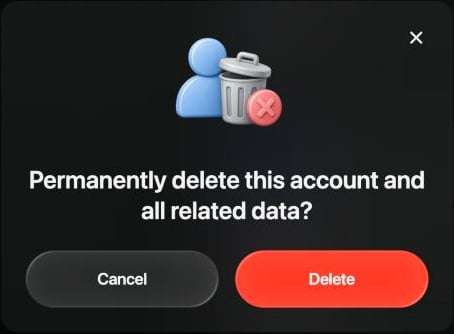
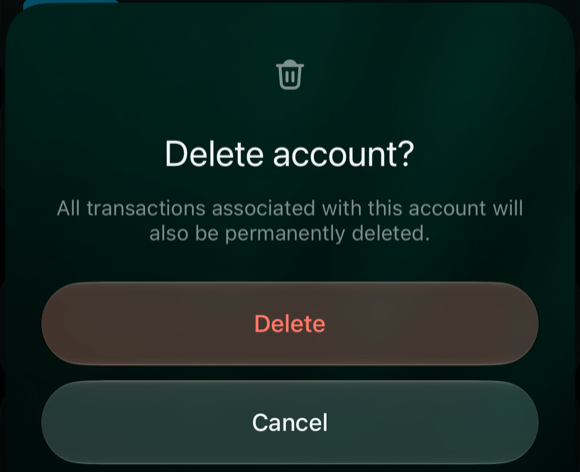
Deleting removes the account for good, together with its transactions and verified balances. It can’t be undone. If you might need the history later, archive the account instead.
A transfer between this account and another manual account is deleted from both accounts. If the other side is a connected account, that side stays as an uncategorized transaction.
Connected accounts must be disconnected first. When you delete one, finerd offers Disconnect.
The only cash account in a space can’t be deleted.
Web
Android
iOS
Open the account in Accounts, select ⋮ > Delete and confirm with Delete.
Deleting can't be undone.
Open the account from Accounts in More or the tab bar and tap ⋮ > Delete.
Open the account from Accounts in More or the tab bar and tap ⋮ > Delete, or touch and hold the account in the list and tap Delete. Confirm with Delete.
On Android, finerd can record payments from Google Wallet notifications (More > Google Wallet, a Pro feature). Each notification names the card in its own way, such as “Privat24 ••5168”. An alias tells finerd which account that name stands for.If finerd can’t match a notification to an account, tap Create transaction for it in Google Wallet and choose the account you paid from. finerd saves the card name as an alias of that account, so the next payment is matched automatically.To add or remove aliases yourself:
Open the account from Accounts in More or the tab bar and tap ⋮ > Aliases.
To add one, tap +, enter the name exactly as it appears in the notification and tap Add.