
Add another scenario
Every new scenario starts from your accounts as they are today, just like the first one. The first scenario you create is your primary one; the ones you add later aren’t.- Web
- iOS
- Open Reports > Financial plan.
- Select Scenario: with the current scenario’s name, then Create financial plan scenario.
- Choose Month, Quarter or Year, select Apply, and set up the scenario as described in Build a financial plan.
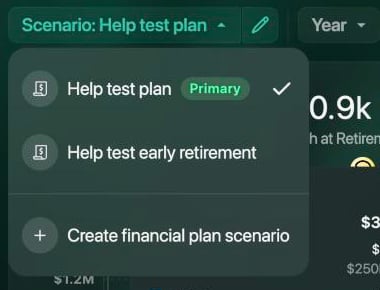
The scenario list: the primary scenario comes first.
Copy a scenario
A copy keeps everything you’ve set: rates, payments, contributions and events. Change what you want to test in the copy, and your original scenario stays as it was.- Web
- iOS
- Select the pencil next to Scenario: to open the scenario.
- Select ⋮ > Copy scenario. The name gets (copy) at the end.
- Rename the copy, such as Invest more, and change what you want to test.
- Select Save. finerd saves the copy as a new scenario.
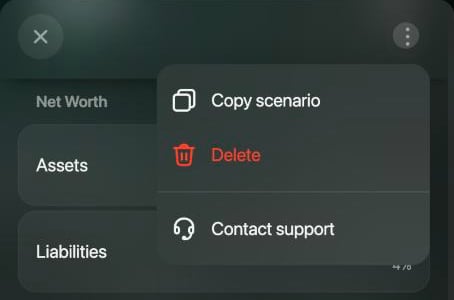
Copy scenario and Delete are in the scenario's ⋮ menu.
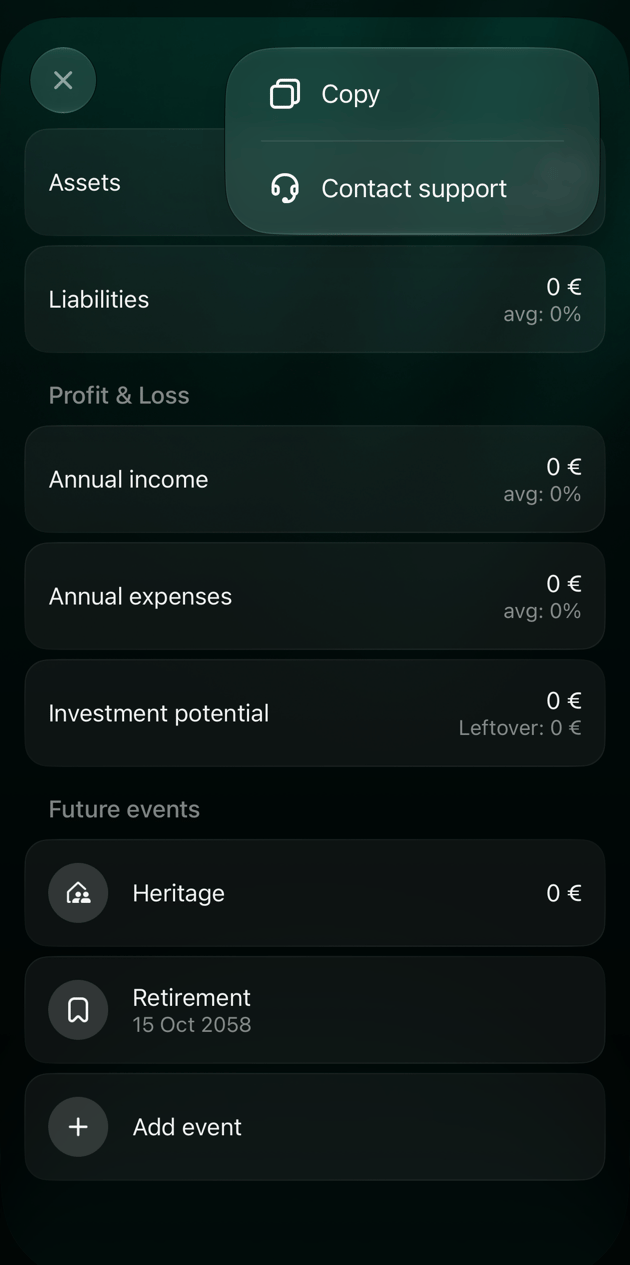
Change the assumptions
Open the scenario to change its assumptions: inflation, the rates of your accounts, loan payments, contributions and events. Select Save when you’re done. You can rename a scenario the same way. The breakdown by month, quarter or year can’t be changed after you create a scenario. To plan with another breakdown, add a new scenario. On iOS, changing Start scenario date fills the scenario in again from your accounts and replaces the amounts you edited.Compare scenarios
You need at least two scenarios to compare.- Web
- iOS
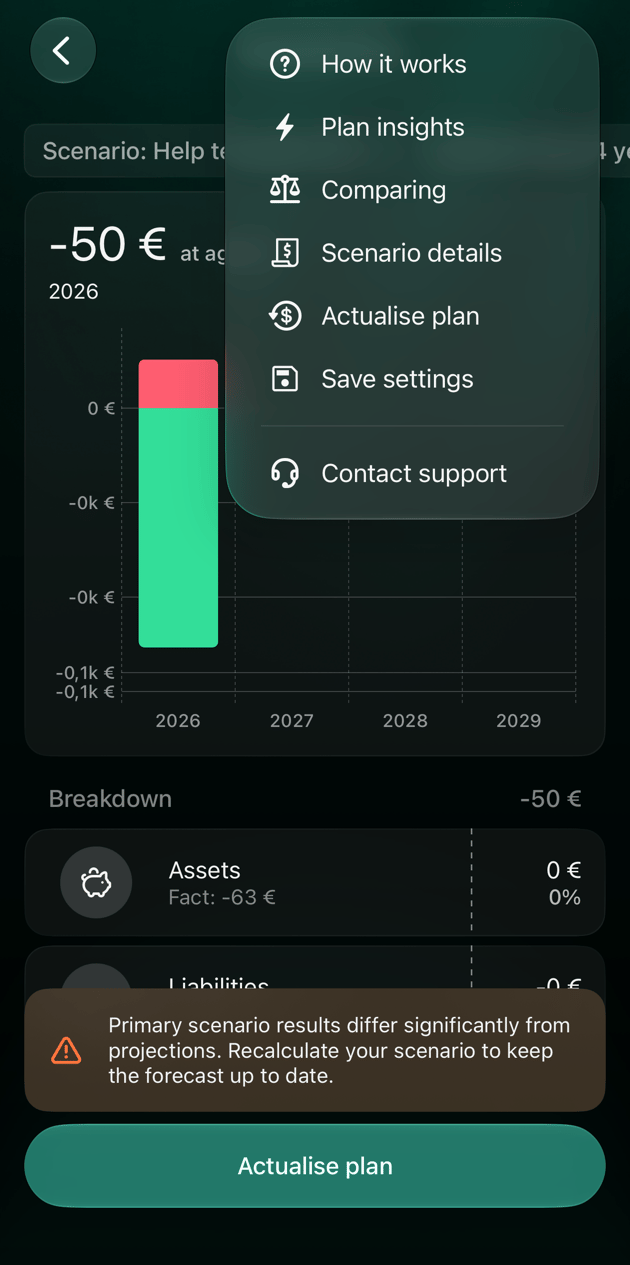
- In Financial plan, select the scales icon at the top right (Comparing).
- The current scenario and the next one are shown side by side, separated by vs. Select a scenario’s name to swap it for another, or + to add one more.
- Retirement age: the lower age is highlighted.
- Max net worth: the highest net worth the plan reaches.
- Net Worth at End of Plan
- Net Worth at Retirement Age
- Avg growth: how much net worth grows on average each year.

Point at the icons to see their names.
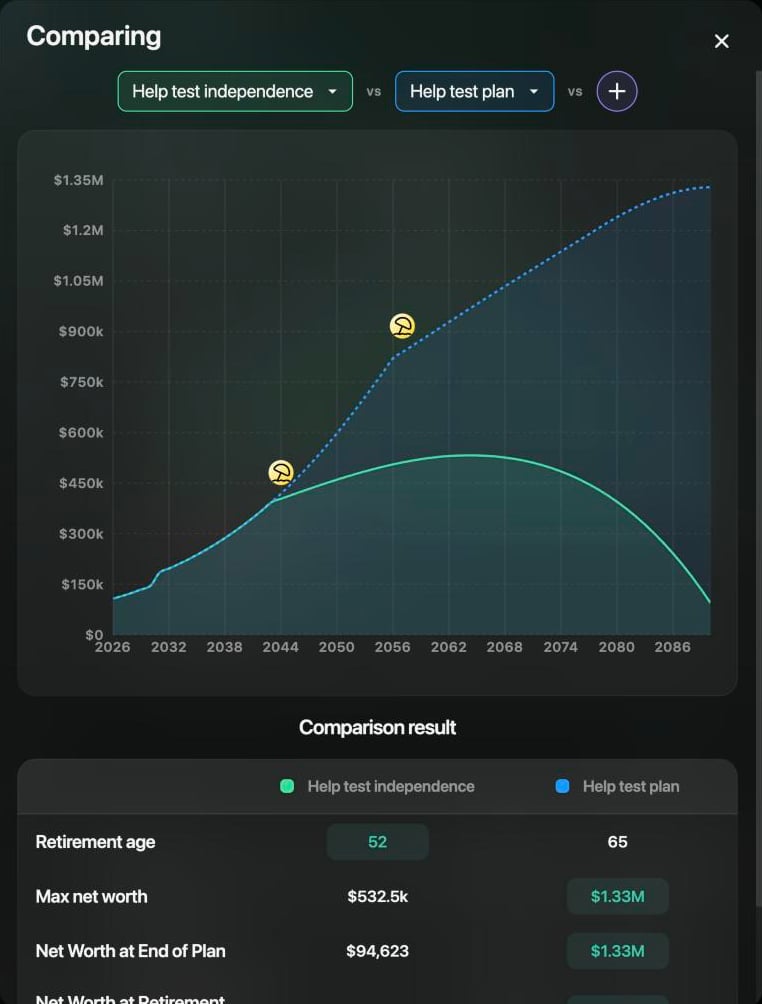
Retiring at 52 against retiring at 65.
Find your financial independence age
Instead of you choosing a retirement age, finerd can work out the earliest age at which you could stop working: from then on, your savings and retirement income keep your net worth above zero until the end of the plan, and leave at least the Heritage amount.- Open the scenario. On iOS, tap ⋮ > Scenario details.
- Under Calculation type, select Independence. finerd shows We will estimate the earliest age of financial independence.
- Select Save.
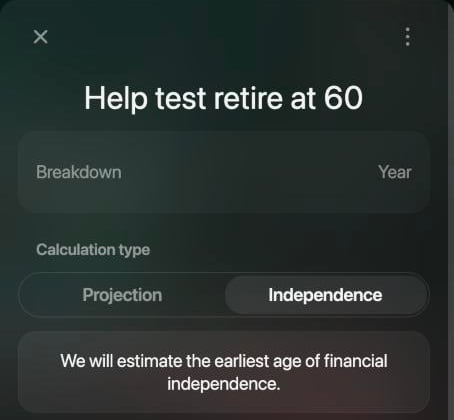
Independence mode replaces the retirement age.
Update the plan with actual results
Real life rarely follows a plan. When your actual results differ a lot from your primary scenario, finerd shows a warning under the chart: Actual results differ significantly from projections. You can update any scenario at any time, with or without the warning. When you update a scenario, finerd fills it in again from your accounts:- the balances of your accounts as they are now,
- your income and expenses over the last 12 months,
- Start scenario date set to today.
- Web
- iOS
- Select Actualize plan under the warning, or the icon to the right of the scales icon.
- The scenario opens with (recalculated) added to its name. Check the amounts.
- Select Save.
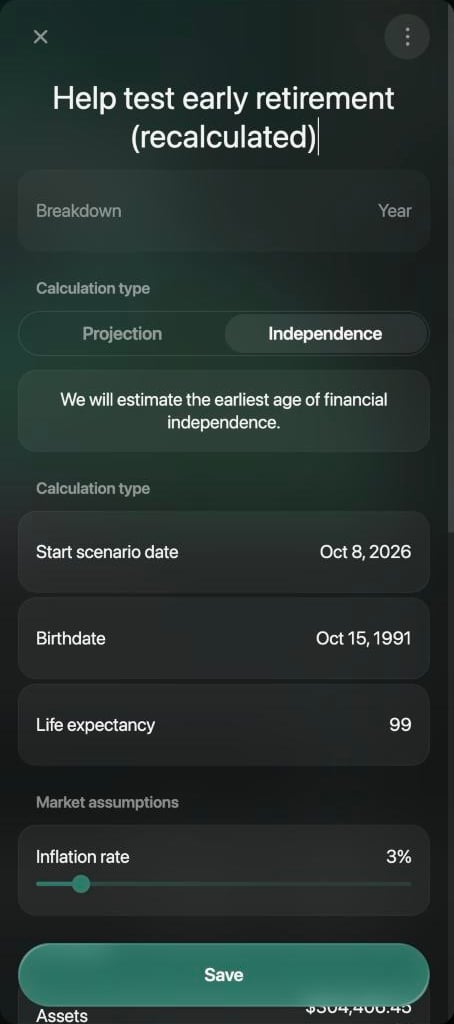
An updated scenario starts today.
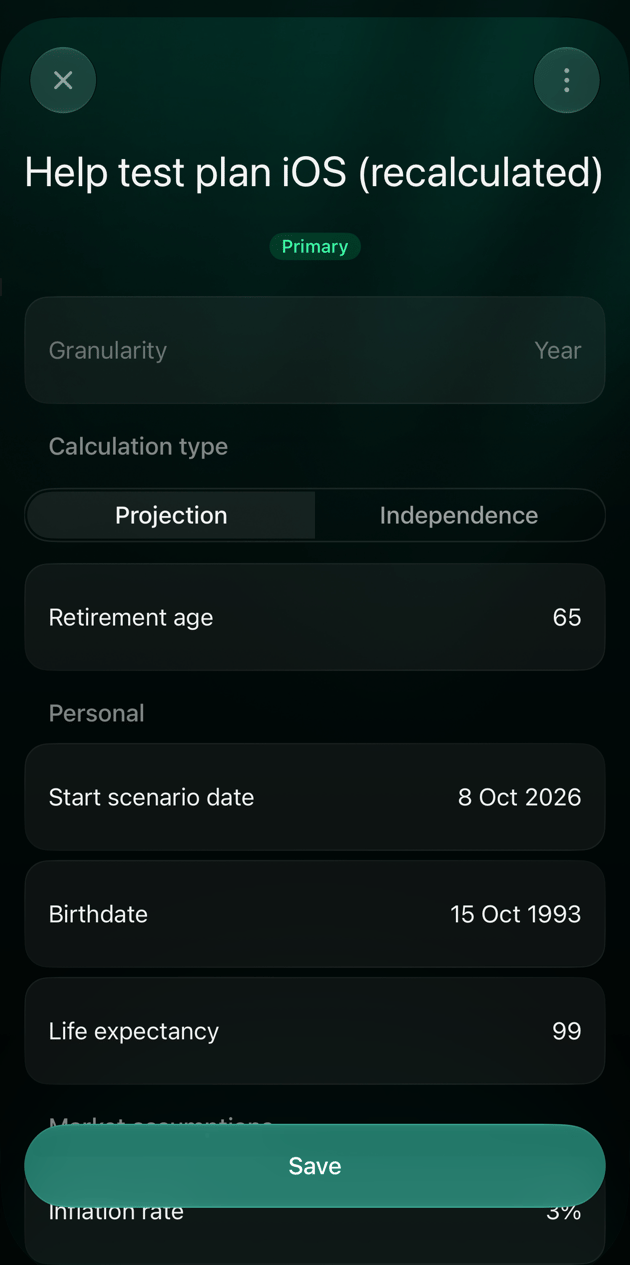
Choose the primary scenario
The primary scenario opens first in the report and on the dashboard widget, and only it shows the warning about actual results. On iOS, open the scenario you want, tap ⋮ > Mark primary, then Save. Remove primary mark does the opposite. On the web, the first scenario you create is the primary one, and you can’t change it there.Save the view as a report
To come back to a scenario and its view in one tap, save it as a report: on the web, select ⋮ > Save settings; on iOS, tap ⋮ > Save settings. The report keeps the scenario and how the chart is set up, and appears in Reports with your other saved reports. See Customize a report.Delete a scenario
Deleting a scenario removes it and its events for good.- Web
- iOS
Open the scenario with the pencil, select ⋮ > Delete, then confirm with Delete.