Change your name and email and connect or disconnect Telegram and WhatsApp sign-in in your finerd profile. iOS can’t change the email yet.
Your finerd profile shows your name, your email and every way you can sign in: an email code, Google, Apple, Telegram and WhatsApp. In the profile you can change your name and email, add an email if you signed up through a messenger, and connect or disconnect Telegram and WhatsApp.The profile is free on the web, Android and iOS. Changing your email works on the web and in the Android app; the iOS app doesn’t have it. If you signed up through a messenger, you can also add an email in the finerd bot. The profile belongs to your account, not to a space, so it’s the same in every space you open.
Open your profile
Web
Android
iOS
Select your profile at the bottom of the sidebar, then select your email under your name. You can also select the settings icon in that menu and choose Profile, the first item.
Select your email to open your profile.
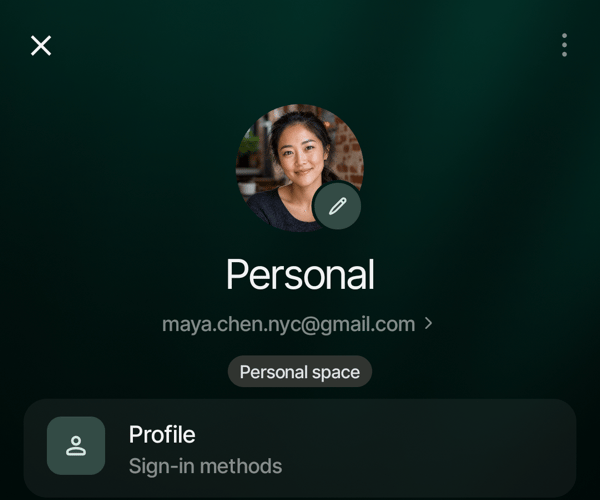
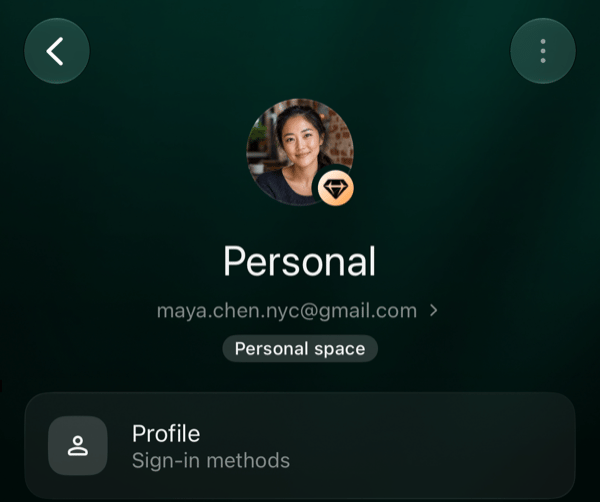
Open More, tap the space picture at the top and open Space settings. Tap Profile, the first row, or your email under the space name.
Profile is the first row of Space settings.
Open More and tap the space icon at the top right. Tap Profile, the first row, or your email under the space name.
Profile is the first row of the space settings.
If your account has no email, the line under the name says Add email and opens Add email instead; use Profile to open your profile.The profile has two sections:
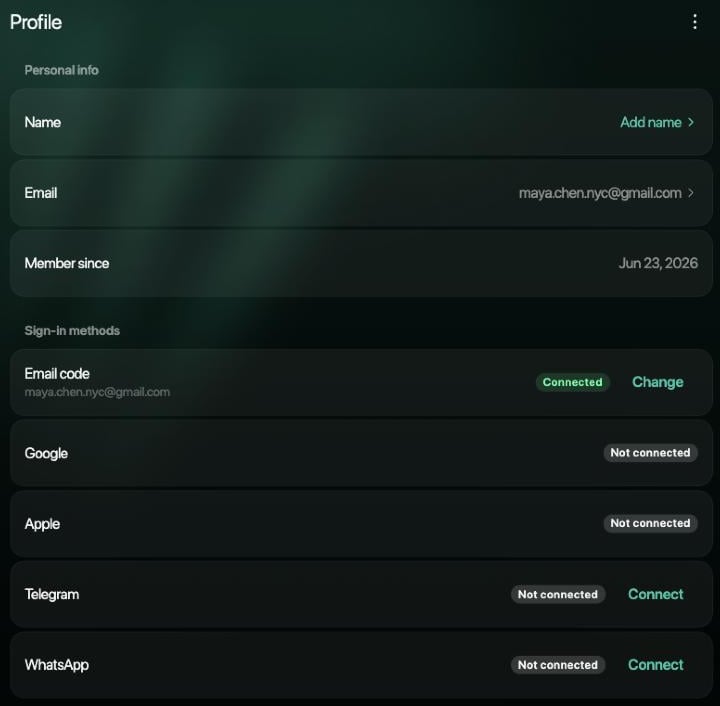
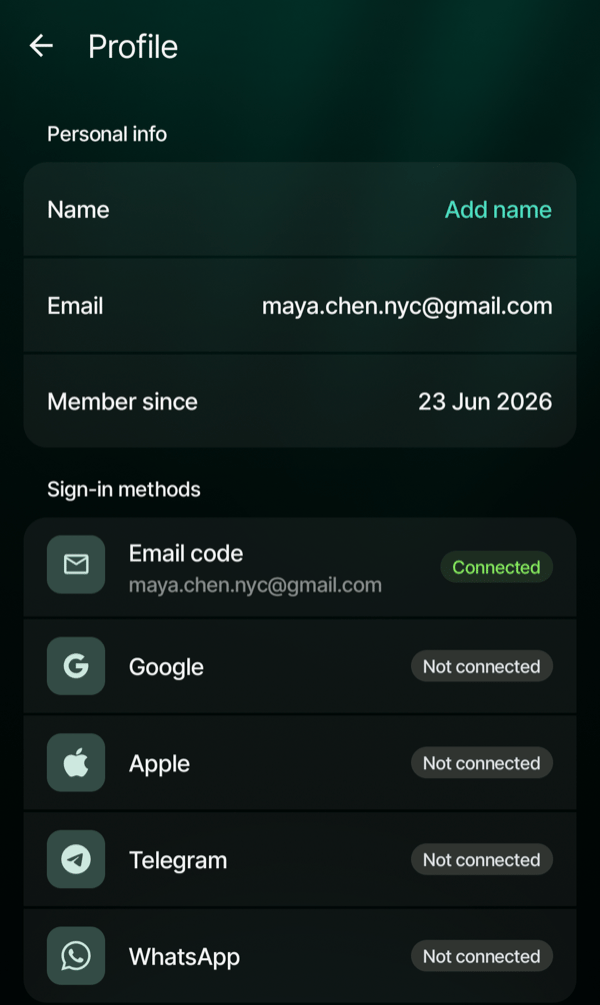
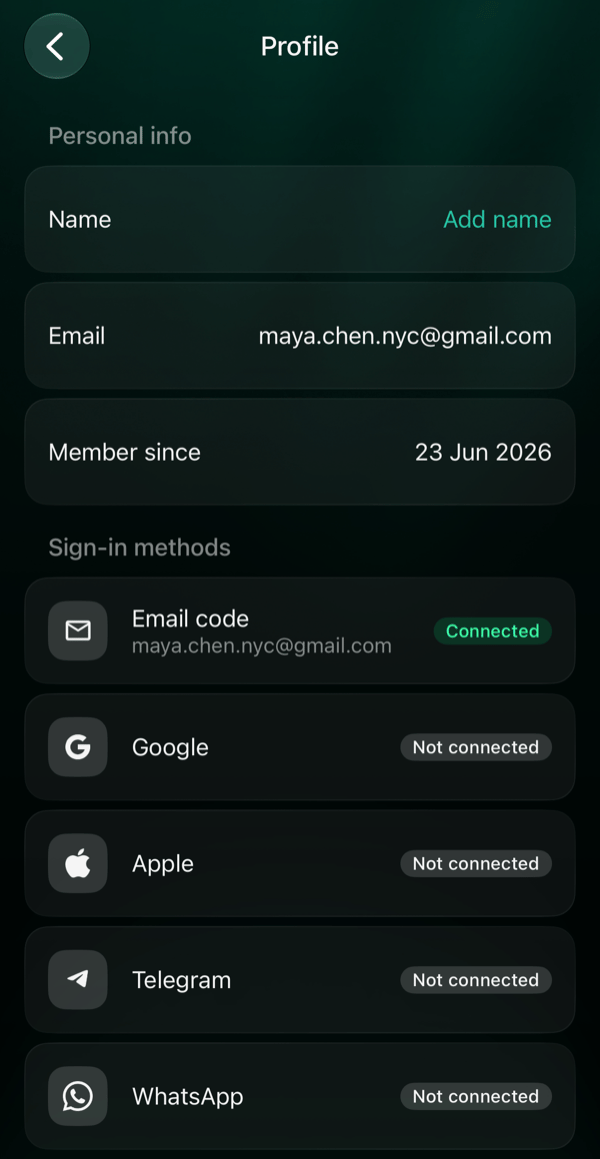
Personal info: Name, Email and Phone when your account has them, and Member since, the date you signed up.
Sign-in methods: Email code, Google, Apple, Telegram and WhatsApp, each marked Connected or Not connected. A connected email code shows its address, and a connected WhatsApp shows its number.
Web
Android
iOS
A profile with no name yet that signs in only with an email code.
A profile with no name yet that signs in only with an email code.
A profile with no name yet that signs in only with an email code.
Add or change your name
In Personal info, select Name. If your account has no name yet, the row says Add name.
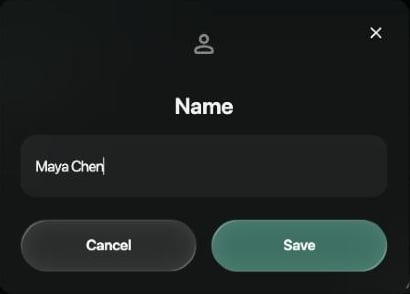
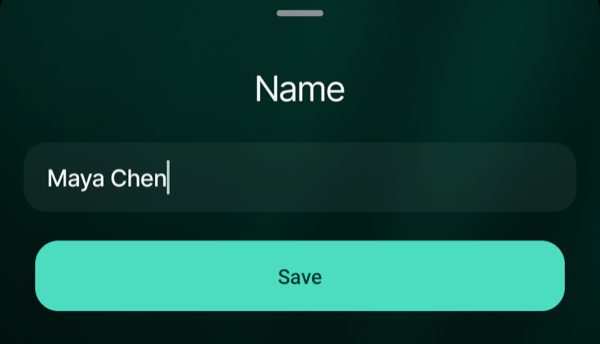
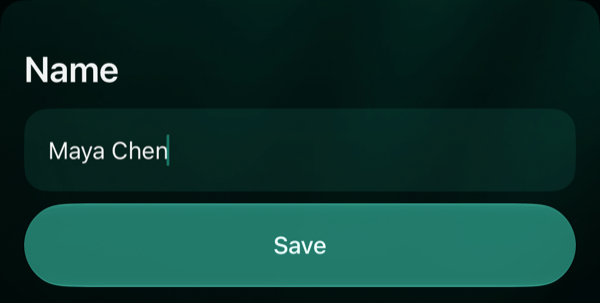
Enter your name, up to 100 characters, and select Save.
Web
Android
iOS
Nothing changes until you select Save.
Nothing changes until you tap Save.
Nothing changes until you tap Save.
finerd shows Name saved. You can change your name at any time, but you can’t leave it empty. If finerd shows Couldn’t save. Try again., your name wasn’t saved: select Save again.
Change your email
Your email is where finerd sends your sign-in codes. To change it, you need the new address and a way to prove the account is yours: a code sent to your current email, or Google if Google is Connected in your sign-in methods.
Web
Android
iOS
In Personal info, select Email. You can also select Change next to Email code.
In Personal info, tap Email. You can also tap Email code in Sign-in methods.
The iOS app can’t change your email. Change it on the web or in the Android app; the new address then works for signing in on your iPhone too.
In Change email, enter the new address and select Send code.
In Confirm it’s you, select Send code to get a code at your current email, which is shown on the screen, and enter it. If Google is connected, you can select Continue with Google instead.
Enter the six-digit code that finerd sent to the new address.
On the web, select Confirm after each code; the Android app checks a code as soon as you enter the sixth digit. finerd shows Email changed, and the new address appears in Personal info and next to Email code. From now on, sign in with the new address.After you confirm it’s you, you can change the email again on the same device within 15 minutes without confirming a second time. If you enter your current address, finerd shows This is already your email. If the new address belongs to another finerd account, finerd shows This email is already used by another finerd account.
If you didn’t change your email
When the email changes, finerd sends Your finerd email was changed to the previous address. If you didn’t make the change, open that email and select Undo the change. The link works once, for 7 days.The link opens Undo the email change? in the browser. Select Undo the change: finerd shows Change undone, your account gets the previous email back, and every device is signed out. Sign in again with your previous email.Undoing the change also ends what could have been connected to your account without you:
AI assistants such as Claude, ChatGPT and Gemini lose access to your finerd and ask you to connect it again. An assistant you connect after the undo keeps working.
The finerd bot stops working with your account in every chat. To use it again, send /start in the chat and sign in.
A Telegram or WhatsApp connection you haven’t confirmed in the bot yet is cancelled.
Telegram or WhatsApp that’s already Connected in Sign-in methods stays. If you don’t recognize one, disconnect it.If the page says This link has expired or has already been used., email support from your previous address right away.
What each sign-in method means
Method
Connected means
How to connect it
Email code
You can sign in with a six-digit code sent to the address shown.
If you signed up through Telegram or WhatsApp, add an email.
Google
You’ve signed in with Google at least once.
Sign in with Google using the same email address as your finerd account.
Apple
You’ve signed in with Apple at least once.
Sign in with Apple on the web or iOS, using the same email address as your finerd account.
Google, Apple and email-code sign-in are described in Sign up and sign in to finerd. You can’t disconnect them in your profile.
Connect Telegram or WhatsApp
You need the Telegram or WhatsApp account you want to connect.
Web
Android
iOS
In Sign-in methods, select Connect next to Telegram or WhatsApp. The finerd bot opens in a new tab or in the messenger app.
In Telegram, press Start in the bot; in WhatsApp, send the message that’s already typed for you. Then select Connect in the bot’s message.
Return to finerd. The page updates by itself.
While finerd waits, the row says Confirm in Telegram or Send the message in WhatsApp, with Open Telegram (or Open WhatsApp) to open the bot again and Cancel to stop waiting.
In Sign-in methods, tap Telegram or WhatsApp.
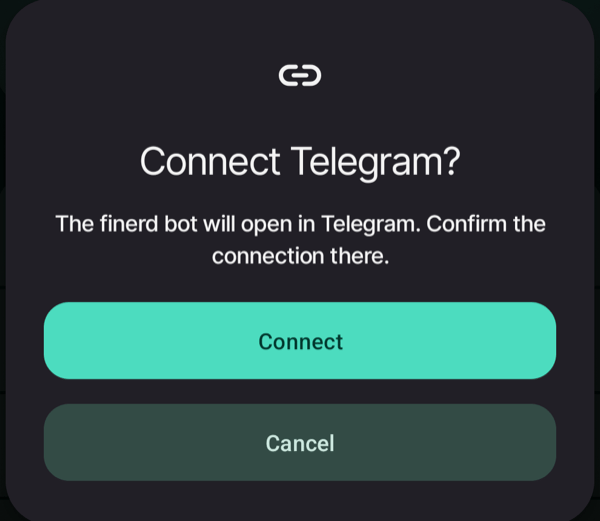
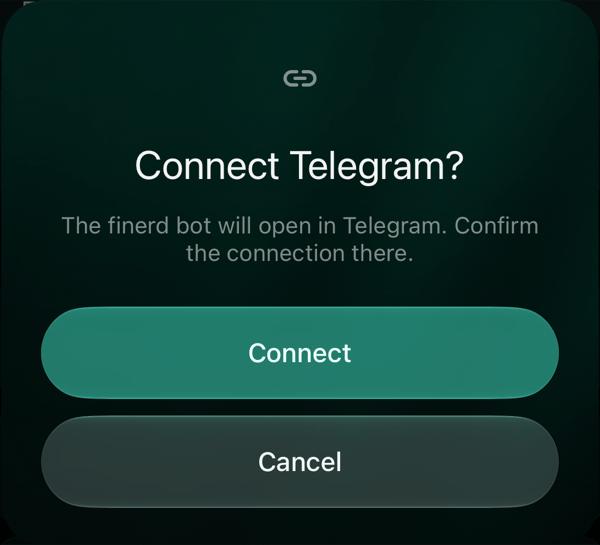
In Connect Telegram? (or Connect WhatsApp?), tap Connect. The finerd bot opens in the messenger.
In Telegram, press Start in the bot; in WhatsApp, send the message that’s already typed for you. Then tap Connect in the bot’s message.
Return to finerd. The profile updates by itself.
Tap Connect to open the finerd bot in Telegram.
While finerd waits, the row is marked Pending and says Confirm in Telegram or Send the message in WhatsApp. Tap the row to open the bot again with Open Telegram (or Open WhatsApp), or to stop waiting with Cancel connecting.
In Sign-in methods, tap Telegram or WhatsApp.
In Connect Telegram? (or Connect WhatsApp?), tap Connect. The finerd bot opens in the messenger.
In Telegram, press Start in the bot; in WhatsApp, send the message that’s already typed for you. Then tap Connect in the bot’s message.
Return to finerd. The profile checks the connection when you come back to it.
Tap Connect to open the finerd bot in Telegram.
While finerd waits, the row is marked Pending and says Confirm in Telegram or Send the message in WhatsApp. Tap the row to open the bot again with Open Telegram (or Open WhatsApp), or to stop waiting with Cancel connecting.
When the connection is confirmed, finerd shows Telegram connected or WhatsApp connected, and the row turns Connected.The link to the bot works for 10 minutes. If finerd shows The link expired. Try again., connect again to get a new link.Connecting Telegram here lets you sign in with it. To chat with the finerd assistant in Telegram, see Connect the Telegram bot.
Disconnect Telegram or WhatsApp
You can disconnect Telegram or WhatsApp if your account has another way to sign in.
Web
Android
iOS
Select Disconnect next to Telegram or WhatsApp, then Disconnect to confirm.
Tap Telegram or WhatsApp, then tap Disconnect to confirm.
Tap Telegram or WhatsApp, then tap Disconnect to confirm.
finerd shows Telegram disconnected or WhatsApp disconnected. You can no longer sign in with that messenger; your data in finerd doesn’t change. You can connect it again later.This only removes the sign-in. If you also chat with the finerd assistant in Telegram, that chat stays connected; to end it, send /logout in the chat, as described in Connect the Telegram bot.If the messenger is the only way into your account, the row says, for example, Telegram is your only way to sign in, so you can’t disconnect it.Add an email first, then disconnect it.
Add an email
If you signed up through Telegram or WhatsApp, your account has no email yet and Email code is Not connected. Add an email to sign in with an email code too, for example on a device without the messenger.
Web
Android
iOS
Select Connect next to Email code. You can also select Add email under your name in the profile menu.
Tap Email code in Sign-in methods, or Add email under the space name in Space settings.
Tap Email code in Sign-in methods, or Add email under the space name in the space settings.
In Add email, enter your email address and select Send code.
Enter the six-digit code from the email. On the web, select Confirm; the apps check the code as soon as you enter the sixth digit.
finerd shows Email connected: the address appears in Personal info, and Email code turns Connected. The code works the same way as when you sign in: if it doesn’t arrive or isn’t accepted, see Can’t sign in.An address can belong to only one finerd account. If finerd shows This email is already used by another finerd account., use another address, or sign in to that other account with the email code instead.
In the finerd bot
If you signed up in the finerd bot in Telegram or WhatsApp, you can add the email right in the chat:
Send /email to the bot. When the bot shows an Add email button, you can tap it instead.
Write the email address you want to add. The bot sends a six-digit code to it.
Write the six digits from the email in the chat.
The bot answers ✅ Email added with the address, and from then on you can sign in to finerd with it. If the email doesn’t come, check spam or tap Resend code. Another address lets you write a different one, and Cancel stops without adding an email.If you signed up in Telegram, the bot may also remind you once, usually the next morning, with an Add email button. The reminder doesn’t come again, so send /email whenever you’re ready.
If something doesn’t work
This Telegram is already connected to another finerd account. (Or the same for WhatsApp.) A Telegram or WhatsApp account can belong to only one finerd account, and the bot’s message says how it’s used there:
If it signs in to the other account, sign in to that account, disconnect the messenger in its profile, then connect it here.
If it’s the finerd assistant of the other account, send /logout in the chat with the bot, then connect it here again.
Connecting Telegram was cancelled. The connection was cancelled in the bot. Connect again and confirm it in the bot.No code at your current email when you change it? Check the address shown in Confirm it’s you and its spam folder, or use Continue with Google if Google is connected. If you can’t open your current inbox and have no Google sign-in, email support.
{"docsConfig":{"theme":"mint","$schema":"https://mintlify.com/docs.json","name":"finerd","description":"finerd helps financially savvy people manage complex personal, family, business, and international finances with accounting precision without accounting complexity.","colors":{"primary":"#38f7ff","light":"#38f7ff","dark":"#b98cff"},"logo":{"light":"https://finerd.ai/logo.svg","dark":"https://finerd.ai/logo.svg","href":"/"},"favicon":"https://finerd.ai/logo.svg","appearance":{"default":"dark","strict":true},"background":{"decoration":"grid","color":{"light":"#08090f","dark":"#08090f"}},"navbar":{"links":[{"href":"https://finerd.ai","label":"finerd.ai"}]},"seo":{"metatags":{"google-site-verification":"haq__cDMEelH2BlpExqZZ7DqIbXEtZMZDA_2Rn4amf8"}},"fonts":{"family":"Inter"},"styling":{"eyebrows":"breadcrumbs","latex":true},"contextual":{"options":["copy","view"],"display":"header"},"navigation":{"languages":[{"language":"en","footer":{"links":[{"items":[{"label":"YouTube","href":"https://www.youtube.com/@realFinerd"},{"label":"Reddit","href":"https://www.reddit.com/r/finerds"},{"label":"TikTok","href":"https://www.tiktok.com/@real.finerd"}]}]},"navbar":{"links":[{"href":"https://finerd.ai","label":"finerd.ai"}],"primary":{"type":"button","label":"Contact support","href":"/contact-us"}},"href":""},{"language":"uk","footer":{"links":[{"items":[{"label":"YouTube","href":"https://www.youtube.com/@finerd.ukraine"},{"label":"Telegram","href":"https://t.me/+TESz5VfXr50yNTRi"}]}]},"navbar":{"links":[{"href":"https://finerd.ai","label":"finerd.ai"}],"primary":{"type":"button","label":"Зв'язатися з підтримкою","href":"/uk/contact-us"}},"href":"uk"},{"language":"es","footer":{"links":[{"items":[{"label":"YouTube","href":"https://www.youtube.com/@realFinerd"},{"label":"Reddit","href":"https://www.reddit.com/r/finerds"},{"label":"TikTok","href":"https://www.tiktok.com/@real.finerd"}]}]},"navbar":{"links":[{"href":"https://finerd.ai","label":"finerd.ai"}],"primary":{"type":"button","label":"Contactar soporte","href":"/es/contact-us"}},"href":"es"},{"language":"ja","footer":{"links":[{"items":[{"label":"YouTube","href":"https://www.youtube.com/@realFinerd"},{"label":"Reddit","href":"https://www.reddit.com/r/finerds"},{"label":"TikTok","href":"https://www.tiktok.com/@real.finerd"}]}]},"navbar":{"links":[{"href":"https://finerd.ai","label":"finerd.ai"}],"primary":{"type":"button","label":"サポートに連絡","href":"/ja/contact-us"}},"href":"ja"},{"language":"pl","footer":{"links":[{"items":[{"label":"YouTube","href":"https://www.youtube.com/@realFinerd"},{"label":"Reddit","href":"https://www.reddit.com/r/finerds"},{"label":"TikTok","href":"https://www.tiktok.com/@real.finerd"}]}]},"navbar":{"links":[{"href":"https://finerd.ai","label":"finerd.ai"}],"primary":{"type":"button","label":"Kontakt z pomocą","href":"/pl/contact-us"}},"href":"pl"},{"language":"cs","footer":{"links":[{"items":[{"label":"YouTube","href":"https://www.youtube.com/@realFinerd"},{"label":"Reddit","href":"https://www.reddit.com/r/finerds"},{"label":"TikTok","href":"https://www.tiktok.com/@real.finerd"}]}]},"navbar":{"links":[{"href":"https://finerd.ai","label":"finerd.ai"}],"primary":{"type":"button","label":"Kontaktovat podporu","href":"/cs/contact-us"}},"href":"cs"},{"language":"it","footer":{"links":[{"items":[{"label":"YouTube","href":"https://www.youtube.com/@realFinerd"},{"label":"Reddit","href":"https://www.reddit.com/r/finerds"},{"label":"TikTok","href":"https://www.tiktok.com/@real.finerd"}]}]},"navbar":{"links":[{"href":"https://finerd.ai","label":"finerd.ai"}],"primary":{"type":"button","label":"Contatta assistenza","href":"/it/contact-us"}},"href":"it"},{"language":"fr","footer":{"links":[{"items":[{"label":"YouTube","href":"https://www.youtube.com/@realFinerd"},{"label":"Reddit","href":"https://www.reddit.com/r/finerds"},{"label":"TikTok","href":"https://www.tiktok.com/@real.finerd"}]}]},"navbar":{"links":[{"href":"https://finerd.ai","label":"finerd.ai"}],"primary":{"type":"button","label":"Contacter le support","href":"/fr/contact-us"}},"href":"fr"},{"language":"de","footer":{"links":[{"items":[{"label":"YouTube","href":"https://www.youtube.com/@realFinerd"},{"label":"Reddit","href":"https://www.reddit.com/r/finerds"},{"label":"TikTok","href":"https://www.tiktok.com/@real.finerd"}]}]},"navbar":{"links":[{"href":"https://finerd.ai","label":"finerd.ai"}],"primary":{"type":"button","label":"Support kontaktieren","href":"/de/contact-us"}},"href":"de"},{"language":"pt","footer":{"links":[{"items":[{"label":"YouTube","href":"https://www.youtube.com/@realFinerd"},{"label":"Reddit","href":"https://www.reddit.com/r/finerds"},{"label":"TikTok","href":"https://www.tiktok.com/@real.finerd"}]}]},"navbar":{"links":[{"href":"https://finerd.ai","label":"finerd.ai"}],"primary":{"type":"button","label":"Falar com suporte","href":"/pt/contact-us"}},"href":"pt"},{"language":"zh-Hant","footer":{"links":[{"items":[{"label":"YouTube","href":"https://www.youtube.com/@realFinerd"},{"label":"Reddit","href":"https://www.reddit.com/r/finerds"},{"label":"TikTok","href":"https://www.tiktok.com/@real.finerd"}]}]},"navbar":{"links":[{"href":"https://finerd.ai","label":"finerd.ai"}],"primary":{"type":"button","label":"聯絡客服","href":"/zh-Hant/contact-us"}},"href":"zh-Hant"},{"language":"ko","footer":{"links":[{"items":[{"label":"YouTube","href":"https://www.youtube.com/@realFinerd"},{"label":"Reddit","href":"https://www.reddit.com/r/finerds"},{"label":"TikTok","href":"https://www.tiktok.com/@real.finerd"}]}]},"navbar":{"links":[{"href":"https://finerd.ai","label":"finerd.ai"}],"primary":{"type":"button","label":"고객 지원 문의","href":"/ko/contact-us"}},"href":"ko"},{"language":"zh-Hans","footer":{"links":[{"items":[{"label":"YouTube","href":"https://www.youtube.com/@realFinerd"},{"label":"Reddit","href":"https://www.reddit.com/r/finerds"},{"label":"TikTok","href":"https://www.tiktok.com/@real.finerd"}]}]},"navbar":{"links":[{"href":"https://finerd.ai","label":"finerd.ai"}],"primary":{"type":"button","label":"联系支持","href":"/zh-Hans/contact-us"}},"href":"zh-Hans"},{"language":"nl","footer":{"links":[{"items":[{"label":"YouTube","href":"https://www.youtube.com/@realFinerd"},{"label":"Reddit","href":"https://www.reddit.com/r/finerds"},{"label":"TikTok","href":"https://www.tiktok.com/@real.finerd"}]}]},"navbar":{"links":[{"href":"https://finerd.ai","label":"finerd.ai"}],"primary":{"type":"button","label":"Neem contact op met support","href":"/nl/contact-us"}},"href":"nl"}]}},"deployment":{"deploymentMetadataValue":{"subdomain":"finerdai","hasAudioNarration":false,"actualSubdomain":"finerdai","customDomains":["help.finerd.ai"],"gitSource":{"type":"gitlab","owner":"finerd.ai/web","repo":"help","deployBranch":"main","contentDirectory":"","isPrivate":true,"projectId":85636094,"mountPath":"","label":""},"feedback":{"thumbs":true},"entitlements":{"AI_CHAT":{"status":"DISABLED"}},"buildId":"6b00a7593c4bb12541ace472","clientVersion":"0.0.4263","searchFilterCounts":[{"language":"en","tag":"Accounts \u0026 balances","count":8},{"language":"cs","tag":"Účty a zůstatky","count":8},{"language":"de","tag":"Konten und Salden","count":8},{"language":"es","tag":"Cuentas y saldos","count":8},{"language":"fr","tag":"Comptes et soldes","count":8},{"language":"it","tag":"Conti e saldi","count":8},{"language":"ja","tag":"口座と残高","count":8},{"language":"ko","tag":"계좌와 잔액","count":8},{"language":"nl","tag":"Rekeningen en saldi","count":8},{"language":"pl","tag":"Konta i salda","count":8},{"language":"pt","tag":"Contas e saldos","count":8},{"language":"uk","tag":"Рахунки та баланси","count":8},{"language":"zh-Hans","tag":"账户与余额","count":8},{"language":"zh-Hant","tag":"帳戶與餘額","count":8},{"language":"en","tag":"AI assistants","count":7},{"language":"en","tag":"Family \u0026 shared expenses","count":7},{"language":"en","tag":"Transactions","count":7},{"language":"cs","tag":"AI asistenti","count":7},{"language":"cs","tag":"Rodina a sdílené výdaje","count":7},{"language":"cs","tag":"Transakce","count":7},{"language":"de","tag":"AI-Assistenten","count":7},{"language":"de","tag":"Familie und geteilte Ausgaben","count":7},{"language":"de","tag":"Transaktionen","count":7},{"language":"es","tag":"Asistentes de AI","count":7},{"language":"es","tag":"Familia y gastos compartidos","count":7},{"language":"es","tag":"Transacciones","count":7},{"language":"fr","tag":"Assistants AI","count":7},{"language":"fr","tag":"Famille et dépenses partagées","count":7},{"language":"fr","tag":"Transactions","count":7},{"language":"it","tag":"Assistenti AI","count":7},{"language":"it","tag":"Famiglia e spese condivise","count":7},{"language":"it","tag":"Transazioni","count":7},{"language":"ja","tag":"AIアシスタント","count":7},{"language":"ja","tag":"ファミリーと共通の支出","count":7},{"language":"ja","tag":"取引","count":7},{"language":"ko","tag":"AI 어시스턴트","count":7},{"language":"ko","tag":"가족과 공유 지출","count":7},{"language":"ko","tag":"거래","count":7},{"language":"nl","tag":"AI-assistenten","count":7},{"language":"nl","tag":"Gezin en gedeelde uitgaven","count":7},{"language":"nl","tag":"Transacties","count":7},{"language":"pl","tag":"Asystenci AI","count":7},{"language":"pl","tag":"Rodzina i wspólne wydatki","count":7},{"language":"pl","tag":"Transakcje","count":7},{"language":"pt","tag":"Assistentes de AI","count":7},{"language":"pt","tag":"Família e despesas compartilhadas","count":7},{"language":"pt","tag":"Transações","count":7},{"language":"uk","tag":"ШІ-асистенти","count":7},{"language":"uk","tag":"Сім'я та спільні витрати","count":7},{"language":"uk","tag":"Транзакції","count":7},{"language":"zh-Hans","tag":"AI 助手","count":7},{"language":"zh-Hans","tag":"家庭与共同支出","count":7},{"language":"zh-Hans","tag":"交易","count":7},{"language":"zh-Hant","tag":"AI 助理","count":7},{"language":"zh-Hant","tag":"家庭與共享支出","count":7},{"language":"zh-Hant","tag":"交易","count":7},{"language":"en","tag":"Planning","count":6},{"language":"cs","tag":"Plánování","count":6},{"language":"de","tag":"Planung","count":6},{"language":"es","tag":"Planificación","count":6},{"language":"fr","tag":"Planification","count":6},{"language":"it","tag":"Pianificazione","count":6},{"language":"ja","tag":"プランニング","count":6},{"language":"ko","tag":"재무 설계","count":6},{"language":"nl","tag":"Financiële planning","count":6},{"language":"pl","tag":"Planowanie","count":6},{"language":"pt","tag":"Planejamento","count":6},{"language":"uk","tag":"Планування","count":6},{"language":"zh-Hans","tag":"财务规划","count":6},{"language":"zh-Hant","tag":"財務規劃","count":6},{"language":"en","tag":"Bills \u0026 receipts","count":5},{"language":"en","tag":"Get started","count":5},{"language":"cs","tag":"Účtenky","count":5},{"language":"cs","tag":"Začínáme","count":5},{"language":"de","tag":"Rechnungen und Kassenbons","count":5},{"language":"de","tag":"Erste Schritte","count":5},{"language":"es","tag":"Recibos","count":5},{"language":"es","tag":"Primeros pasos","count":5},{"language":"fr","tag":"Factures et tickets de caisse","count":5},{"language":"fr","tag":"Premiers pas","count":5},{"language":"it","tag":"Ricevute","count":5},{"language":"it","tag":"Primi passi","count":5},{"language":"ja","tag":"レシート","count":5},{"language":"ja","tag":"はじめに","count":5},{"language":"ko","tag":"영수증","count":5},{"language":"ko","tag":"시작하기","count":5},{"language":"nl","tag":"Bonnen","count":5},{"language":"nl","tag":"Aan de slag","count":5},{"language":"pl","tag":"Rachunki i paragony","count":5},{"language":"pl","tag":"Pierwsze kroki","count":5},{"language":"pt","tag":"Recibos de compra","count":5},{"language":"pt","tag":"Primeiros passos","count":5},{"language":"uk","tag":"Чеки","count":5},{"language":"uk","tag":"Початок роботи","count":5},{"language":"zh-Hans","tag":"小票","count":5},{"language":"zh-Hans","tag":"开始使用","count":5},{"language":"zh-Hant","tag":"收據","count":5},{"language":"zh-Hant","tag":"開始使用","count":5},{"language":"en","tag":"Account \u0026 subscription","count":4},{"language":"en","tag":"Business","count":4},{"language":"en","tag":"Investments \u0026 property","count":4},{"language":"cs","tag":"Účet a předplatné","count":4},{"language":"cs","tag":"Podnikání","count":4},{"language":"cs","tag":"Investice a majetek","count":4},{"language":"de","tag":"Konto und Abo","count":4},{"language":"de","tag":"Business","count":4},{"language":"de","tag":"Investments und Vermögenswerte","count":4},{"language":"es","tag":"Cuenta y suscripción","count":4},{"language":"es","tag":"Negocios","count":4},{"language":"es","tag":"Inversiones y patrimonio","count":4},{"language":"fr","tag":"Compte et abonnement","count":4},{"language":"fr","tag":"Entreprise","count":4},{"language":"fr","tag":"Investissements et patrimoine","count":4},{"language":"it","tag":"Account e abbonamento","count":4},{"language":"it","tag":"Business","count":4},{"language":"it","tag":"Investimenti e proprietà","count":4},{"language":"ja","tag":"アカウントとサブスクリプション","count":4},{"language":"ja","tag":"ビジネス","count":4},{"language":"ja","tag":"投資と資産","count":4},{"language":"ko","tag":"계정과 구독","count":4},{"language":"ko","tag":"비즈니스","count":4},{"language":"ko","tag":"투자와 재산","count":4},{"language":"nl","tag":"Account en abonnement","count":4},{"language":"nl","tag":"Zakelijk","count":4},{"language":"nl","tag":"Beleggingen en eigendommen","count":4},{"language":"pl","tag":"Konto i subskrypcja","count":4},{"language":"pl","tag":"Biznes","count":4},{"language":"pl","tag":"Inwestycje i majątek","count":4},{"language":"pt","tag":"Conta e assinatura","count":4},{"language":"pt","tag":"Negócios","count":4},{"language":"pt","tag":"Investimentos e patrimônio","count":4},{"language":"uk","tag":"Акаунт і підписка","count":4},{"language":"uk","tag":"Бізнес","count":4},{"language":"uk","tag":"Інвестиції й майно","count":4},{"language":"zh-Hans","tag":"账号与订阅","count":4},{"language":"zh-Hans","tag":"商业","count":4},{"language":"zh-Hans","tag":"投资与财产","count":4},{"language":"zh-Hant","tag":"會員帳號與訂閱","count":4},{"language":"zh-Hant","tag":"商務","count":4},{"language":"zh-Hant","tag":"投資與財產","count":4}]},"assistantConfig":{"enableAskAiButton":false,"enableStarterQuestions":false,"enableContextualStarterQuestions":false,"enableAskAiSearchBar":true},"basePath":"","hasChatPermissions":false,"hasWebMcpPermissions":false,"toggles":[{"name":"kill-isr","enabled":true,"variant":{"name":"disabled","enabled":false,"feature_enabled":true},"impressionData":false},{"name":"custom-rbac-roles","enabled":true,"variant":{"name":"disabled","enabled":false,"feature_enabled":true},"impressionData":false},{"name":"agent-mintlify-slack","enabled":true,"variant":{"name":"disabled","enabled":false,"feature_enabled":true},"impressionData":false},{"name":"agent-integrations-settings","enabled":true,"variant":{"name":"disabled","enabled":false,"feature_enabled":true},"impressionData":false},{"name":"rbac-expansion","enabled":true,"variant":{"name":"disabled","enabled":false,"feature_enabled":true},"impressionData":false},{"name":"automations-pr-grouping","enabled":true,"variant":{"name":"disabled","enabled":false,"feature_enabled":true},"impressionData":false},{"name":"custom-prefix","enabled":true,"variant":{"name":"disabled","enabled":false,"feature_enabled":true},"impressionData":false},{"name":"analytics-v7","enabled":true,"variant":{"name":"disabled","enabled":false,"feature_enabled":true},"impressionData":false},{"name":"user-flows-analytics","enabled":true,"variant":{"name":"disabled","enabled":false,"feature_enabled":true},"impressionData":false},{"name":"no-publish-flow","enabled":true,"variant":{"name":"disabled","enabled":false,"feature_enabled":true},"impressionData":false},{"name":"workos-onboarding","enabled":true,"variant":{"name":"disabled","enabled":false,"feature_enabled":true},"impressionData":false},{"name":"snapshot-serving-live","enabled":true,"variant":{"name":"disabled","enabled":false,"feature_enabled":true},"impressionData":false},{"name":"stripTemperatureMiddleware","enabled":true,"variant":{"name":"disabled","enabled":false,"feature_enabled":true},"impressionData":false},{"name":"support-platform-pylon-zendesk","enabled":true,"variant":{"name":"disabled","enabled":false,"feature_enabled":true},"impressionData":false},{"name":"snapshot-serving","enabled":true,"variant":{"name":"disabled","enabled":false,"feature_enabled":true},"impressionData":false},{"name":"instant-rollback","enabled":true,"variant":{"name":"disabled","enabled":false,"feature_enabled":true},"impressionData":false},{"name":"granular-notifications-server","enabled":true,"variant":{"name":"disabled","enabled":false,"feature_enabled":true},"impressionData":false},{"name":"granular-notifications","enabled":true,"variant":{"name":"disabled","enabled":false,"feature_enabled":true},"impressionData":false},{"name":"automations-fable","enabled":true,"variant":{"name":"disabled","enabled":false,"feature_enabled":true},"impressionData":false},{"name":"fixed-ai-action-pricing","enabled":true,"variant":{"name":"disabled","enabled":false,"feature_enabled":true},"impressionData":false},{"name":"site-roles","enabled":true,"variant":{"name":"disabled","enabled":false,"feature_enabled":true},"impressionData":false},{"name":"automation-resolve-merge-conflict","enabled":true,"variant":{"name":"disabled","enabled":false,"feature_enabled":true},"impressionData":false},{"name":"scoped-publishing","enabled":true,"variant":{"name":"disabled","enabled":false,"feature_enabled":true},"impressionData":false},{"name":"mintql","enabled":true,"variant":{"name":"disabled","enabled":false,"feature_enabled":true},"impressionData":false},{"name":"page-level-analytics","enabled":true,"variant":{"name":"disabled","enabled":false,"feature_enabled":true},"impressionData":false},{"name":"editor-version-history-v2","enabled":true,"variant":{"name":"disabled","enabled":false,"feature_enabled":true},"impressionData":false},{"name":"billing-page-v2","enabled":true,"variant":{"name":"disabled","enabled":false,"feature_enabled":true},"impressionData":false},{"name":"full-page-search","enabled":true,"variant":{"name":"disabled","enabled":false,"feature_enabled":true},"impressionData":false},{"name":"workspace-projects","enabled":true,"variant":{"name":"disabled","enabled":false,"feature_enabled":true},"impressionData":false},{"name":"assistant-v5","enabled":true,"variant":{"name":"disabled","enabled":false,"feature_enabled":true},"impressionData":false},{"name":"fork-pr-previews","enabled":true,"variant":{"name":"disabled","enabled":false,"feature_enabled":true},"impressionData":false},{"name":"revalidation-jwt","enabled":true,"variant":{"name":"disabled","enabled":false,"feature_enabled":true},"impressionData":false},{"name":"workos-sso-scim","enabled":true,"variant":{"name":"disabled","enabled":false,"feature_enabled":true},"impressionData":false},{"name":"hobby-abuse-scan","enabled":true,"variant":{"name":"disabled","enabled":false,"feature_enabled":true},"impressionData":false},{"name":"dashboard-inbox","enabled":true,"variant":{"name":"disabled","enabled":false,"feature_enabled":true},"impressionData":false},{"name":"workos-signup","enabled":true,"variant":{"name":"disabled","enabled":false,"feature_enabled":true},"impressionData":false},{"name":"turbopuffer-dual-write","enabled":true,"variant":{"name":"disabled","enabled":false,"feature_enabled":true},"impressionData":false},{"name":"workos-enabled","enabled":true,"variant":{"name":"disabled","enabled":false,"feature_enabled":true},"impressionData":false},{"name":"approve-review-flow","enabled":true,"variant":{"name":"disabled","enabled":false,"feature_enabled":true},"impressionData":false},{"name":"editor-metadata","enabled":true,"variant":{"name":"disabled","enabled":false,"feature_enabled":true},"impressionData":false},{"name":"sso-setup-deadline-banner","enabled":true,"variant":{"name":"disabled","enabled":false,"feature_enabled":true},"impressionData":false},{"name":"turbopuffer-serve","enabled":true,"variant":{"name":"disabled","enabled":false,"feature_enabled":true},"impressionData":false},{"name":"live-agents","enabled":true,"variant":{"name":"disabled","enabled":false,"feature_enabled":true},"impressionData":false},{"name":"starter-pricing","enabled":true,"variant":{"name":"treatment","enabled":true,"payload":{"type":"string","value":"treatment"},"feature_enabled":true},"impressionData":false},{"name":"llms-txt-v2","enabled":true,"variant":{"name":"disabled","enabled":false,"feature_enabled":true},"impressionData":false},{"name":"wildcard-email-auth","enabled":true,"variant":{"name":"disabled","enabled":false,"feature_enabled":true},"impressionData":false}],"googleFontsInlined":false},"customCss":[{"filePath":"style.css","content":".tab-container>ul[role=\"tablist\"]>li[role=\"tab\"]>div{font-size:1rem;line-height:1.75rem}.tab-container>ul[role=\"tablist\"]>li[role=\"tab\"]{padding-bottom:0.25rem}.tab-container .tab-container>ul[role=\"tablist\"]>li[role=\"tab\"]>div{font-size:0.875rem;line-height:1.5rem}#topbar-cta-button a>span:first-child{background:transparent;box-shadow:inset 0 0 0 1px rgb(0 0 0 / 0.15)}#topbar-cta-button a .text-white{color:rgb(17 24 39)}#topbar-cta-button a:hover>span:first-child{background:rgb(0 0 0 / 0.04)}.dark #topbar-cta-button a>span:first-child{box-shadow:inset 0 0 0 1px rgb(255 255 255 / 0.2)}.dark #topbar-cta-button a .text-white{color:rgb(243 244 246)}.dark #topbar-cta-button a:hover>span:first-child{background:rgb(255 255 255 / 0.06)}#header nav[aria-label=\"Breadcrumb\"]:not(.fh-crumbs){display:none}.fh-crumbs{display:flex;flex-wrap:wrap;align-items:center;gap:0.375rem;font-size:0.875rem;line-height:1.25rem;color:rgb(107 114 128)}.dark .fh-crumbs{color:rgb(156 163 175)}.fh-crumbs a{color:inherit;text-decoration:none;border:none}.fh-crumbs a:hover{color:rgb(8 145 178)}.dark .fh-crumbs a:hover{color:#38f7ff}.fh-video{width:100%;aspect-ratio:1804 / 1080;overflow:hidden;border-radius:12px;background:#000}.fh-video iframe{display:block;width:100%;height:100%;border:0}.fh-video-intro{display:grid;gap:1.5rem;align-items:center;margin:1.5rem 0 2rem;padding:1.25rem;border-radius:16px;box-shadow:inset 0 0 0 1px rgb(0 0 0 / 0.08)}.dark .fh-video-intro{background:#ffffff08;box-shadow:inset 0 0 0 1px rgb(255 255 255 / 0.08)}@media (min-width: 640px){.fh-video-intro{grid-template-columns:12rem minmax(0, 1fr);gap:2rem}}.fh-video-frame{width:100%;max-width:12rem;margin:0 auto;aspect-ratio:9 / 16;overflow:hidden;border-radius:12px;background:#000}.fh-video-frame iframe{display:block;width:100%;height:100%;border:0}.fh-video-text>:first-child{margin-top:0}.fh-video-text>:last-child{margin-bottom:0}.card{border:none!important;background:url(\"/images/home/card-gradient.png\") 0 0 / 100% 100% no-repeat,\n rgb(0 0 0 / 0.03)!important}.dark .card{background-color:#ffffff0d!important}.card:hover{background-color:rgb(0 0 0 / 0.05)!important}.dark .card:hover{background-color:#ffffff14!important}.card::before{content:\"\";position:absolute;inset:0;padding:1px;border-radius:inherit;background:linear-gradient(\n 147.14deg,\n rgb(0 0 0 / 0.12) 0%,\n rgb(0 0 0 / 0.04) 31.25%,\n rgb(0 0 0 / 0.04) 69.23%,\n rgb(0 0 0 / 0.12) 100%\n );-webkit-mask:linear-gradient(#fff 0 0) content-box,\n linear-gradient(#fff 0 0);-webkit-mask-composite:xor;mask-composite:exclude;pointer-events:none;z-index:1}.dark .card::before{background:linear-gradient(\n 147.14deg,\n rgb(255 255 255 / 0.05) 0%,\n rgb(255 255 255 / 0.015) 31.25%,\n rgb(255 255 255 / 0.015) 69.23%,\n rgb(255 255 255 / 0.05) 100%\n )}.dark .card [data-component-part=\"card-title\"]{color:#fffffff2}.dark .card [data-component-part=\"card-content\"]{color:#ffffff80}#navbar div:has(>#localization-select-trigger){display:flex!important}html:has(.fh-home) #search-bar-entry{visibility:hidden}html:has(.fh-home) #navbar button.h-14{display:none}@media (min-width: 768px){html:has(.fh-home) .fixed:has(>[role=\"dialog\"] [data-component-part=\"search-header\"]){padding-top:var(--fh-search-top, 3rem)!important}html:has(.fh-home) [role=\"dialog\"]:has([data-component-part=\"search-header\"]){margin-top:0!important;max-width:40rem!important;border-radius:1.5rem!important;transition:none!important;transform:none!important;scale:none!important;opacity:1!important}html:has(.fh-home) [data-component-part=\"search-header\"]{height:3.5rem!important;padding:0!important}html:has(.fh-home) [data-component-part=\"search-input-container\"]{padding:0 1rem 0 1.25rem!important;border:none!important;border-radius:9999px!important;background:rgb(0 0 0 / 0.04)!important;box-shadow:inset 0 0 0 1px rgb(56 247 255 / 0.5)!important}html.dark:has(.fh-home) [data-component-part=\"search-input-container\"]{background:rgb(255 255 255 / 0.05)!important}html:has(.fh-home) [data-component-part=\"search-input-container\"]>svg{left:1.25rem!important;width:1.125rem!important;height:1.125rem!important}html:has(.fh-home) [data-component-part=\"search-input\"]{padding-left:2.125rem!important;font-size:1.0625rem!important;font-weight:400!important}html:has(.fh-home) .fixed.inset-0[class*=\"bg-black/40\"]{opacity:0!important}html:has(.fh-home):has([data-component-part=\"search-input\"]) .fh-search{visibility:hidden}}.fh-home{--fh-text: rgb(17 24 39);--fh-muted: rgb(75 85 99);--fh-line: rgb(0 0 0 / 0.1);--fh-hover: rgb(0 0 0 / 0.04);display:flex;flex-direction:column;align-items:center;gap:4rem;max-width:64rem;margin:0 auto;padding:4rem 1rem 5rem;color:var(--fh-text)}.dark .fh-home{--fh-text: rgb(243 244 246);--fh-muted: rgb(156 163 175);--fh-line: rgb(255 255 255 / 0.1);--fh-hover: rgb(255 255 255 / 0.05)}.fh-home h1,.fh-home h2,.fh-home p,.fh-home ul{margin:0}.fh-home ul{padding:0;list-style:none}.fh-home li{margin:0;padding:0}.fh-home a{color:inherit;text-decoration:none;border:none}.fh-hero{position:relative;display:flex;flex-direction:column;align-items:center;gap:0.75rem;width:100%;text-align:center}.fh-hero::before{content:\"\";position:absolute;inset:-4rem 0 auto;height:22rem;background:radial-gradient(40% 60% at 30% 30%, rgb(56 247 255 / 0.14), transparent 70%),\n radial-gradient(40% 60% at 70% 30%, rgb(185 140 255 / 0.16), transparent 70%);pointer-events:none;z-index:-1}.fh-hero h1{font-size:clamp(2.25rem, 5vw, 3.5rem);line-height:1.1;font-weight:600;letter-spacing:-0.03em}.fh-accent{background:linear-gradient(90deg, #38f7ff, #b98cff);-webkit-background-clip:text;background-clip:text;color:transparent}.fh-hero p{font-size:1.125rem;color:var(--fh-muted)}.fh-search{display:flex;align-items:center;gap:0.75rem;width:100%;max-width:40rem;height:3.5rem;margin-top:2rem;padding:0 1.25rem;border-radius:9999px;background:var(--fh-hover);box-shadow:inset 0 0 0 1px var(--fh-line);color:var(--fh-muted);font-size:1.0625rem;cursor:pointer;text-align:left}.fh-search:hover{box-shadow:inset 0 0 0 1px rgb(56 247 255 / 0.5)}.fh-search span{flex:1;min-width:0;overflow:hidden;text-overflow:ellipsis;white-space:nowrap}.fh-search kbd{font-size:0.75rem;font-weight:600;font-family:inherit}.fh-label{margin-bottom:1rem!important;font-size:1rem;font-weight:600;text-align:center}.fh-chips{display:flex;flex-wrap:wrap;justify-content:center;gap:0.75rem;max-width:56rem}.fh-chips a{display:inline-flex;align-items:center;gap:0.625rem;padding:0.625rem 1.125rem;border-radius:9999px;box-shadow:inset 0 0 0 1px var(--fh-line);font-size:1rem;line-height:1.5rem}.fh-chips a:hover{background:var(--fh-hover);box-shadow:inset 0 0 0 1px rgb(56 247 255 / 0.4)}.fh-chips svg{flex:none}.fh-topics{display:grid;grid-template-columns:repeat(2, minmax(0, 1fr));gap:0.75rem;width:100%;max-width:56rem;margin:0 auto!important}.fh-topics li:last-child:nth-child(odd){grid-column:1 / -1}@media (max-width: 767px){.fh-home .fh-topics a{padding:1rem 1.125rem}}@media (min-width: 768px){.fh-topics{grid-template-columns:repeat(3, minmax(0, 1fr))}.fh-topics li:last-child:nth-child(odd){grid-column:auto}}.fh-topics a{position:relative;z-index:0;display:flex;flex-direction:column;gap:0.25rem;height:100%;padding:1.25rem 1.5rem;overflow:hidden;border-radius:16px;background:url(\"/images/home/card-gradient.png\") 0 0 / 100% 100% no-repeat,\n rgb(0 0 0 / 0.03);color:var(--fh-text)}.dark .fh-topics a{background-color:#ffffff0d}.fh-topics a:hover{background-color:rgb(0 0 0 / 0.05)}.dark .fh-topics a:hover{background-color:#ffffff14}.fh-topics a::before{content:\"\";position:absolute;inset:0;padding:1px;border-radius:inherit;background:linear-gradient(\n 147.14deg,\n rgb(0 0 0 / 0.12) 0%,\n rgb(0 0 0 / 0.04) 31.25%,\n rgb(0 0 0 / 0.04) 69.23%,\n rgb(0 0 0 / 0.12) 100%\n );-webkit-mask:linear-gradient(#fff 0 0) content-box,\n linear-gradient(#fff 0 0);-webkit-mask-composite:xor;mask-composite:exclude;pointer-events:none;z-index:1}.dark .fh-topics a::before{background:linear-gradient(\n 147.14deg,\n rgb(255 255 255 / 0.05) 0%,\n rgb(255 255 255 / 0.015) 31.25%,\n rgb(255 255 255 / 0.015) 69.23%,\n rgb(255 255 255 / 0.05) 100%\n )}.fh-topics strong{font-size:1rem;font-weight:600;line-height:1.5rem}.dark .fh-topics strong{color:#fffffff2}.fh-topics span{font-size:0.9375rem;line-height:1.375rem;color:var(--fh-muted)}.dark .fh-topics span{color:#ffffff80}.fh-lang{margin:0!important;font-size:0.9375rem;text-align:center}.fh-lang a{color:var(--fh-muted);text-decoration:underline;text-underline-offset:0.2em}.fh-lang a:hover{color:var(--fh-text)}"}]}
{"page":{"pagePath":"account/profile-and-sign-in-methods","slug":"/account/profile-and-sign-in-methods","pageMetadata":{"title":"Manage your profile and sign-in methods","sidebarTitle":"Profile and sign-in methods","icon":"id-card","description":"Change your name and email and connect or disconnect Telegram and WhatsApp sign-in in your finerd profile. iOS can't change the email yet.","keywords":["profile","my profile","account settings","personal info","name","change name","add name","edit name","email","change email","update email","new email address","add email","confirm it's you","email changed","undo email change","someone changed my email","sign-in methods","login methods","connected accounts","link Telegram","unlink Telegram","connect WhatsApp","disconnect WhatsApp","Telegram login","WhatsApp login","Google","Apple","email code","member since","only way to sign in","/email","add email in Telegram","add email in WhatsApp","bot email reminder","Telegram-only account"],"href":"/account/profile-and-sign-in-methods"},"description":{"compiledSource":"\"use strict\";\nconst {jsx: _jsx} = arguments[0];\nconst {useMDXComponents: _provideComponents} = arguments[0];\nfunction _createMdxContent(props) {\n const _components = {\n p: \"p\",\n ..._provideComponents(),\n ...props.components\n };\n return _jsx(_components.p, {\n children: \"Change your name and email and connect or disconnect Telegram and WhatsApp sign-in in your finerd profile. iOS can’t change the email yet.\"\n });\n}\nfunction MDXContent(props = {}) {\n const {wrapper: MDXLayout} = {\n ..._provideComponents(),\n ...props.components\n };\n return MDXLayout ? _jsx(MDXLayout, {\n ...props,\n children: _jsx(_createMdxContent, {\n ...props\n })\n }) : _createMdxContent(props);\n}\nreturn {\n default: MDXContent\n};\n","frontmatter":{},"scope":{}},"pageType":"default","mdx":{"mdxSource":{"compiledSource":"\"use strict\";const{Fragment:_Fragment,jsx:_jsx,jsxs:_jsxs}=arguments[0];const{useMDXComponents:_provideComponents}=arguments[0];function _createMdxContent(props){const _components={a:`a`,code:`code`,li:`li`,ol:`ol`,p:`p`,strong:`strong`,tbody:`tbody`,td:`td`,th:`th`,thead:`thead`,tr:`tr`,ul:`ul`,..._provideComponents(),...props.components},{Frame,Heading,OptimizedImage,Tab,Table,Tabs}=_components;if(!Frame)_missingMdxReference(`Frame`,true);if(!Heading)_missingMdxReference(`Heading`,true);if(!OptimizedImage)_missingMdxReference(`OptimizedImage`,true);if(!Tab)_missingMdxReference(`Tab`,true);if(!Table)_missingMdxReference(`Table`,true);if(!Tabs)_missingMdxReference(`Tabs`,true);return _jsxs(_Fragment,{children:[_jsx(_components.p,{children:`Your finerd profile shows your name, your email and every way you can sign in: an email code, Google, Apple, Telegram and WhatsApp. In the profile you can change your name and email, add an email if you signed up through a messenger, and connect or disconnect Telegram and WhatsApp.`}),`\n`,_jsx(_components.p,{children:`The profile is free on the web, Android and iOS. Changing your email works on the web and in the Android app; the iOS app doesn’t have it. If you signed up through a messenger, you can also add an email in the finerd bot. The profile belongs to your account, not to a space, so it’s the same in every space you open.`}),`\n`,_jsx(Heading,{level:`2`,id:`open`,children:`Open your profile`}),`\n`,_jsxs(Tabs,{children:[_jsxs(Tab,{title:`Web`,id:`web`,children:[_jsxs(_components.p,{children:[`Select your profile at the bottom of the sidebar, then select your email under your name. You can also select the settings icon in that menu and choose `,_jsx(_components.strong,{children:`Profile`}),`, the first item.`]}),_jsx(Frame,{caption:`Select your email to open your profile.`,children:_jsx(OptimizedImage,{src:`https://mintcdn.com/finerdai/VuD2cPrpBYvGpE0M/images/account/profile-and-sign-in-methods/web-profile-menu.png?fit=max\u0026auto=format\u0026n=VuD2cPrpBYvGpE0M\u0026q=85\u0026s=ee65124637fe19d5712de3b5cc37dabd`,alt:`The top of the profile menu: the space picture, the space name Personal, the email with an arrow, and the settings icon at the top right.`,width:`260`,\"data-og-width\":`299`,\"data-og-height\":`190`,\"data-path\":`images/account/profile-and-sign-in-methods/web-profile-menu.png`,\"data-optimize\":`true`,\"data-opv\":`3`,srcset:`https://mintcdn.com/finerdai/VuD2cPrpBYvGpE0M/images/account/profile-and-sign-in-methods/web-profile-menu.png?w=280\u0026fit=max\u0026auto=format\u0026n=VuD2cPrpBYvGpE0M\u0026q=85\u0026s=1d2f1686aeb546db4569c3cfd1a4f78a 280w, https://mintcdn.com/finerdai/VuD2cPrpBYvGpE0M/images/account/profile-and-sign-in-methods/web-profile-menu.png?w=560\u0026fit=max\u0026auto=format\u0026n=VuD2cPrpBYvGpE0M\u0026q=85\u0026s=8bffd8b253f9ac7354199b0b053d35e1 560w, https://mintcdn.com/finerdai/VuD2cPrpBYvGpE0M/images/account/profile-and-sign-in-methods/web-profile-menu.png?w=840\u0026fit=max\u0026auto=format\u0026n=VuD2cPrpBYvGpE0M\u0026q=85\u0026s=2e34512736969ed91af3f71e61300326 840w, https://mintcdn.com/finerdai/VuD2cPrpBYvGpE0M/images/account/profile-and-sign-in-methods/web-profile-menu.png?w=1100\u0026fit=max\u0026auto=format\u0026n=VuD2cPrpBYvGpE0M\u0026q=85\u0026s=d6789dd02fb25a76a65b527d33090517 1100w, https://mintcdn.com/finerdai/VuD2cPrpBYvGpE0M/images/account/profile-and-sign-in-methods/web-profile-menu.png?w=1650\u0026fit=max\u0026auto=format\u0026n=VuD2cPrpBYvGpE0M\u0026q=85\u0026s=a3b01db218737591992e415dec37b9bf 1650w, https://mintcdn.com/finerdai/VuD2cPrpBYvGpE0M/images/account/profile-and-sign-in-methods/web-profile-menu.png?w=2500\u0026fit=max\u0026auto=format\u0026n=VuD2cPrpBYvGpE0M\u0026q=85\u0026s=8606549c157ed3ffa4ce2470c78116a7 2500w`})})]}),_jsxs(Tab,{title:`Android`,id:`android`,children:[_jsxs(_components.p,{children:[`Open `,_jsx(_components.strong,{children:`More`}),`, tap the space picture at the top and open `,_jsx(_components.strong,{children:`Space settings`}),`. Tap `,_jsx(_components.strong,{children:`Profile`}),`, the first row, or your email under the space name.`]}),_jsx(Frame,{caption:`Profile is the first row of Space settings.`,children:_jsx(OptimizedImage,{src:`https://mintcdn.com/finerdai/VuD2cPrpBYvGpE0M/images/account/profile-and-sign-in-methods/android-space-settings.png?fit=max\u0026auto=format\u0026n=VuD2cPrpBYvGpE0M\u0026q=85\u0026s=cbfab98669658e01cac1c27d8cc9844d`,alt:`The top of Android Space settings: the space picture, the space name Personal, the email with an arrow, the Personal space badge and the Profile row with Sign-in methods under it.`,width:`300`,\"data-og-width\":`600`,\"data-og-height\":`500`,\"data-path\":`images/account/profile-and-sign-in-methods/android-space-settings.png`,\"data-optimize\":`true`,\"data-opv\":`3`,srcset:`https://mintcdn.com/finerdai/VuD2cPrpBYvGpE0M/images/account/profile-and-sign-in-methods/android-space-settings.png?w=280\u0026fit=max\u0026auto=format\u0026n=VuD2cPrpBYvGpE0M\u0026q=85\u0026s=ab725f717c1b500cc0c86aaaae304510 280w, https://mintcdn.com/finerdai/VuD2cPrpBYvGpE0M/images/account/profile-and-sign-in-methods/android-space-settings.png?w=560\u0026fit=max\u0026auto=format\u0026n=VuD2cPrpBYvGpE0M\u0026q=85\u0026s=d27dbec23a5e5c739a1e65bee7e9cc33 560w, https://mintcdn.com/finerdai/VuD2cPrpBYvGpE0M/images/account/profile-and-sign-in-methods/android-space-settings.png?w=840\u0026fit=max\u0026auto=format\u0026n=VuD2cPrpBYvGpE0M\u0026q=85\u0026s=d38e6dd8044aa3263221fee3649304bf 840w, https://mintcdn.com/finerdai/VuD2cPrpBYvGpE0M/images/account/profile-and-sign-in-methods/android-space-settings.png?w=1100\u0026fit=max\u0026auto=format\u0026n=VuD2cPrpBYvGpE0M\u0026q=85\u0026s=0ed375b5d9f1da4c0cc1f0c5047e2bcf 1100w, https://mintcdn.com/finerdai/VuD2cPrpBYvGpE0M/images/account/profile-and-sign-in-methods/android-space-settings.png?w=1650\u0026fit=max\u0026auto=format\u0026n=VuD2cPrpBYvGpE0M\u0026q=85\u0026s=2e239396720e5ab5a8fb72cdf5a44fd0 1650w, https://mintcdn.com/finerdai/VuD2cPrpBYvGpE0M/images/account/profile-and-sign-in-methods/android-space-settings.png?w=2500\u0026fit=max\u0026auto=format\u0026n=VuD2cPrpBYvGpE0M\u0026q=85\u0026s=fe90da30472c285fc2c98ddb3617c437 2500w`})})]}),_jsxs(Tab,{title:`iOS`,id:`ios`,children:[_jsxs(_components.p,{children:[`Open `,_jsx(_components.strong,{children:`More`}),` and tap the space icon at the top right. Tap `,_jsx(_components.strong,{children:`Profile`}),`, the first row, or your email under the space name.`]}),_jsx(Frame,{caption:`Profile is the first row of the space settings.`,children:_jsx(OptimizedImage,{src:`https://mintcdn.com/finerdai/VuD2cPrpBYvGpE0M/images/account/profile-and-sign-in-methods/ios-space-settings.png?fit=max\u0026auto=format\u0026n=VuD2cPrpBYvGpE0M\u0026q=85\u0026s=f09554cdbfba892537a305a5f4556942`,alt:`The top of the iOS space settings: the space picture, the space name Personal, the email with an arrow, the Personal space badge and the Profile row with Sign-in methods under it.`,width:`300`,\"data-og-width\":`600`,\"data-og-height\":`502`,\"data-path\":`images/account/profile-and-sign-in-methods/ios-space-settings.png`,\"data-optimize\":`true`,\"data-opv\":`3`,srcset:`https://mintcdn.com/finerdai/VuD2cPrpBYvGpE0M/images/account/profile-and-sign-in-methods/ios-space-settings.png?w=280\u0026fit=max\u0026auto=format\u0026n=VuD2cPrpBYvGpE0M\u0026q=85\u0026s=8e157716ba5e75ea9bb4cd6390b27064 280w, https://mintcdn.com/finerdai/VuD2cPrpBYvGpE0M/images/account/profile-and-sign-in-methods/ios-space-settings.png?w=560\u0026fit=max\u0026auto=format\u0026n=VuD2cPrpBYvGpE0M\u0026q=85\u0026s=f5992800b526b376004efd20656356f1 560w, https://mintcdn.com/finerdai/VuD2cPrpBYvGpE0M/images/account/profile-and-sign-in-methods/ios-space-settings.png?w=840\u0026fit=max\u0026auto=format\u0026n=VuD2cPrpBYvGpE0M\u0026q=85\u0026s=9a516048f8f7536443fe1620d49ecc50 840w, https://mintcdn.com/finerdai/VuD2cPrpBYvGpE0M/images/account/profile-and-sign-in-methods/ios-space-settings.png?w=1100\u0026fit=max\u0026auto=format\u0026n=VuD2cPrpBYvGpE0M\u0026q=85\u0026s=0676ea865527f9a291a3cddc11aae5ff 1100w, https://mintcdn.com/finerdai/VuD2cPrpBYvGpE0M/images/account/profile-and-sign-in-methods/ios-space-settings.png?w=1650\u0026fit=max\u0026auto=format\u0026n=VuD2cPrpBYvGpE0M\u0026q=85\u0026s=7a6a991f0641e0b8304dca2452bd29f9 1650w, https://mintcdn.com/finerdai/VuD2cPrpBYvGpE0M/images/account/profile-and-sign-in-methods/ios-space-settings.png?w=2500\u0026fit=max\u0026auto=format\u0026n=VuD2cPrpBYvGpE0M\u0026q=85\u0026s=82d847ab5e50b65f0e8e276ba0821372 2500w`})})]})]}),`\n`,_jsxs(_components.p,{children:[`If your account has no email, the line under the name says `,_jsx(_components.strong,{children:`Add email`}),` and opens `,_jsx(_components.a,{href:`#add-email`,children:`Add email`}),` instead; use `,_jsx(_components.strong,{children:`Profile`}),` to open your profile.`]}),`\n`,_jsx(_components.p,{children:`The profile has two sections:`}),`\n`,_jsxs(_components.ul,{children:[`\n`,_jsxs(_components.li,{children:[_jsx(_components.strong,{children:`Personal info`}),`: `,_jsx(_components.strong,{children:`Name`}),`, `,_jsx(_components.strong,{children:`Email`}),` and `,_jsx(_components.strong,{children:`Phone`}),` when your account has them, and `,_jsx(_components.strong,{children:`Member since`}),`, the date you signed up.`]}),`\n`,_jsxs(_components.li,{children:[_jsx(_components.strong,{children:`Sign-in methods`}),`: `,_jsx(_components.strong,{children:`Email code`}),`, `,_jsx(_components.strong,{children:`Google`}),`, `,_jsx(_components.strong,{children:`Apple`}),`, `,_jsx(_components.strong,{children:`Telegram`}),` and `,_jsx(_components.strong,{children:`WhatsApp`}),`, each marked `,_jsx(_components.strong,{children:`Connected`}),` or `,_jsx(_components.strong,{children:`Not connected`}),`. A connected email code shows its address, and a connected WhatsApp shows its number.`]}),`\n`]}),`\n`,_jsxs(Tabs,{children:[_jsx(Tab,{title:`Web`,id:`web-2`,children:_jsx(Frame,{caption:`A profile with no name yet that signs in only with an email code.`,children:_jsx(OptimizedImage,{src:`https://mintcdn.com/finerdai/VuD2cPrpBYvGpE0M/images/account/profile-and-sign-in-methods/web-profile.png?fit=max\u0026auto=format\u0026n=VuD2cPrpBYvGpE0M\u0026q=85\u0026s=8e80ce9c28781441909789c902d65351`,alt:`The web Profile page. Personal info: Name with Add name, Email, Member since. Sign-in methods: Email code Connected with Change, Google and Apple Not connected, Telegram and WhatsApp Not connected with Connect.`,width:`480`,\"data-og-width\":`720`,\"data-og-height\":`706`,\"data-path\":`images/account/profile-and-sign-in-methods/web-profile.png`,\"data-optimize\":`true`,\"data-opv\":`3`,srcset:`https://mintcdn.com/finerdai/VuD2cPrpBYvGpE0M/images/account/profile-and-sign-in-methods/web-profile.png?w=280\u0026fit=max\u0026auto=format\u0026n=VuD2cPrpBYvGpE0M\u0026q=85\u0026s=6463821f890ed8580de21e5ef7cbc065 280w, https://mintcdn.com/finerdai/VuD2cPrpBYvGpE0M/images/account/profile-and-sign-in-methods/web-profile.png?w=560\u0026fit=max\u0026auto=format\u0026n=VuD2cPrpBYvGpE0M\u0026q=85\u0026s=273bbc488db3c58e0fc40b08427de92a 560w, https://mintcdn.com/finerdai/VuD2cPrpBYvGpE0M/images/account/profile-and-sign-in-methods/web-profile.png?w=840\u0026fit=max\u0026auto=format\u0026n=VuD2cPrpBYvGpE0M\u0026q=85\u0026s=fa3cecf7b4fc7b3d0da3cc3b1aa0c5e7 840w, https://mintcdn.com/finerdai/VuD2cPrpBYvGpE0M/images/account/profile-and-sign-in-methods/web-profile.png?w=1100\u0026fit=max\u0026auto=format\u0026n=VuD2cPrpBYvGpE0M\u0026q=85\u0026s=9f3675e5715fa0efc00d883cd66b03f7 1100w, https://mintcdn.com/finerdai/VuD2cPrpBYvGpE0M/images/account/profile-and-sign-in-methods/web-profile.png?w=1650\u0026fit=max\u0026auto=format\u0026n=VuD2cPrpBYvGpE0M\u0026q=85\u0026s=2c968d30d0f4493df66f69c871d6d6d6 1650w, https://mintcdn.com/finerdai/VuD2cPrpBYvGpE0M/images/account/profile-and-sign-in-methods/web-profile.png?w=2500\u0026fit=max\u0026auto=format\u0026n=VuD2cPrpBYvGpE0M\u0026q=85\u0026s=917ea761fe85a48f645de3a65cea508c 2500w`})})}),_jsx(Tab,{title:`Android`,id:`android-2`,children:_jsx(Frame,{caption:`A profile with no name yet that signs in only with an email code.`,children:_jsx(OptimizedImage,{src:`https://mintcdn.com/finerdai/VuD2cPrpBYvGpE0M/images/account/profile-and-sign-in-methods/android-profile.png?fit=max\u0026auto=format\u0026n=VuD2cPrpBYvGpE0M\u0026q=85\u0026s=a71b147c2905ab240b05bb31e28fba0c`,alt:`The Android Profile screen. Personal info: Name with Add name, Email, Member since. Sign-in methods: Email code Connected, Google, Apple, Telegram and WhatsApp Not connected.`,width:`300`,\"data-og-width\":`600`,\"data-og-height\":`1005`,\"data-path\":`images/account/profile-and-sign-in-methods/android-profile.png`,\"data-optimize\":`true`,\"data-opv\":`3`,srcset:`https://mintcdn.com/finerdai/VuD2cPrpBYvGpE0M/images/account/profile-and-sign-in-methods/android-profile.png?w=280\u0026fit=max\u0026auto=format\u0026n=VuD2cPrpBYvGpE0M\u0026q=85\u0026s=4a557d634541799bbafde676681f1d72 280w, https://mintcdn.com/finerdai/VuD2cPrpBYvGpE0M/images/account/profile-and-sign-in-methods/android-profile.png?w=560\u0026fit=max\u0026auto=format\u0026n=VuD2cPrpBYvGpE0M\u0026q=85\u0026s=440474225bb82fdab6efb2916d7fa5b4 560w, https://mintcdn.com/finerdai/VuD2cPrpBYvGpE0M/images/account/profile-and-sign-in-methods/android-profile.png?w=840\u0026fit=max\u0026auto=format\u0026n=VuD2cPrpBYvGpE0M\u0026q=85\u0026s=dc533e3a27575a6eb0745d88f3e18ac7 840w, https://mintcdn.com/finerdai/VuD2cPrpBYvGpE0M/images/account/profile-and-sign-in-methods/android-profile.png?w=1100\u0026fit=max\u0026auto=format\u0026n=VuD2cPrpBYvGpE0M\u0026q=85\u0026s=edb9473a4dbb3daec6e49c226326f224 1100w, https://mintcdn.com/finerdai/VuD2cPrpBYvGpE0M/images/account/profile-and-sign-in-methods/android-profile.png?w=1650\u0026fit=max\u0026auto=format\u0026n=VuD2cPrpBYvGpE0M\u0026q=85\u0026s=6cb0d67dab535be850e27b20aebcbc9d 1650w, https://mintcdn.com/finerdai/VuD2cPrpBYvGpE0M/images/account/profile-and-sign-in-methods/android-profile.png?w=2500\u0026fit=max\u0026auto=format\u0026n=VuD2cPrpBYvGpE0M\u0026q=85\u0026s=9d3f6d074ff3064de8b6d6902b03ec3d 2500w`})})}),_jsx(Tab,{title:`iOS`,id:`ios-2`,children:_jsx(Frame,{caption:`A profile with no name yet that signs in only with an email code.`,children:_jsx(OptimizedImage,{src:`https://mintcdn.com/finerdai/VuD2cPrpBYvGpE0M/images/account/profile-and-sign-in-methods/ios-profile.png?fit=max\u0026auto=format\u0026n=VuD2cPrpBYvGpE0M\u0026q=85\u0026s=db411c5e0564bae920db6ab36badfa56`,alt:`The iOS Profile screen. Personal info: Name with Add name, Email, Member since. Sign-in methods: Email code Connected, Google, Apple, Telegram and WhatsApp Not connected.`,width:`300`,\"data-og-width\":`600`,\"data-og-height\":`1159`,\"data-path\":`images/account/profile-and-sign-in-methods/ios-profile.png`,\"data-optimize\":`true`,\"data-opv\":`3`,srcset:`https://mintcdn.com/finerdai/VuD2cPrpBYvGpE0M/images/account/profile-and-sign-in-methods/ios-profile.png?w=280\u0026fit=max\u0026auto=format\u0026n=VuD2cPrpBYvGpE0M\u0026q=85\u0026s=330177f64853c019aedfc65743b8b5b4 280w, https://mintcdn.com/finerdai/VuD2cPrpBYvGpE0M/images/account/profile-and-sign-in-methods/ios-profile.png?w=560\u0026fit=max\u0026auto=format\u0026n=VuD2cPrpBYvGpE0M\u0026q=85\u0026s=fa85f795d903d587762990bc5a06193a 560w, https://mintcdn.com/finerdai/VuD2cPrpBYvGpE0M/images/account/profile-and-sign-in-methods/ios-profile.png?w=840\u0026fit=max\u0026auto=format\u0026n=VuD2cPrpBYvGpE0M\u0026q=85\u0026s=6484f425c25e80833fbac3a12f5fc4a6 840w, https://mintcdn.com/finerdai/VuD2cPrpBYvGpE0M/images/account/profile-and-sign-in-methods/ios-profile.png?w=1100\u0026fit=max\u0026auto=format\u0026n=VuD2cPrpBYvGpE0M\u0026q=85\u0026s=ab3b312075256b147db235aceb4a0548 1100w, https://mintcdn.com/finerdai/VuD2cPrpBYvGpE0M/images/account/profile-and-sign-in-methods/ios-profile.png?w=1650\u0026fit=max\u0026auto=format\u0026n=VuD2cPrpBYvGpE0M\u0026q=85\u0026s=24d9433983840eee78c0738c4ffc5857 1650w, https://mintcdn.com/finerdai/VuD2cPrpBYvGpE0M/images/account/profile-and-sign-in-methods/ios-profile.png?w=2500\u0026fit=max\u0026auto=format\u0026n=VuD2cPrpBYvGpE0M\u0026q=85\u0026s=930e42959f59796d7645d37d8e8f0b99 2500w`})})})]}),`\n`,_jsx(Heading,{level:`2`,id:`name`,children:`Add or change your name`}),`\n`,_jsxs(_components.ol,{children:[`\n`,_jsxs(_components.li,{children:[`In `,_jsx(_components.strong,{children:`Personal info`}),`, select `,_jsx(_components.strong,{children:`Name`}),`. If your account has no name yet, the row says `,_jsx(_components.strong,{children:`Add name`}),`.`]}),`\n`,_jsxs(_components.li,{children:[`Enter your name, up to 100 characters, and select `,_jsx(_components.strong,{children:`Save`}),`.`]}),`\n`]}),`\n`,_jsxs(Tabs,{children:[_jsx(Tab,{title:`Web`,id:`web-3`,children:_jsx(Frame,{caption:`Nothing changes until you select Save.`,children:_jsx(OptimizedImage,{src:`https://mintcdn.com/finerdai/VuD2cPrpBYvGpE0M/images/account/profile-and-sign-in-methods/web-edit-name.png?fit=max\u0026auto=format\u0026n=VuD2cPrpBYvGpE0M\u0026q=85\u0026s=c54c1dd9abbd1f8253f60726baa265fe`,alt:`The Name window with a name typed in the field and the Cancel and Save buttons.`,width:`340`,\"data-og-width\":`410`,\"data-og-height\":`294`,\"data-path\":`images/account/profile-and-sign-in-methods/web-edit-name.png`,\"data-optimize\":`true`,\"data-opv\":`3`,srcset:`https://mintcdn.com/finerdai/VuD2cPrpBYvGpE0M/images/account/profile-and-sign-in-methods/web-edit-name.png?w=280\u0026fit=max\u0026auto=format\u0026n=VuD2cPrpBYvGpE0M\u0026q=85\u0026s=e3f40cb3c58d25d80f0a9aa14a9eb72d 280w, https://mintcdn.com/finerdai/VuD2cPrpBYvGpE0M/images/account/profile-and-sign-in-methods/web-edit-name.png?w=560\u0026fit=max\u0026auto=format\u0026n=VuD2cPrpBYvGpE0M\u0026q=85\u0026s=38717b805ffc489567252f5c7a807153 560w, https://mintcdn.com/finerdai/VuD2cPrpBYvGpE0M/images/account/profile-and-sign-in-methods/web-edit-name.png?w=840\u0026fit=max\u0026auto=format\u0026n=VuD2cPrpBYvGpE0M\u0026q=85\u0026s=20dc7e3a31ad43610885954bed964faa 840w, https://mintcdn.com/finerdai/VuD2cPrpBYvGpE0M/images/account/profile-and-sign-in-methods/web-edit-name.png?w=1100\u0026fit=max\u0026auto=format\u0026n=VuD2cPrpBYvGpE0M\u0026q=85\u0026s=0af67fe7199fcc9b49fbd7ca00b17839 1100w, https://mintcdn.com/finerdai/VuD2cPrpBYvGpE0M/images/account/profile-and-sign-in-methods/web-edit-name.png?w=1650\u0026fit=max\u0026auto=format\u0026n=VuD2cPrpBYvGpE0M\u0026q=85\u0026s=14e8e4fe7340e399ead84a62e6992837 1650w, https://mintcdn.com/finerdai/VuD2cPrpBYvGpE0M/images/account/profile-and-sign-in-methods/web-edit-name.png?w=2500\u0026fit=max\u0026auto=format\u0026n=VuD2cPrpBYvGpE0M\u0026q=85\u0026s=0834bec17fd57704441cc2e4361c6aef 2500w`})})}),_jsx(Tab,{title:`Android`,id:`android-3`,children:_jsx(Frame,{caption:`Nothing changes until you tap Save.`,children:_jsx(OptimizedImage,{src:`https://mintcdn.com/finerdai/VuD2cPrpBYvGpE0M/images/account/profile-and-sign-in-methods/android-edit-name.png?fit=max\u0026auto=format\u0026n=VuD2cPrpBYvGpE0M\u0026q=85\u0026s=bba8264aa7d64c07768c76bfe0d5c694`,alt:`The Android Name sheet with a name typed in the field and the Save button.`,width:`300`,\"data-og-width\":`600`,\"data-og-height\":`344`,\"data-path\":`images/account/profile-and-sign-in-methods/android-edit-name.png`,\"data-optimize\":`true`,\"data-opv\":`3`,srcset:`https://mintcdn.com/finerdai/VuD2cPrpBYvGpE0M/images/account/profile-and-sign-in-methods/android-edit-name.png?w=280\u0026fit=max\u0026auto=format\u0026n=VuD2cPrpBYvGpE0M\u0026q=85\u0026s=0e25434255916917709f7e6fd899ffa4 280w, https://mintcdn.com/finerdai/VuD2cPrpBYvGpE0M/images/account/profile-and-sign-in-methods/android-edit-name.png?w=560\u0026fit=max\u0026auto=format\u0026n=VuD2cPrpBYvGpE0M\u0026q=85\u0026s=8b2ab5fbe0fd393f2ee488dcc9717032 560w, https://mintcdn.com/finerdai/VuD2cPrpBYvGpE0M/images/account/profile-and-sign-in-methods/android-edit-name.png?w=840\u0026fit=max\u0026auto=format\u0026n=VuD2cPrpBYvGpE0M\u0026q=85\u0026s=c59b3d268e03e18fbfdcdfdf296623a6 840w, https://mintcdn.com/finerdai/VuD2cPrpBYvGpE0M/images/account/profile-and-sign-in-methods/android-edit-name.png?w=1100\u0026fit=max\u0026auto=format\u0026n=VuD2cPrpBYvGpE0M\u0026q=85\u0026s=50862fedad07cf097179a11bac359285 1100w, https://mintcdn.com/finerdai/VuD2cPrpBYvGpE0M/images/account/profile-and-sign-in-methods/android-edit-name.png?w=1650\u0026fit=max\u0026auto=format\u0026n=VuD2cPrpBYvGpE0M\u0026q=85\u0026s=bf2c35a25c4d7bf187952622fe679ad9 1650w, https://mintcdn.com/finerdai/VuD2cPrpBYvGpE0M/images/account/profile-and-sign-in-methods/android-edit-name.png?w=2500\u0026fit=max\u0026auto=format\u0026n=VuD2cPrpBYvGpE0M\u0026q=85\u0026s=6e8c9f4274b77d9ca087e14a4b63dac9 2500w`})})}),_jsx(Tab,{title:`iOS`,id:`ios-3`,children:_jsx(Frame,{caption:`Nothing changes until you tap Save.`,children:_jsx(OptimizedImage,{src:`https://mintcdn.com/finerdai/VuD2cPrpBYvGpE0M/images/account/profile-and-sign-in-methods/ios-edit-name.png?fit=max\u0026auto=format\u0026n=VuD2cPrpBYvGpE0M\u0026q=85\u0026s=955affcfa79994c857a0ed469f155bb0`,alt:`The iOS Name sheet with a name typed in the field and the Save button.`,width:`300`,\"data-og-width\":`600`,\"data-og-height\":`303`,\"data-path\":`images/account/profile-and-sign-in-methods/ios-edit-name.png`,\"data-optimize\":`true`,\"data-opv\":`3`,srcset:`https://mintcdn.com/finerdai/VuD2cPrpBYvGpE0M/images/account/profile-and-sign-in-methods/ios-edit-name.png?w=280\u0026fit=max\u0026auto=format\u0026n=VuD2cPrpBYvGpE0M\u0026q=85\u0026s=14119f95635c5dbdf0c2e5af8b9cc4be 280w, https://mintcdn.com/finerdai/VuD2cPrpBYvGpE0M/images/account/profile-and-sign-in-methods/ios-edit-name.png?w=560\u0026fit=max\u0026auto=format\u0026n=VuD2cPrpBYvGpE0M\u0026q=85\u0026s=736a25e42d448d8b32be84ba5e742aa0 560w, https://mintcdn.com/finerdai/VuD2cPrpBYvGpE0M/images/account/profile-and-sign-in-methods/ios-edit-name.png?w=840\u0026fit=max\u0026auto=format\u0026n=VuD2cPrpBYvGpE0M\u0026q=85\u0026s=7f12e0b2997c3bed69faa96a181ea91d 840w, https://mintcdn.com/finerdai/VuD2cPrpBYvGpE0M/images/account/profile-and-sign-in-methods/ios-edit-name.png?w=1100\u0026fit=max\u0026auto=format\u0026n=VuD2cPrpBYvGpE0M\u0026q=85\u0026s=449a3d29d4049c6d81d0434c23188c02 1100w, https://mintcdn.com/finerdai/VuD2cPrpBYvGpE0M/images/account/profile-and-sign-in-methods/ios-edit-name.png?w=1650\u0026fit=max\u0026auto=format\u0026n=VuD2cPrpBYvGpE0M\u0026q=85\u0026s=f337def89287c7fe4bd9ecb21d8fe684 1650w, https://mintcdn.com/finerdai/VuD2cPrpBYvGpE0M/images/account/profile-and-sign-in-methods/ios-edit-name.png?w=2500\u0026fit=max\u0026auto=format\u0026n=VuD2cPrpBYvGpE0M\u0026q=85\u0026s=d84a3100c5e284065241401148cd3ac2 2500w`})})})]}),`\n`,_jsxs(_components.p,{children:[`finerd shows `,_jsx(_components.strong,{children:`Name saved`}),`. You can change your name at any time, but you can’t leave it empty. If finerd shows `,_jsx(_components.strong,{children:`Couldn’t save. Try again.`}),`, your name wasn’t saved: select `,_jsx(_components.strong,{children:`Save`}),` again.`]}),`\n`,_jsx(Heading,{level:`2`,id:`change-email`,children:`Change your email`}),`\n`,_jsxs(_components.p,{children:[`Your email is where finerd sends your sign-in codes. To change it, you need the new address and a way to prove the account is yours: a code sent to your current email, or Google if Google is `,_jsx(_components.strong,{children:`Connected`}),` in your sign-in methods.`]}),`\n`,_jsxs(Tabs,{children:[_jsx(Tab,{title:`Web`,id:`web-4`,children:_jsxs(_components.p,{children:[`In `,_jsx(_components.strong,{children:`Personal info`}),`, select `,_jsx(_components.strong,{children:`Email`}),`. You can also select `,_jsx(_components.strong,{children:`Change`}),` next to `,_jsx(_components.strong,{children:`Email code`}),`.`]})}),_jsx(Tab,{title:`Android`,id:`android-4`,children:_jsxs(_components.p,{children:[`In `,_jsx(_components.strong,{children:`Personal info`}),`, tap `,_jsx(_components.strong,{children:`Email`}),`. You can also tap `,_jsx(_components.strong,{children:`Email code`}),` in `,_jsx(_components.strong,{children:`Sign-in methods`}),`.`]})}),_jsx(Tab,{title:`iOS`,id:`ios-4`,children:_jsx(_components.p,{children:`The iOS app can’t change your email. Change it on the web or in the Android app; the new address then works for signing in on your iPhone too.`})})]}),`\n`,_jsxs(_components.ol,{children:[`\n`,_jsxs(_components.li,{children:[`In `,_jsx(_components.strong,{children:`Change email`}),`, enter the new address and select `,_jsx(_components.strong,{children:`Send code`}),`.`]}),`\n`,_jsxs(_components.li,{children:[`In `,_jsx(_components.strong,{children:`Confirm it’s you`}),`, select `,_jsx(_components.strong,{children:`Send code`}),` to get a code at your current email, which is shown on the screen, and enter it. If Google is connected, you can select `,_jsx(_components.strong,{children:`Continue with Google`}),` instead.`]}),`\n`,_jsx(_components.li,{children:`Enter the six-digit code that finerd sent to the new address.`}),`\n`]}),`\n`,_jsxs(_components.p,{children:[`On the web, select `,_jsx(_components.strong,{children:`Confirm`}),` after each code; the Android app checks a code as soon as you enter the sixth digit. finerd shows `,_jsx(_components.strong,{children:`Email changed`}),`, and the new address appears in `,_jsx(_components.strong,{children:`Personal info`}),` and next to `,_jsx(_components.strong,{children:`Email code`}),`. From now on, sign in with the new address.`]}),`\n`,_jsxs(_components.p,{children:[`After you confirm it’s you, you can change the email again on the same device within 15 minutes without confirming a second time. If you enter your current address, finerd shows `,_jsx(_components.strong,{children:`This is already your email.`}),` If the new address belongs to another finerd account, finerd shows `,_jsx(_components.strong,{children:`This email is already used by another finerd account.`})]}),`\n`,_jsx(Heading,{level:`2`,id:`undo`,children:`If you didn’t change your email`}),`\n`,_jsxs(_components.p,{children:[`When the email changes, finerd sends `,_jsx(_components.strong,{children:`Your finerd email was changed`}),` to the previous address. If you didn’t make the change, open that email and select `,_jsx(_components.strong,{children:`Undo the change`}),`. The link works once, for 7 days.`]}),`\n`,_jsxs(_components.p,{children:[`The link opens `,_jsx(_components.strong,{children:`Undo the email change?`}),` in the browser. Select `,_jsx(_components.strong,{children:`Undo the change`}),`: finerd shows `,_jsx(_components.strong,{children:`Change undone`}),`, your account gets the previous email back, and every device is signed out. Sign in again with your previous email.`]}),`\n`,_jsx(_components.p,{children:`Undoing the change also ends what could have been connected to your account without you:`}),`\n`,_jsxs(_components.ul,{children:[`\n`,_jsxs(_components.li,{children:[_jsx(_components.strong,{children:`AI assistants`}),` such as Claude, ChatGPT and Gemini lose access to your finerd and ask you to connect it again. An assistant you connect after the undo keeps working.`]}),`\n`,_jsxs(_components.li,{children:[_jsx(_components.strong,{children:`The finerd bot`}),` stops working with your account in every chat. To use it again, send `,_jsx(_components.code,{children:`/start`}),` in the chat and sign in.`]}),`\n`,_jsxs(_components.li,{children:[_jsx(_components.strong,{children:`A Telegram or WhatsApp connection you haven’t confirmed in the bot yet`}),` is cancelled.`]}),`\n`]}),`\n`,_jsxs(_components.p,{children:[`Telegram or WhatsApp that’s already `,_jsx(_components.strong,{children:`Connected`}),` in `,_jsx(_components.strong,{children:`Sign-in methods`}),` stays. If you don’t recognize one, `,_jsx(_components.a,{href:`#disconnect`,children:`disconnect it`}),`.`]}),`\n`,_jsxs(_components.p,{children:[`If the page says `,_jsx(_components.strong,{children:`This link has expired or has already been used.`}),`, `,_jsx(_components.a,{href:`/contact-us#email`,children:`email support`}),` from your previous address right away.`]}),`\n`,_jsx(Heading,{level:`2`,id:`methods`,children:`What each sign-in method means`}),`\n`,_jsxs(Table,{children:[_jsx(_components.thead,{children:_jsxs(_components.tr,{children:[_jsx(_components.th,{children:`Method`}),_jsxs(_components.th,{children:[_jsx(_components.strong,{children:`Connected`}),` means`]}),_jsx(_components.th,{children:`How to connect it`})]})}),_jsxs(_components.tbody,{children:[_jsxs(_components.tr,{children:[_jsx(_components.td,{children:_jsx(_components.strong,{children:`Email code`})}),_jsx(_components.td,{children:`You can sign in with a six-digit code sent to the address shown.`}),_jsxs(_components.td,{children:[`If you signed up through Telegram or WhatsApp, `,_jsx(_components.a,{href:`#add-email`,children:`add an email`}),`.`]})]}),_jsxs(_components.tr,{children:[_jsx(_components.td,{children:_jsx(_components.strong,{children:`Google`})}),_jsx(_components.td,{children:`You’ve signed in with Google at least once.`}),_jsx(_components.td,{children:`Sign in with Google using the same email address as your finerd account.`})]}),_jsxs(_components.tr,{children:[_jsx(_components.td,{children:_jsx(_components.strong,{children:`Apple`})}),_jsx(_components.td,{children:`You’ve signed in with Apple at least once.`}),_jsx(_components.td,{children:`Sign in with Apple on the web or iOS, using the same email address as your finerd account.`})]}),_jsxs(_components.tr,{children:[_jsx(_components.td,{children:_jsx(_components.strong,{children:`Telegram`})}),_jsx(_components.td,{children:`You can sign in with the finerd bot in Telegram.`}),_jsxs(_components.td,{children:[_jsx(_components.a,{href:`#connect`,children:`Connect it in your profile`}),`.`]})]}),_jsxs(_components.tr,{children:[_jsx(_components.td,{children:_jsx(_components.strong,{children:`WhatsApp`})}),_jsx(_components.td,{children:`You can sign in with the finerd bot in WhatsApp.`}),_jsxs(_components.td,{children:[_jsx(_components.a,{href:`#connect`,children:`Connect it in your profile`}),`.`]})]})]})]}),`\n`,_jsxs(_components.p,{children:[`Google, Apple and email-code sign-in are described in `,_jsx(_components.a,{href:`/getting-started/sign-up-and-sign-in`,children:`Sign up and sign in to finerd`}),`. You can’t disconnect them in your profile.`]}),`\n`,_jsx(Heading,{level:`2`,id:`connect`,children:`Connect Telegram or WhatsApp`}),`\n`,_jsx(_components.p,{children:`You need the Telegram or WhatsApp account you want to connect.`}),`\n`,_jsxs(Tabs,{children:[_jsxs(Tab,{title:`Web`,id:`web-5`,children:[_jsxs(_components.ol,{children:[`\n`,_jsxs(_components.li,{children:[`In `,_jsx(_components.strong,{children:`Sign-in methods`}),`, select `,_jsx(_components.strong,{children:`Connect`}),` next to `,_jsx(_components.strong,{children:`Telegram`}),` or `,_jsx(_components.strong,{children:`WhatsApp`}),`. The finerd bot opens in a new tab or in the messenger app.`]}),`\n`,_jsxs(_components.li,{children:[`In Telegram, press `,_jsx(_components.strong,{children:`Start`}),` in the bot; in WhatsApp, send the message that’s already typed for you. Then select `,_jsx(_components.strong,{children:`Connect`}),` in the bot’s message.`]}),`\n`,_jsx(_components.li,{children:`Return to finerd. The page updates by itself.`}),`\n`]}),_jsxs(_components.p,{children:[`While finerd waits, the row says `,_jsx(_components.strong,{children:`Confirm in Telegram`}),` or `,_jsx(_components.strong,{children:`Send the message in WhatsApp`}),`, with `,_jsx(_components.strong,{children:`Open Telegram`}),` (or `,_jsx(_components.strong,{children:`Open WhatsApp`}),`) to open the bot again and `,_jsx(_components.strong,{children:`Cancel`}),` to stop waiting.`]})]}),_jsxs(Tab,{title:`Android`,id:`android-5`,children:[_jsxs(_components.ol,{children:[`\n`,_jsxs(_components.li,{children:[`In `,_jsx(_components.strong,{children:`Sign-in methods`}),`, tap `,_jsx(_components.strong,{children:`Telegram`}),` or `,_jsx(_components.strong,{children:`WhatsApp`}),`.`]}),`\n`,_jsxs(_components.li,{children:[`In `,_jsx(_components.strong,{children:`Connect Telegram?`}),` (or `,_jsx(_components.strong,{children:`Connect WhatsApp?`}),`), tap `,_jsx(_components.strong,{children:`Connect`}),`. The finerd bot opens in the messenger.`]}),`\n`,_jsxs(_components.li,{children:[`In Telegram, press `,_jsx(_components.strong,{children:`Start`}),` in the bot; in WhatsApp, send the message that’s already typed for you. Then tap `,_jsx(_components.strong,{children:`Connect`}),` in the bot’s message.`]}),`\n`,_jsx(_components.li,{children:`Return to finerd. The profile updates by itself.`}),`\n`]}),_jsx(Frame,{caption:`Tap Connect to open the finerd bot in Telegram.`,children:_jsx(OptimizedImage,{src:`https://mintcdn.com/finerdai/VuD2cPrpBYvGpE0M/images/account/profile-and-sign-in-methods/android-connect-telegram.png?fit=max\u0026auto=format\u0026n=VuD2cPrpBYvGpE0M\u0026q=85\u0026s=52176d2b0284f0c520cee2d65e286af1`,alt:`The Android Connect Telegram? dialog: The finerd bot will open in Telegram. Confirm the connection there. Connect and Cancel buttons.`,width:`300`,\"data-og-width\":`600`,\"data-og-height\":`521`,\"data-path\":`images/account/profile-and-sign-in-methods/android-connect-telegram.png`,\"data-optimize\":`true`,\"data-opv\":`3`,srcset:`https://mintcdn.com/finerdai/VuD2cPrpBYvGpE0M/images/account/profile-and-sign-in-methods/android-connect-telegram.png?w=280\u0026fit=max\u0026auto=format\u0026n=VuD2cPrpBYvGpE0M\u0026q=85\u0026s=d17e5ae8bb4727f78c3436834df2e38d 280w, https://mintcdn.com/finerdai/VuD2cPrpBYvGpE0M/images/account/profile-and-sign-in-methods/android-connect-telegram.png?w=560\u0026fit=max\u0026auto=format\u0026n=VuD2cPrpBYvGpE0M\u0026q=85\u0026s=6a656b543054938cc7e3a730d9abf331 560w, https://mintcdn.com/finerdai/VuD2cPrpBYvGpE0M/images/account/profile-and-sign-in-methods/android-connect-telegram.png?w=840\u0026fit=max\u0026auto=format\u0026n=VuD2cPrpBYvGpE0M\u0026q=85\u0026s=80ed9fad4a9a5e4f0b52aba42bfc587c 840w, https://mintcdn.com/finerdai/VuD2cPrpBYvGpE0M/images/account/profile-and-sign-in-methods/android-connect-telegram.png?w=1100\u0026fit=max\u0026auto=format\u0026n=VuD2cPrpBYvGpE0M\u0026q=85\u0026s=d31a09162696607bd911bea56ef276ce 1100w, https://mintcdn.com/finerdai/VuD2cPrpBYvGpE0M/images/account/profile-and-sign-in-methods/android-connect-telegram.png?w=1650\u0026fit=max\u0026auto=format\u0026n=VuD2cPrpBYvGpE0M\u0026q=85\u0026s=18ef8ea64b1af4402420cfab71171d11 1650w, https://mintcdn.com/finerdai/VuD2cPrpBYvGpE0M/images/account/profile-and-sign-in-methods/android-connect-telegram.png?w=2500\u0026fit=max\u0026auto=format\u0026n=VuD2cPrpBYvGpE0M\u0026q=85\u0026s=6fa62f1adc3947417a7a85e27ffa3d17 2500w`})}),_jsxs(_components.p,{children:[`While finerd waits, the row is marked `,_jsx(_components.strong,{children:`Pending`}),` and says `,_jsx(_components.strong,{children:`Confirm in Telegram`}),` or `,_jsx(_components.strong,{children:`Send the message in WhatsApp`}),`. Tap the row to open the bot again with `,_jsx(_components.strong,{children:`Open Telegram`}),` (or `,_jsx(_components.strong,{children:`Open WhatsApp`}),`), or to stop waiting with `,_jsx(_components.strong,{children:`Cancel connecting`}),`.`]})]}),_jsxs(Tab,{title:`iOS`,id:`ios-5`,children:[_jsxs(_components.ol,{children:[`\n`,_jsxs(_components.li,{children:[`In `,_jsx(_components.strong,{children:`Sign-in methods`}),`, tap `,_jsx(_components.strong,{children:`Telegram`}),` or `,_jsx(_components.strong,{children:`WhatsApp`}),`.`]}),`\n`,_jsxs(_components.li,{children:[`In `,_jsx(_components.strong,{children:`Connect Telegram?`}),` (or `,_jsx(_components.strong,{children:`Connect WhatsApp?`}),`), tap `,_jsx(_components.strong,{children:`Connect`}),`. The finerd bot opens in the messenger.`]}),`\n`,_jsxs(_components.li,{children:[`In Telegram, press `,_jsx(_components.strong,{children:`Start`}),` in the bot; in WhatsApp, send the message that’s already typed for you. Then tap `,_jsx(_components.strong,{children:`Connect`}),` in the bot’s message.`]}),`\n`,_jsx(_components.li,{children:`Return to finerd. The profile checks the connection when you come back to it.`}),`\n`]}),_jsx(Frame,{caption:`Tap Connect to open the finerd bot in Telegram.`,children:_jsx(OptimizedImage,{src:`https://mintcdn.com/finerdai/VuD2cPrpBYvGpE0M/images/account/profile-and-sign-in-methods/ios-connect-telegram.png?fit=max\u0026auto=format\u0026n=VuD2cPrpBYvGpE0M\u0026q=85\u0026s=d9e404af38ecb6032d90c86b25d8d55e`,alt:`The iOS Connect Telegram? dialog: The finerd bot will open in Telegram. Confirm the connection there. Connect and Cancel buttons.`,width:`300`,\"data-og-width\":`600`,\"data-og-height\":`545`,\"data-path\":`images/account/profile-and-sign-in-methods/ios-connect-telegram.png`,\"data-optimize\":`true`,\"data-opv\":`3`,srcset:`https://mintcdn.com/finerdai/VuD2cPrpBYvGpE0M/images/account/profile-and-sign-in-methods/ios-connect-telegram.png?w=280\u0026fit=max\u0026auto=format\u0026n=VuD2cPrpBYvGpE0M\u0026q=85\u0026s=53522f7535250d10c1baa6750b9390f0 280w, https://mintcdn.com/finerdai/VuD2cPrpBYvGpE0M/images/account/profile-and-sign-in-methods/ios-connect-telegram.png?w=560\u0026fit=max\u0026auto=format\u0026n=VuD2cPrpBYvGpE0M\u0026q=85\u0026s=feb4822e61d470a893c8957be9c7693a 560w, https://mintcdn.com/finerdai/VuD2cPrpBYvGpE0M/images/account/profile-and-sign-in-methods/ios-connect-telegram.png?w=840\u0026fit=max\u0026auto=format\u0026n=VuD2cPrpBYvGpE0M\u0026q=85\u0026s=0f46c0245d8284a59935941efaf0ce59 840w, https://mintcdn.com/finerdai/VuD2cPrpBYvGpE0M/images/account/profile-and-sign-in-methods/ios-connect-telegram.png?w=1100\u0026fit=max\u0026auto=format\u0026n=VuD2cPrpBYvGpE0M\u0026q=85\u0026s=85870ae6b3b2d53720e9d5bf92e5c0ef 1100w, https://mintcdn.com/finerdai/VuD2cPrpBYvGpE0M/images/account/profile-and-sign-in-methods/ios-connect-telegram.png?w=1650\u0026fit=max\u0026auto=format\u0026n=VuD2cPrpBYvGpE0M\u0026q=85\u0026s=31c6e954285aec9a578d895c77b2888c 1650w, https://mintcdn.com/finerdai/VuD2cPrpBYvGpE0M/images/account/profile-and-sign-in-methods/ios-connect-telegram.png?w=2500\u0026fit=max\u0026auto=format\u0026n=VuD2cPrpBYvGpE0M\u0026q=85\u0026s=570432ecf07cdbfcd8849d02c98614a4 2500w`})}),_jsxs(_components.p,{children:[`While finerd waits, the row is marked `,_jsx(_components.strong,{children:`Pending`}),` and says `,_jsx(_components.strong,{children:`Confirm in Telegram`}),` or `,_jsx(_components.strong,{children:`Send the message in WhatsApp`}),`. Tap the row to open the bot again with `,_jsx(_components.strong,{children:`Open Telegram`}),` (or `,_jsx(_components.strong,{children:`Open WhatsApp`}),`), or to stop waiting with `,_jsx(_components.strong,{children:`Cancel connecting`}),`.`]})]})]}),`\n`,_jsxs(_components.p,{children:[`When the connection is confirmed, finerd shows `,_jsx(_components.strong,{children:`Telegram connected`}),` or `,_jsx(_components.strong,{children:`WhatsApp connected`}),`, and the row turns `,_jsx(_components.strong,{children:`Connected`}),`.`]}),`\n`,_jsxs(_components.p,{children:[`The link to the bot works for 10 minutes. If finerd shows `,_jsx(_components.strong,{children:`The link expired. Try again.`}),`, connect again to get a new link.`]}),`\n`,_jsxs(_components.p,{children:[`Connecting Telegram here lets you sign in with it. To chat with the finerd assistant in Telegram, see `,_jsx(_components.a,{href:`/ai/connect-telegram`,children:`Connect the Telegram bot`}),`.`]}),`\n`,_jsx(Heading,{level:`2`,id:`disconnect`,children:`Disconnect Telegram or WhatsApp`}),`\n`,_jsx(_components.p,{children:`You can disconnect Telegram or WhatsApp if your account has another way to sign in.`}),`\n`,_jsxs(Tabs,{children:[_jsx(Tab,{title:`Web`,id:`web-6`,children:_jsxs(_components.p,{children:[`Select `,_jsx(_components.strong,{children:`Disconnect`}),` next to `,_jsx(_components.strong,{children:`Telegram`}),` or `,_jsx(_components.strong,{children:`WhatsApp`}),`, then `,_jsx(_components.strong,{children:`Disconnect`}),` to confirm.`]})}),_jsx(Tab,{title:`Android`,id:`android-6`,children:_jsxs(_components.p,{children:[`Tap `,_jsx(_components.strong,{children:`Telegram`}),` or `,_jsx(_components.strong,{children:`WhatsApp`}),`, then tap `,_jsx(_components.strong,{children:`Disconnect`}),` to confirm.`]})}),_jsx(Tab,{title:`iOS`,id:`ios-6`,children:_jsxs(_components.p,{children:[`Tap `,_jsx(_components.strong,{children:`Telegram`}),` or `,_jsx(_components.strong,{children:`WhatsApp`}),`, then tap `,_jsx(_components.strong,{children:`Disconnect`}),` to confirm.`]})})]}),`\n`,_jsxs(_components.p,{children:[`finerd shows `,_jsx(_components.strong,{children:`Telegram disconnected`}),` or `,_jsx(_components.strong,{children:`WhatsApp disconnected`}),`. You can no longer sign in with that messenger; your data in finerd doesn’t change. You can connect it again later.`]}),`\n`,_jsxs(_components.p,{children:[`This only removes the sign-in. If you also chat with the finerd assistant in Telegram, that chat stays connected; to end it, send `,_jsx(_components.code,{children:`/logout`}),` in the chat, as described in `,_jsx(_components.a,{href:`/ai/connect-telegram`,children:`Connect the Telegram bot`}),`.`]}),`\n`,_jsxs(_components.p,{children:[`If the messenger is the only way into your account, the row says, for example, `,_jsx(_components.strong,{children:`Telegram is your only way to sign in, so you can’t disconnect it.`}),` `,_jsx(_components.a,{href:`#add-email`,children:`Add an email`}),` first, then disconnect it.`]}),`\n`,_jsx(Heading,{level:`2`,id:`add-email`,children:`Add an email`}),`\n`,_jsxs(_components.p,{children:[`If you signed up through Telegram or WhatsApp, your account has no email yet and `,_jsx(_components.strong,{children:`Email code`}),` is `,_jsx(_components.strong,{children:`Not connected`}),`. Add an email to sign in with an email code too, for example on a device without the messenger.`]}),`\n`,_jsxs(Tabs,{children:[_jsx(Tab,{title:`Web`,id:`web-7`,children:_jsxs(_components.p,{children:[`Select `,_jsx(_components.strong,{children:`Connect`}),` next to `,_jsx(_components.strong,{children:`Email code`}),`. You can also select `,_jsx(_components.strong,{children:`Add email`}),` under your name in the profile menu.`]})}),_jsx(Tab,{title:`Android`,id:`android-7`,children:_jsxs(_components.p,{children:[`Tap `,_jsx(_components.strong,{children:`Email code`}),` in `,_jsx(_components.strong,{children:`Sign-in methods`}),`, or `,_jsx(_components.strong,{children:`Add email`}),` under the space name in `,_jsx(_components.strong,{children:`Space settings`}),`.`]})}),_jsx(Tab,{title:`iOS`,id:`ios-7`,children:_jsxs(_components.p,{children:[`Tap `,_jsx(_components.strong,{children:`Email code`}),` in `,_jsx(_components.strong,{children:`Sign-in methods`}),`, or `,_jsx(_components.strong,{children:`Add email`}),` under the space name in the space settings.`]})})]}),`\n`,_jsxs(_components.ol,{children:[`\n`,_jsxs(_components.li,{children:[`In `,_jsx(_components.strong,{children:`Add email`}),`, enter your email address and select `,_jsx(_components.strong,{children:`Send code`}),`.`]}),`\n`,_jsxs(_components.li,{children:[`Enter the six-digit code from the email. On the web, select `,_jsx(_components.strong,{children:`Confirm`}),`; the apps check the code as soon as you enter the sixth digit.`]}),`\n`]}),`\n`,_jsxs(_components.p,{children:[`finerd shows `,_jsx(_components.strong,{children:`Email connected`}),`: the address appears in `,_jsx(_components.strong,{children:`Personal info`}),`, and `,_jsx(_components.strong,{children:`Email code`}),` turns `,_jsx(_components.strong,{children:`Connected`}),`. The code works the same way as when you sign in: if it doesn’t arrive or isn’t accepted, see `,_jsx(_components.a,{href:`/getting-started/sign-up-and-sign-in#cant-sign-in`,children:`Can’t sign in`}),`.`]}),`\n`,_jsxs(_components.p,{children:[`An address can belong to only one finerd account. If finerd shows `,_jsx(_components.strong,{children:`This email is already used by another finerd account.`}),`, use another address, or sign in to that other account with the email code instead.`]}),`\n`,_jsx(Heading,{level:`3`,id:`add-email-in-the-bot`,children:`In the finerd bot`}),`\n`,_jsx(_components.p,{children:`If you signed up in the finerd bot in Telegram or WhatsApp, you can add the email right in the chat:`}),`\n`,_jsxs(_components.ol,{children:[`\n`,_jsxs(_components.li,{children:[`Send `,_jsx(_components.code,{children:`/email`}),` to the bot. When the bot shows an `,_jsx(_components.strong,{children:`Add email`}),` button, you can tap it instead.`]}),`\n`,_jsx(_components.li,{children:`Write the email address you want to add. The bot sends a six-digit code to it.`}),`\n`,_jsx(_components.li,{children:`Write the six digits from the email in the chat.`}),`\n`]}),`\n`,_jsxs(_components.p,{children:[`The bot answers `,_jsx(_components.strong,{children:`✅ Email added`}),` with the address, and from then on you can sign in to finerd with it. If the email doesn’t come, check spam or tap `,_jsx(_components.strong,{children:`Resend code`}),`. `,_jsx(_components.strong,{children:`Another address`}),` lets you write a different one, and `,_jsx(_components.strong,{children:`Cancel`}),` stops without adding an email.`]}),`\n`,_jsxs(_components.p,{children:[`If you signed up in Telegram, the bot may also remind you once, usually the next morning, with an `,_jsx(_components.strong,{children:`Add email`}),` button. The reminder doesn’t come again, so send `,_jsx(_components.code,{children:`/email`}),` whenever you’re ready.`]}),`\n`,_jsx(Heading,{level:`2`,id:`troubleshooting`,children:`If something doesn’t work`}),`\n`,_jsxs(_components.p,{children:[_jsx(_components.strong,{children:`This Telegram is already connected to another finerd account.`}),` (Or the same for WhatsApp.) A Telegram or WhatsApp account can belong to only one finerd account, and the bot’s message says how it’s used there:`]}),`\n`,_jsxs(_components.ul,{children:[`\n`,_jsxs(_components.li,{children:[`If it signs in to the other account, sign in to that account, `,_jsx(_components.a,{href:`#disconnect`,children:`disconnect`}),` the messenger in its profile, then connect it here.`]}),`\n`,_jsxs(_components.li,{children:[`If it’s the finerd assistant of the other account, send `,_jsx(_components.code,{children:`/logout`}),` in the chat with the bot, then connect it here again.`]}),`\n`]}),`\n`,_jsxs(_components.p,{children:[_jsx(_components.strong,{children:`Connecting Telegram was cancelled.`}),` The connection was cancelled in the bot. Connect again and confirm it in the bot.`]}),`\n`,_jsxs(_components.p,{children:[_jsx(_components.strong,{children:`No code at your current email when you change it?`}),` Check the address shown in `,_jsx(_components.strong,{children:`Confirm it’s you`}),` and its spam folder, or use `,_jsx(_components.strong,{children:`Continue with Google`}),` if Google is connected. If you can’t open your current inbox and have no Google sign-in, `,_jsx(_components.a,{href:`/contact-us#email`,children:`email support`}),`.`]}),`\n`,_jsx(Heading,{level:`2`,id:`related-articles`,children:`Related articles`}),`\n`,_jsxs(_components.ul,{children:[`\n`,_jsx(_components.li,{children:_jsx(_components.a,{href:`/getting-started/sign-up-and-sign-in`,children:`Sign up and sign in to finerd`})}),`\n`,_jsx(_components.li,{children:_jsx(_components.a,{href:`/ai/connect-telegram`,children:`Connect the Telegram bot`})}),`\n`,_jsx(_components.li,{children:_jsx(_components.a,{href:`/account/delete-space-or-account#delete-account`,children:`Delete your finerd account`})}),`\n`]})]})}function MDXContent(props={}){const{wrapper:MDXLayout}={..._provideComponents(),...props.components};return MDXLayout?_jsx(MDXLayout,{...props,children:_jsx(_createMdxContent,{...props})}):_createMdxContent(props)}return{default:MDXContent};function _missingMdxReference(id,component){throw new Error(`Expected `+(component?`component`:`object`)+\" `\"+id+\"` to be defined: you likely forgot to import, pass, or provide it.\")}","frontmatter":{},"scope":{"config":{},"pageMetadata":{"title":"Manage your profile and sign-in methods","sidebarTitle":"Profile and sign-in methods","icon":"id-card","description":"Change your name and email and connect or disconnect Telegram and WhatsApp sign-in in your finerd profile. iOS can't change the email yet.","keywords":["profile","my profile","account settings","personal info","name","change name","add name","edit name","email","change email","update email","new email address","add email","confirm it's you","email changed","undo email change","someone changed my email","sign-in methods","login methods","connected accounts","link Telegram","unlink Telegram","connect WhatsApp","disconnect WhatsApp","Telegram login","WhatsApp login","Google","Apple","email code","member since","only way to sign in","/email","add email in Telegram","add email in WhatsApp","bot email reminder","Telegram-only account"],"href":"/account/profile-and-sign-in-methods"}}},"mdxSourceWithNoJs":null},"mdxExtracts":{"tableOfContents":[{"title":"Open your profile","slug":"open","depth":2,"children":[]},{"title":"Add or change your name","slug":"name","depth":2,"children":[]},{"title":"Change your email","slug":"change-email","depth":2,"children":[]},{"title":"If you didn’t change your email","slug":"undo","depth":2,"children":[]},{"title":"What each sign-in method means","slug":"methods","depth":2,"children":[]},{"title":"Connect Telegram or WhatsApp","slug":"connect","depth":2,"children":[]},{"title":"Disconnect Telegram or WhatsApp","slug":"disconnect","depth":2,"children":[]},{"title":"Add an email","slug":"add-email","depth":2,"children":[{"title":"In the finerd bot","slug":"add-email-in-the-bot","depth":3,"children":[]}]},{"title":"If something doesn’t work","slug":"troubleshooting","depth":2,"children":[]},{"title":"Related articles","slug":"related-articles","depth":2,"children":[]}],"codeExamples":{}},"jsLinks":["/_mintlify/custom/finerdai/2881c869d4bf7355/navigation.js","/_mintlify/custom/finerdai/478ffae39ccf7bd6/search.js"],"subdomain":"finerdai","siteName":"finerd","title":"Manage your profile and sign-in methods - finerd","navMaps":{"firstHrefInVersion":{},"firstHrefInLanguage":{"en":{"href":"/account/profile-and-sign-in-methods","matchLevel":0},"uk":{"href":"/uk/account/profile-and-sign-in-methods","matchLevel":1},"es":{"href":"/es/account/profile-and-sign-in-methods","matchLevel":1},"ja":{"href":"/ja/account/profile-and-sign-in-methods","matchLevel":1},"pl":{"href":"/pl/account/profile-and-sign-in-methods","matchLevel":1},"cs":{"href":"/cs/account/profile-and-sign-in-methods","matchLevel":1},"it":{"href":"/it/account/profile-and-sign-in-methods","matchLevel":1},"fr":{"href":"/fr/account/profile-and-sign-in-methods","matchLevel":1},"de":{"href":"/de/account/profile-and-sign-in-methods","matchLevel":1},"pt":{"href":"/pt/account/profile-and-sign-in-methods","matchLevel":1},"zh-Hant":{"href":"/zh-Hant/account/profile-and-sign-in-methods","matchLevel":1},"ko":{"href":"/ko/account/profile-and-sign-in-methods","matchLevel":1},"zh-Hans":{"href":"/zh-Hans/account/profile-and-sign-in-methods","matchLevel":1},"nl":{"href":"/nl/account/profile-and-sign-in-methods","matchLevel":1}}},"lastModified":"2026-11-20T20:02:44.624Z","originalFileLocation":"account/profile-and-sign-in-methods.mdx","locale":"en"},"headHtml":"\u003cscript data-mint-head>(function(){var d=document.documentElement,p=\"dark\";if(!p){try{p=localStorage.getItem(\"isDarkMode\")}catch(e){}if(p==='true')p='dark';else if(p==='false')p='light';if(p!=='light'\u0026\u0026p!=='dark'\u0026\u0026p!=='system')p=\"dark\"}var r=p==='system'?(matchMedia(\"(prefers-color-scheme: dark)\").matches?'dark':'light'):p;d.classList.remove(r==='dark'?'light':'dark');d.classList.add(r);d.setAttribute(\"data-theme-preference\",p)})();\u003c/script>\u003cmeta data-mint-head name=\"description\" content=\"Change your name and email and connect or disconnect Telegram and WhatsApp sign-in in your finerd profile. iOS can\u0026#x27;t change the email yet.\">\u003cmeta data-mint-head name=\"application-name\" content=\"finerd\">\u003cmeta data-mint-head name=\"generator\" content=\"Mintlify\">\u003clink data-mint-head rel=\"apple-touch-icon\" type=\"image/svg+xml\" sizes=\"180x180\" href=\"https://finerd.ai/logo.svg\">\u003clink data-mint-head rel=\"icon\" type=\"image/svg+xml\" sizes=\"32x32\" href=\"https://finerd.ai/logo.svg\">\u003clink data-mint-head rel=\"icon\" type=\"image/svg+xml\" sizes=\"16x16\" href=\"https://finerd.ai/logo.svg\">\u003clink data-mint-head rel=\"shortcut icon\" type=\"image/svg+xml\" href=\"https://finerd.ai/logo.svg\">\u003cmeta data-mint-head property=\"og:title\" content=\"Manage your profile and sign-in methods - finerd\">\u003cmeta data-mint-head property=\"og:description\" content=\"Change your name and email and connect or disconnect Telegram and WhatsApp sign-in in your finerd profile. iOS can\u0026#x27;t change the email yet.\">\u003cmeta data-mint-head property=\"og:site_name\" content=\"finerd\">\u003cmeta data-mint-head property=\"og:url\" content=\"https://help.finerd.ai/account/profile-and-sign-in-methods\">\u003cmeta data-mint-head property=\"og:type\" content=\"website\">\u003cmeta data-mint-head property=\"og:image\" content=\"https://finerdai.mintlify.site/_mintlify/api/og/v2?division=Account+%26+subscription\u0026amp;title=Manage+your+profile+and+sign-in+methods\u0026amp;description=Change+your+name+and+email+and+connect+or+disconnect+Telegram+and+WhatsApp+sign-in+in+your+finerd+profile.+iOS+can%27t+change+the+email+yet.\u0026amp;theme=ab72892c1009f3eed2e27227\u0026amp;signature=821cad80fa18e2a1b1735b08f416881adaab2ff73aa1e22825c03d08335808ff\">\u003cmeta data-mint-head property=\"og:image:width\" content=\"1200\">\u003cmeta data-mint-head property=\"og:image:height\" content=\"630\">\u003cmeta data-mint-head name=\"twitter:card\" content=\"summary_large_image\">\u003cmeta data-mint-head name=\"twitter:title\" content=\"Manage your profile and sign-in methods - finerd\">\u003cmeta data-mint-head name=\"twitter:description\" content=\"Change your name and email and connect or disconnect Telegram and WhatsApp sign-in in your finerd profile. iOS can\u0026#x27;t change the email yet.\">\u003cmeta data-mint-head name=\"twitter:image\" content=\"https://finerdai.mintlify.site/_mintlify/api/og/v2?division=Account+%26+subscription\u0026amp;title=Manage+your+profile+and+sign-in+methods\u0026amp;description=Change+your+name+and+email+and+connect+or+disconnect+Telegram+and+WhatsApp+sign-in+in+your+finerd+profile.+iOS+can%27t+change+the+email+yet.\u0026amp;theme=ab72892c1009f3eed2e27227\u0026amp;signature=821cad80fa18e2a1b1735b08f416881adaab2ff73aa1e22825c03d08335808ff\">\u003cmeta data-mint-head name=\"twitter:image:width\" content=\"1200\">\u003cmeta data-mint-head name=\"twitter:image:height\" content=\"630\">\u003cmeta data-mint-head name=\"msapplication-config\" content=\"https://mintlify.s3.us-west-1.amazonaws.com/finerdai/_generated/favicon/browserconfig.xml?v=3\">\u003cmeta data-mint-head name=\"apple-mobile-web-app-title\" content=\"finerd\">\u003cmeta data-mint-head name=\"msapplication-TileColor\" content=\"#38f7ff\">\u003cmeta data-mint-head name=\"google-site-verification\" content=\"haq__cDMEelH2BlpExqZZ7DqIbXEtZMZDA_2Rn4amf8\">\u003clink data-mint-head rel=\"canonical\" href=\"https://help.finerd.ai/account/profile-and-sign-in-methods\">\u003clink data-mint-head rel=\"alternate\" type=\"application/xml\" href=\"/sitemap.xml\">\u003clink data-mint-head rel=\"alternate\" type=\"text/markdown\" href=\"/account/profile-and-sign-in-methods.md\">\u003clink data-mint-head rel=\"alternate\" hreflang=\"en\" href=\"https://help.finerd.ai/account/profile-and-sign-in-methods\">\u003clink data-mint-head rel=\"alternate\" hreflang=\"uk\" href=\"https://help.finerd.ai/uk/account/profile-and-sign-in-methods\">\u003clink data-mint-head rel=\"alternate\" hreflang=\"es\" href=\"https://help.finerd.ai/es/account/profile-and-sign-in-methods\">\u003clink data-mint-head rel=\"alternate\" hreflang=\"ja\" href=\"https://help.finerd.ai/ja/account/profile-and-sign-in-methods\">\u003clink data-mint-head rel=\"alternate\" hreflang=\"pl\" href=\"https://help.finerd.ai/pl/account/profile-and-sign-in-methods\">\u003clink data-mint-head rel=\"alternate\" hreflang=\"cs\" href=\"https://help.finerd.ai/cs/account/profile-and-sign-in-methods\">\u003clink data-mint-head rel=\"alternate\" hreflang=\"it\" href=\"https://help.finerd.ai/it/account/profile-and-sign-in-methods\">\u003clink data-mint-head rel=\"alternate\" hreflang=\"fr\" href=\"https://help.finerd.ai/fr/account/profile-and-sign-in-methods\">\u003clink data-mint-head rel=\"alternate\" hreflang=\"de\" href=\"https://help.finerd.ai/de/account/profile-and-sign-in-methods\">\u003clink data-mint-head rel=\"alternate\" hreflang=\"pt\" href=\"https://help.finerd.ai/pt/account/profile-and-sign-in-methods\">\u003clink data-mint-head rel=\"alternate\" hreflang=\"zh-Hant\" href=\"https://help.finerd.ai/zh-Hant/account/profile-and-sign-in-methods\">\u003clink data-mint-head rel=\"alternate\" hreflang=\"ko\" href=\"https://help.finerd.ai/ko/account/profile-and-sign-in-methods\">\u003clink data-mint-head rel=\"alternate\" hreflang=\"zh-Hans\" href=\"https://help.finerd.ai/zh-Hans/account/profile-and-sign-in-methods\">\u003clink data-mint-head rel=\"alternate\" hreflang=\"nl\" href=\"https://help.finerd.ai/nl/account/profile-and-sign-in-methods\">\u003clink data-mint-head rel=\"alternate\" hreflang=\"x-default\" href=\"https://help.finerd.ai/account/profile-and-sign-in-methods\">\u003cscript data-mint-head type=\"application/ld+json\">{\"@context\":\"https://schema.org\",\"@graph\":[{\"@type\":\"Organization\",\"@id\":\"https://help.finerd.ai/#organization\",\"name\":\"finerd\",\"url\":\"https://help.finerd.ai\",\"logo\":{\"@type\":\"ImageObject\",\"url\":\"https://finerd.ai/logo.svg\"}},{\"@type\":\"WebSite\",\"@id\":\"https://help.finerd.ai#website\",\"name\":\"finerd\",\"url\":\"https://help.finerd.ai\",\"publisher\":{\"@id\":\"https://help.finerd.ai/#organization\"}},{\"@type\":\"WebPage\",\"@id\":\"https://help.finerd.ai/account/profile-and-sign-in-methods#webpage\",\"url\":\"https://help.finerd.ai/account/profile-and-sign-in-methods\",\"name\":\"Manage your profile and sign-in methods\",\"description\":\"Change your name and email and connect or disconnect Telegram and WhatsApp sign-in in your finerd profile. iOS can't change the email yet.\",\"dateModified\":\"2026-11-20T20:02:44.624Z\",\"isPartOf\":{\"@id\":\"https://help.finerd.ai#website\"},\"breadcrumb\":{\"@id\":\"https://help.finerd.ai/account/profile-and-sign-in-methods#breadcrumb\"}},{\"@type\":\"BreadcrumbList\",\"@id\":\"https://help.finerd.ai/account/profile-and-sign-in-methods#breadcrumb\",\"itemListElement\":[{\"@type\":\"ListItem\",\"position\":1,\"name\":\"finerd\",\"item\":\"https://help.finerd.ai\"},{\"@type\":\"ListItem\",\"position\":2,\"name\":\"Manage your profile and sign-in methods\",\"item\":\"https://help.finerd.ai/account/profile-and-sign-in-methods\"}]},{\"@type\":[\"Article\",\"TechArticle\"],\"@id\":\"https://help.finerd.ai/account/profile-and-sign-in-methods#article\",\"headline\":\"Manage your profile and sign-in methods\",\"name\":\"Manage your profile and sign-in methods\",\"description\":\"Change your name and email and connect or disconnect Telegram and WhatsApp sign-in in your finerd profile. iOS can't change the email yet.\",\"url\":\"https://help.finerd.ai/account/profile-and-sign-in-methods\",\"mainEntityOfPage\":{\"@id\":\"https://help.finerd.ai/account/profile-and-sign-in-methods#webpage\"},\"dateModified\":\"2026-11-20T20:02:44.624Z\",\"keywords\":\"profile, my profile, account settings, personal info, name, change name, add name, edit name, email, change email, update email, new email address, add email, confirm it's you, email changed, undo email change, someone changed my email, sign-in methods, login methods, connected accounts, link Telegram, unlink Telegram, connect WhatsApp, disconnect WhatsApp, Telegram login, WhatsApp login, Google, Apple, email code, member since, only way to sign in, /email, add email in Telegram, add email in WhatsApp, bot email reminder, Telegram-only account\",\"publisher\":{\"@id\":\"https://help.finerd.ai/#organization\"},\"isPartOf\":{\"@id\":\"https://help.finerd.ai#website\"}}]}\u003c/script>\u003cscript data-mint-head type=\"application/ld+json\">{\"@context\":\"https://schema.org\",\"@type\":\"WebSite\",\"name\":\"finerd\",\"publisher\":{\"@type\":\"Organization\",\"name\":\"finerd\"},\"provider\":{\"@type\":\"Organization\",\"name\":\"Mintlify\",\"url\":\"https://mintlify.com\"}}\u003c/script>","agentPointerHref":"/account/profile-and-sign-in-methods.md","siteName":"finerd","nav":{"global":null,"languages":[{"language":"en","footer":{"links":[{"items":[{"label":"YouTube","href":"https://www.youtube.com/@realFinerd"},{"label":"Reddit","href":"https://www.reddit.com/r/finerds"},{"label":"TikTok","href":"https://www.tiktok.com/@real.finerd"}]}]},"navbar":{"links":[{"href":"https://finerd.ai","label":"finerd.ai"}],"primary":{"type":"button","label":"Contact support","href":"/contact-us"}},"groups":[{"group":"Overview","pages":[{"title":"finerd Help Center","sidebarTitle":"Home","icon":"house","mode":"custom","href":""},{"title":"What is finerd?","icon":"sparkles","href":"/what-is-finerd"}]},{"group":"Get started","icon":"rocket","pages":[{"title":"Sign up and sign in to finerd","sidebarTitle":"Sign up and sign in","icon":"right-to-bracket","href":"/getting-started/sign-up-and-sign-in"},{"title":"Currency and time zone","icon":"globe","href":"/getting-started/initial-setup"},{"title":"Start fresh or import history","icon":"file-import","href":"/getting-started/choose-how-to-start"},{"title":"Connect a bank, pick goals and check your first accounts","sidebarTitle":"Banks, goals and first accounts","icon":"wallet","href":"/getting-started/first-account"},{"title":"Customize your dashboard","sidebarTitle":"Dashboard","icon":"table-cells-large","href":"/getting-started/customize-dashboard"}]},{"group":"Automatic import","icon":"arrows-rotate","pages":[{"title":"Track Apple Pay payments","href":"/apple-pay"},{"title":"Track Google Wallet payments","href":"/google-wallet"}]},{"group":"Accounts \u0026 balances","icon":"wallet","pages":[{"title":"Create and set up an account","href":"/accounts/create-account"},{"title":"Track cash in finerd","href":"/accounts/track-cash"},{"title":"Connect a bank","href":"/institutions/connect-institution"},{"title":"Bank connections by country","sidebarTitle":"Supported countries","href":"/institutions/supported-countries"},{"title":"Connect PrivatBank through email","href":"/institutions/connect-privatbank"},{"title":"Fix or reconnect a bank connection","href":"/institutions/reconnect-institution"},{"title":"Disconnect a bank","href":"/institutions/disconnect-institution"},{"title":"Verified balance","href":"/verified-balance"}]},{"group":"Transactions","icon":"arrow-right-arrow-left","pages":[{"title":"Add or edit a transaction","href":"/transactions/add-transaction"},{"title":"Record a transfer or currency exchange","href":"/transactions/transfer-or-exchange"},{"title":"Record a refund","href":"/transactions/record-refund"},{"title":"Split a transaction","href":"/transactions/split-transaction"},{"title":"Review imported transactions","href":"/transactions/review-imported-transactions"},{"title":"Set up categories, merchants and tags","sidebarTitle":"Categories, merchants and tags","href":"/transactions/categories-merchants-tags"},{"title":"How finerd processes transactions automatically","sidebarTitle":"Automatic processing","href":"/transactions/auto-processing"}]},{"group":"Bills \u0026 receipts","icon":"file-invoice","pages":[{"title":"Add a receipt to your records","sidebarTitle":"Add a receipt","href":"/bills"},{"title":"Connect Gmail to import receipts","sidebarTitle":"Connect your email","href":"/bills/connect-email"},{"title":"Forward email receipts to finerd","sidebarTitle":"Forward receipts","href":"/bills/forward-email"},{"title":"Import a bank statement","sidebarTitle":"Import a statement","href":"/bills/import-statement"},{"title":"Move your data from another app or spreadsheet","sidebarTitle":"Move from another app","href":"/bills/move-your-data"}]},{"group":"Family \u0026 shared expenses","icon":"users","pages":[{"title":"Set up family accounting","sidebarTitle":"Set up family accounting","href":"/family-accounting"},{"title":"Manage personal and family transactions","sidebarTitle":"Personal and family transactions","href":"/family-accounting/family-transactions"},{"title":"Track debts","href":"/debts/track-debts"},{"title":"Settle up with people","href":"/debts/settle-up-with-people"},{"title":"Split expenses in an iMessage group chat","sidebarTitle":"Split in iMessage","icon":"message","href":"/debts/split-expenses-in-imessage"},{"group":"Split a bill: CheckPie","icon":"receipt","root":{"title":"Split a bill with CheckPie","sidebarTitle":"Split a bill with CheckPie","href":"/checkpie"},"pages":[{"title":"Join a CheckPie and select your items","sidebarTitle":"Join and select items","href":"/checkpie/select-your-items"},{"title":"Settle up after a CheckPie","sidebarTitle":"Settle up","href":"/checkpie/settle-up"}]}]},{"group":"Recurring \u0026 budget","icon":"calendar-days","pages":[{"title":"Track recurring payments","sidebarTitle":"Recurring payments","href":"/recurring/track-recurring-payments"},{"title":"Create and track a budget","href":"/budget/create-budget"},{"title":"Adjust your budget when plans change","href":"/budget/adjust-budget"}]},{"group":"Reports","icon":"chart-pie","pages":[{"title":"Analyze income, expenses and cash flow","sidebarTitle":"Income, expenses and cash flow","href":"/reports/income-expenses-cash-flow"},{"title":"Understand your net worth","sidebarTitle":"Net worth","href":"/reports/net-worth"},{"title":"Customize a report","sidebarTitle":"Customize a report","href":"/reports/customize-report"}]},{"group":"Investments \u0026 property","icon":"arrow-trend-up","pages":[{"title":"Track your investments","sidebarTitle":"Track investments","href":"/investments/track-investments"},{"title":"Track your property","sidebarTitle":"Track property","href":"/investments/track-property"},{"title":"Track a loan or mortgage","sidebarTitle":"Track a loan","href":"/investments/track-loan"},{"title":"Track rewards and loyalty points","sidebarTitle":"Rewards and points","href":"/investments/track-rewards"}]},{"group":"Planning","icon":"chart-line","pages":[{"title":"Financial Plan","sidebarTitle":"Overview","href":"/financial-plan"},{"title":"Build a financial plan","sidebarTitle":"Build a plan","href":"/financial-plan/build-financial-plan"},{"title":"Add future events to your plan","sidebarTitle":"Add future events","href":"/financial-plan/add-future-events"},{"title":"Compare and update scenarios","sidebarTitle":"Compare scenarios","href":"/financial-plan/compare-scenarios"},{"title":"Why build a financial plan?","href":"/financial-plan/why-build-a-financial-plan"},{"title":"What $1,000 can become","href":"/financial-plan/what-1000-can-become"}]},{"group":"AI assistants","icon":"robot","pages":[{"title":"Work with your finances through AI","sidebarTitle":"Work with AI","icon":"robot","href":"/ai"},{"title":"Connect Finerd to Claude","icon":"comment","href":"/ai/connect-claude"},{"title":"Connect finerd to ChatGPT","icon":"comment-dots","href":"/ai/connect-chatgpt"},{"title":"Connect Finerd to Gemini","icon":"gem","href":"/ai/connect-gemini"},{"title":"Manage AI access","sidebarTitle":"Manage AI access","icon":"shield-halved","href":"/ai/manage-access"},{"title":"Connect the Telegram bot","sidebarTitle":"Connect Telegram","icon":"telegram","href":"/ai/connect-telegram"},{"title":"Use finerd with Siri and Shortcuts on iPhone","sidebarTitle":"Siri and Shortcuts","href":"/ai/siri"}]},{"group":"Business","icon":"briefcase","pages":[{"title":"Create a business space in finerd","sidebarTitle":"Create a business space","href":"/business/create-business-space"},{"title":"Invite and manage business-space members","sidebarTitle":"Members and roles","href":"/business/manage-members"},{"title":"Track business equity in finerd","sidebarTitle":"Track business equity","href":"/business/track-equity"},{"title":"View business reports in finerd","sidebarTitle":"Business reports","description":"See your business's profit, balance sheet and cash flow in finerd, and choose which reports each team member can open.","href":"/business/business-reports"}]},{"group":"Account \u0026 subscription","icon":"credit-card","pages":[{"title":"Manage your profile and sign-in methods","sidebarTitle":"Profile and sign-in methods","icon":"id-card","href":"/account/profile-and-sign-in-methods"},{"title":"Manage your finerd subscription","sidebarTitle":"Manage your subscription","description":"What Free and Pro include, how the free trial works, and how to subscribe, check, cancel or restore Pro on the web, Android and iOS.","href":"/account/manage-subscription"},{"title":"Export your data from finerd","sidebarTitle":"Export your data","href":"/account/export-data"},{"title":"Delete a space or your finerd account","sidebarTitle":"Delete a space or account","href":"/account/delete-space-or-account"}]},{"group":"Support","icon":"headset","pages":[{"title":"Notifications and support","icon":"headset","href":"/contact-us"},{"title":"Give finerd support access to your data","sidebarTitle":"finerd support access","href":"/support/support-access"}]}]},{"language":"uk","footer":{"links":[{"items":[{"label":"YouTube","href":"https://www.youtube.com/@finerd.ukraine"},{"label":"Telegram","href":"https://t.me/+TESz5VfXr50yNTRi"}]}]},"navbar":{"links":[{"href":"https://finerd.ai","label":"finerd.ai"}],"primary":{"type":"button","label":"Зв'язатися з підтримкою","href":"/uk/contact-us"}},"pages":[{"title":"uk","href":"/uk/account/profile-and-sign-in-methods"}]},{"language":"es","footer":{"links":[{"items":[{"label":"YouTube","href":"https://www.youtube.com/@realFinerd"},{"label":"Reddit","href":"https://www.reddit.com/r/finerds"},{"label":"TikTok","href":"https://www.tiktok.com/@real.finerd"}]}]},"navbar":{"links":[{"href":"https://finerd.ai","label":"finerd.ai"}],"primary":{"type":"button","label":"Contactar soporte","href":"/es/contact-us"}},"pages":[{"title":"es","href":"/es/account/profile-and-sign-in-methods"}]},{"language":"ja","footer":{"links":[{"items":[{"label":"YouTube","href":"https://www.youtube.com/@realFinerd"},{"label":"Reddit","href":"https://www.reddit.com/r/finerds"},{"label":"TikTok","href":"https://www.tiktok.com/@real.finerd"}]}]},"navbar":{"links":[{"href":"https://finerd.ai","label":"finerd.ai"}],"primary":{"type":"button","label":"サポートに連絡","href":"/ja/contact-us"}},"pages":[{"title":"ja","href":"/ja/account/profile-and-sign-in-methods"}]},{"language":"pl","footer":{"links":[{"items":[{"label":"YouTube","href":"https://www.youtube.com/@realFinerd"},{"label":"Reddit","href":"https://www.reddit.com/r/finerds"},{"label":"TikTok","href":"https://www.tiktok.com/@real.finerd"}]}]},"navbar":{"links":[{"href":"https://finerd.ai","label":"finerd.ai"}],"primary":{"type":"button","label":"Kontakt z pomocą","href":"/pl/contact-us"}},"pages":[{"title":"pl","href":"/pl/account/profile-and-sign-in-methods"}]},{"language":"cs","footer":{"links":[{"items":[{"label":"YouTube","href":"https://www.youtube.com/@realFinerd"},{"label":"Reddit","href":"https://www.reddit.com/r/finerds"},{"label":"TikTok","href":"https://www.tiktok.com/@real.finerd"}]}]},"navbar":{"links":[{"href":"https://finerd.ai","label":"finerd.ai"}],"primary":{"type":"button","label":"Kontaktovat podporu","href":"/cs/contact-us"}},"pages":[{"title":"cs","href":"/cs/account/profile-and-sign-in-methods"}]},{"language":"it","footer":{"links":[{"items":[{"label":"YouTube","href":"https://www.youtube.com/@realFinerd"},{"label":"Reddit","href":"https://www.reddit.com/r/finerds"},{"label":"TikTok","href":"https://www.tiktok.com/@real.finerd"}]}]},"navbar":{"links":[{"href":"https://finerd.ai","label":"finerd.ai"}],"primary":{"type":"button","label":"Contatta assistenza","href":"/it/contact-us"}},"pages":[{"title":"it","href":"/it/account/profile-and-sign-in-methods"}]},{"language":"fr","footer":{"links":[{"items":[{"label":"YouTube","href":"https://www.youtube.com/@realFinerd"},{"label":"Reddit","href":"https://www.reddit.com/r/finerds"},{"label":"TikTok","href":"https://www.tiktok.com/@real.finerd"}]}]},"navbar":{"links":[{"href":"https://finerd.ai","label":"finerd.ai"}],"primary":{"type":"button","label":"Contacter le support","href":"/fr/contact-us"}},"pages":[{"title":"fr","href":"/fr/account/profile-and-sign-in-methods"}]},{"language":"de","footer":{"links":[{"items":[{"label":"YouTube","href":"https://www.youtube.com/@realFinerd"},{"label":"Reddit","href":"https://www.reddit.com/r/finerds"},{"label":"TikTok","href":"https://www.tiktok.com/@real.finerd"}]}]},"navbar":{"links":[{"href":"https://finerd.ai","label":"finerd.ai"}],"primary":{"type":"button","label":"Support kontaktieren","href":"/de/contact-us"}},"pages":[{"title":"de","href":"/de/account/profile-and-sign-in-methods"}]},{"language":"pt","footer":{"links":[{"items":[{"label":"YouTube","href":"https://www.youtube.com/@realFinerd"},{"label":"Reddit","href":"https://www.reddit.com/r/finerds"},{"label":"TikTok","href":"https://www.tiktok.com/@real.finerd"}]}]},"navbar":{"links":[{"href":"https://finerd.ai","label":"finerd.ai"}],"primary":{"type":"button","label":"Falar com suporte","href":"/pt/contact-us"}},"pages":[{"title":"pt","href":"/pt/account/profile-and-sign-in-methods"}]},{"language":"zh-Hant","footer":{"links":[{"items":[{"label":"YouTube","href":"https://www.youtube.com/@realFinerd"},{"label":"Reddit","href":"https://www.reddit.com/r/finerds"},{"label":"TikTok","href":"https://www.tiktok.com/@real.finerd"}]}]},"navbar":{"links":[{"href":"https://finerd.ai","label":"finerd.ai"}],"primary":{"type":"button","label":"聯絡客服","href":"/zh-Hant/contact-us"}},"pages":[{"title":"zh-Hant","href":"/zh-Hant/account/profile-and-sign-in-methods"}]},{"language":"ko","footer":{"links":[{"items":[{"label":"YouTube","href":"https://www.youtube.com/@realFinerd"},{"label":"Reddit","href":"https://www.reddit.com/r/finerds"},{"label":"TikTok","href":"https://www.tiktok.com/@real.finerd"}]}]},"navbar":{"links":[{"href":"https://finerd.ai","label":"finerd.ai"}],"primary":{"type":"button","label":"고객 지원 문의","href":"/ko/contact-us"}},"pages":[{"title":"ko","href":"/ko/account/profile-and-sign-in-methods"}]},{"language":"zh-Hans","footer":{"links":[{"items":[{"label":"YouTube","href":"https://www.youtube.com/@realFinerd"},{"label":"Reddit","href":"https://www.reddit.com/r/finerds"},{"label":"TikTok","href":"https://www.tiktok.com/@real.finerd"}]}]},"navbar":{"links":[{"href":"https://finerd.ai","label":"finerd.ai"}],"primary":{"type":"button","label":"联系支持","href":"/zh-Hans/contact-us"}},"pages":[{"title":"zh-Hans","href":"/zh-Hans/account/profile-and-sign-in-methods"}]},{"language":"nl","footer":{"links":[{"items":[{"label":"YouTube","href":"https://www.youtube.com/@realFinerd"},{"label":"Reddit","href":"https://www.reddit.com/r/finerds"},{"label":"TikTok","href":"https://www.tiktok.com/@real.finerd"}]}]},"navbar":{"links":[{"href":"https://finerd.ai","label":"finerd.ai"}],"primary":{"type":"button","label":"Neem contact op met support","href":"/nl/contact-us"}},"pages":[{"title":"nl","href":"/nl/account/profile-and-sign-in-methods"}]}]},"basePath":"","title":"Manage your profile and sign-in methods - finerd","deploymentId":"dpl_7AgmPo2RyRWZ68ZGceW618SWGEAz","buildId":"dpl_7AgmPo2RyRWZ68ZGceW618SWGEAz","dynamics":["07c022d89b","a74be98ba7"],"chunks":["Frame-CvAlztAG.js","DynamicMarkdown-T8UDalrO.js","zoom-image-lightbox-HqsaJYmF.js","lightbox-handle-r17bVUz3.js"]}