Get your space’s finerd forwarding address, forward receipt emails, approve Gmail forwarding requests and find the receipts in Bills.
“What if I don’t want finerd reading my whole inbox?”
You don’t have to. Instead of connecting your mailbox, forward receipt emails to a finerd address. Each space has its own address, and every email sent there is recorded as a receipt in that space’s Bills.Email forwarding is part of the Pro email receipt import and works on Web, Android and iOS. In a Business space, Owners, Admins and Accountants can open it. Want every receipt picked up without forwarding? Connect Gmail instead.
Get your forwarding address
Open the space where the receipts belong first: the address you get is that space’s address.
Web
Android
iOS
Open More in the sidebar, then Emails.
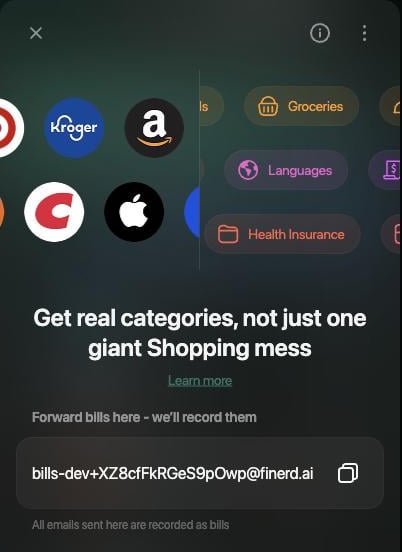
Select Email forwarding. finerd creates the address and shows it under Forward bills here - we’ll record them.
Select the copy icon beside the address.
The forwarding address in Emails, with its copy icon.
Open More → Emails.
Tap Email forwarding. A dialog shows the new address: tap Copy, then Close.
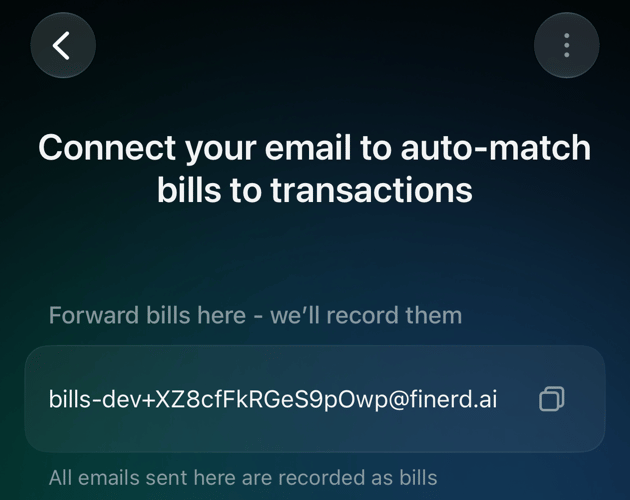
Later, tap the address under Forward bills here - we’ll record them to copy it again.
Open More → Emails.
Tap Email forwarding. A dialog shows the new address: tap Copy, then Got it.
Later, tap the address under Forward bills here - we’ll record them to copy it again.
The forwarding address on iOS. Tap the row to copy it.
Email forwarding appears only until the space has an address. After that, the address stays in Emails; it can’t be changed or removed.The address belongs to the space, not to you: anyone who manages email receipts in the space sees the same address. finerd doesn’t check who sends to it, so share it only with people who should add receipts to this space.
Forward a receipt
Forward a receipt email to the address from any mailbox. finerd reads the email text and attached images or PDF files up to 10 MB, recognizes the merchant, date, total and items, and saves the receipt in Bills.
Every email you send to this address is treated as a receipt, so forward only the messages you want in finerd. An email without receipt details isn’t recorded.
To forward receipts automatically, create a filter in your email service that forwards a shop’s receipts to this address. Gmail first asks the address to confirm the forwarding; approve that request in finerd as described below.
Forwarding is the most private option: finerd sees only the emails you send. Want it all automated instead? Connect your email.
Approve a Gmail forwarding request
When you add your finerd address as a forwarding address in Gmail, Gmail sends a confirmation request to it. finerd doesn’t confirm it on its own. It shows the request with the Gmail address it came from and posts a message in Inbox: ”… requested email forwarding to import bills automatically.” You approve or decline it.
Web
Android
iOS
Open More → Emails.
Under Confirm email forwarding, find the Gmail address.
Select the check mark (Approve) to confirm the forwarding, or the cross (Decline) to refuse it.
Open More → Emails.
Under Confirm forwarding, tap the Gmail address.
Tap Approve, or Decline to refuse it.
Open Inbox with the bell at the top of Dashboard and find the forwarding message.
Tap Manage connected emails. The requests are on this screen, not in More → Emails.
Under Confirm email forwarding, tap ⋮ beside the Gmail address and select Approve. To refuse, select Decline and confirm.
After you approve, finerd completes Gmail’s confirmation, and the request leaves the list. Finish the forwarding setup in Gmail. If the approval fails, the request stays in the list with the reason, and you can approve it again. Declining doesn’t confirm anything, so Gmail won’t forward to the address.finerd recognizes confirmation requests from Gmail only. With another email service, forward receipts one at a time.
Find the forwarded receipt
Forwarded receipts appear in Bills of the space the address belongs to. finerd doesn’t send a notification when a forwarded receipt is recorded.
Web
Android
iOS
Open Bills in the sidebar. Use the Status filter to show Attached or Unattached receipts.
Open More → Bills, or the Bills tab if you added it to the bottom bar. The Status filter offers Attached and Unassigned.
Open More → Bills, or the Bills tab if you added it to the tab bar. Each receipt shows Attached or Unattached.
When finerd finds the matching payment among your transactions, it attaches the receipt and marks it Attached. Otherwise the receipt stays Unattached until you attach it to a transaction or save a new transaction from it.The forwarding address has no processing history or error count; those exist only for a connected Gmail mailbox. If a forwarded receipt doesn’t appear:
Check that you sent it to the address of the space you’re looking at.
Check that the email contains the receipt itself: its text, or an image or PDF file up to 10 MB.
Look for the receipt you forwarded earlier: finerd doesn’t add the same receipt to Bills twice.
Check that the space has an active Pro subscription. Emails forwarded while it isn’t active aren’t recorded later.
{"docsConfig":{"theme":"mint","$schema":"https://mintlify.com/docs.json","name":"finerd","description":"finerd helps financially savvy people manage complex personal, family, business, and international finances with accounting precision without accounting complexity.","colors":{"primary":"#38f7ff","light":"#38f7ff","dark":"#b98cff"},"logo":{"light":"https://finerd.ai/logo.svg","dark":"https://finerd.ai/logo.svg","href":"/"},"favicon":"https://finerd.ai/logo.svg","appearance":{"default":"dark","strict":true},"background":{"decoration":"grid","color":{"light":"#08090f","dark":"#08090f"}},"navbar":{"links":[{"href":"https://finerd.ai","label":"finerd.ai"}]},"seo":{"metatags":{"google-site-verification":"haq__cDMEelH2BlpExqZZ7DqIbXEtZMZDA_2Rn4amf8"}},"fonts":{"family":"Inter"},"styling":{"eyebrows":"breadcrumbs","latex":true},"contextual":{"options":["copy","view"],"display":"header"},"navigation":{"languages":[{"language":"en","footer":{"links":[{"items":[{"label":"YouTube","href":"https://www.youtube.com/@realFinerd"},{"label":"Reddit","href":"https://www.reddit.com/r/finerds"},{"label":"TikTok","href":"https://www.tiktok.com/@real.finerd"}]}]},"navbar":{"links":[{"href":"https://finerd.ai","label":"finerd.ai"}],"primary":{"type":"button","label":"Contact support","href":"/contact-us"}},"href":""},{"language":"uk","footer":{"links":[{"items":[{"label":"YouTube","href":"https://www.youtube.com/@finerd.ukraine"},{"label":"Telegram","href":"https://t.me/+TESz5VfXr50yNTRi"}]}]},"navbar":{"links":[{"href":"https://finerd.ai","label":"finerd.ai"}],"primary":{"type":"button","label":"Зв'язатися з підтримкою","href":"/uk/contact-us"}},"href":"uk"},{"language":"es","footer":{"links":[{"items":[{"label":"YouTube","href":"https://www.youtube.com/@realFinerd"},{"label":"Reddit","href":"https://www.reddit.com/r/finerds"},{"label":"TikTok","href":"https://www.tiktok.com/@real.finerd"}]}]},"navbar":{"links":[{"href":"https://finerd.ai","label":"finerd.ai"}],"primary":{"type":"button","label":"Contactar soporte","href":"/es/contact-us"}},"href":"es"},{"language":"ja","footer":{"links":[{"items":[{"label":"YouTube","href":"https://www.youtube.com/@realFinerd"},{"label":"Reddit","href":"https://www.reddit.com/r/finerds"},{"label":"TikTok","href":"https://www.tiktok.com/@real.finerd"}]}]},"navbar":{"links":[{"href":"https://finerd.ai","label":"finerd.ai"}],"primary":{"type":"button","label":"サポートに連絡","href":"/ja/contact-us"}},"href":"ja"},{"language":"pl","footer":{"links":[{"items":[{"label":"YouTube","href":"https://www.youtube.com/@realFinerd"},{"label":"Reddit","href":"https://www.reddit.com/r/finerds"},{"label":"TikTok","href":"https://www.tiktok.com/@real.finerd"}]}]},"navbar":{"links":[{"href":"https://finerd.ai","label":"finerd.ai"}],"primary":{"type":"button","label":"Kontakt z pomocą","href":"/pl/contact-us"}},"href":"pl"},{"language":"cs","footer":{"links":[{"items":[{"label":"YouTube","href":"https://www.youtube.com/@realFinerd"},{"label":"Reddit","href":"https://www.reddit.com/r/finerds"},{"label":"TikTok","href":"https://www.tiktok.com/@real.finerd"}]}]},"navbar":{"links":[{"href":"https://finerd.ai","label":"finerd.ai"}],"primary":{"type":"button","label":"Kontaktovat podporu","href":"/cs/contact-us"}},"href":"cs"},{"language":"it","footer":{"links":[{"items":[{"label":"YouTube","href":"https://www.youtube.com/@realFinerd"},{"label":"Reddit","href":"https://www.reddit.com/r/finerds"},{"label":"TikTok","href":"https://www.tiktok.com/@real.finerd"}]}]},"navbar":{"links":[{"href":"https://finerd.ai","label":"finerd.ai"}],"primary":{"type":"button","label":"Contatta assistenza","href":"/it/contact-us"}},"href":"it"},{"language":"fr","footer":{"links":[{"items":[{"label":"YouTube","href":"https://www.youtube.com/@realFinerd"},{"label":"Reddit","href":"https://www.reddit.com/r/finerds"},{"label":"TikTok","href":"https://www.tiktok.com/@real.finerd"}]}]},"navbar":{"links":[{"href":"https://finerd.ai","label":"finerd.ai"}],"primary":{"type":"button","label":"Contacter le support","href":"/fr/contact-us"}},"href":"fr"},{"language":"de","footer":{"links":[{"items":[{"label":"YouTube","href":"https://www.youtube.com/@realFinerd"},{"label":"Reddit","href":"https://www.reddit.com/r/finerds"},{"label":"TikTok","href":"https://www.tiktok.com/@real.finerd"}]}]},"navbar":{"links":[{"href":"https://finerd.ai","label":"finerd.ai"}],"primary":{"type":"button","label":"Support kontaktieren","href":"/de/contact-us"}},"href":"de"},{"language":"pt","footer":{"links":[{"items":[{"label":"YouTube","href":"https://www.youtube.com/@realFinerd"},{"label":"Reddit","href":"https://www.reddit.com/r/finerds"},{"label":"TikTok","href":"https://www.tiktok.com/@real.finerd"}]}]},"navbar":{"links":[{"href":"https://finerd.ai","label":"finerd.ai"}],"primary":{"type":"button","label":"Falar com suporte","href":"/pt/contact-us"}},"href":"pt"},{"language":"zh-Hant","footer":{"links":[{"items":[{"label":"YouTube","href":"https://www.youtube.com/@realFinerd"},{"label":"Reddit","href":"https://www.reddit.com/r/finerds"},{"label":"TikTok","href":"https://www.tiktok.com/@real.finerd"}]}]},"navbar":{"links":[{"href":"https://finerd.ai","label":"finerd.ai"}],"primary":{"type":"button","label":"聯絡客服","href":"/zh-Hant/contact-us"}},"href":"zh-Hant"},{"language":"ko","footer":{"links":[{"items":[{"label":"YouTube","href":"https://www.youtube.com/@realFinerd"},{"label":"Reddit","href":"https://www.reddit.com/r/finerds"},{"label":"TikTok","href":"https://www.tiktok.com/@real.finerd"}]}]},"navbar":{"links":[{"href":"https://finerd.ai","label":"finerd.ai"}],"primary":{"type":"button","label":"고객 지원 문의","href":"/ko/contact-us"}},"href":"ko"},{"language":"zh-Hans","footer":{"links":[{"items":[{"label":"YouTube","href":"https://www.youtube.com/@realFinerd"},{"label":"Reddit","href":"https://www.reddit.com/r/finerds"},{"label":"TikTok","href":"https://www.tiktok.com/@real.finerd"}]}]},"navbar":{"links":[{"href":"https://finerd.ai","label":"finerd.ai"}],"primary":{"type":"button","label":"联系支持","href":"/zh-Hans/contact-us"}},"href":"zh-Hans"},{"language":"nl","footer":{"links":[{"items":[{"label":"YouTube","href":"https://www.youtube.com/@realFinerd"},{"label":"Reddit","href":"https://www.reddit.com/r/finerds"},{"label":"TikTok","href":"https://www.tiktok.com/@real.finerd"}]}]},"navbar":{"links":[{"href":"https://finerd.ai","label":"finerd.ai"}],"primary":{"type":"button","label":"Neem contact op met support","href":"/nl/contact-us"}},"href":"nl"}]}},"deployment":{"deploymentMetadataValue":{"subdomain":"finerdai","hasAudioNarration":false,"actualSubdomain":"finerdai","customDomains":["help.finerd.ai"],"gitSource":{"type":"gitlab","owner":"finerd.ai/web","repo":"help","deployBranch":"main","contentDirectory":"","isPrivate":true,"projectId":85636094,"mountPath":"","label":""},"feedback":{"thumbs":true},"entitlements":{"AI_CHAT":{"status":"DISABLED"}},"buildId":"6b00a7593c4bb12541ace472","clientVersion":"0.0.4270","searchFilterCounts":[{"language":"en","tag":"Accounts \u0026 balances","count":8},{"language":"cs","tag":"Účty a zůstatky","count":8},{"language":"de","tag":"Konten und Salden","count":8},{"language":"es","tag":"Cuentas y saldos","count":8},{"language":"fr","tag":"Comptes et soldes","count":8},{"language":"it","tag":"Conti e saldi","count":8},{"language":"ja","tag":"口座と残高","count":8},{"language":"ko","tag":"계좌와 잔액","count":8},{"language":"nl","tag":"Rekeningen en saldi","count":8},{"language":"pl","tag":"Konta i salda","count":8},{"language":"pt","tag":"Contas e saldos","count":8},{"language":"uk","tag":"Рахунки та баланси","count":8},{"language":"zh-Hans","tag":"账户与余额","count":8},{"language":"zh-Hant","tag":"帳戶與餘額","count":8},{"language":"en","tag":"AI assistants","count":7},{"language":"en","tag":"Family \u0026 shared expenses","count":7},{"language":"en","tag":"Transactions","count":7},{"language":"cs","tag":"AI asistenti","count":7},{"language":"cs","tag":"Rodina a sdílené výdaje","count":7},{"language":"cs","tag":"Transakce","count":7},{"language":"de","tag":"AI-Assistenten","count":7},{"language":"de","tag":"Familie und geteilte Ausgaben","count":7},{"language":"de","tag":"Transaktionen","count":7},{"language":"es","tag":"Asistentes de AI","count":7},{"language":"es","tag":"Familia y gastos compartidos","count":7},{"language":"es","tag":"Transacciones","count":7},{"language":"fr","tag":"Assistants AI","count":7},{"language":"fr","tag":"Famille et dépenses partagées","count":7},{"language":"fr","tag":"Transactions","count":7},{"language":"it","tag":"Assistenti AI","count":7},{"language":"it","tag":"Famiglia e spese condivise","count":7},{"language":"it","tag":"Transazioni","count":7},{"language":"ja","tag":"AIアシスタント","count":7},{"language":"ja","tag":"ファミリーと共通の支出","count":7},{"language":"ja","tag":"取引","count":7},{"language":"ko","tag":"AI 어시스턴트","count":7},{"language":"ko","tag":"가족과 공유 지출","count":7},{"language":"ko","tag":"거래","count":7},{"language":"nl","tag":"AI-assistenten","count":7},{"language":"nl","tag":"Gezin en gedeelde uitgaven","count":7},{"language":"nl","tag":"Transacties","count":7},{"language":"pl","tag":"Asystenci AI","count":7},{"language":"pl","tag":"Rodzina i wspólne wydatki","count":7},{"language":"pl","tag":"Transakcje","count":7},{"language":"pt","tag":"Assistentes de AI","count":7},{"language":"pt","tag":"Família e despesas compartilhadas","count":7},{"language":"pt","tag":"Transações","count":7},{"language":"uk","tag":"ШІ-асистенти","count":7},{"language":"uk","tag":"Сім'я та спільні витрати","count":7},{"language":"uk","tag":"Транзакції","count":7},{"language":"zh-Hans","tag":"AI 助手","count":7},{"language":"zh-Hans","tag":"家庭与共同支出","count":7},{"language":"zh-Hans","tag":"交易","count":7},{"language":"zh-Hant","tag":"AI 助理","count":7},{"language":"zh-Hant","tag":"家庭與共享支出","count":7},{"language":"zh-Hant","tag":"交易","count":7},{"language":"en","tag":"Planning","count":6},{"language":"cs","tag":"Plánování","count":6},{"language":"de","tag":"Planung","count":6},{"language":"es","tag":"Planificación","count":6},{"language":"fr","tag":"Planification","count":6},{"language":"it","tag":"Pianificazione","count":6},{"language":"ja","tag":"プランニング","count":6},{"language":"ko","tag":"재무 설계","count":6},{"language":"nl","tag":"Financiële planning","count":6},{"language":"pl","tag":"Planowanie","count":6},{"language":"pt","tag":"Planejamento","count":6},{"language":"uk","tag":"Планування","count":6},{"language":"zh-Hans","tag":"财务规划","count":6},{"language":"zh-Hant","tag":"財務規劃","count":6},{"language":"en","tag":"Bills \u0026 receipts","count":5},{"language":"en","tag":"Get started","count":5},{"language":"cs","tag":"Účtenky","count":5},{"language":"cs","tag":"Začínáme","count":5},{"language":"de","tag":"Rechnungen und Kassenbons","count":5},{"language":"de","tag":"Erste Schritte","count":5},{"language":"es","tag":"Recibos","count":5},{"language":"es","tag":"Primeros pasos","count":5},{"language":"fr","tag":"Factures et tickets de caisse","count":5},{"language":"fr","tag":"Premiers pas","count":5},{"language":"it","tag":"Ricevute","count":5},{"language":"it","tag":"Primi passi","count":5},{"language":"ja","tag":"レシート","count":5},{"language":"ja","tag":"はじめに","count":5},{"language":"ko","tag":"영수증","count":5},{"language":"ko","tag":"시작하기","count":5},{"language":"nl","tag":"Bonnen","count":5},{"language":"nl","tag":"Aan de slag","count":5},{"language":"pl","tag":"Rachunki i paragony","count":5},{"language":"pl","tag":"Pierwsze kroki","count":5},{"language":"pt","tag":"Recibos de compra","count":5},{"language":"pt","tag":"Primeiros passos","count":5},{"language":"uk","tag":"Чеки","count":5},{"language":"uk","tag":"Початок роботи","count":5},{"language":"zh-Hans","tag":"小票","count":5},{"language":"zh-Hans","tag":"开始使用","count":5},{"language":"zh-Hant","tag":"收據","count":5},{"language":"zh-Hant","tag":"開始使用","count":5},{"language":"en","tag":"Account \u0026 subscription","count":4},{"language":"en","tag":"Business","count":4},{"language":"en","tag":"Investments \u0026 property","count":4},{"language":"cs","tag":"Účet a předplatné","count":4},{"language":"cs","tag":"Podnikání","count":4},{"language":"cs","tag":"Investice a majetek","count":4},{"language":"de","tag":"Konto und Abo","count":4},{"language":"de","tag":"Business","count":4},{"language":"de","tag":"Investments und Vermögenswerte","count":4},{"language":"es","tag":"Cuenta y suscripción","count":4},{"language":"es","tag":"Negocios","count":4},{"language":"es","tag":"Inversiones y patrimonio","count":4},{"language":"fr","tag":"Compte et abonnement","count":4},{"language":"fr","tag":"Entreprise","count":4},{"language":"fr","tag":"Investissements et patrimoine","count":4},{"language":"it","tag":"Account e abbonamento","count":4},{"language":"it","tag":"Business","count":4},{"language":"it","tag":"Investimenti e proprietà","count":4},{"language":"ja","tag":"アカウントとサブスクリプション","count":4},{"language":"ja","tag":"ビジネス","count":4},{"language":"ja","tag":"投資と資産","count":4},{"language":"ko","tag":"계정과 구독","count":4},{"language":"ko","tag":"비즈니스","count":4},{"language":"ko","tag":"투자와 재산","count":4},{"language":"nl","tag":"Account en abonnement","count":4},{"language":"nl","tag":"Zakelijk","count":4},{"language":"nl","tag":"Beleggingen en eigendommen","count":4},{"language":"pl","tag":"Konto i subskrypcja","count":4},{"language":"pl","tag":"Biznes","count":4},{"language":"pl","tag":"Inwestycje i majątek","count":4},{"language":"pt","tag":"Conta e assinatura","count":4},{"language":"pt","tag":"Negócios","count":4},{"language":"pt","tag":"Investimentos e patrimônio","count":4},{"language":"uk","tag":"Акаунт і підписка","count":4},{"language":"uk","tag":"Бізнес","count":4},{"language":"uk","tag":"Інвестиції й майно","count":4},{"language":"zh-Hans","tag":"账号与订阅","count":4},{"language":"zh-Hans","tag":"商业","count":4},{"language":"zh-Hans","tag":"投资与财产","count":4},{"language":"zh-Hant","tag":"會員帳號與訂閱","count":4},{"language":"zh-Hant","tag":"商務","count":4},{"language":"zh-Hant","tag":"投資與財產","count":4}]},"assistantConfig":{"enableAskAiButton":false,"enableStarterQuestions":false,"enableContextualStarterQuestions":false,"enableAskAiSearchBar":true},"basePath":"","hasChatPermissions":false,"hasWebMcpPermissions":false,"toggles":[{"name":"kill-isr","enabled":true,"variant":{"name":"disabled","enabled":false,"feature_enabled":true},"impressionData":false},{"name":"custom-rbac-roles","enabled":true,"variant":{"name":"disabled","enabled":false,"feature_enabled":true},"impressionData":false},{"name":"agent-mintlify-slack","enabled":true,"variant":{"name":"disabled","enabled":false,"feature_enabled":true},"impressionData":false},{"name":"agent-integrations-settings","enabled":true,"variant":{"name":"disabled","enabled":false,"feature_enabled":true},"impressionData":false},{"name":"rbac-expansion","enabled":true,"variant":{"name":"disabled","enabled":false,"feature_enabled":true},"impressionData":false},{"name":"automations-pr-grouping","enabled":true,"variant":{"name":"disabled","enabled":false,"feature_enabled":true},"impressionData":false},{"name":"custom-prefix","enabled":true,"variant":{"name":"disabled","enabled":false,"feature_enabled":true},"impressionData":false},{"name":"analytics-v7","enabled":true,"variant":{"name":"disabled","enabled":false,"feature_enabled":true},"impressionData":false},{"name":"user-flows-analytics","enabled":true,"variant":{"name":"disabled","enabled":false,"feature_enabled":true},"impressionData":false},{"name":"no-publish-flow","enabled":true,"variant":{"name":"disabled","enabled":false,"feature_enabled":true},"impressionData":false},{"name":"workos-onboarding","enabled":true,"variant":{"name":"disabled","enabled":false,"feature_enabled":true},"impressionData":false},{"name":"snapshot-serving-live","enabled":true,"variant":{"name":"disabled","enabled":false,"feature_enabled":true},"impressionData":false},{"name":"stripTemperatureMiddleware","enabled":true,"variant":{"name":"disabled","enabled":false,"feature_enabled":true},"impressionData":false},{"name":"support-platform-pylon-zendesk","enabled":true,"variant":{"name":"disabled","enabled":false,"feature_enabled":true},"impressionData":false},{"name":"snapshot-serving","enabled":true,"variant":{"name":"disabled","enabled":false,"feature_enabled":true},"impressionData":false},{"name":"instant-rollback","enabled":true,"variant":{"name":"disabled","enabled":false,"feature_enabled":true},"impressionData":false},{"name":"granular-notifications-server","enabled":true,"variant":{"name":"disabled","enabled":false,"feature_enabled":true},"impressionData":false},{"name":"granular-notifications","enabled":true,"variant":{"name":"disabled","enabled":false,"feature_enabled":true},"impressionData":false},{"name":"automations-fable","enabled":true,"variant":{"name":"disabled","enabled":false,"feature_enabled":true},"impressionData":false},{"name":"fixed-ai-action-pricing","enabled":true,"variant":{"name":"disabled","enabled":false,"feature_enabled":true},"impressionData":false},{"name":"site-roles","enabled":true,"variant":{"name":"disabled","enabled":false,"feature_enabled":true},"impressionData":false},{"name":"automation-resolve-merge-conflict","enabled":true,"variant":{"name":"disabled","enabled":false,"feature_enabled":true},"impressionData":false},{"name":"scoped-publishing","enabled":true,"variant":{"name":"disabled","enabled":false,"feature_enabled":true},"impressionData":false},{"name":"mintql","enabled":true,"variant":{"name":"disabled","enabled":false,"feature_enabled":true},"impressionData":false},{"name":"page-level-analytics","enabled":true,"variant":{"name":"disabled","enabled":false,"feature_enabled":true},"impressionData":false},{"name":"editor-version-history-v2","enabled":true,"variant":{"name":"disabled","enabled":false,"feature_enabled":true},"impressionData":false},{"name":"billing-page-v2","enabled":true,"variant":{"name":"disabled","enabled":false,"feature_enabled":true},"impressionData":false},{"name":"full-page-search","enabled":true,"variant":{"name":"disabled","enabled":false,"feature_enabled":true},"impressionData":false},{"name":"workspace-projects","enabled":true,"variant":{"name":"disabled","enabled":false,"feature_enabled":true},"impressionData":false},{"name":"assistant-v5","enabled":true,"variant":{"name":"disabled","enabled":false,"feature_enabled":true},"impressionData":false},{"name":"fork-pr-previews","enabled":true,"variant":{"name":"disabled","enabled":false,"feature_enabled":true},"impressionData":false},{"name":"revalidation-jwt","enabled":true,"variant":{"name":"disabled","enabled":false,"feature_enabled":true},"impressionData":false},{"name":"workos-sso-scim","enabled":true,"variant":{"name":"disabled","enabled":false,"feature_enabled":true},"impressionData":false},{"name":"hobby-abuse-scan","enabled":true,"variant":{"name":"disabled","enabled":false,"feature_enabled":true},"impressionData":false},{"name":"dashboard-inbox","enabled":true,"variant":{"name":"disabled","enabled":false,"feature_enabled":true},"impressionData":false},{"name":"workos-signup","enabled":true,"variant":{"name":"disabled","enabled":false,"feature_enabled":true},"impressionData":false},{"name":"turbopuffer-dual-write","enabled":true,"variant":{"name":"disabled","enabled":false,"feature_enabled":true},"impressionData":false},{"name":"workos-enabled","enabled":true,"variant":{"name":"disabled","enabled":false,"feature_enabled":true},"impressionData":false},{"name":"approve-review-flow","enabled":true,"variant":{"name":"disabled","enabled":false,"feature_enabled":true},"impressionData":false},{"name":"editor-metadata","enabled":true,"variant":{"name":"disabled","enabled":false,"feature_enabled":true},"impressionData":false},{"name":"sso-setup-deadline-banner","enabled":true,"variant":{"name":"disabled","enabled":false,"feature_enabled":true},"impressionData":false},{"name":"turbopuffer-serve","enabled":true,"variant":{"name":"disabled","enabled":false,"feature_enabled":true},"impressionData":false},{"name":"live-agents","enabled":true,"variant":{"name":"disabled","enabled":false,"feature_enabled":true},"impressionData":false},{"name":"starter-pricing","enabled":true,"variant":{"name":"control","enabled":true,"payload":{"type":"string","value":"control"},"feature_enabled":true},"impressionData":false},{"name":"llms-txt-v2","enabled":true,"variant":{"name":"disabled","enabled":false,"feature_enabled":true},"impressionData":false},{"name":"wildcard-email-auth","enabled":true,"variant":{"name":"disabled","enabled":false,"feature_enabled":true},"impressionData":false}],"googleFontsInlined":false},"customCss":[{"filePath":"style.css","content":".tab-container>ul[role=\"tablist\"]>li[role=\"tab\"]>div{font-size:1rem;line-height:1.75rem}.tab-container>ul[role=\"tablist\"]>li[role=\"tab\"]{padding-bottom:0.25rem}.tab-container .tab-container>ul[role=\"tablist\"]>li[role=\"tab\"]>div{font-size:0.875rem;line-height:1.5rem}#topbar-cta-button a>span:first-child{background:transparent;box-shadow:inset 0 0 0 1px rgb(0 0 0 / 0.15)}#topbar-cta-button a .text-white{color:rgb(17 24 39)}#topbar-cta-button a:hover>span:first-child{background:rgb(0 0 0 / 0.04)}.dark #topbar-cta-button a>span:first-child{box-shadow:inset 0 0 0 1px rgb(255 255 255 / 0.2)}.dark #topbar-cta-button a .text-white{color:rgb(243 244 246)}.dark #topbar-cta-button a:hover>span:first-child{background:rgb(255 255 255 / 0.06)}#header nav[aria-label=\"Breadcrumb\"]:not(.fh-crumbs){display:none}.fh-crumbs{display:flex;flex-wrap:wrap;align-items:center;gap:0.375rem;font-size:0.875rem;line-height:1.25rem;color:rgb(107 114 128)}.dark .fh-crumbs{color:rgb(156 163 175)}.fh-crumbs a{color:inherit;text-decoration:none;border:none}.fh-crumbs a:hover{color:rgb(8 145 178)}.dark .fh-crumbs a:hover{color:#38f7ff}.fh-video{width:100%;aspect-ratio:1804 / 1080;overflow:hidden;border-radius:12px;background:#000}.fh-video iframe{display:block;width:100%;height:100%;border:0}.fh-video-intro{display:grid;gap:1.5rem;align-items:center;margin:1.5rem 0 2rem;padding:1.25rem;border-radius:16px;box-shadow:inset 0 0 0 1px rgb(0 0 0 / 0.08)}.dark .fh-video-intro{background:#ffffff08;box-shadow:inset 0 0 0 1px rgb(255 255 255 / 0.08)}@media (min-width: 640px){.fh-video-intro{grid-template-columns:12rem minmax(0, 1fr);gap:2rem}}.fh-video-frame{width:100%;max-width:12rem;margin:0 auto;aspect-ratio:9 / 16;overflow:hidden;border-radius:12px;background:#000}.fh-video-frame iframe{display:block;width:100%;height:100%;border:0}.fh-video-text>:first-child{margin-top:0}.fh-video-text>:last-child{margin-bottom:0}.card{border:none!important;background:url(\"/images/home/card-gradient.png\") 0 0 / 100% 100% no-repeat,\n rgb(0 0 0 / 0.03)!important}.dark .card{background-color:#ffffff0d!important}.card:hover{background-color:rgb(0 0 0 / 0.05)!important}.dark .card:hover{background-color:#ffffff14!important}.card::before{content:\"\";position:absolute;inset:0;padding:1px;border-radius:inherit;background:linear-gradient(\n 147.14deg,\n rgb(0 0 0 / 0.12) 0%,\n rgb(0 0 0 / 0.04) 31.25%,\n rgb(0 0 0 / 0.04) 69.23%,\n rgb(0 0 0 / 0.12) 100%\n );-webkit-mask:linear-gradient(#fff 0 0) content-box,\n linear-gradient(#fff 0 0);-webkit-mask-composite:xor;mask-composite:exclude;pointer-events:none;z-index:1}.dark .card::before{background:linear-gradient(\n 147.14deg,\n rgb(255 255 255 / 0.05) 0%,\n rgb(255 255 255 / 0.015) 31.25%,\n rgb(255 255 255 / 0.015) 69.23%,\n rgb(255 255 255 / 0.05) 100%\n )}.dark .card [data-component-part=\"card-title\"]{color:#fffffff2}.dark .card [data-component-part=\"card-content\"]{color:#ffffff80}#navbar div:has(>#localization-select-trigger){display:flex!important}html:has(.fh-home) #search-bar-entry{visibility:hidden}html:has(.fh-home) #navbar button.h-14{display:none}@media (min-width: 768px){html:has(.fh-home) .fixed:has(>[role=\"dialog\"] [data-component-part=\"search-header\"]){padding-top:var(--fh-search-top, 3rem)!important}html:has(.fh-home) [role=\"dialog\"]:has([data-component-part=\"search-header\"]){margin-top:0!important;max-width:40rem!important;border-radius:1.5rem!important;transition:none!important;transform:none!important;scale:none!important;opacity:1!important}html:has(.fh-home) [data-component-part=\"search-header\"]{height:3.5rem!important;padding:0!important}html:has(.fh-home) [data-component-part=\"search-input-container\"]{padding:0 1rem 0 1.25rem!important;border:none!important;border-radius:9999px!important;background:rgb(0 0 0 / 0.04)!important;box-shadow:inset 0 0 0 1px rgb(56 247 255 / 0.5)!important}html.dark:has(.fh-home) [data-component-part=\"search-input-container\"]{background:rgb(255 255 255 / 0.05)!important}html:has(.fh-home) [data-component-part=\"search-input-container\"]>svg{left:1.25rem!important;width:1.125rem!important;height:1.125rem!important}html:has(.fh-home) [data-component-part=\"search-input\"]{padding-left:2.125rem!important;font-size:1.0625rem!important;font-weight:400!important}html:has(.fh-home) .fixed.inset-0[class*=\"bg-black/40\"]{opacity:0!important}html:has(.fh-home):has([data-component-part=\"search-input\"]) .fh-search{visibility:hidden}}.fh-home{--fh-text: rgb(17 24 39);--fh-muted: rgb(75 85 99);--fh-line: rgb(0 0 0 / 0.1);--fh-hover: rgb(0 0 0 / 0.04);display:flex;flex-direction:column;align-items:center;gap:4rem;max-width:64rem;margin:0 auto;padding:4rem 1rem 5rem;color:var(--fh-text)}.dark .fh-home{--fh-text: rgb(243 244 246);--fh-muted: rgb(156 163 175);--fh-line: rgb(255 255 255 / 0.1);--fh-hover: rgb(255 255 255 / 0.05)}.fh-home h1,.fh-home h2,.fh-home p,.fh-home ul{margin:0}.fh-home ul{padding:0;list-style:none}.fh-home li{margin:0;padding:0}.fh-home a{color:inherit;text-decoration:none;border:none}.fh-hero{position:relative;display:flex;flex-direction:column;align-items:center;gap:0.75rem;width:100%;text-align:center}.fh-hero::before{content:\"\";position:absolute;inset:-4rem 0 auto;height:22rem;background:radial-gradient(40% 60% at 30% 30%, rgb(56 247 255 / 0.14), transparent 70%),\n radial-gradient(40% 60% at 70% 30%, rgb(185 140 255 / 0.16), transparent 70%);pointer-events:none;z-index:-1}.fh-hero h1{font-size:clamp(2.25rem, 5vw, 3.5rem);line-height:1.1;font-weight:600;letter-spacing:-0.03em}.fh-accent{background:linear-gradient(90deg, #38f7ff, #b98cff);-webkit-background-clip:text;background-clip:text;color:transparent}.fh-hero p{font-size:1.125rem;color:var(--fh-muted)}.fh-search{display:flex;align-items:center;gap:0.75rem;width:100%;max-width:40rem;height:3.5rem;margin-top:2rem;padding:0 1.25rem;border-radius:9999px;background:var(--fh-hover);box-shadow:inset 0 0 0 1px var(--fh-line);color:var(--fh-muted);font-size:1.0625rem;cursor:pointer;text-align:left}.fh-search:hover{box-shadow:inset 0 0 0 1px rgb(56 247 255 / 0.5)}.fh-search span{flex:1;min-width:0;overflow:hidden;text-overflow:ellipsis;white-space:nowrap}.fh-search kbd{font-size:0.75rem;font-weight:600;font-family:inherit}.fh-label{margin-bottom:1rem!important;font-size:1rem;font-weight:600;text-align:center}.fh-chips{display:flex;flex-wrap:wrap;justify-content:center;gap:0.75rem;max-width:56rem}.fh-chips a{display:inline-flex;align-items:center;gap:0.625rem;padding:0.625rem 1.125rem;border-radius:9999px;box-shadow:inset 0 0 0 1px var(--fh-line);font-size:1rem;line-height:1.5rem}.fh-chips a:hover{background:var(--fh-hover);box-shadow:inset 0 0 0 1px rgb(56 247 255 / 0.4)}.fh-chips svg{flex:none}.fh-topics{display:grid;grid-template-columns:repeat(2, minmax(0, 1fr));gap:0.75rem;width:100%;max-width:56rem;margin:0 auto!important}.fh-topics li:last-child:nth-child(odd){grid-column:1 / -1}@media (max-width: 767px){.fh-home .fh-topics a{padding:1rem 1.125rem}}@media (min-width: 768px){.fh-topics{grid-template-columns:repeat(3, minmax(0, 1fr))}.fh-topics li:last-child:nth-child(odd){grid-column:auto}}.fh-topics a{position:relative;z-index:0;display:flex;flex-direction:column;gap:0.25rem;height:100%;padding:1.25rem 1.5rem;overflow:hidden;border-radius:16px;background:url(\"/images/home/card-gradient.png\") 0 0 / 100% 100% no-repeat,\n rgb(0 0 0 / 0.03);color:var(--fh-text)}.dark .fh-topics a{background-color:#ffffff0d}.fh-topics a:hover{background-color:rgb(0 0 0 / 0.05)}.dark .fh-topics a:hover{background-color:#ffffff14}.fh-topics a::before{content:\"\";position:absolute;inset:0;padding:1px;border-radius:inherit;background:linear-gradient(\n 147.14deg,\n rgb(0 0 0 / 0.12) 0%,\n rgb(0 0 0 / 0.04) 31.25%,\n rgb(0 0 0 / 0.04) 69.23%,\n rgb(0 0 0 / 0.12) 100%\n );-webkit-mask:linear-gradient(#fff 0 0) content-box,\n linear-gradient(#fff 0 0);-webkit-mask-composite:xor;mask-composite:exclude;pointer-events:none;z-index:1}.dark .fh-topics a::before{background:linear-gradient(\n 147.14deg,\n rgb(255 255 255 / 0.05) 0%,\n rgb(255 255 255 / 0.015) 31.25%,\n rgb(255 255 255 / 0.015) 69.23%,\n rgb(255 255 255 / 0.05) 100%\n )}.fh-topics strong{font-size:1rem;font-weight:600;line-height:1.5rem}.dark .fh-topics strong{color:#fffffff2}.fh-topics span{font-size:0.9375rem;line-height:1.375rem;color:var(--fh-muted)}.dark .fh-topics span{color:#ffffff80}.fh-lang{margin:0!important;font-size:0.9375rem;text-align:center}.fh-lang a{color:var(--fh-muted);text-decoration:underline;text-underline-offset:0.2em}.fh-lang a:hover{color:var(--fh-text)}"}]}
{"page":{"pagePath":"bills/forward-email","slug":"/bills/forward-email","pageMetadata":{"title":"Forward email receipts to finerd","sidebarTitle":"Forward receipts","description":"Get your space's finerd forwarding address, forward receipt emails, approve Gmail forwarding requests and find the receipts in Bills.","keywords":["forward receipts","forwarding address","email receipts","forward email","auto-forward","Gmail forwarding confirmation","Outlook","receipt not showing","bills email address"],"href":"/bills/forward-email"},"description":{"compiledSource":"\"use strict\";\nconst {jsx: _jsx} = arguments[0];\nconst {useMDXComponents: _provideComponents} = arguments[0];\nfunction _createMdxContent(props) {\n const _components = {\n p: \"p\",\n ..._provideComponents(),\n ...props.components\n };\n return _jsx(_components.p, {\n children: \"Get your space’s finerd forwarding address, forward receipt emails, approve Gmail forwarding requests and find the receipts in Bills.\"\n });\n}\nfunction MDXContent(props = {}) {\n const {wrapper: MDXLayout} = {\n ..._provideComponents(),\n ...props.components\n };\n return MDXLayout ? _jsx(MDXLayout, {\n ...props,\n children: _jsx(_createMdxContent, {\n ...props\n })\n }) : _createMdxContent(props);\n}\nreturn {\n default: MDXContent\n};\n","frontmatter":{},"scope":{}},"pageType":"default","mdx":{"mdxSource":{"compiledSource":"\"use strict\";const{Fragment:_Fragment,jsx:_jsx,jsxs:_jsxs}=arguments[0];const{useMDXComponents:_provideComponents}=arguments[0];function _createMdxContent(props){const _components={a:`a`,blockquote:`blockquote`,em:`em`,li:`li`,ol:`ol`,p:`p`,strong:`strong`,ul:`ul`,..._provideComponents(),...props.components},{Frame,Heading,Note,OptimizedImage,Tab,Tabs,Tip}=_components;if(!Frame)_missingMdxReference(`Frame`,true);if(!Heading)_missingMdxReference(`Heading`,true);if(!Note)_missingMdxReference(`Note`,true);if(!OptimizedImage)_missingMdxReference(`OptimizedImage`,true);if(!Tab)_missingMdxReference(`Tab`,true);if(!Tabs)_missingMdxReference(`Tabs`,true);if(!Tip)_missingMdxReference(`Tip`,true);return _jsxs(_Fragment,{children:[_jsxs(_components.blockquote,{children:[`\n`,_jsx(_components.p,{children:_jsx(_components.em,{children:`“What if I don’t want finerd reading my whole inbox?”`})}),`\n`]}),`\n`,_jsxs(_components.p,{children:[`You don’t have to. Instead of connecting your mailbox, forward receipt emails to a finerd address. Each space has its own address, and every email sent there is recorded as a receipt in that space’s `,_jsx(_components.strong,{children:`Bills`}),`.`]}),`\n`,_jsxs(_components.p,{children:[`Email forwarding is part of the `,_jsx(_components.strong,{children:`Pro`}),` email receipt import and works on Web, Android and iOS. In a Business space, Owners, Admins and Accountants can open it. Want every receipt picked up without forwarding? `,_jsx(_components.a,{href:`/bills/connect-email`,children:`Connect Gmail`}),` instead.`]}),`\n`,_jsx(Heading,{level:`2`,id:`get-your-forwarding-address`,children:`Get your forwarding address`}),`\n`,_jsx(_components.p,{children:`Open the space where the receipts belong first: the address you get is that space’s address.`}),`\n`,_jsxs(Tabs,{children:[_jsxs(Tab,{title:`Web`,id:`web`,children:[_jsxs(_components.ol,{children:[`\n`,_jsxs(_components.li,{children:[`Open `,_jsx(_components.strong,{children:`More`}),` in the sidebar, then `,_jsx(_components.strong,{children:`Emails`}),`.`]}),`\n`,_jsxs(_components.li,{children:[`Select `,_jsx(_components.strong,{children:`Email forwarding`}),`. finerd creates the address and shows it under `,_jsx(_components.strong,{children:`Forward bills here - we’ll record them`}),`.`]}),`\n`,_jsx(_components.li,{children:`Select the copy icon beside the address.`}),`\n`]}),_jsx(Frame,{caption:`The forwarding address in Emails, with its copy icon.`,children:_jsx(OptimizedImage,{src:`https://mintcdn.com/finerdai/VKs44KzasmsahKpA/images/bills/forward-email/web-forwarding-address.png?fit=max\u0026auto=format\u0026n=VKs44KzasmsahKpA\u0026q=85\u0026s=11e6e471e18dcb2de1b27c1cdbc7d40d`,alt:`finerd web Emails panel with the forwarding address and a copy icon under Forward bills here`,width:`400`,\"data-og-width\":`402`,\"data-og-height\":`552`,\"data-path\":`images/bills/forward-email/web-forwarding-address.png`,\"data-optimize\":`true`,\"data-opv\":`3`,srcset:`https://mintcdn.com/finerdai/VKs44KzasmsahKpA/images/bills/forward-email/web-forwarding-address.png?w=280\u0026fit=max\u0026auto=format\u0026n=VKs44KzasmsahKpA\u0026q=85\u0026s=608c66534e0fd3018a2bb00cc5725c0a 280w, https://mintcdn.com/finerdai/VKs44KzasmsahKpA/images/bills/forward-email/web-forwarding-address.png?w=560\u0026fit=max\u0026auto=format\u0026n=VKs44KzasmsahKpA\u0026q=85\u0026s=d29e0a69975a5774b8e62e71c4d3dd5f 560w, https://mintcdn.com/finerdai/VKs44KzasmsahKpA/images/bills/forward-email/web-forwarding-address.png?w=840\u0026fit=max\u0026auto=format\u0026n=VKs44KzasmsahKpA\u0026q=85\u0026s=3acb041215b75239d30c338c59a2d565 840w, https://mintcdn.com/finerdai/VKs44KzasmsahKpA/images/bills/forward-email/web-forwarding-address.png?w=1100\u0026fit=max\u0026auto=format\u0026n=VKs44KzasmsahKpA\u0026q=85\u0026s=b35e5ec1a8b0342760092744d0e7a3e3 1100w, https://mintcdn.com/finerdai/VKs44KzasmsahKpA/images/bills/forward-email/web-forwarding-address.png?w=1650\u0026fit=max\u0026auto=format\u0026n=VKs44KzasmsahKpA\u0026q=85\u0026s=617962f105ffbfdc7a28f05c46bb8937 1650w, https://mintcdn.com/finerdai/VKs44KzasmsahKpA/images/bills/forward-email/web-forwarding-address.png?w=2500\u0026fit=max\u0026auto=format\u0026n=VKs44KzasmsahKpA\u0026q=85\u0026s=9fc2db458a446dc261d535c3ceaf475f 2500w`})})]}),_jsx(Tab,{title:`Android`,id:`android`,children:_jsxs(_components.ol,{children:[`\n`,_jsxs(_components.li,{children:[`Open `,_jsx(_components.strong,{children:`More`}),` → `,_jsx(_components.strong,{children:`Emails`}),`.`]}),`\n`,_jsxs(_components.li,{children:[`Tap `,_jsx(_components.strong,{children:`Email forwarding`}),`. A dialog shows the new address: tap `,_jsx(_components.strong,{children:`Copy`}),`, then `,_jsx(_components.strong,{children:`Close`}),`.`]}),`\n`,_jsxs(_components.li,{children:[`Later, tap the address under `,_jsx(_components.strong,{children:`Forward bills here - we’ll record them`}),` to copy it again.`]}),`\n`]})}),_jsxs(Tab,{title:`iOS`,id:`ios`,children:[_jsxs(_components.ol,{children:[`\n`,_jsxs(_components.li,{children:[`Open `,_jsx(_components.strong,{children:`More`}),` → `,_jsx(_components.strong,{children:`Emails`}),`.`]}),`\n`,_jsxs(_components.li,{children:[`Tap `,_jsx(_components.strong,{children:`Email forwarding`}),`. A dialog shows the new address: tap `,_jsx(_components.strong,{children:`Copy`}),`, then `,_jsx(_components.strong,{children:`Got it`}),`.`]}),`\n`,_jsxs(_components.li,{children:[`Later, tap the address under `,_jsx(_components.strong,{children:`Forward bills here - we’ll record them`}),` to copy it again.`]}),`\n`]}),_jsx(Frame,{caption:`The forwarding address on iOS. Tap the row to copy it.`,children:_jsx(OptimizedImage,{src:`https://mintcdn.com/finerdai/VKs44KzasmsahKpA/images/bills/forward-email/ios-forwarding-address.png?fit=max\u0026auto=format\u0026n=VKs44KzasmsahKpA\u0026q=85\u0026s=4e8ed551602a8c834ec1f9349f73b826`,alt:`finerd iOS Emails screen with the forwarding address and a copy icon under Forward bills here`,width:`360`,\"data-og-width\":`630`,\"data-og-height\":`500`,\"data-path\":`images/bills/forward-email/ios-forwarding-address.png`,\"data-optimize\":`true`,\"data-opv\":`3`,srcset:`https://mintcdn.com/finerdai/VKs44KzasmsahKpA/images/bills/forward-email/ios-forwarding-address.png?w=280\u0026fit=max\u0026auto=format\u0026n=VKs44KzasmsahKpA\u0026q=85\u0026s=8d34b1a356e9e28e487ddb48d00c843f 280w, https://mintcdn.com/finerdai/VKs44KzasmsahKpA/images/bills/forward-email/ios-forwarding-address.png?w=560\u0026fit=max\u0026auto=format\u0026n=VKs44KzasmsahKpA\u0026q=85\u0026s=c3019fb60db61d6d65f86f98267c5285 560w, https://mintcdn.com/finerdai/VKs44KzasmsahKpA/images/bills/forward-email/ios-forwarding-address.png?w=840\u0026fit=max\u0026auto=format\u0026n=VKs44KzasmsahKpA\u0026q=85\u0026s=bec6eb3800d06a41cf37629b04704d27 840w, https://mintcdn.com/finerdai/VKs44KzasmsahKpA/images/bills/forward-email/ios-forwarding-address.png?w=1100\u0026fit=max\u0026auto=format\u0026n=VKs44KzasmsahKpA\u0026q=85\u0026s=f8e00b16322de708c8ad54013941ce38 1100w, https://mintcdn.com/finerdai/VKs44KzasmsahKpA/images/bills/forward-email/ios-forwarding-address.png?w=1650\u0026fit=max\u0026auto=format\u0026n=VKs44KzasmsahKpA\u0026q=85\u0026s=846e42efadc34e01c673fe5ea45e3a81 1650w, https://mintcdn.com/finerdai/VKs44KzasmsahKpA/images/bills/forward-email/ios-forwarding-address.png?w=2500\u0026fit=max\u0026auto=format\u0026n=VKs44KzasmsahKpA\u0026q=85\u0026s=5065af9509c9dab5de1d5df2c49f2ff6 2500w`})})]})]}),`\n`,_jsxs(_components.p,{children:[_jsx(_components.strong,{children:`Email forwarding`}),` appears only until the space has an address. After that, the address stays in `,_jsx(_components.strong,{children:`Emails`}),`; it can’t be changed or removed.`]}),`\n`,_jsx(_components.p,{children:`The address belongs to the space, not to you: anyone who manages email receipts in the space sees the same address. finerd doesn’t check who sends to it, so share it only with people who should add receipts to this space.`}),`\n`,_jsx(Heading,{level:`2`,id:`forward-a-receipt`,children:`Forward a receipt`}),`\n`,_jsxs(_components.p,{children:[`Forward a receipt email to the address from any mailbox. finerd reads the email text and attached images or PDF files up to 10 MB, recognizes the merchant, date, total and items, and saves the receipt in `,_jsx(_components.strong,{children:`Bills`}),`.`]}),`\n`,_jsx(Note,{children:_jsx(_components.p,{children:`Every email you send to this address is treated as a receipt, so forward only the messages you want in finerd. An email without receipt details isn’t recorded.`})}),`\n`,_jsx(_components.p,{children:`To forward receipts automatically, create a filter in your email service that forwards a shop’s receipts to this address. Gmail first asks the address to confirm the forwarding; approve that request in finerd as described below.`}),`\n`,_jsx(Tip,{children:_jsxs(_components.p,{children:[`Forwarding is the most private option: finerd sees only the emails you send. Want it all automated instead? `,_jsx(_components.a,{href:`/bills/connect-email`,children:`Connect your email`}),`.`]})}),`\n`,_jsx(Heading,{level:`2`,id:`confirm`,children:`Approve a Gmail forwarding request`}),`\n`,_jsxs(_components.p,{children:[`When you add your finerd address as a forwarding address in Gmail, Gmail sends a confirmation request to it. finerd doesn’t confirm it on its own. It shows the request with the Gmail address it came from and posts a message in `,_jsx(_components.a,{href:`/contact-us#inbox`,children:`Inbox`}),`: ”… requested email forwarding to import bills automatically.” You approve or decline it.`]}),`\n`,_jsxs(Tabs,{children:[_jsx(Tab,{title:`Web`,id:`web-2`,children:_jsxs(_components.ol,{children:[`\n`,_jsxs(_components.li,{children:[`Open `,_jsx(_components.strong,{children:`More`}),` → `,_jsx(_components.strong,{children:`Emails`}),`.`]}),`\n`,_jsxs(_components.li,{children:[`Under `,_jsx(_components.strong,{children:`Confirm email forwarding`}),`, find the Gmail address.`]}),`\n`,_jsxs(_components.li,{children:[`Select the check mark (`,_jsx(_components.strong,{children:`Approve`}),`) to confirm the forwarding, or the cross (`,_jsx(_components.strong,{children:`Decline`}),`) to refuse it.`]}),`\n`]})}),_jsx(Tab,{title:`Android`,id:`android-2`,children:_jsxs(_components.ol,{children:[`\n`,_jsxs(_components.li,{children:[`Open `,_jsx(_components.strong,{children:`More`}),` → `,_jsx(_components.strong,{children:`Emails`}),`.`]}),`\n`,_jsxs(_components.li,{children:[`Under `,_jsx(_components.strong,{children:`Confirm forwarding`}),`, tap the Gmail address.`]}),`\n`,_jsxs(_components.li,{children:[`Tap `,_jsx(_components.strong,{children:`Approve`}),`, or `,_jsx(_components.strong,{children:`Decline`}),` to refuse it.`]}),`\n`]})}),_jsx(Tab,{title:`iOS`,id:`ios-2`,children:_jsxs(_components.ol,{children:[`\n`,_jsxs(_components.li,{children:[`Open `,_jsx(_components.strong,{children:`Inbox`}),` with the bell at the top of `,_jsx(_components.strong,{children:`Dashboard`}),` and find the forwarding message.`]}),`\n`,_jsxs(_components.li,{children:[`Tap `,_jsx(_components.strong,{children:`Manage connected emails`}),`. The requests are on this screen, not in `,_jsx(_components.strong,{children:`More`}),` → `,_jsx(_components.strong,{children:`Emails`}),`.`]}),`\n`,_jsxs(_components.li,{children:[`Under `,_jsx(_components.strong,{children:`Confirm email forwarding`}),`, tap `,_jsx(_components.strong,{children:`⋮`}),` beside the Gmail address and select `,_jsx(_components.strong,{children:`Approve`}),`. To refuse, select `,_jsx(_components.strong,{children:`Decline`}),` and confirm.`]}),`\n`]})})]}),`\n`,_jsx(_components.p,{children:`After you approve, finerd completes Gmail’s confirmation, and the request leaves the list. Finish the forwarding setup in Gmail. If the approval fails, the request stays in the list with the reason, and you can approve it again. Declining doesn’t confirm anything, so Gmail won’t forward to the address.`}),`\n`,_jsx(_components.p,{children:`finerd recognizes confirmation requests from Gmail only. With another email service, forward receipts one at a time.`}),`\n`,_jsx(Heading,{level:`2`,id:`find-result`,children:`Find the forwarded receipt`}),`\n`,_jsxs(_components.p,{children:[`Forwarded receipts appear in `,_jsx(_components.strong,{children:`Bills`}),` of the space the address belongs to. finerd doesn’t send a notification when a forwarded receipt is recorded.`]}),`\n`,_jsxs(Tabs,{children:[_jsx(Tab,{title:`Web`,id:`web-3`,children:_jsxs(_components.p,{children:[`Open `,_jsx(_components.strong,{children:`Bills`}),` in the sidebar. Use the `,_jsx(_components.strong,{children:`Status`}),` filter to show `,_jsx(_components.strong,{children:`Attached`}),` or `,_jsx(_components.strong,{children:`Unattached`}),` receipts.`]})}),_jsx(Tab,{title:`Android`,id:`android-3`,children:_jsxs(_components.p,{children:[`Open `,_jsx(_components.strong,{children:`More`}),` → `,_jsx(_components.strong,{children:`Bills`}),`, or the `,_jsx(_components.strong,{children:`Bills`}),` tab if you added it to the bottom bar. The `,_jsx(_components.strong,{children:`Status`}),` filter offers `,_jsx(_components.strong,{children:`Attached`}),` and `,_jsx(_components.strong,{children:`Unassigned`}),`.`]})}),_jsx(Tab,{title:`iOS`,id:`ios-3`,children:_jsxs(_components.p,{children:[`Open `,_jsx(_components.strong,{children:`More`}),` → `,_jsx(_components.strong,{children:`Bills`}),`, or the `,_jsx(_components.strong,{children:`Bills`}),` tab if you added it to the tab bar. Each receipt shows `,_jsx(_components.strong,{children:`Attached`}),` or `,_jsx(_components.strong,{children:`Unattached`}),`.`]})})]}),`\n`,_jsxs(_components.p,{children:[`When finerd finds the matching payment among your transactions, it attaches the receipt and marks it `,_jsx(_components.strong,{children:`Attached`}),`. Otherwise the receipt stays `,_jsx(_components.strong,{children:`Unattached`}),` until you `,_jsx(_components.a,{href:`/bills#link`,children:`attach it to a transaction`}),` or `,_jsx(_components.a,{href:`/bills#record`,children:`save a new transaction`}),` from it.`]}),`\n`,_jsxs(_components.p,{children:[`The forwarding address has no processing history or error count; those exist only for a `,_jsx(_components.a,{href:`/bills/connect-email#history`,children:`connected Gmail mailbox`}),`. If a forwarded receipt doesn’t appear:`]}),`\n`,_jsxs(_components.ul,{children:[`\n`,_jsx(_components.li,{children:`Check that you sent it to the address of the space you’re looking at.`}),`\n`,_jsx(_components.li,{children:`Check that the email contains the receipt itself: its text, or an image or PDF file up to 10 MB.`}),`\n`,_jsxs(_components.li,{children:[`Look for the receipt you forwarded earlier: finerd doesn’t add the same receipt to `,_jsx(_components.strong,{children:`Bills`}),` twice.`]}),`\n`,_jsx(_components.li,{children:`Check that the space has an active Pro subscription. Emails forwarded while it isn’t active aren’t recorded later.`}),`\n`]}),`\n`,_jsxs(_components.p,{children:[`You can still `,_jsx(_components.a,{href:`/bills#add`,children:`upload the receipt`}),` yourself. For a repeated problem, `,_jsx(_components.a,{href:`/contact-us`,children:`contact support`}),` and include the date you forwarded the email.`]}),`\n`,_jsx(Heading,{level:`2`,id:`further-reading`,children:`Further reading`}),`\n`,_jsxs(_components.ul,{children:[`\n`,_jsx(_components.li,{children:_jsx(_components.a,{href:`/bills`,children:`Add a receipt to your records`})}),`\n`,_jsx(_components.li,{children:_jsx(_components.a,{href:`/bills/connect-email`,children:`Connect Gmail to import receipts`})}),`\n`,_jsx(_components.li,{children:_jsx(_components.a,{href:`/contact-us#inbox`,children:`Check your Inbox`})}),`\n`]})]})}function MDXContent(props={}){const{wrapper:MDXLayout}={..._provideComponents(),...props.components};return MDXLayout?_jsx(MDXLayout,{...props,children:_jsx(_createMdxContent,{...props})}):_createMdxContent(props)}return{default:MDXContent};function _missingMdxReference(id,component){throw new Error(`Expected `+(component?`component`:`object`)+\" `\"+id+\"` to be defined: you likely forgot to import, pass, or provide it.\")}","frontmatter":{},"scope":{"config":{},"pageMetadata":{"title":"Forward email receipts to finerd","sidebarTitle":"Forward receipts","description":"Get your space's finerd forwarding address, forward receipt emails, approve Gmail forwarding requests and find the receipts in Bills.","keywords":["forward receipts","forwarding address","email receipts","forward email","auto-forward","Gmail forwarding confirmation","Outlook","receipt not showing","bills email address"],"href":"/bills/forward-email"}}},"mdxSourceWithNoJs":null},"mdxExtracts":{"tableOfContents":[{"title":"Get your forwarding address","slug":"get-your-forwarding-address","depth":2,"children":[]},{"title":"Forward a receipt","slug":"forward-a-receipt","depth":2,"children":[]},{"title":"Approve a Gmail forwarding request","slug":"confirm","depth":2,"children":[]},{"title":"Find the forwarded receipt","slug":"find-result","depth":2,"children":[]},{"title":"Further reading","slug":"further-reading","depth":2,"children":[]}],"codeExamples":{}},"jsLinks":["/_mintlify/custom/finerdai/2881c869d4bf7355/navigation.js","/_mintlify/custom/finerdai/478ffae39ccf7bd6/search.js"],"subdomain":"finerdai","siteName":"finerd","title":"Forward email receipts to finerd - finerd","navMaps":{"firstHrefInVersion":{},"firstHrefInLanguage":{"en":{"href":"/bills/forward-email","matchLevel":0},"uk":{"href":"/uk/bills/forward-email","matchLevel":1},"es":{"href":"/es/bills/forward-email","matchLevel":1},"ja":{"href":"/ja/bills/forward-email","matchLevel":1},"pl":{"href":"/pl/bills/forward-email","matchLevel":1},"cs":{"href":"/cs/bills/forward-email","matchLevel":1},"it":{"href":"/it/bills/forward-email","matchLevel":1},"fr":{"href":"/fr/bills/forward-email","matchLevel":1},"de":{"href":"/de/bills/forward-email","matchLevel":1},"pt":{"href":"/pt/bills/forward-email","matchLevel":1},"zh-Hant":{"href":"/zh-Hant/bills/forward-email","matchLevel":1},"ko":{"href":"/ko/bills/forward-email","matchLevel":1},"zh-Hans":{"href":"/zh-Hans/bills/forward-email","matchLevel":1},"nl":{"href":"/nl/bills/forward-email","matchLevel":1}}},"lastModified":"2026-10-09T07:09:46.208Z","originalFileLocation":"bills/forward-email.mdx","locale":"en"},"headHtml":"\u003cscript data-mint-head>(function(){var d=document.documentElement,p=\"dark\";if(!p){try{p=localStorage.getItem(\"isDarkMode\")}catch(e){}if(p==='true')p='dark';else if(p==='false')p='light';if(p!=='light'\u0026\u0026p!=='dark'\u0026\u0026p!=='system')p=\"dark\"}var r=p==='system'?(matchMedia(\"(prefers-color-scheme: dark)\").matches?'dark':'light'):p;d.classList.remove(r==='dark'?'light':'dark');d.classList.add(r);d.setAttribute(\"data-theme-preference\",p)})();\u003c/script>\u003cmeta data-mint-head name=\"description\" content=\"Get your space\u0026#x27;s finerd forwarding address, forward receipt emails, approve Gmail forwarding requests and find the receipts in Bills.\">\u003cmeta data-mint-head name=\"application-name\" content=\"finerd\">\u003cmeta data-mint-head name=\"generator\" content=\"Mintlify\">\u003clink data-mint-head rel=\"apple-touch-icon\" type=\"image/svg+xml\" sizes=\"180x180\" href=\"https://finerd.ai/logo.svg\">\u003clink data-mint-head rel=\"icon\" type=\"image/svg+xml\" sizes=\"32x32\" href=\"https://finerd.ai/logo.svg\">\u003clink data-mint-head rel=\"icon\" type=\"image/svg+xml\" sizes=\"16x16\" href=\"https://finerd.ai/logo.svg\">\u003clink data-mint-head rel=\"shortcut icon\" type=\"image/svg+xml\" href=\"https://finerd.ai/logo.svg\">\u003cmeta data-mint-head property=\"og:title\" content=\"Forward email receipts to finerd - finerd\">\u003cmeta data-mint-head property=\"og:description\" content=\"Get your space\u0026#x27;s finerd forwarding address, forward receipt emails, approve Gmail forwarding requests and find the receipts in Bills.\">\u003cmeta data-mint-head property=\"og:site_name\" content=\"finerd\">\u003cmeta data-mint-head property=\"og:url\" content=\"https://help.finerd.ai/bills/forward-email\">\u003cmeta data-mint-head property=\"og:type\" content=\"website\">\u003cmeta data-mint-head property=\"og:image\" content=\"https://finerdai.mintlify.site/_mintlify/api/og/v2?division=Bills+%26+receipts\u0026amp;title=Forward+email+receipts+to+finerd\u0026amp;description=Get+your+space%27s+finerd+forwarding+address%2C+forward+receipt+emails%2C+approve+Gmail+forwarding+requests+and+find+the+receipts+in+Bills.\u0026amp;theme=ab72892c1009f3eed2e27227\u0026amp;signature=6ff9bd713f4caf3c03fbf35d7cf3d1c0141a1116f40781291e851dfeb636e2ba\">\u003cmeta data-mint-head property=\"og:image:width\" content=\"1200\">\u003cmeta data-mint-head property=\"og:image:height\" content=\"630\">\u003cmeta data-mint-head name=\"twitter:card\" content=\"summary_large_image\">\u003cmeta data-mint-head name=\"twitter:title\" content=\"Forward email receipts to finerd - finerd\">\u003cmeta data-mint-head name=\"twitter:description\" content=\"Get your space\u0026#x27;s finerd forwarding address, forward receipt emails, approve Gmail forwarding requests and find the receipts in Bills.\">\u003cmeta data-mint-head name=\"twitter:image\" content=\"https://finerdai.mintlify.site/_mintlify/api/og/v2?division=Bills+%26+receipts\u0026amp;title=Forward+email+receipts+to+finerd\u0026amp;description=Get+your+space%27s+finerd+forwarding+address%2C+forward+receipt+emails%2C+approve+Gmail+forwarding+requests+and+find+the+receipts+in+Bills.\u0026amp;theme=ab72892c1009f3eed2e27227\u0026amp;signature=6ff9bd713f4caf3c03fbf35d7cf3d1c0141a1116f40781291e851dfeb636e2ba\">\u003cmeta data-mint-head name=\"twitter:image:width\" content=\"1200\">\u003cmeta data-mint-head name=\"twitter:image:height\" content=\"630\">\u003cmeta data-mint-head name=\"msapplication-config\" content=\"https://mintlify.s3.us-west-1.amazonaws.com/finerdai/_generated/favicon/browserconfig.xml?v=3\">\u003cmeta data-mint-head name=\"apple-mobile-web-app-title\" content=\"finerd\">\u003cmeta data-mint-head name=\"msapplication-TileColor\" content=\"#38f7ff\">\u003cmeta data-mint-head name=\"google-site-verification\" content=\"haq__cDMEelH2BlpExqZZ7DqIbXEtZMZDA_2Rn4amf8\">\u003clink data-mint-head rel=\"canonical\" href=\"https://help.finerd.ai/bills/forward-email\">\u003clink data-mint-head rel=\"alternate\" type=\"application/xml\" href=\"/sitemap.xml\">\u003clink data-mint-head rel=\"alternate\" type=\"text/markdown\" href=\"/bills/forward-email.md\">\u003clink data-mint-head rel=\"alternate\" hreflang=\"en\" href=\"https://help.finerd.ai/bills/forward-email\">\u003clink data-mint-head rel=\"alternate\" hreflang=\"uk\" href=\"https://help.finerd.ai/uk/bills/forward-email\">\u003clink data-mint-head rel=\"alternate\" hreflang=\"es\" href=\"https://help.finerd.ai/es/bills/forward-email\">\u003clink data-mint-head rel=\"alternate\" hreflang=\"ja\" href=\"https://help.finerd.ai/ja/bills/forward-email\">\u003clink data-mint-head rel=\"alternate\" hreflang=\"pl\" href=\"https://help.finerd.ai/pl/bills/forward-email\">\u003clink data-mint-head rel=\"alternate\" hreflang=\"cs\" href=\"https://help.finerd.ai/cs/bills/forward-email\">\u003clink data-mint-head rel=\"alternate\" hreflang=\"it\" href=\"https://help.finerd.ai/it/bills/forward-email\">\u003clink data-mint-head rel=\"alternate\" hreflang=\"fr\" href=\"https://help.finerd.ai/fr/bills/forward-email\">\u003clink data-mint-head rel=\"alternate\" hreflang=\"de\" href=\"https://help.finerd.ai/de/bills/forward-email\">\u003clink data-mint-head rel=\"alternate\" hreflang=\"pt\" href=\"https://help.finerd.ai/pt/bills/forward-email\">\u003clink data-mint-head rel=\"alternate\" hreflang=\"zh-Hant\" href=\"https://help.finerd.ai/zh-Hant/bills/forward-email\">\u003clink data-mint-head rel=\"alternate\" hreflang=\"ko\" href=\"https://help.finerd.ai/ko/bills/forward-email\">\u003clink data-mint-head rel=\"alternate\" hreflang=\"zh-Hans\" href=\"https://help.finerd.ai/zh-Hans/bills/forward-email\">\u003clink data-mint-head rel=\"alternate\" hreflang=\"nl\" href=\"https://help.finerd.ai/nl/bills/forward-email\">\u003clink data-mint-head rel=\"alternate\" hreflang=\"x-default\" href=\"https://help.finerd.ai/bills/forward-email\">\u003cscript data-mint-head type=\"application/ld+json\">{\"@context\":\"https://schema.org\",\"@graph\":[{\"@type\":\"Organization\",\"@id\":\"https://help.finerd.ai/#organization\",\"name\":\"finerd\",\"url\":\"https://help.finerd.ai\",\"logo\":{\"@type\":\"ImageObject\",\"url\":\"https://finerd.ai/logo.svg\"}},{\"@type\":\"WebSite\",\"@id\":\"https://help.finerd.ai#website\",\"name\":\"finerd\",\"url\":\"https://help.finerd.ai\",\"publisher\":{\"@id\":\"https://help.finerd.ai/#organization\"}},{\"@type\":\"WebPage\",\"@id\":\"https://help.finerd.ai/bills/forward-email#webpage\",\"url\":\"https://help.finerd.ai/bills/forward-email\",\"name\":\"Forward email receipts to finerd\",\"description\":\"Get your space's finerd forwarding address, forward receipt emails, approve Gmail forwarding requests and find the receipts in Bills.\",\"dateModified\":\"2026-10-09T07:09:46.208Z\",\"isPartOf\":{\"@id\":\"https://help.finerd.ai#website\"},\"breadcrumb\":{\"@id\":\"https://help.finerd.ai/bills/forward-email#breadcrumb\"}},{\"@type\":\"BreadcrumbList\",\"@id\":\"https://help.finerd.ai/bills/forward-email#breadcrumb\",\"itemListElement\":[{\"@type\":\"ListItem\",\"position\":1,\"name\":\"Bills \u0026 receipts\",\"item\":\"https://help.finerd.ai/bills\"},{\"@type\":\"ListItem\",\"position\":2,\"name\":\"Forward email receipts to finerd\",\"item\":\"https://help.finerd.ai/bills/forward-email\"}]},{\"@type\":[\"Article\",\"TechArticle\"],\"@id\":\"https://help.finerd.ai/bills/forward-email#article\",\"headline\":\"Forward email receipts to finerd\",\"name\":\"Forward email receipts to finerd\",\"description\":\"Get your space's finerd forwarding address, forward receipt emails, approve Gmail forwarding requests and find the receipts in Bills.\",\"url\":\"https://help.finerd.ai/bills/forward-email\",\"mainEntityOfPage\":{\"@id\":\"https://help.finerd.ai/bills/forward-email#webpage\"},\"dateModified\":\"2026-10-09T07:09:46.208Z\",\"keywords\":\"forward receipts, forwarding address, email receipts, forward email, auto-forward, Gmail forwarding confirmation, Outlook, receipt not showing, bills email address\",\"publisher\":{\"@id\":\"https://help.finerd.ai/#organization\"},\"isPartOf\":{\"@id\":\"https://help.finerd.ai#website\"}}]}\u003c/script>\u003cscript data-mint-head type=\"application/ld+json\">{\"@context\":\"https://schema.org\",\"@type\":\"WebSite\",\"name\":\"finerd\",\"publisher\":{\"@type\":\"Organization\",\"name\":\"finerd\"},\"provider\":{\"@type\":\"Organization\",\"name\":\"Mintlify\",\"url\":\"https://mintlify.com\"}}\u003c/script>","agentPointerHref":"/bills/forward-email.md","siteName":"finerd","nav":{"global":null,"languages":[{"language":"en","footer":{"links":[{"items":[{"label":"YouTube","href":"https://www.youtube.com/@realFinerd"},{"label":"Reddit","href":"https://www.reddit.com/r/finerds"},{"label":"TikTok","href":"https://www.tiktok.com/@real.finerd"}]}]},"navbar":{"links":[{"href":"https://finerd.ai","label":"finerd.ai"}],"primary":{"type":"button","label":"Contact support","href":"/contact-us"}},"groups":[{"group":"Overview","pages":[{"title":"finerd Help Center","sidebarTitle":"Home","icon":"house","mode":"custom","href":""},{"title":"What is finerd?","icon":"sparkles","href":"/what-is-finerd"}]},{"group":"Get started","icon":"rocket","pages":[{"title":"Sign up and sign in to finerd","sidebarTitle":"Sign up and sign in","icon":"right-to-bracket","href":"/getting-started/sign-up-and-sign-in"},{"title":"Currency and time zone","icon":"globe","href":"/getting-started/initial-setup"},{"title":"Start fresh or import history","icon":"file-import","href":"/getting-started/choose-how-to-start"},{"title":"Connect a bank, pick goals and check your first accounts","sidebarTitle":"Banks, goals and first accounts","icon":"wallet","href":"/getting-started/first-account"},{"title":"Customize your dashboard","sidebarTitle":"Dashboard","icon":"table-cells-large","href":"/getting-started/customize-dashboard"}]},{"group":"Automatic import","icon":"arrows-rotate","pages":[{"title":"Track Apple Pay payments","href":"/apple-pay"},{"title":"Track Google Wallet payments","href":"/google-wallet"}]},{"group":"Accounts \u0026 balances","icon":"wallet","pages":[{"title":"Create and set up an account","href":"/accounts/create-account"},{"title":"Track cash in finerd","href":"/accounts/track-cash"},{"title":"Connect a bank","href":"/institutions/connect-institution"},{"title":"Bank connections by country","sidebarTitle":"Supported countries","href":"/institutions/supported-countries"},{"title":"Connect PrivatBank through email","href":"/institutions/connect-privatbank"},{"title":"Fix or reconnect a bank connection","href":"/institutions/reconnect-institution"},{"title":"Disconnect a bank","href":"/institutions/disconnect-institution"},{"title":"Verified balance","href":"/verified-balance"}]},{"group":"Transactions","icon":"arrow-right-arrow-left","pages":[{"title":"Add or edit a transaction","href":"/transactions/add-transaction"},{"title":"Record a transfer or currency exchange","href":"/transactions/transfer-or-exchange"},{"title":"Record a refund","href":"/transactions/record-refund"},{"title":"Split a transaction","href":"/transactions/split-transaction"},{"title":"Review imported transactions","href":"/transactions/review-imported-transactions"},{"title":"Set up categories, merchants and tags","sidebarTitle":"Categories, merchants and tags","href":"/transactions/categories-merchants-tags"},{"title":"How finerd processes transactions automatically","sidebarTitle":"Automatic processing","href":"/transactions/auto-processing"}]},{"group":"Bills \u0026 receipts","icon":"file-invoice","pages":[{"title":"Add a receipt to your records","sidebarTitle":"Add a receipt","href":"/bills"},{"title":"Connect Gmail to import receipts","sidebarTitle":"Connect your email","description":"Connect Gmail so finerd finds receipt emails, add subject keywords, read processing statuses, fix missing receipts and reconnect lost access.","href":"/bills/connect-email"},{"title":"Forward email receipts to finerd","sidebarTitle":"Forward receipts","href":"/bills/forward-email"},{"title":"Import a bank statement","sidebarTitle":"Import a statement","description":"Import a CSV statement from your bank into a finerd account on the web or iOS: file limits, progress, results, duplicates and import errors.","href":"/bills/import-statement"},{"title":"Move your data from another app or spreadsheet","sidebarTitle":"Move from another app","href":"/bills/move-your-data"}]},{"group":"Family \u0026 shared expenses","icon":"users","pages":[{"title":"Set up family accounting","sidebarTitle":"Set up family accounting","href":"/family-accounting"},{"title":"Manage personal and family transactions","sidebarTitle":"Personal and family transactions","href":"/family-accounting/family-transactions"},{"title":"Track debts","href":"/debts/track-debts"},{"title":"Settle up with people","href":"/debts/settle-up-with-people"},{"title":"Split expenses in an iMessage group chat","sidebarTitle":"Split in iMessage","icon":"message","href":"/debts/split-expenses-in-imessage"},{"group":"Split a bill: CheckPie","icon":"receipt","root":{"title":"Split a bill with CheckPie","sidebarTitle":"Split a bill with CheckPie","href":"/checkpie"},"pages":[{"title":"Join a CheckPie and select your items","sidebarTitle":"Join and select items","href":"/checkpie/select-your-items"},{"title":"Settle up after a CheckPie","sidebarTitle":"Settle up","href":"/checkpie/settle-up"}]}]},{"group":"Recurring \u0026 budget","icon":"calendar-days","pages":[{"title":"Track recurring payments","sidebarTitle":"Recurring payments","href":"/recurring/track-recurring-payments"},{"title":"Create and track a budget","href":"/budget/create-budget"},{"title":"Adjust your budget when plans change","href":"/budget/adjust-budget"}]},{"group":"Reports","icon":"chart-pie","pages":[{"title":"Analyze income, expenses and cash flow","sidebarTitle":"Income, expenses and cash flow","href":"/reports/income-expenses-cash-flow"},{"title":"Understand your net worth","sidebarTitle":"Net worth","href":"/reports/net-worth"},{"title":"Customize a report","sidebarTitle":"Customize a report","href":"/reports/customize-report"}]},{"group":"Investments \u0026 property","icon":"arrow-trend-up","pages":[{"title":"Track your investments","sidebarTitle":"Track investments","href":"/investments/track-investments"},{"title":"Track your property","sidebarTitle":"Track property","href":"/investments/track-property"},{"title":"Track a loan or mortgage","sidebarTitle":"Track a loan","href":"/investments/track-loan"},{"title":"Track rewards and loyalty points","sidebarTitle":"Rewards and points","href":"/investments/track-rewards"}]},{"group":"Planning","icon":"chart-line","pages":[{"title":"Financial Plan","sidebarTitle":"Overview","href":"/financial-plan"},{"title":"Build a financial plan","sidebarTitle":"Build a plan","href":"/financial-plan/build-financial-plan"},{"title":"Add future events to your plan","sidebarTitle":"Add future events","href":"/financial-plan/add-future-events"},{"title":"Compare and update scenarios","sidebarTitle":"Compare scenarios","href":"/financial-plan/compare-scenarios"},{"title":"Why build a financial plan?","href":"/financial-plan/why-build-a-financial-plan"},{"title":"What $1,000 can become","href":"/financial-plan/what-1000-can-become"}]},{"group":"AI assistants","icon":"robot","pages":[{"title":"Work with your finances through AI","sidebarTitle":"Work with AI","icon":"robot","href":"/ai"},{"title":"Connect Finerd to Claude","icon":"comment","href":"/ai/connect-claude"},{"title":"Connect finerd to ChatGPT","icon":"comment-dots","href":"/ai/connect-chatgpt"},{"title":"Connect Finerd to Gemini","icon":"gem","href":"/ai/connect-gemini"},{"title":"Manage AI access","sidebarTitle":"Manage AI access","icon":"shield-halved","href":"/ai/manage-access"},{"title":"Connect the Telegram bot","sidebarTitle":"Connect Telegram","icon":"telegram","href":"/ai/connect-telegram"},{"title":"Use finerd with Siri and Shortcuts on iPhone","sidebarTitle":"Siri and Shortcuts","href":"/ai/siri"}]},{"group":"Business","icon":"briefcase","pages":[{"title":"Create a business space in finerd","sidebarTitle":"Create a business space","href":"/business/create-business-space"},{"title":"Invite and manage business-space members","sidebarTitle":"Members and roles","href":"/business/manage-members"},{"title":"Track business equity in finerd","sidebarTitle":"Track business equity","href":"/business/track-equity"},{"title":"View business reports in finerd","sidebarTitle":"Business reports","href":"/business/business-reports"}]},{"group":"Account \u0026 subscription","icon":"credit-card","pages":[{"title":"Manage your profile and sign-in methods","sidebarTitle":"Profile and sign-in methods","icon":"id-card","href":"/account/profile-and-sign-in-methods"},{"title":"Manage your finerd subscription","sidebarTitle":"Manage your subscription","href":"/account/manage-subscription"},{"title":"Export your data from finerd","sidebarTitle":"Export your data","href":"/account/export-data"},{"title":"Delete a space or your finerd account","sidebarTitle":"Delete a space or account","href":"/account/delete-space-or-account"}]},{"group":"Support","icon":"headset","pages":[{"title":"Notifications and support","icon":"headset","href":"/contact-us"},{"title":"Give finerd support access to your data","sidebarTitle":"finerd support access","href":"/support/support-access"}]}]},{"language":"uk","footer":{"links":[{"items":[{"label":"YouTube","href":"https://www.youtube.com/@finerd.ukraine"},{"label":"Telegram","href":"https://t.me/+TESz5VfXr50yNTRi"}]}]},"navbar":{"links":[{"href":"https://finerd.ai","label":"finerd.ai"}],"primary":{"type":"button","label":"Зв'язатися з підтримкою","href":"/uk/contact-us"}},"pages":[{"title":"uk","href":"/uk/bills/forward-email"}]},{"language":"es","footer":{"links":[{"items":[{"label":"YouTube","href":"https://www.youtube.com/@realFinerd"},{"label":"Reddit","href":"https://www.reddit.com/r/finerds"},{"label":"TikTok","href":"https://www.tiktok.com/@real.finerd"}]}]},"navbar":{"links":[{"href":"https://finerd.ai","label":"finerd.ai"}],"primary":{"type":"button","label":"Contactar soporte","href":"/es/contact-us"}},"pages":[{"title":"es","href":"/es/bills/forward-email"}]},{"language":"ja","footer":{"links":[{"items":[{"label":"YouTube","href":"https://www.youtube.com/@realFinerd"},{"label":"Reddit","href":"https://www.reddit.com/r/finerds"},{"label":"TikTok","href":"https://www.tiktok.com/@real.finerd"}]}]},"navbar":{"links":[{"href":"https://finerd.ai","label":"finerd.ai"}],"primary":{"type":"button","label":"サポートに連絡","href":"/ja/contact-us"}},"pages":[{"title":"ja","href":"/ja/bills/forward-email"}]},{"language":"pl","footer":{"links":[{"items":[{"label":"YouTube","href":"https://www.youtube.com/@realFinerd"},{"label":"Reddit","href":"https://www.reddit.com/r/finerds"},{"label":"TikTok","href":"https://www.tiktok.com/@real.finerd"}]}]},"navbar":{"links":[{"href":"https://finerd.ai","label":"finerd.ai"}],"primary":{"type":"button","label":"Kontakt z pomocą","href":"/pl/contact-us"}},"pages":[{"title":"pl","href":"/pl/bills/forward-email"}]},{"language":"cs","footer":{"links":[{"items":[{"label":"YouTube","href":"https://www.youtube.com/@realFinerd"},{"label":"Reddit","href":"https://www.reddit.com/r/finerds"},{"label":"TikTok","href":"https://www.tiktok.com/@real.finerd"}]}]},"navbar":{"links":[{"href":"https://finerd.ai","label":"finerd.ai"}],"primary":{"type":"button","label":"Kontaktovat podporu","href":"/cs/contact-us"}},"pages":[{"title":"cs","href":"/cs/bills/forward-email"}]},{"language":"it","footer":{"links":[{"items":[{"label":"YouTube","href":"https://www.youtube.com/@realFinerd"},{"label":"Reddit","href":"https://www.reddit.com/r/finerds"},{"label":"TikTok","href":"https://www.tiktok.com/@real.finerd"}]}]},"navbar":{"links":[{"href":"https://finerd.ai","label":"finerd.ai"}],"primary":{"type":"button","label":"Contatta assistenza","href":"/it/contact-us"}},"pages":[{"title":"it","href":"/it/bills/forward-email"}]},{"language":"fr","footer":{"links":[{"items":[{"label":"YouTube","href":"https://www.youtube.com/@realFinerd"},{"label":"Reddit","href":"https://www.reddit.com/r/finerds"},{"label":"TikTok","href":"https://www.tiktok.com/@real.finerd"}]}]},"navbar":{"links":[{"href":"https://finerd.ai","label":"finerd.ai"}],"primary":{"type":"button","label":"Contacter le support","href":"/fr/contact-us"}},"pages":[{"title":"fr","href":"/fr/bills/forward-email"}]},{"language":"de","footer":{"links":[{"items":[{"label":"YouTube","href":"https://www.youtube.com/@realFinerd"},{"label":"Reddit","href":"https://www.reddit.com/r/finerds"},{"label":"TikTok","href":"https://www.tiktok.com/@real.finerd"}]}]},"navbar":{"links":[{"href":"https://finerd.ai","label":"finerd.ai"}],"primary":{"type":"button","label":"Support kontaktieren","href":"/de/contact-us"}},"pages":[{"title":"de","href":"/de/bills/forward-email"}]},{"language":"pt","footer":{"links":[{"items":[{"label":"YouTube","href":"https://www.youtube.com/@realFinerd"},{"label":"Reddit","href":"https://www.reddit.com/r/finerds"},{"label":"TikTok","href":"https://www.tiktok.com/@real.finerd"}]}]},"navbar":{"links":[{"href":"https://finerd.ai","label":"finerd.ai"}],"primary":{"type":"button","label":"Falar com suporte","href":"/pt/contact-us"}},"pages":[{"title":"pt","href":"/pt/bills/forward-email"}]},{"language":"zh-Hant","footer":{"links":[{"items":[{"label":"YouTube","href":"https://www.youtube.com/@realFinerd"},{"label":"Reddit","href":"https://www.reddit.com/r/finerds"},{"label":"TikTok","href":"https://www.tiktok.com/@real.finerd"}]}]},"navbar":{"links":[{"href":"https://finerd.ai","label":"finerd.ai"}],"primary":{"type":"button","label":"聯絡客服","href":"/zh-Hant/contact-us"}},"pages":[{"title":"zh-Hant","href":"/zh-Hant/bills/forward-email"}]},{"language":"ko","footer":{"links":[{"items":[{"label":"YouTube","href":"https://www.youtube.com/@realFinerd"},{"label":"Reddit","href":"https://www.reddit.com/r/finerds"},{"label":"TikTok","href":"https://www.tiktok.com/@real.finerd"}]}]},"navbar":{"links":[{"href":"https://finerd.ai","label":"finerd.ai"}],"primary":{"type":"button","label":"고객 지원 문의","href":"/ko/contact-us"}},"pages":[{"title":"ko","href":"/ko/bills/forward-email"}]},{"language":"zh-Hans","footer":{"links":[{"items":[{"label":"YouTube","href":"https://www.youtube.com/@realFinerd"},{"label":"Reddit","href":"https://www.reddit.com/r/finerds"},{"label":"TikTok","href":"https://www.tiktok.com/@real.finerd"}]}]},"navbar":{"links":[{"href":"https://finerd.ai","label":"finerd.ai"}],"primary":{"type":"button","label":"联系支持","href":"/zh-Hans/contact-us"}},"pages":[{"title":"zh-Hans","href":"/zh-Hans/bills/forward-email"}]},{"language":"nl","footer":{"links":[{"items":[{"label":"YouTube","href":"https://www.youtube.com/@realFinerd"},{"label":"Reddit","href":"https://www.reddit.com/r/finerds"},{"label":"TikTok","href":"https://www.tiktok.com/@real.finerd"}]}]},"navbar":{"links":[{"href":"https://finerd.ai","label":"finerd.ai"}],"primary":{"type":"button","label":"Neem contact op met support","href":"/nl/contact-us"}},"pages":[{"title":"nl","href":"/nl/bills/forward-email"}]}]},"basePath":"","title":"Forward email receipts to finerd - finerd","deploymentId":"dpl_DyXGnKeCjZyA3sUdfMJ7FjkdBefg","buildId":"dpl_DyXGnKeCjZyA3sUdfMJ7FjkdBefg","dynamics":["07c022d89b","a74be98ba7"],"chunks":["Frame-D0FT0qQs.js","DynamicMarkdown-CQM9Bhbv.js","zoom-image-lightbox-BQ4tbj_9.js","lightbox-handle-r17bVUz3.js"]}