What support can see
Access covers one space: the one whose settings you open. If you have a Personal space and a Business space, granting access to one doesn’t open the other. While access is on, finerd support can view the data of that space, such as its accounts and balances, transactions, tags and bank connections, to understand what you’re seeing. Granting access doesn’t notify anyone on its own. Tell support what’s wrong in the support chat or by email, and mention that you’ve turned access on.Turn on access
- Web
- Android
- iOS
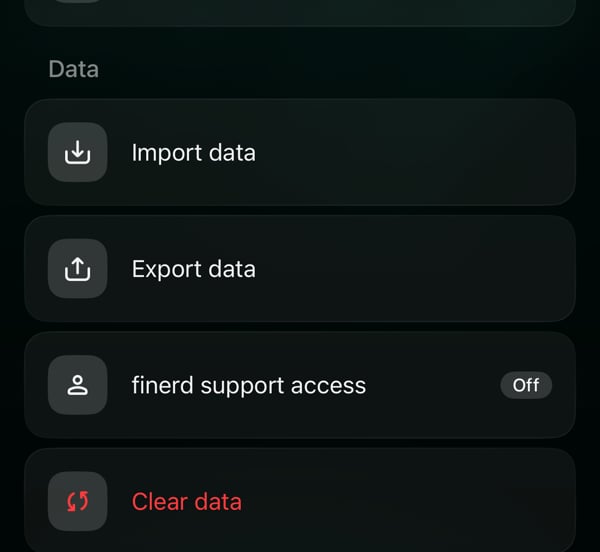
- Select your profile at the bottom of the sidebar, then the settings icon in the menu that opens.
- Select finerd support access. The badge next to it shows Off.
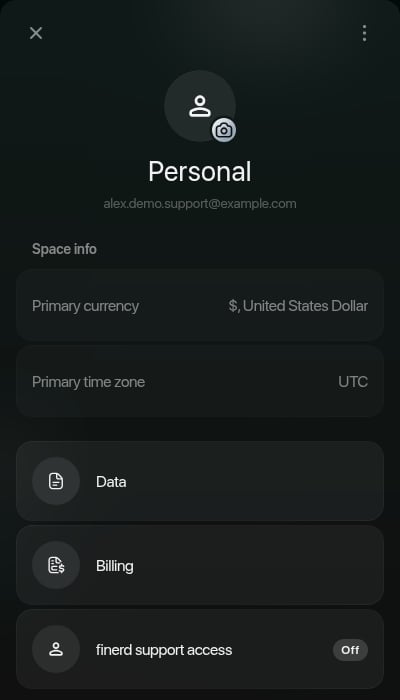
finerd support access in the space settings on the web.
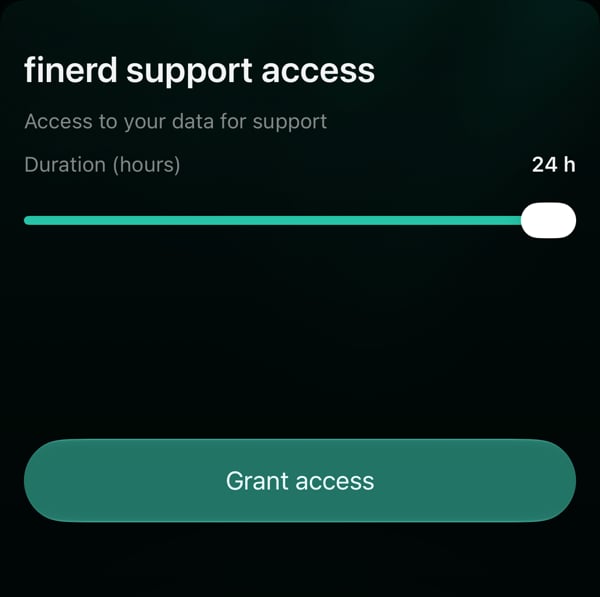
- Move the slider to choose how long access lasts, from 1 to 24 hours. Duration above it shows your choice; it starts at 24 hours.
- Select Grant access.
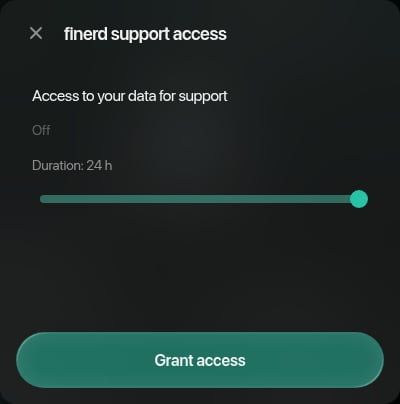
Choose the duration, then grant access.
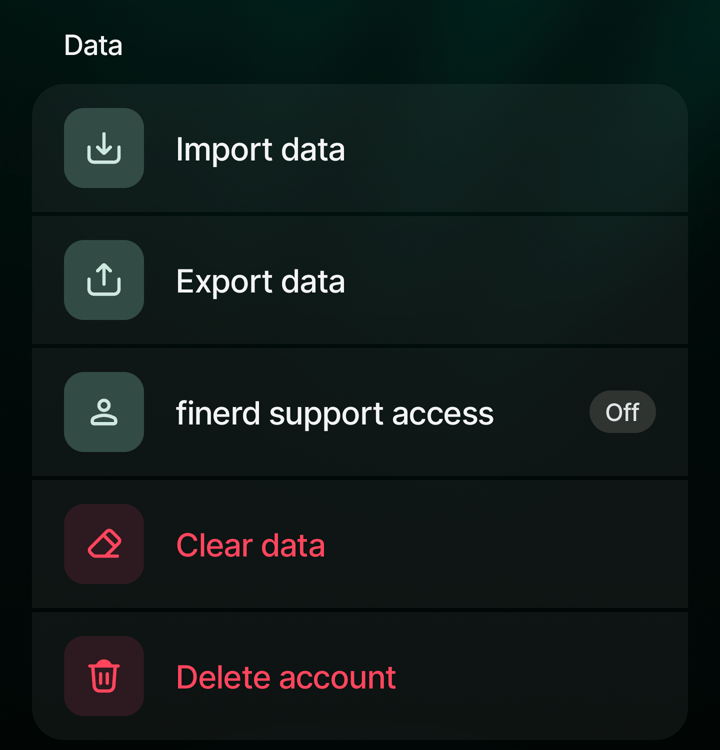
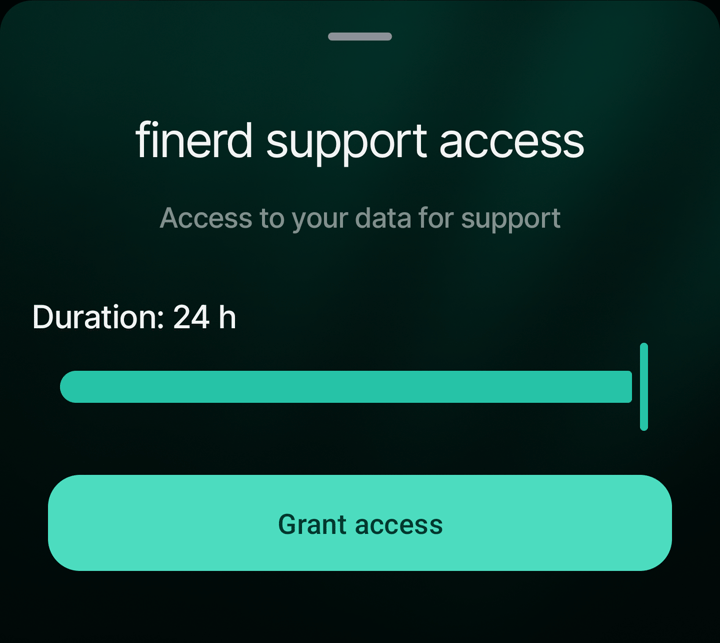
While access is on
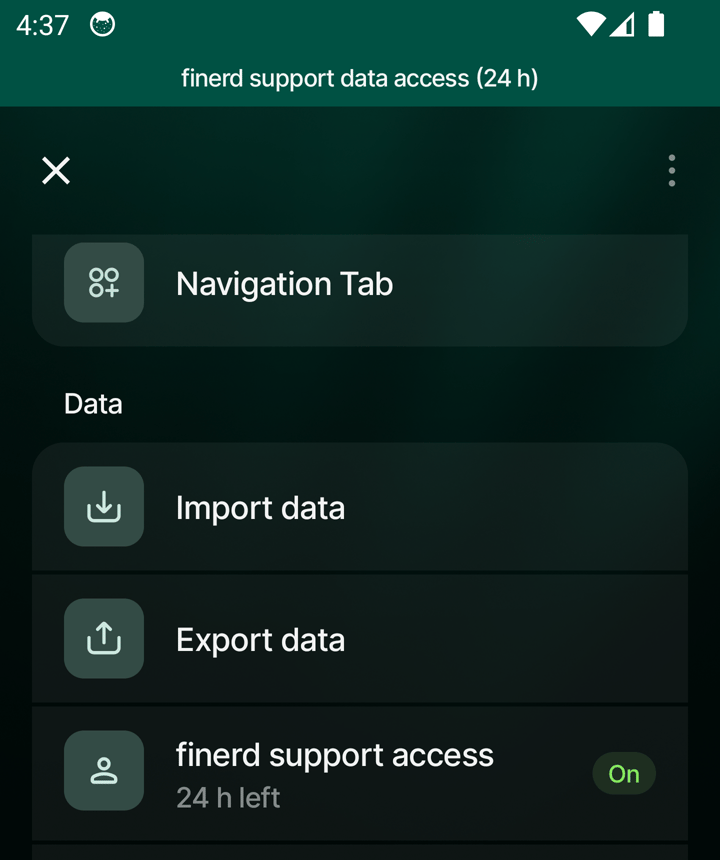
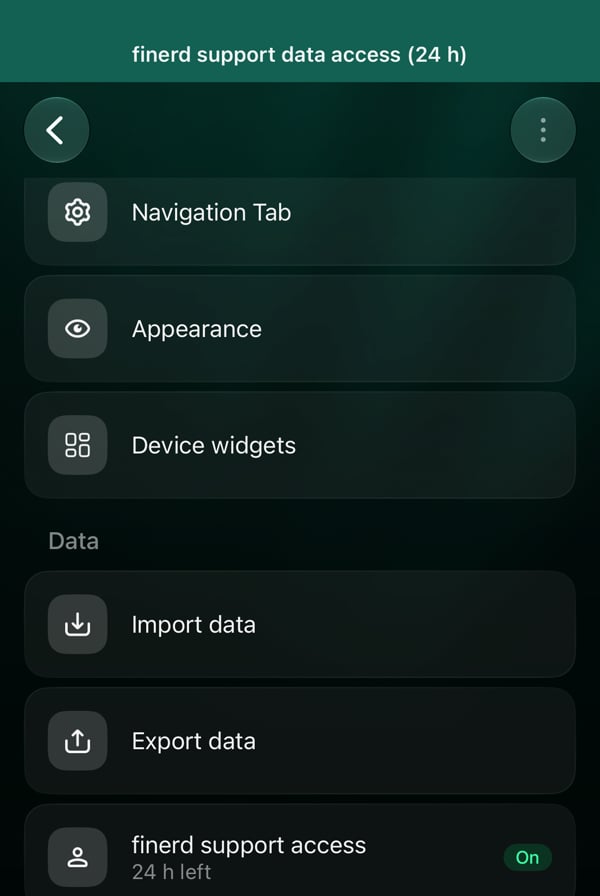
A banner at the top of finerd, for example finerd support data access (24 h), shows that access is on and how many hours are left. Everyone who uses the space sees it, so in a Business space members know that support can view the data too. When the owner selects the banner, it opens the finerd support access settings.- Web
- Android
- iOS

The banner at the top of the page while access is on.
- Extend access: choose a new duration on the slider and select Extend access. The new time counts from now; it isn’t added to the time left. For example, if 3 hours are left and you choose 24 hours, access lasts 24 hours from now. A shorter duration shortens it the same way.
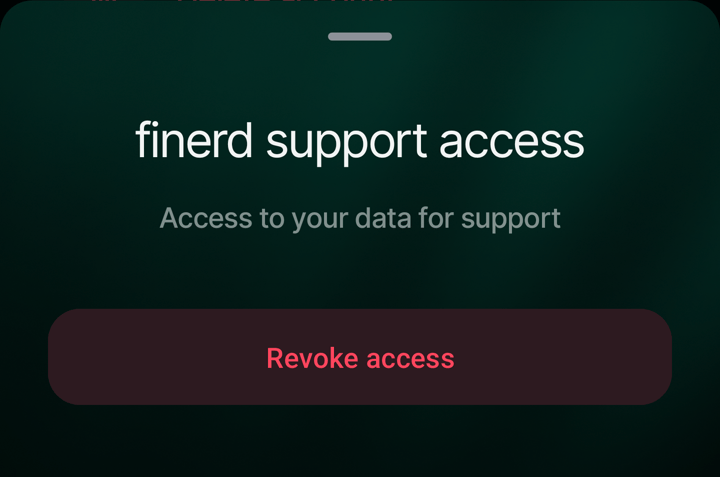
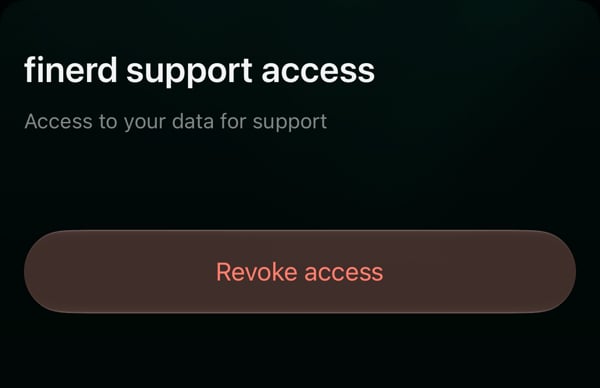
- Revoke access: ends access at once.
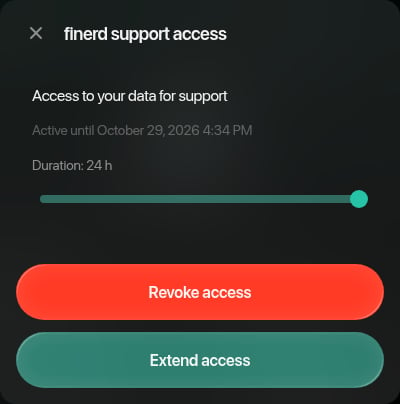
While access is on, the panel shows when it ends.