Record a refund in finerd: refund a recorded expense, enter one without the purchase, fix a bank refund and see how refunds count in reports.
When a shop gives your money back, record a refund instead of a new income. finerd books it in the purchase’s category, so your spending in that category goes down and your income doesn’t change.
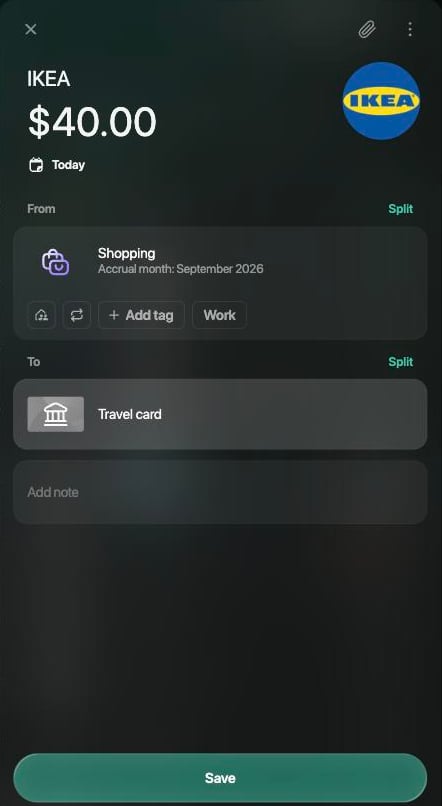
Choose the original expense, and finerd fills in the refund from it: the same merchant, category and account, the full amount and today’s date. Check it and change what’s different before you save; nothing is recorded until you select Save.
Only part of the money came back: change the amount.
The money came back to another account: change the account in To.
A transfer can’t be refunded: finerd shows Validation error. Choose the purchase itself.
The refund keeps the purchase’s accrual month, which you can see under the category.
Web
Android
iOS
On the Dashboard or the Transactions page, select Add transaction, then Refund.
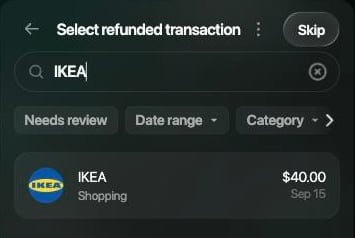
On Select refunded transaction, find the purchase: type the merchant in Search or use the filters. Select the purchase.
Check the amount, From (the purchase’s category) and To (the account the money came back to). For a partial refund, select the amount and enter what came back.
Select Save. finerd confirms with Transaction created on and the date.
Find the purchase that was refunded.
finerd fills in the refund from the purchase.
The Android app doesn’t have Refund yet. Record the refund on the web or in the iOS app.
On Dashboard or Transactions, tap +, then Refund.
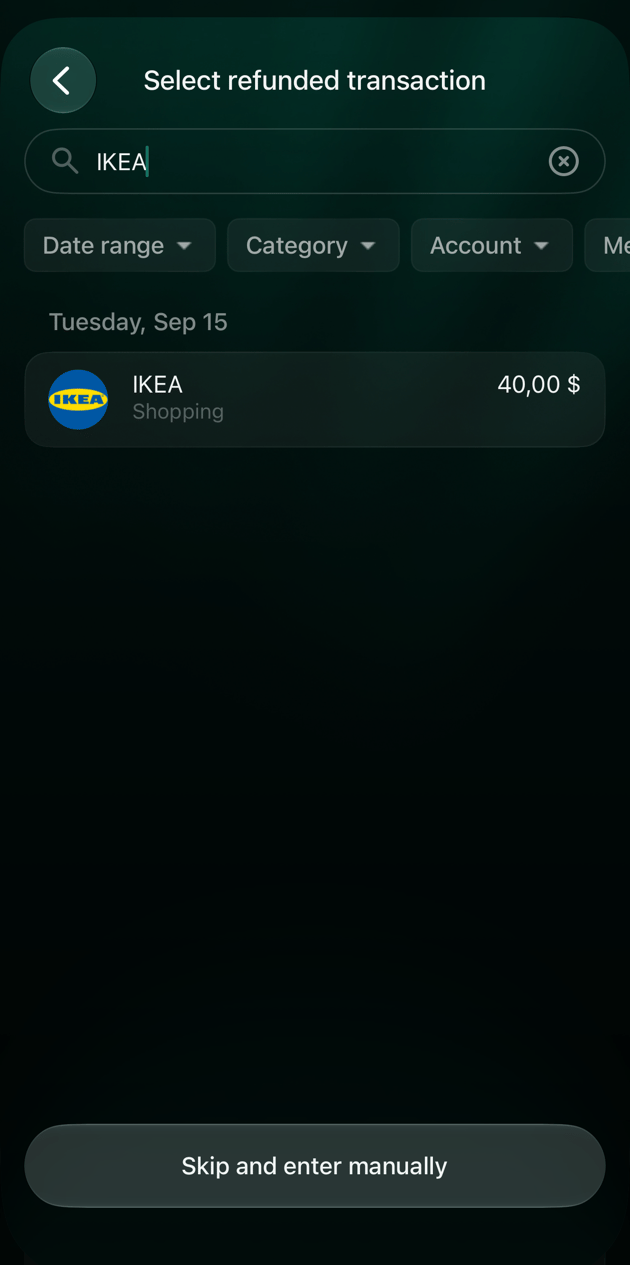
On Select refunded transaction, tap the purchase. To find it faster, type the merchant in Search.
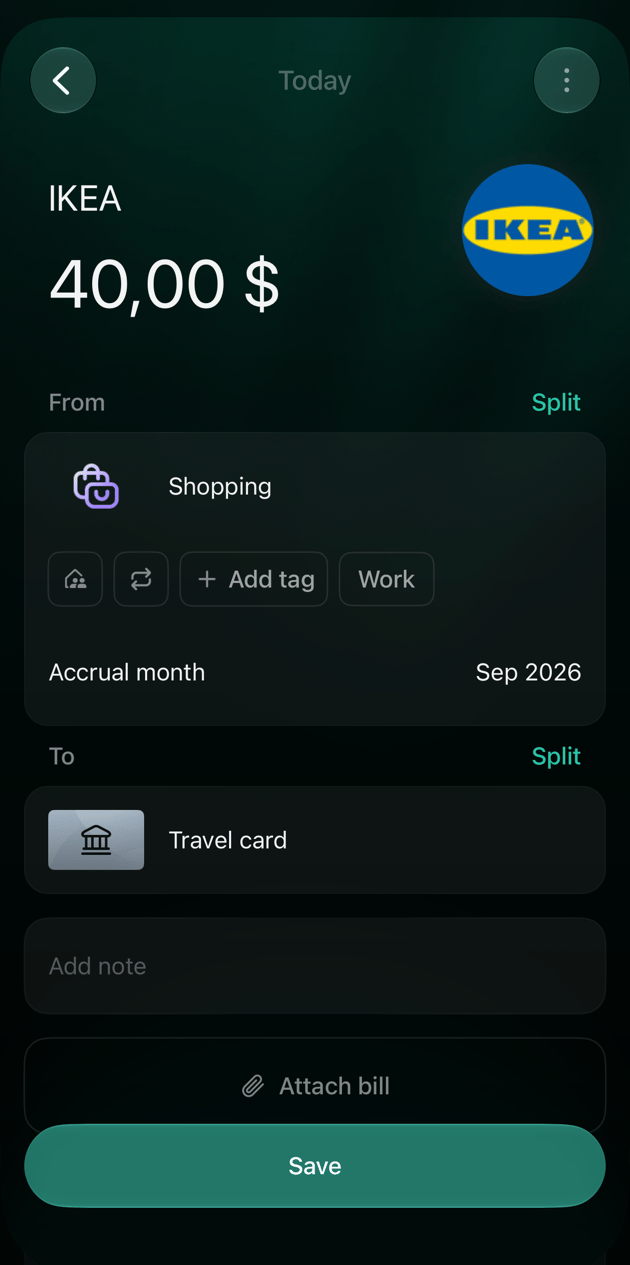
Check the amount, From and To. For a partial refund, tap the amount, enter what came back and tap Apply.
Tap Save.
Find the purchase that was refunded.
finerd fills in the refund from the purchase.
The refund appears in Transactions under the merchant’s name with a plus sign, for example IKEA+$40.00, and the account’s balance goes up by the amount.
If the purchase isn’t in finerd, for example you didn’t record it, enter the refund yourself. You give the amount and the merchant who refunded you; finerd takes the category and the account from that merchant’s latest transaction. Nothing is recorded until you select Save.Check both sides before you save:
From must be the category of the purchase. If it shows an income category, such as Uncategorized Income, or Choose category, select the purchase’s category: otherwise the refund isn’t counted against your spending.
To must be the account the money came back to.
Web
Android
iOS
On the Dashboard or the Transactions page, select Add transaction, then Refund.
On Select refunded transaction, select Skip.
On Refund amount, enter the amount, check the currency and select Continue.
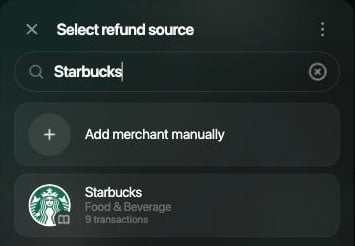
On Select refund source, search for the merchant and select it. If it isn’t found, select Add merchant manually.
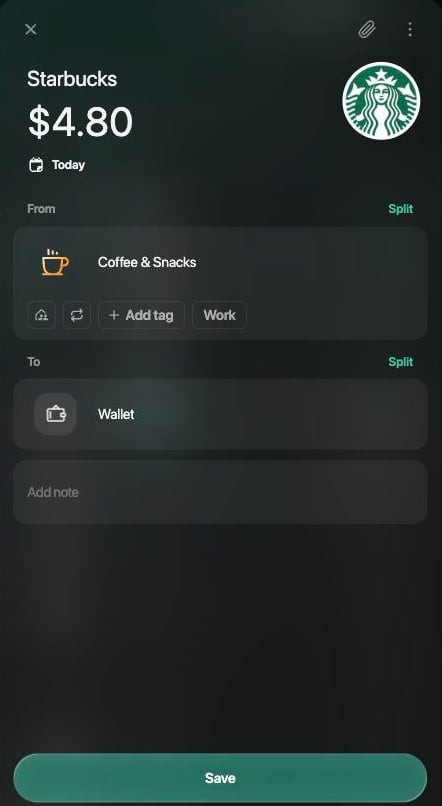
Check From and To, then select Save.
Choose who refunded you.
Check the category and the account before saving.
The Android app doesn’t have Refund yet. Record the refund on the web or in the iOS app.
On Dashboard or Transactions, tap +, then Refund.
Tap Skip and enter manually.
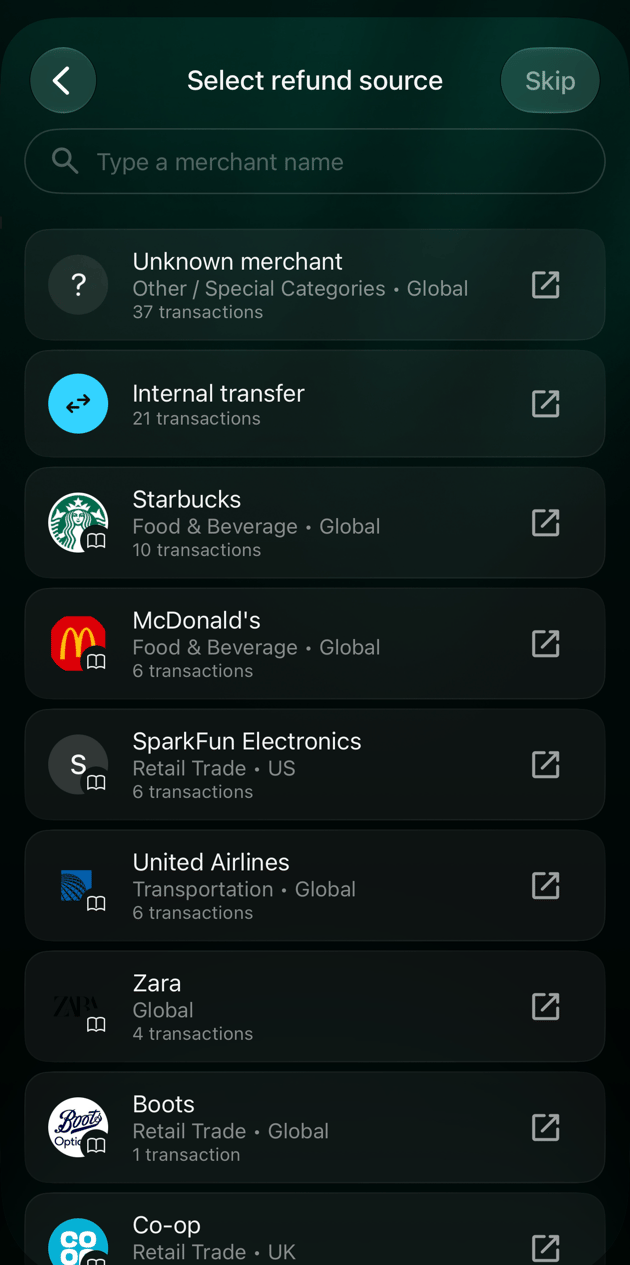
On Select refund source, tap the merchant. To find it, type its name in the search field. If you don’t know the merchant, tap Skip.
On Refund amount, enter the amount, check the currency and tap Continue.
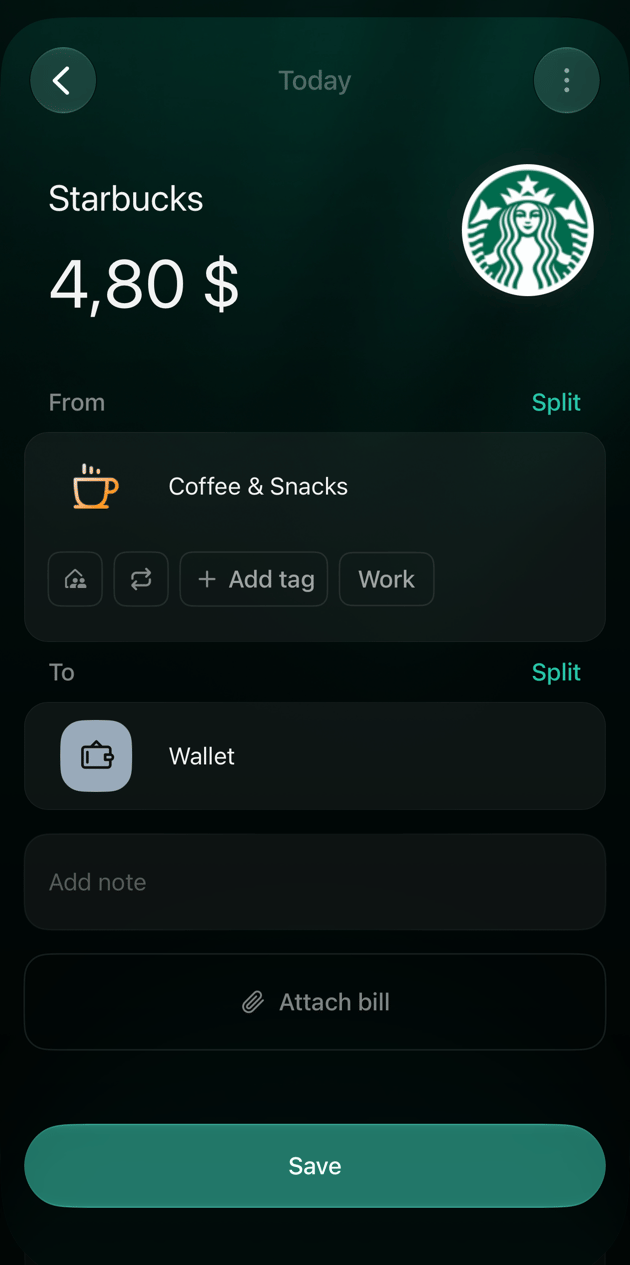
Check From and To, then tap Save.
Choose who refunded you.
Check the category and the account before saving.
The refund appears in Transactions like a refund of a recorded purchase, for example Starbucks+$4.80.
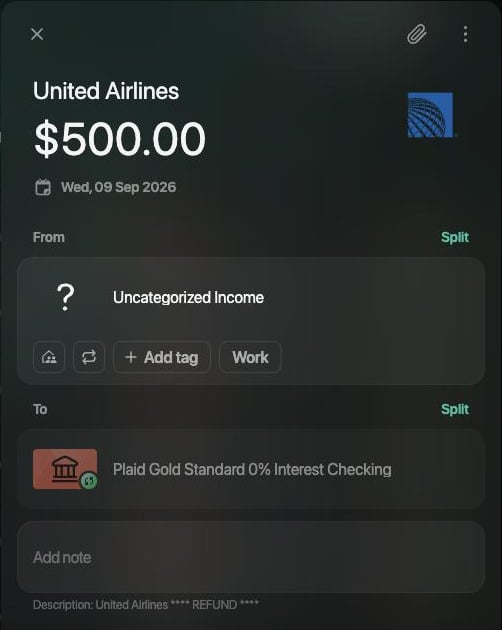
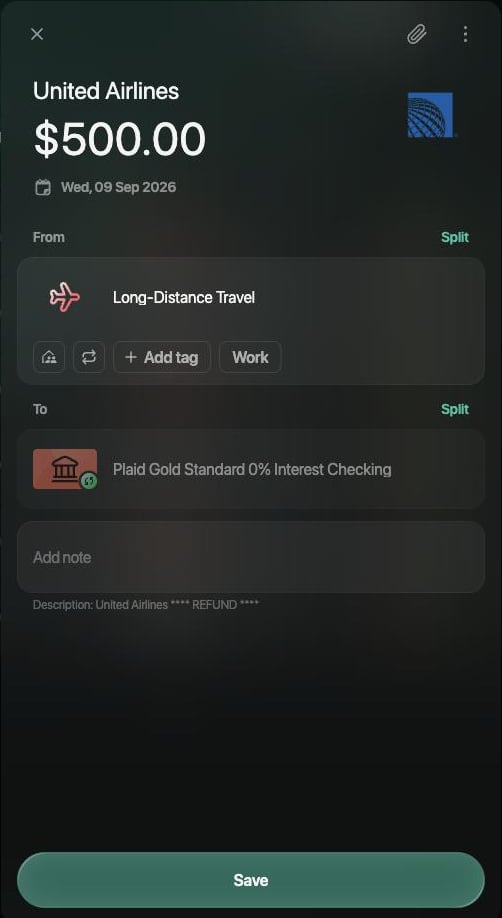
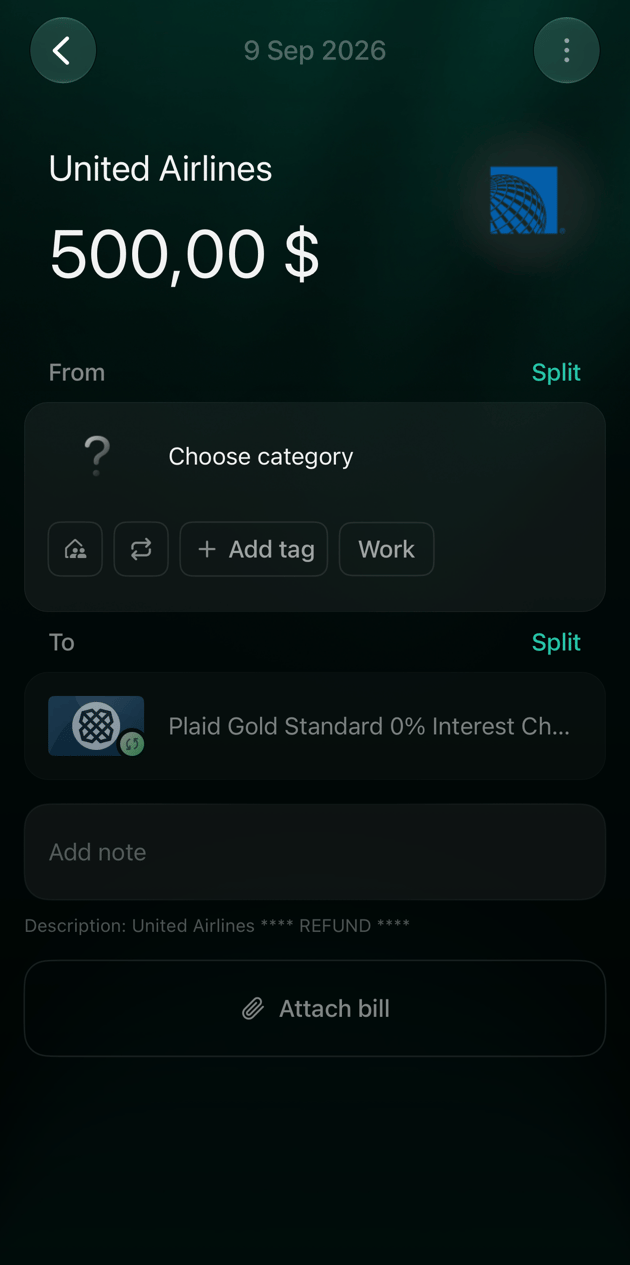
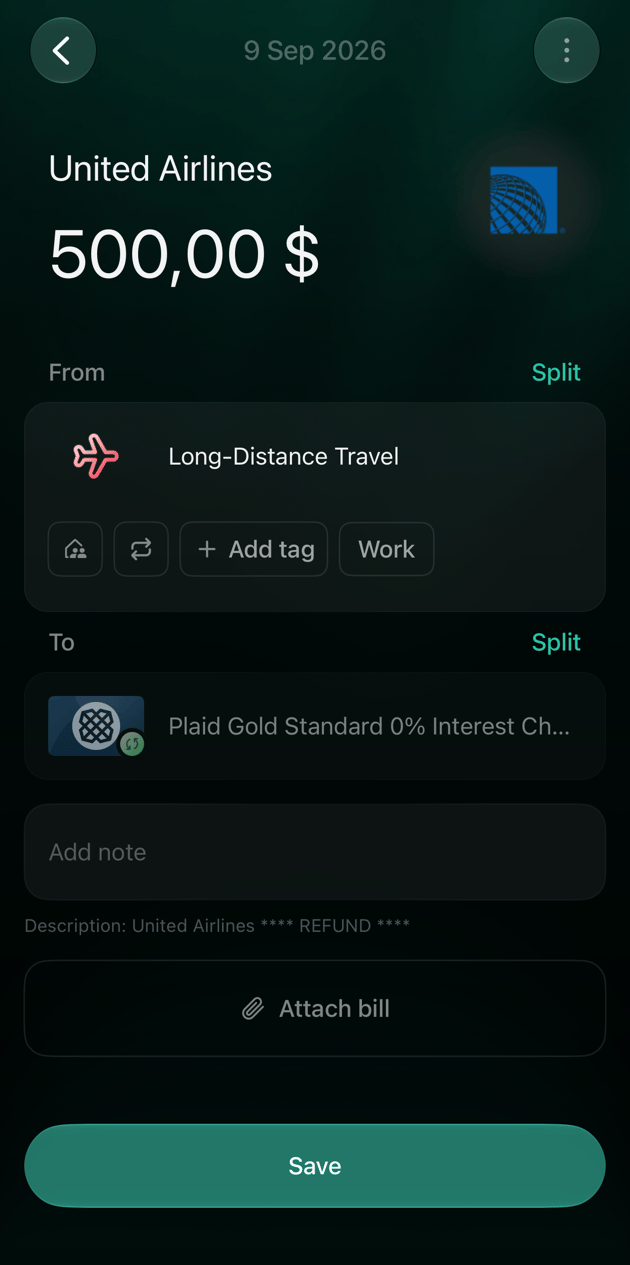
If your bank is connected, the refund arrives on its own as money coming into your account. Don’t record it again with Refund: fix the bank’s transaction instead.finerd doesn’t link a bank refund to your purchase. Check its category: if it’s an income category, such as Uncategorized Income (in the iOS app, Choose category), change From to the purchase’s category, for example Long-Distance Travel for a cancelled flight. The refund then lowers your spending in that category instead of adding income. The bank’s account, amount and date stay as they are.
Web
Android
iOS
Open the refund in Transactions. To find it, type the merchant in Search.
Select the category under From.
In the list that opens, open Expense categories or type the category in Search, then select the purchase’s category.
Select Save.
A refund from the bank booked as income.
The purchase's category in From, ready to save.
Open the refund in Transactions.
Tap the category under From.
Under Expense categories, tap the purchase’s category.
Tap Save.
Open the refund in Transactions.
Under From, tap Choose category or the category shown.
Tap Categories or type the category in Search, then tap the purchase’s category.
Tap Save.
A refund from the bank without an expense category.
A refund lowers your spending in its category; it isn’t counted as income. Which month it lowers depends on the date setting of the Expenses report:
Report setting
Where the refund counts
Example: $40 paid on Sep 15, refunded on Oct 5
Accrual month (the default)
In the purchase’s month: the refund keeps its accrual month
September’s spending in the category drops by $40; October doesn’t change
Transaction date
In the month you record the refund
September keeps the 40;Octoberdropsby40 and can show a negative amount
A refund you enter without the purchase counts in the month you record it.finerd doesn’t link a refund to the purchase and doesn’t stop you from refunding the same purchase twice. If a refund is in your records twice, for example you recorded it and the bank sent it too, delete your own copy.To switch the report between the two settings:
Web
Android
iOS
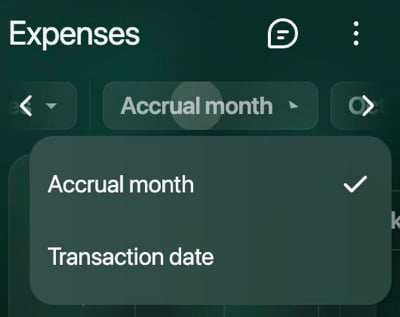
Open Reports → Expenses, select Accrual month at the top and choose Transaction date. Choose Accrual month to switch back.
The report's date setting.
Open Reports → Expenses, tap the period at the top, then choose By transaction date or By accrual month in the period’s menu.
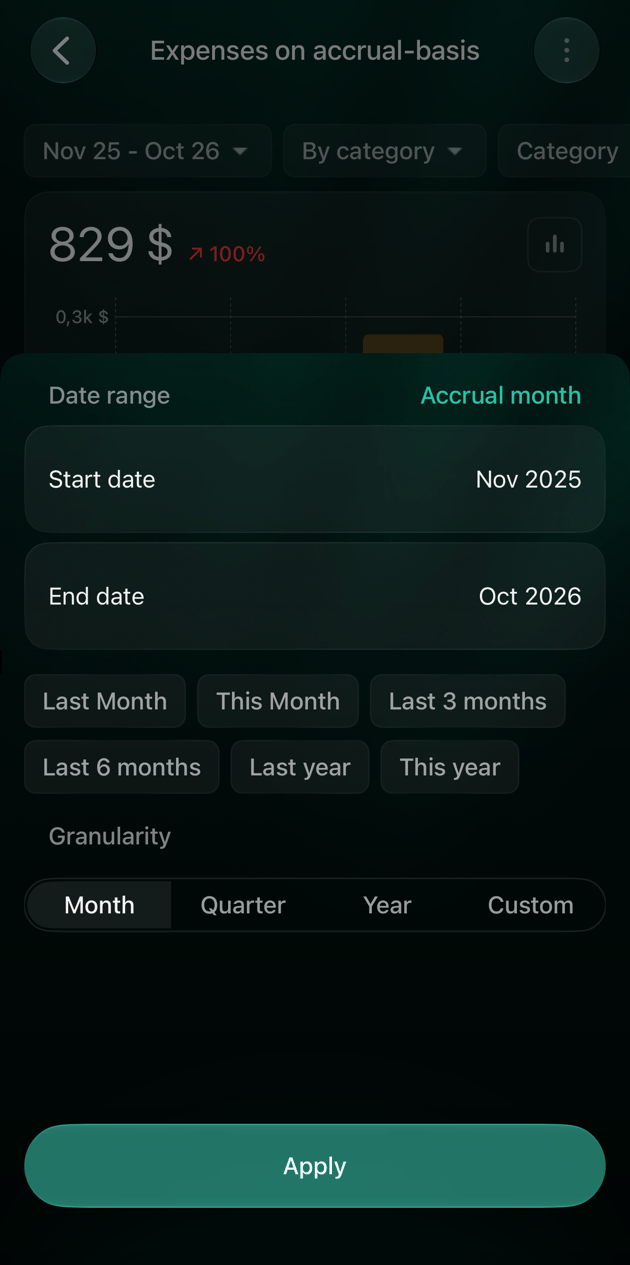
Open Reports → Expenses and tap the period at the top. Tap Accrual month to switch it to Transaction date, then tap Apply.
The date setting is at the top right of the period.