
Check the connection status
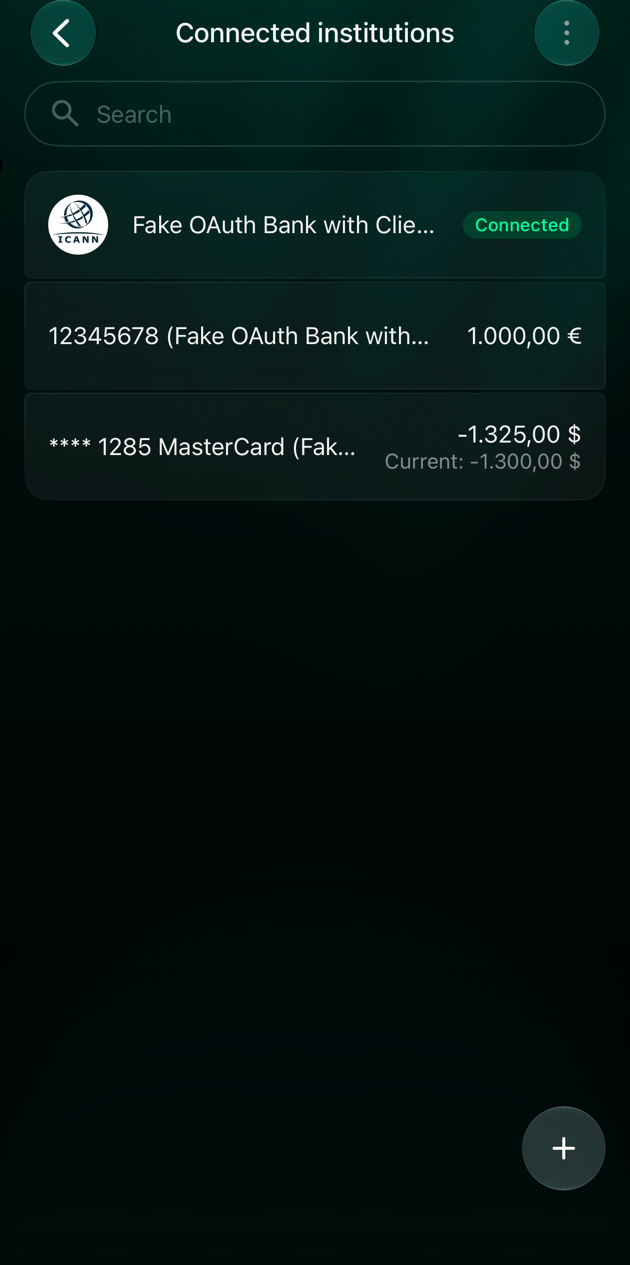
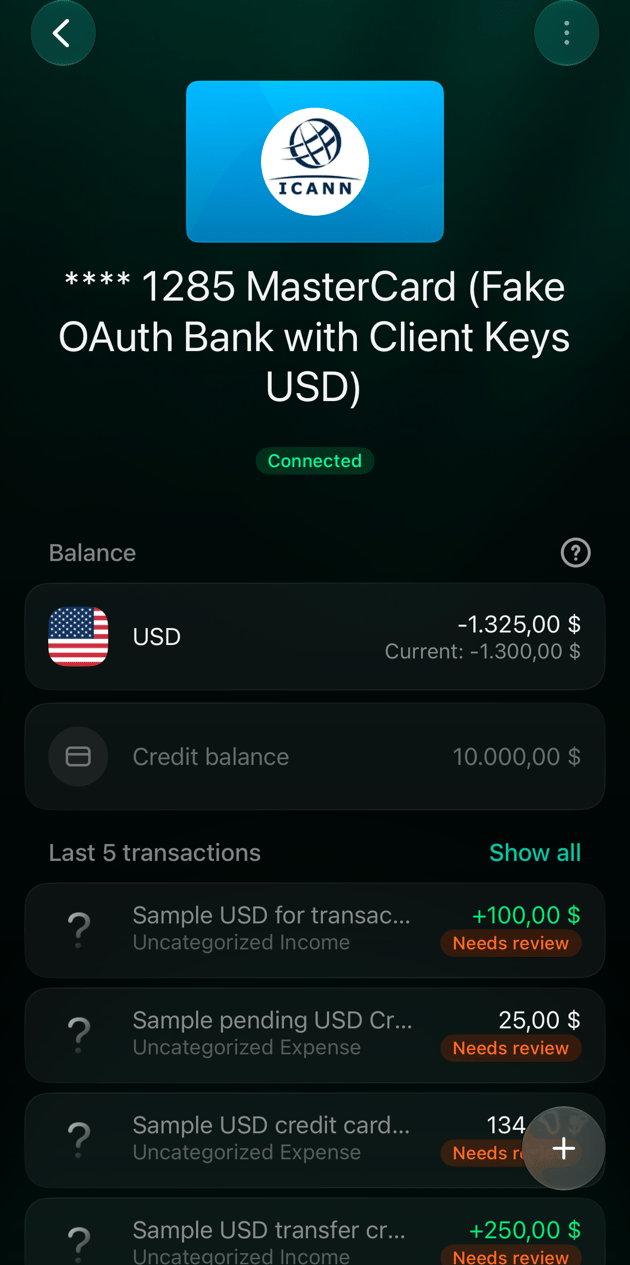
Each connected bank has a status. finerd shows it next to the bank in Institutions, on the bank’s screen and on each of its accounts.
Some banks give access for a limited time. When the end is a week or less away, the bank’s screen shows a warning such as Your bank connection expires in 5 days and a Reconnect button, while the status is still Connected. Reconnect before then to keep transactions coming.
If a bank stays in Reconnection Required, finerd eventually disconnects it. In the last days, the bank’s screen counts down, for example 3 days left to reconnect institution or it will be disconnected automatically.
- Web
- Android
- iOS
- Open More → Institutions. The status is next to each bank.
- Select a bank to see its status and accounts.
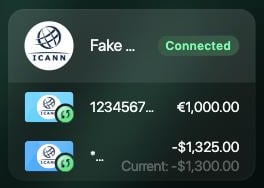
The status next to the bank.
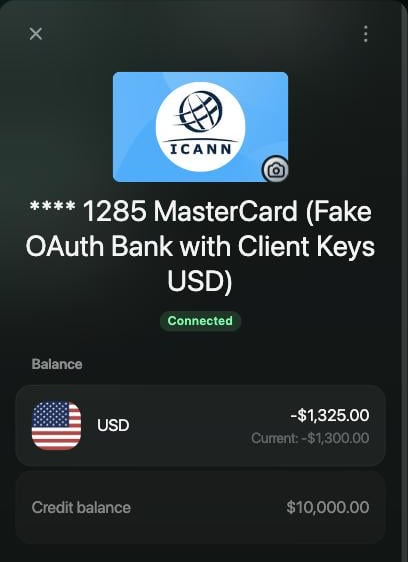
The same status on a connected account.
Reconnect a bank
Reconnecting works like connecting the bank the first time, except that you start from the bank you already have and your finerd accounts stay linked to the same bank accounts. There’s nothing to set up again.- Open More → Institutions, select the bank, then Reconnect. On the web and iOS, an account of that bank also has Reconnect; on iOS, so does the sync button next to the bank.
- Sign in to your bank and allow access, as when you first connected it.
- Back in finerd, check that the accounts are still selected. On iOS, tap Save.
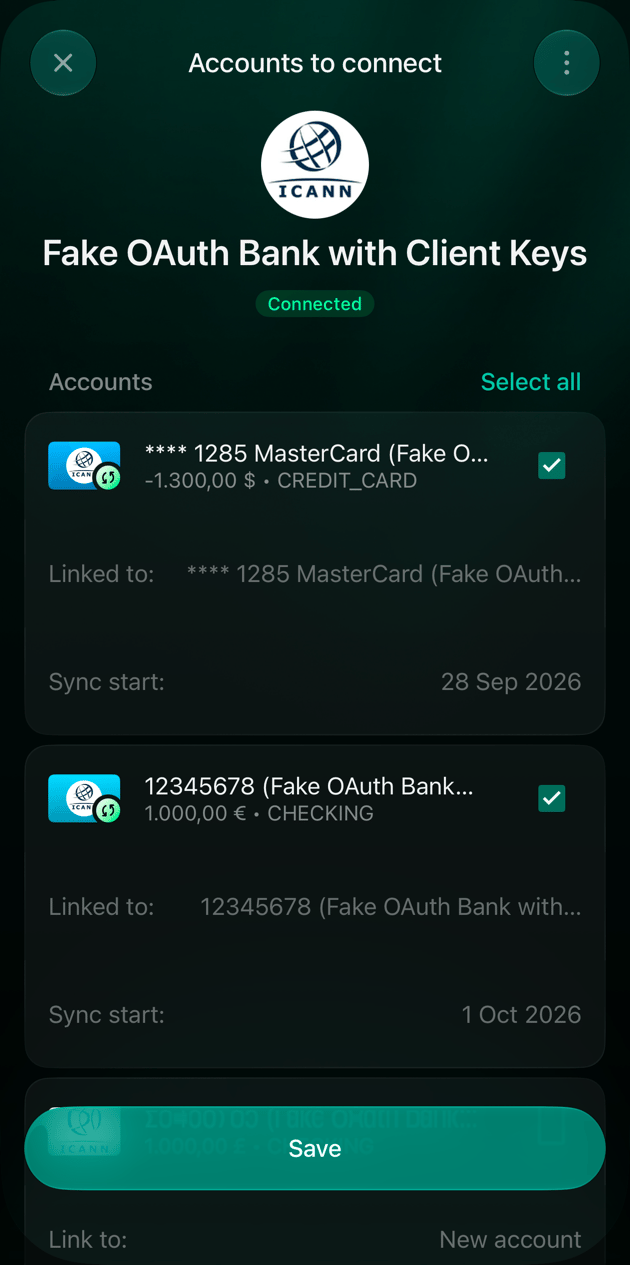
On iOS, the accounts stay linked. Tap Save to finish.
Monobank and PrivatBank
These two banks reconnect differently. Monobank. You confirm access in the Monobank app.- On the web, select Reconnect. finerd shows a QR code: scan it with your phone, tap “Confirm” in the Monobank app and return to finerd. Once the access is confirmed, finerd opens Monobank’s panel.
- In the iOS and Android apps, tap Reconnect, then Open Monobank. Tap “Confirm” in the Monobank app and go back to finerd.
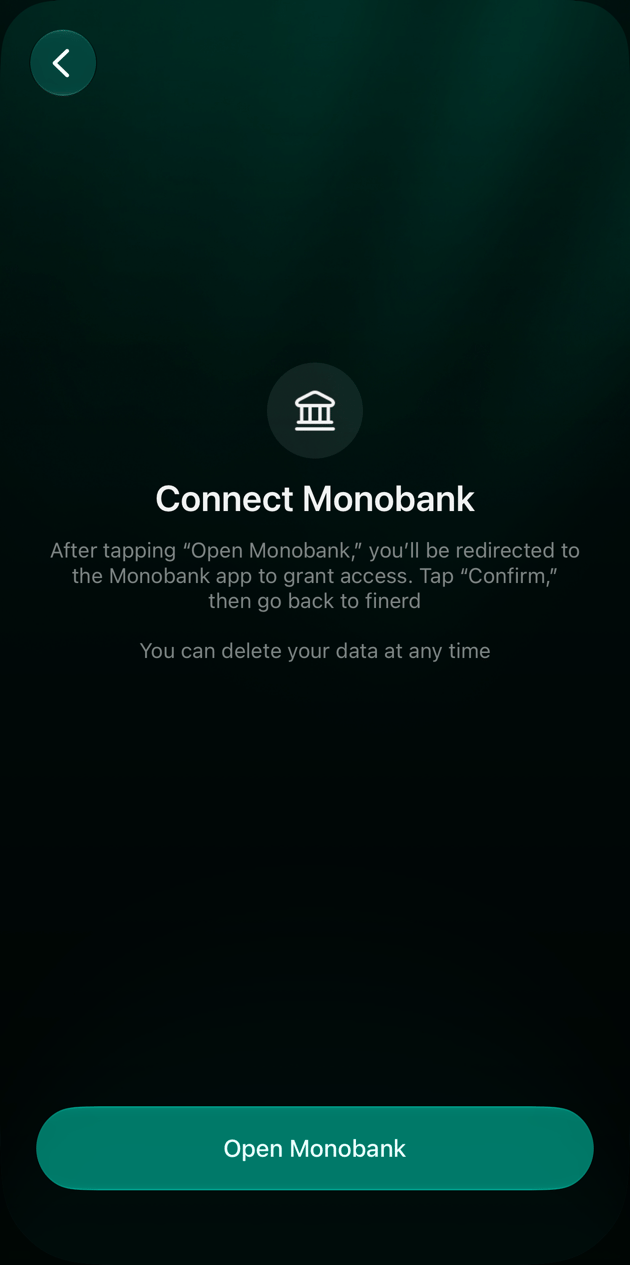
In the iOS app, Open Monobank takes you to the Monobank app.
After reconnecting
New transactions start arriving again. finerd also gets each account’s current balance from the bank. If your transactions in finerd don’t add up to it, finerd adds a Balance correction for the difference, so the account balance matches the bank. For some banks, including Monobank, finerd then asks the bank again for that period’s transactions, up to three months back. If the missing transactions arrive, the correction shrinks or disappears. If a Balance correction stays, review the discrepancy to find what’s missing.If it still doesn’t work
If transactions still don’t arrive after you reconnect, write to support from the bank’s screen and include the connection’s details.- Open More → Institutions and select the bank.
- Select ⋮ → Meta data (iOS and Android: Metadata). It shows the connection’s status, how many transactions finerd received from the bank, and technical details such as the connection ID.
- Copy the details. On the web, Copy copies all of them. In the apps, tap a line to copy it.
- Go back to the bank, select ⋮ → Contact support and paste the details into your message.
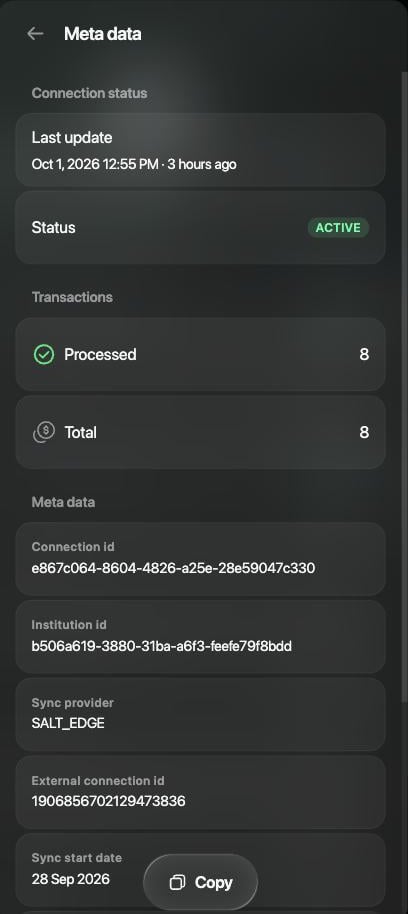
Meta data on the web, with Copy.
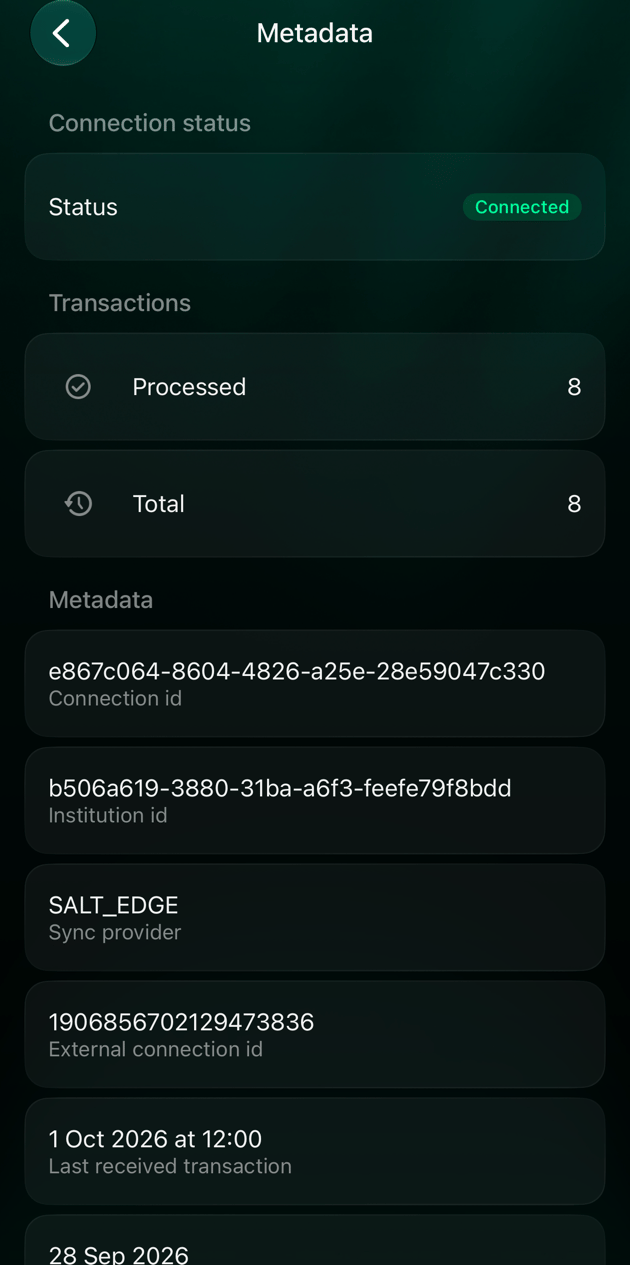
Metadata in the iOS app. Tap a line to copy it.