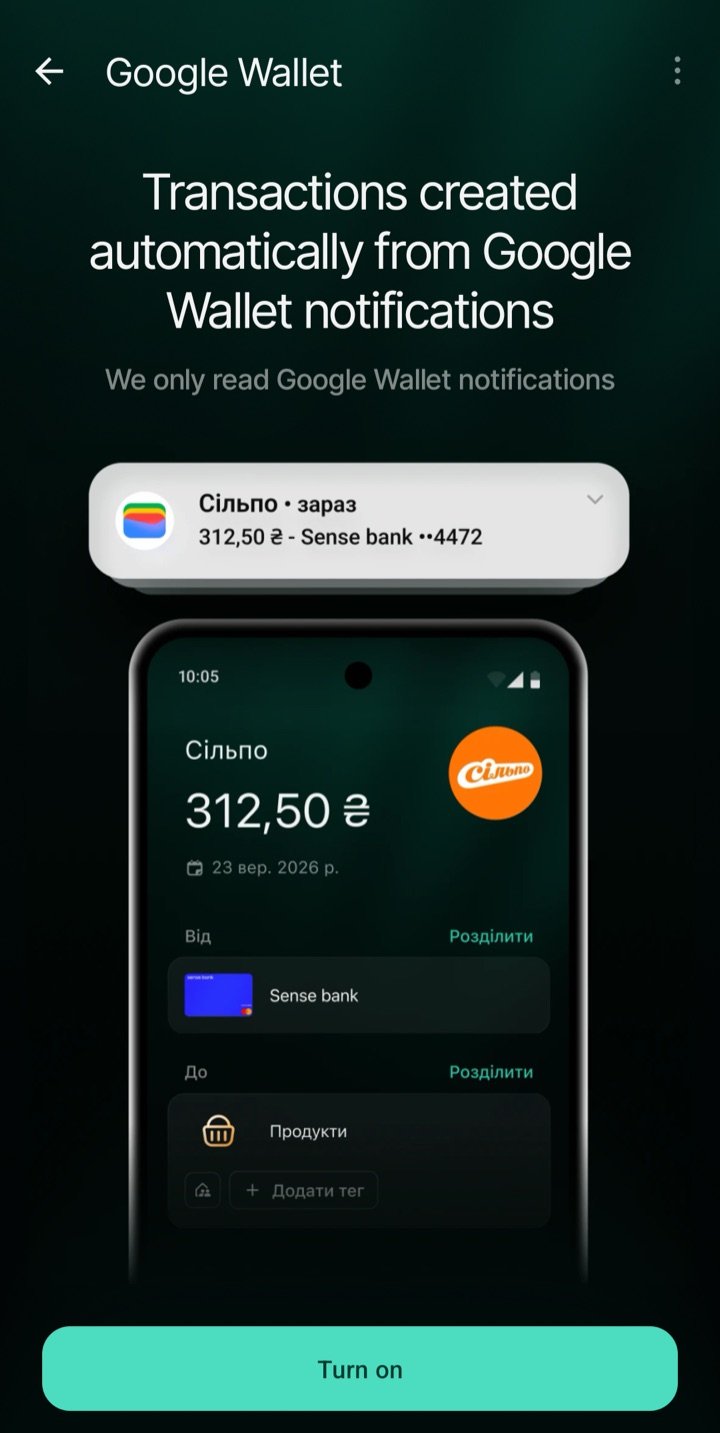
Turn on payment tracking on Android and let finerd record your Google Wallet purchases — no bank connection needed.
Even if your bank doesn’t connect to finerd, you can record purchases without entering each one by hand. When you pay with Google Wallet, finerd reads the payment notification and uses it to create a transaction with the amount, currency and merchant.Turn tracking on once, then pay as usual. If finerd needs help recognizing a card, you choose its account after a payment — and finerd remembers that choice.
Set this up in the finerd app on the Android phone you pay with. On iPhone, use Apple Pay tracking.
Open More and find Google Wallet under Connections.
Start here to turn on payment tracking.
2
Allow notification access
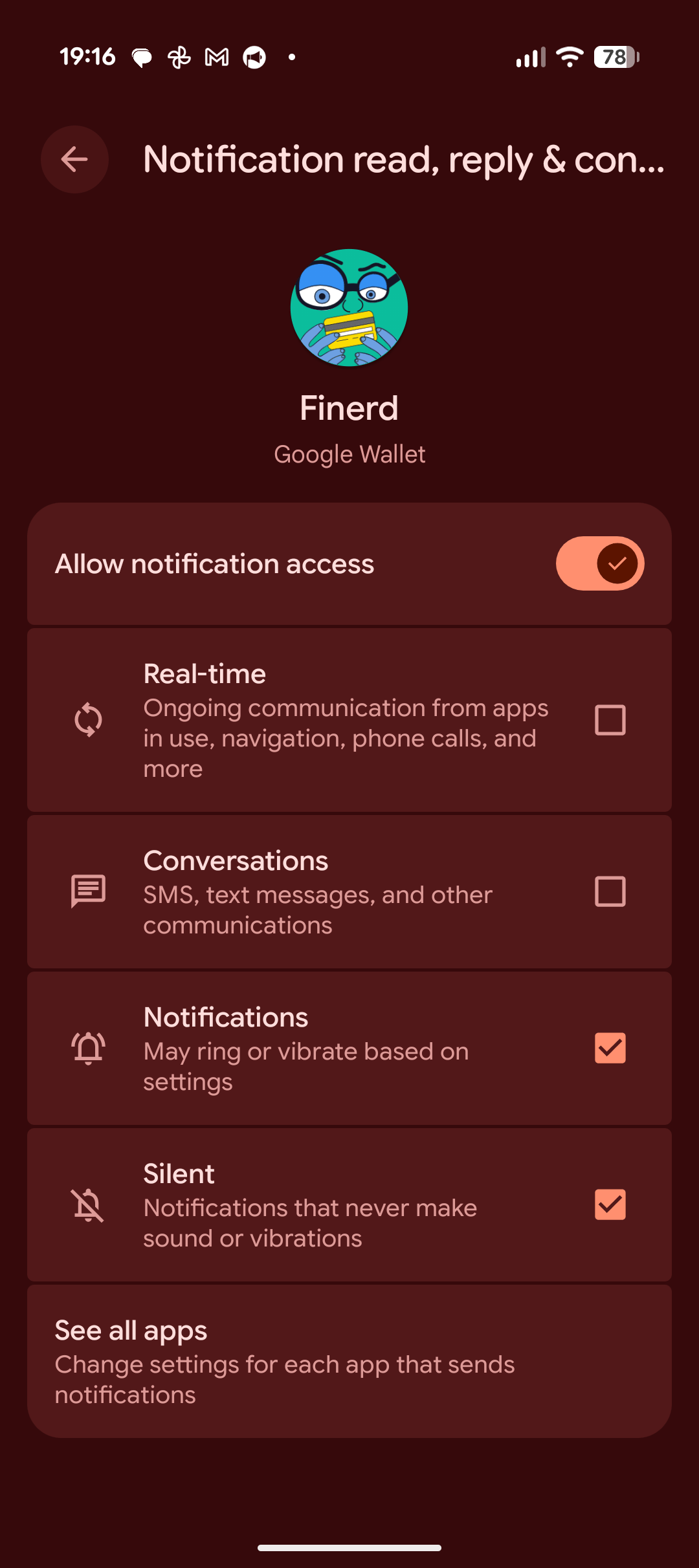
Tap Allow notification access. In the Android settings that open, allow access for finerd, then return to the app. Tracking turns on when you come back.If you’ve already granted access, tap Turn on instead.
Notification access for finerd in Android settings.
Android grants access to notifications from all apps, but finerd reads only Google Wallet notifications. It doesn’t read or save notifications from your bank, messengers or other apps. Wallet notification text is sent to finerd to recognize the payment and is saved in the transaction’s comment.
3
Make a payment
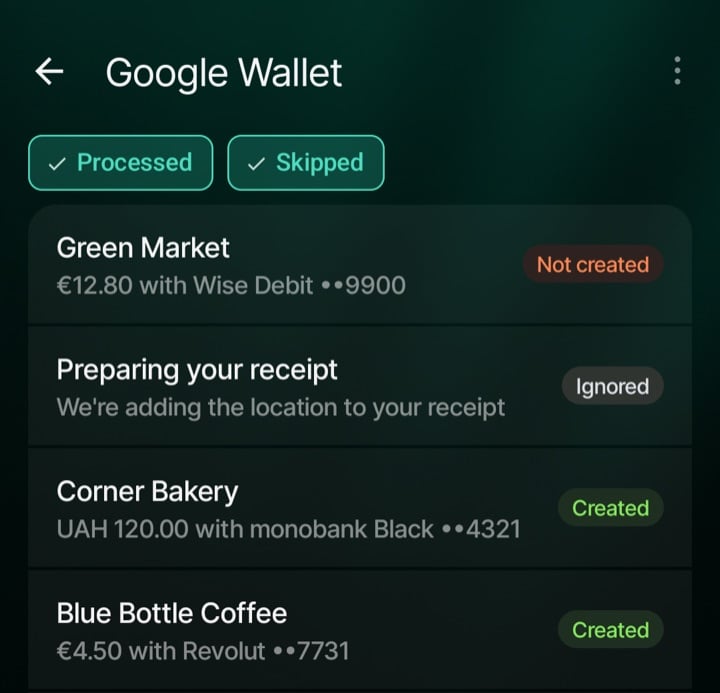
Pay with Google Wallet, then open this screen again. If finerd recognizes the card’s account, the payment has the status Created. Tap it to open the transaction.If you see Not created, open the payment to finish recording it. If finerd couldn’t find the account, follow the steps below.
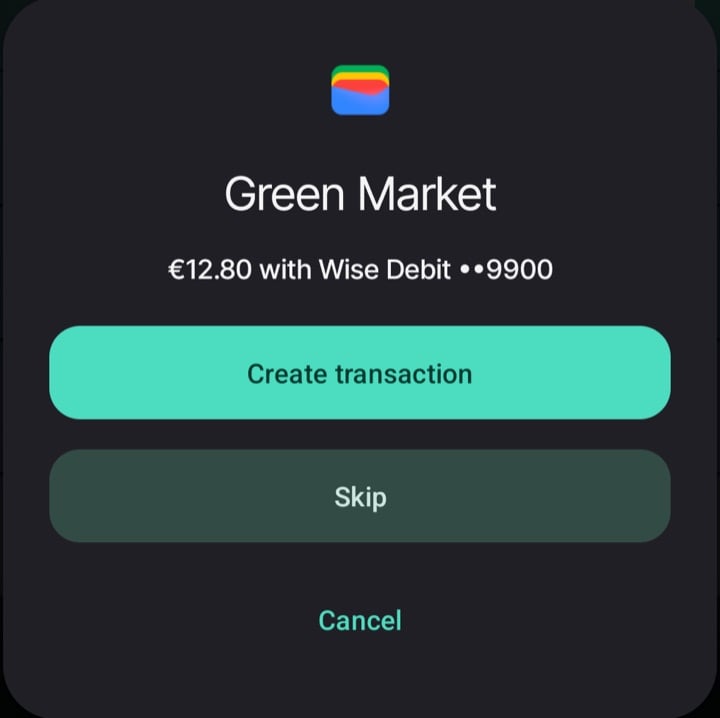
A card’s name in Google Wallet can look different from its account name in finerd. For example, a notification might say Wise Debit ••9900, while you named the account Wise. If finerd can’t match them, it leaves the payment for you to complete.
Open the payment marked Not created and tap Create transaction.
Choose the account you paid from, check the payment details and save the transaction.
Choose Create transaction to assign this payment to an account.
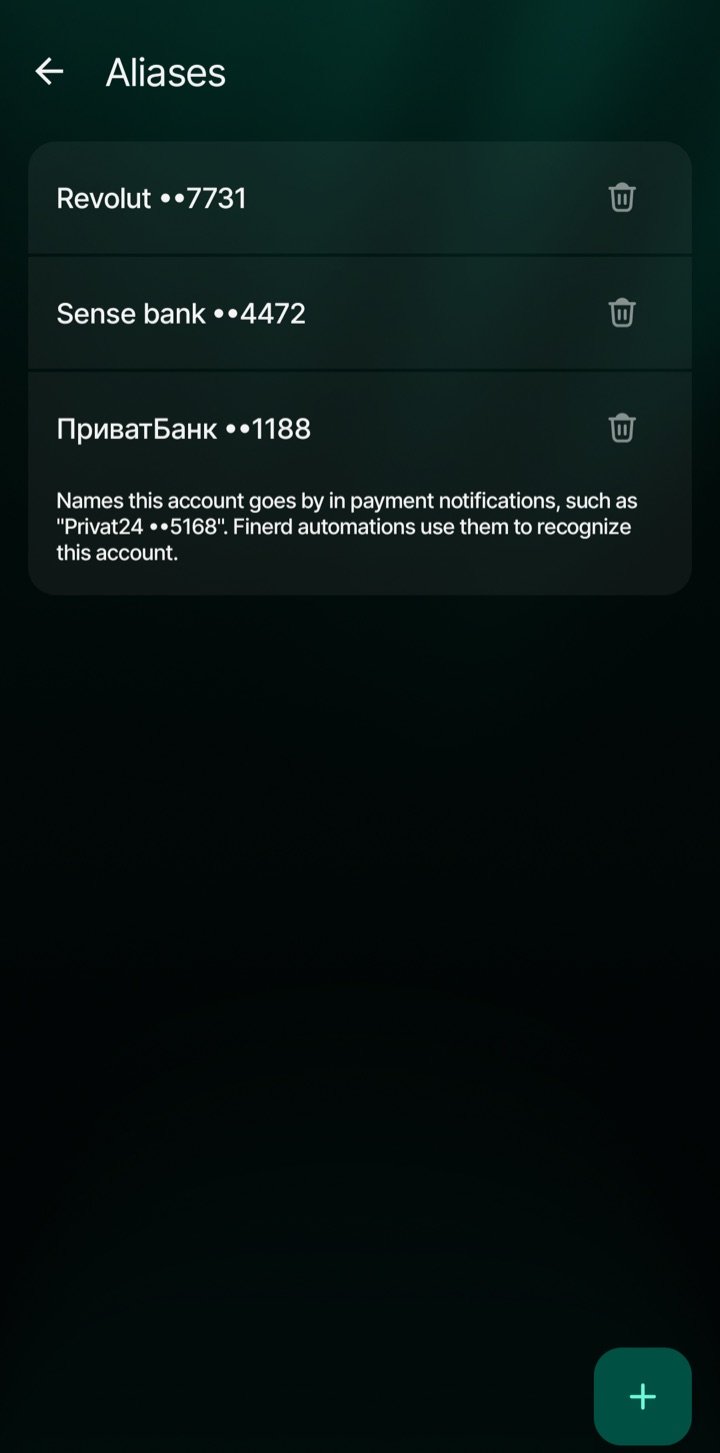
finerd saves the card name from the notification as another name for that account — an alias. The next payment with the same card name can then go to the account automatically. Repeat this when you use another card that finerd doesn’t recognize.You can check these names in the account’s ⋮ → Aliases menu. Tap + to add a name or the trash icon beside one to remove it. Use the full name from the Wallet notification, including the ending digits.
Aliases tell finerd which card names belong to this account.
Return to More → Google Wallet to see the notifications finerd has received and what happened to each one.
Each status shows whether the payment needs your attention.
Status
What to do
Processing
Wait while finerd processes the notification.
Created
The transaction is saved. Tap the payment to open it.
Not created
finerd couldn’t create the transaction automatically. Tap the payment to check the details and choose Create transaction or Skip.
Ignored
finerd skipped this notification. It could be a non-payment notification, an excluded account or a payment you skipped. This also happens when the account was found only in another space. If an amount was recognized, tap to create a transaction yourself.
Deleted
The transaction was deleted. If you still need it, tap the payment to create it again.
Error
Processing failed. Tap the payment to try again.
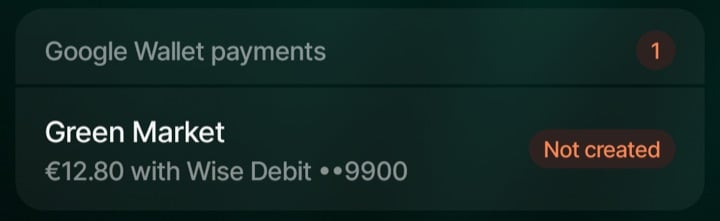
The list opens with Processed selected; this includes payments still processing or needing your attention. Select Skipped to also see ignored payments and deleted transactions.Payments marked Not created also appear in the Google Wallet payments block on Home, so you can finish recording them from there.
You can also open a payment that needs attention from Home.
If the account holds only one currency and the payment is in a different one, finerd records both. For example, you pay $10 from an account kept only in hryvnias: the account is charged the amount converted at that day’s exchange rate (say, 450.56 UAH), while the expense stays $10.
The converted amount is an estimate. Your bank’s real charge can differ because of fees and its own rate.
If the account holds money in several currencies or none yet, or finerd has no rate for that day, finerd skips this conversion and records the payment in the currency from the notification. If that rate is needed for another calculation, creating the transaction can still fail.
Payments you finish yourself (Not created) and transactions you add by hand are not converted. Transactions created earlier don’t change.
On a connected account, a matching transaction from your bank may later replace the Wallet one if you haven’t reviewed or edited it. The bank’s amount and currency are then used, so the $10 isn’t kept.
Google Wallet can help you see a purchase before your bank connection brings it in. On a connected account, the Wallet transaction starts as Pending. When finerd matches it with the transaction from your bank, the two become one.If payments from a connected account already arrive quickly enough, you can leave that account out of Wallet tracking:
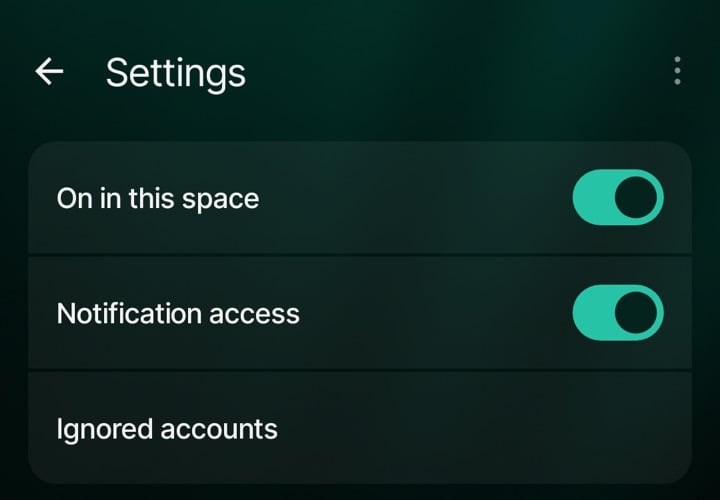
On the Google Wallet screen, open ⋮ → Settings → Ignored accounts.
Tap Add account, select one or more accounts to exclude, then tap Done.
To track it again, remove it from this list using the trash icon. Your bank connection keeps working either way.
Choose where payments are recorded. Tracking is enabled separately in each space. If you turn it on in several spaces, a payment is recorded in each one where finerd finds the account. If the account is found only in another space, the notification is marked Ignored in the current one.
The notification history belongs to this phone. The list on the Google Wallet screen and its settings are stored locally. Transactions created from those notifications are saved in finerd. Each signed-in user has their own notification history.
You can turn tracking off. Open ⋮ → Settings and switch On in this space off. The existing history stays available.
Manage tracking for this space, notification access and excluded accounts here.
No payment in the list. Check that Google Wallet sent a notification. Then open ⋮ → Settings in finerd and check Notification access and On in this space. Without a Wallet notification, finerd has nothing to record.
The payment is there, but there’s no transaction. Check its status: Not created needs your input; Error lets you retry by tapping it. Check the Skipped filter and Ignored accounts too.
The transaction is on the wrong account. Correct the account in the transaction. Then open Aliases on the wrong account, remove that card name and add it to the right account, so future payments are recognized correctly.
Still stuck. Open ⋮ → Contact support on the Google Wallet screen and tell us the date, amount and status of the payment.