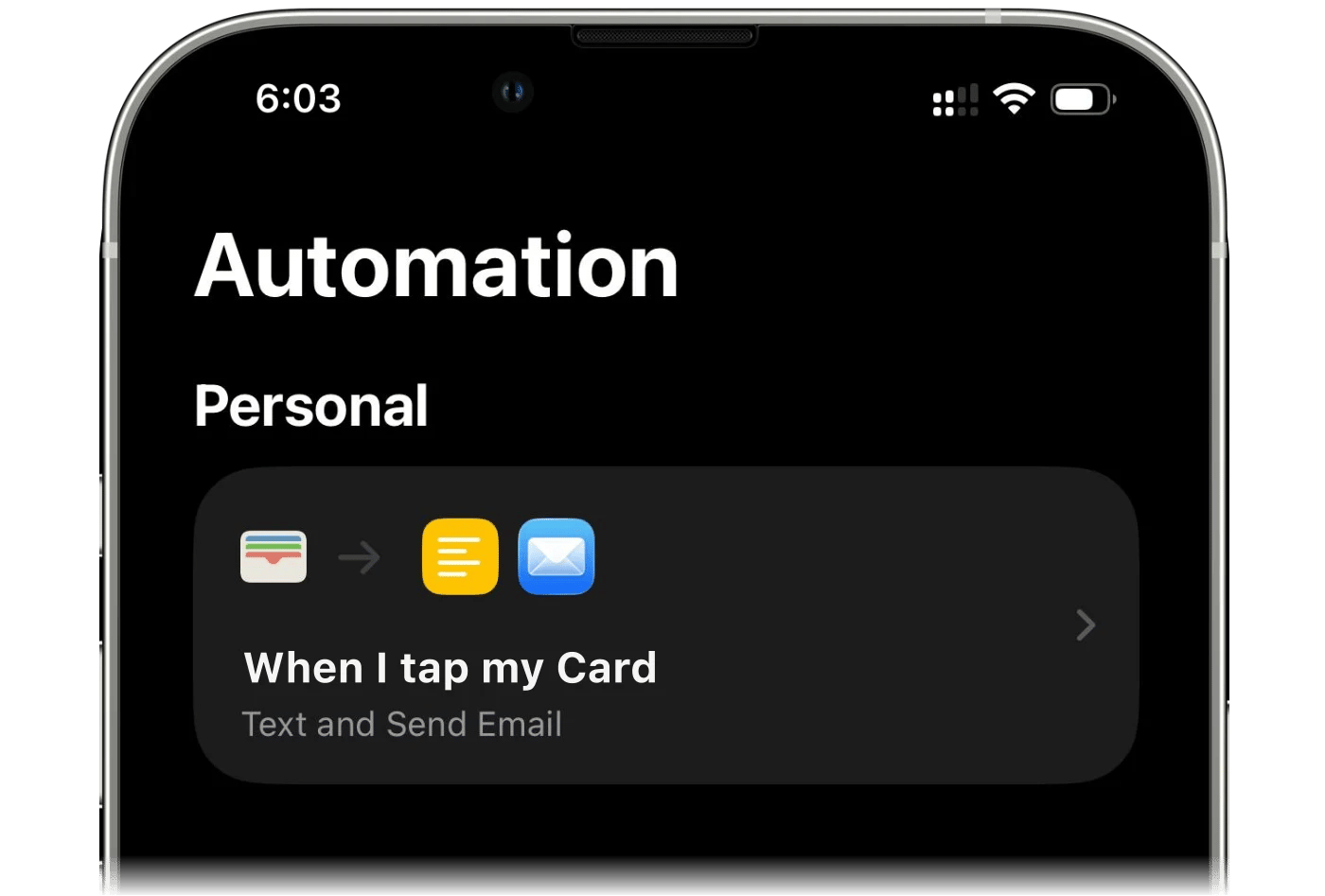
Set up a Shortcuts automation on iPhone so each Apple Pay payment or bank notification becomes a finerd transaction, with no bank connection.
finerd can record your Apple Pay payments for you. An automation in Apple’s Shortcuts app sends each payment, or each payment notification from your bank app, to finerd, and finerd saves it as a transaction on the account you chose. It works for cards your bank connection doesn’t cover, and you set it up once per card.Apple Pay tracking needs finerd Pro and is set up in the finerd app on iPhone. On Android, track Google Wallet payments instead; the web app has no equivalent.
finerd Pro. Without it, Apple Wallet in More shows a Pro badge and opens the plan offer.
Your iOS version. On iOS 27 or later, finerd gives you a ready-made shortcut that sends payments to finerd directly. On earlier versions you build the automation yourself, and it sends each payment by email, so the Mail app needs a working account. Check the version in Settings → General → About → iOS Version.
An account for each card. Payments are recorded on a finerd bank account. If your space has no bank accounts yet, setup offers to create one named Apple Pay card; you can rename it later. With one account per card, each card keeps its own balance and spending.
Open More → Apple Wallet, tap Next, then Set up automation. You can also start from the bank search: when finerd doesn’t support your bank, choose Track through Apple Wallet, and the name you searched for becomes the proposed account name.
iOS 27 or later
iOS 26
finerd hands you a ready-made shortcut. You install it, then tell it what to listen to and which finerd account to write to. There’s nothing to copy or paste.You can connect through:
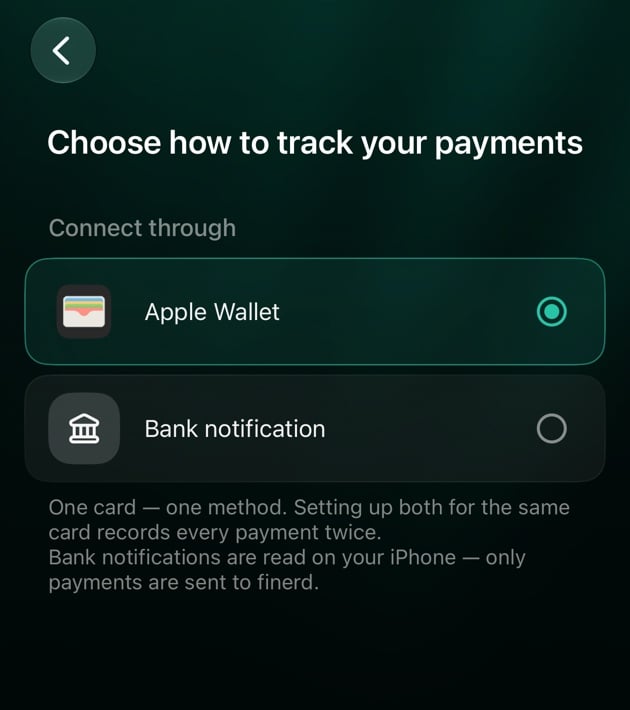
Apple Wallet: every payment with a chosen card in Wallet, made on this iPhone or your Apple Watch. finerd gets the merchant and the amount as Wallet recorded them. Payments made on a Mac or iPad don’t trigger the automation.
Bank notification: every payment notification from a chosen bank app. Use it for cards that aren’t in Apple Wallet. Your iPhone reads the amount from the notification, so what finerd records depends on how your bank words it.
Use one method per card. If you set up both for the same card, every payment is recorded twice.
On Choose how to track your payments, under Connect through, select Apple Wallet or Bank notification.
Tap Continue. finerd opens How to set up with the steps below.
Pick what triggers the shortcut.
You choose the finerd account inside the shortcut, a few steps later. If finerd proposed Apple Pay card, it creates that account when you tap Install shortcut. To name it yourself, tap the row before you continue.
Set this up before? If your old finerd · Apple Pay or finerd · Bank Notification shortcut says This action is outdated, delete it first. If an old and a new shortcut both stay on, every payment is recorded twice.
Apple Wallet
Bank notification
1
Add the shortcut
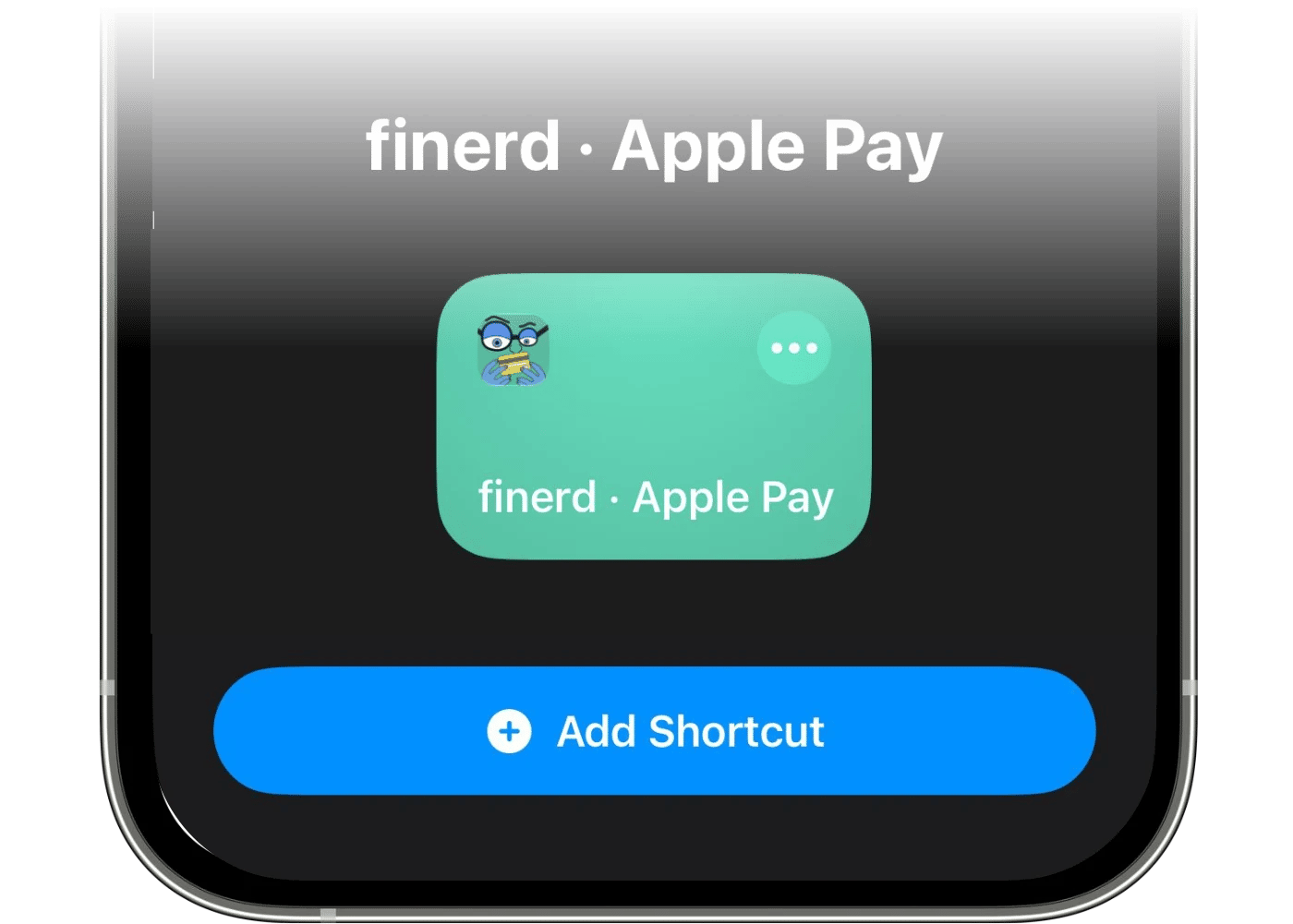
Tap Install shortcut at the bottom of the guide. Shortcuts opens with finerd · Apple Pay. Tap Add Shortcut.
2
Turn Automation on
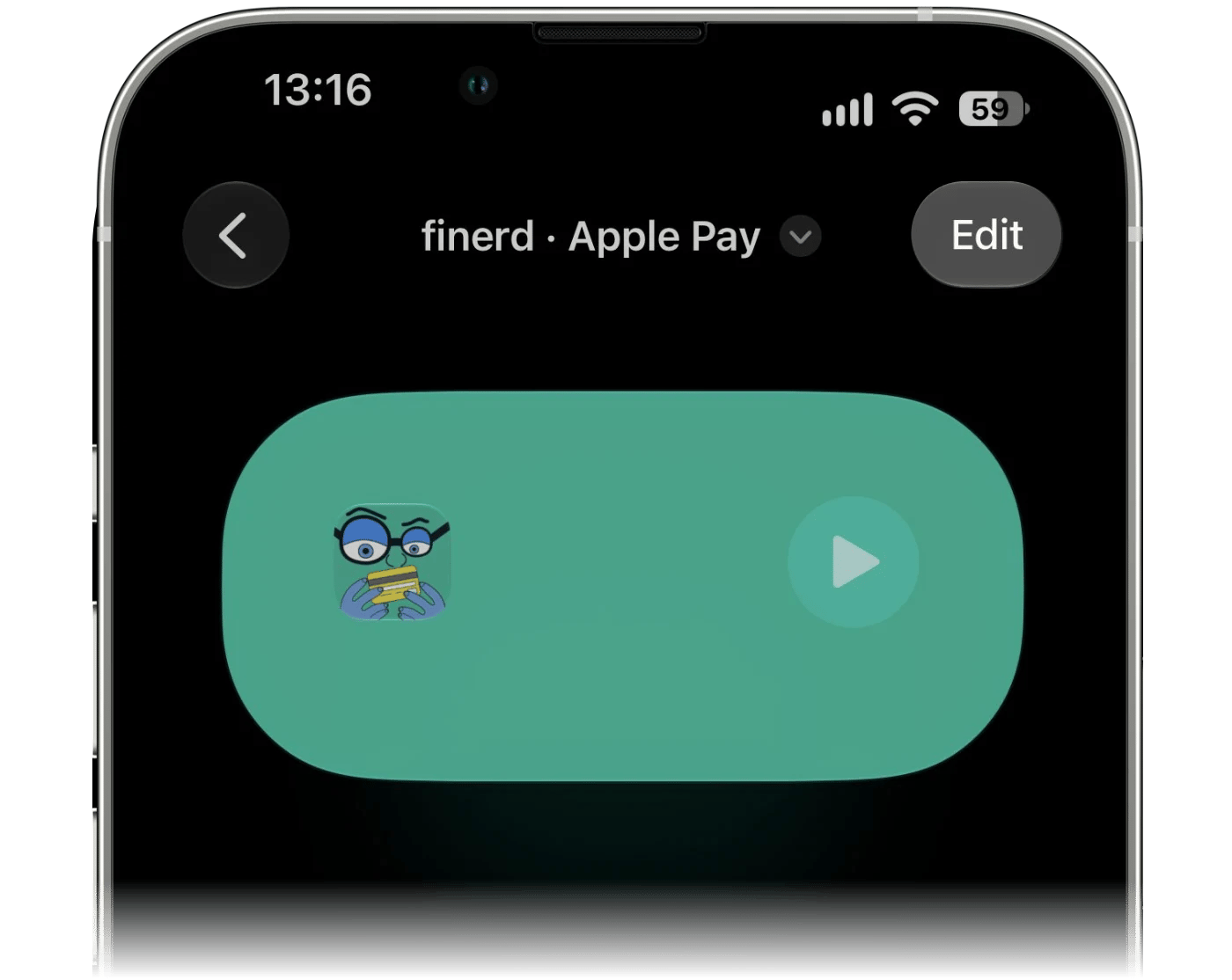
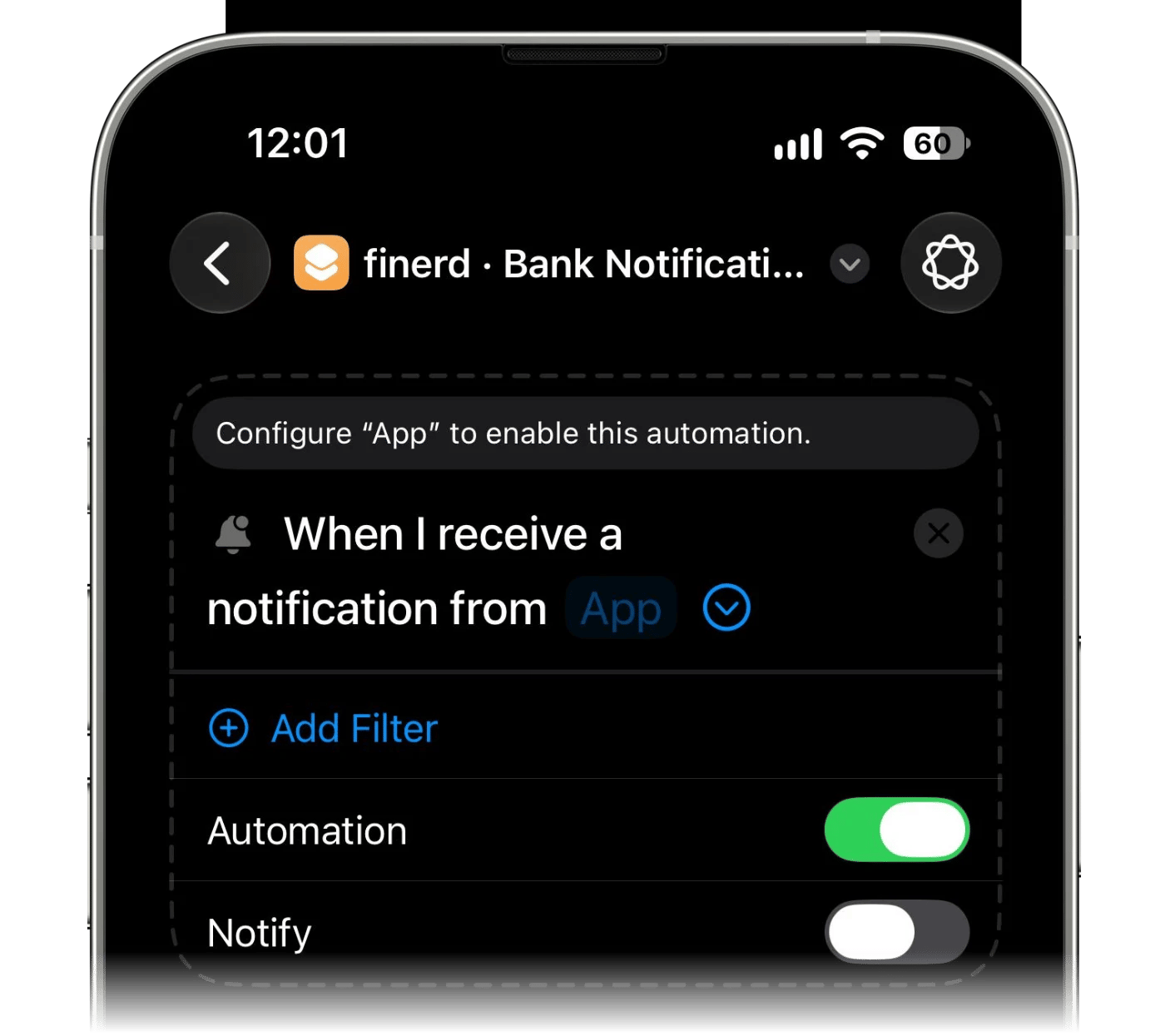
Open the shortcut you just added. If it opens as a summary card, tap Edit first.
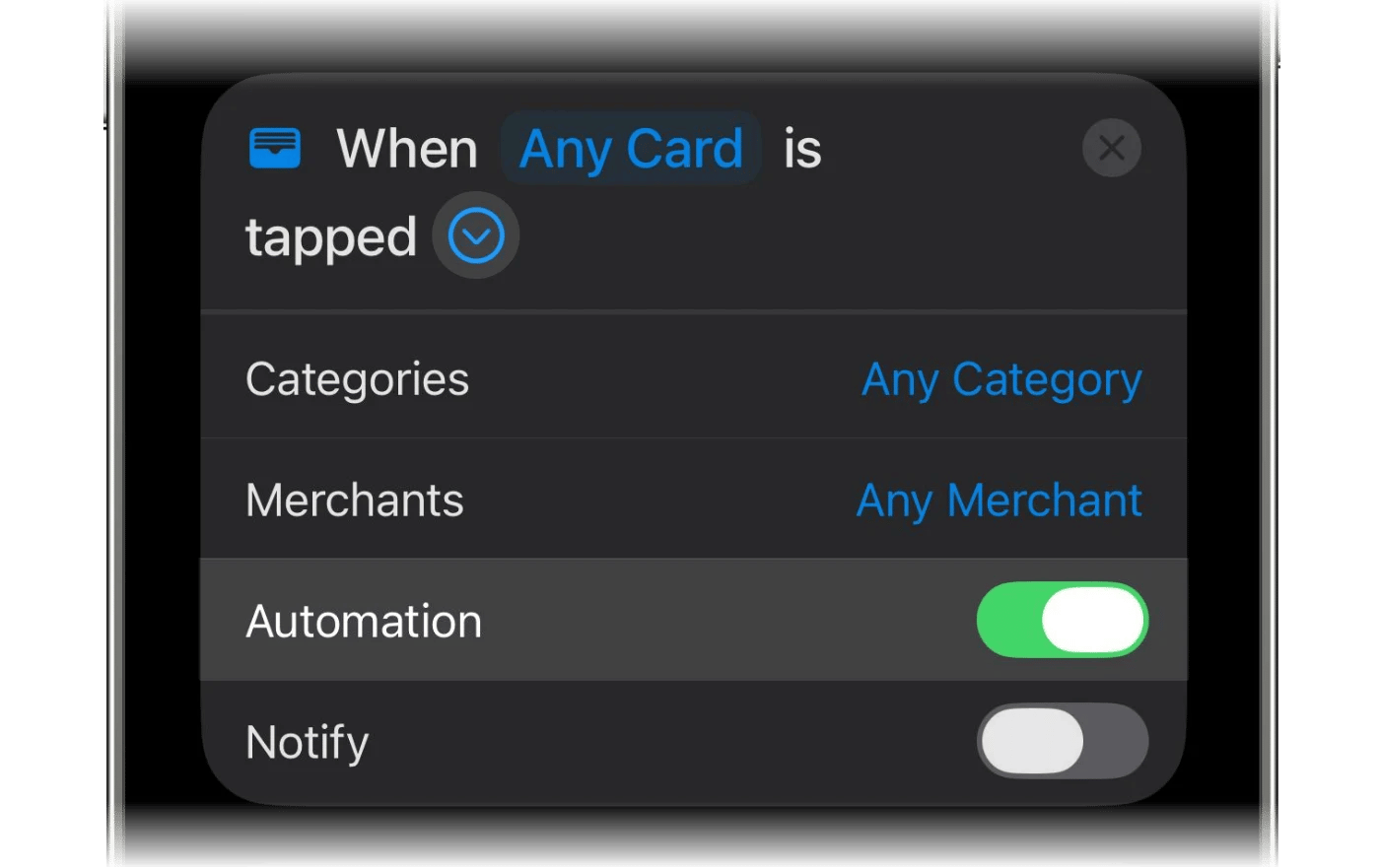
Expand the trigger card with › and switch Automation on. Leave Notify off, so you don’t get a banner on every payment.
3
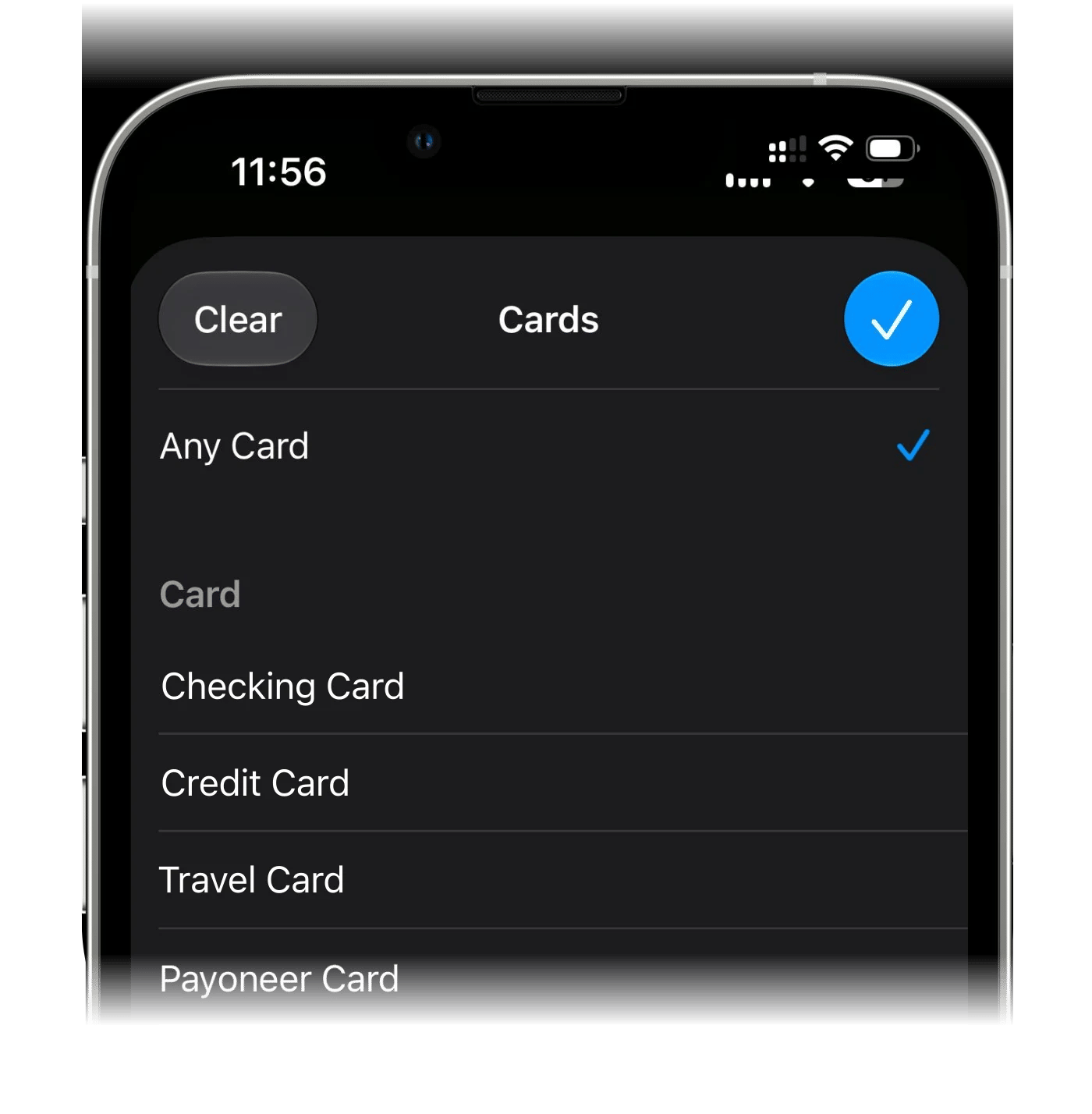
Choose the card
Tap Any Card and choose the card you pay with.
4
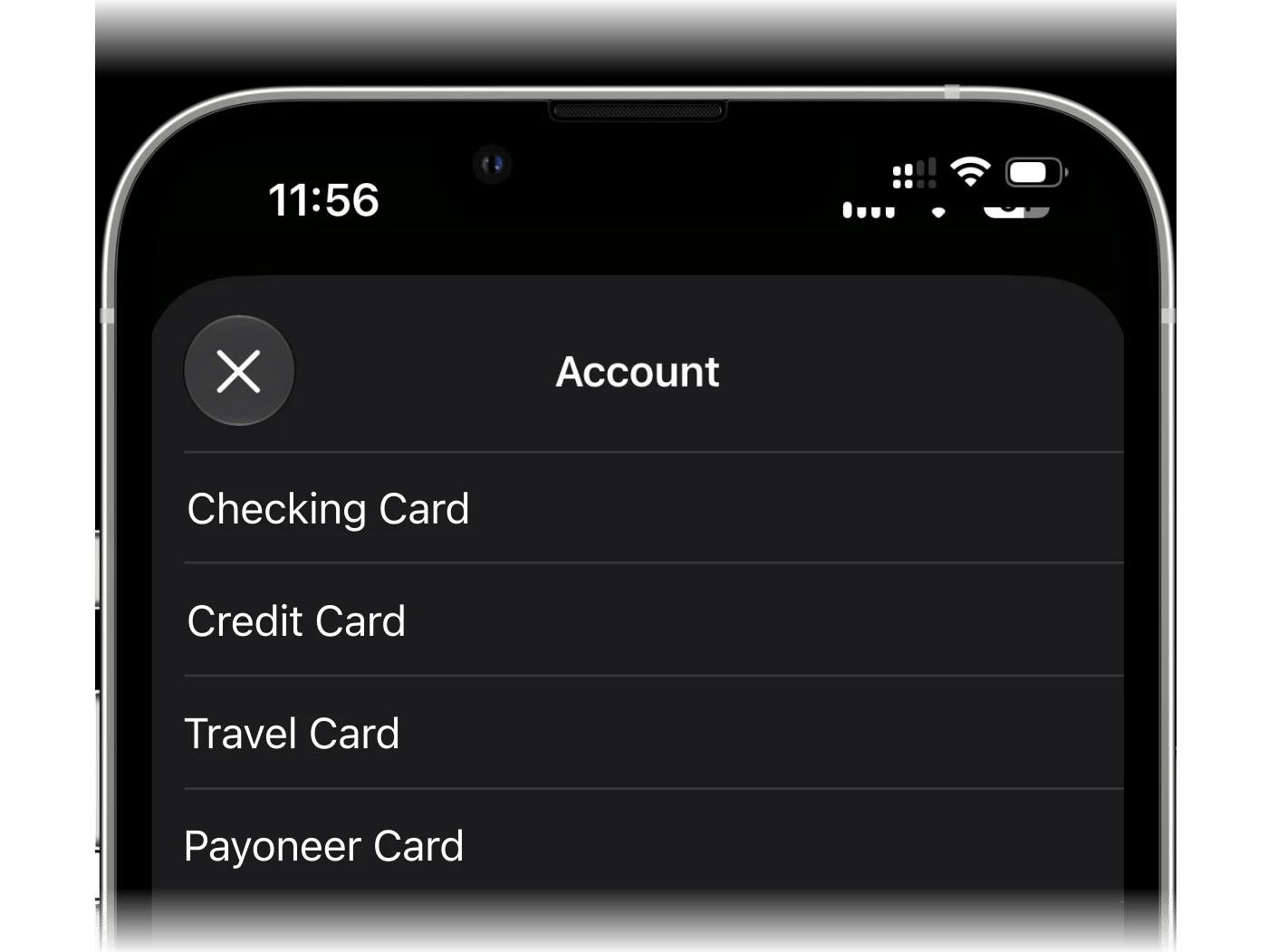
Choose the finerd account
In the finerd action, open Account and pick the account for these payments. The list shows the bank accounts of the space that’s open in finerd. If the account you want isn’t there, create it in finerd, then come back and pick it.
5
Repeat for other cards
The automation is ready. To track another card, run the setup again, so each card has its own shortcut and account.
1
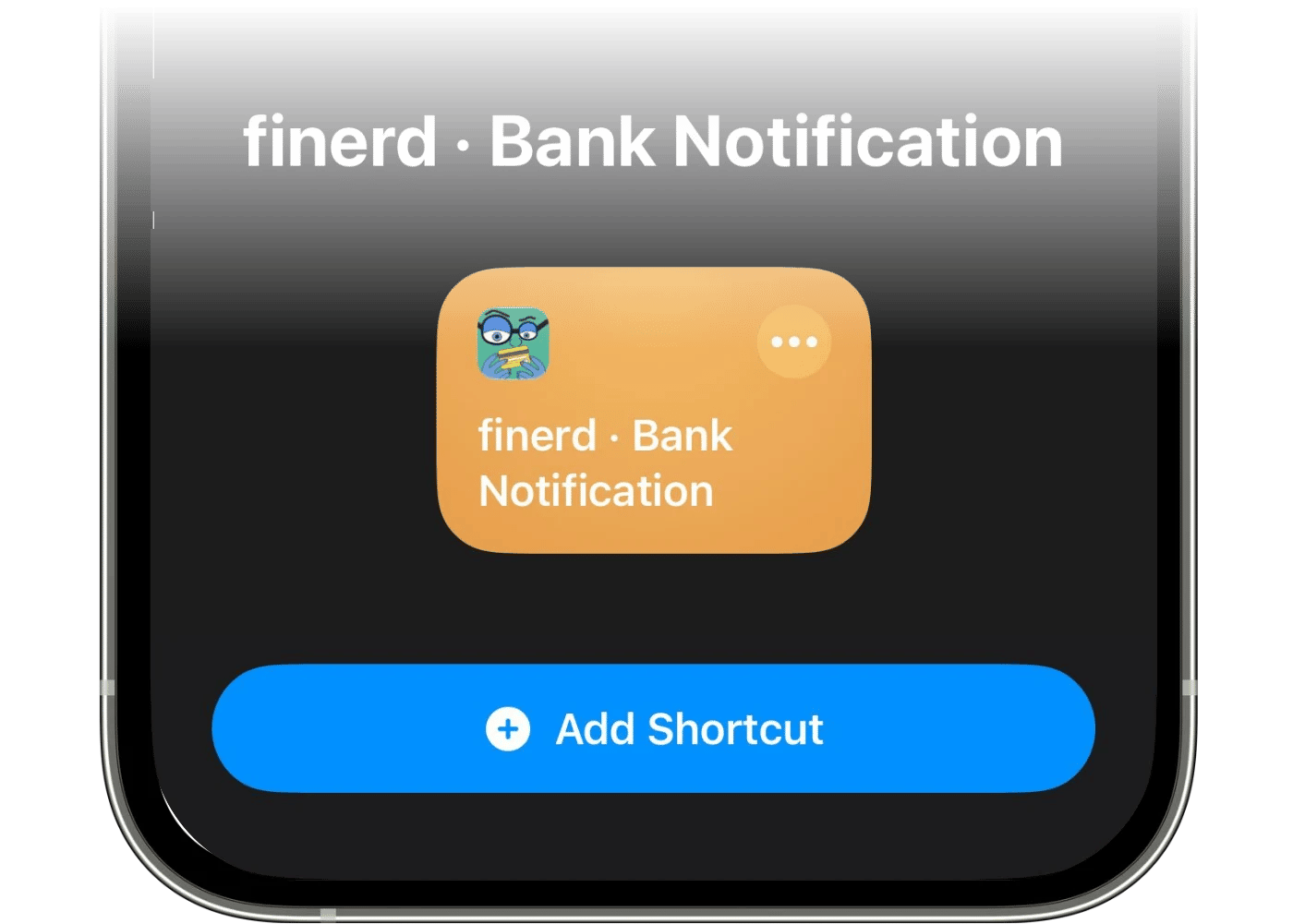
Add the shortcut
Tap Install shortcut at the bottom of the guide. Shortcuts opens with finerd · Bank Notification. Tap Add Shortcut.
2
Turn Automation on
Open the shortcut you just added. If it opens as a summary card, tap Edit first.
Expand the trigger card with › and switch Automation on. Leave Notify off, so you don’t get a banner on every payment.
3
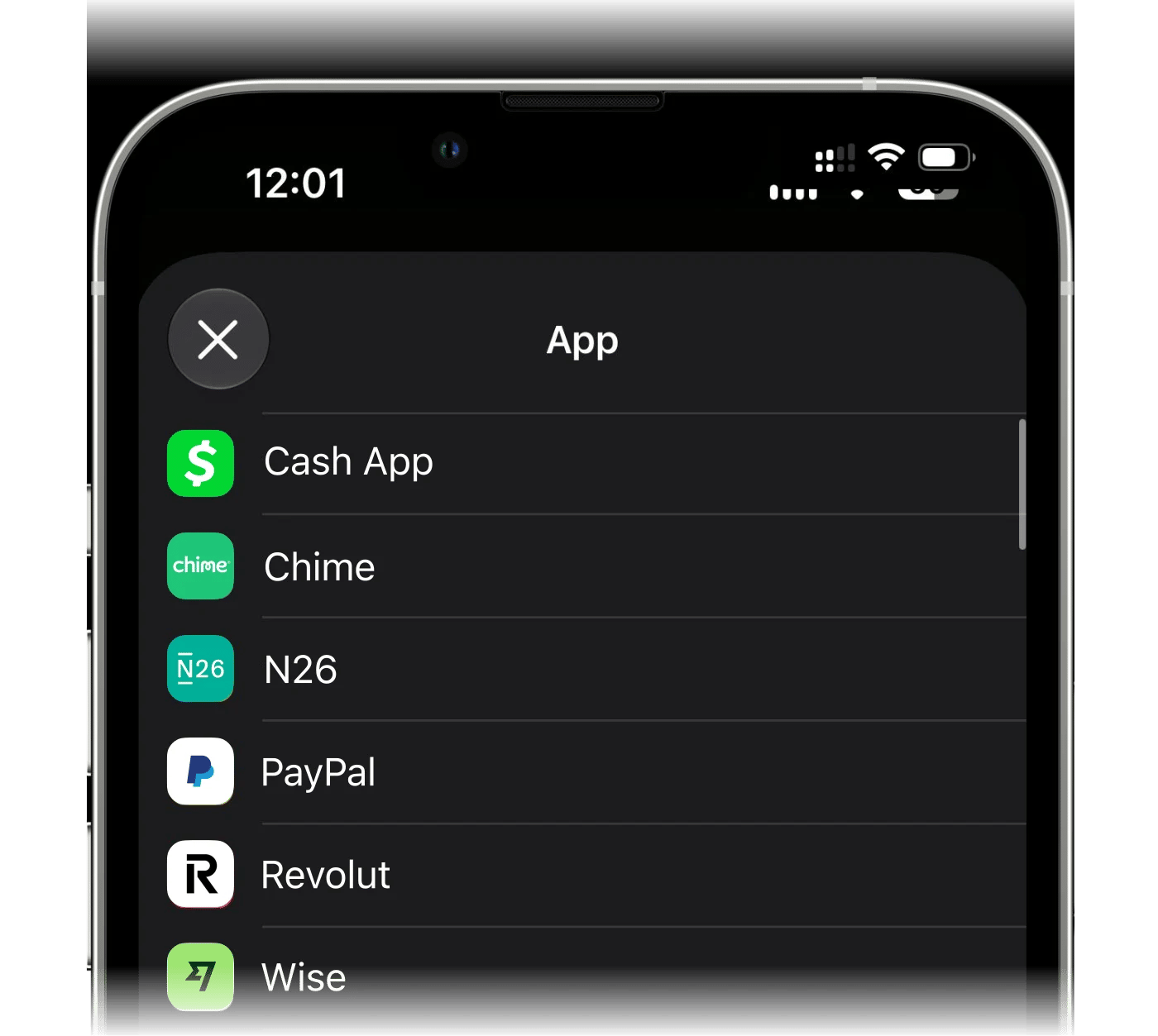
Choose the bank app
Tap App and choose the bank app whose payment notifications you want recorded.
4
Choose the finerd account
In the finerd action, open Account and pick the account for these payments. The list shows the bank accounts of the space that’s open in finerd. If the account you want isn’t there, create it in finerd, then come back and pick it.
5
Repeat for other bank apps
The automation is ready: the next payment notification from that app becomes a transaction. To track another bank app, run the setup again.
Notifications are read on your iPhone. The shortcut looks for an amount with its currency in each notification from the app you chose. Notifications without one, such as one-time codes, stay on your phone. When Apple Intelligence is on and supports the notification’s language, your iPhone also skips notifications that aren’t payments, such as balance updates and offers, and tells money coming in from money going out. Otherwise the first amount with a currency is sent, whatever the notification is about, and it’s recorded as income only if it has a plus sign, so check refunds and incoming transfers. finerd receives the amount, its currency and the notification text, which it uses to find the merchant.
You build the automation yourself in Shortcuts and paste in three things finerd gives you: a template, a subject and your forwarding address. Each payment is then sent to finerd as an email.
On Choose the account where your payments will be recorded, tap Select or create account and pick the account, or create a new bank account in the list. If your space has no bank accounts, finerd proposes Apple Pay card and creates it when you tap Continue.
Below, under Send payments to this address, finerd shows your space’s forwarding address. finerd creates it if your space doesn’t have one yet.
Tap Continue. finerd opens How to set up, with Copy template, Copy subject and Copy email beside the steps that need them. Open Shortcuts at the bottom copies the address and opens Shortcuts.
Keep the finerd guide open while you work in Shortcuts. The template holds the id of the account you picked, and the address belongs to your space, so copy both from the app.
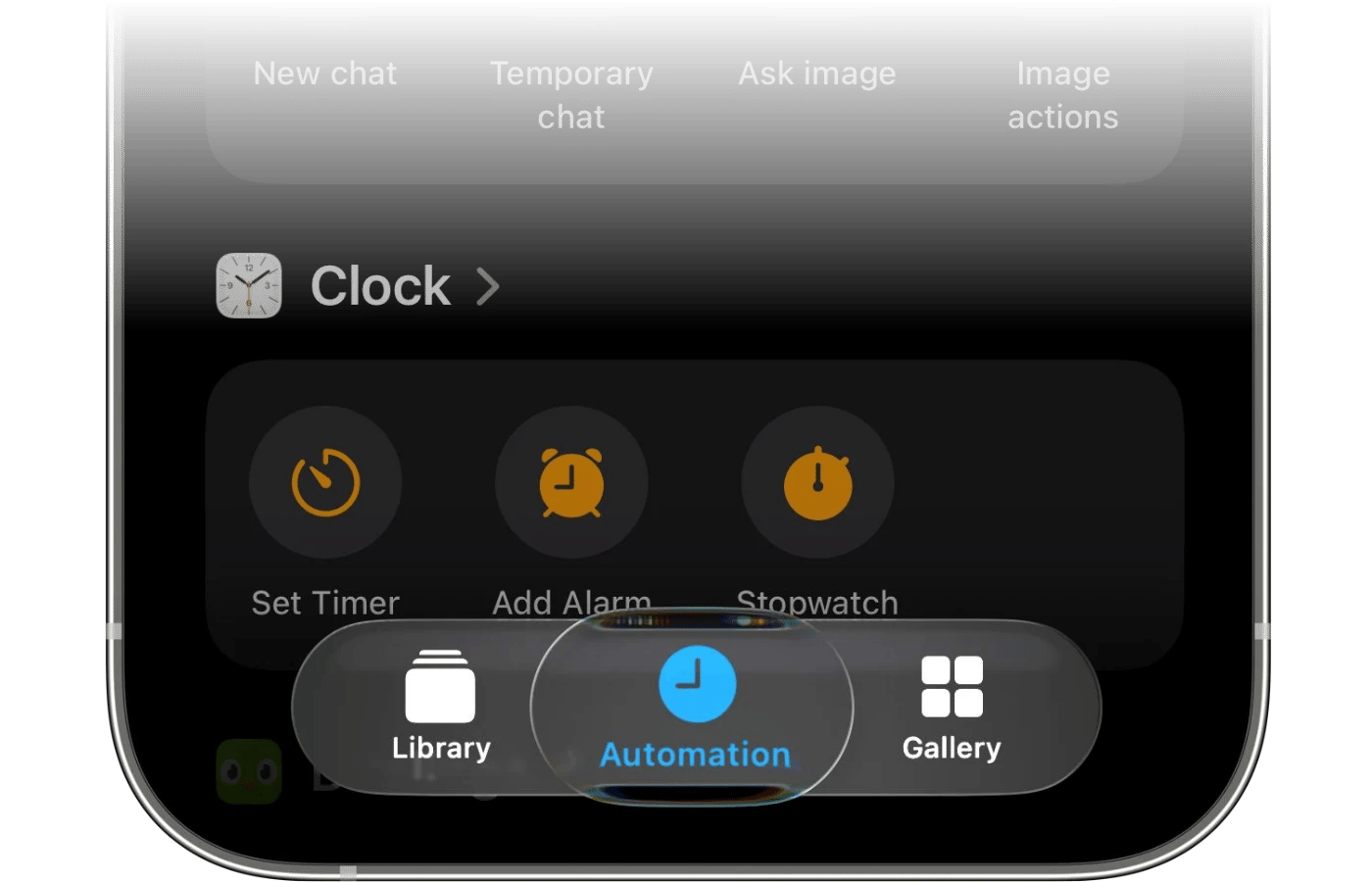
Open the Shortcuts app, switch to the Automation tab and tap New Automation.
2
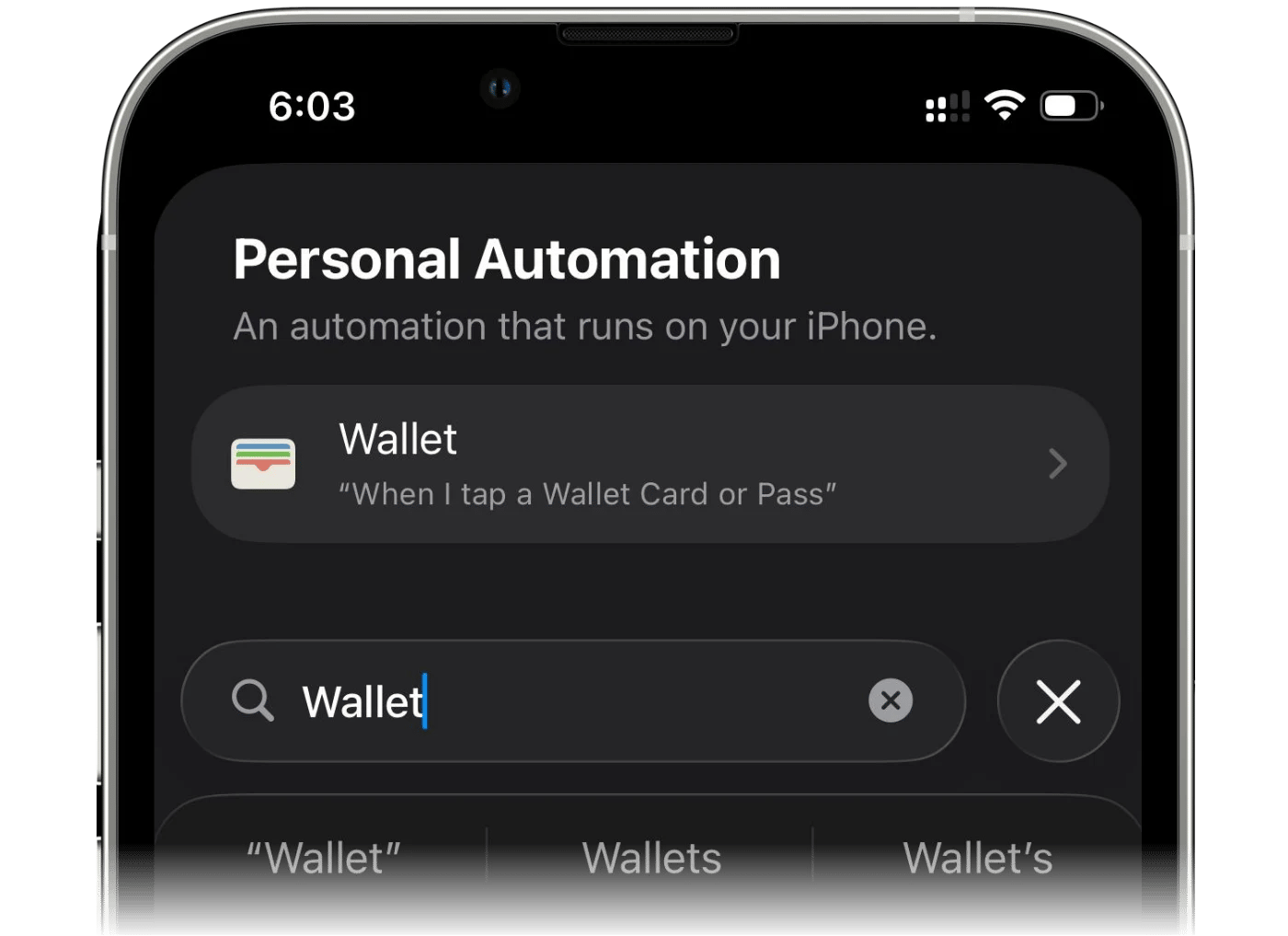
Search for Wallet
Search for the Wallet app and pick it as the trigger.
3
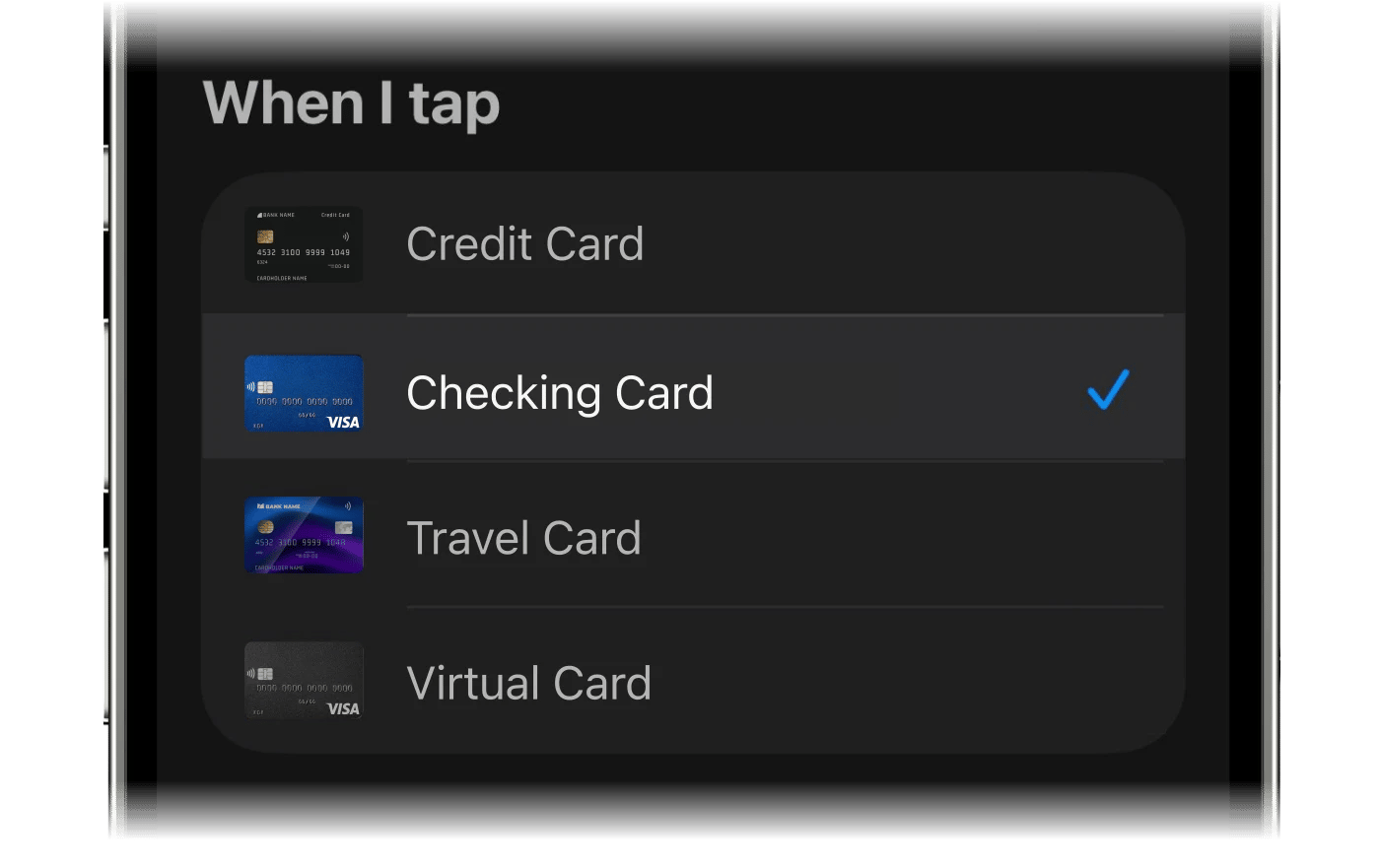
Select your card
Select the card that matches the account you picked in finerd. For more cards, run the whole setup again for each one.
4
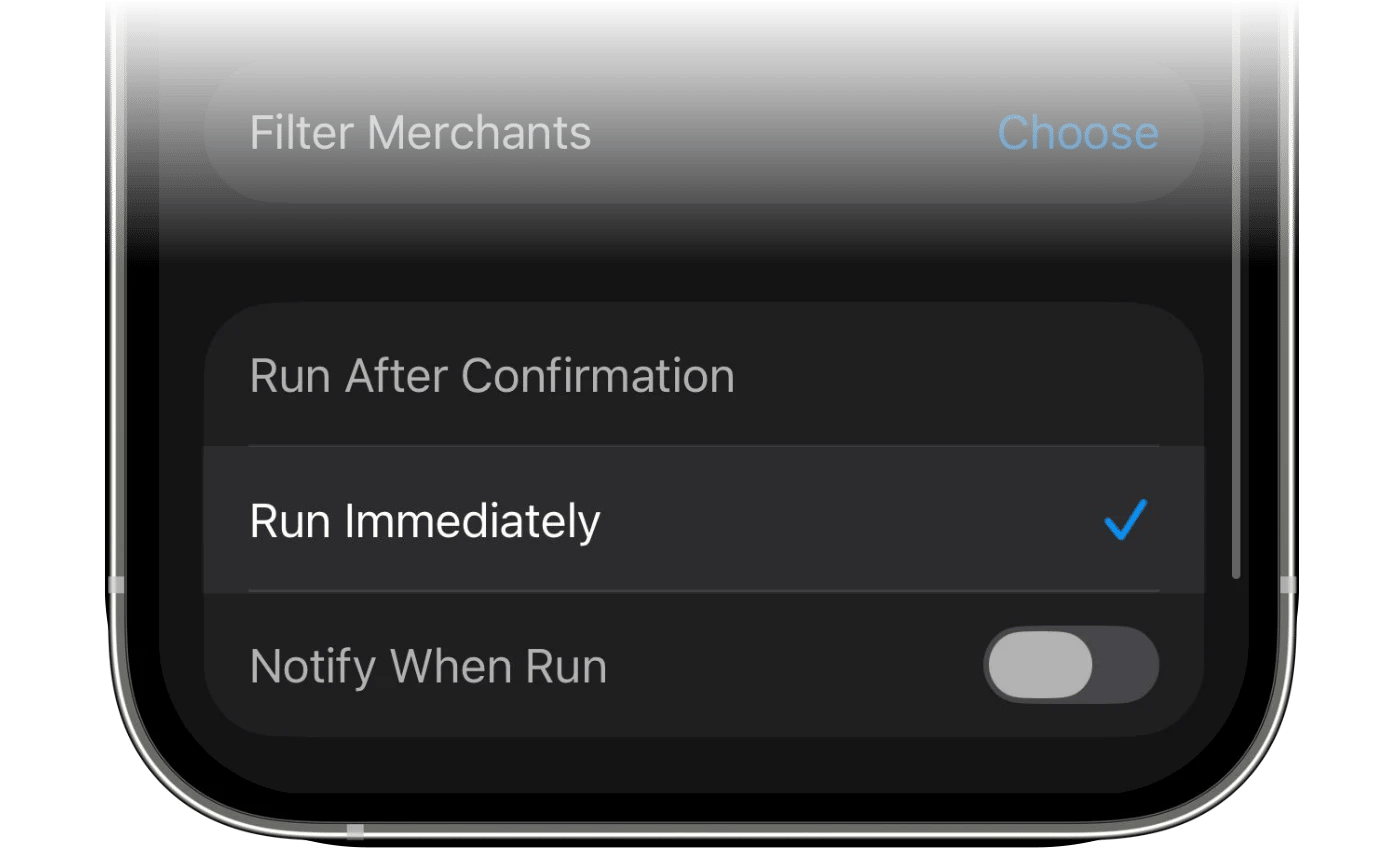
Run Immediately
Scroll down and select Run Immediately, so the automation runs without asking you first.
5
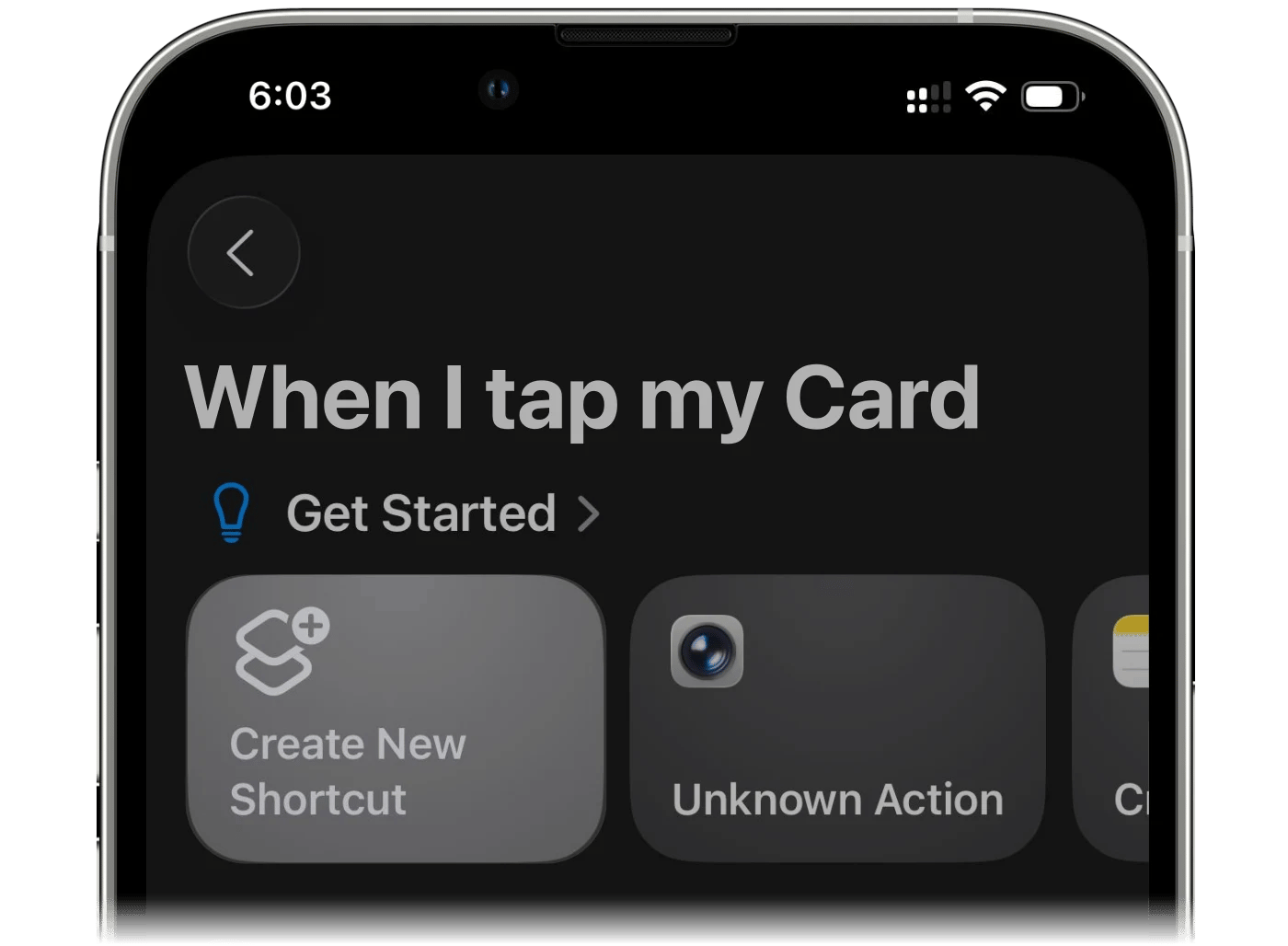
Create a new shortcut
Tap Create New Shortcut.
6
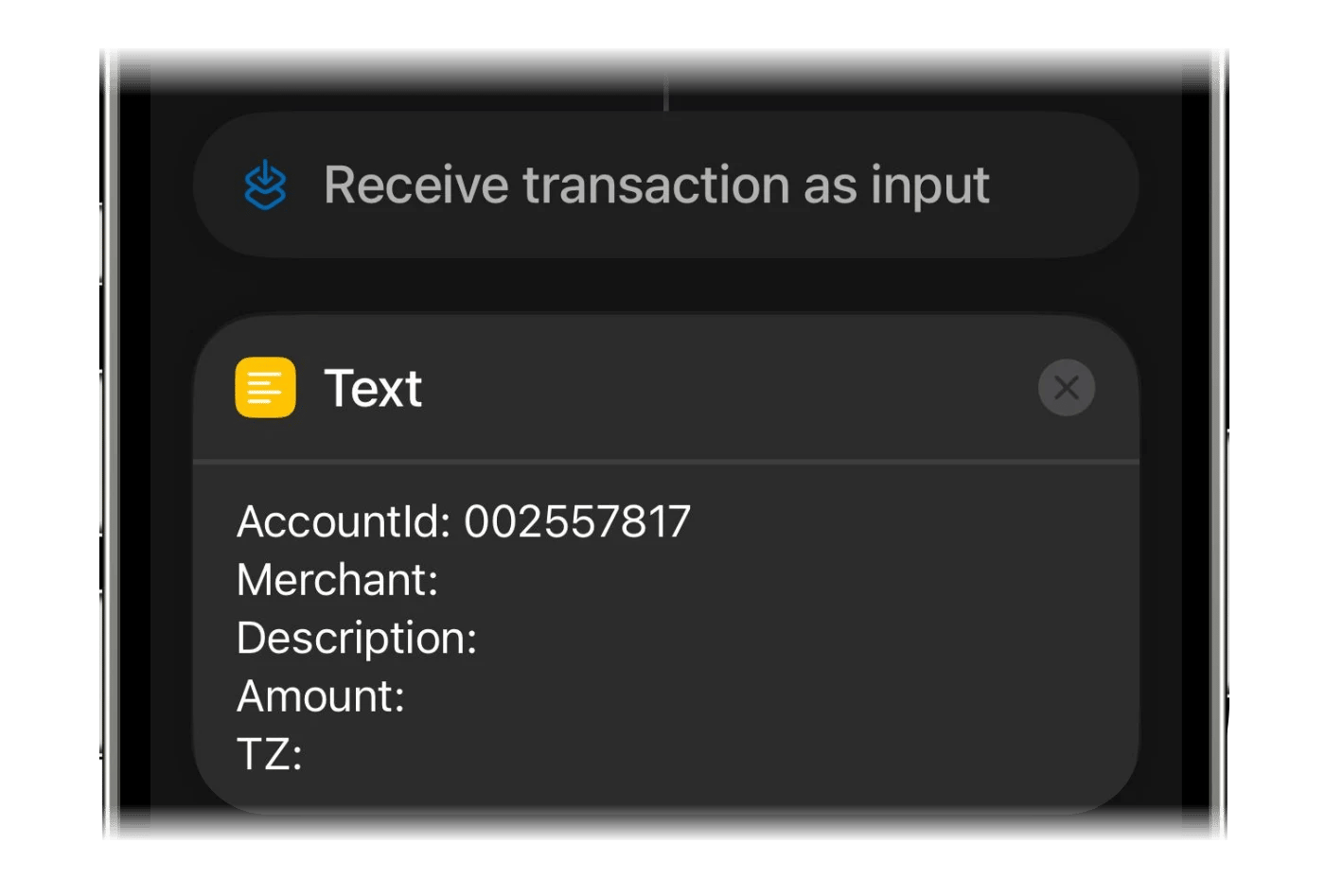
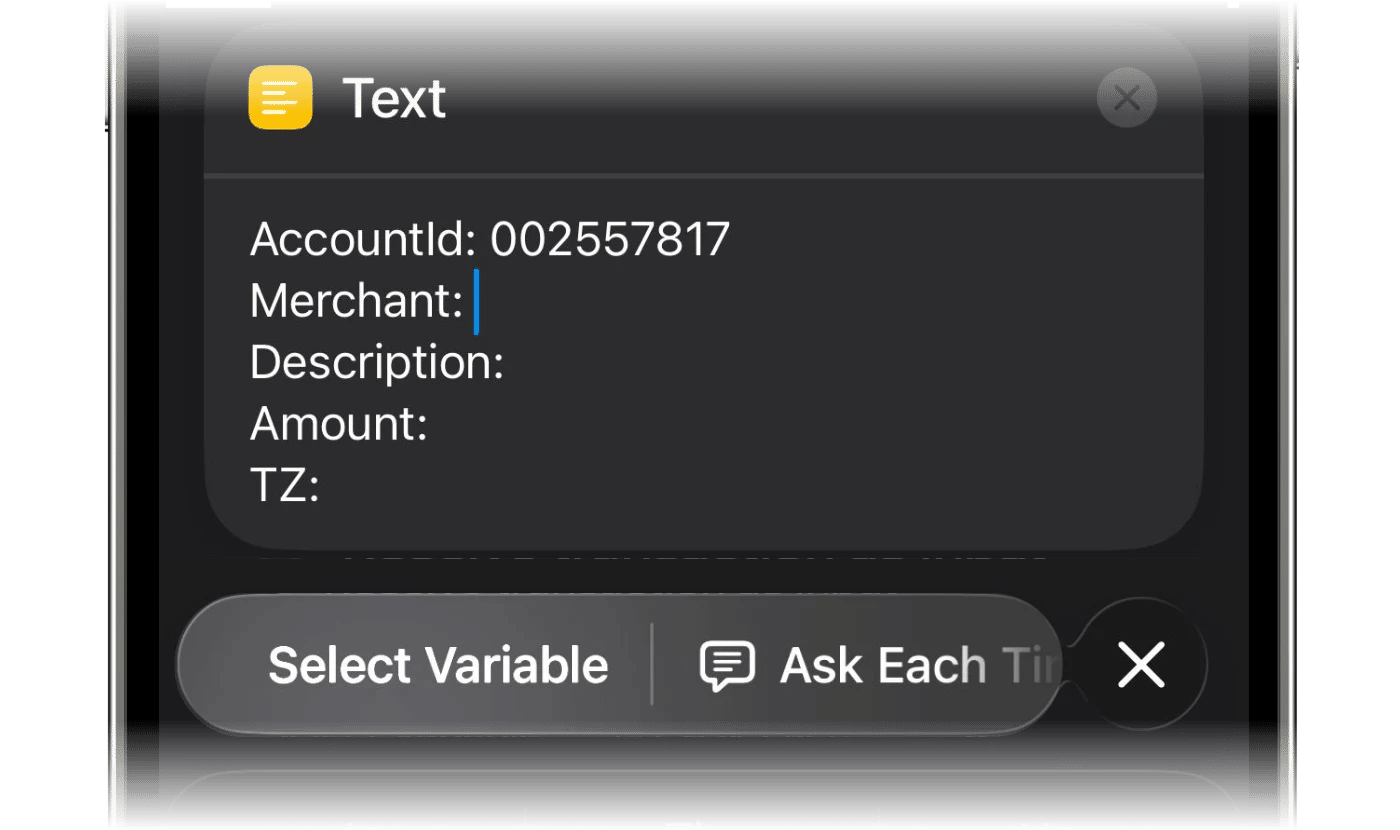
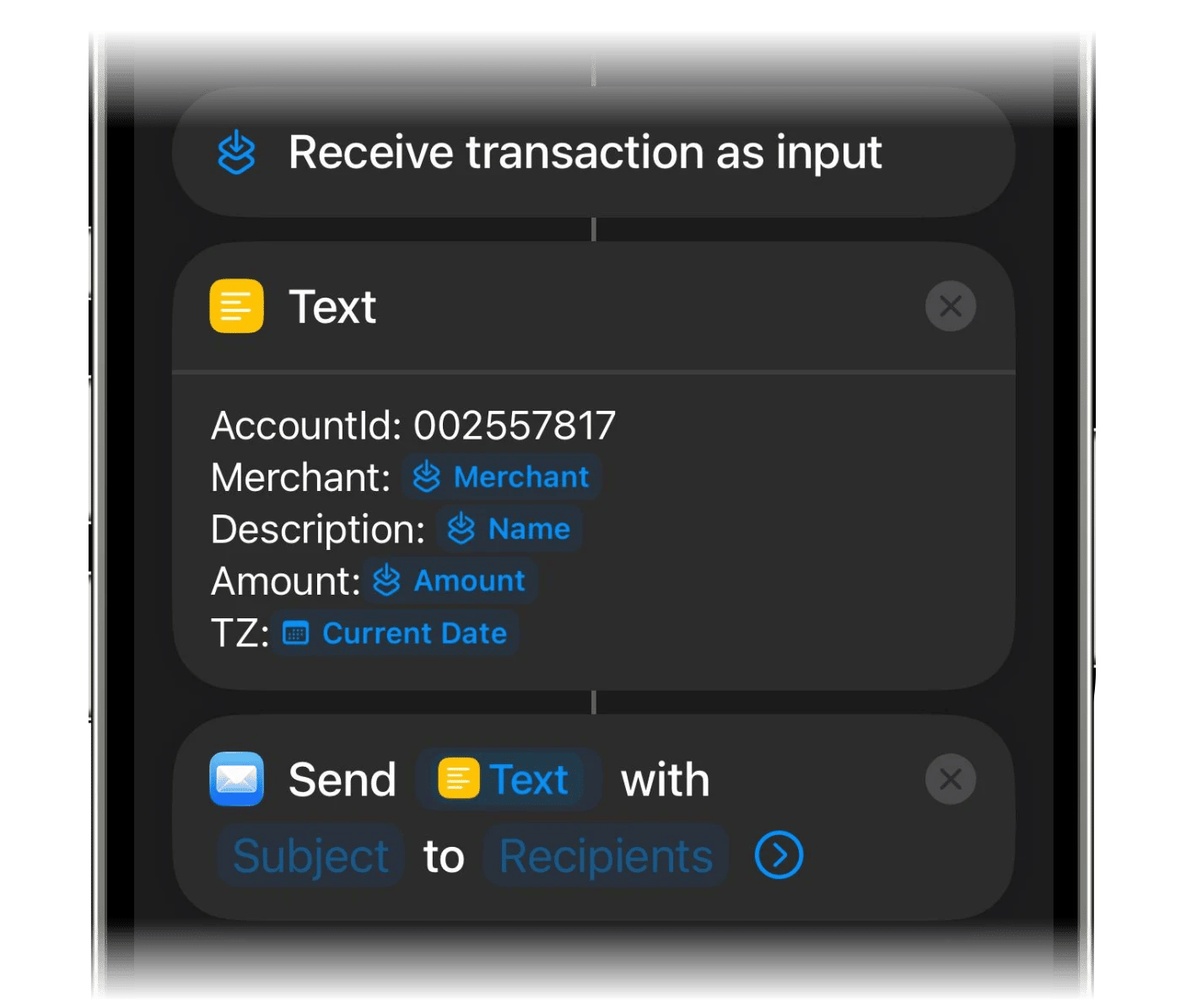
Add the Text action and paste the template
Add the Text action. Tap Copy template in finerd, then paste it into the text field.
7
Insert the payment variables
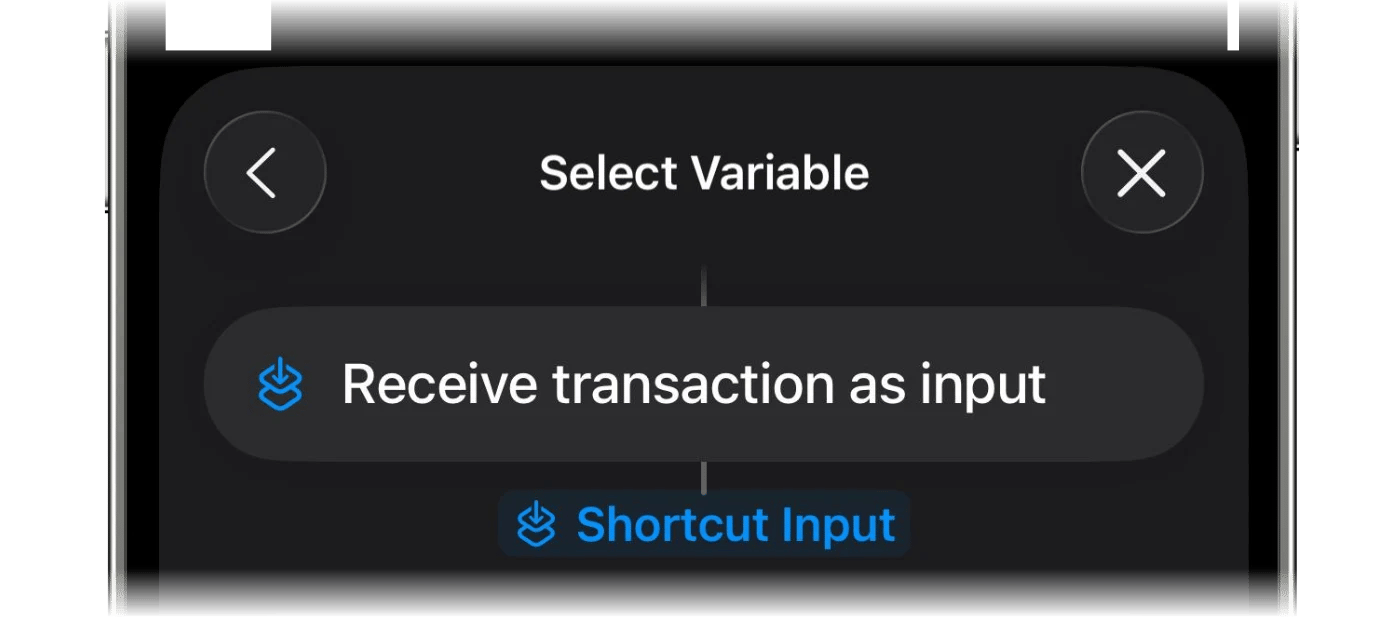
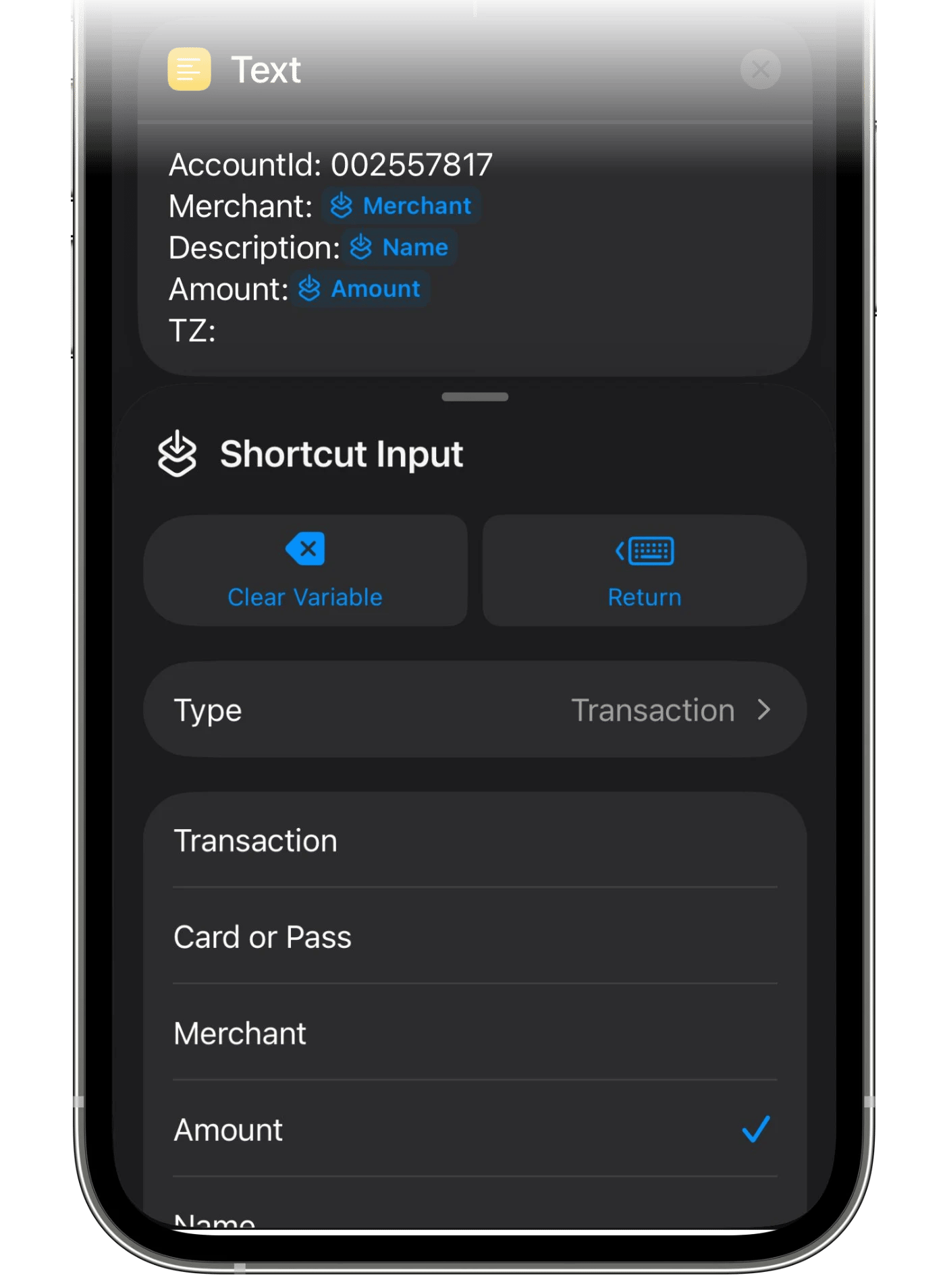
Place the cursor after Merchant: and tap Select Variable, then choose Shortcut Input. Repeat for Description: and Amount:.
8
Give each variable the right type
Tap each variable you inserted and pick the property it should carry: Merchant for Merchant, Name for Description and Amount for Amount.
9
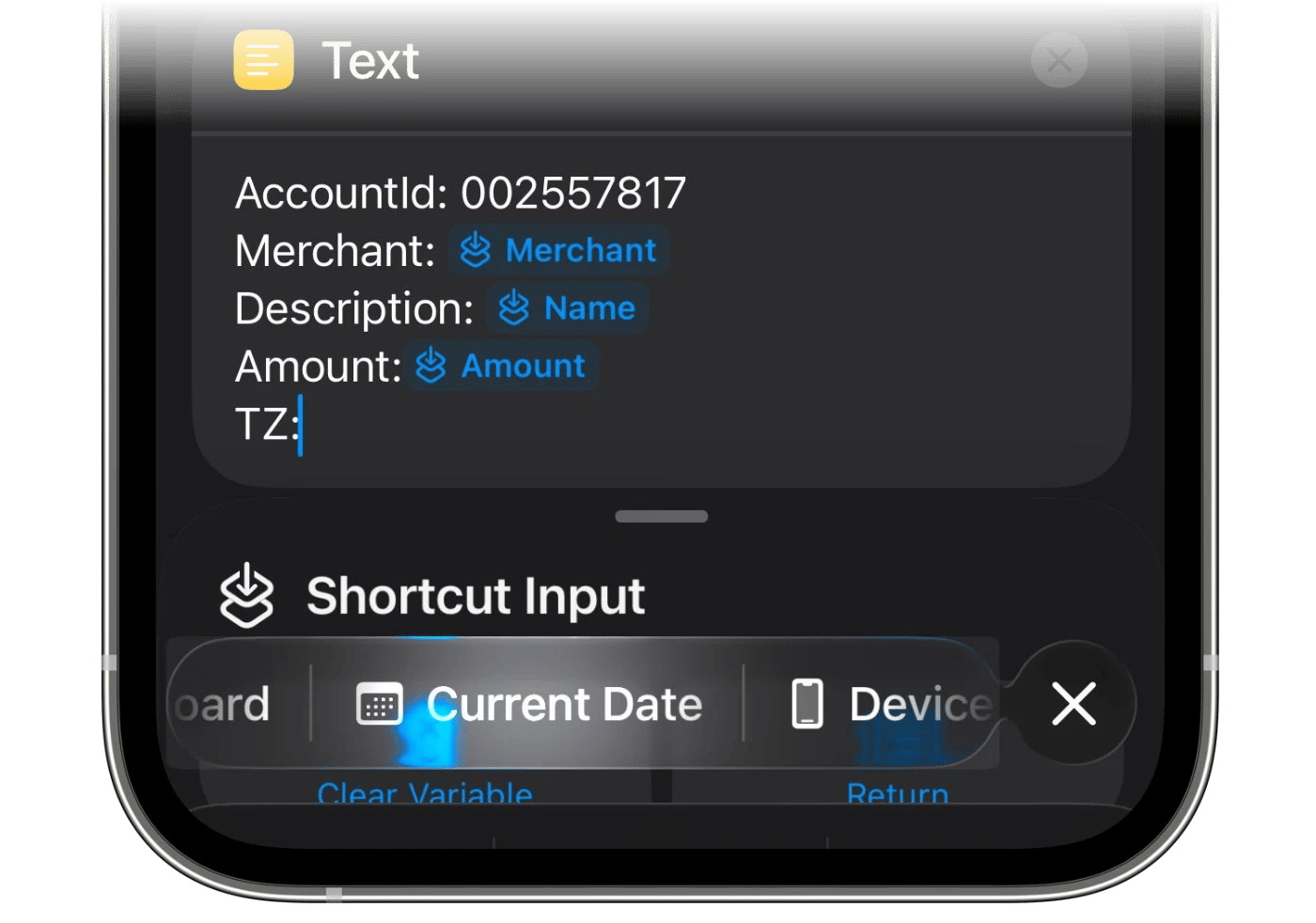
Add the date for TZ
For the TZ parameter, choose Current Date.
10
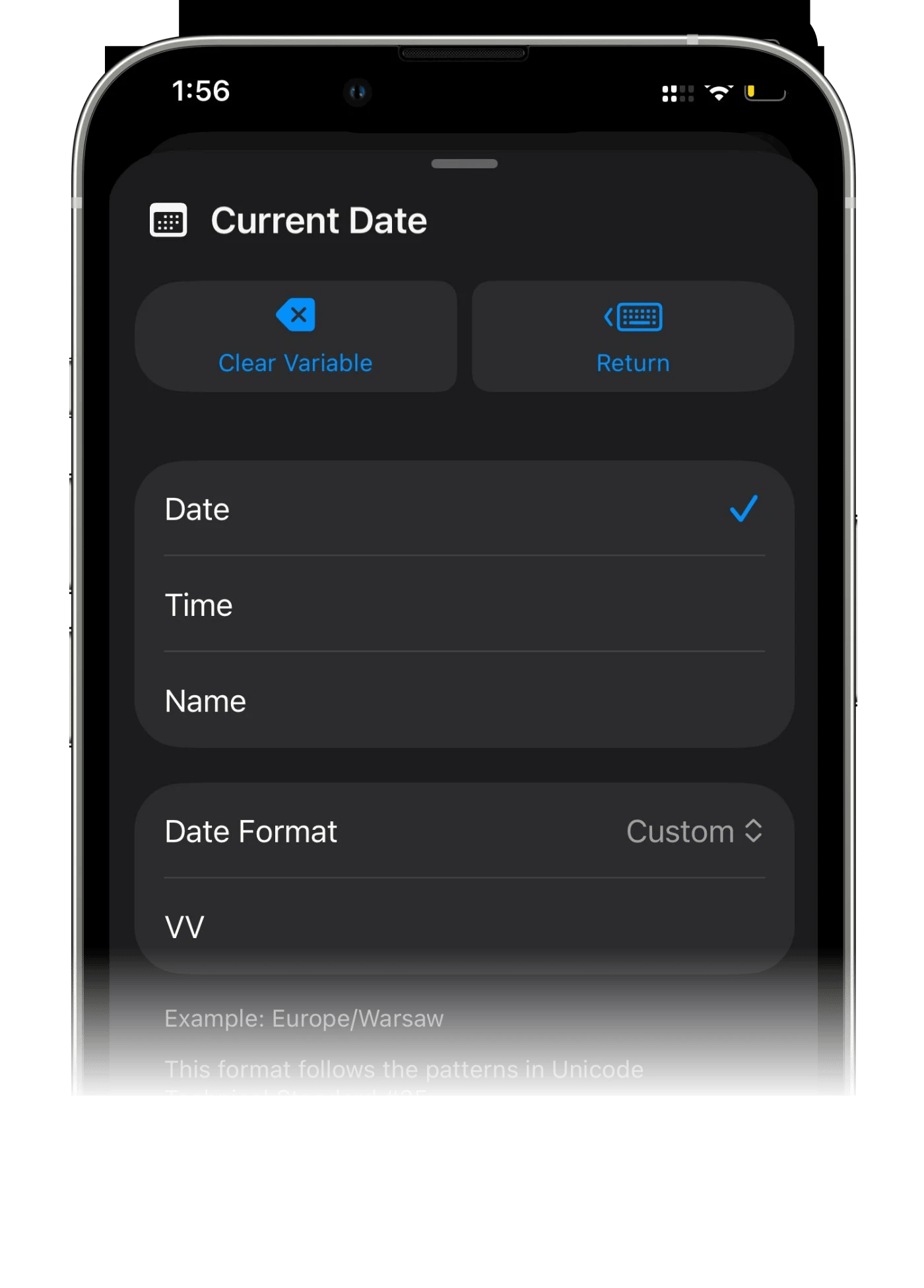
Set the date format to VV
Tap the date you just added, set Date Format to Custom, and replace the suggested format with VV: two capital Vs, nothing else. The example under the field turns into a time zone such as Europe/Warsaw.
11
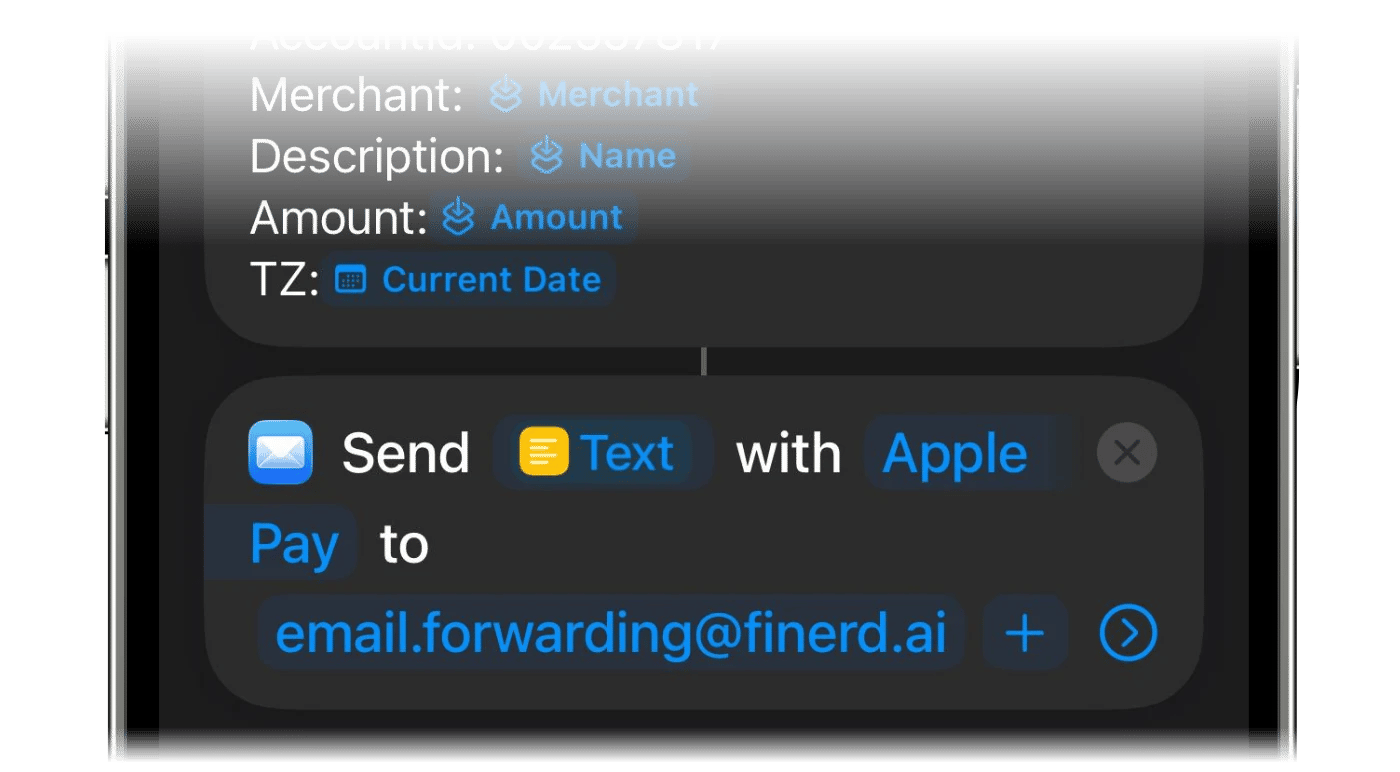
Add the Send Email action
Use Search Actions to find and add the Send Email action.
12
Set the subject
Paste the subject into the Subject field. It’s the same for everyone, and finerd uses it to recognize the email:
finerd-automation / add-transaction
Copy subject in finerd copies it for you.
13
Set the recipient
Tap Copy email in finerd and paste your forwarding address into the To field.
14
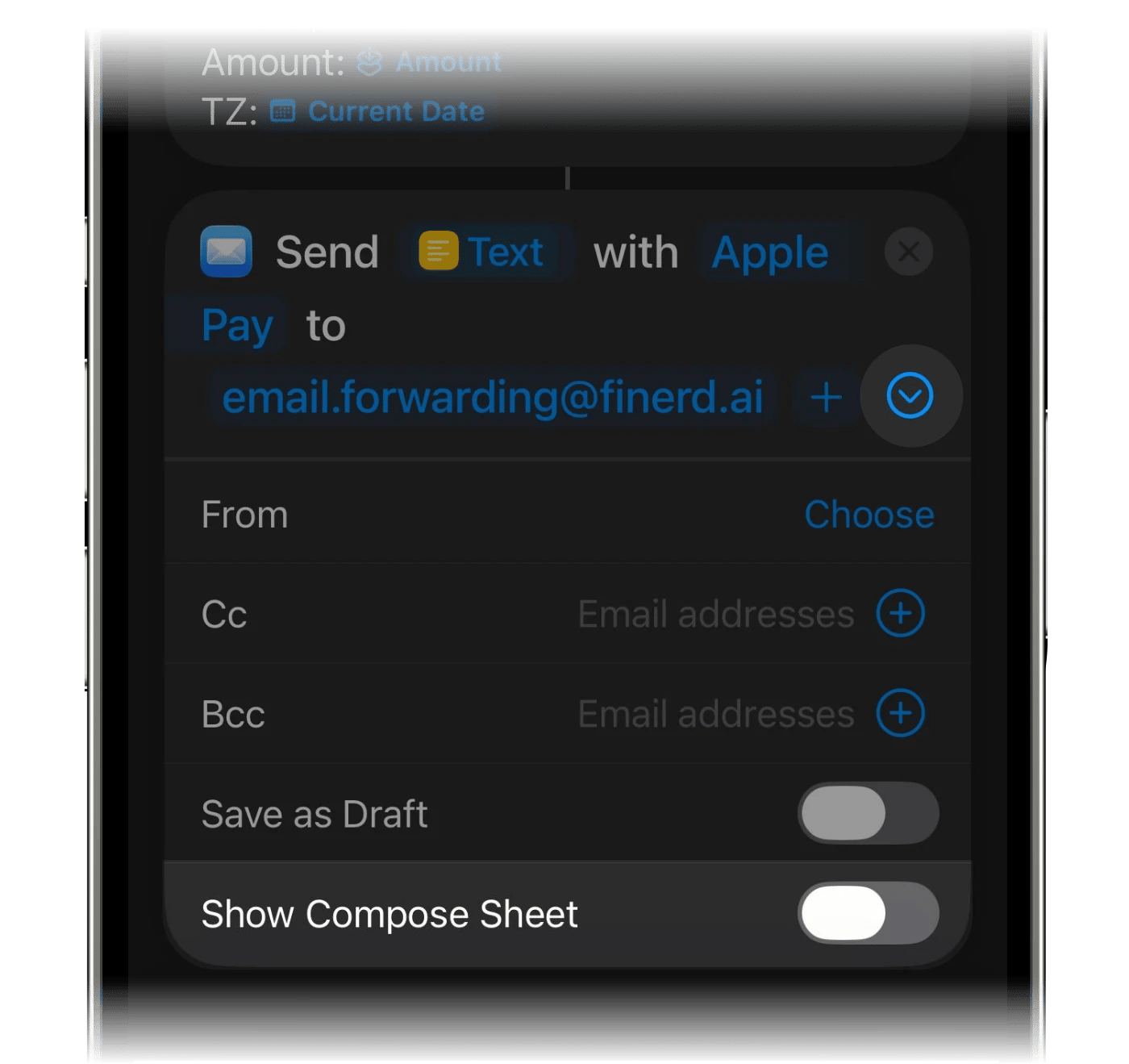
Switch Show Compose Sheet off
Scroll down in the Send Email action and turn Show Compose Sheet off. With it on, Mail opens a draft and waits for you to tap Send, so the payment never reaches finerd.
15
Save the automation
Save the automation. Your next Apple Pay payment with that card is sent to finerd.
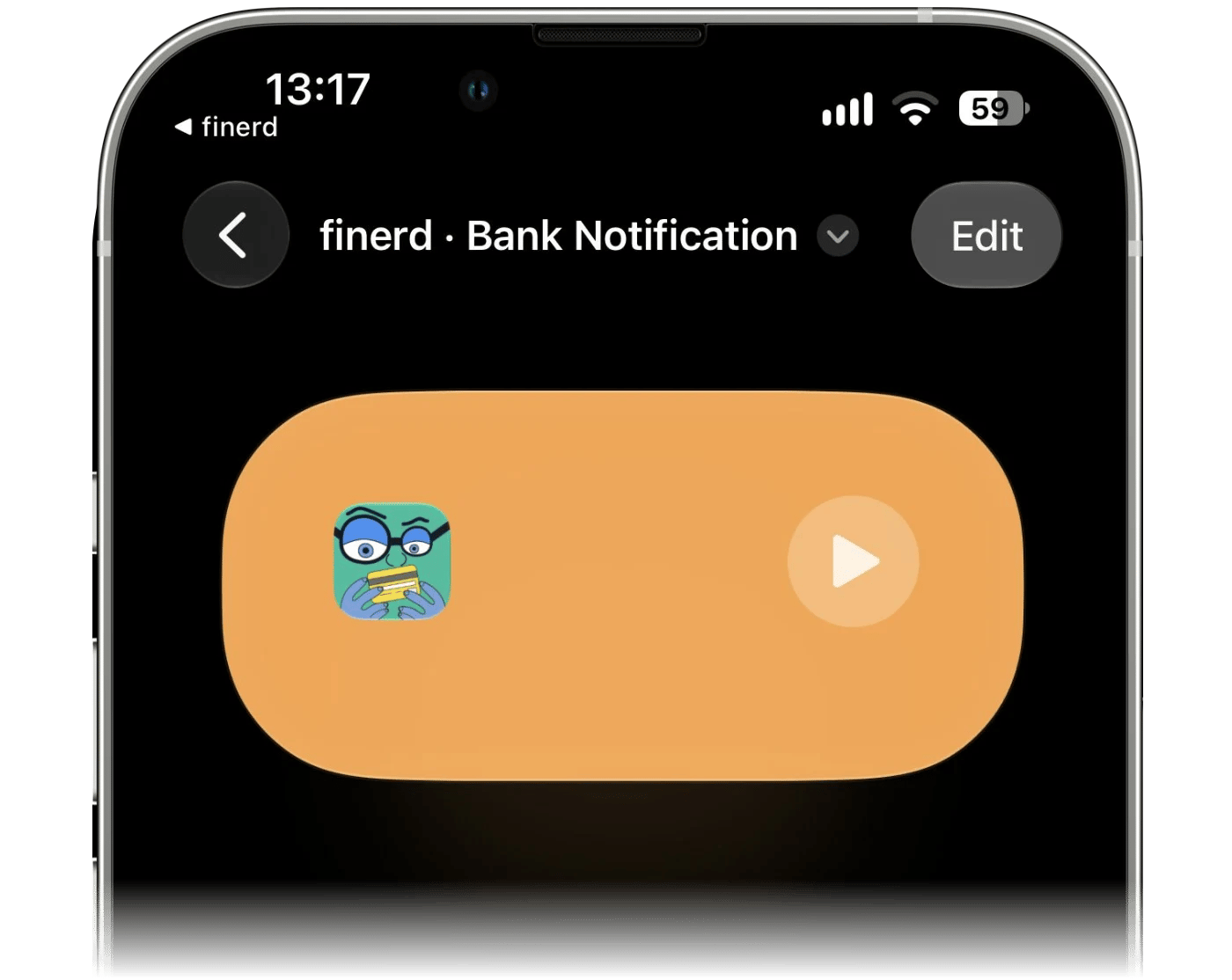
Make a real payment with the card you chose. Tapping the play button on the shortcut doesn’t test it: there’s no payment to send, so on iOS 27 Shortcuts answers No payment details came in. That’s expected when you run the shortcut by hand.After the payment, the transaction appears in Transactions on the account you chose. finerd fills in the merchant and category the same way it does for transactions from your bank, so check them the first few times and correct them if needed; see Review imported transactions.
Dates. On iOS 27, the transaction is dated when finerd receives the payment; on iOS 26, by the email’s date.
Other currencies. A payment in another currency is recorded in that currency, and the account gets a separate balance in it.
Cards your bank already syncs. You don’t need this for them, unless you want payments sooner. On a connected account, the Apple Pay transaction is Pending until the bank’s own transaction arrives and finerd matches the two.
On iOS 27, when the shortcut can’t send a payment, Shortcuts shows why. The payment isn’t saved for a later try, so add it by hand in finerd.
What you see
What it means and what to do
No transaction and no message
The automation didn’t run. In Shortcuts, check that Automation is on and that you paid with the card or got a notification from the app you chose. On iOS 26, also check that Show Compose Sheet is off and that the email is in Mail’s Sent folder.
Couldn’t add this payment to finerd. Check your connection or add it in the app.
Your iPhone had no connection, or finerd didn’t respond in time. Add this payment by hand; the next ones go through as usual.
finerd couldn’t accept this payment. Add it in the app instead.
finerd refused this payment: for example, the account was archived or deleted, or you can no longer edit this space. Pick another account in the shortcut if needed, and tell us if it keeps happening.
Open finerd and finish the setup first.
You’re signed out of finerd on this iPhone. Open the app and sign in.
Couldn’t find a payment amount and currency in this notification.
Bank notification only. finerd recognizes an amount with a capitalized three-letter currency code, such as 120.50 UAH, or with one of these symbols: $ € £ ₴ ₽ ¥ zł. Amounts written with грн or a lowercase code aren’t recognized; tell us which bank sends them.
Couldn’t tell which amount in this notification is the payment.
Bank notification only. The notification has several amounts. Add this payment by hand.
Every payment is recorded twice
The same card is set up through both Apple Wallet and Bank notification, or an old shortcut is still on. Delete the extra shortcut.
On iOS 26 there are no messages: if an email arrives but finerd can’t read it, no transaction appears. Check the template, the variables and the VV date format against the steps above.Still stuck? Contact support with the date and amount of one payment, and we’ll trace it.