
/logout: the finerd web, Android and iOS apps have no Telegram settings. AI assistants such as Claude or ChatGPT connect differently, through finerd MCP: see Work with your finances through AI.
Connect the bot
-
Open the bot in Telegram.
- Web
- Android
- iOS
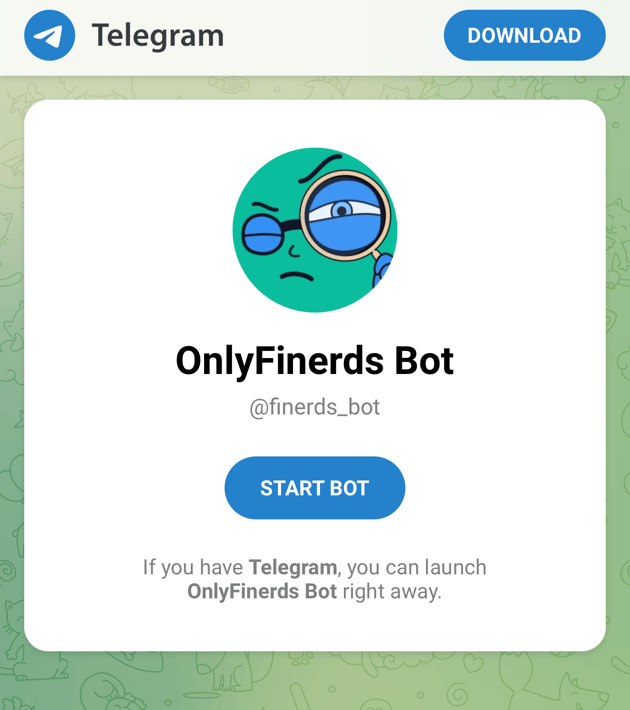
Open t.me/finerds_bot in your browser and open it in Telegram, or search for finerds_bot in Telegram. The bot’s name is OnlyFinerds Bot. - Start the bot. Its first message has hello buttons in nine languages: select yours, or say hi in your own words. The bot then writes in that language.
- When the bot asks which bank you use, select I have an account.
- Select Sign in to Finerd. A finerd page opens in your browser; sign in if finerd asks you to. The bot is linked to the finerd account signed in on that page, so if the browser is signed in to someone else’s account, sign out first.
-
Under Finerd space, choose the space the bot will work in. Under Choose access level, choose Read only or Read & Write (see Choose the space and access). Then select Allow and continue.
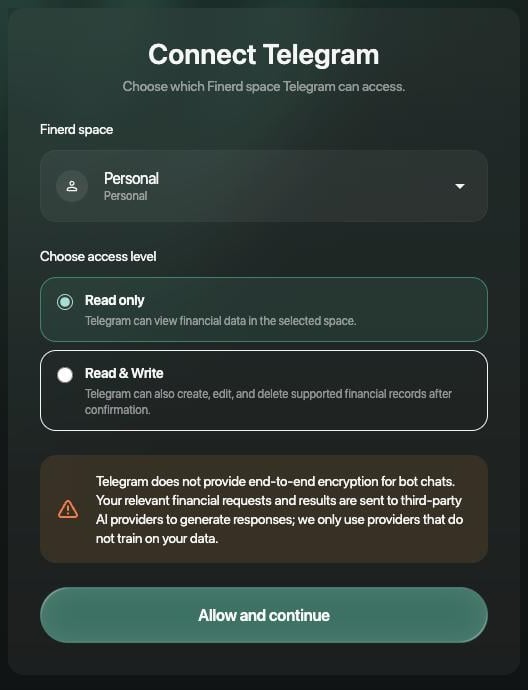
Choose the space and the access, then select Allow and continue.
- The page shows Consent recorded. Select Return to Telegram. The bot gets access only after you return: it confirms with “Done ✅” and a few examples of what to write.
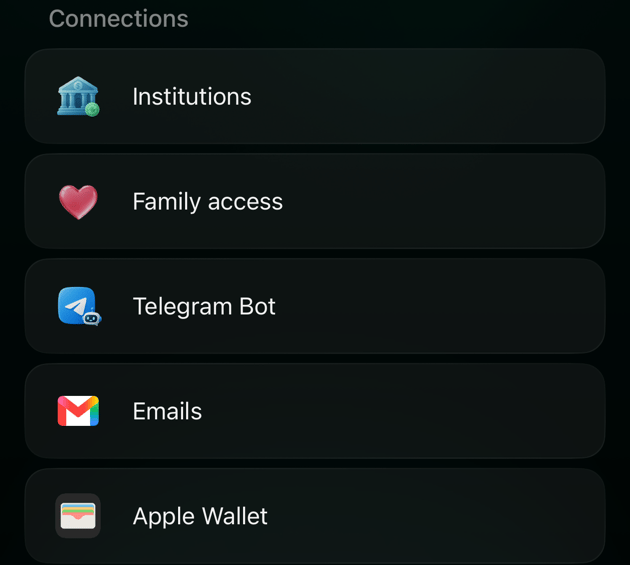
Choose the space and access
The bot works in one space: the one you choose on the finerd page. Finerd space lists your Personal space and your business spaces, with the space currently open in finerd selected; the demo space isn’t offered. Everything you record in the chat, every answer and every notification belongs to that space.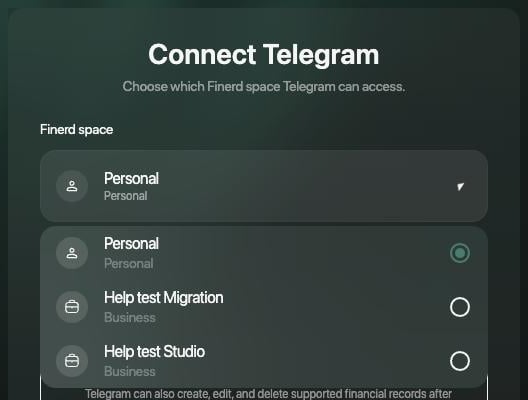
Finerd space lists your Personal and business spaces.
With either access, the bot can’t delete a transaction or change how much was paid: do that in the finerd app. Changes made through the bot are saved in finerd right away.
Before you allow access, the page warns that Telegram doesn’t use end-to-end encryption for chats with bots, and that the bot sends your requests and their results to AI providers to prepare its replies. finerd uses only providers that don’t train on your data.
To move the bot to another space or change its access, send
/logout, then /start, select I have an account and sign in again, choosing the space and access you want.
AI assistants connected through finerd MCP work differently: one connection covers every space you belong to. See Which spaces the assistant sees.
What you can do in the chat
Write to the bot the way you’d text a friend. It replies in the language of your latest message.- Record an expense (Read & Write): write it, for example “coffee 85”, or send a voice note or a photo of the receipt.
- Ask about your money: “how much went on taxis in September?”, your balances, a report, a budget or a debt.
- Add a bank or an account: write “connect mono”, “connect privat” or “add a manual account”. Other banks open a finerd page in your browser; see Connect a bank.
- Review new transactions: when a transaction in the space needs review or a category, the bot sends a message about it with Open in Finerd. With Read & Write, the message also has ✅ Mark as reviewed.
Never send bank passwords or bank codes in the chat. The bot only needs your email to sign you in.
Disconnect the bot
Send/logout in the chat with the bot. It replies “You are logged out of Finerd in this chat” and stops working with your space. You can’t disconnect the bot from the finerd apps.
Changes the bot has already made stay in finerd, and the chat history stays in Telegram. One Telegram account is linked to one finerd account at a time: to switch accounts, send /logout, then /start and sign in with the other account.
If Pro ends in the connected space, the bot stays linked, but it answers every message with “The Finerd assistant needs a paid plan for this space” and stops sending notifications. See Manage your finerd subscription.
Fix connection problems
If a problem repeats, contact support with the time and what the bot replied.