> ## Documentation Index
> Fetch the complete documentation index at: https://help.finerd.ai/llms.txt
> Use this file to discover all available pages before exploring further.
# Add or edit a transaction
> Record an expense or income by hand in finerd on web, Android or iOS, add a note, tags or a receipt, and edit, duplicate or delete a transaction.
A transaction records money that leaves or arrives in one of your accounts. Connected banks add their transactions for you. For cash and accounts you track manually, you add them yourself.
Add an expense or income
finerd asks for the merchant and the amount first, then opens the new transaction so you can check it. Nothing is recorded until you select **Save**.
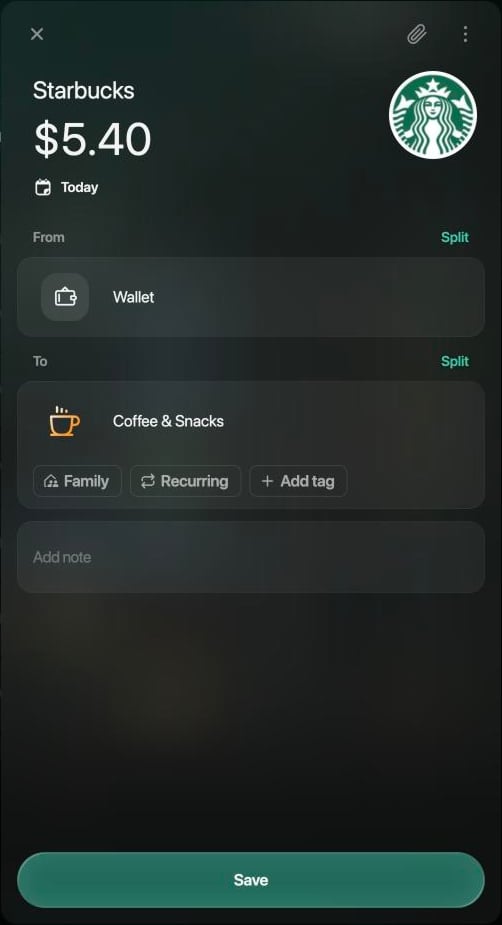
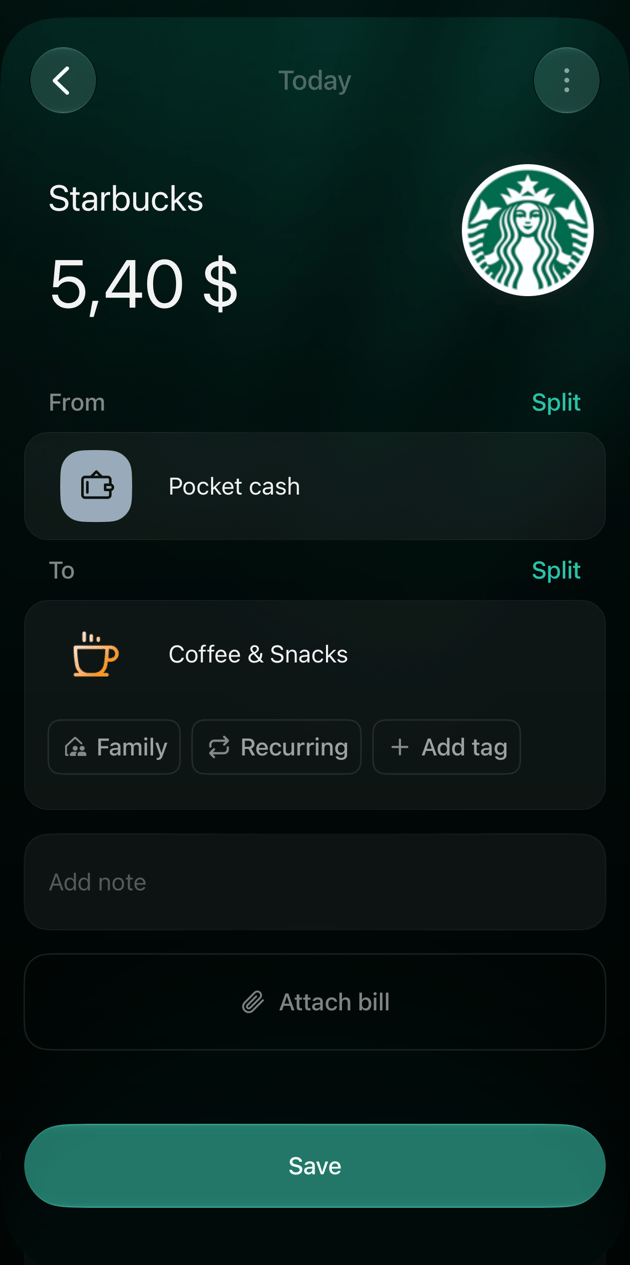
**From** is where the money comes from and **To** is where it goes. Each can be one of your accounts, a category, or a person or company under **Debts & Reimbursements**. An expense starts with your account in **From** and a category in **To**; income starts the other way round.
finerd fills in the account for you. For a merchant you've paid before, it picks the account you used last time and suggests a category. Check both before you save.
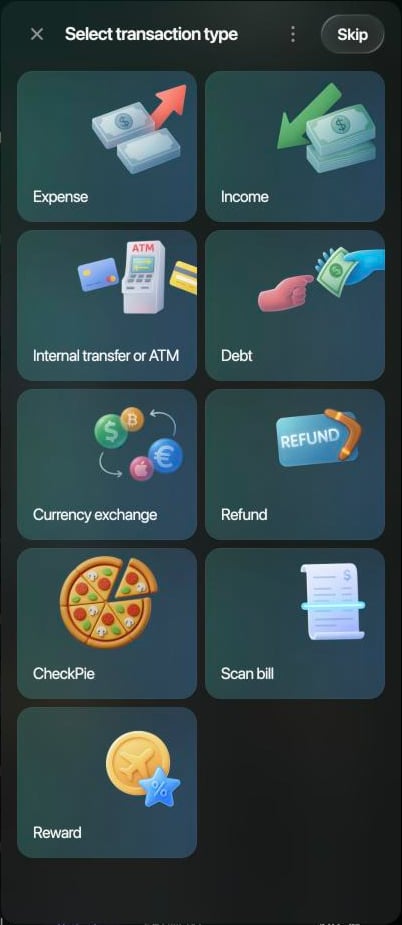
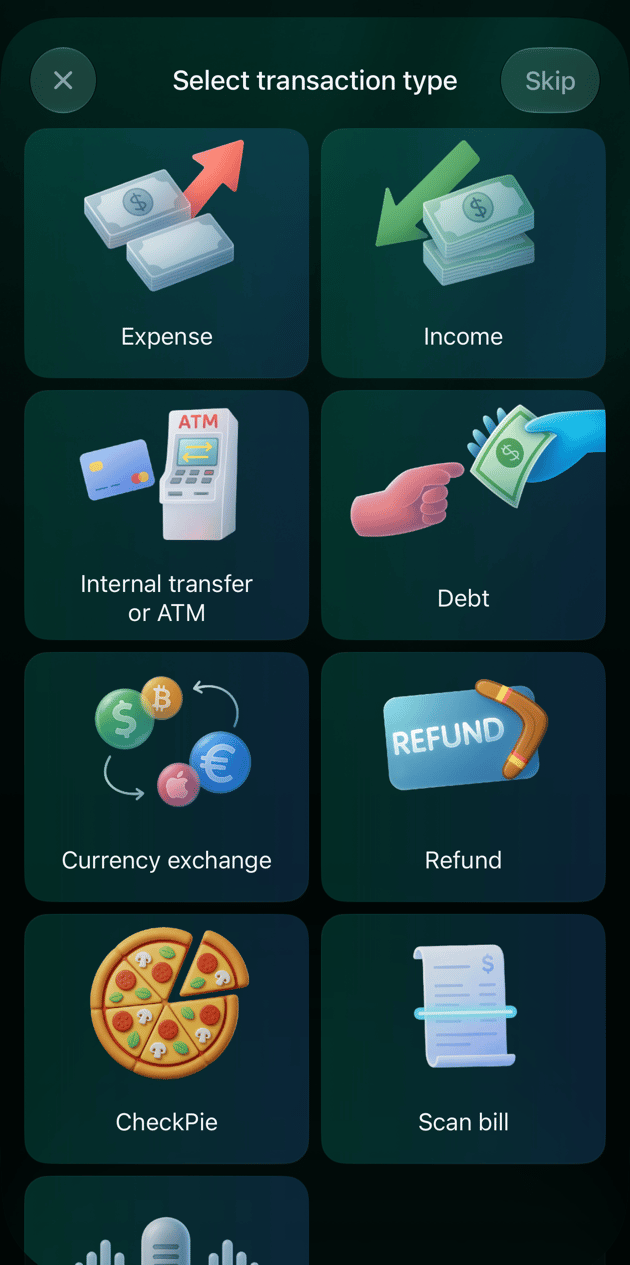
If you choose your own accounts on both sides, the transaction becomes an **Internal transfer**. Transfers, currency exchanges, debts and refunds have their own types in the list from step 2; for transfers and exchanges, see [Record a transfer or currency exchange](/transactions/transfer-or-exchange), and for money a shop gave back, [Record a refund](/transactions/record-refund).
1. On the **Dashboard** or the **Transactions** page, select **Add transaction**.
2. Select **Expense** or **Income**.
3. Search for the merchant by name or website and select it. To leave the merchant out, select **Skip**.
4. Enter the amount on **How much did you pay?** (**How much did you get?** for income). To use another currency, select it under the amount, or select **Assets** and search for it. Select **Continue**.
5. Check the date, **From** and **To**. The date is **Today**; select it to pick another day. To change the account or category, select it. In the list that opens, your accounts are under **Transfer To/From**.
6. Select **Save**. finerd confirms with **Transaction created on** and the date.
1. On **Dashboard** or **Transactions**, tap **+**.
2. Tap **Expense** or **Income**.
3. On **Who did you pay?** (**Select income source** for income), search for the merchant and tap it, or tap **Skip**.
4. Enter the amount, choose the currency and tap **Continue**.
5. Check the date, **From** and **To**. To change the date, tap it. To change the account or category, tap it.
6. Tap **Save**.
1. On **Dashboard** or **Transactions**, tap **+**.
2. Tap **Expense** or **Income**.
3. On **Who did you pay?** (**Select income source** for income), type in **Type a merchant name** and tap the merchant, or tap **Skip**.
4. Enter the amount on **How much did you pay?** (**How much did you get?** for income). To use another currency, tap it under the amount, or tap **Assets**. Tap **Continue**.
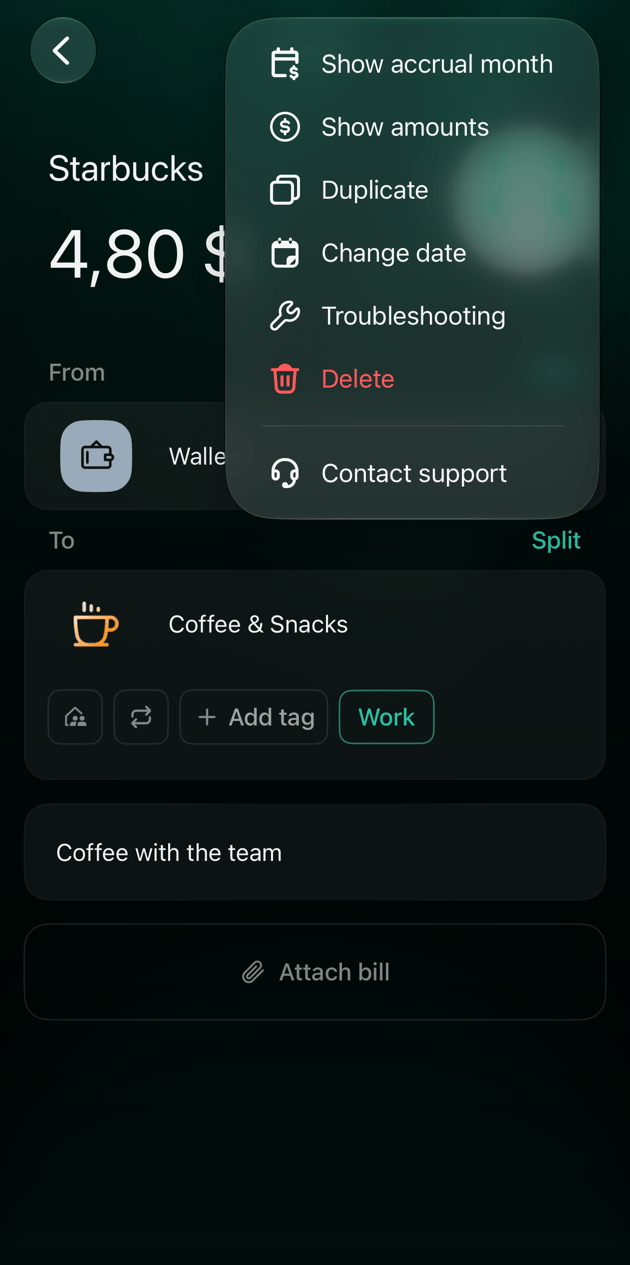
5. Check **From** and **To**. To change the account or category, tap it. In the list that opens, your accounts are under **Transfer To/From**. To change the date, tap **⋮** → **Change date**.
6. Tap **Save**.
The transaction appears in **Transactions**, and the account's balance changes by its amount. If you close the transaction before saving and choose **Discard**, nothing is recorded.
Add a note, tags or a receipt
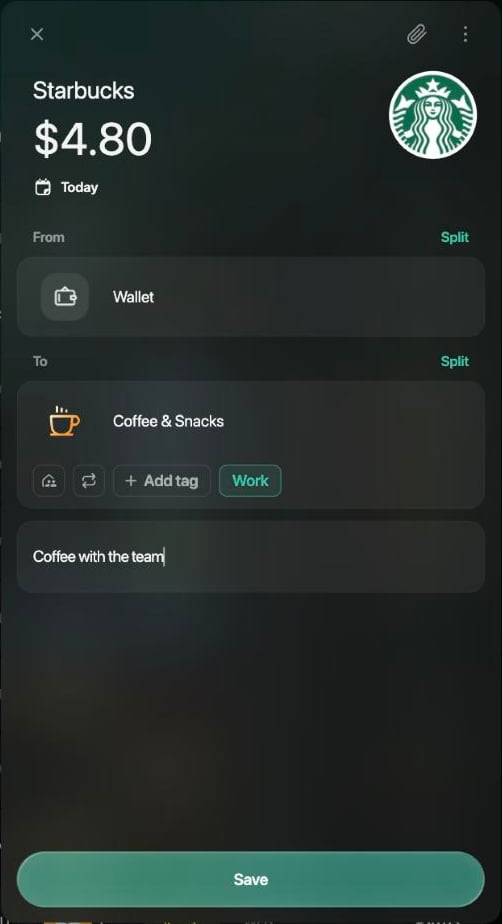
You can add these while creating a transaction or later, when you open it from **Transactions**. They're kept when you select **Save**.
* A **note** is your own text for the whole transaction, such as who you were with.
* [**Tags**](/transactions/categories-merchants-tags#tags) group transactions across categories, such as everything for a trip, so the hotel, the flights and the fridge magnet end up in one place. A tag goes under the category: in an expense that's **To**, in income **From**.
* A **receipt** is a photo or PDF of the receipt, or a bill you already have in **Bills**. How finerd reads it is in [Scan or upload a bill](/bills/scan-or-upload#link-a-bill-to-a-transaction).
1. To add a note, select **Add note** and type it.
2. To add a tag, select **Add tag** under the category. Find the tag, or type a new name, select **Add tag** and then **Save**. Tags you've used recently appear next to **Add tag**: select one to add it, and select it again to remove it.
3. To attach a receipt, select the paperclip icon at the top of the transaction. In the panel that opens, select **Upload** or drop a PNG, JPEG, JPG, HEIC or PDF file, or select **Link to bill** to choose one from **Bills**.
4. Select **Save**. In **Transactions**, the tags and the note show under the merchant.
 1. To add a note, tap **Add note** and type it.
2. To add a tag, tap **Add tag** under the category, tap the tags you want or create a new one, and tap **Done**.
3. To attach a receipt, tap **Attach bill**, then **Upload** or **Link to bill**.
4. Tap **Save**.
1. To add a note, tap **Add note** and type it.
2. To add a tag, tap **Add tag** under the category and type its name. Tap the tag, or tap **+** to create it and then **Save**.
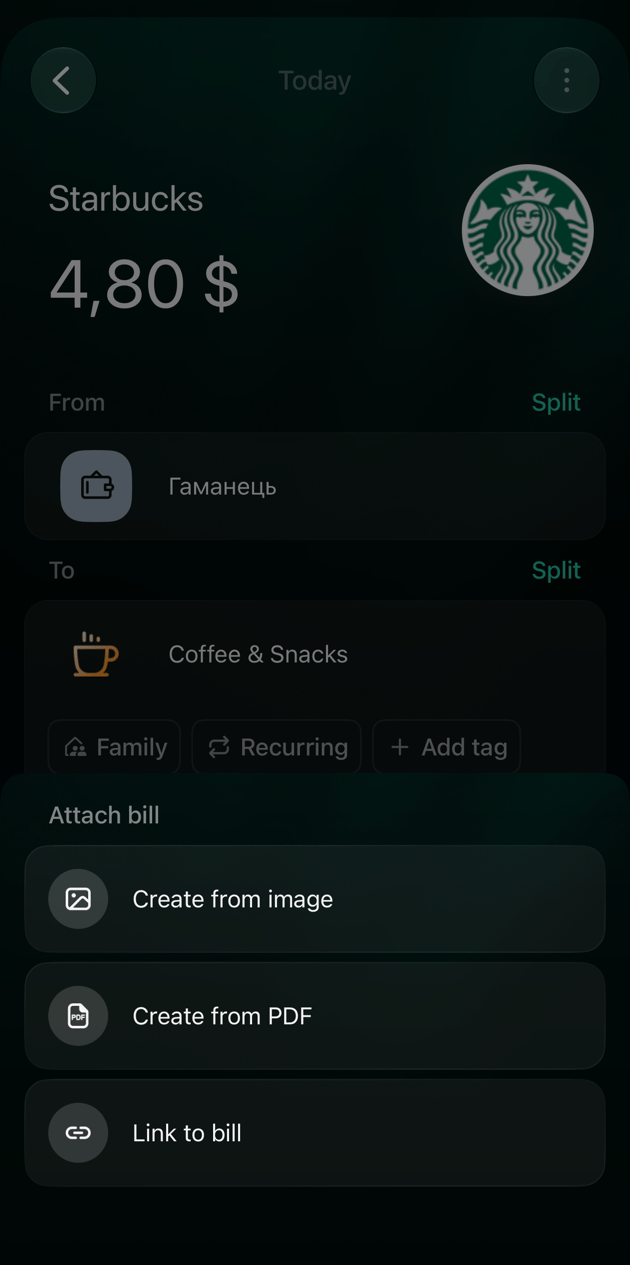
3. To attach a receipt, tap **Attach bill**, then **Create from image**, **Create from PDF** or **Link to bill**.
4. Tap **Save**.
1. To add a note, tap **Add note** and type it.
2. To add a tag, tap **Add tag** under the category, tap the tags you want or create a new one, and tap **Done**.
3. To attach a receipt, tap **Attach bill**, then **Upload** or **Link to bill**.
4. Tap **Save**.
1. To add a note, tap **Add note** and type it.
2. To add a tag, tap **Add tag** under the category and type its name. Tap the tag, or tap **+** to create it and then **Save**.
3. To attach a receipt, tap **Attach bill**, then **Create from image**, **Create from PDF** or **Link to bill**.
4. Tap **Save**.
Edit a transaction
Open the transaction in **Transactions**, change what you need and select **Save**. **Save** appears once something has changed. To leave without saving, close the transaction and choose **Discard**.
What you can change depends on where the transaction came from:
| | Added by you | From a connected bank |
| - | - | - |
| Merchant, category, tags, note, receipt | Yes | Yes |
| Amount | Yes | No |
| The account the money left or arrived in | Yes | No |
| Date | Yes | No |
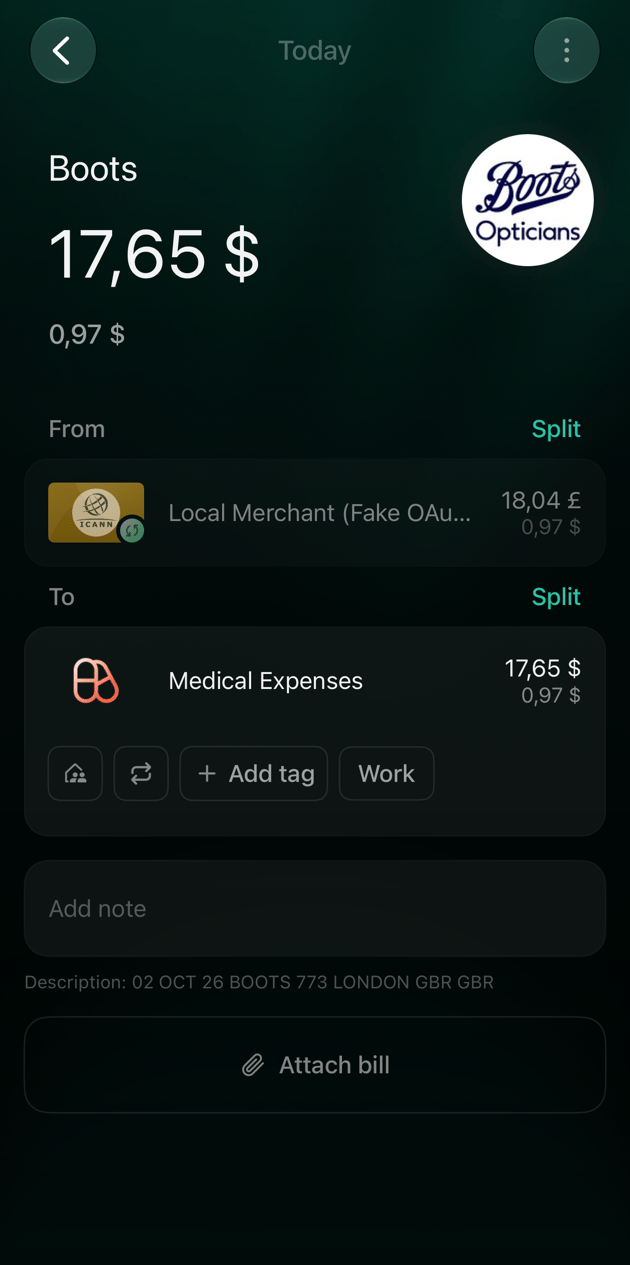
A bank transaction also keeps the bank's own text, shown as **Description** under the note.
To divide one payment between several categories, [split the transaction](/transactions/split-transaction).
A **Balance correction** is a record finerd creates from your balance checks. Selecting it opens the account's verified balances instead of the transaction. To change it, change the check: see [Correct or delete a check](/verified-balance#correct-or-delete-a-check).
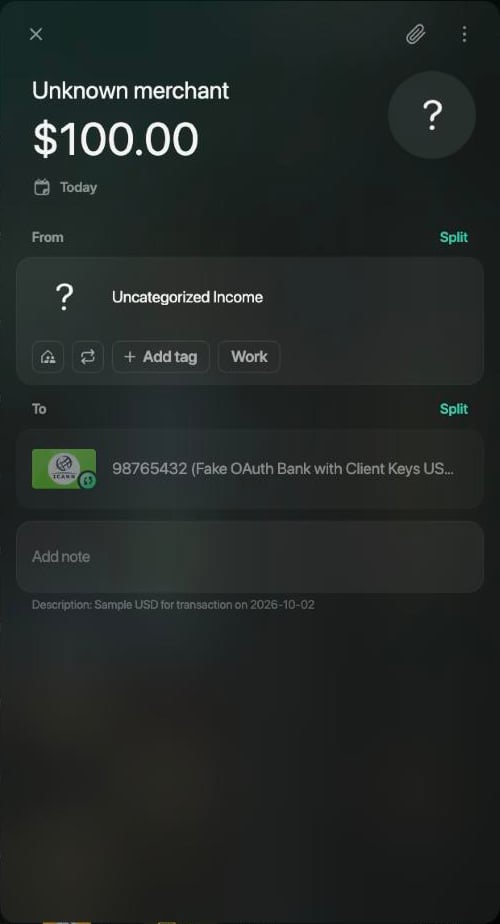
1. Open **Transactions** and select the transaction.
2. Select the field you want to change: the merchant or amount at the top, the date under the amount, or the account or category in **From** or **To**. In a bank transaction, the bank's line is dimmed and can't be selected.
3. Select **Save**.
 1. Open **Transactions** and tap the transaction.
2. Tap the field you want to change: the merchant, amount or date at the top, or the account or category in **From** or **To**.
3. Tap **Save**.
1. Open **Transactions** and tap the transaction.
2. Tap the field you want to change: the merchant or amount at the top, or the account or category in **From** or **To**. To change the date, tap **⋮** → **Change date**. A bank transaction has no **Change date**, and its bank line is dimmed.
3. Tap **Save**.
1. Open **Transactions** and tap the transaction.
2. Tap the field you want to change: the merchant, amount or date at the top, or the account or category in **From** or **To**.
3. Tap **Save**.
1. Open **Transactions** and tap the transaction.
2. Tap the field you want to change: the merchant or amount at the top, or the account or category in **From** or **To**. To change the date, tap **⋮** → **Change date**. A bank transaction has no **Change date**, and its bank line is dimmed.
3. Tap **Save**.
Duplicate a transaction
To record the same purchase again, duplicate an earlier transaction instead of entering it from scratch. finerd opens a new transaction with the same merchant, amount, accounts, category, tags and note, dated today. The copy isn't recorded until you select **Save**.
You can duplicate transactions you added yourself. Transactions that arrived from a connected bank can't be duplicated.
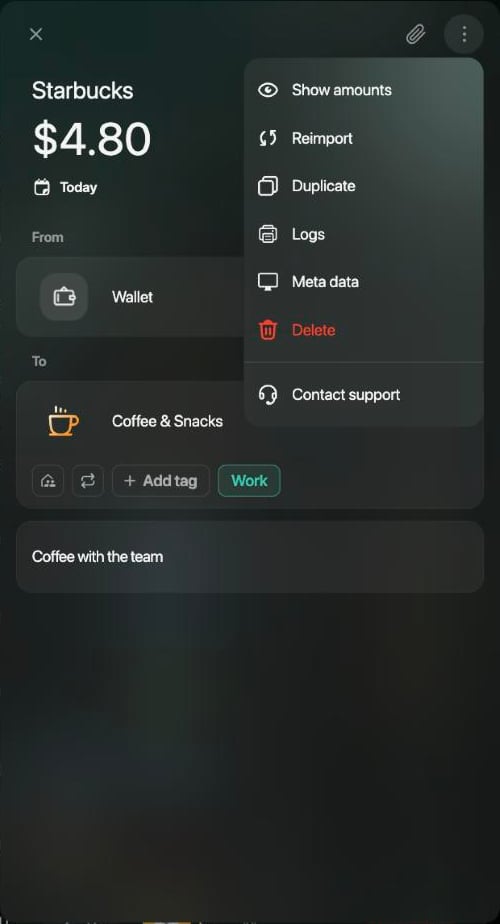
1. Open the transaction and select **⋮** → **Duplicate**.
2. Change what's different this time, such as the amount or the date.
3. Select **Save**.
 1. Open the transaction and tap **⋮** → **Duplicate**.
2. Change what's different this time.
3. Tap **Save**.
1. Open the transaction and tap **⋮** → **Duplicate**.
2. Change what's different this time. To change the date, tap **⋮** → **Change date**.
3. Tap **Save**.
1. Open the transaction and tap **⋮** → **Duplicate**.
2. Change what's different this time.
3. Tap **Save**.
1. Open the transaction and tap **⋮** → **Duplicate**.
2. Change what's different this time. To change the date, tap **⋮** → **Change date**.
3. Tap **Save**.
Delete a transaction
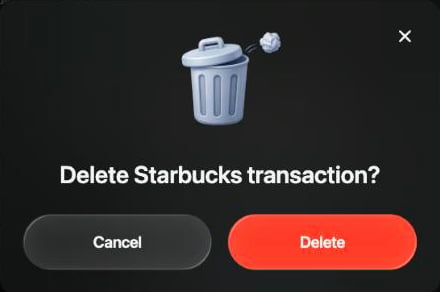
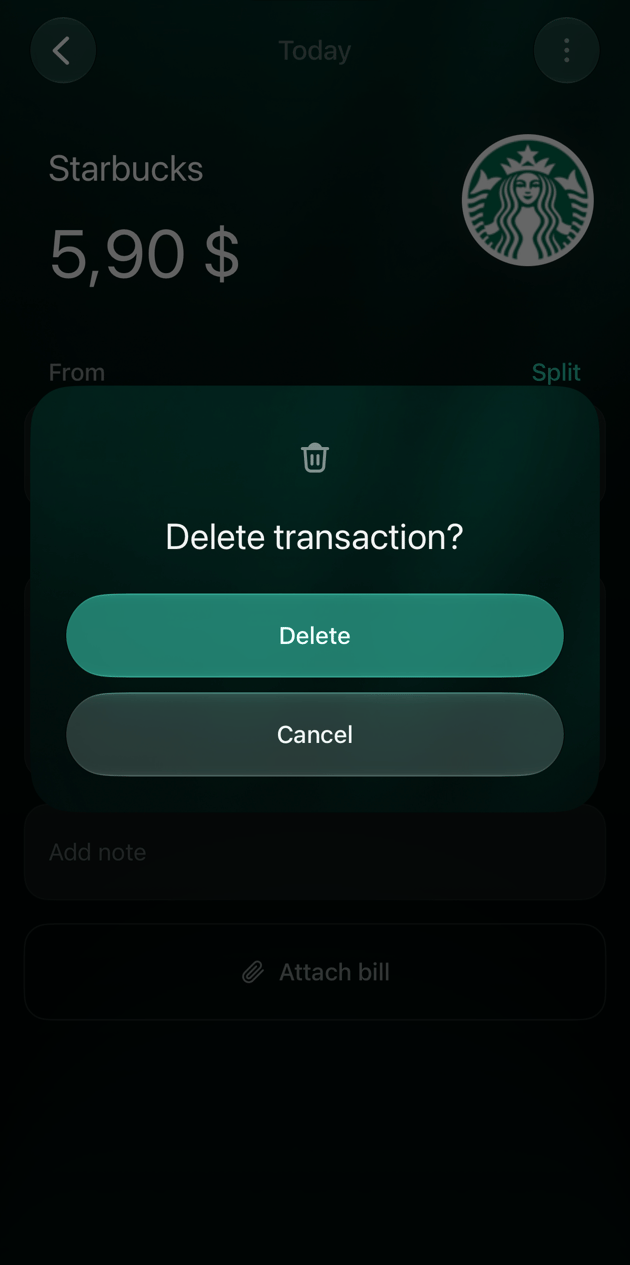
You can delete transactions you added yourself. A deleted transaction can't be restored, so finerd asks you to confirm first.
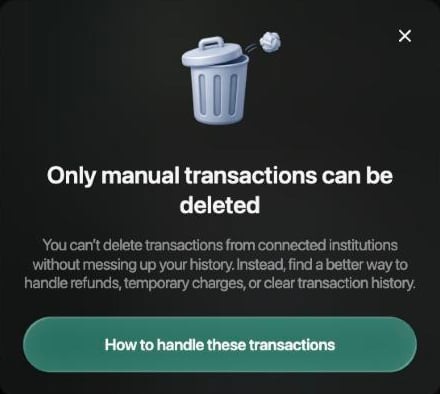
A transaction from a connected bank can't be deleted: finerd shows **Only manual transactions can be deleted**. You can still [change its category, merchant, tags or note](#edit).
1. Open the transaction and select **⋮** → **Delete**.
2. In **Delete … transaction?**, select **Delete**.
1. Open the transaction and tap **⋮** → **Delete**.
2. In **Confirm the delete action**, tap **Delete**.
1. Open the transaction and tap **⋮** → **Delete**.
2. In **Delete transaction?**, tap **Delete**.
 This documentation is built and hosted on [Mintlify](https://mintlify.com), a developer documentation platform.