> ## Documentation Index
> Fetch the complete documentation index at: https://help.finerd.ai/llms.txt
> Use this file to discover all available pages before exploring further.
# Track recurring payments
> Track subscriptions and bills in finerd: confirm detected recurring payments, add your own, see what's due or overdue and what each costs a year.
A recurring payment in finerd is a record of a subscription or bill you pay regularly, such as Netflix or rent: it keeps the amount, how often you pay and when the next payment is due, and finerd matches your payments to it. A recurring payment doesn't create transactions. The payments still come from your bank or from the transactions you add, and the record shows which of them are paid, due or overdue.
Recurring payments need Pro and work on the web, Android and iOS. Without Pro, **Recurring** shows a **Pro** badge and opens the subscription offer.
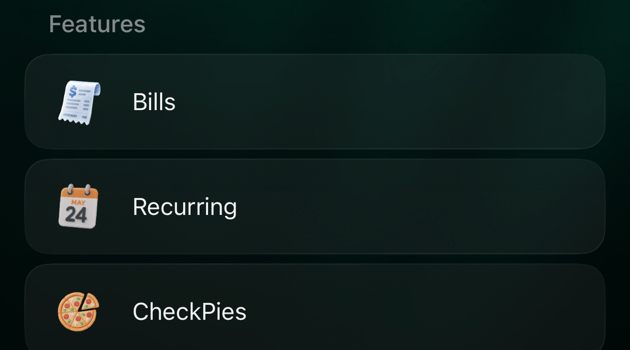
Each recurring payment belongs to a merchant: finerd tracks the payments to that merchant in that currency. Open them here:
* **Web:** **Recurring** in the sidebar. If you've hidden it, look under **More**.
* **Android** and **iOS:** **More** → **Recurring**.
How finerd finds recurring payments
finerd looks for recurring payments in your expenses every night. It looks for payments that:
* go to the same merchant, in the same currency;
* have about the same amount each time (within about 5%);
* repeat at a regular interval, from weekly to yearly;
* happened at least three times (twice for a yearly payment), the last one recently.
Transfers, income and transactions without a merchant (**Unknown merchant**) aren't checked. A payment finerd finds appears in **Recurring** with the **Detected** label, already linked to the payments it found. Confirm it or reject it: see [Confirm or reject a detected payment](#confirm).
You don't have to wait for the night. To check now:
1. Open **Recurring**.
2. Select **⋮** in the top-right corner, then **Detect recurring payments**. If the list is empty, select **Detect recurring payments** in the middle of the page.
3. Wait a moment: the list updates when the check is done.
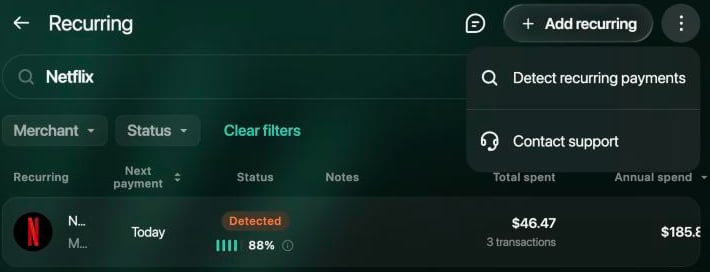 Next to the **Detected** label, bars and a percentage show how sure finerd is that the payment repeats.
1. Open **More** → **Recurring**.
2. If the list is empty, tap **Detect recurring payments**. When the check is done, the app shows **Recurring detection finished**.
The button appears only while you have no recurring payments. After that, finerd keeps checking every night.
1. Open **More** → **Recurring**.
2. If the list is empty, tap **Detect recurring payments**. When the check is done, the app shows **Recurring detection finished**.
The button appears only while you have no recurring payments. After that, finerd keeps checking every night.
Next to the **Detected** label, bars and a percentage show how sure finerd is that the payment repeats.
1. Open **More** → **Recurring**.
2. If the list is empty, tap **Detect recurring payments**. When the check is done, the app shows **Recurring detection finished**.
The button appears only while you have no recurring payments. After that, finerd keeps checking every night.
1. Open **More** → **Recurring**.
2. If the list is empty, tap **Detect recurring payments**. When the check is done, the app shows **Recurring detection finished**.
The button appears only while you have no recurring payments. After that, finerd keeps checking every night.
Confirm or reject a detected payment
A **Detected** payment is finerd's suggestion. Decide what to do with it:
* **Confirm** turns it into a recurring payment you track: the label changes to **Confirmed** and the linked payments stay.
* **Reject** removes the suggestion: the label changes to **Rejected** and its payments are unlinked. finerd suggests it again only if the price changes.
A detected payment can't be deleted: confirm or reject it first. The list shows **Confirmed** and **Detected** payments by default; to see rejected ones, choose **Rejected** in the **Status** filter.
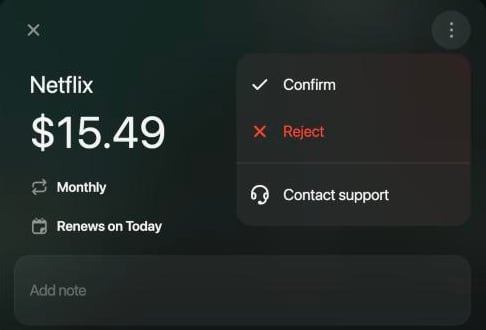
1. In **Recurring**, select the detected payment.
2. Select **⋮** in the top-right corner of the panel, then **Confirm** or **Reject**.
 1. In **Recurring**, tap the payment with the **Detected** label.
2. Tap **⋮**, then **Confirm** or **Reject**.
1. In **Recurring**, tap the payment with the **Detected** label.
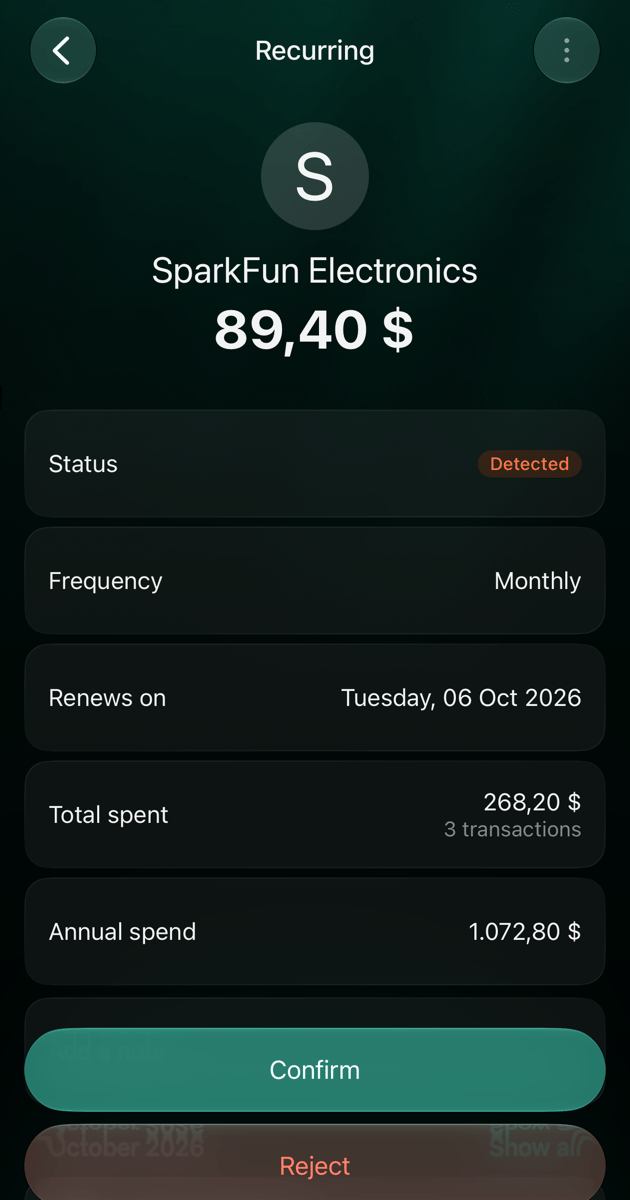
2. Tap **Confirm** or **Reject** at the bottom of the screen. The same actions are under **⋮**.
1. In **Recurring**, tap the payment with the **Detected** label.
2. Tap **⋮**, then **Confirm** or **Reject**.
1. In **Recurring**, tap the payment with the **Detected** label.
2. Tap **Confirm** or **Reject** at the bottom of the screen. The same actions are under **⋮**.
Add a recurring payment yourself
Add a payment finerd hasn't found, for example a new subscription. You need its merchant, amount, how often you pay and the date of a payment. finerd expects a payment every period from that date. A payment you add is **Confirmed** straight away.
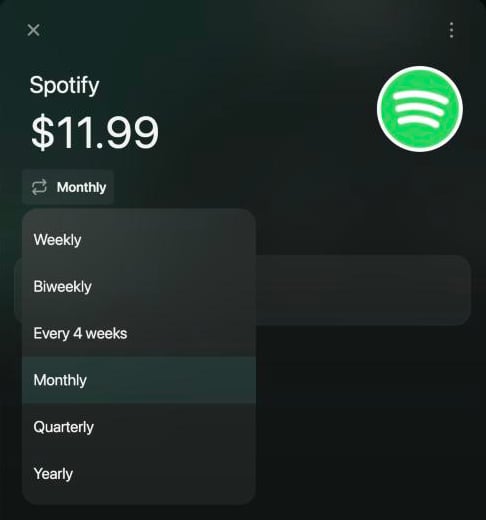
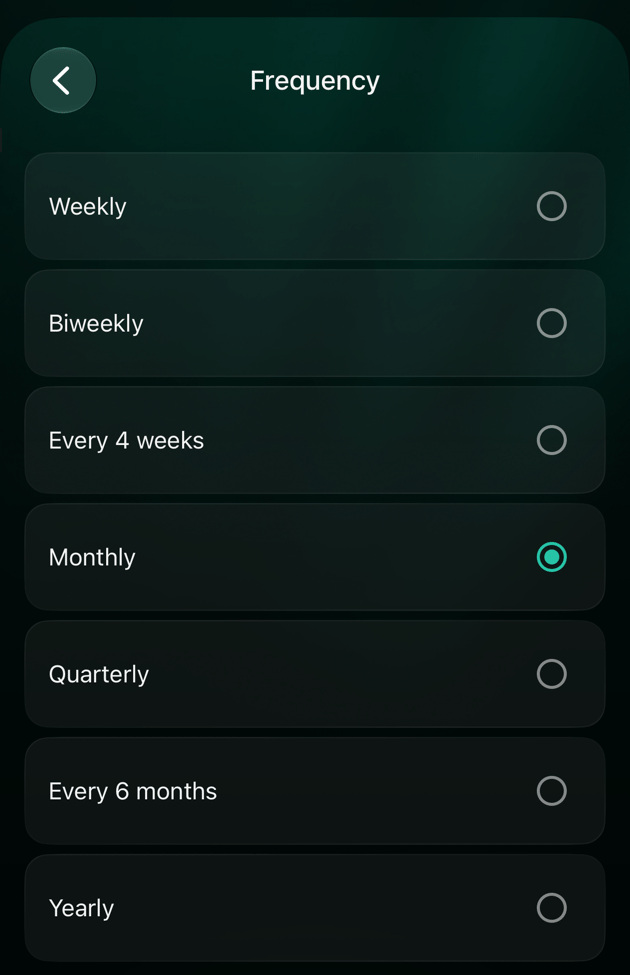
The frequency can be **Weekly**, **Biweekly**, **Every 4 weeks**, **Monthly**, **Quarterly** or **Yearly**; iOS also offers **Every 6 months**. The amount starts in your primary currency, and you can choose another one before you save.
1. In **Recurring**, select **Add recurring**.
2. In **Who's charging you?**, choose the merchant.
3. Select the amount, enter it and press Enter. To use another currency, choose it above the keypad.
4. Select **Monthly** to choose another frequency.
5. Select **Next renewal** and choose the date of a payment.
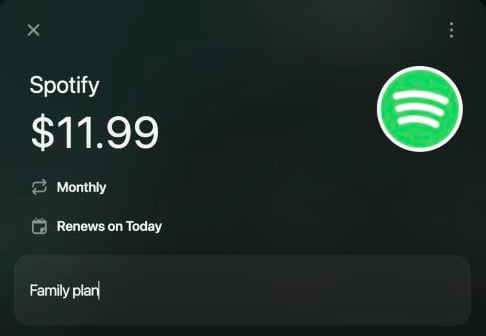
6. Optionally, add a note, such as the plan name.
7. Select **Save**.
1. In **Recurring**, tap **+**.
2. In **Merchants**, choose the merchant.
3. Enter the amount. To use another currency, choose it now: you can't change it later.
4. Tap **Monthly** to choose another frequency.
5. Tap **Renews on** and choose the date of a payment. It starts at today.
6. Optionally, add a note.
7. Tap **Save**. It appears once the amount is above zero.
1. In **Recurring**, tap **+**.
2. In **Who's charging you?**, choose the merchant.
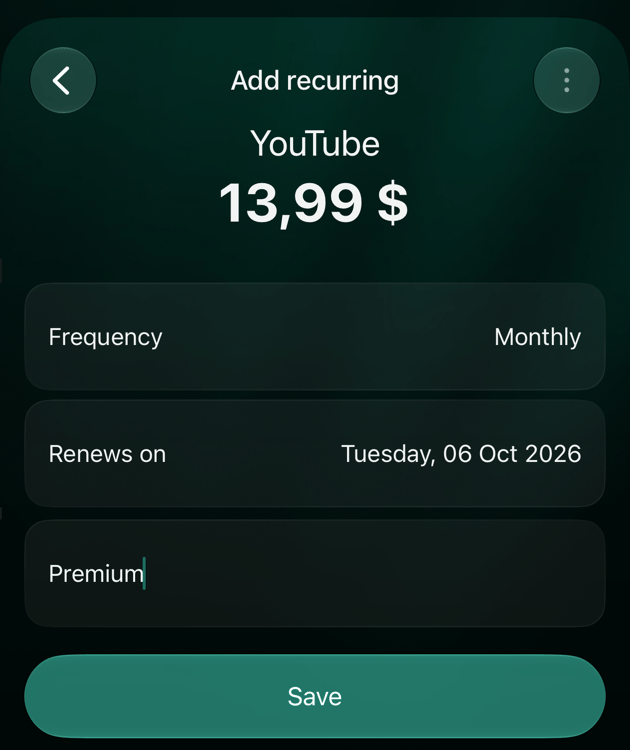
3. On **Add recurring**, tap the amount, enter it and tap **Save** under the keypad. To use another currency, choose it above the keypad.
4. Tap **Frequency** to choose how often you pay.
5. Tap **Renews on** and choose the date of a payment. It starts at today.
6. Tap **Save**.
After you save, the merchant, currency, frequency and date can't be changed. On the web and iOS only the note can change; on Android, the amount and the note. To change anything else, delete the recurring payment and add it again.
Link payments to a recurring payment
When you save a transaction, finerd links it to a recurring payment if it's an expense to the same merchant, in the same currency, with an amount and date close to the expected ones. For a recurring payment you added yourself, the match must be exact: the same amount on the expected date. A linked payment marks that period as paid. If a payment isn't linked, for example because the price changed or the payment came late, link it yourself.
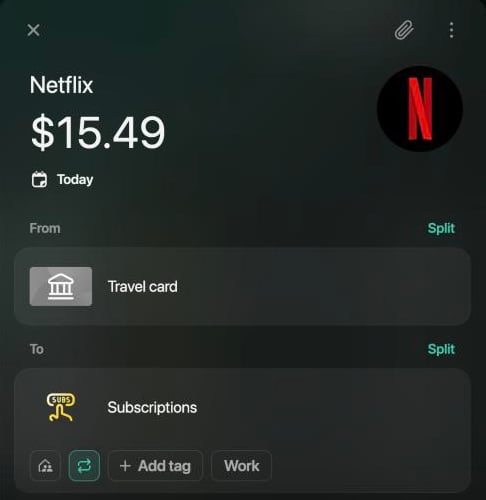
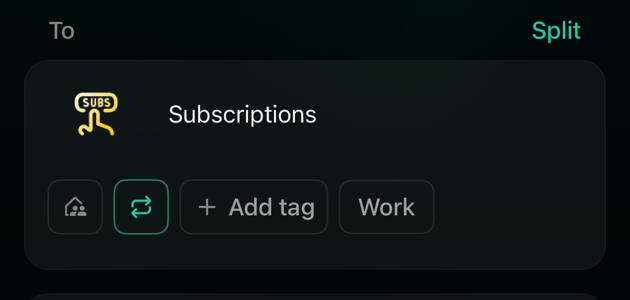
Under each category of a transaction there's a recurring icon (two arrows). It's highlighted when that part of the transaction is linked. On the web its name is **Recurring** or **Mark as recurring**; Android shows the icon without a name. On Android and iOS the icon appears only in a Personal space.
**From a transaction**
1. Open the transaction.
2. Under the category, select the recurring icon.
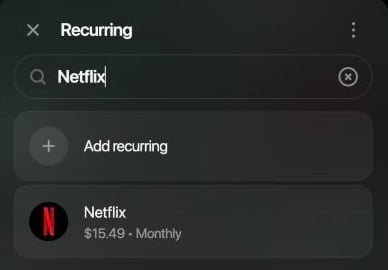
3. Choose the recurring payment, or **Add recurring** to create one from this transaction.
4. Select **Save**.
To unlink a payment, select the highlighted icon and save.
**From a recurring payment**
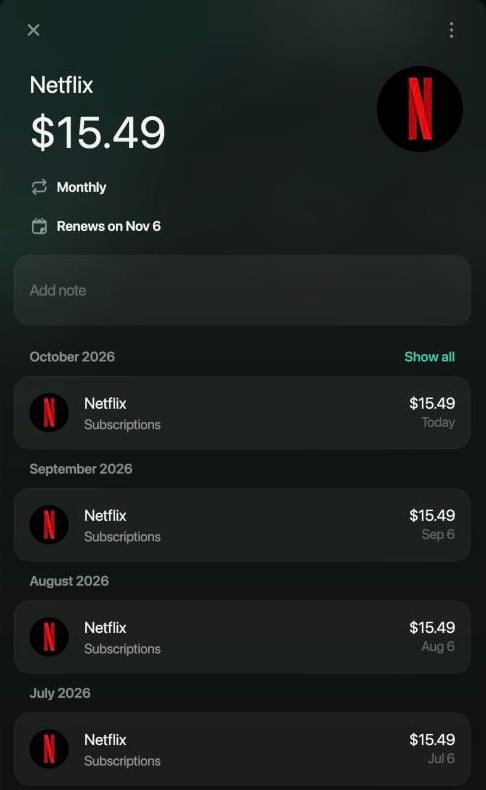
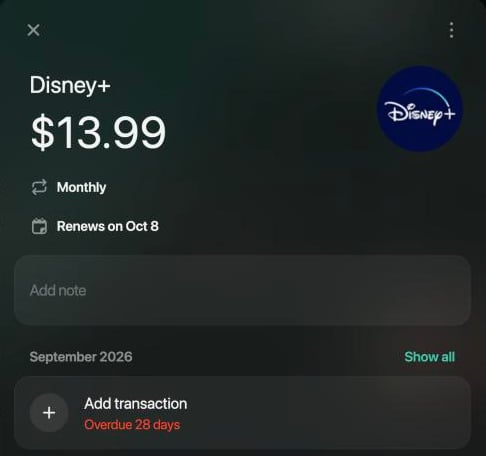
A missed period shows **Add transaction** with how many days it's overdue or when it's due. Select it: a new transaction opens with the merchant, amount and date filled in and already linked. Choose the category and select **Save**. **Show all** opens **Transactions** with every linked payment.
**From a transaction**
1. Open the transaction.
2. Under the category, tap the recurring icon.
3. Choose the recurring payment, or **Add recurring** to create one from this transaction.
4. Tap **Save**.
Tapping the highlighted icon unlinks the payment.
**From a recurring payment**
A missed period shows **Add transaction**. Tap it: a new transaction opens already linked. Choose the category and account, then tap **Save**. **Show all** opens **Transactions** with every linked payment.
**From a transaction**
1. Open the transaction.
2. Under the category, tap the recurring icon.
3. Choose the recurring payment.
4. Tap **Save**.
Tapping the highlighted icon unlinks the payment.
**From a recurring payment**
A missed period shows **Add transaction** with **Overdue …**, **Pay today** or **Pay in …**. Tap it: a new transaction opens already linked. **Show all** opens **Transactions** with every linked payment.
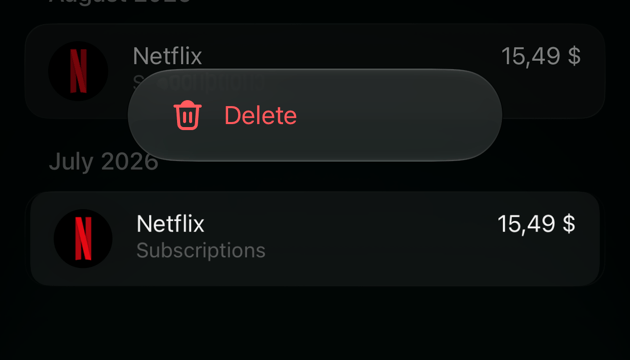
Long-pressing a payment in a recurring payment's list shows only **Delete**. It deletes the transaction itself, not just the link.
In a recurring payment, payments are grouped by period, and each goes to the expected date nearest to it. A monthly payment is the exception: it counts for its accrual month, which appears under the category as **Accrual month** when it differs from the payment's date. If a monthly payment appears under the wrong month, check its accrual month: see [Change or undo a split](/transactions/split-transaction#change) for **Change accrual month**.
See what's due: calendar and statuses
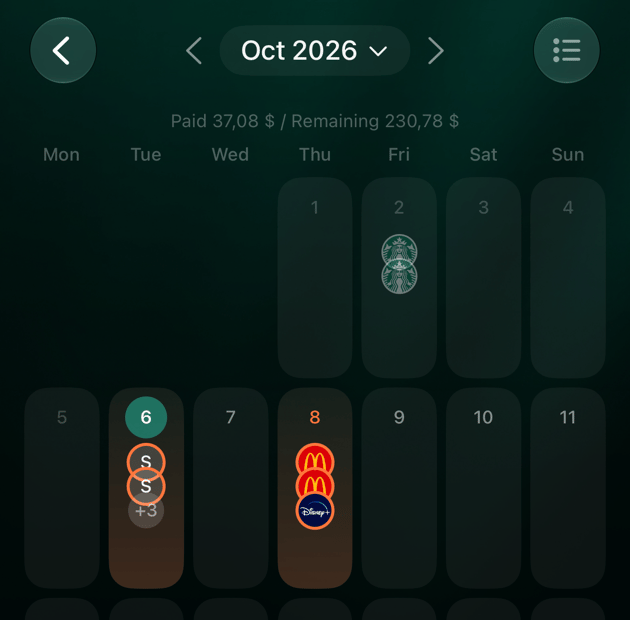
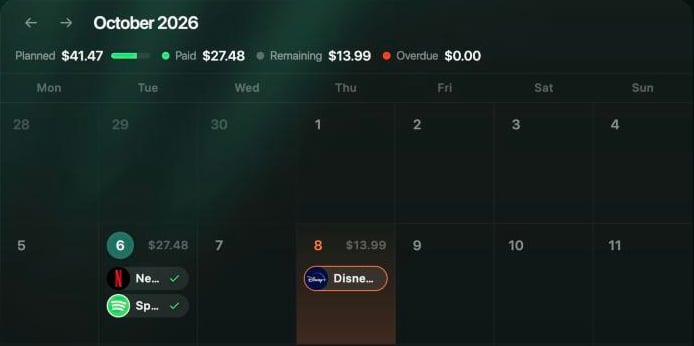
The list shows each recurring payment's next payment date. To see a month at a glance, switch to the calendar with the calendar icon at the top. The calendar shows **Confirmed** and **Detected** payments, not cancelled ones.
| What you see | What it means |
| - | - |
| A check mark next to the merchant | finerd found the payment for that date: it's paid |
| Red day (**Overdue N days**) | The date has passed and no payment is linked |
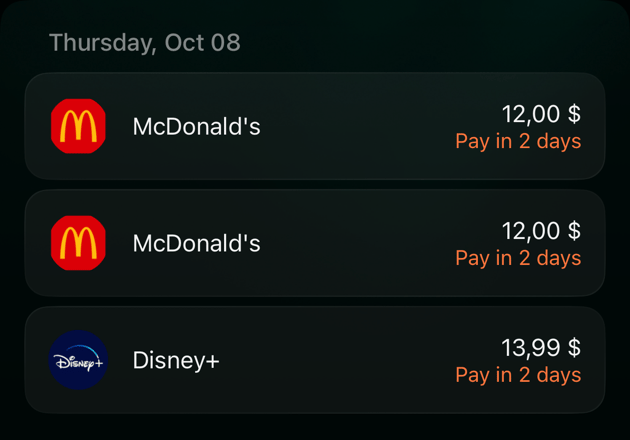
| Orange day (**Due today**, **Pay today**, **Due in N days**, **Pay in N days**) | The payment is due today or within 3 days |
| No color | An upcoming payment |
**Overdue** means finerd hasn't found the payment, not that you missed it. If you paid, [link the payment](#link) or add it.
Above the calendar, **Planned** shows the month's total, split into **Paid**, **Remaining** and **Overdue**, in your primary currency. Use the arrows to change month and **Today** to come back. Select a payment in a day to open it.
 Swipe left or right to change month. Tap a day to see its payments with **Overdue N days**, **Pay today** or **Pay in N days**; a paid one shows only the amount. Tap a payment to open it.
At the top, **Paid** and **Remaining** show the month's totals in your primary currency. Swipe left or right to change month. Tap a day to see its payments: a paid one shows only the amount, others show **Overdue N days**, **Pay today** or **Pay in N days**.
Swipe left or right to change month. Tap a day to see its payments with **Overdue N days**, **Pay today** or **Pay in N days**; a paid one shows only the amount. Tap a payment to open it.
At the top, **Paid** and **Remaining** show the month's totals in your primary currency. Swipe left or right to change month. Tap a day to see its payments: a paid one shows only the amount, others show **Overdue N days**, **Pay today** or **Pay in N days**.
See what a subscription costs
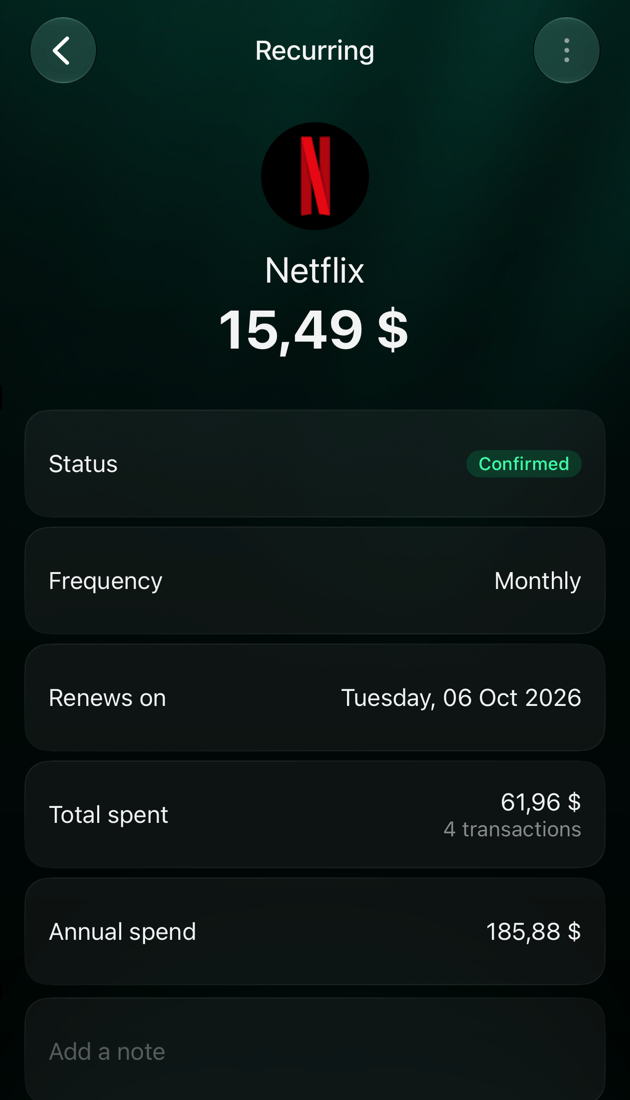
Two amounts show what a recurring payment costs you:
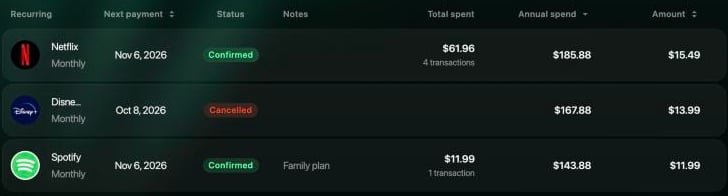
* **Total spent** adds up the payments linked to it and shows how many there are.
* **Annual spend** is the amount times the number of payments in a year, in your primary currency. For Netflix at $15.49 a month, that's $185.88.
The web shows both in the **Recurring** list and sorts it by **Annual spend**, highest first. On iOS they're in the recurring payment's details. The Android app shows the amount and frequency, without these totals.
Cancel, reactivate or delete a recurring payment
Cancelling a recurring payment in finerd doesn't cancel the subscription itself: do that with the company that charges you.
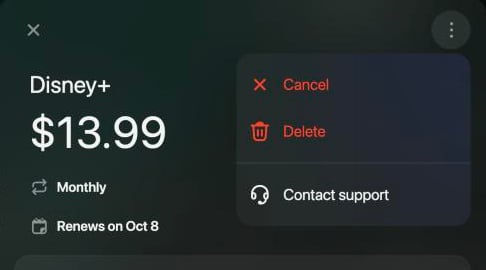
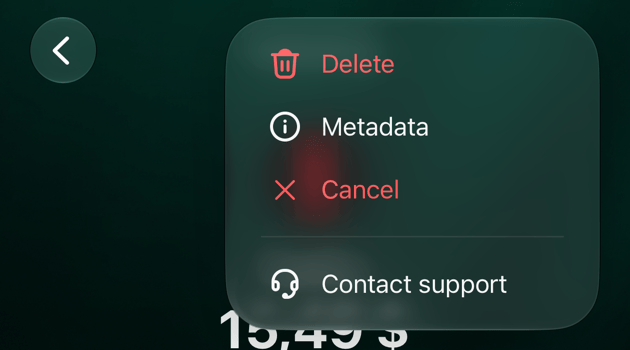
* **Cancel** stops tracking a **Confirmed** payment: it gets the **Cancelled** label, leaves the calendar and no new payments are linked to it. Its past payments stay linked.
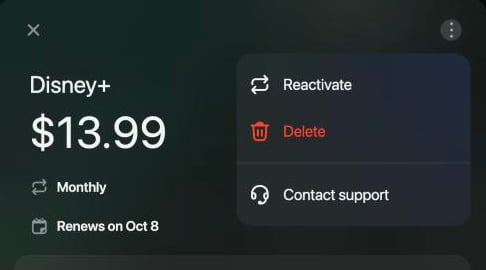
* **Reactivate** makes a cancelled payment **Confirmed** again.
* **Delete** removes the recurring payment after you confirm. The transactions stay, but they're no longer linked. A deleted payment can't be restored.
**Cancel** and **Reactivate** happen at once, without a question. A **Detected** payment can't be cancelled or deleted: [reject it](#confirm) instead. To find a cancelled payment, choose **Cancelled** in the **Status** filter of the list.
1. In **Recurring**, select the recurring payment.
2. Select **⋮** in the top-right corner of the panel.
3. Select **Cancel**, **Reactivate** or **Delete**. For **Delete**, confirm with **Delete** in **Delete recurring payment?**.
1. In **Recurring**, tap the recurring payment.
2. Tap **⋮**, then **Cancel**, **Reactivate** or **Delete**. For **Delete**, confirm with **Delete**.
1. In **Recurring**, tap the recurring payment.
2. Tap **⋮**, then **Cancel**, **Reactivate** or **Delete**. For **Delete**, confirm in **Delete recurring payment?**.
 ## Related
* [Add a transaction](/transactions/add-transaction)
* [Review imported transactions](/transactions/review-imported-transactions)
* [Split a transaction](/transactions/split-transaction)
This documentation is built and hosted on [Mintlify](https://mintlify.com), a developer documentation platform.
## Related
* [Add a transaction](/transactions/add-transaction)
* [Review imported transactions](/transactions/review-imported-transactions)
* [Split a transaction](/transactions/split-transaction)
This documentation is built and hosted on [Mintlify](https://mintlify.com), a developer documentation platform.