> ## Documentation Index
> Fetch the complete documentation index at: https://help.finerd.ai/llms.txt
> Use this file to discover all available pages before exploring further.
# Track rewards and loyalty points
> Add a loyalty account, set a point value, and record earned or redeemed rewards, including purchases paid partly in cash.
A **Rewards** account tracks the points you hold in a loyalty program. Record points earned, bought, spent, or exchanged for money, and choose a value per point to see their monetary equivalent.
Rewards are a **Pro** feature in **Personal** spaces on **Web and iOS**. Reward account creation and the dedicated reward transaction flow are not available on Android.
Add a rewards account
Start with the program's current points balance. The point quantity and its monetary value are separate: changing the valuation does not add more points.
1. Open **Accounts**, select **Add account**, then **Rewards**.
2. In **Who’s giving the perks?**, choose the company that runs the loyalty program. If a points picker opens, select the program's points.
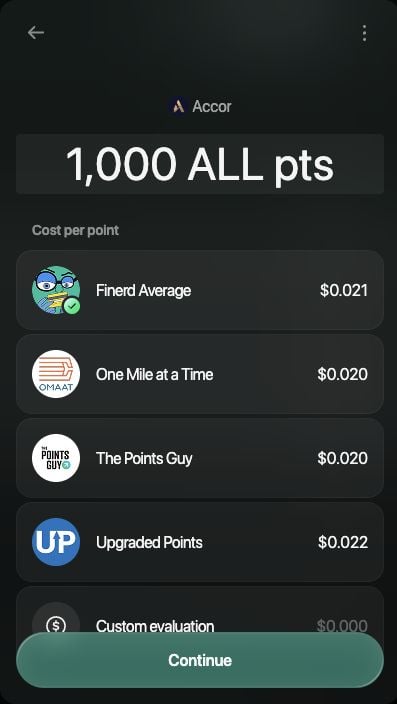
3. Enter the points you currently hold, such as **1,000 ALL pts** for Accor.
4. Under **Cost per point**, choose a valuation provider. To enter your own value, select **Custom evaluation**, enter a positive value in the currency shown, and apply it.
5. Select **Continue**, check the balance, then **Save**.
 If **Rewards** is missing, open your space settings and check **Rewards & loyalty points**. Rewards are not offered in a Business space.
Add and manage rewards on the web or in the iOS app. Android does not offer **Rewards** in **Add account** or **Reward** in the transaction type chooser.
1. Open **More** → **Accounts**, tap **+**, then **Rewards**.
2. In **Who’s giving the perks?**, select the company. Choose the program's points if another picker opens.
3. Enter the current points balance, such as **1,000 ALL pts** for Accor, and choose a provider under **Cost per point**. Scroll the provider list to find **Custom evaluation** if you want to enter your own value.
4. Tap **Continue**, check the balance, then **Save**.
If **Rewards** is missing, open your space settings and check **Rewards & loyalty points**. Rewards are not offered in a Business space.
Add and manage rewards on the web or in the iOS app. Android does not offer **Rewards** in **Add account** or **Reward** in the transaction type chooser.
1. Open **More** → **Accounts**, tap **+**, then **Rewards**.
2. In **Who’s giving the perks?**, select the company. Choose the program's points if another picker opens.
3. Enter the current points balance, such as **1,000 ALL pts** for Accor, and choose a provider under **Cost per point**. Scroll the provider list to find **Custom evaluation** if you want to enter your own value.
4. Tap **Continue**, check the balance, then **Save**.
 If **Rewards** is missing, open **More**, tap the space icon, then open **Appearance** and turn on **Show reward accounts and reports**. The iOS visibility setting is separate from the web setting.
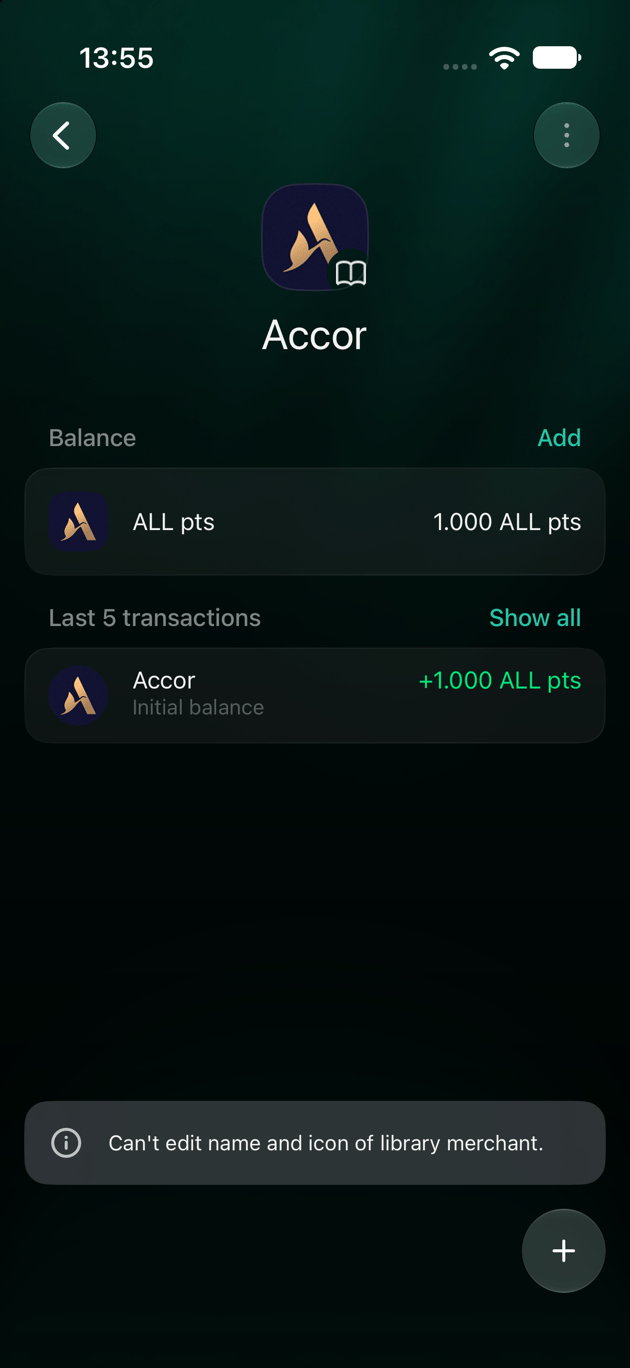
The account appears under **Rewards**. Library programs retain their library name and icon. Adding the account records a starting balance; it does not connect to the loyalty provider or redeem points there.
If **Rewards** is missing, open **More**, tap the space icon, then open **Appearance** and turn on **Show reward accounts and reports**. The iOS visibility setting is separate from the web setting.
The account appears under **Rewards**. Library programs retain their library name and icon. Adding the account records a starting balance; it does not connect to the loyalty provider or redeem points there.
Record a loyalty operation
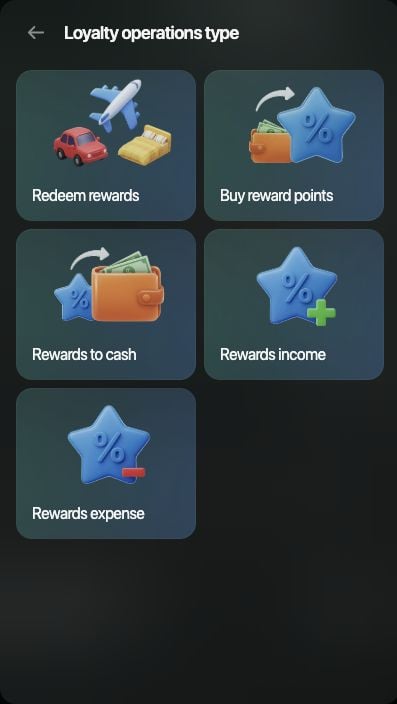
Open **Transactions** → **Add transaction** → **Reward**. Select the operation you want to record.
 Use Web or iOS for these loyalty operations.
Open **Transactions**, tap **+**, then **Reward**. Select the operation you want to record.
Use Web or iOS for these loyalty operations.
Open **Transactions**, tap **+**, then **Reward**. Select the operation you want to record.
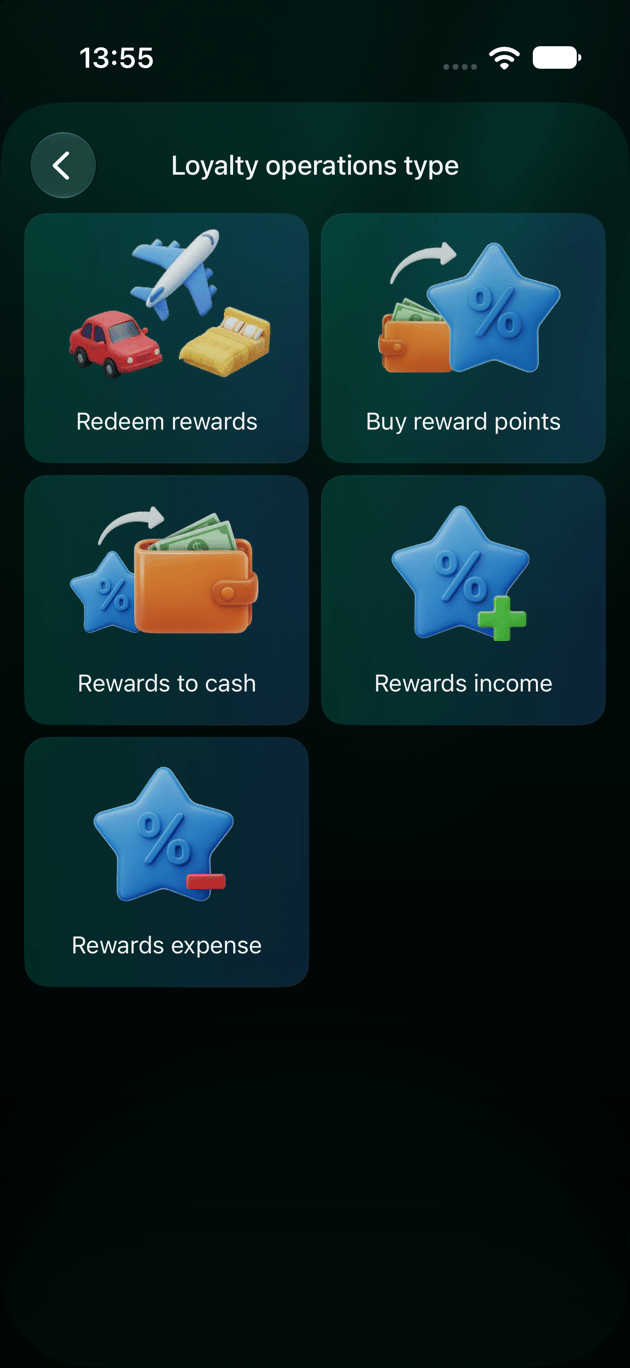 | Operation | What to enter |
| - | - |
| **Rewards income** | The reward account, points earned, and reward category. |
| **Rewards expense** | The reward account, points removed, and reward category. |
| **Buy reward points** | The reward account and points bought, followed by the bank or cash account used and the money paid. |
| **Rewards to cash** | The reward account and points exchanged, followed by the bank or cash account receiving the money and the amount received. |
| **Redeem rewards** | The reward account and points used, any cash contribution, and what the purchase would have cost in cash. |
For **Redeem rewards**, answer **Did you add any cash?**. Choose **Yes** to select the account used for the contribution and enter its amount. Choose **No** for a points-only purchase. Then enter the purchase's cash equivalent at **How much would you pay in cash?**, in the space's primary currency.
Review the resulting transaction, choose the expense category when needed, check the date, and select **Save**. The points balance changes with the recorded operation. For example, redeeming 100 points from a 1,000-point balance leaves 900 points.
| Operation | What to enter |
| - | - |
| **Rewards income** | The reward account, points earned, and reward category. |
| **Rewards expense** | The reward account, points removed, and reward category. |
| **Buy reward points** | The reward account and points bought, followed by the bank or cash account used and the money paid. |
| **Rewards to cash** | The reward account and points exchanged, followed by the bank or cash account receiving the money and the amount received. |
| **Redeem rewards** | The reward account and points used, any cash contribution, and what the purchase would have cost in cash. |
For **Redeem rewards**, answer **Did you add any cash?**. Choose **Yes** to select the account used for the contribution and enter its amount. Choose **No** for a points-only purchase. Then enter the purchase's cash equivalent at **How much would you pay in cash?**, in the space's primary currency.
Review the resulting transaction, choose the expense category when needed, check the date, and select **Save**. The points balance changes with the recorded operation. For example, redeeming 100 points from a 1,000-point balance leaves 900 points.
Review your rewards
Open **Reports** on Web or iOS:
* **Loyalty Points Flow** groups point inflows and outflows. Check the displayed currency: the report shows monetary values, not just raw point counts.
* **Loyalty Points Game** compares the recorded value received from rewards with related monetary costs.
Choose the period you want to review. These reports depend on the operations and values you record; they do not verify a loyalty program's statement for you.
* [Understand verified balances](/verified-balance)
* [Add and edit transactions](/transactions/add-transaction)
* [Track investments](/investments/track-investments)
This documentation is built and hosted on [Mintlify](https://mintlify.com), a developer documentation platform.