> ## Documentation Index
> Fetch the complete documentation index at: https://help.finerd.ai/llms.txt
> Use this file to discover all available pages before exploring further.
# Track your property
> Add a flat, a car or other things you own as a Property account, keep its value up to date and record a purchase or sale.
To track property in finerd, add a **Property** account for each thing you own, such as a flat or a car, and enter what it's worth. finerd counts that value among your assets in **Accounts** and [Net Worth](/reports/net-worth), and you update it whenever the value changes.
Property accounts are free on the web, Android and iOS. finerd doesn't appraise property: a value stays as you entered it until you change it.
Kinds of property
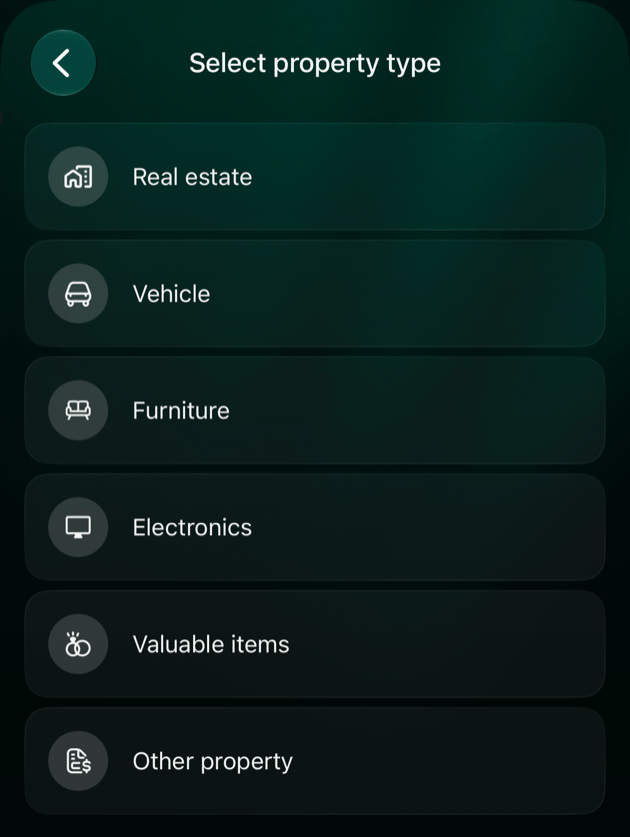
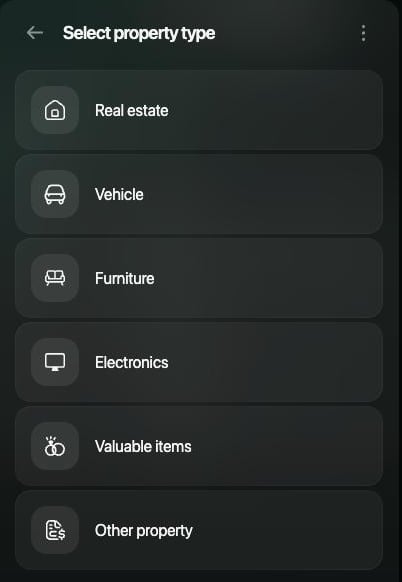
When you add property, you choose its kind. Each kind has its own icon, and [Net Worth](/reports/net-worth) shows each kind as a separate line.
| Kind | For example |
| - | - |
| **Real estate** | A flat, a house, a summer cottage |
| **Vehicle** | A car, a motorbike |
| **Furniture** | A sofa, a dining table |
| **Electronics** | A laptop, a TV |
| **Valuable items** | Jewelry, a watch, a painting |
| **Other property** | Anything else, such as a boat |
A property account holds a value in a currency, such as 250,000 USD. You track it yourself: property can't be connected to a bank. Add one account per thing you want to follow, or one for a group of things, such as all your furniture.
Add property
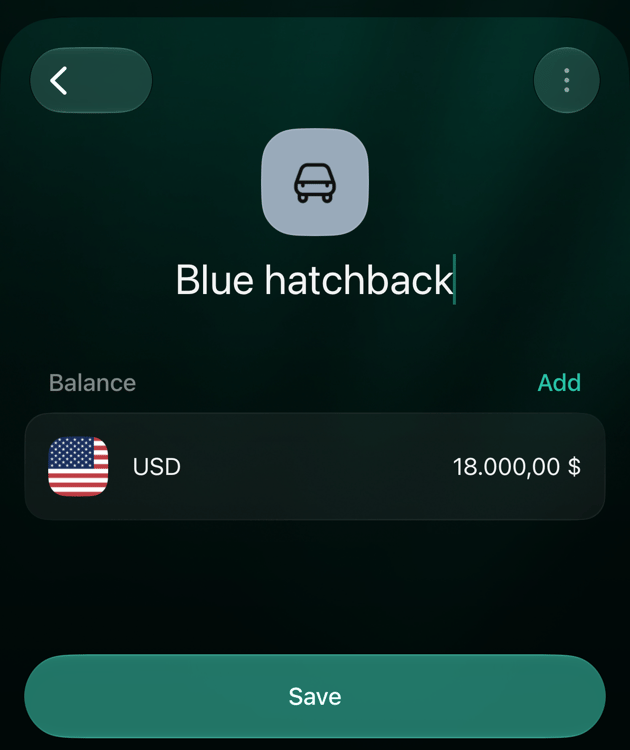
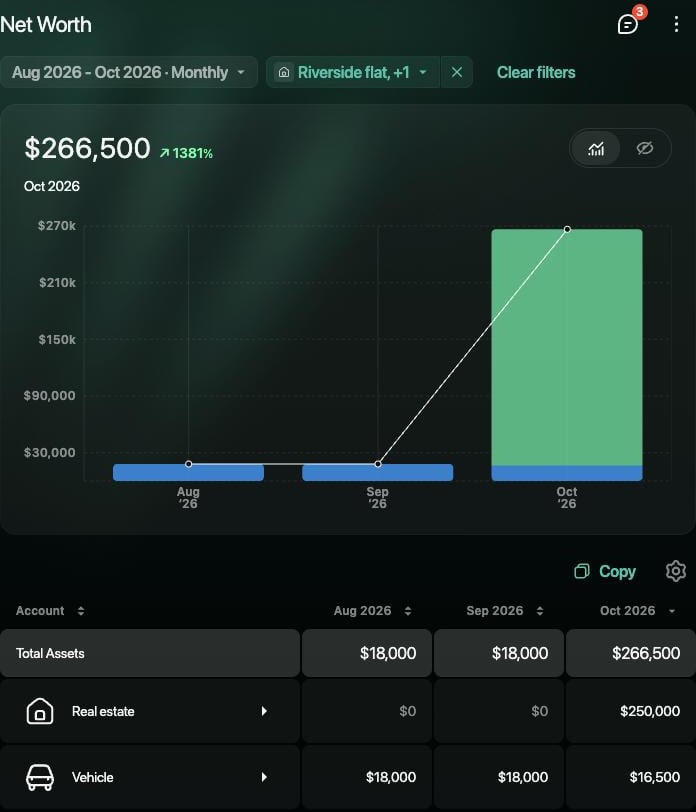
In the example, a flat is tracked as **Riverside flat** with a value of **250,000 USD**, and a car as **Blue hatchback** with **18,000 USD**.
1. Open **Accounts**, select **Add account**, then **Property**.
2. On **Select property type**, choose the kind, such as **Real estate**.
3. Enter a name, such as **Riverside flat**, then select **Continue**.
4. On **Set current balance**, enter the value, such as **250000**, check the currency and select **Continue**.
5. Select **Save**.
 1. Open **Accounts** from **More** or the tab bar, tap **+**, then **Property**.
2. The same screen now shows the kinds of property. Tap one, such as **Real estate**.
3. Enter a name, such as **Riverside flat**.
4. finerd adds a zero balance in your space's primary currency. Tap that row under **Balance**, enter the value, such as **250000**, and tap **Done**.
5. Tap **Save**.
1. Open **Accounts** from **More** or the tab bar, tap **+**, then **Property**.
2. On **Select property type**, tap the kind, such as **Vehicle**.
3. Enter a name, such as **Blue hatchback**, then tap **Save**.
4. On **Set current balance**, enter the value, such as **18000**, check the currency and tap **Continue**.
5. Review the account and tap **Save**.
finerd records the value as the account's **Initial balance**. If you're buying the property now and want to record the payment, skip the value: select **Skip** on **Set current balance**, then record the purchase as described in [Record a purchase or sale](#buy-sell).
If you chose the wrong kind, open the account and change it with **⋮** > **Change account type**. The list includes the other kinds of property. See [Change the account type](/accounts/create-account#change-account-type).
1. Open **Accounts** from **More** or the tab bar, tap **+**, then **Property**.
2. The same screen now shows the kinds of property. Tap one, such as **Real estate**.
3. Enter a name, such as **Riverside flat**.
4. finerd adds a zero balance in your space's primary currency. Tap that row under **Balance**, enter the value, such as **250000**, and tap **Done**.
5. Tap **Save**.
1. Open **Accounts** from **More** or the tab bar, tap **+**, then **Property**.
2. On **Select property type**, tap the kind, such as **Vehicle**.
3. Enter a name, such as **Blue hatchback**, then tap **Save**.
4. On **Set current balance**, enter the value, such as **18000**, check the currency and tap **Continue**.
5. Review the account and tap **Save**.
finerd records the value as the account's **Initial balance**. If you're buying the property now and want to record the payment, skip the value: select **Skip** on **Set current balance**, then record the purchase as described in [Record a purchase or sale](#buy-sell).
If you chose the wrong kind, open the account and change it with **⋮** > **Change account type**. The list includes the other kinds of property. See [Change the account type](/accounts/create-account#change-account-type).
Update the value
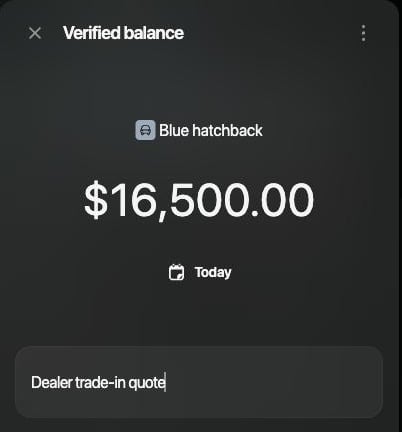
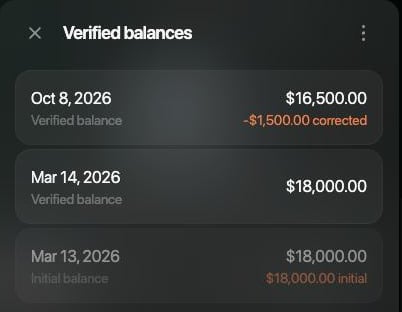
Homes and cars change in value, so update the amount when you get a new estimate, such as a valuation, a dealer's quote or prices of similar homes. Enter the new full value as a [verified balance](/verified-balance), not the change. In the example, the car was worth 18,000 USD in March, and a dealer now quotes 16,500 USD.
1. Open **Accounts**, select the property, then select its balance, such as **USD**.
2. In **Verified balances**, select **+**, then **Verify balance manually**.
3. Select the amount, enter the new value, such as **16500**, then select outside the calculator to apply it.
4. To use the date of the estimate, select the date. In **Add notes**, enter an optional note, such as “Dealer trade-in quote.”
5. Select **Save**.
1. Open **Accounts** from **More** or the tab bar, tap the property, then tap its balance.
2. In **Verified balances**, tap **+**.
3. Tap the amount, enter the new value, such as **16500**, and tap **Done**.
4. To use the date of the estimate, tap the date. In **Add notes**, enter an optional note.
5. Tap **Save**.
1. Open **Accounts** from **More** or the tab bar, tap the property, then tap its balance.
2. Tap **Add verified balance**.
3. Tap the amount, enter the new value, such as **16500**, and tap **Apply**.
4. To use the date of the estimate, tap the date. In **Add notes**, enter an optional note.
5. Tap **Save**.
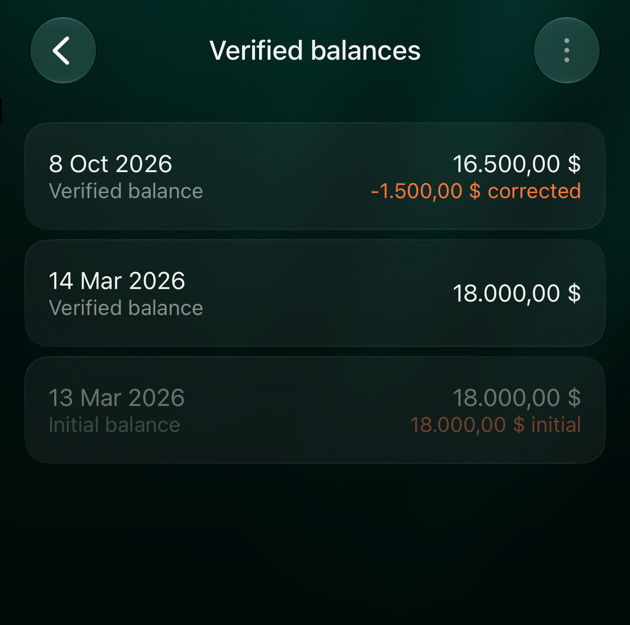 finerd records the difference as a **Balance correction**, here −1,500 USD, dated to the new value. This needs an earlier value: the one you entered when you added the property, or an earlier verified balance. Without one, finerd puts the difference into the initial balance and changes the property's past value; to avoid this after a purchase, see [Record a purchase or sale](#buy-sell). A balance correction isn't spending or income: it doesn't appear in the Expenses, Income or Cash Flow reports. It changes only the value of the property and your net worth.
Record a purchase or sale
When you pay for property from one of your accounts, record the payment as a transfer from that account to the property account. Your money goes down and the property's value goes up by the same amount, so your net worth doesn't change. The payment isn't counted as spending.
In the example, a dining table is tracked as **Oak dining table** (Furniture), added without a value, and bought for 1,200 USD from **Main checking**.
1. Add the property account without a value: select **Skip** on **Set current balance**. On Android, leave the balance at 0 and tap **Save**. If you enter the value and also record the payment, the property counts twice.
2. Add a transfer: **Add transaction** on the web, **+** on Android and iOS, then **Internal transfer or ATM**.
3. As the account the money left, choose the account you paid from, such as **Main checking**, and enter the price.
4. As the account the money went to, choose the property. Property accounts are listed under their kind, such as **Furniture**.
5. Check the amount received and select **Save**.
6. Add a [verified balance](#update-value) with the price, dated the day of the purchase. Each value you enter later then appears as a **Balance correction**.
For the full steps on each platform, see [Move money between your accounts](/transactions/transfer-or-exchange#transfer). On Android, an account connected to a bank isn't offered as the account the money left.
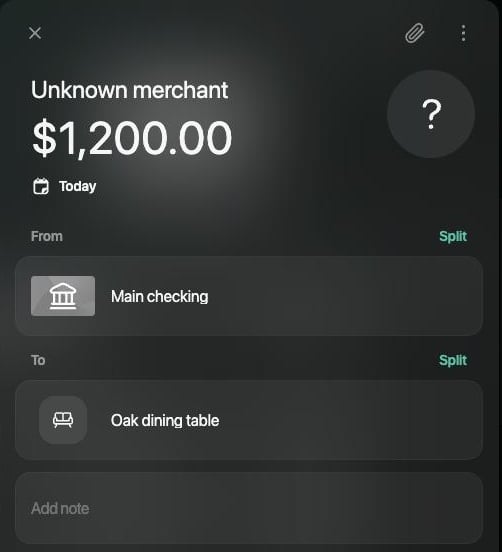 finerd lists the purchase as **Unknown merchant**, not **Internal transfer**. If the payment already came from your connected bank as an expense, open it and, in place of the category, choose the property under **Transfer To/From**. If it isn't shown, select **Show all**.
**When you sell**, record a transfer of the price from the property account to the account that received the money. If the price differs from the recorded value, set the property's value to 0 as described in [Update the value](#update-value): finerd books the difference. Then [archive](/accounts/create-account#archive-and-restore) the account to keep its history out of sight.
If you took a loan or mortgage for the property, [track it](/investments/track-loan) as a separate **Loans & Mortgage** account. finerd doesn't link a loan to a property, and [Net Worth](/reports/net-worth) subtracts the loan from your assets.
finerd lists the purchase as **Unknown merchant**, not **Internal transfer**. If the payment already came from your connected bank as an expense, open it and, in place of the category, choose the property under **Transfer To/From**. If it isn't shown, select **Show all**.
**When you sell**, record a transfer of the price from the property account to the account that received the money. If the price differs from the recorded value, set the property's value to 0 as described in [Update the value](#update-value): finerd books the difference. Then [archive](/accounts/create-account#archive-and-restore) the account to keep its history out of sight.
If you took a loan or mortgage for the property, [track it](/investments/track-loan) as a separate **Loans & Mortgage** account. finerd doesn't link a loan to a property, and [Net Worth](/reports/net-worth) subtracts the loan from your assets.
Where property shows up
**Accounts** lists your property under **Property**, with the total value of the group. On the web, each row shows the kind next to the name.
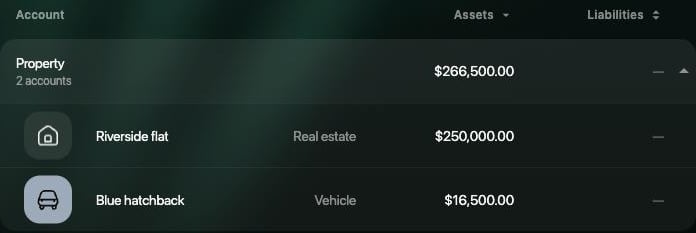 [Net Worth](/reports/net-worth) adds your property to **Total Assets**, with a line for each kind, such as **Real estate** and **Vehicle**. Each month shows the value at the end of that month. In the example, the car shows 18,000 USD until September and 16,500 USD in October. In **Net Worth Change** on the web, a new value appears in **Net flow**, not as a gain.
 [Financial Plan](/financial-plan/using-financial-plan), a finerd Pro feature on the web and iOS, adds property such as real estate and vehicles to a scenario. Real estate starts with an **Appreciation rate** of 5% a year and a vehicle with a rate of 0%; set your own rate to match how you expect the value to change.
Related articles
* [Create and set up an account](/accounts/create-account)
* [Verified balance](/verified-balance)
* [Understand your net worth](/reports/net-worth)
* [Track your investments](/investments/track-investments)
* [Record a transfer or currency exchange](/transactions/transfer-or-exchange)
This documentation is built and hosted on [Mintlify](https://mintlify.com), a developer documentation platform.