> ## Documentation Index
> Fetch the complete documentation index at: https://help.finerd.ai/llms.txt
> Use this file to discover all available pages before exploring further.
# Track your investments
> Track shares, ETFs and crypto in a Stock & Crypto account: add holdings by ticker, see their value in your primary currency, record purchases.
To track investments in finerd, add a **Stock & Crypto** account and record each holding, such as 10 Apple shares or 0.05 BTC, as its own balance. finerd values every holding at the latest daily price and shows the total in your space's primary currency.
A manual Stock & Crypto account and its holdings are free on the web, Android and iOS. Connecting a broker or crypto platform so holdings and trades arrive automatically needs finerd Pro. On Android, investment platforms connect only on the web; on iOS, some of them, such as Interactive Brokers, do too.
Manual or connected
A Stock & Crypto account works like any other account in finerd: you either keep it up to date yourself or connect it to the platform where you hold the investments.
| | Connected | Manual |
| - | - | - |
| Holdings | Arrive from the platform, one balance per holding | You add each holding and its quantity |
| Purchases and sales | Arrive as transactions when the platform syncs | You record them yourself |
| Plan | finerd Pro | Free |
To connect, choose your platform on **Select investment platform** and follow [Connect a bank](/institutions/connect-institution): platforms connect the same way as banks. If your platform isn't listed, track the account manually. You can connect it later and [link it](/institutions/connect-institution#link-existing) to the account you already track.
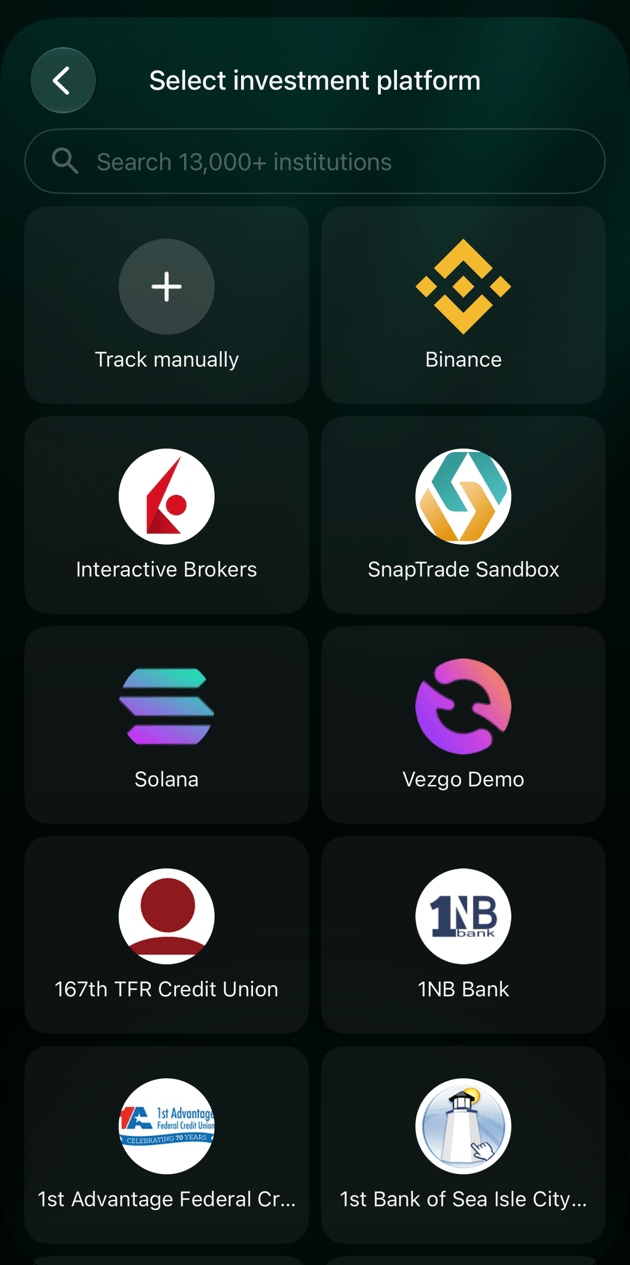
Open **Accounts**, select **Add account**, then **Stock & Crypto**. **Select investment platform** lists **Track manually** first, followed by the brokers and crypto platforms you can connect.
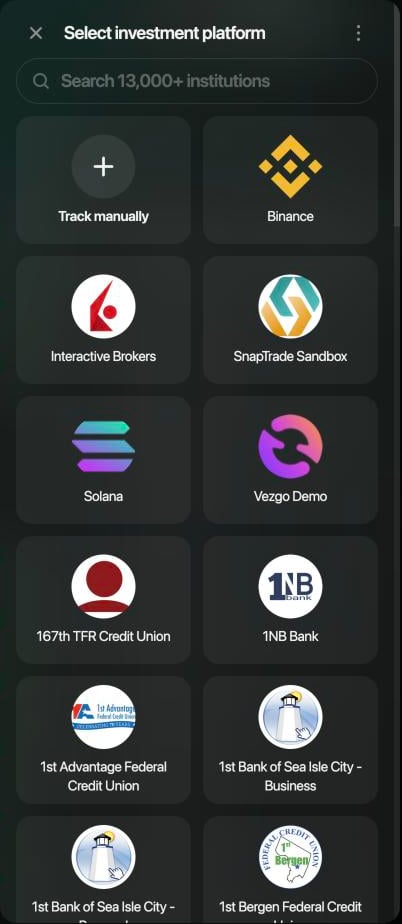 Open **Accounts** from **More** or the tab bar, tap **+**, then **Stock & Crypto**. The Android app opens a manual account straight away. To connect an investment platform, use the web app.
Open **Accounts** from **More** or the tab bar, tap **+**, then **Stock & Crypto**. **Select investment platform** lists **Track manually** and the platforms you can connect.
Some platforms in the list can't be connected in the iOS app, such as Interactive Brokers: the app shows **Provider not supported**. Connect those on the web.
Open **Accounts** from **More** or the tab bar, tap **+**, then **Stock & Crypto**. The Android app opens a manual account straight away. To connect an investment platform, use the web app.
Open **Accounts** from **More** or the tab bar, tap **+**, then **Stock & Crypto**. **Select investment platform** lists **Track manually** and the platforms you can connect.
Some platforms in the list can't be connected in the iOS app, such as Interactive Brokers: the app shows **Provider not supported**. Connect those on the web.
Add a manual investment account
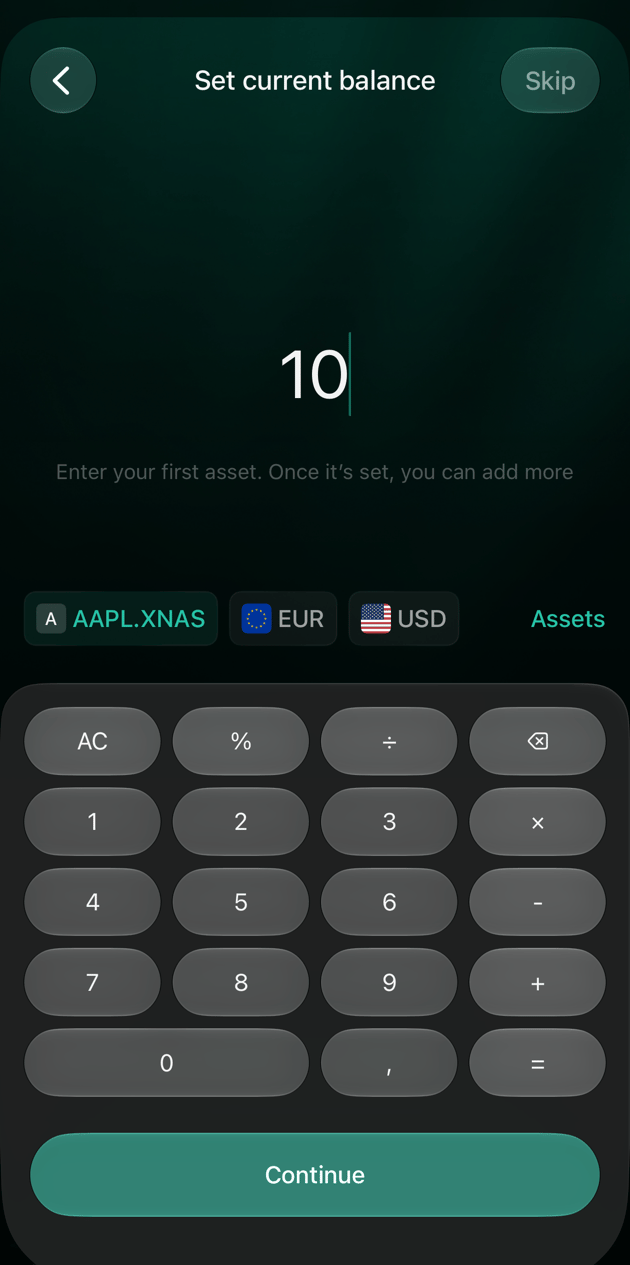
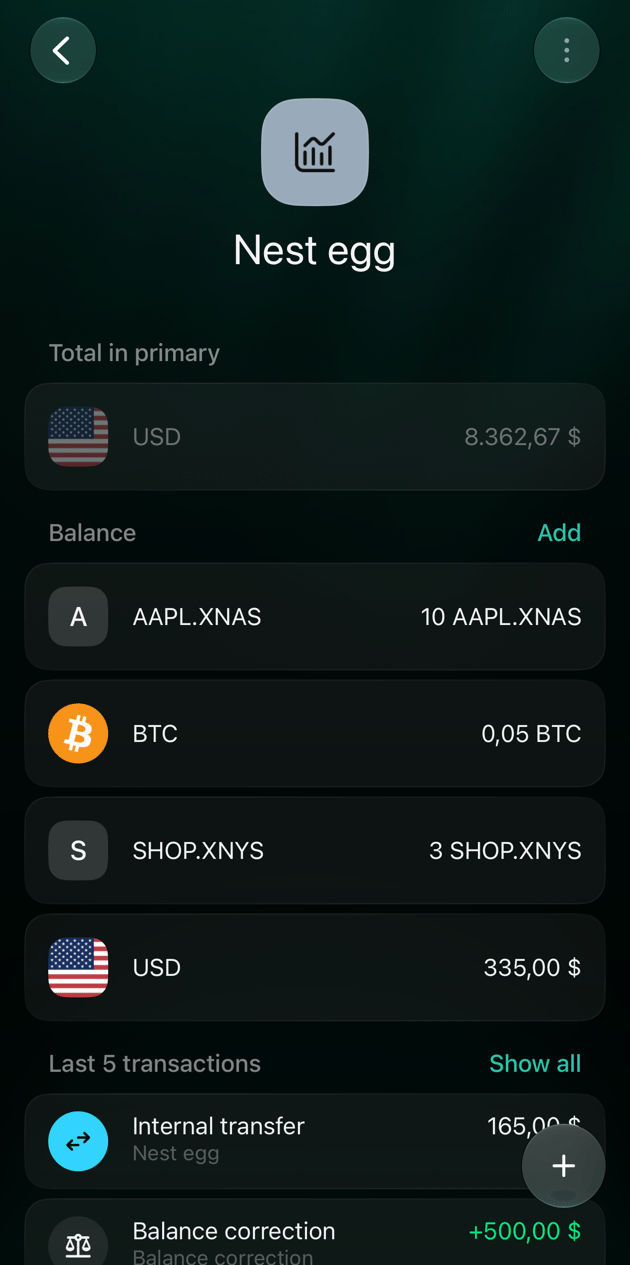
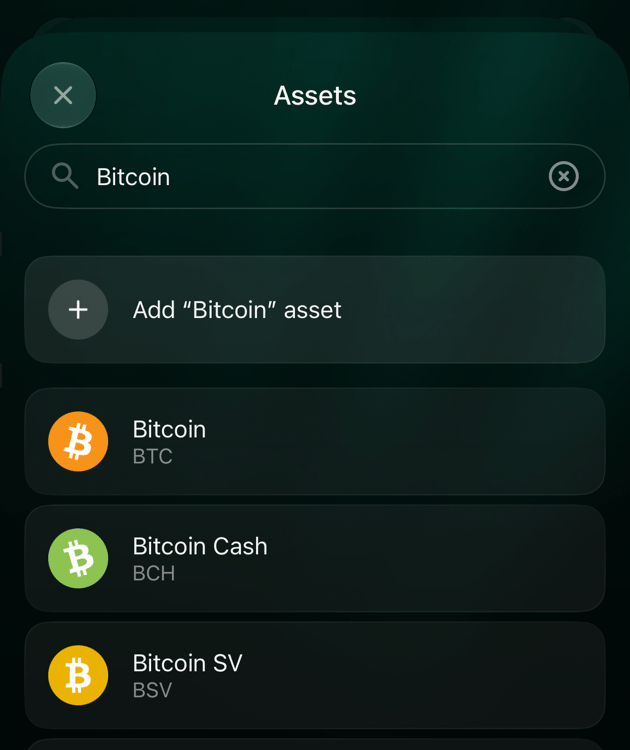
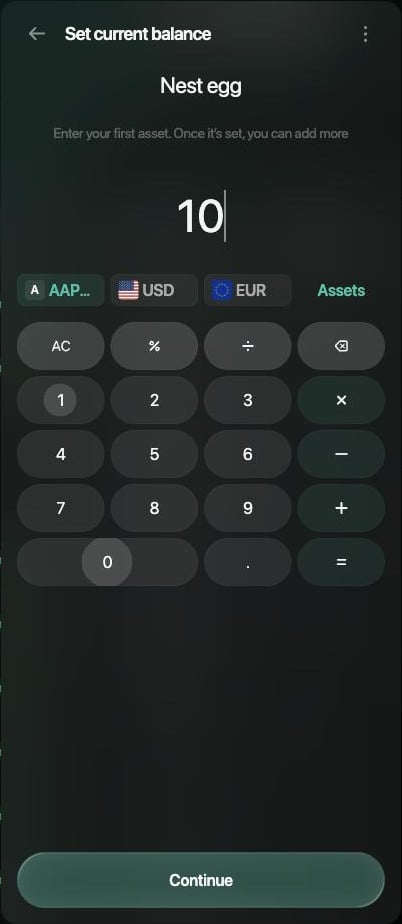
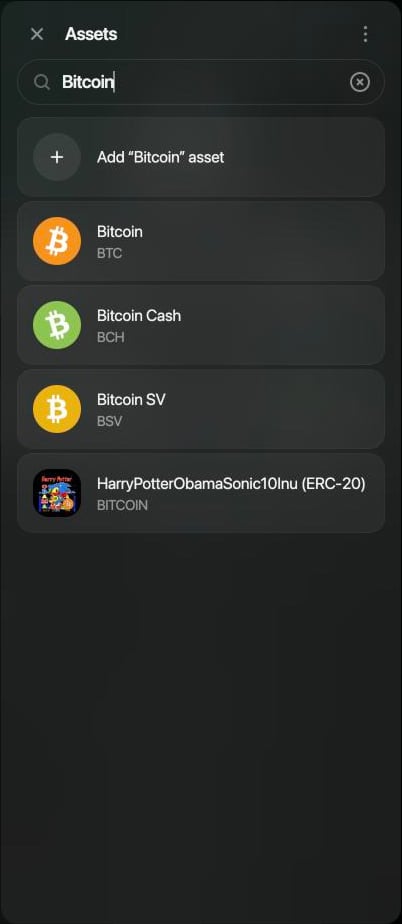
In the example, a brokerage account is tracked manually as **Nest egg**, starting with 10 Apple shares. Search for a holding by its ticker or name. Shares appear with their exchange, such as **AAPL.XNAS** for Apple on NASDAQ. Several assets can share a name, so check the ticker under each name before you choose.
1. Open **Accounts**, select **Add account**, then **Stock & Crypto**.
2. On **Select investment platform**, select **Track manually**.
3. Enter a name, such as **Nest egg**, then select **Continue**.
4. On **Set current balance**, select **Assets** and search for the holding, such as **Apple**. Choose **Apple Inc.** with the ticker **AAPL.XNAS**.
5. Enter the number of shares you hold, such as **10**, and select **Continue**.
6. Select **Save**.
 To add the next holding, open the account and select **Add** beside **Balance**. Search for the asset, enter the quantity and select **Save**.
 1. Open **Accounts** from **More** or the tab bar, tap **+**, then **Stock & Crypto**.
2. Enter a name, such as **Nest egg**.
3. finerd adds a zero balance in your space's primary currency. Tap that row under **Balance**, tap **More assets** and search for the holding, such as **Apple**. Choose **Apple Inc.** with the ticker **AAPL.XNAS**.
4. Enter the number of shares you hold, such as **10**, and tap **Done**.
5. Tap **Save**.
To add the next holding, open the account and tap **Add** beside **Balance**.
1. Open **Accounts** from **More** or the tab bar, tap **+**, then **Stock & Crypto**.
2. On **Select investment platform**, tap **Track manually**.
3. Enter a name, such as **Nest egg**, then tap **Save**.
4. On **Set current balance**, tap **Assets** and search for the holding, such as **Apple**. Choose **Apple Inc.** with the ticker **AAPL.XNAS**.
5. Enter the number of shares you hold, such as **10**, and tap **Continue**.
6. Review the account and tap **Save**.
To add the next holding, open the account and tap **Add** beside **Balance**.
finerd records the quantity of each new holding as an **Initial balance**. When the quantity changes, update it with a [verified balance](/verified-balance#add-a-verified-balance), or record the purchase or sale as described below.
1. Open **Accounts** from **More** or the tab bar, tap **+**, then **Stock & Crypto**.
2. Enter a name, such as **Nest egg**.
3. finerd adds a zero balance in your space's primary currency. Tap that row under **Balance**, tap **More assets** and search for the holding, such as **Apple**. Choose **Apple Inc.** with the ticker **AAPL.XNAS**.
4. Enter the number of shares you hold, such as **10**, and tap **Done**.
5. Tap **Save**.
To add the next holding, open the account and tap **Add** beside **Balance**.
1. Open **Accounts** from **More** or the tab bar, tap **+**, then **Stock & Crypto**.
2. On **Select investment platform**, tap **Track manually**.
3. Enter a name, such as **Nest egg**, then tap **Save**.
4. On **Set current balance**, tap **Assets** and search for the holding, such as **Apple**. Choose **Apple Inc.** with the ticker **AAPL.XNAS**.
5. Enter the number of shares you hold, such as **10**, and tap **Continue**.
6. Review the account and tap **Save**.
To add the next holding, open the account and tap **Add** beside **Balance**.
finerd records the quantity of each new holding as an **Initial balance**. When the quantity changes, update it with a [verified balance](/verified-balance#add-a-verified-balance), or record the purchase or sale as described below.
Quantity and value
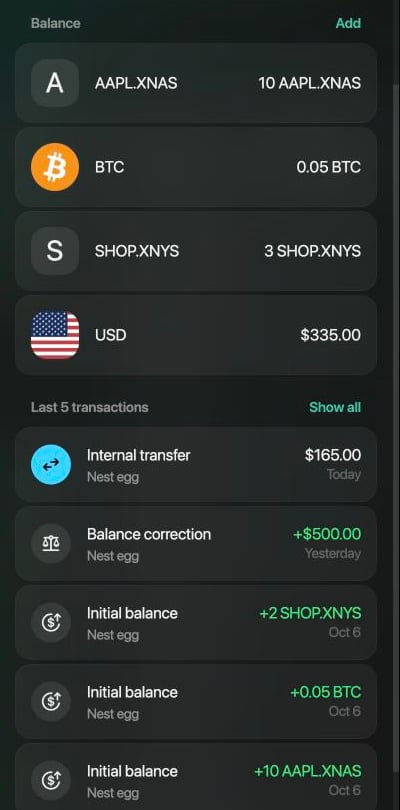
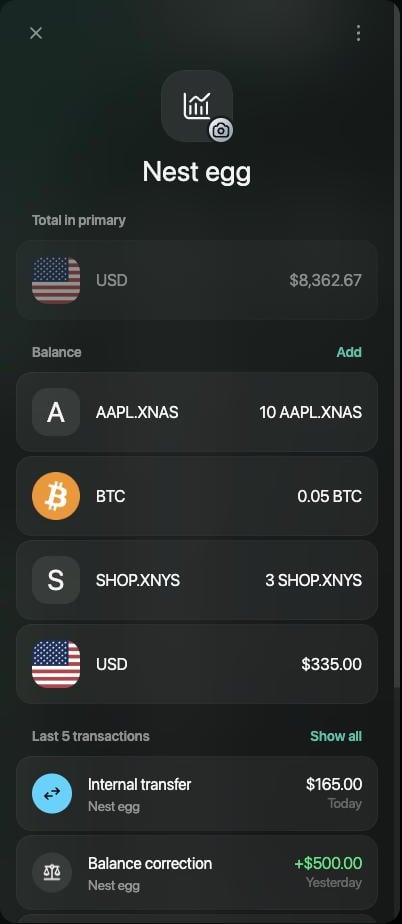
Each holding is a balance in its own units. The account shows how many you hold, such as **10 AAPL.XNAS** or **0.05 BTC**, not a price per share. Once the account has two or more balances, **Total in primary** shows what they're worth together in your space's [primary currency](/getting-started/initial-setup#primary-currency). In the example, 10 AAPL.XNAS, 0.05 BTC, 3 SHOP.XNYS and 335 USD add up to \$8,362.67.
 finerd prices holdings with daily closing prices from market data providers and updates them on weekdays. Because it uses daily prices, the value doesn't follow the market during the day. The value changes when the price or an exchange rate changes, even if your quantity stays the same.
If finerd has no price for a holding, the holding still shows its quantity, but it isn't counted in **Total in primary**, the **Accounts** totals or [Net Worth](/reports/net-worth).
finerd prices holdings with daily closing prices from market data providers and updates them on weekdays. Because it uses daily prices, the value doesn't follow the market during the day. The value changes when the price or an exchange rate changes, even if your quantity stays the same.
If finerd has no price for a holding, the holding still shows its quantity, but it isn't counted in **Total in primary**, the **Accounts** totals or [Net Worth](/reports/net-worth).
Add a holding finerd doesn't list
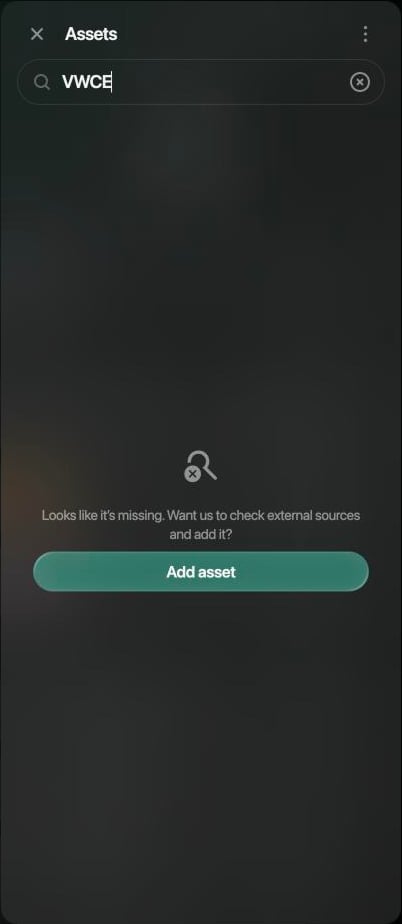
finerd can track only assets it can price, so you can't create an asset with a price of your own. If the search doesn't find your holding, finerd can look it up in external market data and add it to the list.
1. In the asset search, select **Add asset**. On the web and iOS, you can also select **Add “name” asset** at the top of the results.
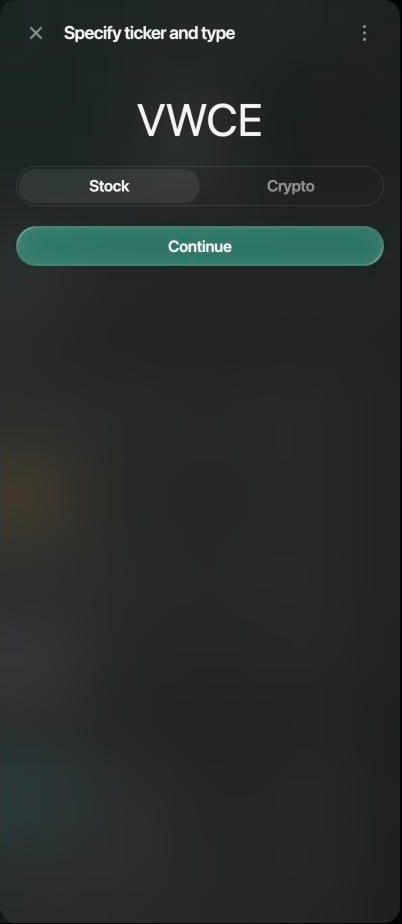
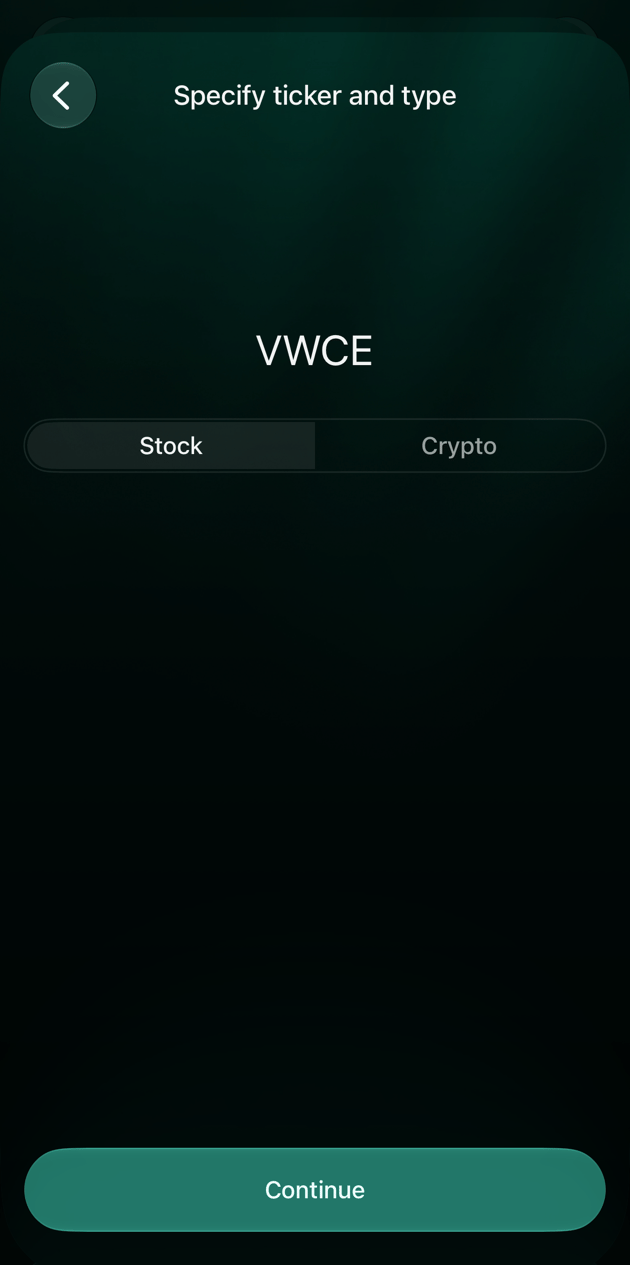
2. On **Specify ticker and type**, enter the ticker, choose **Stock** or **Crypto** and select **Continue**. On the web, **Crypto** is selected at first; on Android and iOS, **Stock**.
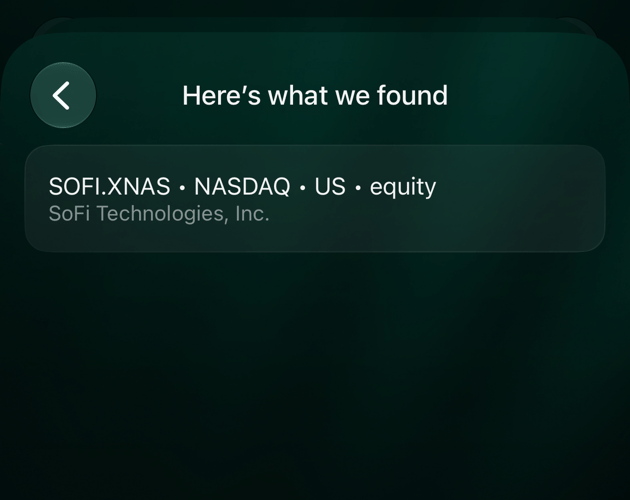
3. If finerd finds the asset, it's added. On the web, finerd adds it straight away and asks for the quantity. On Android and iOS, it appears under **Here’s what we found**: tap it to add it.
If the result reads **Oops, no luck this time**, the market data finerd uses doesn't include that ticker, and finerd can't track the holding. Check the ticker and the type, and try again.
Tap **More assets** on the balance and search for the ticker. If the result is **Assets not found**, tap **Add asset**.
Tap **Assets** on the balance, search for the ticker, then tap **Add asset** or **Add “name” asset**. Enter the ticker on **Specify ticker and type**: the iOS app doesn't copy it from the search.
Cash in an investment account
Uninvested money on a brokerage account is a currency balance in the same account. Add it like a holding: choose the currency, such as **USD**, instead of a ticker. In the example, a USD balance sits beside the shares and the crypto in **Nest egg**.
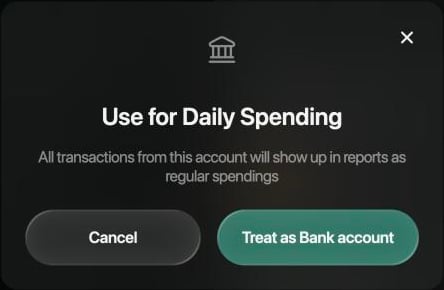
By default, finerd treats a Stock & Crypto account as investments. If you use the account for everyday spending, mark it as a bank account: all its transactions then show up in reports as regular spending. To undo it, choose **Treat as Investments**.
Open the account, select **⋮** in the top-right corner, then **Treat as Bank account**. Confirm with **Treat as Bank account**.
 The Android app follows the setting but can't change it. Use the web or iOS app.
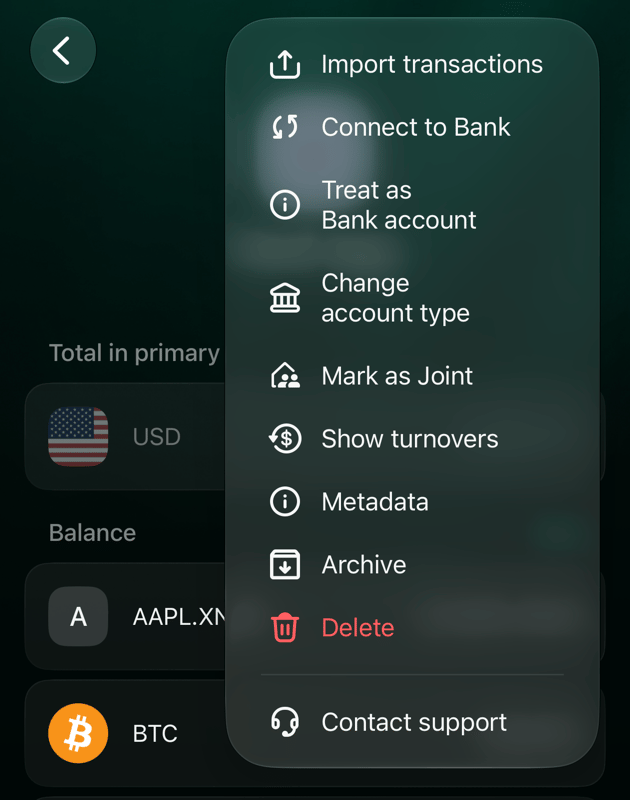
Open the account, tap **⋮** in the top-right corner, then **Treat as Bank account**. Confirm with **Treat as Bank account**, or swipe the sheet down to cancel.
The Android app follows the setting but can't change it. Use the web or iOS app.
Open the account, tap **⋮** in the top-right corner, then **Treat as Bank account**. Confirm with **Treat as Bank account**, or swipe the sheet down to cancel.
Record a purchase or sale
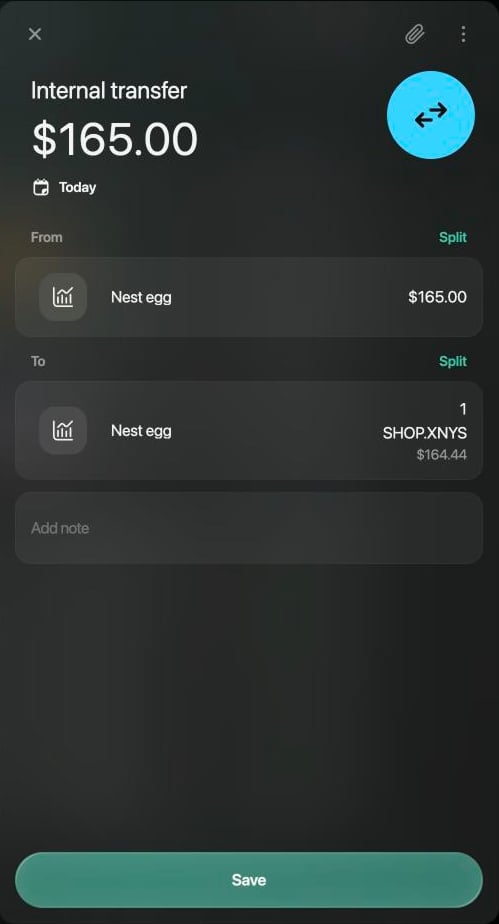
A connected account imports trades from the platform. In a manual account, record a purchase as a currency exchange within the same account: the cash goes out and the shares come in. For example, buying 1 SHOP.XNYS share for 165 USD in **Nest egg** turns 500 USD into 335 USD and 2 SHOP.XNYS into 3. To record a sale, exchange the shares for cash the same way.
1. Open the account and select **Add transaction**, then **Currency exchange**.
2. On **Source transfer account**, choose the account, such as **Nest egg**.
3. On **How much are you exchanging?**, choose **USD**, enter **165** and select **Continue**.
4. On **Exchange to**, choose the same account.
5. On **Enter the amount you received**, choose **SHOP.XNYS**, enter **1** and select **Continue**.
6. Check **From** and **To** and select **Save**.
1. On **Dashboard** or **Transactions**, tap **+**, then **Asset exchange**.
2. On **Exchange from**, tap the account, such as **Nest egg**.
3. On **How much are you exchanging?**, choose **USD**, enter **165** and tap **Continue**.
4. On **Exchange to**, tap the same account.
5. On **What amount are you receiving?**, choose **SHOP.XNYS**, enter **1** and tap **Continue**.
6. Check the exchange and tap **Save**.
1. On **Dashboard**, **Transactions** or the account, tap **+**, then **Currency exchange**.
2. On **Source transfer account**, tap the account, such as **Nest egg**.
3. On **How much are you exchanging?**, choose **USD**, enter **165** and tap **Continue**.
4. On **Exchange to**, tap the same account.
5. On **Enter the amount you received**, tap **Assets** if **SHOP.XNYS** isn't shown, choose it, enter **1** and tap **Continue**.
6. Check **From** and **To** and tap **Save**.
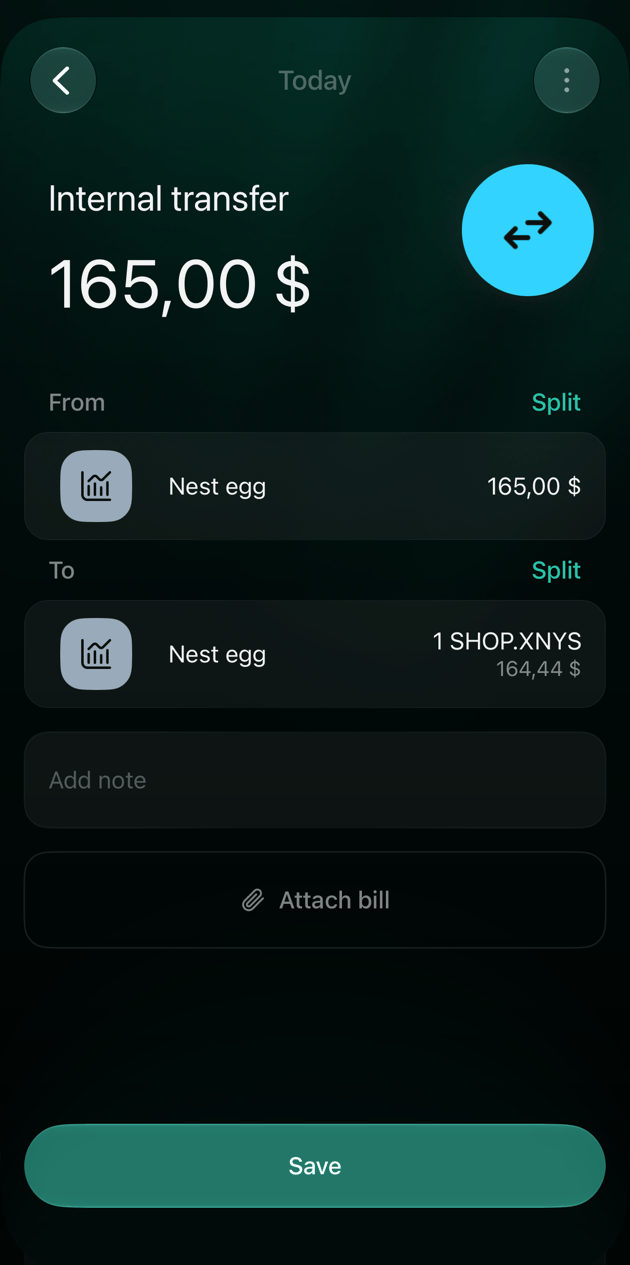 The purchase appears in **Transactions** as an **Internal transfer**. finerd compares the two amounts with its prices. If the gap is large, for example because the broker charged a commission, finerd asks whether the difference is a fee: **Add fees** records it as a separate fee line, and **Keep as is** keeps only the two amounts. See [When the amounts differ](/transactions/transfer-or-exchange#fees).
Where investments show up
Stock & Crypto accounts have their own group in **Accounts**, with the group's value in your primary currency. [Net Worth](/reports/net-worth) adds the value of your holdings to your other accounts and shows how the total changes over time.
To track a flat, a car or other property, [add a **Property** account](/investments/track-property); see [Create and set up an account](/accounts/create-account#account-types).
Related articles
* [Create and set up an account](/accounts/create-account)
* [Connect a bank](/institutions/connect-institution)
* [Verified balance](/verified-balance)
* [Understand your net worth](/reports/net-worth)
This documentation is built and hosted on [Mintlify](https://mintlify.com), a developer documentation platform.