> ## Documentation Index
> Fetch the complete documentation index at: https://help.finerd.ai/llms.txt
> Use this file to discover all available pages before exploring further.
# Disconnect a bank
> Disconnect a bank or a single account in finerd on the web, Android or iOS, see what happens to the accounts, transactions and balance, and connect them again.
When you disconnect a bank, finerd stops getting new transactions from it. You might do this after closing your account at the bank, or when you no longer want finerd to track it automatically. A breakup without drama: no new messages, and the shared photos (your transactions) stay in the album.
Disconnect a bank
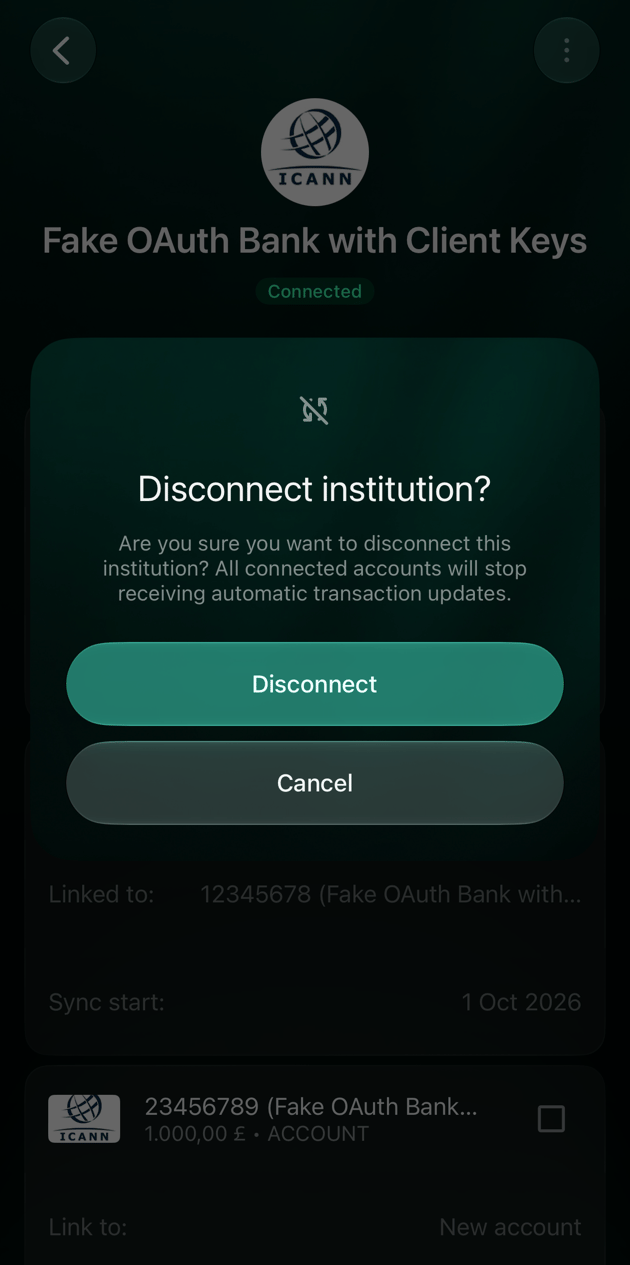
Disconnecting applies to the whole bank: all of its connected accounts stop receiving automatic transaction updates.
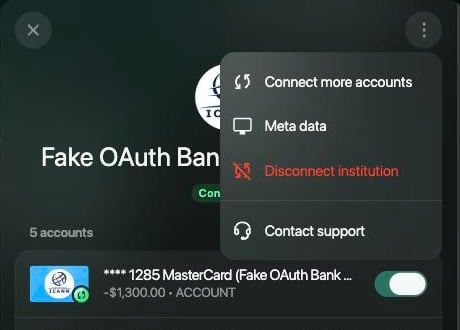
1. Open **More** → **Institutions** and select the bank.
2. Select **⋮** → **Disconnect institution**.
3. Select **Disconnect** to confirm, or **Cancel** to keep the bank connected.
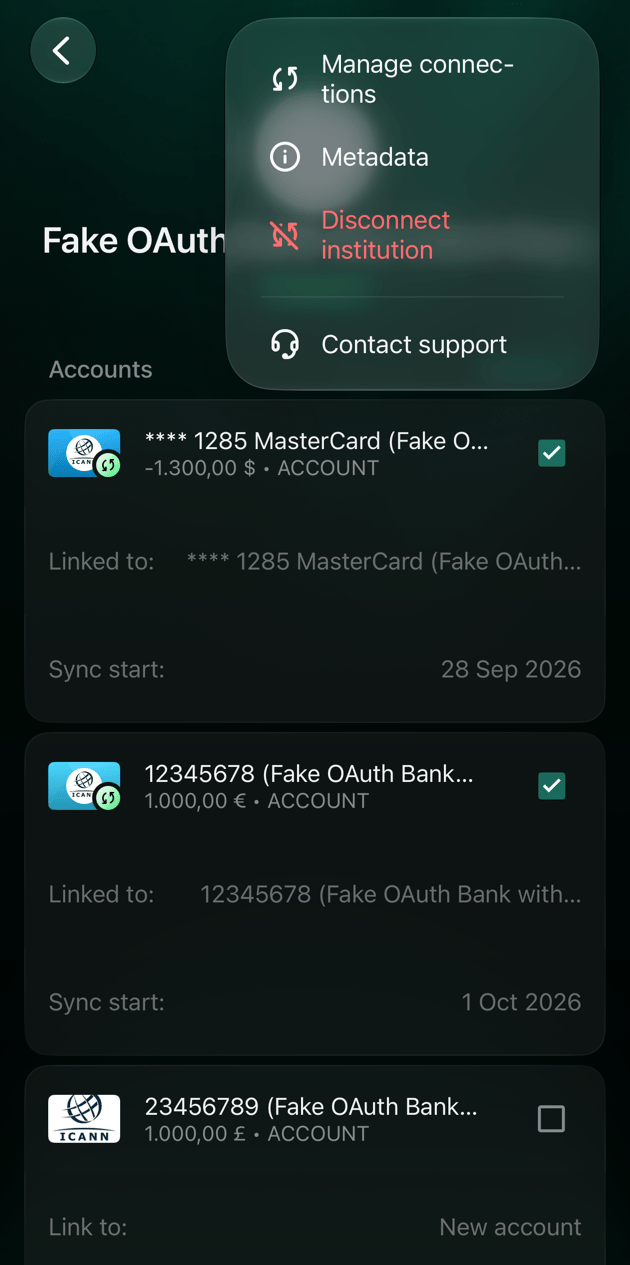
1. Open **More** → **Institutions** and tap the bank.
2. Tap **⋮** → **Disconnect institution**.
3. Tap **Disconnect** to confirm.
1. Open **More** → **Institutions** and tap the bank.
2. Tap **⋮** → **Disconnect institution**.
3. Tap **Disconnect** to confirm, or **Cancel** to keep the bank connected.
Stop syncing one account
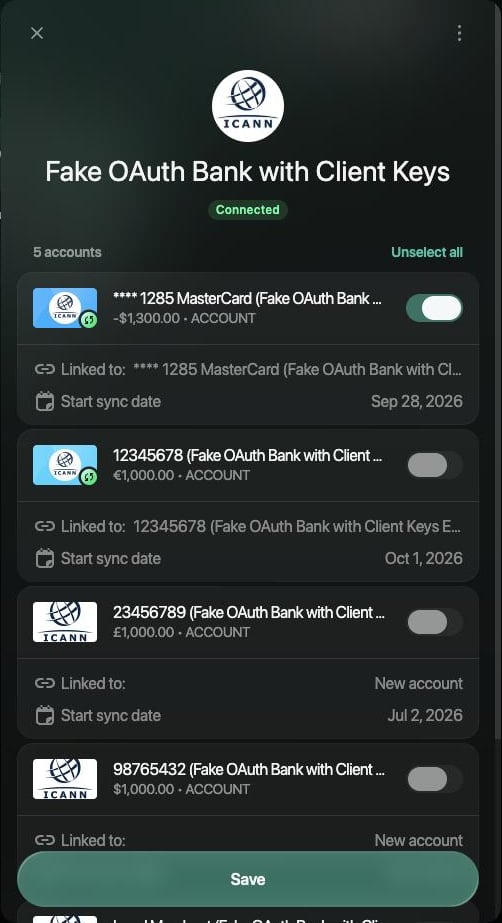
To keep the bank connected but stop some of its accounts, turn those accounts off on the bank's screen and save. The accounts you turn off stop receiving automatic updates. If you turn off every account, the button changes to **Disconnect institution** on the web or **Disconnect** in the apps, which disconnects the whole bank.
For PrivatBank, change the tracked cards as described in [After connecting](/institutions/connect-privatbank#after-connecting).
1. Open **More** → **Institutions** and select the bank.
2. Turn off the account you want to stop syncing.
3. Select **Save**.
**Archive** and **Delete** on a connected account ask you to disconnect it first. Selecting **Disconnect** there opens the same bank panel.
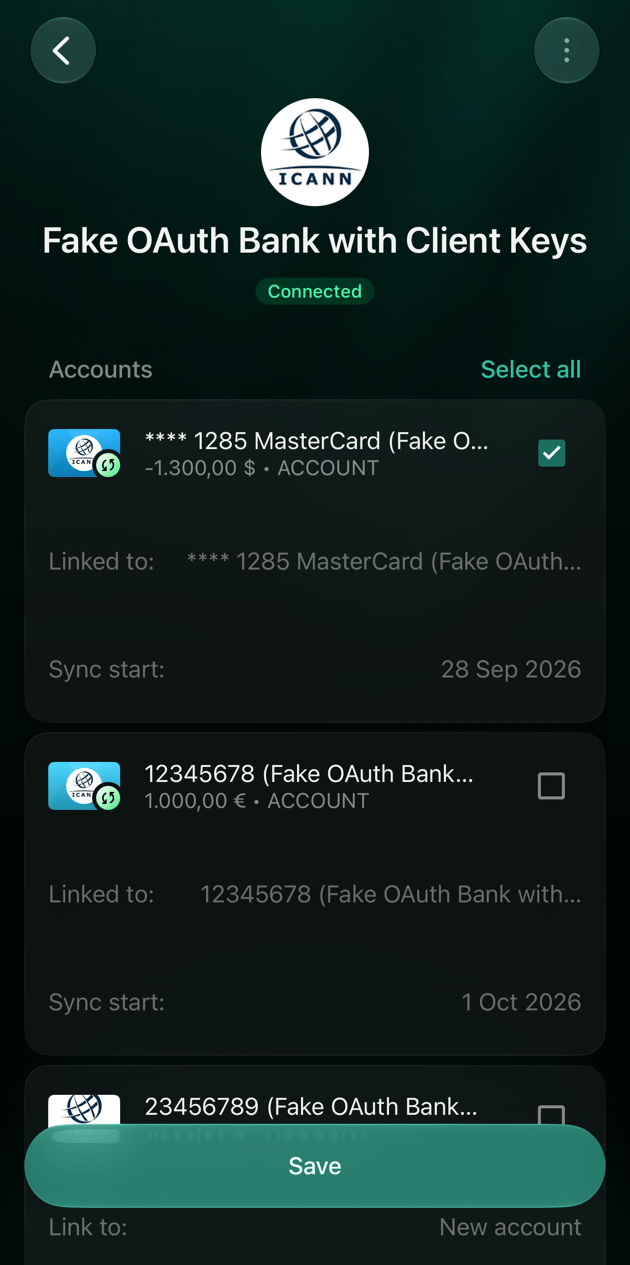
 1. Open **More** → **Institutions** and tap the bank.
2. Clear the checkbox next to the account you want to stop syncing.
3. Tap **Save**.
1. Open **More** → **Institutions** and tap the bank.
2. Clear the checkbox next to the account you want to stop syncing.
3. Tap **Save**.
1. Open **More** → **Institutions** and tap the bank.
2. Clear the checkbox next to the account you want to stop syncing.
3. Tap **Save**.
1. Open **More** → **Institutions** and tap the bank.
2. Clear the checkbox next to the account you want to stop syncing.
3. Tap **Save**.
After disconnecting
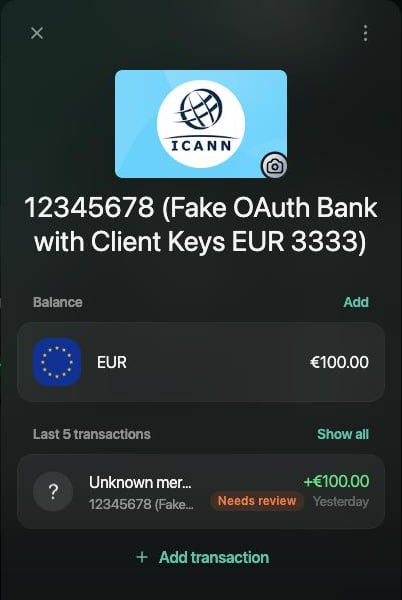
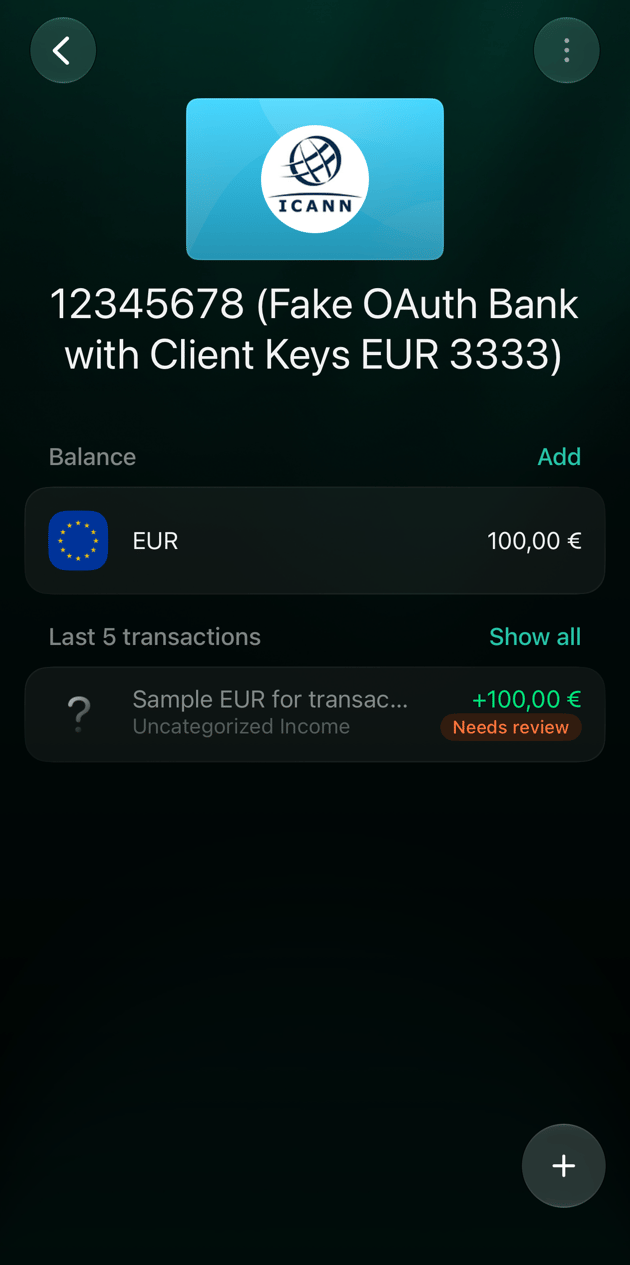
The accounts you disconnect stay in finerd with their transactions. They become manual accounts: nothing new arrives from the bank, and you keep them up to date yourself.
* **Transactions stay.** New ones from the bank stop arriving.
* **The balance can change.** finerd removes the balances it got from your bank (**Current balance** in the account's verified balances) and the records based on them, such as **Initial balance**. The account's balance is then the sum of its transactions. For example, an account that showed 1,000 EUR from the bank but had only 100 EUR of transactions in finerd shows 100 EUR after disconnecting. To bring it back in line, [add a verified balance](/verified-balance#add-a-verified-balance) from your bank statement.
* **The status disappears.** The account no longer shows **Connected**, and the bank's screen no longer lists it as connected. A bank you disconnect completely disappears from **Institutions**.
* **Manual-account actions become available.** You can add a balance (**Add**), change the account type, and archive or delete the account without disconnecting it first. See [Create and set up an account](/accounts/create-account).
Connect again
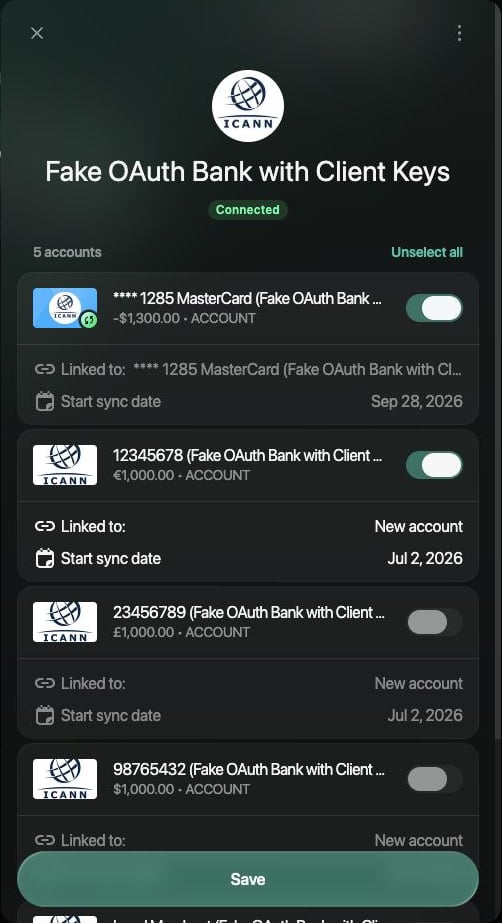
You can connect a disconnected account again later. finerd suggests a **New account** for it by default. To continue the account you already have, link the bank account to it before you save.
1. Open **More** → **Institutions** and select the bank.
2. Turn the account on.
3. Select **Linked to** and choose your account under **Manual bank accounts**.
4. Select **Save**.
 1. Open **More** → **Institutions** and tap the bank.
2. Check the account and tap **Continue**.
3. Tap **Select existing account**, pick your account, then finish.
1. Open **More** → **Institutions** and tap the bank.
2. Check the account.
3. Tap **Link to** and choose your account.
4. Tap **Save**.
1. Open **More** → **Institutions** and tap the bank.
2. Check the account and tap **Continue**.
3. Tap **Select existing account**, pick your account, then finish.
1. Open **More** → **Institutions** and tap the bank.
2. Check the account.
3. Tap **Link to** and choose your account.
4. Tap **Save**.
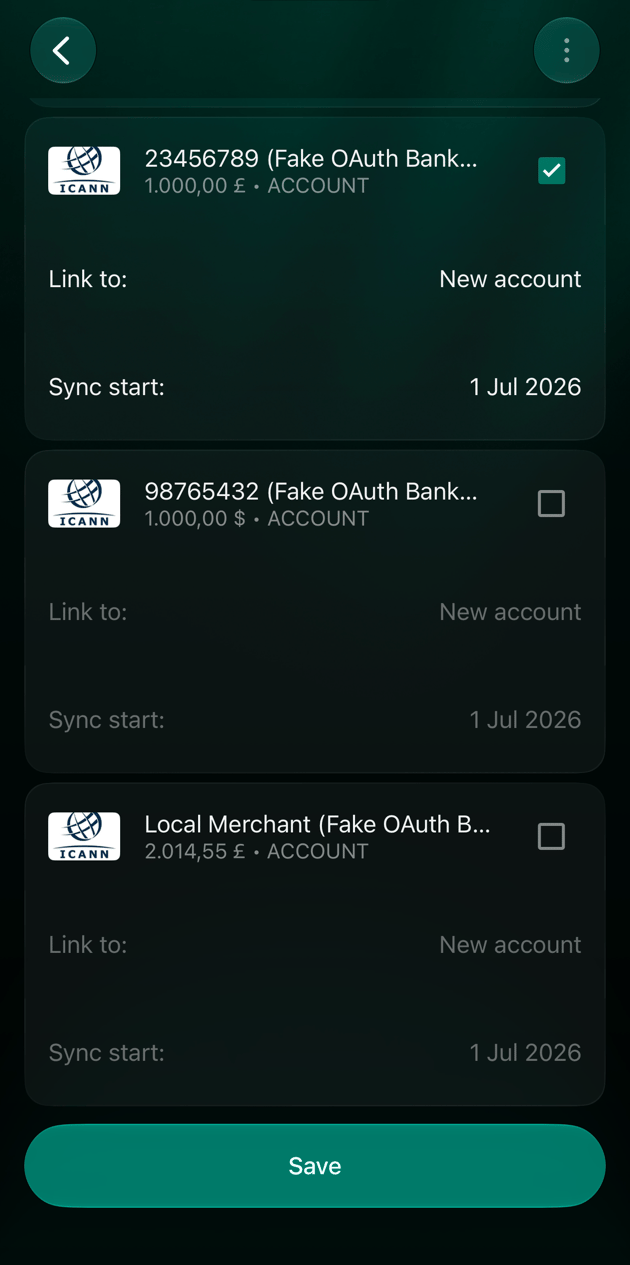 The account shows **Connected** again. finerd picks up the bank's transactions from after the latest entry in the account, so the ones you already have aren't added twice, and the bank's **Current balance** comes back.
If you disconnected the whole bank, [connect it again](/institutions/connect-institution) and [link its accounts](/institutions/connect-institution#link-existing) to your existing ones when finerd lists them.
This documentation is built and hosted on [Mintlify](https://mintlify.com), a developer documentation platform.
The account shows **Connected** again. finerd picks up the bank's transactions from after the latest entry in the account, so the ones you already have aren't added twice, and the bank's **Current balance** comes back.
If you disconnected the whole bank, [connect it again](/institutions/connect-institution) and [link its accounts](/institutions/connect-institution#link-existing) to your existing ones when finerd lists them.
This documentation is built and hosted on [Mintlify](https://mintlify.com), a developer documentation platform.