> ## Documentation Index
> Fetch the complete documentation index at: https://help.finerd.ai/llms.txt
> Use this file to discover all available pages before exploring further.
# Connect PrivatBank through email
> Turn on Privat24 email notifications, connect Gmail and choose a finerd account for each PrivatBank card, so its operations appear in finerd. Works on web and iOS.
PrivatBank and finerd don't talk directly — they're pen pals. Privat24 emails you about each card operation, and finerd turns those emails into transactions.
How it works
1. In Privat24, you turn on email notifications. PrivatBank then emails you about each operation on your cards.
2. In finerd, you connect the Gmail mailbox that receives these emails.
3. For each card, you choose an account in finerd and enter the card's first digit and last four digits. PrivatBank's emails don't name the card, so finerd uses these digits to put each operation on the right account.
From then on, each operation appears in finerd once its email reaches your mailbox.
For the same steps with screenshots, see the [PrivatBank tutorial](https://app.finerd.ai/landing/privatbank) (in Ukrainian).
Before you start, make sure you have:
* **finerd Pro.** Connecting PrivatBank is part of Pro.
* **A Gmail address.** finerd connects to PrivatBank only through Gmail.
* **Access to Privat24**, to turn on the notifications.
* **A [bank account you track manually](/accounts/create-account#add-a-manual-account)** in finerd for each card. You can also create one while connecting.
finerd can only record operations that PrivatBank has emailed to you. Operations from before you turned on the notifications aren't in your mailbox, so they won't appear in finerd.
Connect PrivatBank on the web at [app.finerd.ai](https://app.finerd.ai). The PrivatBank panel is in Ukrainian, even when finerd is in English.
PrivatBank can't be connected in the Android app. If you select it, the app shows **Connect this institution on app.finerd.ai**. Connect it on the web or in the iOS app. Its transactions then appear in the Android app too.
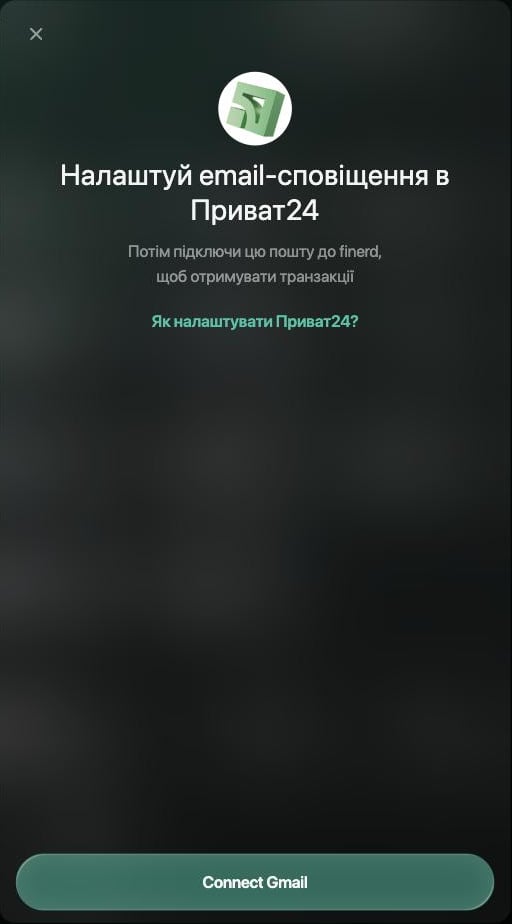
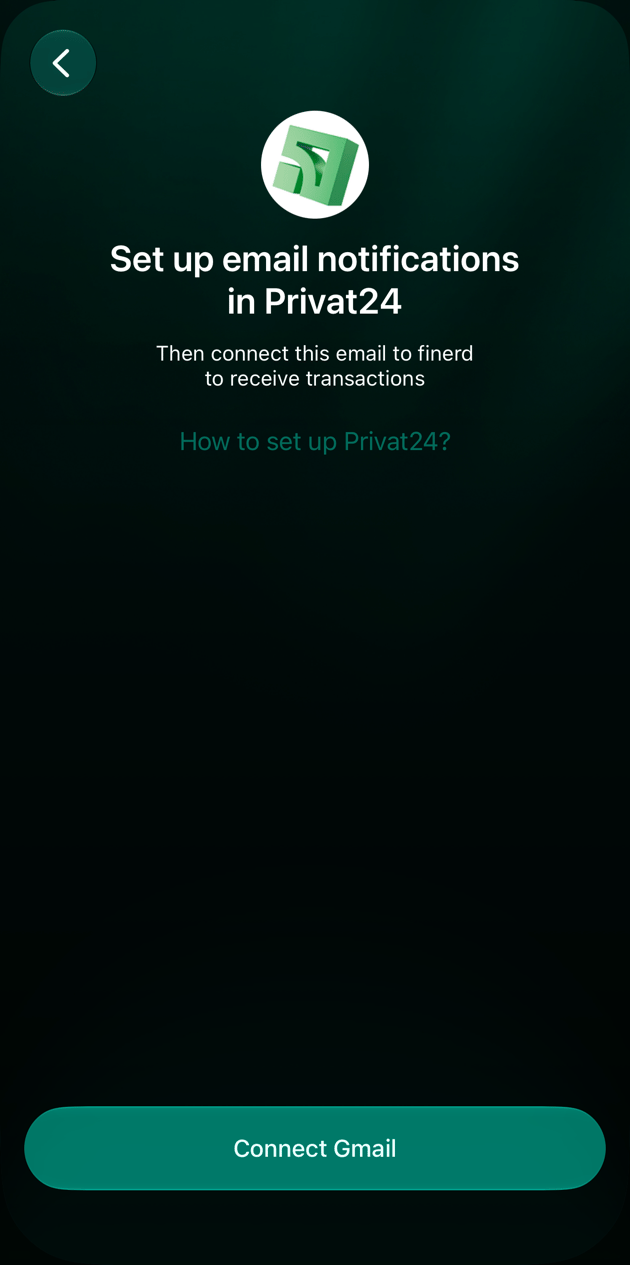
Connect PrivatBank in the iOS app. Its first screen sums up the setup: **Set up email notifications in Privat24**, then **Connect Gmail**.
Turn on email notifications in Privat24
PrivatBank sends operation notifications through one channel, and by default that's the Privat24 app. Switch it to email in Privat24 in a browser, using the Gmail address you'll connect to finerd.
1. Open [Privat24](https://www.privat24.ua/) in a browser and sign in.
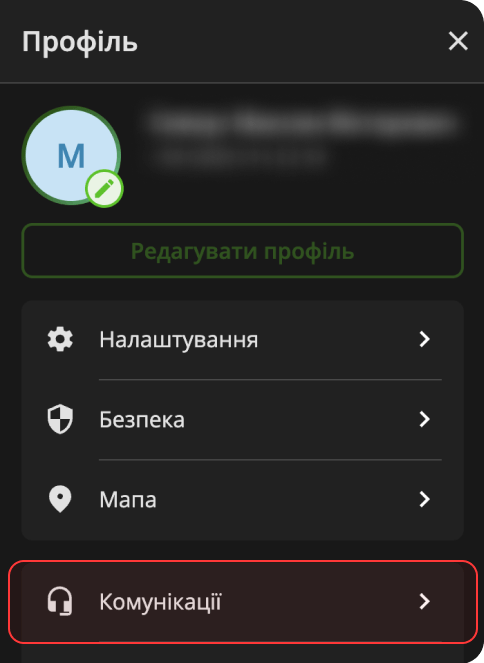
2. Select your profile icon in the top-right corner, then **Комунікації** (Communications).
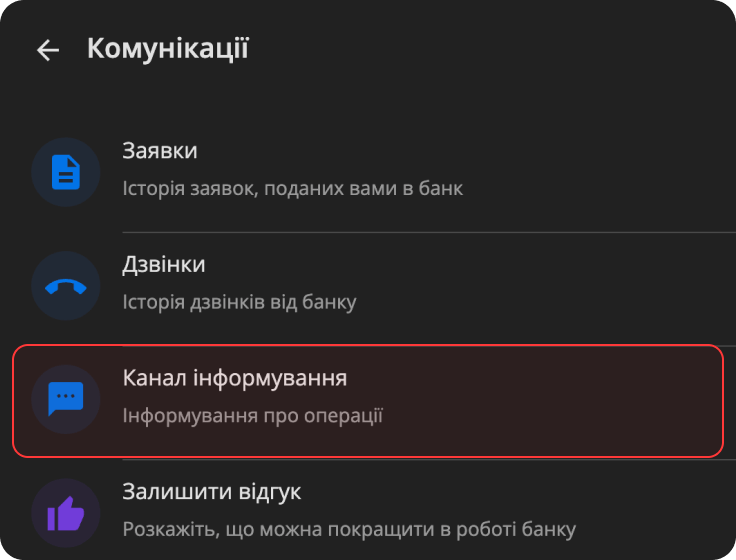
3. Open **Канал інформування** (Notification channel).
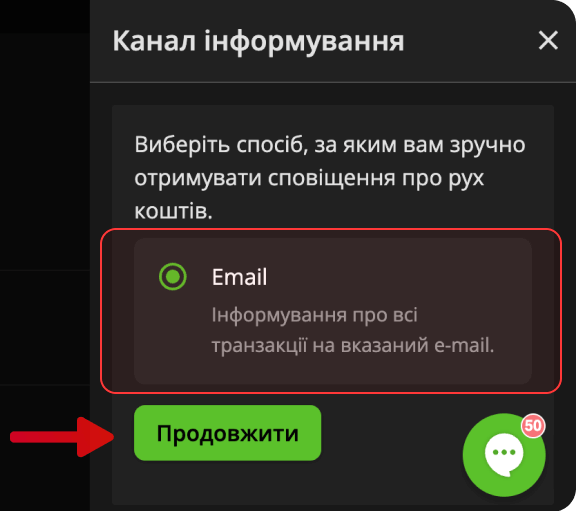
4. Choose **Email** and select **Продовжити** (Continue).
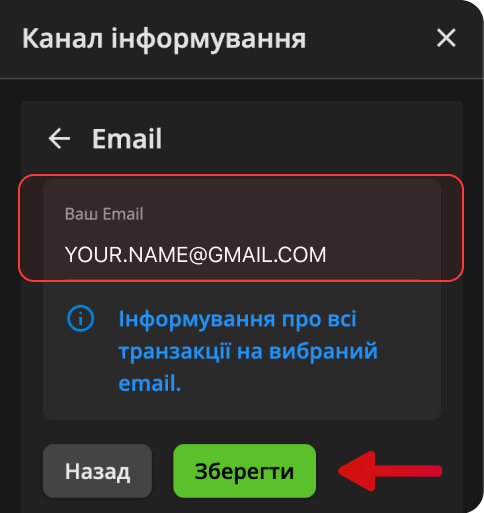
5. Enter your Gmail address and select **Зберегти** (Save).
6. Open the email PrivatBank sends to this address and select the button in it to confirm the address.
Once you confirm, operation notifications arrive at this email instead of the Privat24 app. Until then, they keep arriving in Privat24.
In the Privat24 mobile app, the same setting is under **Налаштування** (Settings) → **Комунікації** → **Канал інформування**.
Connect your Gmail to finerd
Connect the Gmail mailbox that receives PrivatBank's notifications. finerd asks Google for read-only access to your email.
1. Open **More** → **Institutions** and enter **Privat** in the search field. Select **ПриватБанк**.
2. Select **Connect Gmail**. In the Google window, choose your account and allow finerd to read your email.
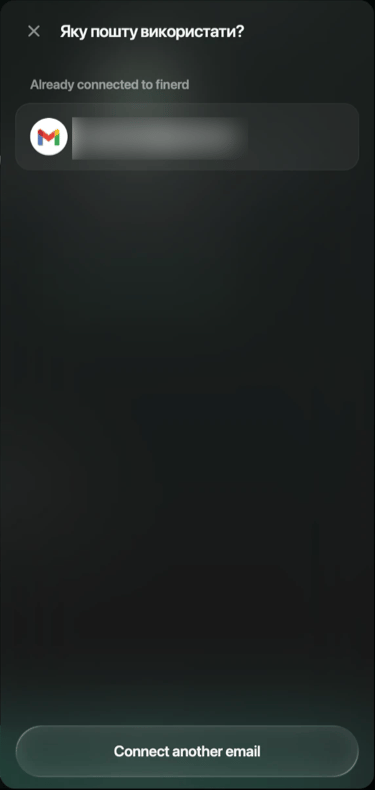
3. If a Gmail address is already connected to finerd, **Яку пошту використати?** (Which email to use?) opens instead. Select the address, then **Apply**. To use another mailbox, select **Connect another email**.
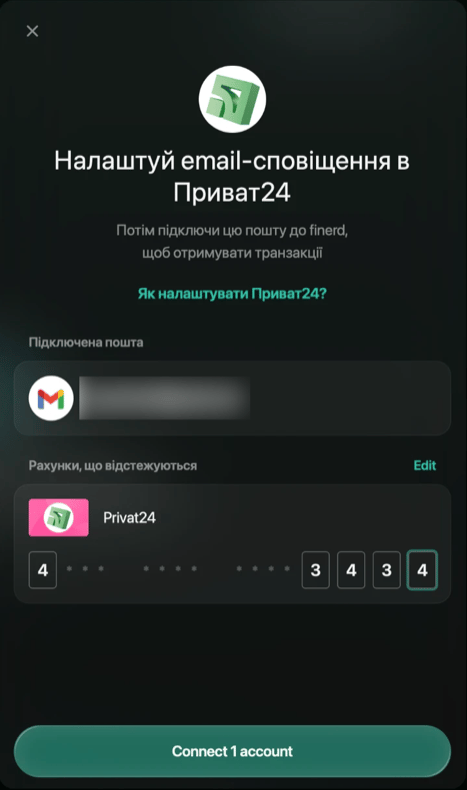
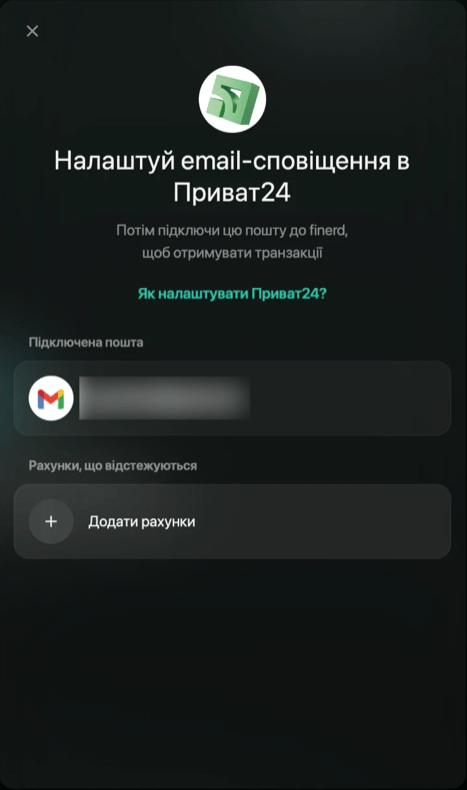
The address appears under **Підключена пошта** (Connected email), with **Рахунки, що відстежуються** (Tracked accounts) below it.
Connect PrivatBank on the web or in the iOS app.
1. Open **More** → **Institutions**, tap **+**, then **Bank accounts**. Enter **Privat** in the search field and tap **ПриватБанк**.
2. Tap **Connect Gmail**. Choose your Google account and allow finerd to read your email.
3. If a Gmail address is already connected to finerd, the app uses it. If there are several, tap the one you need on **Connected emails**. To add another, tap **+**.
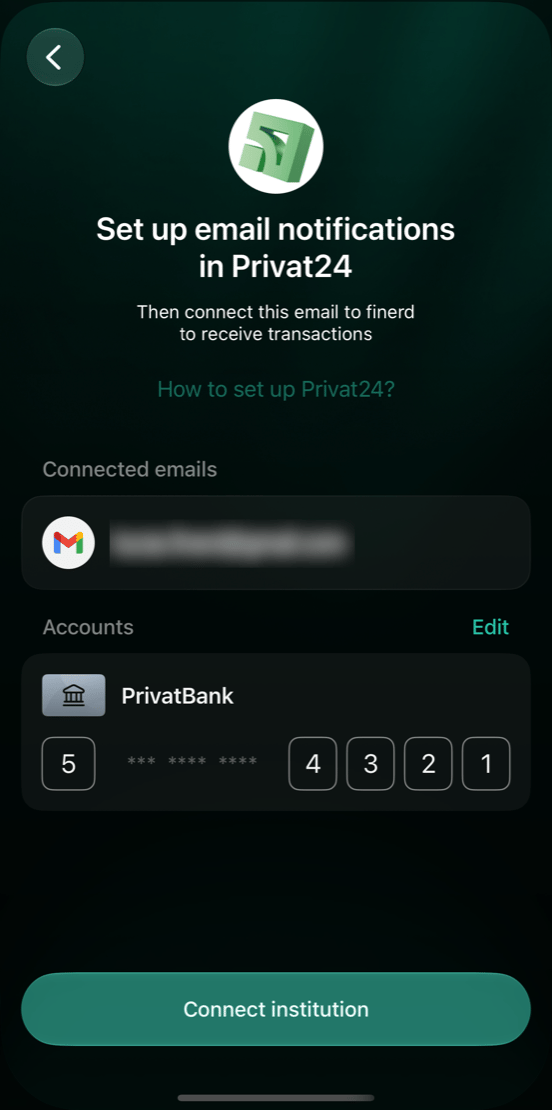
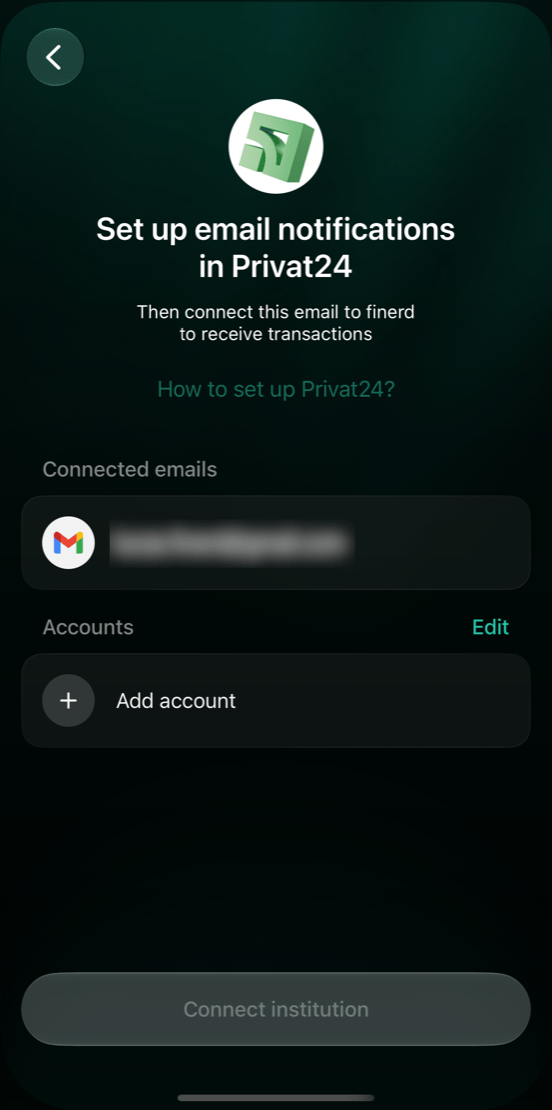
The address appears under **Connected emails**, with **Accounts** below it. If you go back before connecting the accounts, the app asks whether to **Return to connection** or **Abort process**.
Choose an account for each card
finerd records each card's operations on a bank account you track manually, so each card needs its own account. If you don't have one yet, create it here.
1. Under **Рахунки, що відстежуються** (Tracked accounts), select **Додати рахунки** (Add accounts).
2. In **Які рахунки відстежувати?** (Which accounts to track?), select an account for each card, then **Apply**. The list shows only bank accounts you track manually.
3. If a card has no account yet, select **Create account**, enter a name, for example **Privat24**, and select **Save**. The new account is selected for you. Then select **Apply**.
4. For each account, enter the card's first digit and last four digits.
5. Select **Connect 1 account** (or **Connect 2 accounts**, and so on).
finerd shows **ПриватБанк connected!**. Select **Hooray!**.
 Connect PrivatBank on the web or in the iOS app.
1. Under **Accounts**, tap **Add account**.
2. On **Select existing account to link**, tap an account for each card, then **Apply**. The list shows only bank accounts you track manually.
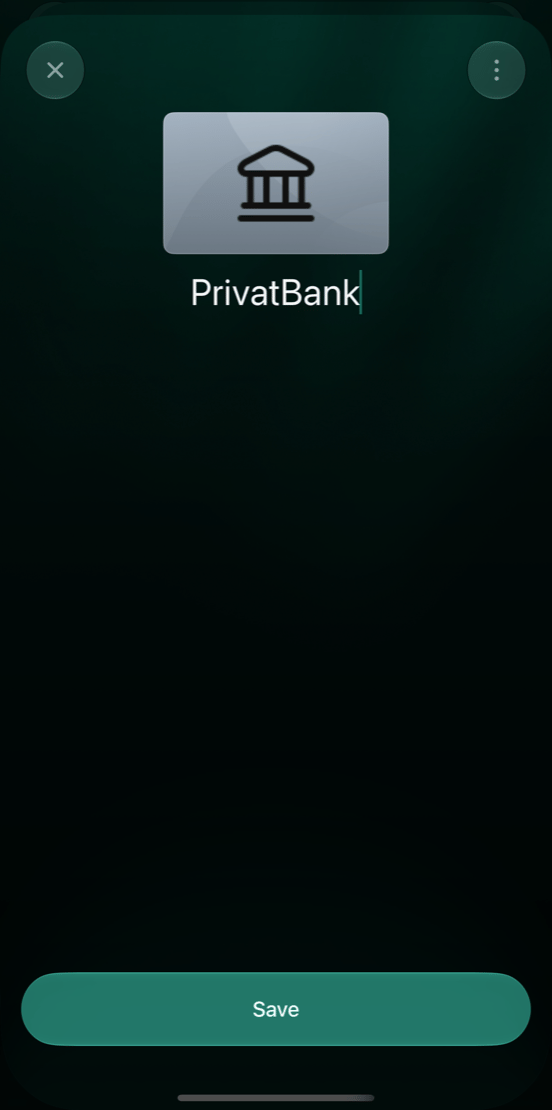
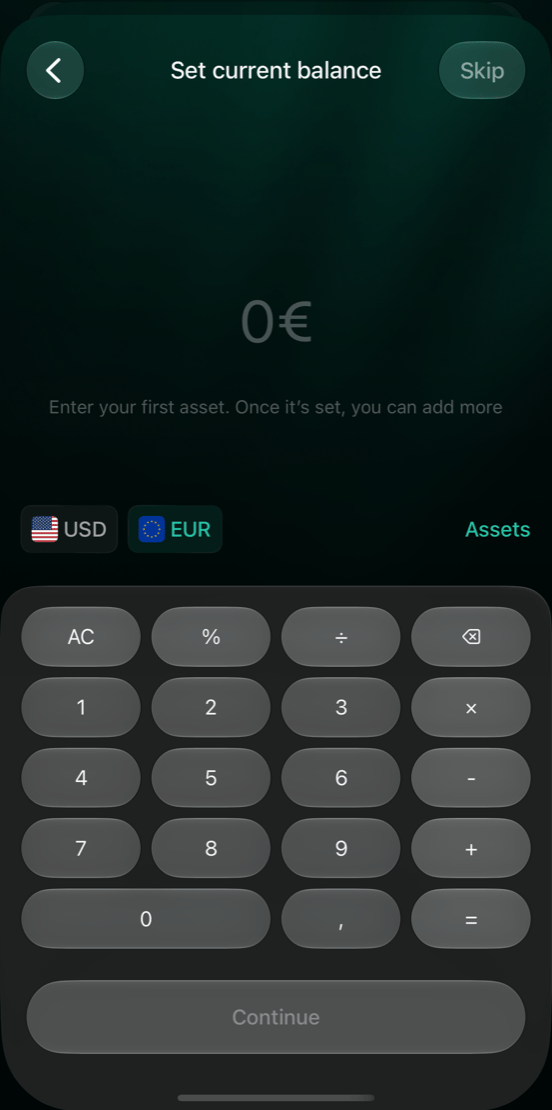
3. If a card has no account yet, tap **+**, enter a name, for example **PrivatBank**, and tap **Save**. On **Set current balance**, enter the card's balance and tap **Continue**, or tap **Skip**. Then tap **Save**. The new account is selected for you; tap **Apply**.
4. For each account, enter the card's first digit and last four digits.
5. Tap **Connect institution**. It becomes available once every card has all five digits.
The app shows **Account connected**. Tap **Hooray!**.
Connect PrivatBank on the web or in the iOS app.
1. Under **Accounts**, tap **Add account**.
2. On **Select existing account to link**, tap an account for each card, then **Apply**. The list shows only bank accounts you track manually.
3. If a card has no account yet, tap **+**, enter a name, for example **PrivatBank**, and tap **Save**. On **Set current balance**, enter the card's balance and tap **Continue**, or tap **Skip**. Then tap **Save**. The new account is selected for you; tap **Apply**.
4. For each account, enter the card's first digit and last four digits.
5. Tap **Connect institution**. It becomes available once every card has all five digits.
The app shows **Account connected**. Tap **Hooray!**.
After connecting
PrivatBank now appears in **Institutions**, and each card's operations arrive on its account as the emails come in. Open PrivatBank there to add a card, fix its digits or disconnect.
1. Open **More** → **Institutions** and select **ПриватБанк**.
2. To add or remove a card, select **Edit** next to **Рахунки, що відстежуються**, change the selected accounts and select **Apply**.
3. Check the digits for each account, and enter them for a new card.
4. Select **Save**.
To stop getting PrivatBank operations, select **⋮** → **Disconnect institution**, then **Disconnect**. The connected accounts stop receiving automatic transaction updates.
To change the PrivatBank connection, use the web or the iOS app.
1. Open **More** → **Institutions** and tap **ПриватБанк**.
2. To add or remove a card, tap **Edit** next to **Accounts**, change the selected accounts and tap **Apply**.
3. Check the digits for each account, and enter them for a new card.
4. Tap **Save**. It appears once you change something.
To stop getting PrivatBank operations, tap **⋮** → **Disconnect institution**, then **Disconnect**. The connected accounts stop receiving automatic transaction updates.
If transactions don't appear
| What you see | What to do |
| - | - |
| finerd says it doesn't have permission to read your email, for example **Looks like we don't have permission to scan your inbox** on the web | Select **Try again** (on iOS, tap **Connect Gmail** again). In the Google window, allow finerd to read your email. |
| **This Google account has no Gmail mailbox** | Connect a Google account that uses Gmail. |
| No new operations arrive | In Privat24, check that **Канал інформування** is set to **Email** with this Gmail address and that you confirmed the address. See [Turn on email notifications in Privat24](#turn-on-email-notifications). |
| PrivatBank's emails land in Spam, Trash or Promotions in Gmail | finerd skips emails there. Mark PrivatBank's emails as not spam or move them to Primary, so new ones arrive in your inbox. |
| Operations from one card don't appear | Check that card's first digit and last four digits on the PrivatBank screen. finerd skips operations whose card digits don't match an account. See [After connecting](#after-connecting). |
| A declined payment isn't in finerd | finerd doesn't record declined operations. |
| **To keep syncing, reconnect PrivatBank…** | Disconnect PrivatBank, then connect it again with the same Gmail address, the same accounts and the same card digits. See [After connecting](#after-connecting) and [Connect your Gmail to finerd](#connect-email). |
In the iOS app, the **⋮** menu on the PrivatBank screen also has **Email history**. It lists the emails finerd has read and the status of each, such as **Processed** or **Skipped**.
If none of this helps, contact support: on the web, open **More** → **Help & support**; in the iOS app, open **More** → **Help & Support** → **Contact support**.
This documentation is built and hosted on [Mintlify](https://mintlify.com), a developer documentation platform.