> ## Documentation Index
> Fetch the complete documentation index at: https://help.finerd.ai/llms.txt
> Use this file to discover all available pages before exploring further.
# Connect a bank
> Connect a bank or investment platform to finerd so transactions arrive automatically: sign in, choose accounts and history, link accounts you track.
When you connect a bank, its transactions arrive in finerd automatically, so you don't have to enter them yourself. A direct flight for your transactions: from the bank to finerd, no layover in your notes app. Investment and crypto platforms connect the same way.
Connecting Monobank is free. Other banks and investment platforms need finerd Pro.
Keep your banking app or online banking sign-in at hand: you sign in to your bank while connecting it.
Find your bank
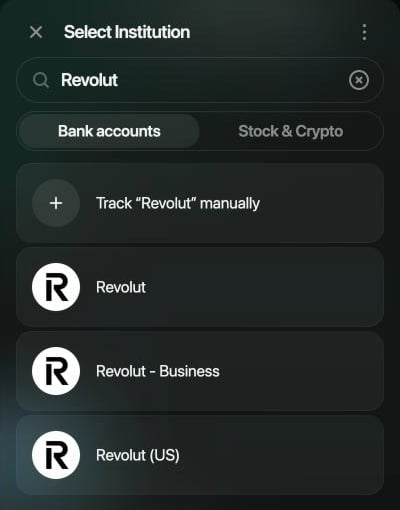
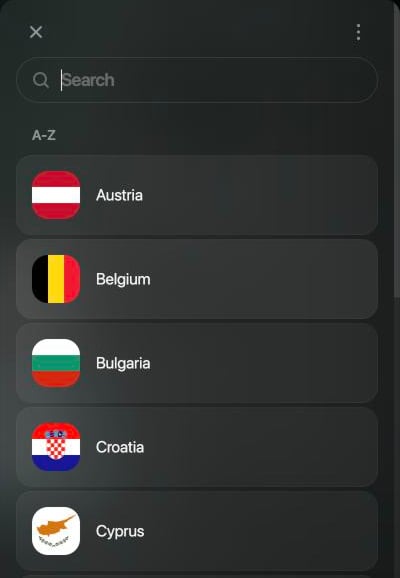
Banks and investment platforms are listed separately, under **Bank accounts** and **Stock & Crypto**. If your bank works in several countries, finerd asks where you use it: choose the country where you have the account.
**Track manually** doesn't connect anything. It creates an account that you [keep up to date yourself](/accounts/create-account#add-a-manual-account).
1. Open **More** → **Institutions** and select **Connect institution**.
2. Select **Bank accounts** or **Stock & Crypto** and enter your bank's name in the search.
3. Select your bank. If a list of countries opens, select the country where you have the account.
You can also search in the field at the top of **Connected institutions**: banks you can connect appear under **More bank accounts**.
1. Open **More** → **Institutions** and tap **+**.
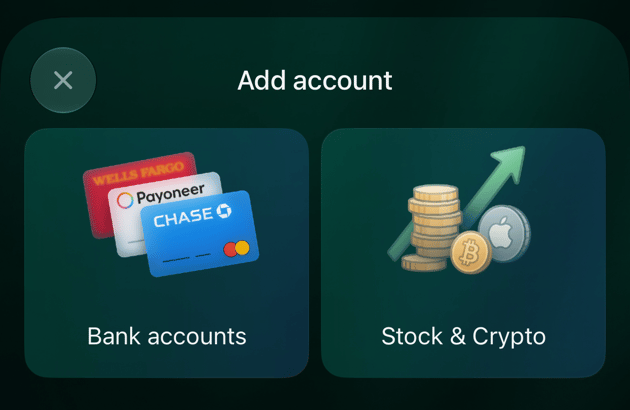
2. Tap **Bank accounts** or **Stock & Crypto**, tap the search icon and enter your bank's name.
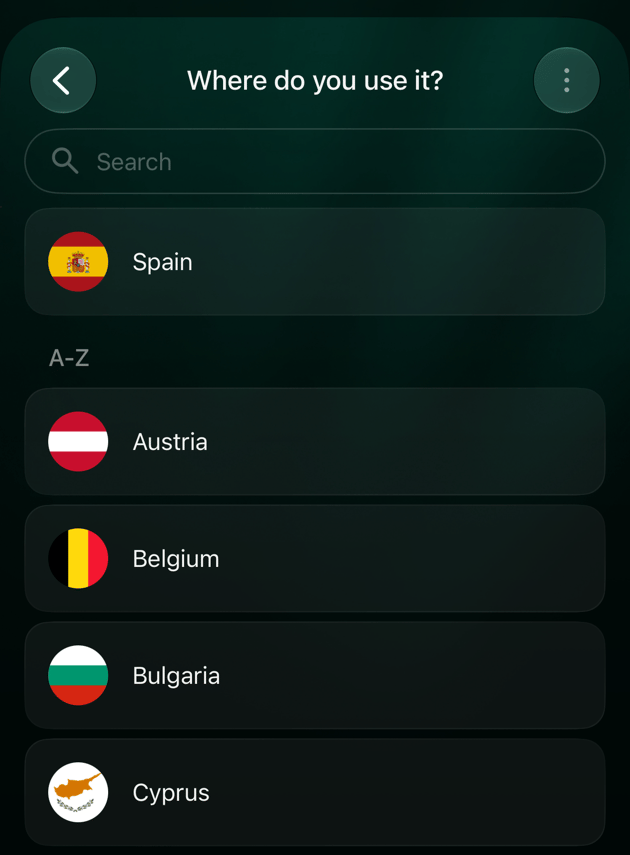
3. Tap your bank. If **Where do you use it?** opens, tap the country where you have the account.
1. Open **More** → **Institutions** and tap **+**.
2. On **Add account**, tap **Bank accounts** or **Stock & Crypto**, then enter your bank's name in the search.
3. Tap your bank. If **Where do you use it?** opens, tap the country where you have the account. The region set on your iPhone is listed first.
Sign in to your bank
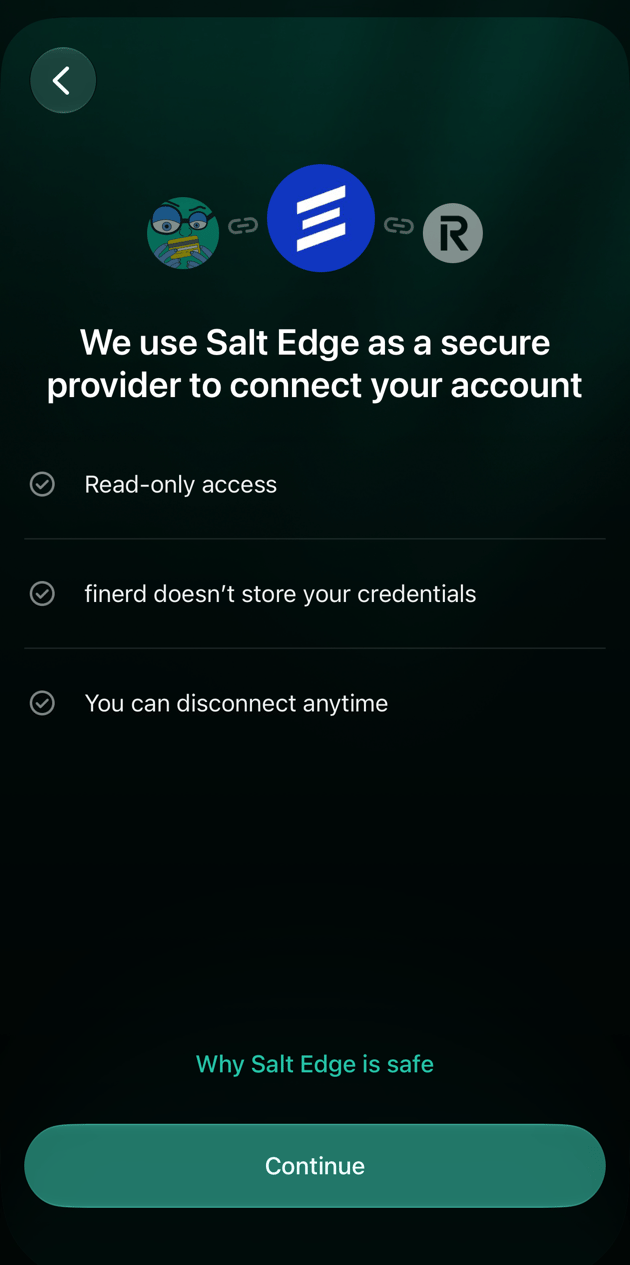
You sign in to your bank on a connection provider's page, not in finerd. Before it opens, finerd shows which provider connects your bank, such as Salt Edge or Plaid.
1. Select **Continue**.
2. On the provider's page, sign in to your bank and allow access. Salt Edge opens in a new browser tab, Plaid in a window over finerd.
3. When you're done, finerd shows your bank's accounts. After Salt Edge, finerd continues in that new tab.
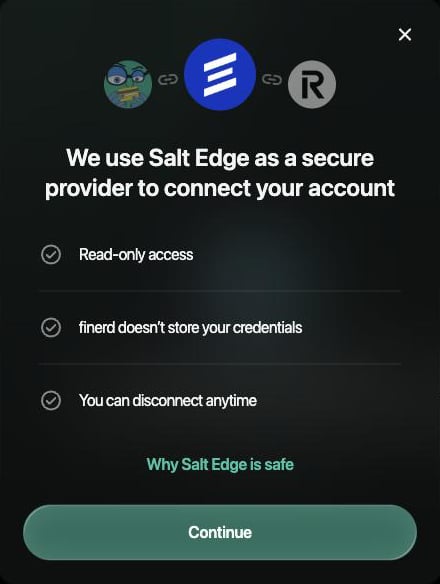 1. After you tap your bank, the provider's page opens.
2. Sign in to your bank and allow access.
3. When you're done, finerd shows your bank's accounts.
1. Tap **Continue**.
2. On the provider's page, sign in to your bank and allow access. Salt Edge opens in your browser.
3. When you're done, finerd opens again and shows your bank's accounts.
1. After you tap your bank, the provider's page opens.
2. Sign in to your bank and allow access.
3. When you're done, finerd shows your bank's accounts.
1. Tap **Continue**.
2. On the provider's page, sign in to your bank and allow access. Salt Edge opens in your browser.
3. When you're done, finerd opens again and shows your bank's accounts.
 Two banks connect without a provider page:
* **Monobank.** You confirm access in the Monobank app. On the web, scan the QR code with your phone or select **Open Monobank**. In the apps, tap **Open Monobank**. Then tap "Confirm" in Monobank and return to finerd.
* **PrivatBank.** finerd reads PrivatBank's email notifications in your Gmail. See [Connect PrivatBank through email](/institutions/connect-privatbank).
Two banks connect without a provider page:
* **Monobank.** You confirm access in the Monobank app. On the web, scan the QR code with your phone or select **Open Monobank**. In the apps, tap **Open Monobank**. Then tap "Confirm" in Monobank and return to finerd.
* **PrivatBank.** finerd reads PrivatBank's email notifications in your Gmail. See [Connect PrivatBank through email](/institutions/connect-privatbank).
Choose accounts and history
After you sign in, finerd lists your bank's accounts. Choose which ones to connect and how far back to import transactions.
* **Accounts.** All of them are selected. Turn off the ones you don't want in finerd; you can connect them later.
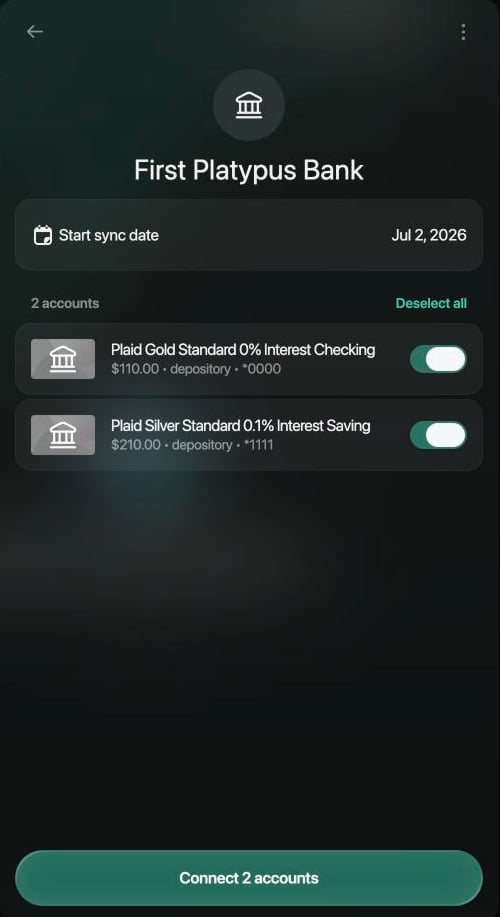
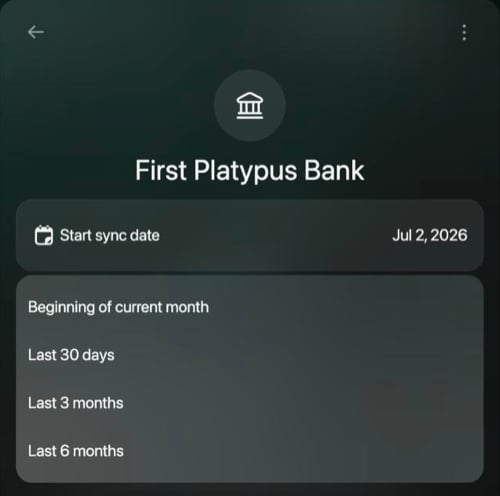
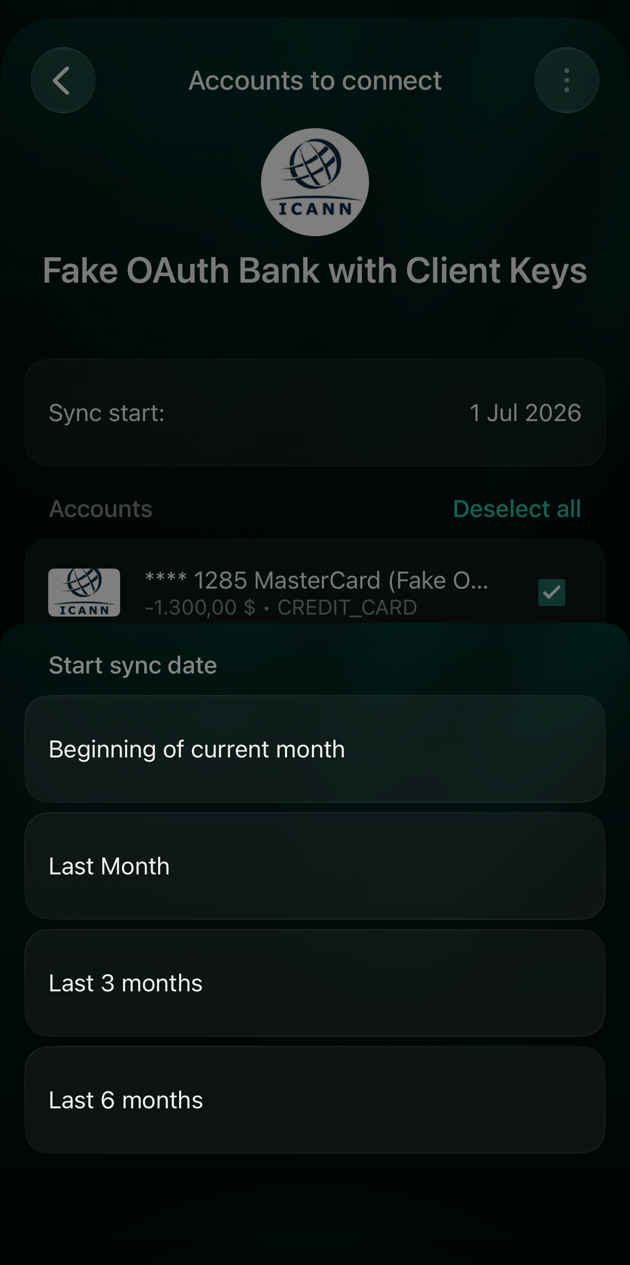
* **Start date.** finerd imports transactions from this date. Choose **Beginning of current month**, **Last 30 days** on the web or **Last Month** in the apps, **Last 3 months** or **Last 6 months**. By default, it's about three months back.
* **Accounts you already track.** If you already have bank accounts in finerd, finerd first asks how to connect the new ones. This section covers **Add as new accounts**. To continue an account you already keep in finerd, see [Link an account you already track](#link-existing).
With Plaid, you also choose which accounts to share on Plaid's page, and finerd lists only those.
1. If finerd asks **How should we connect** your bank, select **Add as new accounts**.
2. Check **Start sync date** and change it if you need more or less history.
3. Turn off the accounts you don't want to connect.
4. Select **Connect 2 accounts** (the number matches the accounts you've selected).
1. finerd shows the accounts one at a time (**Account 1 of 2**). For each one, tap **Add as new** and check **Start syncing**, or tap **Skip**.
2. Tap **Continue**.
3. On **Review & Connect**, tap **Connect 2 accounts** (the number matches the accounts you're connecting).
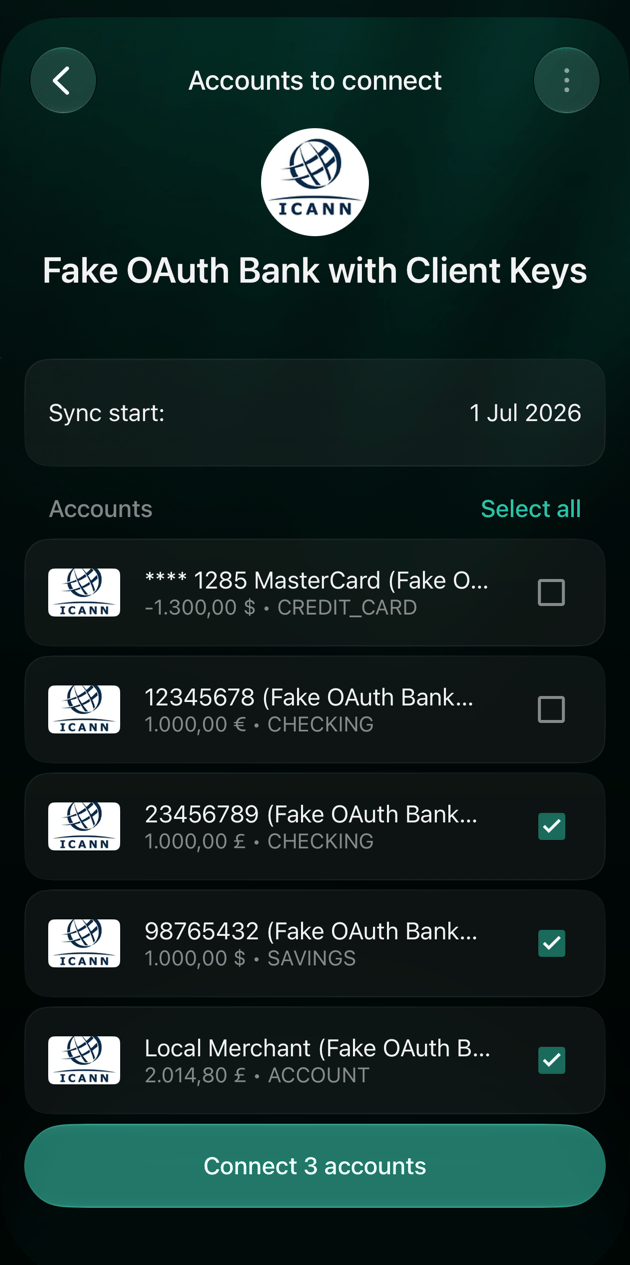
1. If finerd asks **How should we connect these accounts?**, tap **Add as new accounts**.
2. Check **Sync start** and change it if you need more or less history.
3. Clear the checkbox next to the accounts you don't want to connect.
4. Tap **Connect 3 accounts** (the number matches the accounts you've selected).
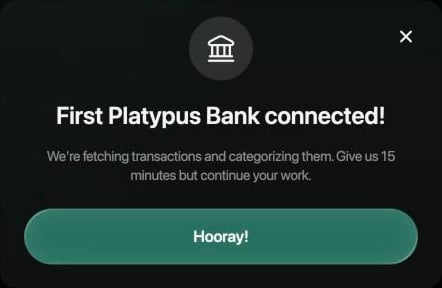
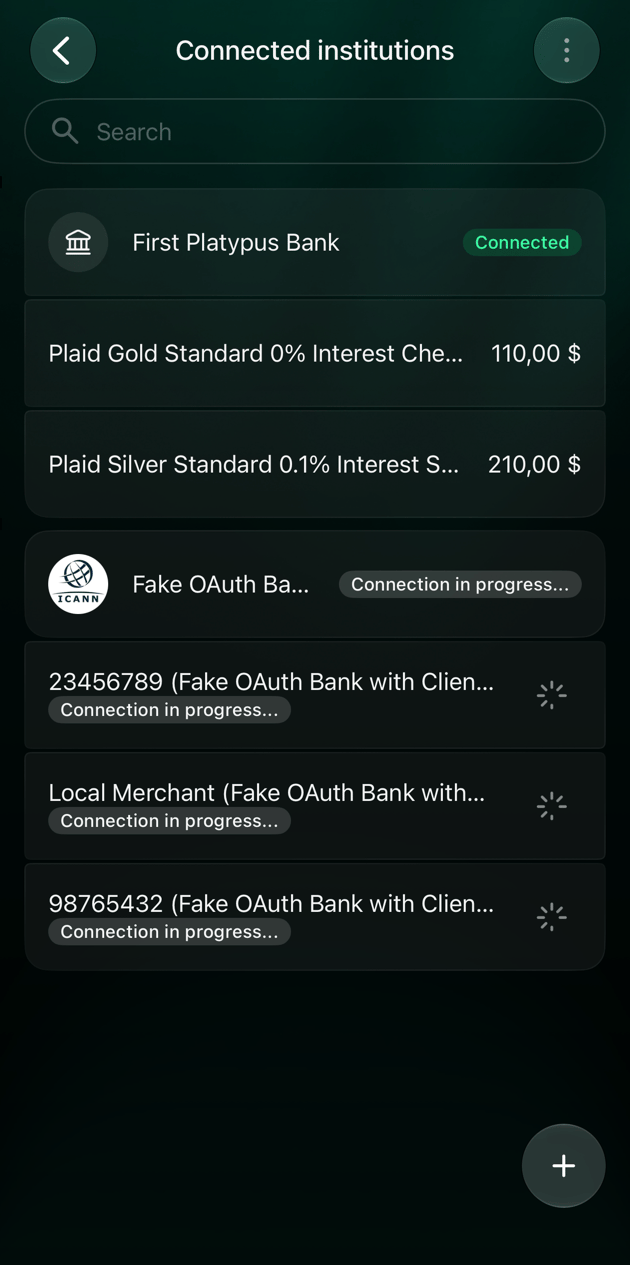
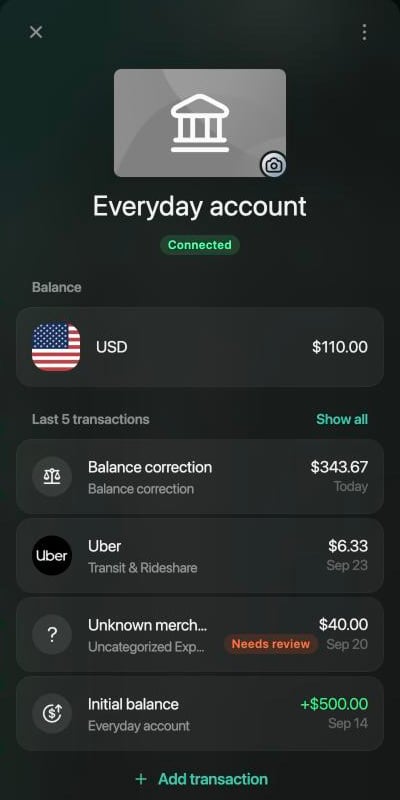
finerd confirms that the bank is connected and starts fetching transactions. It says this can take up to 15 minutes. Meanwhile the bank shows **Connection in progress...**, then **Connected**.
* Transactions arrive already categorized. The ones finerd isn't sure about are marked **Needs review**: see [Review imported transactions](/transactions/review-imported-transactions#needs-review).
* The account's balance matches your bank: finerd uses the bank's [current balance](/verified-balance#current-balance) and adds an **Initial balance** for everything before the first imported transaction.
Link an account you already track
If you've been keeping this bank account in finerd by hand, link the bank's account to it instead of adding a new one. The history stays in one account, and from now on the bank keeps it up to date. finerd offers your manual bank accounts to link to.
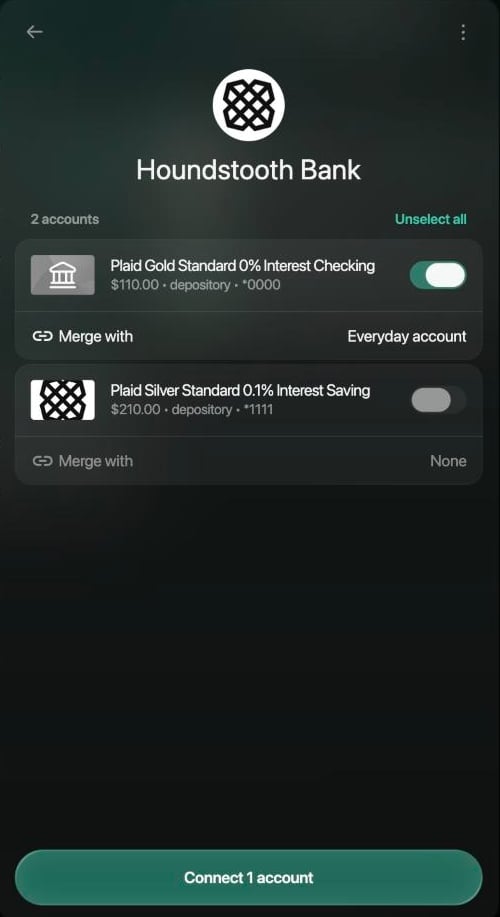
1. On **How should we connect** your bank, select **Merge with existing**.
2. For each account, select **Merge with** and choose yours under **Manual bank accounts**.
3. Turn off the accounts you don't want to merge. finerd needs an account for every one that's on; you can add the others as new accounts later.
4. Select **Connect 1 account** (the number matches the accounts you're merging).
 1. finerd shows the accounts one at a time. For the account you track, tap **Merge with existing**, then **Select existing account**, and choose yours.
2. Tap **Continue**, and on **Review & Connect**, tap **Connect 1 account**.
1. If finerd asks **How should we connect these accounts?**, tap **Merge with existing**.
2. For each account, tap **Merge with** and choose yours.
3. Tap **Connect 1 account** (the number matches the accounts you're merging).
If finerd goes straight to **Accounts to connect**, clear the checkbox next to the account you track and connect the others. Then open the bank in **Institutions**, check the account, tap **Link to**, choose yours and tap **Save**.
1. finerd shows the accounts one at a time. For the account you track, tap **Merge with existing**, then **Select existing account**, and choose yours.
2. Tap **Continue**, and on **Review & Connect**, tap **Connect 1 account**.
1. If finerd asks **How should we connect these accounts?**, tap **Merge with existing**.
2. For each account, tap **Merge with** and choose yours.
3. Tap **Connect 1 account** (the number matches the accounts you're merging).
If finerd goes straight to **Accounts to connect**, clear the checkbox next to the account you track and connect the others. Then open the bank in **Institutions**, check the account, tap **Link to**, choose yours and tap **Save**.
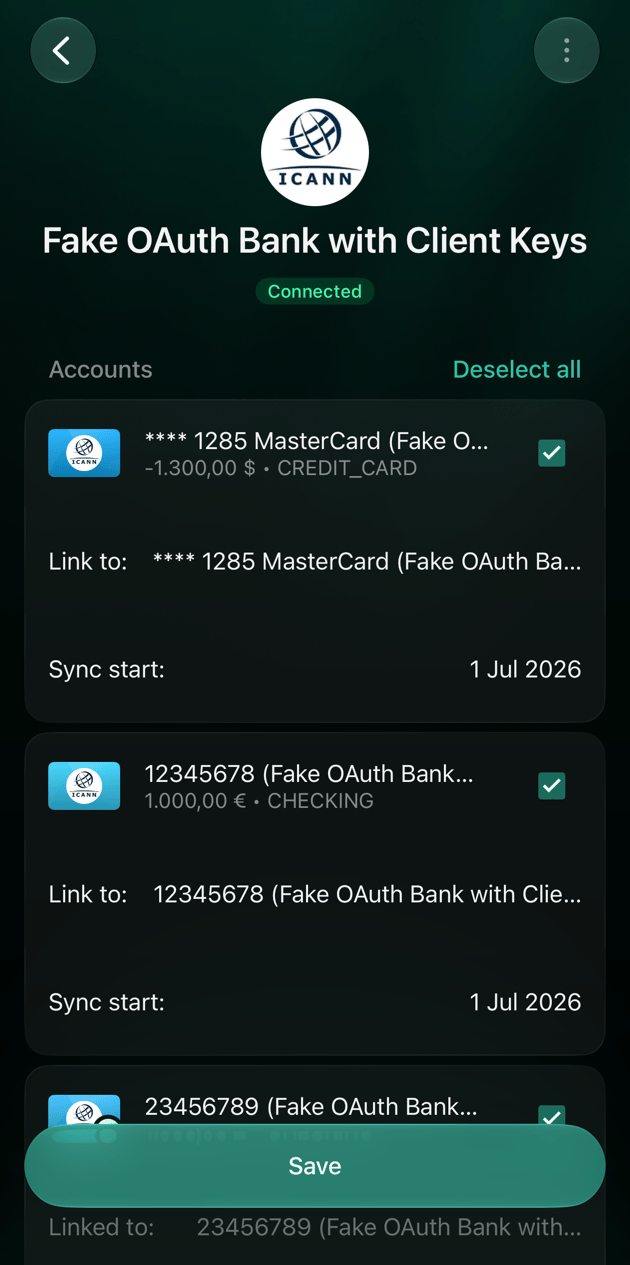 If the bank is already connected, open it in **Institutions**, turn the account on and link it there. See [Connect again](/institutions/disconnect-institution#connect-again).
After linking:
* The account shows **Connected** and keeps its name.
* finerd imports the bank's transactions from the day after the latest transaction in the account, so the ones you already have aren't added twice. Older transactions from the bank aren't imported.
* The balance becomes the bank's. If your balance in finerd was different, finerd adds a **Balance correction** for the difference. See [Review a discrepancy](/verified-balance#review-a-discrepancy).
If the bank is already connected, open it in **Institutions**, turn the account on and link it there. See [Connect again](/institutions/disconnect-institution#connect-again).
After linking:
* The account shows **Connected** and keeps its name.
* finerd imports the bank's transactions from the day after the latest transaction in the account, so the ones you already have aren't added twice. Older transactions from the bank aren't imported.
* The balance becomes the bank's. If your balance in finerd was different, finerd adds a **Balance correction** for the difference. See [Review a discrepancy](/verified-balance#review-a-discrepancy).
If you can't connect
| What you see | What to do |
| - | - |
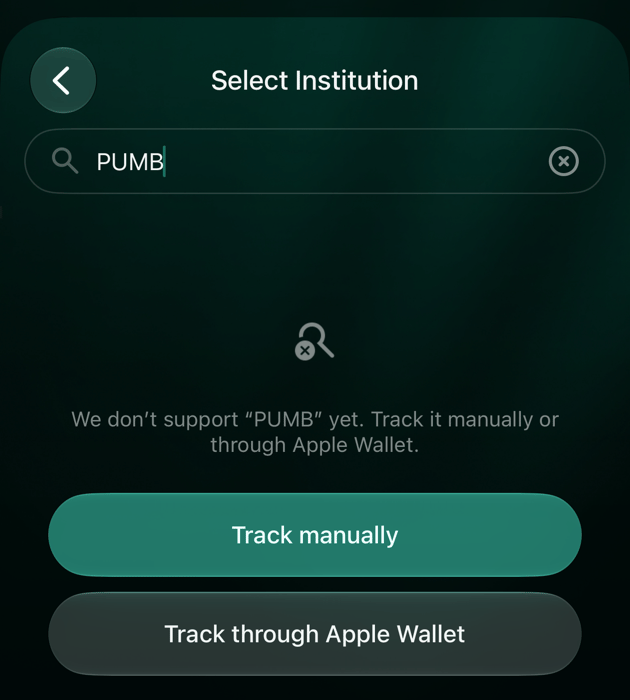
| Your bank isn't found: “We don't have a connection with … yet” on the web, “We don't support … yet” in the apps | Check the spelling and the tab: banks are under **Bank accounts**, investment platforms under **Stock & Crypto**. If it's still not there, select **Track manually** and [keep the account yourself](/accounts/create-account#add-a-manual-account). On iPhone you can also [track card payments through Apple Pay](/apple-pay) (**Track through Apple Wallet**). |
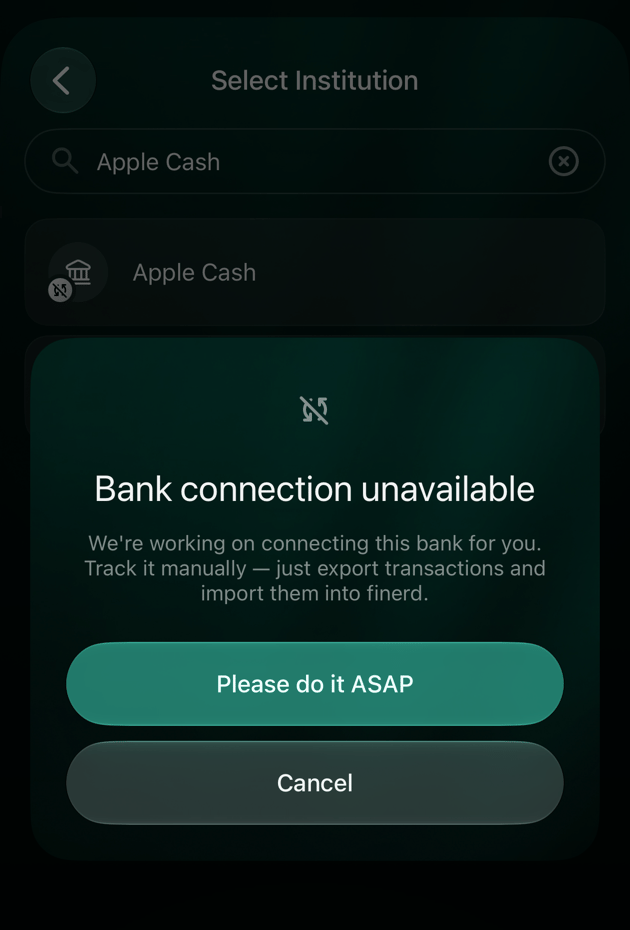
| **Bank connection unavailable** (in the list, the bank has a crossed-out sync icon) | finerd knows the bank but can't connect it yet. **Please do it ASAP** opens a new manual account named after the bank; keep it up to date yourself. |
| **Select an existing connection to update linked accounts, or create a new connection as a separate setup** (the bank is already connected) | Choose your connection to update its accounts, or **New connection** to set up another connection to the same bank. |
| Android: **Connect this institution on app.finerd.ai** | This bank can't be connected in the Android app. Connect it on the [web](https://app.finerd.ai/settings/connected-institutions). |
| You closed the bank's page before finishing | Nothing is connected. Start again from **Institutions**. |
| In the apps: **Complete institution connection** | You're leaving before the accounts are connected. **Return to connection** takes you back; **Abort process** leaves without connecting them. |
If a bank you've connected stops updating, see [Fix or reconnect a bank connection](/institutions/reconnect-institution). If you're still stuck, [contact support](/contact-us) with the bank's name, its country, your platform and the step where you stopped.
This documentation is built and hosted on [Mintlify](https://mintlify.com), a developer documentation platform.