> ## Documentation Index
> Fetch the complete documentation index at: https://help.finerd.ai/llms.txt
> Use this file to discover all available pages before exploring further.
# Sign up and sign in
> Create a finerd account or sign in to your existing account.
Sign up or sign in
To register, use an email address whose inbox you can open. To sign in, use the email associated with your finerd account. Both flows use a six-digit email code; you don’t need a finerd password.
Before continuing with registration, read the terms and privacy information linked on the screen.
Open [finerd](https://app.finerd.ai) and choose the flow you need.
| Your task | Open this form | After entering your email, select |
| - | - | - |
| Create an account | **Sign up** | **Create account** |
| Sign in to an existing account | **Log in** | **Log in** |
 For Google, select **Sign up with Google** on the registration form or **Continue with Google** on the login form. To sign in, use the Google account associated with your finerd account.
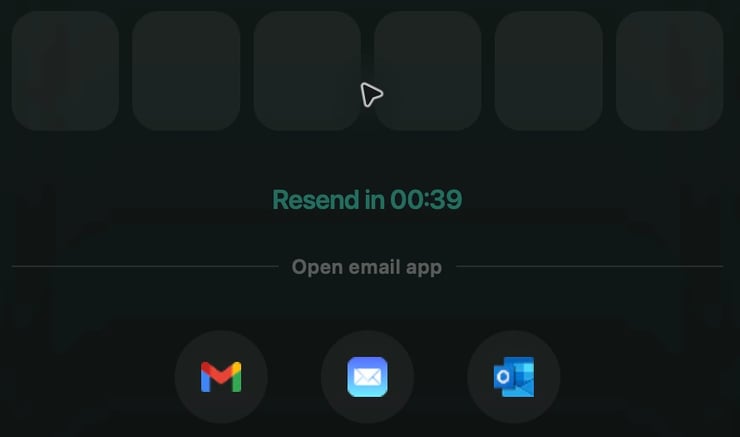 Open finerd.
| Your task | Start here | After entering your email, tap |
| - | - | - |
| Create an account | **Don’t have an account? Sign up** | **Create account** |
| Sign in to an existing account | **Sign in to finerd** screen | **Sign in** |
For Google, choose the appropriate form, then tap **Continue with Google**. To sign in, use the Google account associated with your finerd account.
Open finerd.
| Your task | On the welcome screen, tap | After entering your email, tap |
| - | - | - |
| Create an account | **Don't have an account?** | **Create account** |
| Sign in to an existing account | **Log in** | **Continue** |
If **AI-Powered Features** appears before the form, read the disclosure about data use. To proceed if you agree, tap **Agree & Continue**.
Enter your address in **Enter your email** and tap the button shown in the table.
Open finerd.
| Your task | Start here | After entering your email, tap |
| - | - | - |
| Create an account | **Don’t have an account? Sign up** | **Create account** |
| Sign in to an existing account | **Sign in to finerd** screen | **Sign in** |
For Google, choose the appropriate form, then tap **Continue with Google**. To sign in, use the Google account associated with your finerd account.
Open finerd.
| Your task | On the welcome screen, tap | After entering your email, tap |
| - | - | - |
| Create an account | **Don't have an account?** | **Create account** |
| Sign in to an existing account | **Log in** | **Continue** |
If **AI-Powered Features** appears before the form, read the disclosure about data use. To proceed if you agree, tap **Agree & Continue**.
Enter your address in **Enter your email** and tap the button shown in the table.

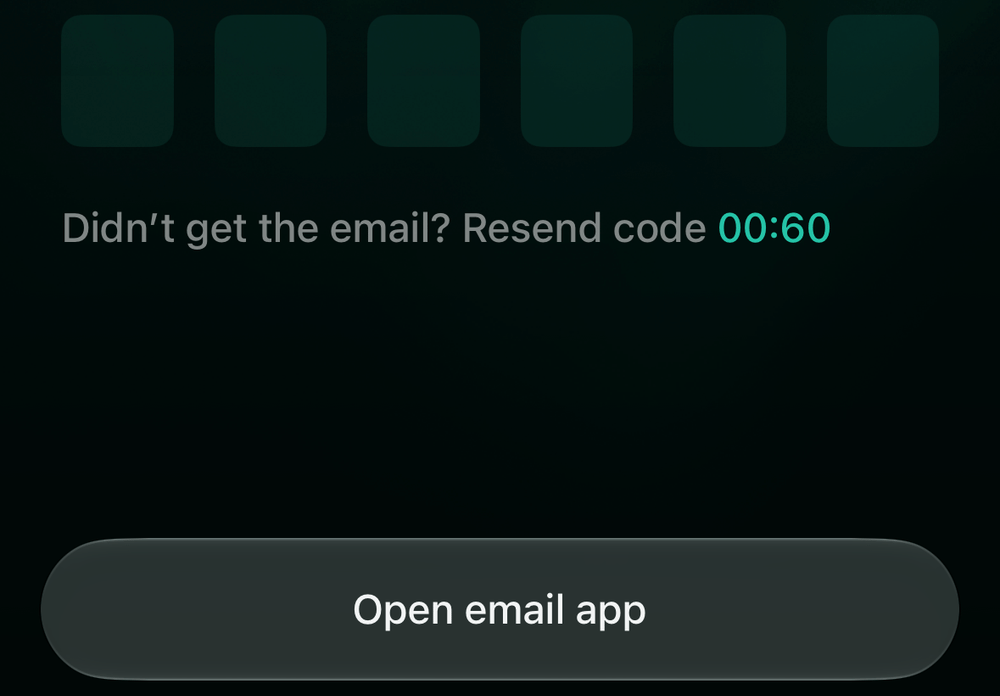 Open the email from finerd, return to the app, and enter the six-digit code. It is checked automatically after you enter all six digits.
If **You already have a finerd account** appears during registration on Web or iOS, an account with that email already exists.
Open the email from finerd, return to the app, and enter the six-digit code. It is checked automatically after you enter all six digits.
If **You already have a finerd account** appears during registration on Web or iOS, an account with that email already exists.
Can’t sign in
**No email with a code?** Check that the address on the confirmation screen is correct and that you’re checking that inbox. Look in your spam folder too. When the countdown ends, select **Resend code** on the code-entry screen.
**Code not accepted?** Check the six digits against the email from finerd. The code is valid for a limited time. If it has expired or you still can’t continue, wait until **Resend code** is available, request a new code, and enter it from the new email.
If this doesn’t help, [contact support by email](/contact-us#email). You don’t need to sign in to do this.
This documentation is built and hosted on [Mintlify](https://mintlify.com), a developer documentation platform.