> ## Documentation Index
> Fetch the complete documentation index at: https://help.finerd.ai/llms.txt
> Use this file to discover all available pages before exploring further.

# Currency and time zone

> Choose the primary currency for your finerd space.

export const VideoIntro = ({id, title, children}) => <div className="fh-video-intro not-prose">
    <div className="fh-video-frame">
      <iframe src={`https://www.youtube.com/embed/${id}`} title={title} loading="lazy" allow="accelerometer; autoplay; clipboard-write; encrypted-media; gyroscope; picture-in-picture; web-share" allowFullScreen />
    </div>
    <div className="fh-video-text prose dark:prose-invert">{children}</div>
  </div>;

<h2 id="primary-currency">
  Choose your primary currency
</h2>

<VideoIntro id="18C3iTu8JpA" title="How to choose your primary currency">
  Your primary currency is used to show your net worth, reports, and [budgets](/budget/create-budget). Accounts and transactions keep their own currencies.

  Choose the currency in which you usually think about your overall finances. For example, if you measure your savings goals in euros, EUR may be a useful choice even if you also have accounts in other currencies.

  **Choose carefully: you can’t change the primary currency later.**
</VideoIntro>

<Tabs>
  <Tab title="Web">
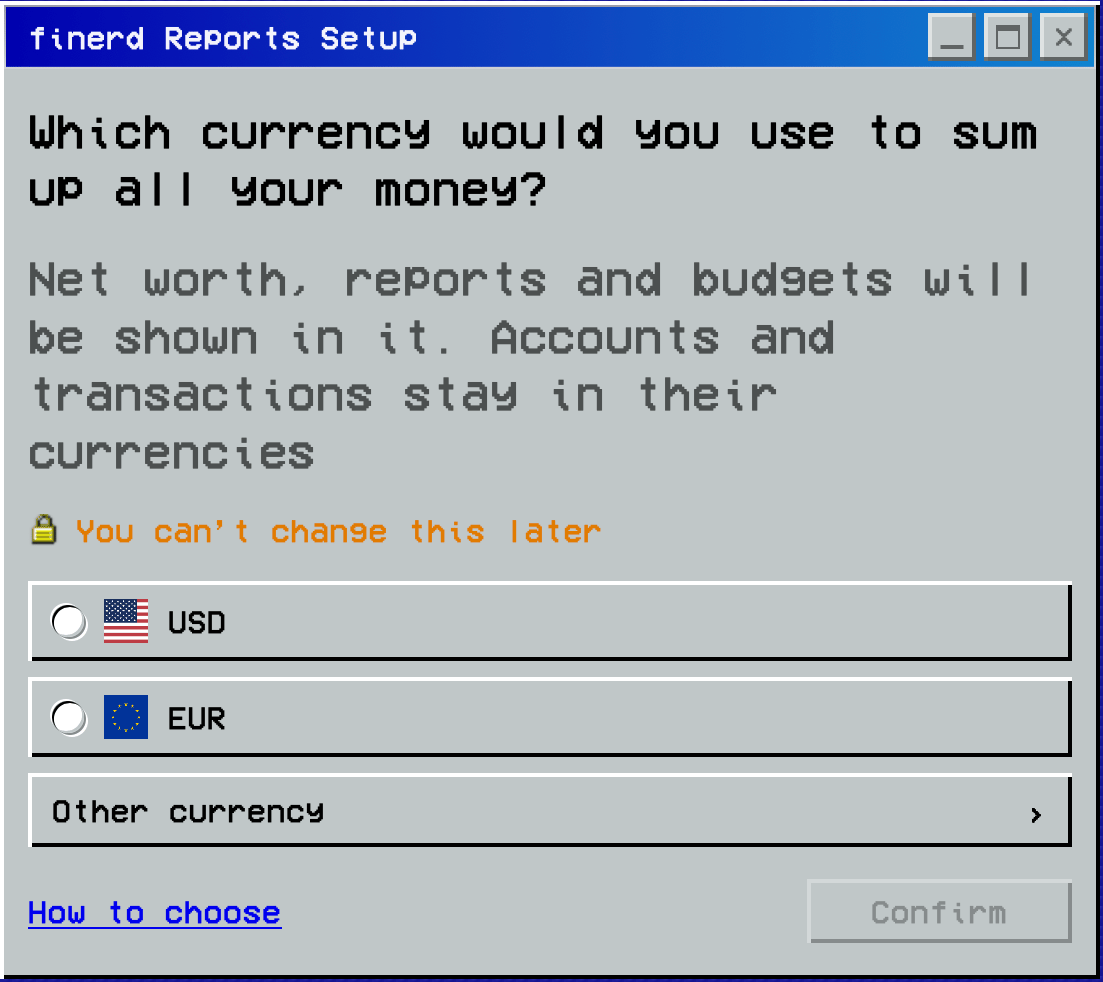
    1. On **Which currency would you use to sum up all your money?**, select a currency.
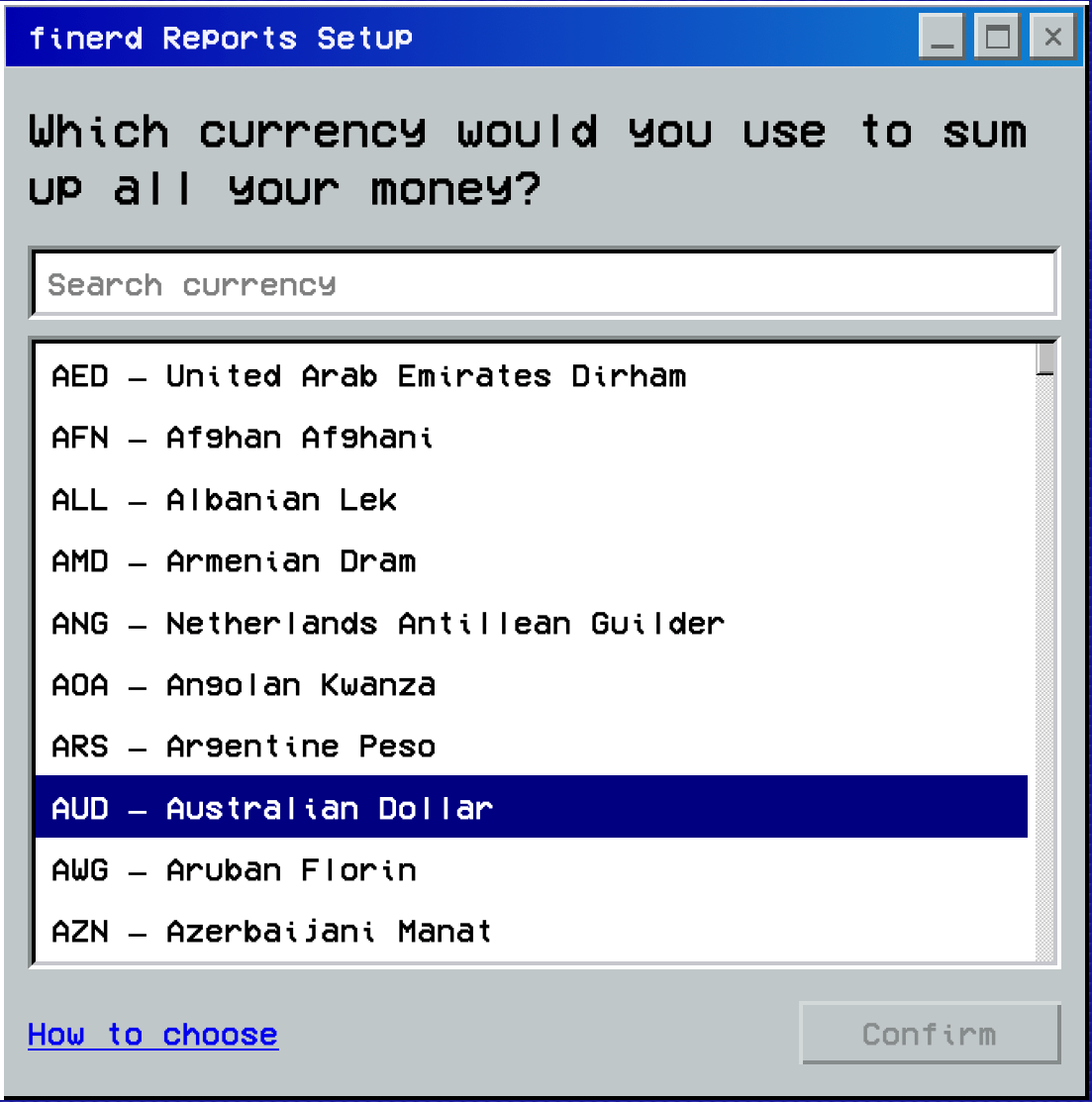
    2. If you need another currency, select **Other currency** and find it in the list.
    3. Select **Confirm** to move to the time zone step. Your choice is saved when you confirm the time zone.

    <div style={{ display: "grid", gridTemplateColumns: "repeat(auto-fit, minmax(min(100%, 240px), 1fr))", gap: "20px", alignItems: "start" }}>
      <Frame caption="Choose your primary currency.">
        <img src="https://mintcdn.com/finerdai/OIprfxtJ6cc-sLYD/images/getting-started/initial-setup/web-primary-currency.png?fit=max&auto=format&n=OIprfxtJ6cc-sLYD&q=85&s=6ce09adc0f7d01f942a34960f34f81f9" alt="Choose your primary currency." width="1103" height="982" data-path="images/getting-started/initial-setup/web-primary-currency.png" />
      </Frame>

      <Frame caption="Other currency opens the list with Search currency.">
        <img src="https://mintcdn.com/finerdai/OIprfxtJ6cc-sLYD/images/getting-started/initial-setup/web-other-currency.png?fit=max&auto=format&n=OIprfxtJ6cc-sLYD&q=85&s=e3ad62a430154965df2169565e61af8a" alt="Other currency opens the list with Search currency." width="1103" height="1113" data-path="images/getting-started/initial-setup/web-other-currency.png" />
      </Frame>
    </div>
  </Tab>

  <Tab title="Android">
    1. On **Which currency would you use to sum up all your money?**, select a currency.
    2. If you need another currency, tap **Other currency** and select it from the list.
    3. Check your choice, then tap **Confirm** to save it and continue to the time zone step.
  </Tab>

  <Tab title="iOS">
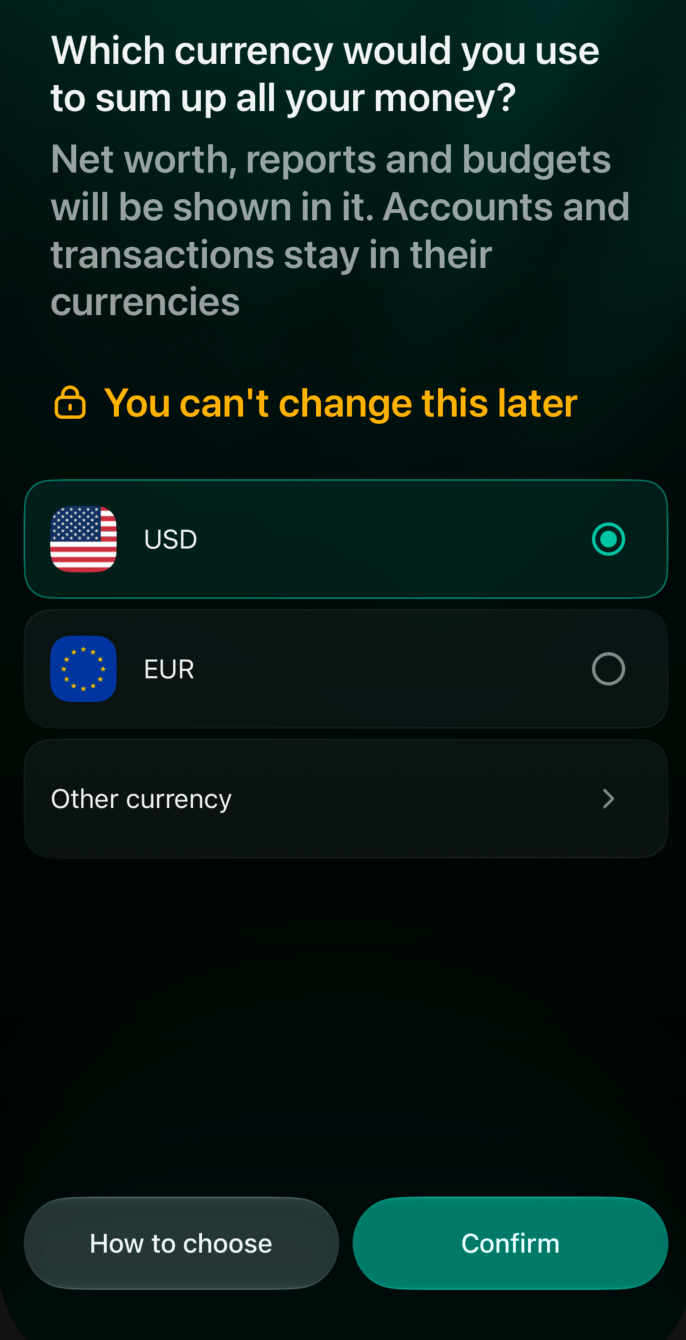
    1. On **Which currency would you use to sum up all your money?**, select a currency.
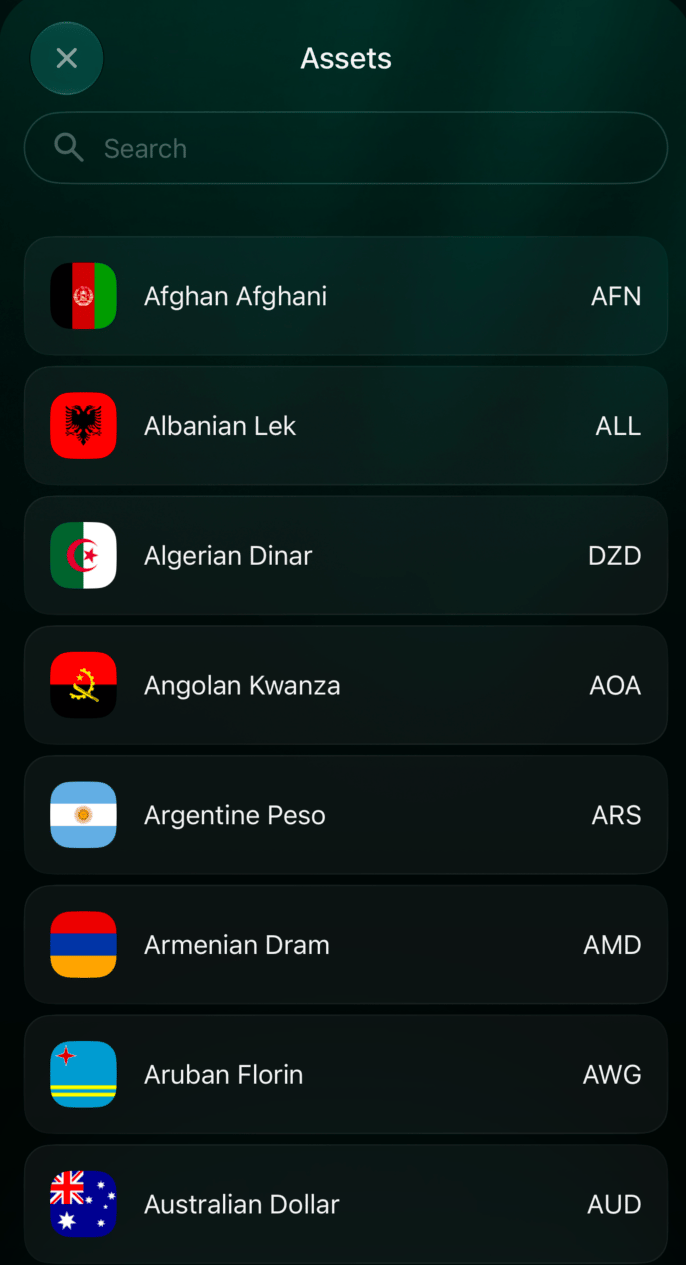
    2. If you need another currency, tap **Other currency** and select it from the **Assets** list. Use **Search** to find a currency.
    3. Check your choice, then tap **Confirm** to save it and continue to the time zone step.

    <div style={{ display: "grid", gridTemplateColumns: "repeat(auto-fit, minmax(min(100%, 240px), 1fr))", gap: "20px", alignItems: "start" }}>
      <Frame caption="Select your primary currency and check it before tapping Confirm.">
        <img src="https://mintcdn.com/finerdai/OIprfxtJ6cc-sLYD/images/getting-started/initial-setup/ios-primary-currency.png?fit=max&auto=format&n=OIprfxtJ6cc-sLYD&q=85&s=bf8c655cc26674c5b6e08682bccbbabf" alt="iOS primary currency screen with USD selected, EUR, Other currency, and an enabled Confirm button." width="400" data-path="images/getting-started/initial-setup/ios-primary-currency.png" />
      </Frame>

      <Frame caption="Other currency opens a searchable list of currencies.">
        <img src="https://mintcdn.com/finerdai/OIprfxtJ6cc-sLYD/images/getting-started/initial-setup/ios-other-currency.png?fit=max&auto=format&n=OIprfxtJ6cc-sLYD&q=85&s=7effc10ebb279804292737063239ba98" alt="iOS Assets list with Search, currency names, and currency codes." width="400" data-path="images/getting-started/initial-setup/ios-other-currency.png" />
      </Frame>
    </div>
  </Tab>
</Tabs>

<h2 id="time-zone">
  Choose your time zone
</h2>

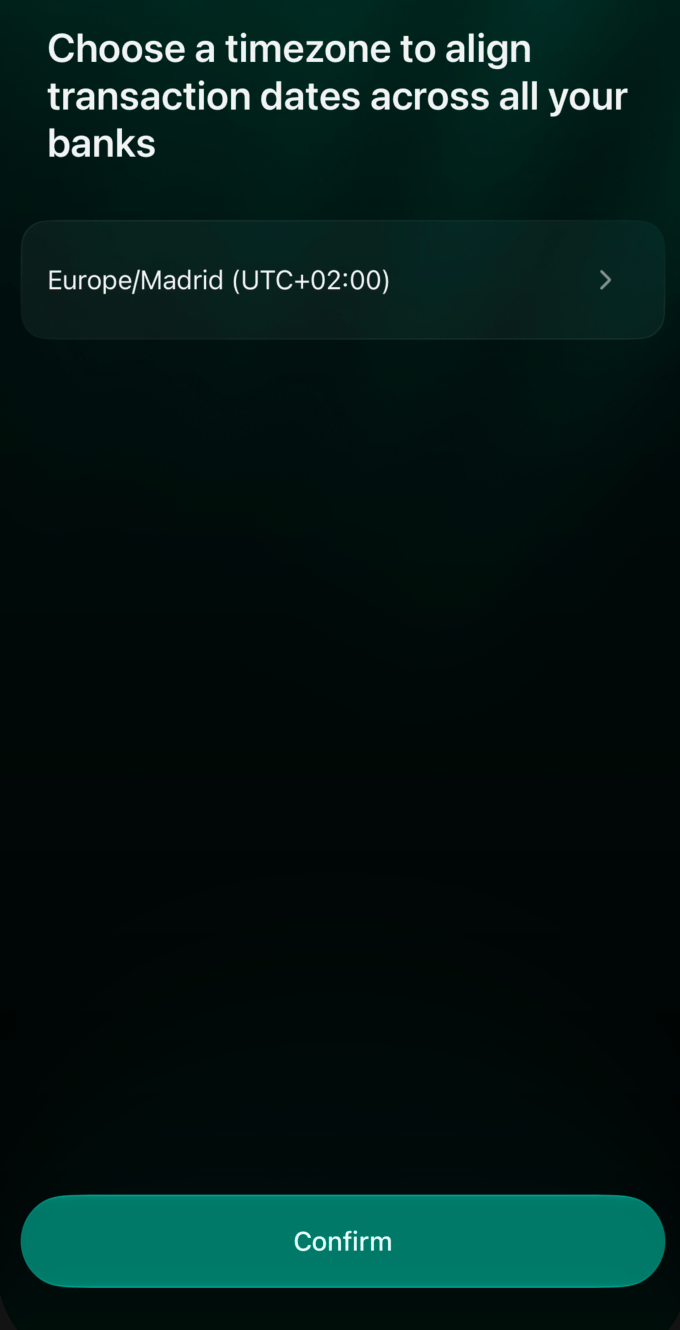
Your time zone provides a common local time for displaying transactions in your finerd space. This helps you compare transaction dates across different banks when reviewing reports.

Choose the time zone you want to use for your accounting, usually the one where you live. After choosing your primary currency, check the suggested time zone before confirming.

<Tabs>
  <Tab title="Web">
    1. On **Which time zone are you in?**, select the time zone you need.
    2. To choose another, select **Other time zone** and find it in the list.
    3. Select **Confirm** to save your primary currency and time zone and continue setup. To return to the currency choice, select **Back**.
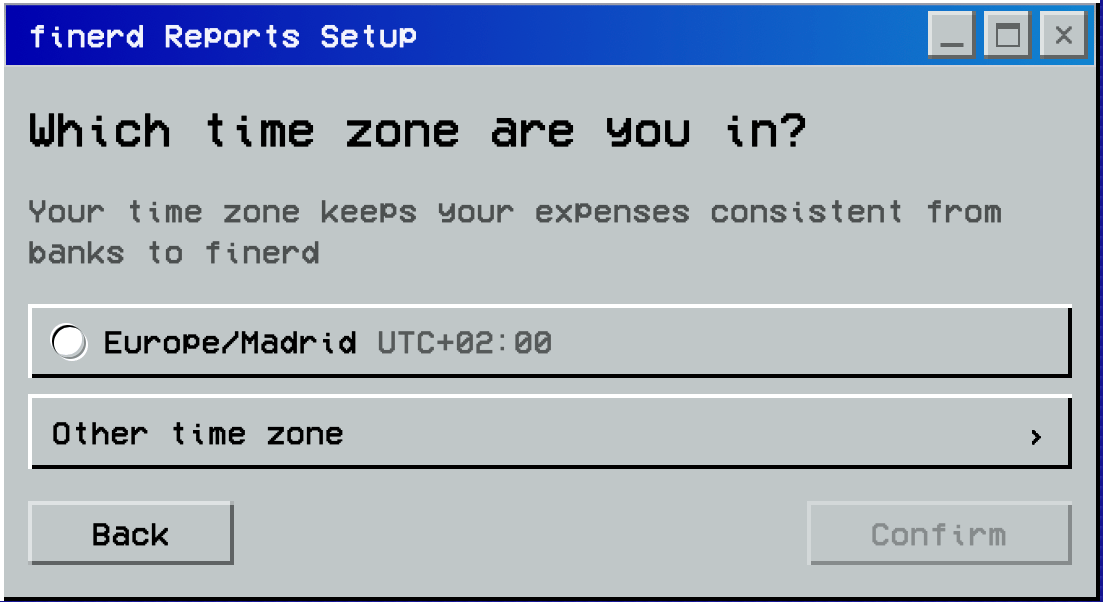
    <Frame caption="Select your time zone, then Confirm.">
      <img src="https://mintcdn.com/finerdai/OIprfxtJ6cc-sLYD/images/getting-started/initial-setup/web-timezone.png?fit=max&auto=format&n=OIprfxtJ6cc-sLYD&q=85&s=f01d3921bbbff08c589867d617d5a775" alt="Select your time zone, then Confirm." width="500" data-path="images/getting-started/initial-setup/web-timezone.png" />
    </Frame>
  </Tab>

  <Tab title="iOS">
    1. On **Choose a timezone to align transaction dates across all your banks**, check the displayed time zone.
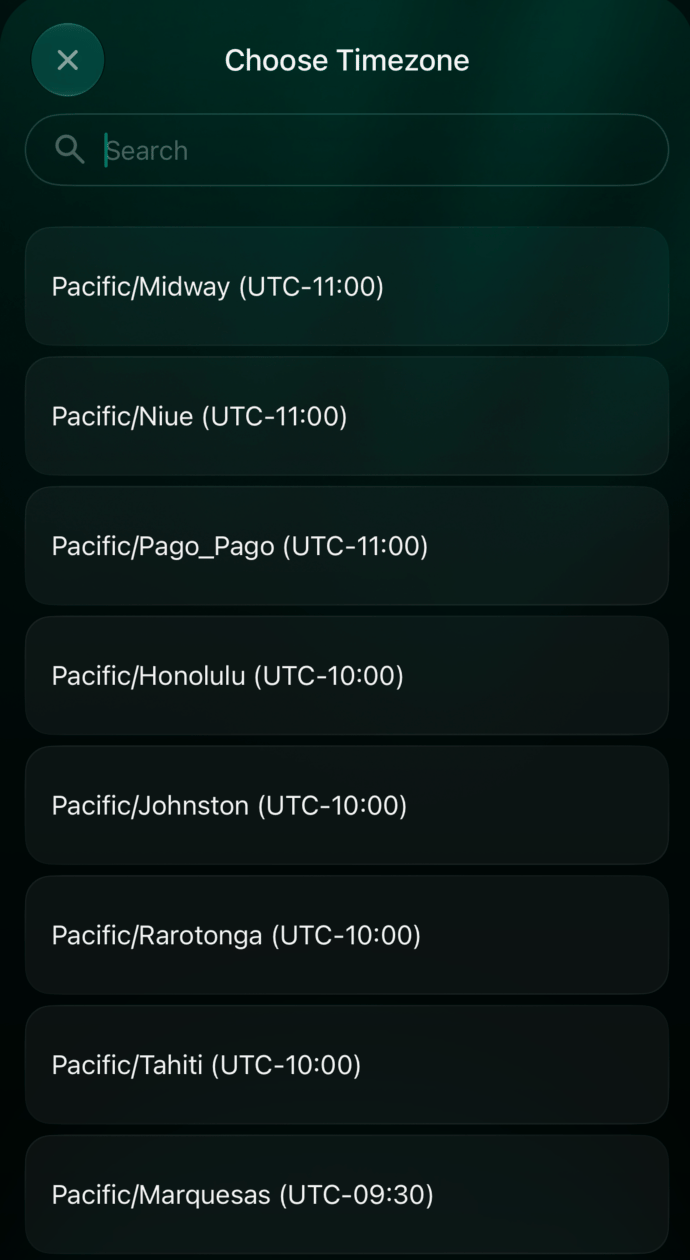
    2. To change it, tap its name. In **Choose Timezone**, use **Search** or select a time zone from the list.
    3. Tap **Confirm** to save your time zone and continue setup.

    <div style={{ display: "grid", gridTemplateColumns: "repeat(auto-fit, minmax(min(100%, 240px), 1fr))", gap: "20px", alignItems: "start" }}>
      <Frame caption="Check the time zone before confirming.">
        <img src="https://mintcdn.com/finerdai/OIprfxtJ6cc-sLYD/images/getting-started/initial-setup/ios-timezone.png?fit=max&auto=format&n=OIprfxtJ6cc-sLYD&q=85&s=32988239a34245f9e322e4a7db09c758" alt="Check the time zone before confirming." width="500" data-path="images/getting-started/initial-setup/ios-timezone.png" />
      </Frame>

      <Frame caption="Tap the time zone name to open the searchable list.">
        <img src="https://mintcdn.com/finerdai/OIprfxtJ6cc-sLYD/images/getting-started/initial-setup/ios-timezone-list.png?fit=max&auto=format&n=OIprfxtJ6cc-sLYD&q=85&s=a4897c10400023f46cd35b86bab3b0ff" alt="Tap the time zone name to open the searchable list." width="500" data-path="images/getting-started/initial-setup/ios-timezone-list.png" />
      </Frame>
    </div>
  </Tab>
</Tabs>


This documentation is built and hosted on [Mintlify](https://mintlify.com), a developer documentation platform.