> ## Documentation Index
> Fetch the complete documentation index at: https://help.finerd.ai/llms.txt
> Use this file to discover all available pages before exploring further.
# Accounts and first transactions
> Connect a bank or continue without connecting.
Connect a bank or continue without connecting
During initial setup, finerd offers to connect your bank. You can choose a bank now or skip this step.
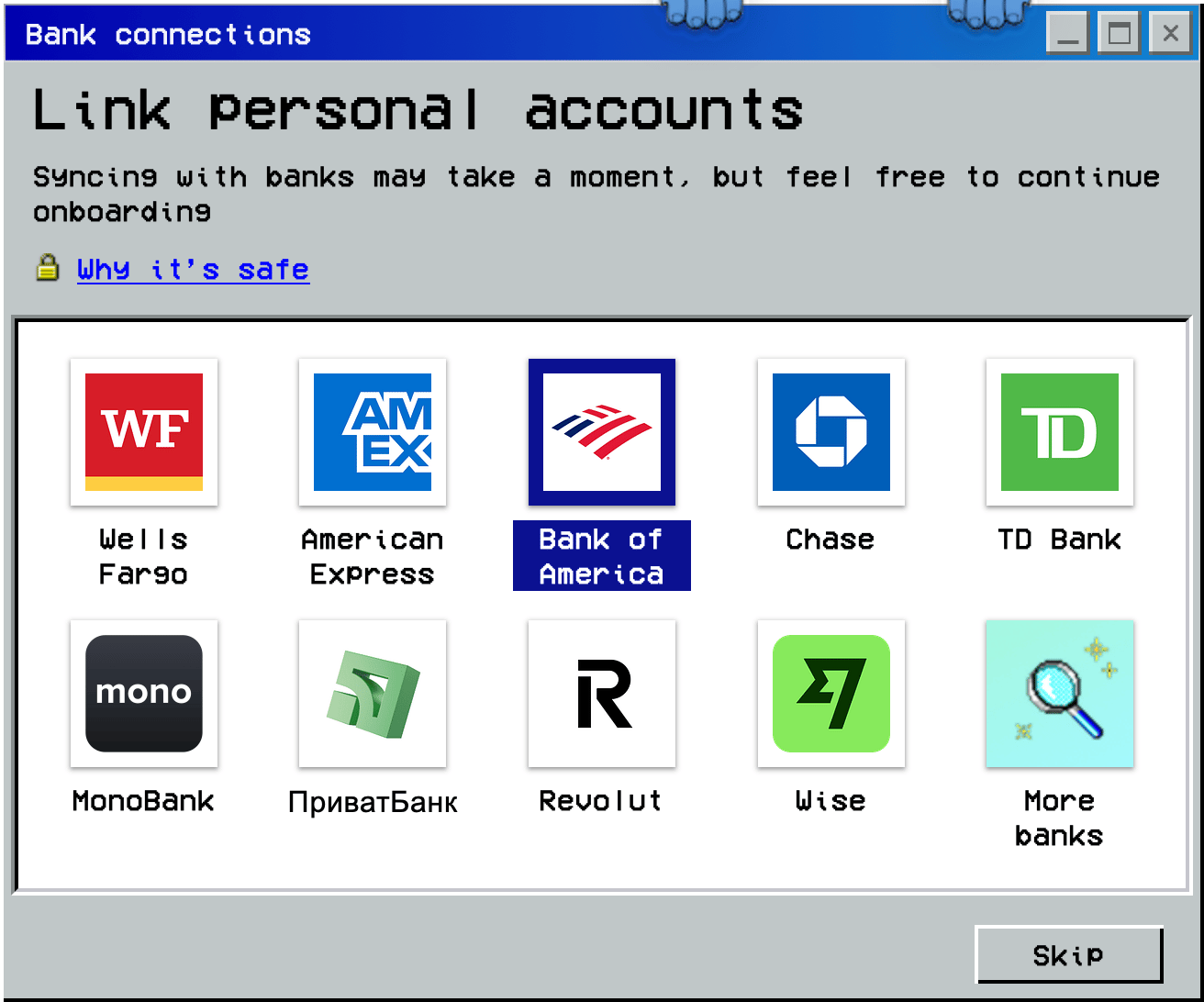
1. On **Bank connections**, choose your bank or select **More banks** to find another.
2. To continue without connecting, select **Skip**.
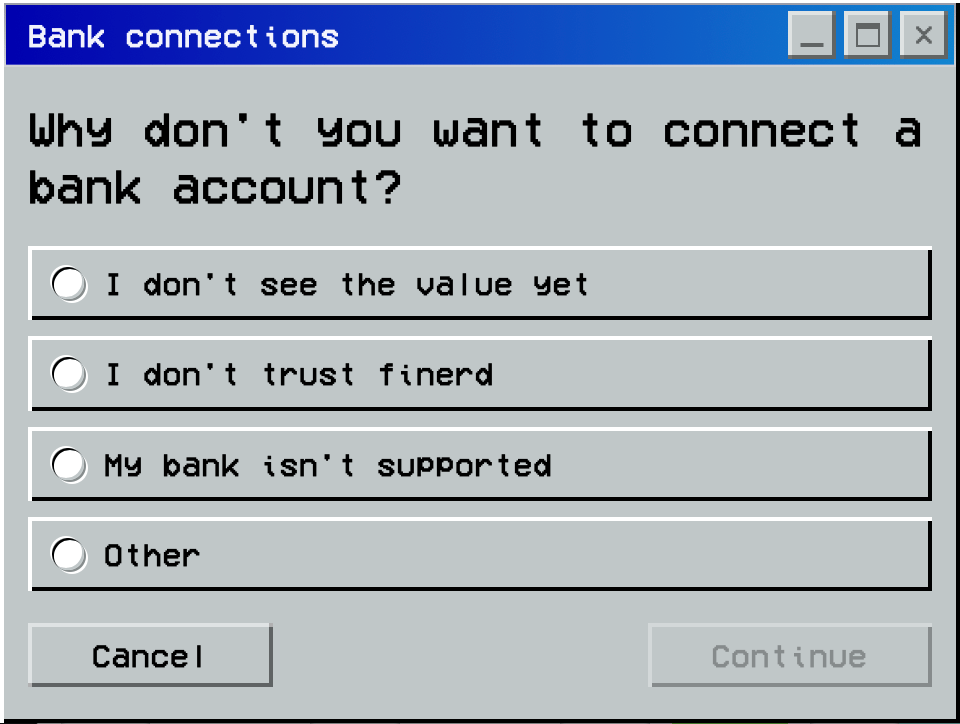
3. Choose a reason for skipping and select **Continue**. For **Other**, also enter an explanation.
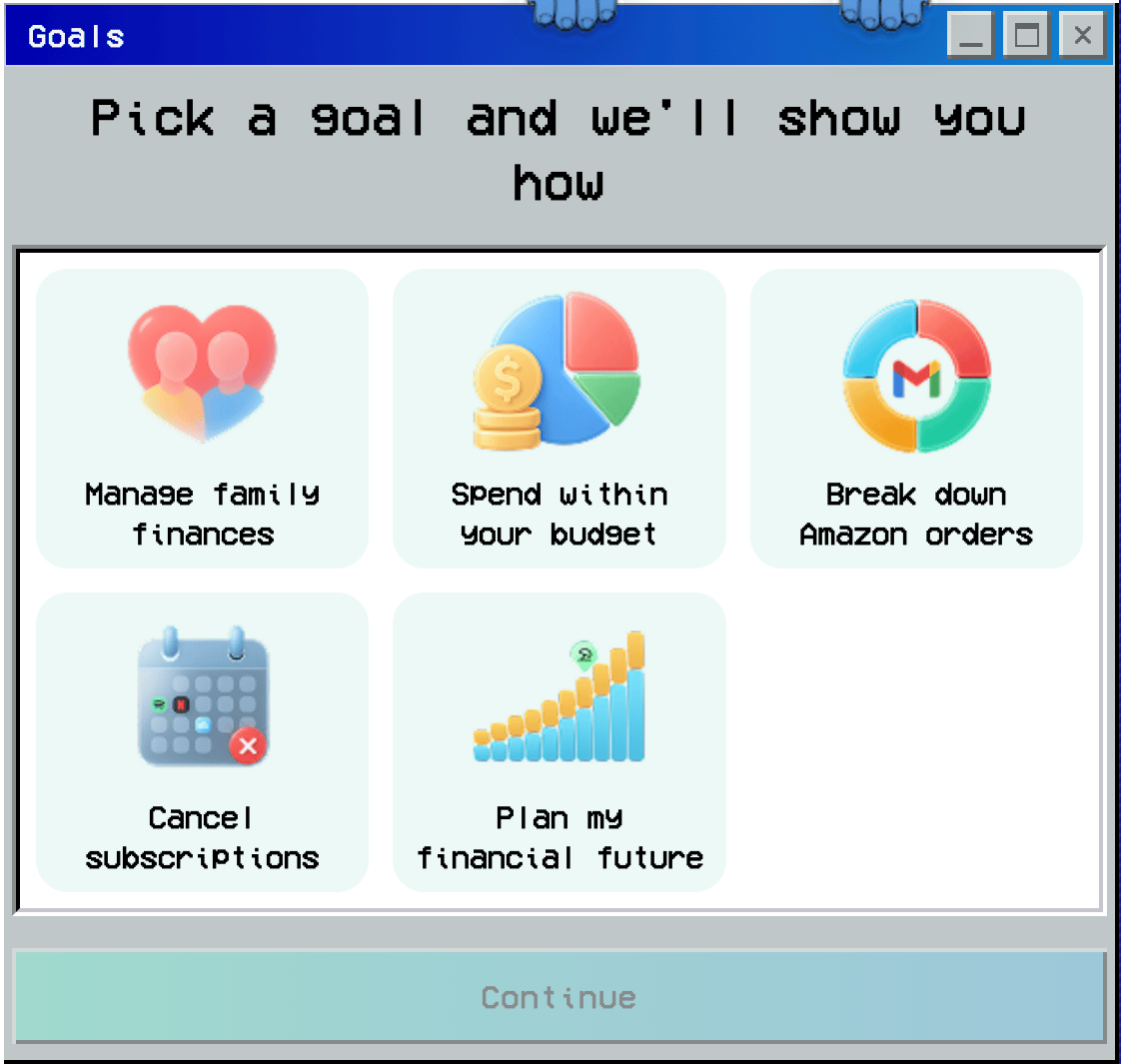
Next, on **Pick a goal and we’ll show you how**, choose the goals you want finerd to help with and select **Continue**. This opens the **Dashboard**.
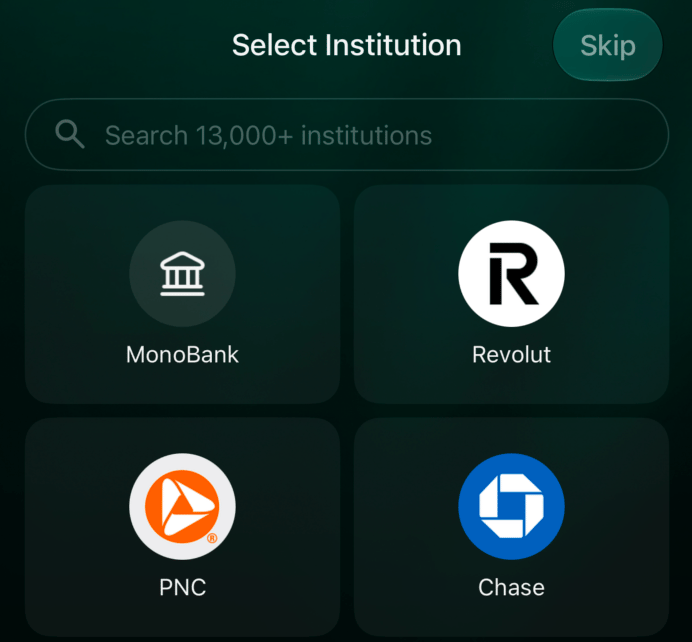
 1. After choosing your goals, **Select Institution** opens. Search for your bank or select it from the list.
2. To connect a bank later, tap **Skip**.
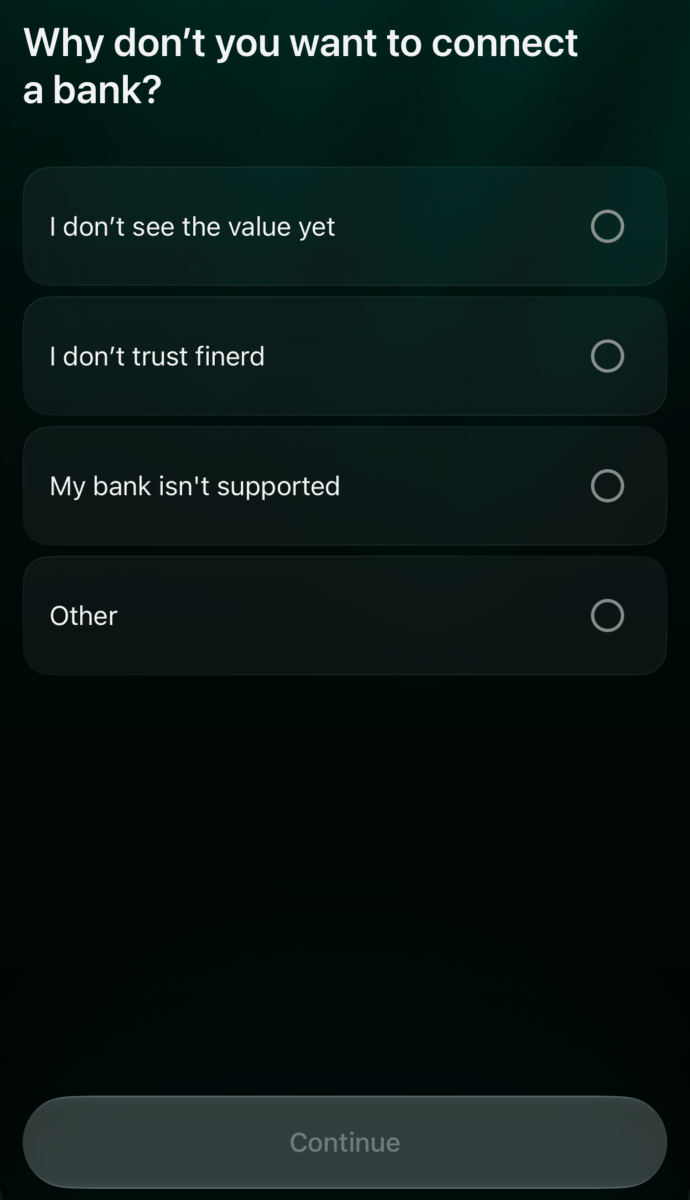
3. On **Why don’t you want to connect a bank?**, choose a reason and tap **Continue**. For **Other**, also enter an explanation.
4. Next, finerd offers to set up Apple Pay payment tracking. See [Track Apple Pay payments](/apple-pay) for instructions. Tap **Skip** to go to the dashboard without setting it up.
1. After choosing your goals, **Select Institution** opens. Search for your bank or select it from the list.
2. To connect a bank later, tap **Skip**.
3. On **Why don’t you want to connect a bank?**, choose a reason and tap **Continue**. For **Other**, also enter an explanation.
4. Next, finerd offers to set up Apple Pay payment tracking. See [Track Apple Pay payments](/apple-pay) for instructions. Tap **Skip** to go to the dashboard without setting it up.
Check your accounts and first transactions
After connecting a bank, importing history, or adding records manually, check that the records match your accounts and transactions.
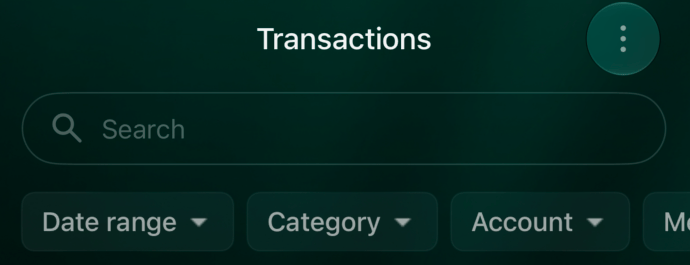
Open **Accounts** to review your accounts and balances. Then open **Transactions**. To check one account, select it in **Account** and choose the period in **Date range**.
 Open **More** → **Accounts** to review your accounts and balances. Open **Transactions** to review transactions. Select an account in **Account** and choose the period in **Date range**.
 Compare these details with your bank statement or your own records:
* **Accounts and currencies:** check that the expected accounts are present and each balance uses the correct currency.
* **Balances:** compare amounts in the same currency and on the same date.
* **First transactions:** check the account, date, amount, currency, and category of a few records.
* **History coverage:** check for missing or repeated transactions in the selected period, especially if you combined several ways of bringing in data.
Before adding a transaction manually, check whether it is already listed. If a balance differs, see [Verified balance](/verified-balance).
This documentation is built and hosted on [Mintlify](https://mintlify.com), a developer documentation platform.
Compare these details with your bank statement or your own records:
* **Accounts and currencies:** check that the expected accounts are present and each balance uses the correct currency.
* **Balances:** compare amounts in the same currency and on the same date.
* **First transactions:** check the account, date, amount, currency, and category of a few records.
* **History coverage:** check for missing or repeated transactions in the selected period, especially if you combined several ways of bringing in data.
Before adding a transaction manually, check whether it is already listed. If a balance differs, see [Verified balance](/verified-balance).
This documentation is built and hosted on [Mintlify](https://mintlify.com), a developer documentation platform.