> ## Documentation Index
> Fetch the complete documentation index at: https://help.finerd.ai/llms.txt
> Use this file to discover all available pages before exploring further.
# Compare and update scenarios
> Copy a Financial Plan scenario to try another choice, compare scenarios side by side, find your financial independence age and keep the plan current.
A scenario is one version of your Financial Plan. With more than one, you can try a different choice, such as investing more, buying a home or retiring earlier, without touching your main plan, then compare the results side by side. finerd can also estimate the earliest age you could stop working, and update a scenario with your actual balances when real life drifts from the plan.
Scenarios are part of Financial Plan, a finerd Pro feature for personal spaces on the web and in the iOS app; the Android app doesn't have it. To build your first scenario, see [Build a financial plan](/financial-plan/build-financial-plan).
Add another scenario
Every new scenario starts from your accounts as they are today, just like the first one. The first scenario you create is your **primary** one; the ones you add later aren't.
1. Open **Reports** > **Financial plan**.
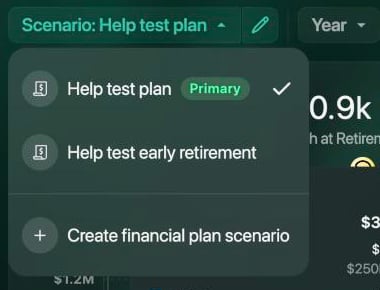
2. Select **Scenario:** with the current scenario's name, then **Create financial plan scenario**.
3. Choose **Month**, **Quarter** or **Year**, select **Apply**, and set up the scenario as described in [Build a financial plan](/financial-plan/build-financial-plan#create).
To switch scenarios, select **Scenario:** and choose another one. The check mark shows the one on screen.
 1. Open **Reports** > **Financial Plan**.
2. Tap **Scenario:** at the top, then **Create financial plan scenario**.
3. Enter a name and your birthdate, then tap **Create**.
To switch scenarios, tap **Scenario:** and choose another one.
1. Open **Reports** > **Financial Plan**.
2. Tap **Scenario:** at the top, then **Create financial plan scenario**.
3. Enter a name and your birthdate, then tap **Create**.
To switch scenarios, tap **Scenario:** and choose another one.
Copy a scenario
A copy keeps everything you've set: rates, payments, contributions and events. Change what you want to test in the copy, and your original scenario stays as it was.
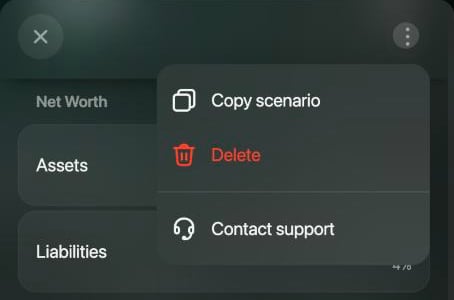
1. Select the pencil next to **Scenario:** to open the scenario.
2. Select **⋮** > **Copy scenario**. The name gets **(copy)** at the end.
3. Rename the copy, such as **Invest more**, and change what you want to test.
4. Select **Save**. finerd saves the copy as a new scenario.
 1. Tap **⋮** > **Scenario details**.
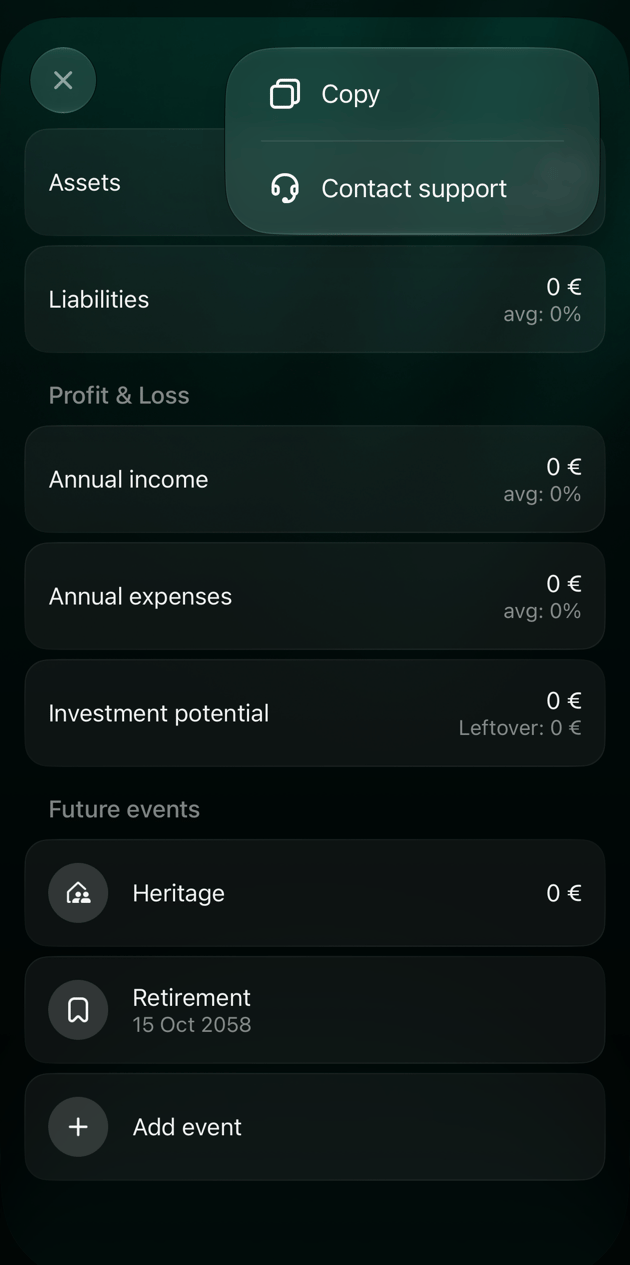
2. Tap **⋮** > **Copy**. The name gets **(copy)** at the end.
3. Rename the copy and change what you want to test.
4. Tap **Save**. finerd saves the copy as a new scenario.
1. Tap **⋮** > **Scenario details**.
2. Tap **⋮** > **Copy**. The name gets **(copy)** at the end.
3. Rename the copy and change what you want to test.
4. Tap **Save**. finerd saves the copy as a new scenario.
 Changing **Retirement age** in a scenario you've already saved, including a copy, doesn't change when your income stops and your pension starts: the plan keeps the age the scenario was first saved with. To compare retirement ages, add a new scenario on the web and set its **Retirement age** before you save it for the first time. On iOS, a new scenario is saved with the default age as soon as you create it.
Change the assumptions
Open the scenario to change its assumptions: inflation, the rates of your accounts, loan payments, contributions and events. Select **Save** when you're done. You can rename a scenario the same way.
The breakdown by month, quarter or year can't be changed after you create a scenario. To plan with another breakdown, add a new scenario.
On iOS, changing **Start scenario date** fills the scenario in again from your accounts and replaces the amounts you edited.
Compare scenarios
You need at least two scenarios to compare.
1. In **Financial plan**, select the scales icon at the top right (**Comparing**).
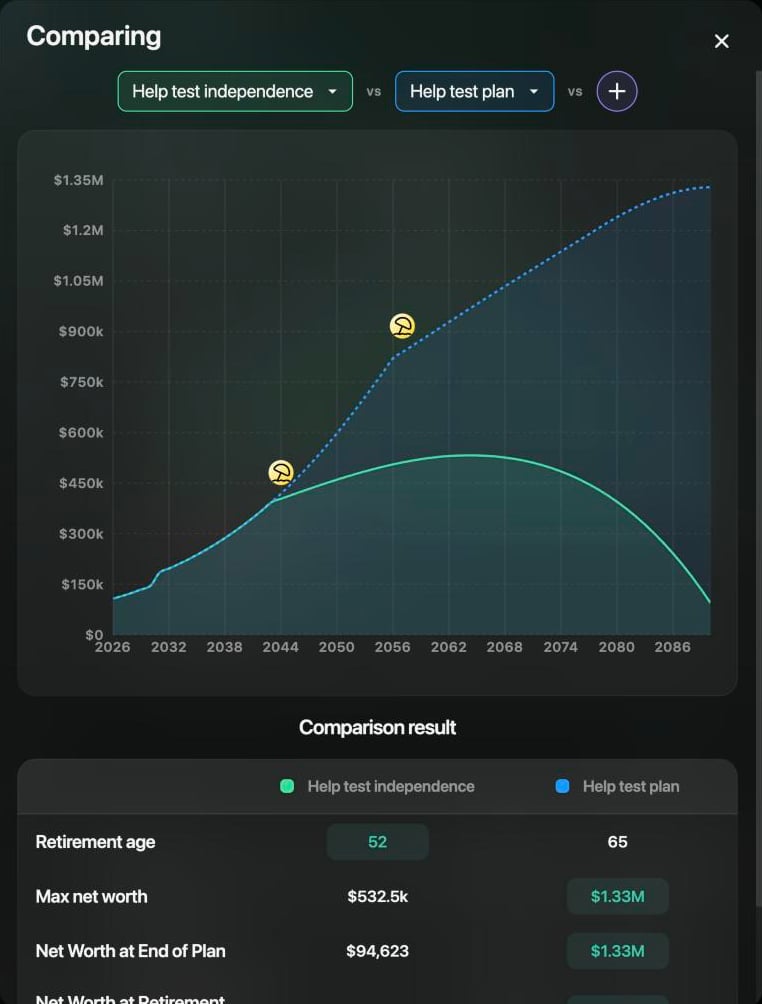
2. The current scenario and the next one are shown side by side, separated by **vs**. Select a scenario's name to swap it for another, or **+** to add one more.
The chart shows each scenario's net worth year by year, with an umbrella icon at each retirement. **Comparison result** lists, for each scenario:
* **Retirement age**: the lower age is highlighted.
* **Max net worth**: the highest net worth the plan reaches.
* **Net Worth at End of Plan**
* **Net Worth at Retirement Age**
* **Avg growth**: how much net worth grows on average each year.
1. In **Financial Plan**, tap **⋮** > **Comparing**.
2. Your primary scenario is on the left and the next one on the right. Tap either to choose another scenario.
The chart shows both scenarios over the whole plan. Below it, finerd compares **Retirement age**, **Max net worth**, **End-life net worth** and **Avg growth**.
Find your financial independence age
Instead of you choosing a retirement age, finerd can work out the earliest age at which you could stop working: from then on, your savings and retirement income keep your net worth above zero until the end of the plan, and leave at least the **Heritage** amount.
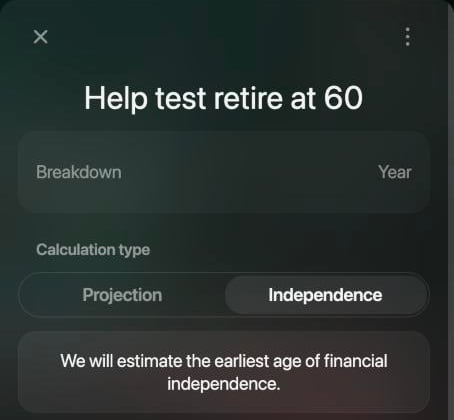
1. Open the scenario. On iOS, tap **⋮** > **Scenario details**.
2. Under **Calculation type**, select **Independence**. finerd shows **We will estimate the earliest age of financial independence.**
3. Select **Save**.
finerd uses the income in your **Retirement** event, such as a pension, from the age it finds. Add that income first; see [Plan your retirement income](/financial-plan/add-future-events#retirement).
The age appears as **Retirement age** when you compare scenarios, and the umbrella icon in the chart moves to that year. On the web, if you still see the old age, open the report again.
In the example, with a 25-year mortgage, 5,000 USD invested a year and a pension of 12,000 USD a year, finerd estimated 52. Retiring at 52, net worth peaks in the 2060s and ends the plan at about 95,000 USD; retiring at 65, it grows to 1.33 million USD.
 To choose the age yourself again, switch back to **Projection** and enter **Retirement age**.
Update the plan with actual results
Real life rarely follows a plan. When your actual results differ a lot from your primary scenario, finerd shows a warning under the chart: **Actual results differ significantly from projections**. You can update any scenario at any time, with or without the warning.
When you update a scenario, finerd fills it in again from your accounts:
* the balances of your accounts as they are now,
* your income and expenses over the last 12 months,
* **Start scenario date** set to today.
Your rates, loan payments, contributions and events stay as they were. Accounts you added since are included but turned off.
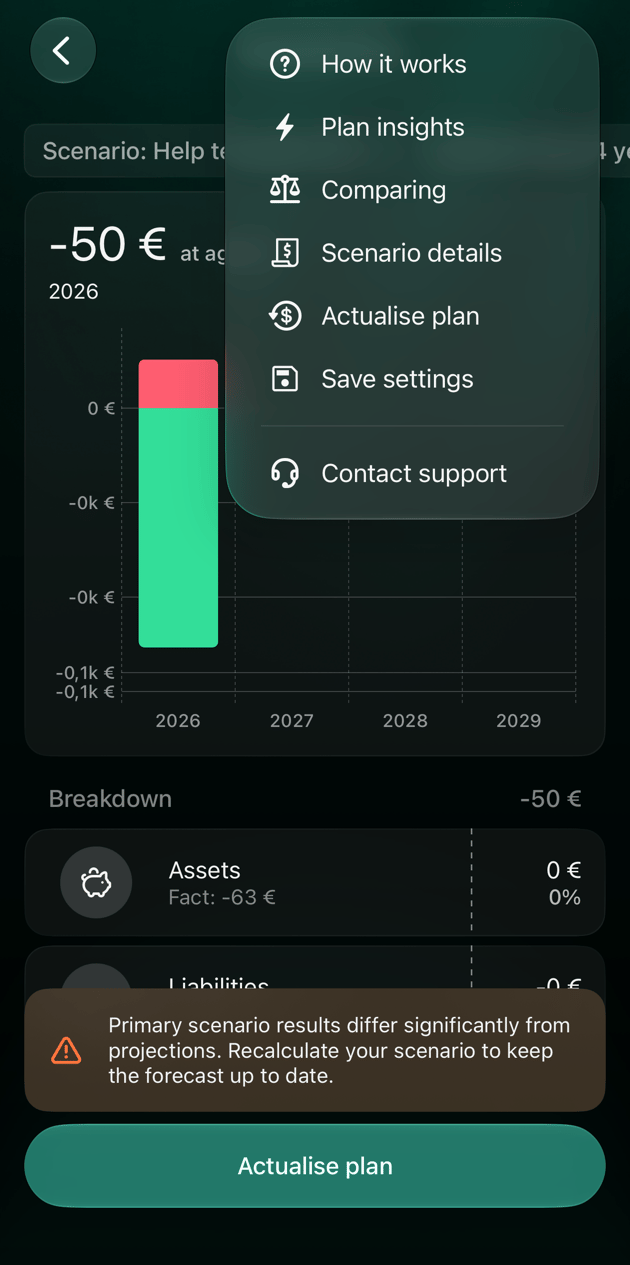
1. Select **Actualize plan** under the warning, or the icon to the right of the scales icon.
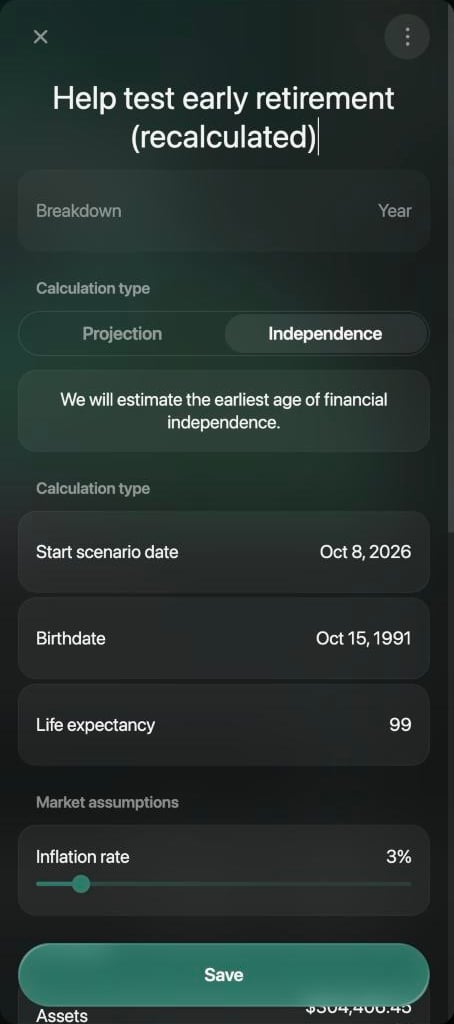
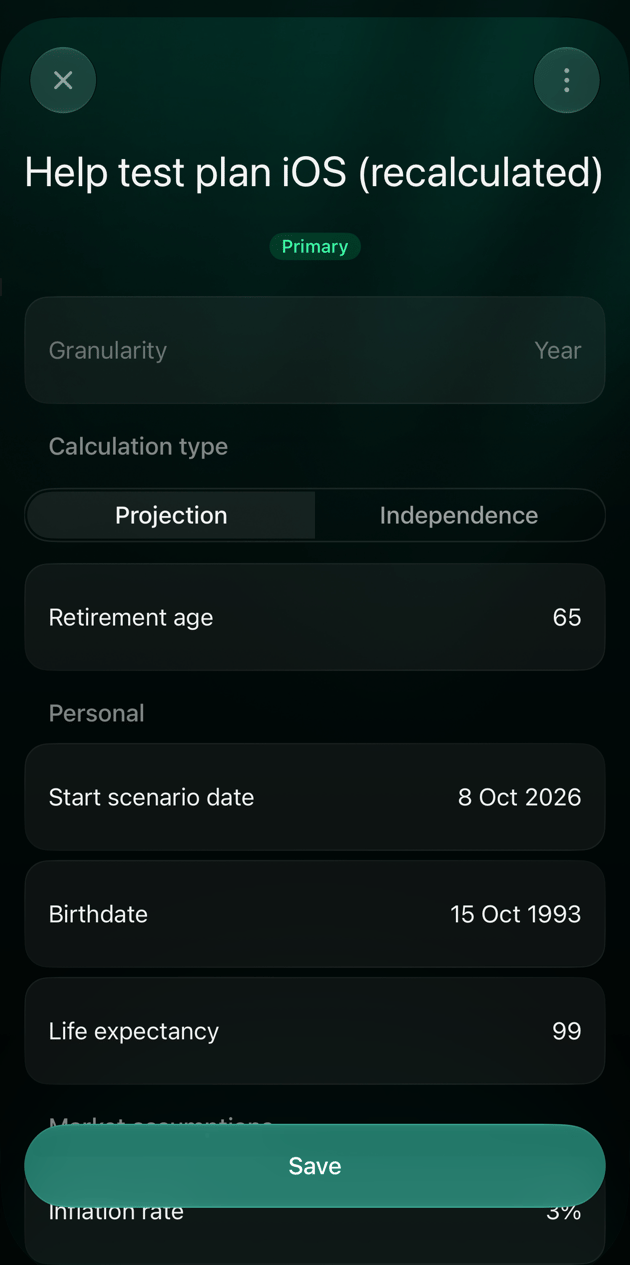
2. The scenario opens with **(recalculated)** added to its name. Check the amounts.
3. Select **Save**.
Saving replaces the scenario with the updated one. To keep the old version, first select **⋮** > **Copy scenario** and save the copy. Remove **(recalculated)** from the name if you don't need it.
 1. Tap **Actualise plan** under the warning, or **⋮** > **Actualise plan**.
2. The scenario opens with **(recalculated)** added to its name. Check the amounts.
3. Tap **Save**. finerd saves the updated plan as a new scenario and keeps the old one.
1. Tap **Actualise plan** under the warning, or **⋮** > **Actualise plan**.
2. The scenario opens with **(recalculated)** added to its name. Check the amounts.
3. Tap **Save**. finerd saves the updated plan as a new scenario and keeps the old one.
 The warning can appear for a scenario you've only just created. If your accounts haven't changed since, there's nothing to update.
Choose the primary scenario
The primary scenario opens first in the report and on the dashboard widget, and only it shows the warning about actual results.
On iOS, open the scenario you want, tap **⋮** > **Mark primary**, then **Save**. **Remove primary mark** does the opposite. On the web, the first scenario you create is the primary one, and you can't change it there.
Save the view as a report
To come back to a scenario and its view in one tap, save it as a report: on the web, select **⋮** > **Save settings**; on iOS, tap **⋮** > **Save settings**. The report keeps the scenario and how the chart is set up, and appears in **Reports** with your other saved reports. See [Customize a report](/reports/customize-report).
Delete a scenario
Deleting a scenario removes it and its events for good.
Open the scenario with the pencil, select **⋮** > **Delete**, then confirm with **Delete**.
1. Tap **Scenario:** at the top of the report.
2. Tap the arrow icon to the right of the scenario.
3. Tap **⋮** > **Delete**, then confirm with **Delete**.
You can't delete the primary scenario: mark another one as primary first. With only one scenario, **Delete** isn't shown.
* [Build a financial plan](/financial-plan/build-financial-plan)
* [Add future events to your plan](/financial-plan/add-future-events)
* [Why build a financial plan?](/financial-plan/why-build-a-financial-plan)
* [Net Worth report](/reports/net-worth)
This documentation is built and hosted on [Mintlify](https://mintlify.com), a developer documentation platform.