> ## Documentation Index
> Fetch the complete documentation index at: https://help.finerd.ai/llms.txt
> Use this file to discover all available pages before exploring further.
# Add future events to your plan
> Add a purchase, a new job, a child, a loan or your pension to a finerd Financial Plan scenario and see how each event changes your net worth.
A future event changes your Financial Plan from a date you choose: a home or car you buy, a raise, a child, a loan you take out or the pension you start getting. You add events to a scenario, and finerd works their income, spending, assets and loans into your net worth from that date.
Events are part of Financial Plan, a finerd Pro feature for personal spaces on the web and in the iOS app; the Android app doesn't have it. If you haven't built a plan yet, start with [Build a financial plan](/financial-plan/build-financial-plan).
How events work
An event has a name, a date and one or more items. Each item is an asset, a loan, an income category or an expense category, with an amount and the years it applies, from **Effective from** to **Effective until**.
* An **income** or **expense** item replaces that category's amount in the plan for those years. For example, a **Salary & Wages** item of 60,000 USD from 2028 means your salary is 60,000 USD a year from then on.
* An **asset** or **loan** item adds its amount to the balance the account has reached in the plan by then.
Enter amounts in today's money. finerd adjusts them for inflation up to the year they start.
Amounts follow the scenario's breakdown, which you chose when you created it: per year in a **Year** scenario, per month or per quarter in a **Month** or **Quarter** one. The field names show which, such as **Annual income** or **Monthly income**. **Effective from** and **Effective until** are always years. Scenarios created in the iOS app are yearly, and the examples in this article use a yearly scenario.
An event only counts once you save the scenario it belongs to.
Add an event
1. Open **Reports** > **Financial plan** and select the pencil next to **Scenario:**.
2. Under **Future events**, select **Add event**.
3. Enter a name in **Event name**, such as **New car**.
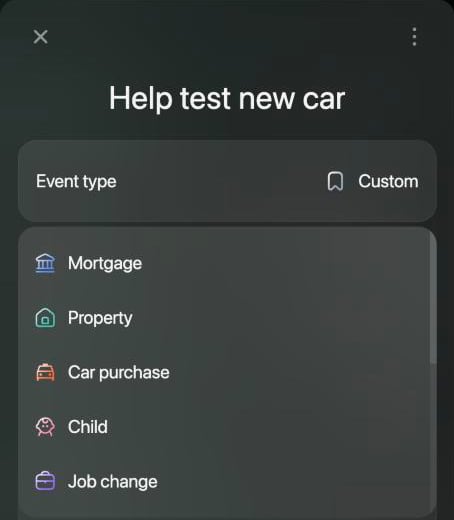
4. Select **Event type** and choose the kind of event. The type sets the event's icon and color; every type has the same fields.
5. Select **Event date**.
6. Under **Assets**, **Liabilities**, **Income** or **Expenses**, select **Add** and choose an account or category. Enter its amount, rate and years, then select **Save**. Repeat for each item.
7. Select **Save** in the event, then **Save** in the scenario.
**Save** in the event appears once it has at least one item.
A scenario with a **Mortgage** or **Car purchase** event can't be saved at the moment: **Save** does nothing. Choose another type, such as **Property**, **Loan** or **Custom**.
1. Open **Reports** > **Financial Plan**, then tap **⋮** > **Scenario details**.
2. Under **Future events**, tap **Add event**.
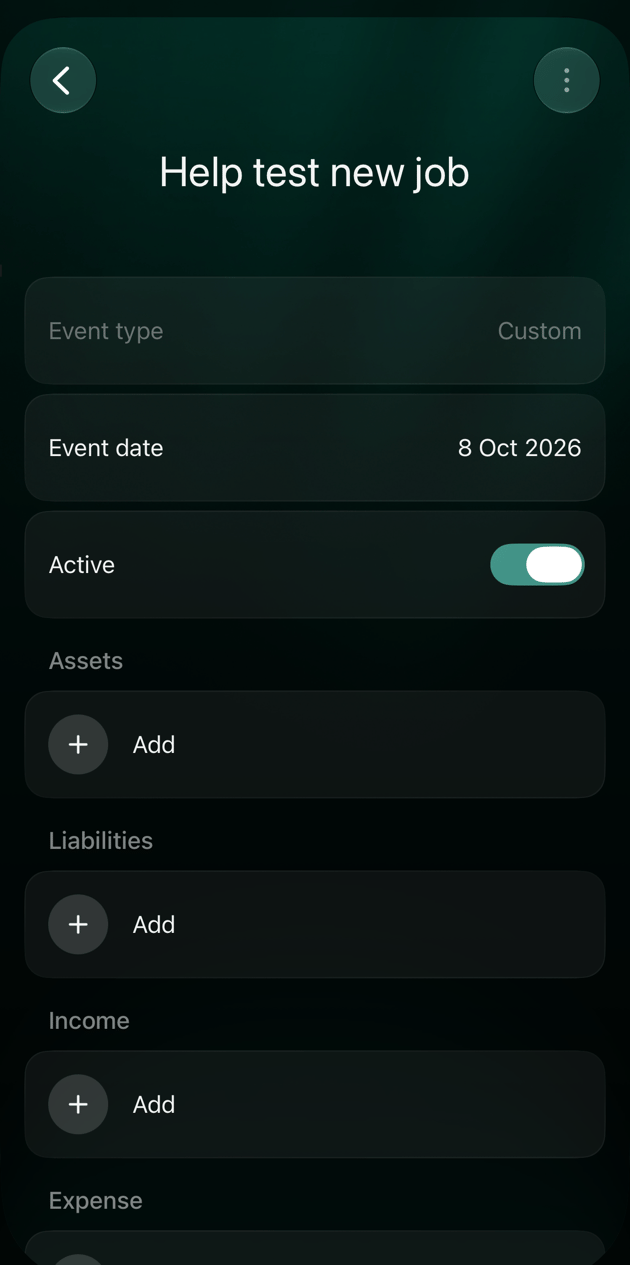
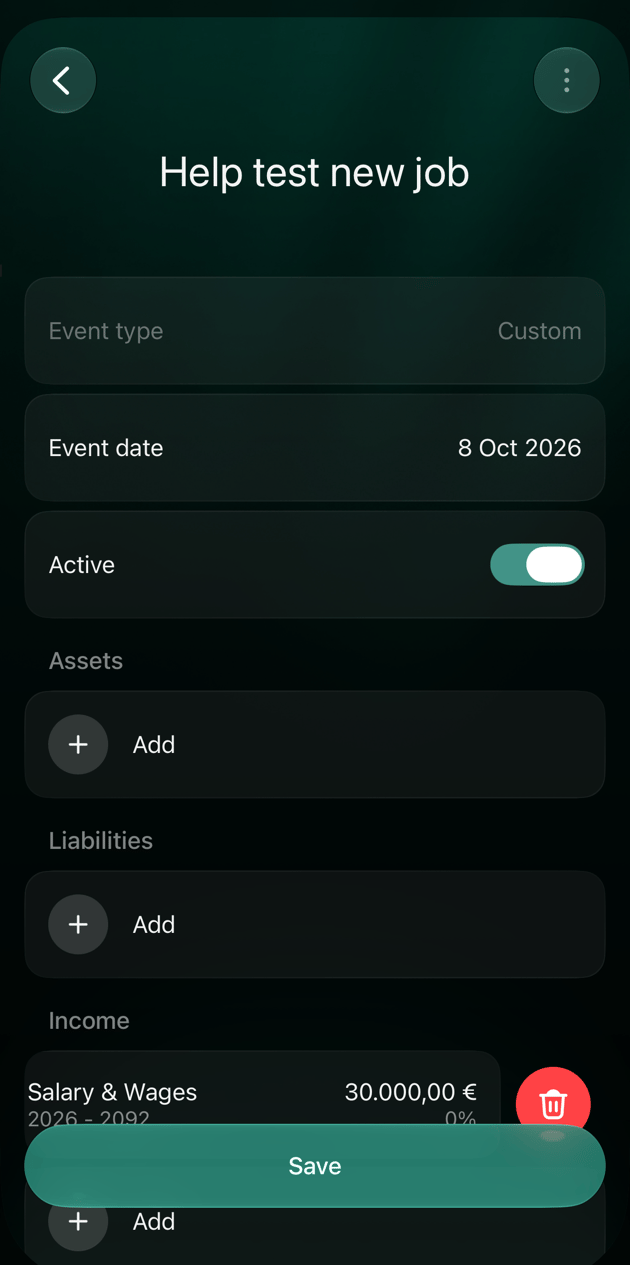
3. Enter a name in **Event name**, such as **New job**. On iOS, every new event has the type **Custom**.
4. Tap **Event date** and choose the date.
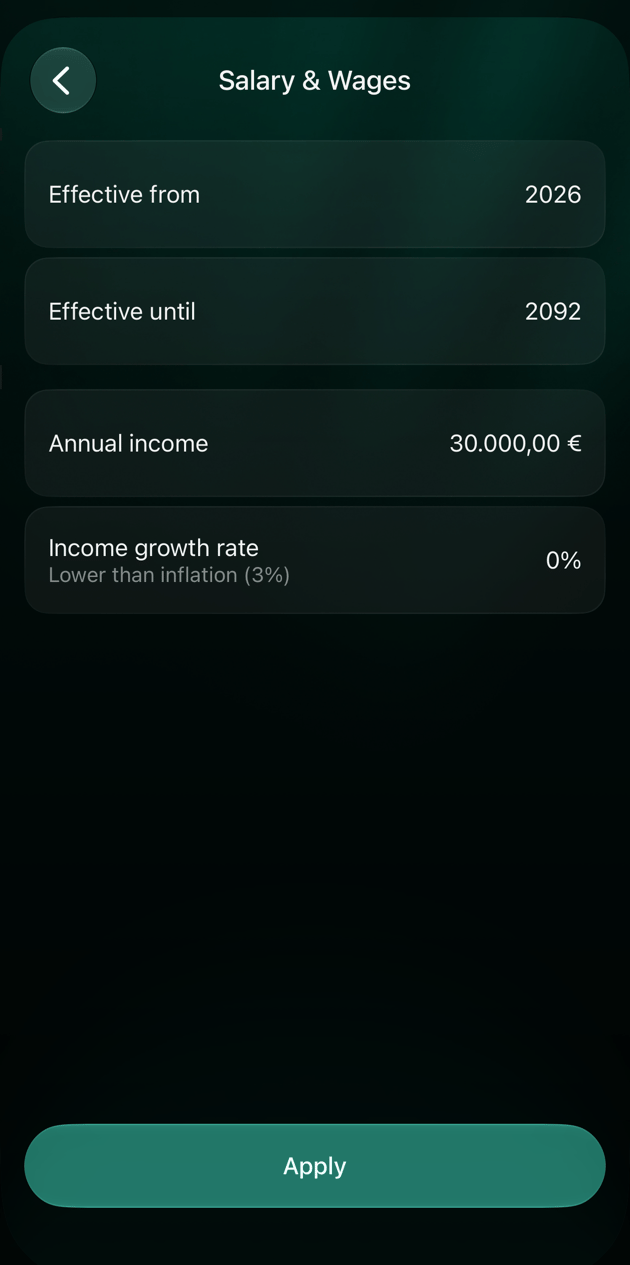
5. Under **Assets**, **Liabilities**, **Income** or **Expense**, tap **Add** and choose an account or category. Enter its amount, rate and years, then tap **Apply**. Repeat for each item.
6. Tap **Save** in the event, then **Save** in the scenario.
**Assets** and **Liabilities** list the accounts you already have. To plan something you don't track yet, such as a home you're going to buy, first add an account for it, for example a **Real estate** account with a balance of 0. See [Track property](/investments/track-property).
Plan a big purchase
A purchase usually has two sides: what you'll own and how you'll pay for it.
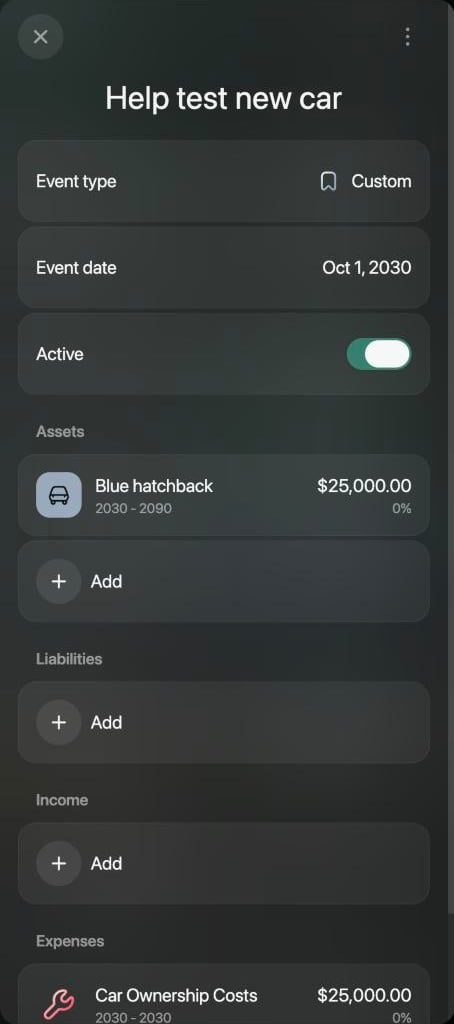
1. Add an event dated when you plan to buy, such as **New car** in October 2030.
2. Under **Assets**, add the account for what you're buying and enter its value, such as 25,000 USD for a car. Set how it gains or loses value each year; a car usually loses value.
3. Pay for it in one of two ways:
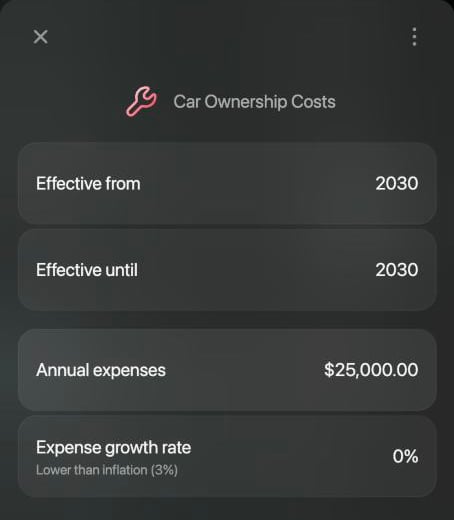
* With savings: under **Expenses**, add a category such as **Car Ownership Costs**, enter the price and set **Effective until** to the same year, so it counts once. In a **Month** or **Quarter** scenario the amount repeats in every month or quarter of that year, so enter a twelfth or a quarter of the price.
* With a loan: under **Liabilities**, add the loan and enter the amount you'll borrow, with its **Interest rate** and **Payoff**. See [Take out a loan](#loan).
Change your income or spending
Use an event when an amount changes from a given year:
* **A new job or a raise**: under **Income**, add **Salary & Wages** with the new yearly amount from the year it starts.
* **A child**: under **Expenses**, add a category such as **Kids** with what you expect to spend a year, from the birth year until the year support ends.
* **A move, travel or a sabbatical**: add the expenses that change, and the income you won't have, for the years it lasts.
Each item has its own growth rate, such as **Income growth rate** for a salary that rises every year.
Take out a loan
Under **Liabilities**, add the loan account and enter the amount you'll borrow. As in the scenario, a loan item needs an **Interest rate** and a **Payoff**: **Amount** with the yearly payment in **Annual pay**, or **Period (years)** with the number of years in **Pay years**.
How the loan itself is tracked is described in [Track a loan or mortgage](/investments/track-loan).
Plan your retirement income
Every scenario has a **Retirement** event. It starts in the year you reach your retirement age, and it lists each of your income categories at 0: from then on, your salary and other income stop.
Add what you'll live on after you retire:
1. Open the **Retirement** event.
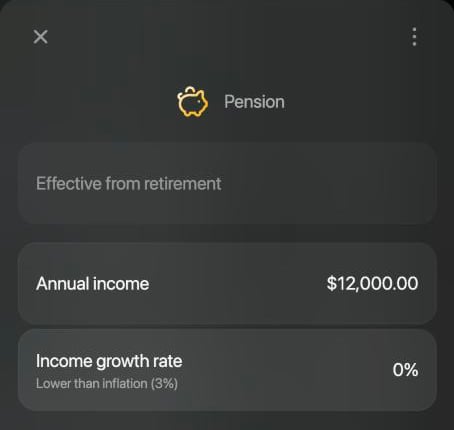
2. Under **Income**, open **Pension**, or another category such as **Investment Income**, and enter the yearly amount in today's money.
3. Save the event and the scenario.
In the example, a pension of 12,000 USD a year kept the plan's net worth growing after retirement instead of running down.
If you delete the **Retirement** event, your income continues until the end of the plan.
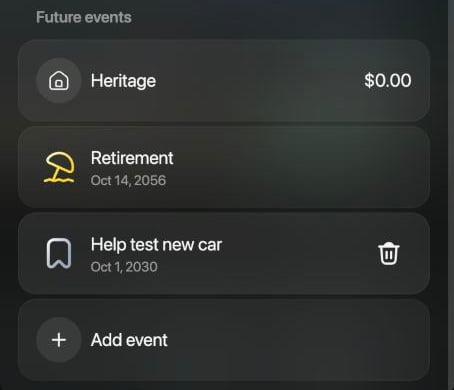
 **Heritage**, above the events, is the amount you want to leave at the end of the plan. finerd uses it to estimate your financial independence age; see [Find your financial independence age](/financial-plan/compare-scenarios#independence).
See events on the chart
On the web, each event with a date shows its icon above that year in the chart. Select the icon to highlight the years the event covers, counted as **Year 1**, **Year 2** and so on. When you point at a year, the details list the events in it.
Turn off, change or delete an event
To see the plan without an event but keep it for later, open it and turn off **Active**. The event stays in the list, dimmed.
* To change an event, select it in **Future events**.
* To delete an event, point at it in **Future events** and select the trash can icon that appears. finerd removes it straight away, without asking; it's gone for good once you save the scenario, so close the scenario without saving to keep it.
* You can't remove a single item from an event on the web. To drop one, delete the event and add it again without it.
 * To change an event, tap it in **Future events**.
* To remove one item, swipe left on it and tap the trash can icon.
* To delete the whole event, open it and tap **⋮** > **Delete**, then confirm.
* To change an event, tap it in **Future events**.
* To remove one item, swipe left on it and tap the trash can icon.
* To delete the whole event, open it and tap **⋮** > **Delete**, then confirm.
 * [Build a financial plan](/financial-plan/build-financial-plan)
* [Compare and update scenarios](/financial-plan/compare-scenarios): copy a scenario to test an event before you add it to your main plan.
* [Track property](/investments/track-property)
* [Track a loan or mortgage](/investments/track-loan)
This documentation is built and hosted on [Mintlify](https://mintlify.com), a developer documentation platform.
* [Build a financial plan](/financial-plan/build-financial-plan)
* [Compare and update scenarios](/financial-plan/compare-scenarios): copy a scenario to test an event before you add it to your main plan.
* [Track property](/investments/track-property)
* [Track a loan or mortgage](/investments/track-loan)
This documentation is built and hosted on [Mintlify](https://mintlify.com), a developer documentation platform.