> ## Documentation Index
> Fetch the complete documentation index at: https://help.finerd.ai/llms.txt
> Use this file to discover all available pages before exploring further.
# Settle up with people
> Link debt accounts, review shared debts, compare a settlement sheet and set payment details in finerd so both people know what is owed.
Use shared debts in finerd to compare what you and another person owe, review a debt they send you and give them the details for paying you back. Each person keeps their own debt account; the settlement sheet shows the balance and the transactions behind it.
Shared debts and payment options are free in a Personal space. Use the web or iOS to notify someone about a debt and review a debt received from them. Android has the settlement sheet and payment options, but no in-app flow for linking, notifying or accepting shared debts.
Before you share a debt
[Add the person as a debt account](/debts/track-debts#add) if you haven't already. To link your records, both of you need finerd and your own Personal space. A debt account holds one currency.
Set your name and [payment options](#payment-options) before sharing. On the web and iOS, **Settle-up sheet** asks you to enter your name if it is missing.
Linking accounts does not copy old transactions or make different starting balances match. Compare what each of you has recorded before relying on new shared debts.
Link your debt accounts
On the web:
1. Open **Accounts**, then the person's debt account.
2. Select **⋮**, then **Link account**.
3. In **Link accounts**, copy the invitation or choose a way to share it with that person.
4. The other person opens the invitation in their own finerd account and selects **Accept**. If asked to **Assign a debt account**, they choose the account they use for you or create one.
Use the web to open this invitation; it is a different flow from accepting a shared debt in iOS.
The invitation links the two debt accounts. It does not record a repayment. Opening your own invitation cannot accept it on the other person's behalf.
Notify someone about a debt
For someone whose account is not yet linked, record the amount using a [Debt transaction](/debts/track-debts#record). For a friend's share of a purchase, follow [Split a transaction](/transactions/split-transaction#other-parts).
1. Check the person and amount in the transaction.
2. Keep **Notify about debt** selected and select **Save & Notify**.
3. If asked, enter the name the other person should see and add a payment option.
4. If finerd opens **Share**, send the debt link to that person. Check whether finerd reports that the person was notified instead of opening a share sheet.
Android has no **Notify about debt** action. Open finerd on the web to send the debt.
1. Check the person and amount in the transaction.
2. Keep **Notify about debt** selected and tap **Save & Notify**.
3. In **Notify friends about debts**, tap **Notify** beside the person.
4. If asked, enter your name and add a payment option.
5. If the share sheet opens, share the debt link with them.
For linked accounts, new debts can be sent automatically when you save. The manual notification flow differs; linking does not mean every transaction is copied.
Keep the amount owed separate from the purchase total: someone who owes you \$20 of a \$40 bill should receive a \$20 debt.
Review a debt someone shares with you
Open the shared debt on the web or iOS and check the sender, date and your part of the amount. If there is a receipt, use it to check the details.
* Choose **Accept** to add the debt to your records. If asked to **Assign a debt account**, choose the person who sent it or create their debt account.
* Choose **Decline** if you disagree with the debt.
Accepting one shared debt does not import the sender's earlier balance. For example, a \$20 debt can show \$40 carried over and a \$60 total on the shared page; accepting it adds the \$20 transaction. If your debt account uses euros, finerd converts that transaction to euros.
A debt awaiting your acceptance does not change your balance. Accepting the debt records what you owe; it does not pay the other person. On the web, **Want to pay back now?** offers **See payment options** or **Not now** after acceptance.
Check the settlement sheet
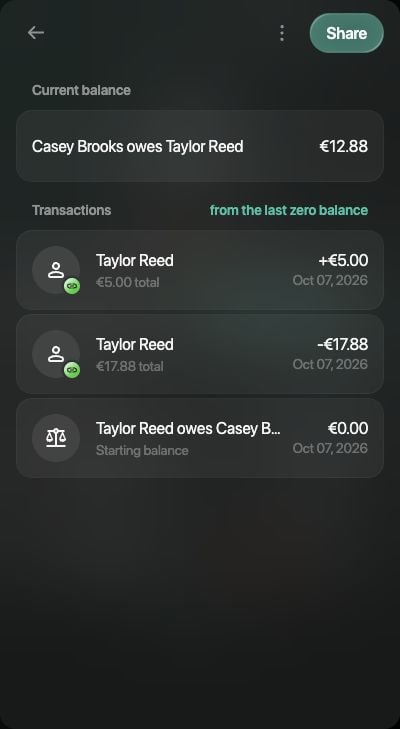
Open the person's debt account and choose **Settle-up sheet**. It shows the current amount owed, the transactions in the period and the starting balance. By default, the period starts from the last zero balance. If the latest transaction cleared the debt, the sheet keeps the last completed period so you can review it.
For example, Casey owes you \$40 at the start of October 7. You lend Casey another \$20 and receive \$15 back that day. Select October 7 as the start date: the sheet shows a \$40 starting balance, +\$20, −\$15 and a current debt of \$45. Compare the entries if the other person's records show a different amount.
1. Select **from the last zero balance** beside **Transactions**.
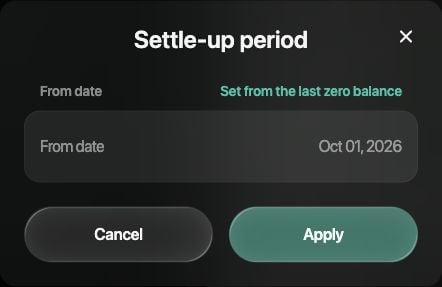
2. In **Settle-up period**, select **From date**, choose the starting date and select **Apply**.
3. To return to the default period, choose **Set from the last zero balance**.
4. To share the sheet, select **Share**. Add payment options first if finerd asks, then share the generated link.
 1. Tap the period beside **Transactions**.
2. Choose **From date**, set the starting date and tap **Apply**.
3. Use **Set from the last zero balance** to return to the default period.
4. Tap **Share report** to share the sheet. Set up payment options first if asked.
1. Tap the period beside **Transactions**.
2. Choose **From date**, select the starting date and tap **Apply**. Then tap **Apply date**.
3. Use **Set from the last zero balance** to return to the default period.
4. Tap **Share report** to share the sheet. Set up payment options first if asked.
1. Tap the period beside **Transactions**.
2. Choose **From date**, set the starting date and tap **Apply**.
3. Use **Set from the last zero balance** to return to the default period.
4. Tap **Share report** to share the sheet. Set up payment options first if asked.
1. Tap the period beside **Transactions**.
2. Choose **From date**, select the starting date and tap **Apply**. Then tap **Apply date**.
3. Use **Set from the last zero balance** to return to the default period.
4. Tap **Share report** to share the sheet. Set up payment options first if asked.
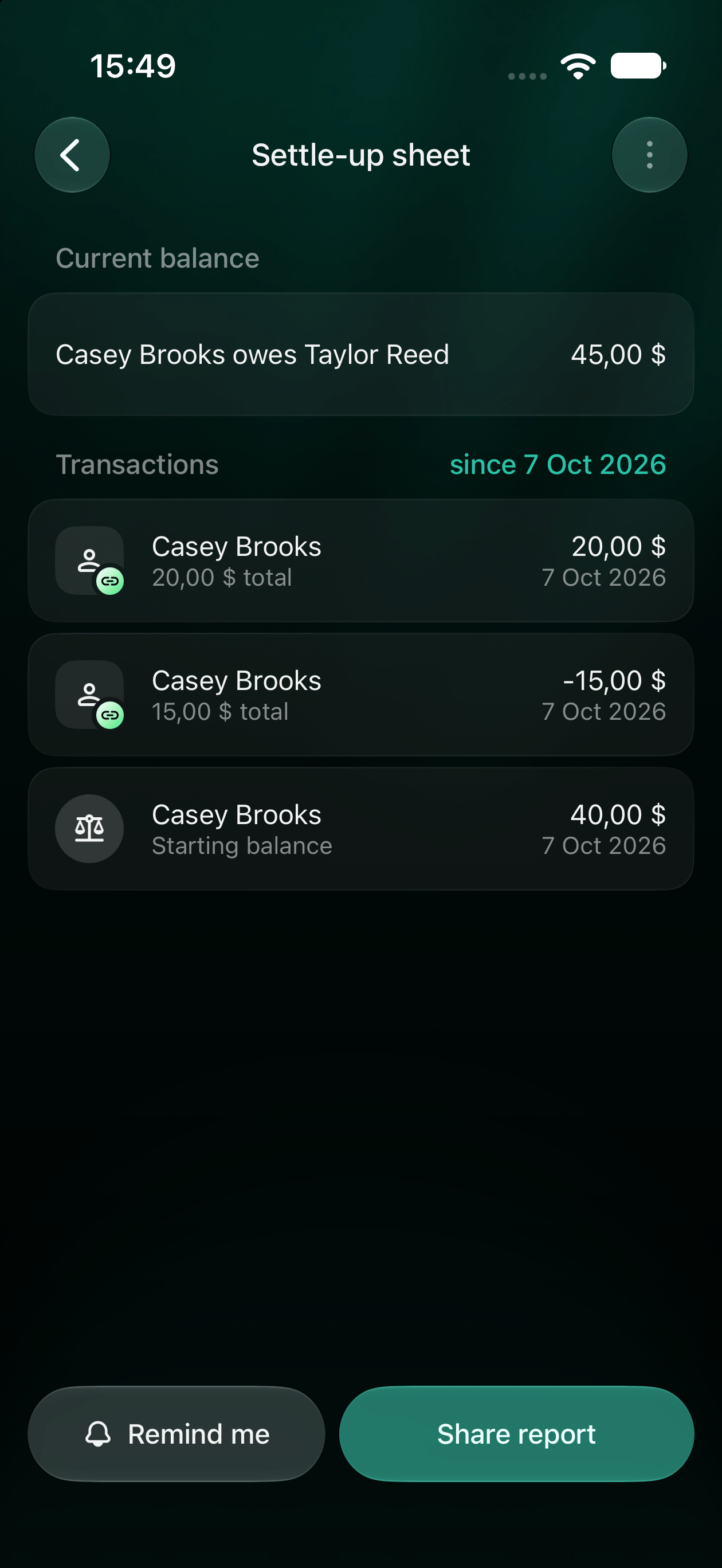
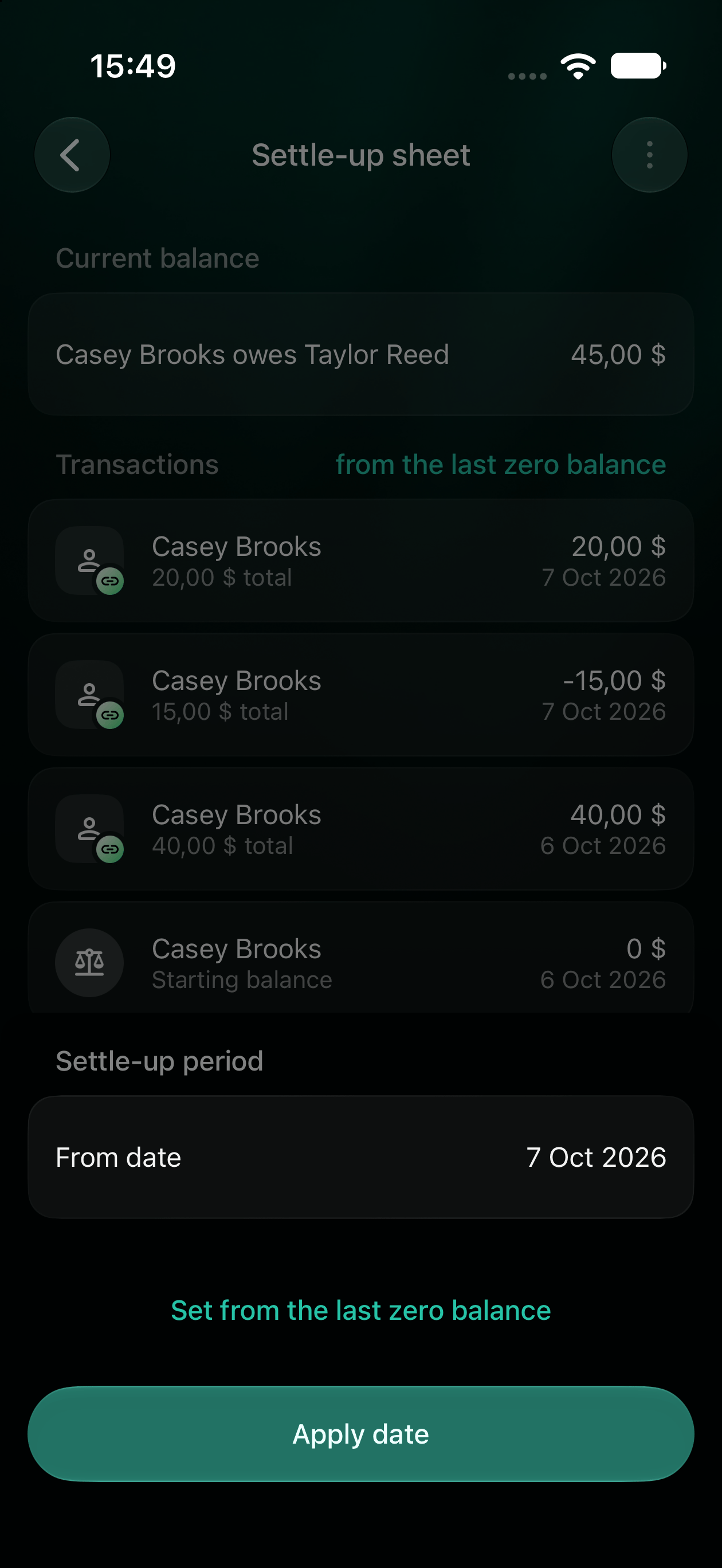 The date selects where the list starts; there is no separate end-date field. Sharing the sheet does not clear the balance.
Set how people can pay you back
Your payment options tell other people where to send money. Choose the details you want them to use, such as an IBAN or PayPal account.
1. Open **More**, then **Payment Options**.
2. Under **Tell friends who to pay**, select **Add name** and save the name the other person should see.
3. Select **Add payment option** (or **Add option** if you already have one).
4. In **Select how to pay you**, choose a method. Use **Add custom option** if you need another one.
5. Check the currency, enter the details requested for that method and select **Save**.
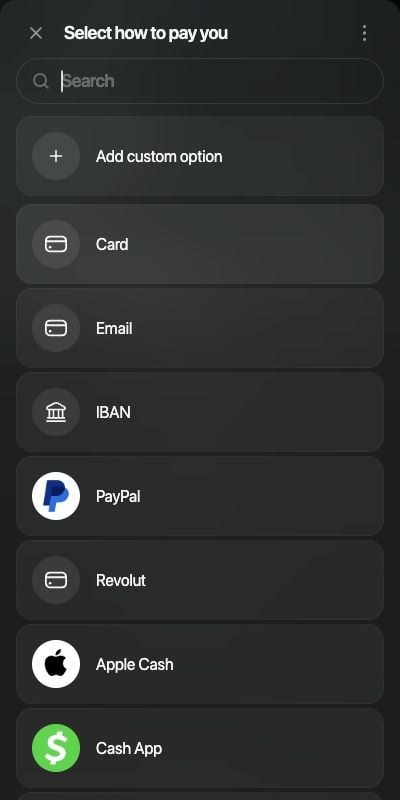 Open an existing option to edit it. To share your options separately, select **⋮**, then **Share payment options**.
Open **More**, then your Personal space's settings and **Payment Options**. Add the payment method and details you want people to use, then save it. Open an existing method to edit it.
1. Open **More**, tap the space icon at the top right, then **Payment Options**.
2. Tap **Add payment option**, or **Add** if a method already exists.
3. Choose a method, or **Add custom option**.
4. Check **Account currency**, enter **Payment details** and tap **Save**.
Open an existing method to edit it.
Open an existing option to edit it. To share your options separately, select **⋮**, then **Share payment options**.
Open **More**, then your Personal space's settings and **Payment Options**. Add the payment method and details you want people to use, then save it. Open an existing method to edit it.
1. Open **More**, tap the space icon at the top right, then **Payment Options**.
2. Tap **Add payment option**, or **Add** if a method already exists.
3. Choose a method, or **Add custom option**.
4. Check **Account currency**, enter **Payment details** and tap **Save**.
Open an existing method to edit it.
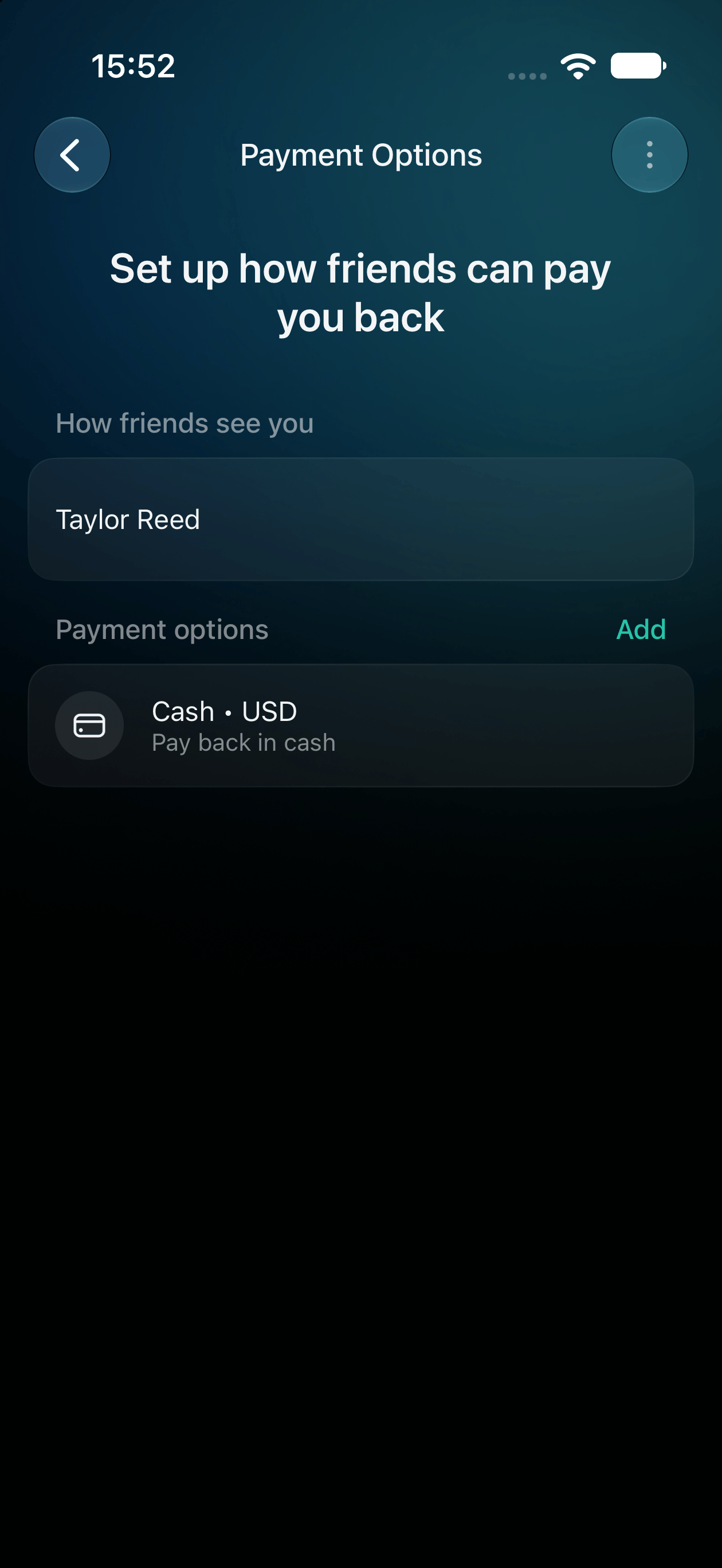 Choosing a payment option can open a payment service or copy its details. Complete the payment in that service. A message saying the money was sent is not a repayment transaction in finerd: [record the repayment](/debts/track-debts#record) when the money changes hands.
For a group bill in CheckPie, see [Settle up](/checkpie/settle-up).
This documentation is built and hosted on [Mintlify](https://mintlify.com), a developer documentation platform.
Choosing a payment option can open a payment service or copy its details. Complete the payment in that service. A message saying the money was sent is not a repayment transaction in finerd: [record the repayment](/debts/track-debts#record) when the money changes hands.
For a group bill in CheckPie, see [Settle up](/checkpie/settle-up).
This documentation is built and hosted on [Mintlify](https://mintlify.com), a developer documentation platform.