> ## Documentation Index
> Fetch the complete documentation index at: https://help.finerd.ai/llms.txt
> Use this file to discover all available pages before exploring further.
# Create a business space in finerd
> Keep business money apart from your personal finances: create a business space on the web, pick its currency and time zone, and switch spaces.
A business space keeps a company's or side business's money in finerd apart from your own: it has its own accounts, transactions, categories, reports, primary currency, time zone and subscription. You create a business space on the web, in the space menu at the bottom of the sidebar, and then switch between it and your Personal space on the web, Android and iOS.
Creating a business space is free, and each new business space starts with its own 34-day Pro trial. After the trial it needs its own paid subscription, which you pay on the web. Android and iOS can't create a business space; once you've created it on the web, it appears in the apps.
Why a separate business space
Everyone in finerd has one **Personal** space, created when they sign up. You can add as many business spaces as you need, for example one for each company.
Each space is a separate set of finances. Accounts, transactions, categories, reports, the primary currency, the time zone and the subscription all belong to one space, so a business expense never lands in your personal reports, and the business's reports show only the business. A new business space starts with:
* **Business categories** instead of personal ones, such as **Marketing**, **Cost of Goods Sold**, **Employees** and **Business Travel** for expenses, and **Sales Revenue** for income.
* A **Wallet** cash account and two **Equity** accounts, **Owner Investment** and **Profit Withdrawal**, for the money you put into the business and take out of it.
* A link to your Personal space for business costs you pay with your own money. See [Pay business costs from your Personal space](#personal-link).
finerd names these accounts and categories in the language your app uses when you create the space.
Family access links two Personal spaces, so it isn't available in a business space. A business space is shared through members and roles instead.
Create a business space
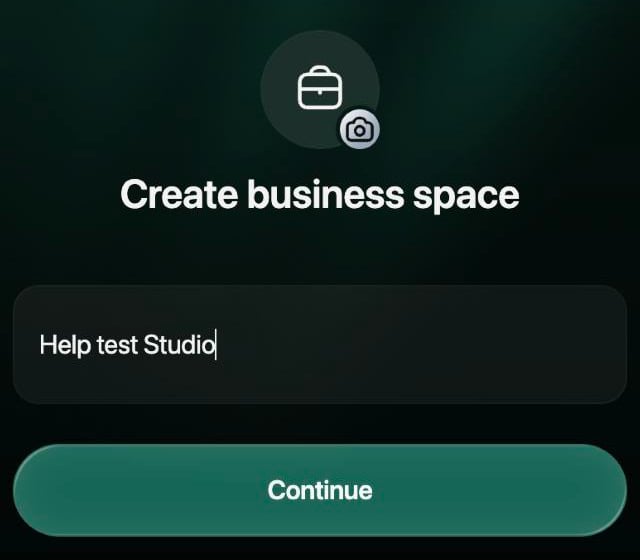
1. Select your profile at the bottom of the sidebar. The menu lists your spaces.
2. Select **Create business space**.
 3. Enter the name of the business, for example **Acme Inc.** To change the picture, select the briefcase icon and choose another icon or upload an image. Select **Continue**.
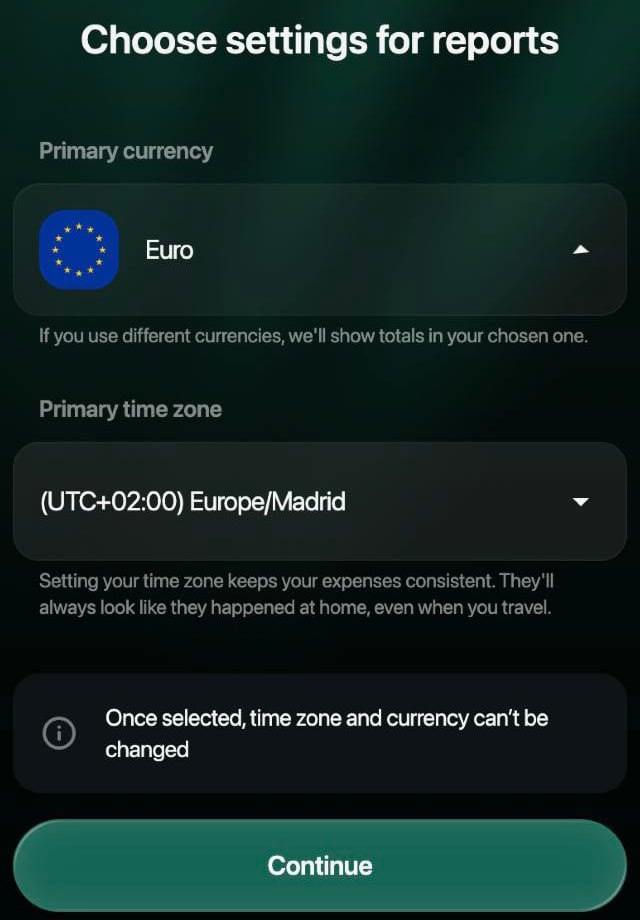
 4. Choose the **Primary currency** and the **Primary time zone**; see [Choose the currency and time zone](#currency-and-time-zone). Neither can be changed later.
5. Select **Continue**.
4. Choose the **Primary currency** and the **Primary time zone**; see [Choose the currency and time zone](#currency-and-time-zone). Neither can be changed later.
5. Select **Continue**.
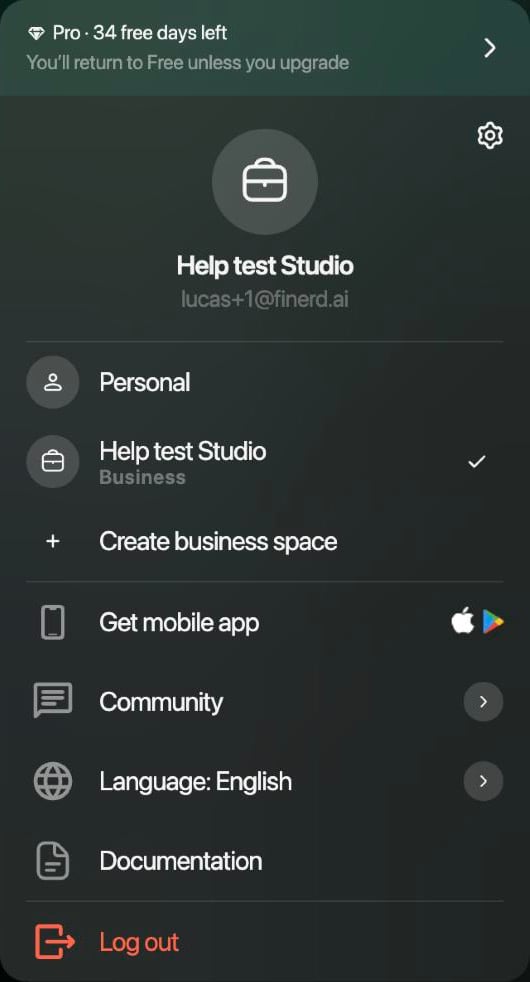
 finerd creates the space and opens it straight away, on the page you were on. The space menu now shows the new space with the label **Business** and the trial at the top: **Pro · 34 free days left**.
The Android app can't create a business space. If you tap the space avatar at the top of the screen and then **Add business space**, the app says that a business space can be added in the web version at app.finerd.ai. Create it on the web, and it appears in the app's list of spaces.
The iOS app can't create a business space. Create it on the web; it then appears in the app, and a tab for switching spaces appears; see [Switch between spaces](#switch).
finerd creates the space and opens it straight away, on the page you were on. The space menu now shows the new space with the label **Business** and the trial at the top: **Pro · 34 free days left**.
The Android app can't create a business space. If you tap the space avatar at the top of the screen and then **Add business space**, the app says that a business space can be added in the web version at app.finerd.ai. Create it on the web, and it appears in the app's list of spaces.
The iOS app can't create a business space. Create it on the web; it then appears in the app, and a tab for switching spaces appears; see [Switch between spaces](#switch).
Choose the currency and time zone
You choose both when you create the space, and **you can't change either of them afterwards**: the web shows **Once selected, time zone and currency can't be changed**. If you need a different currency later, create another business space.
* **Primary currency.** finerd shows totals and reports in this currency. Accounts and transactions keep their own currencies: a business space in euros can still have a US dollar bank account. The web suggests the primary currency of the space you're in.
* **Primary time zone.** finerd shows transaction dates in this time zone, so a payment looks as if it happened at home even when you travel. The web suggests the time zone of your computer.
To check them later:
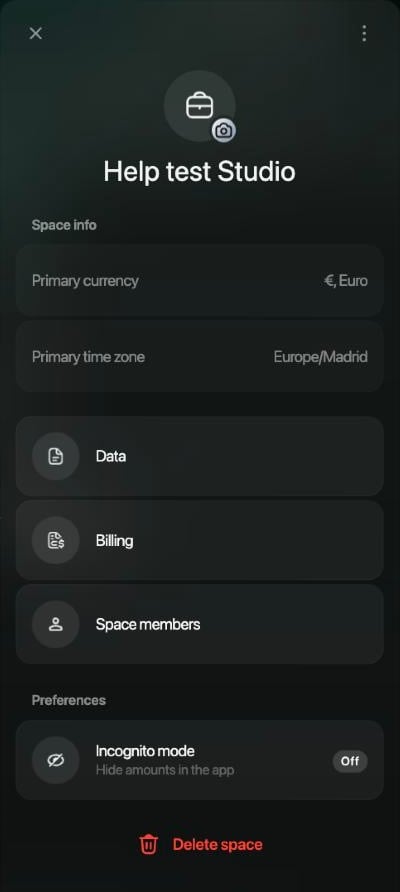
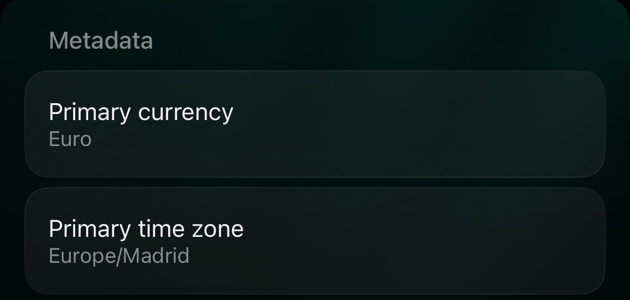
Select your profile at the bottom of the sidebar, then the settings icon. **Space info** at the top of the space settings shows **Primary currency** and **Primary time zone**; you can read them but not change them.
 Tap the space avatar at the top of the screen, then **Space settings**. Tap **⋯** in the top-right corner and then **Metadata**: it shows **Primary asset** (the currency) and **Timezone**.
Open **More**, tap the space icon in the top-right corner, then **⋯** and **Metadata**. It shows **Primary currency** and **Primary time zone**.
Tap the space avatar at the top of the screen, then **Space settings**. Tap **⋯** in the top-right corner and then **Metadata**: it shows **Primary asset** (the currency) and **Timezone**.
Open **More**, tap the space icon in the top-right corner, then **⋯** and **Metadata**. It shows **Primary currency** and **Primary time zone**.
Switch between spaces
Everything you see, from the Dashboard to reports, belongs to the space that's open. Each device remembers its own choice: switching spaces on the web doesn't switch the app on your phone.
1. Select your profile at the bottom of the sidebar.
2. Select the space you want. A check mark shows the open space, and business spaces have the label **Business**.
finerd shows **Switching to** and the name of the space, then opens its Dashboard. The browser opens the same space the next time you come back.
1. Tap the space avatar at the top of the screen, for example on **Dashboard** or **More**.
2. Tap the space you want. Each space shows **Personal** or **Business** under its name, and a check mark shows the open one.
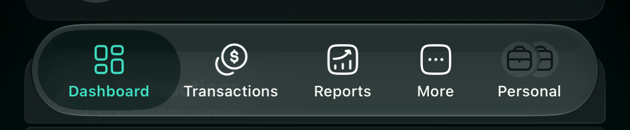
When you have more than one space, a fifth tab appears at the right of the tab bar, named after the open space.
* With two spaces, tap that tab to switch to the other space.
* With three or more, tap it and choose a space under **Switch to**. A check mark shows the open one.
The app shows **Switching to** and the name of the space while it loads.
What's different in a business space
| | Business space |
| - | - |
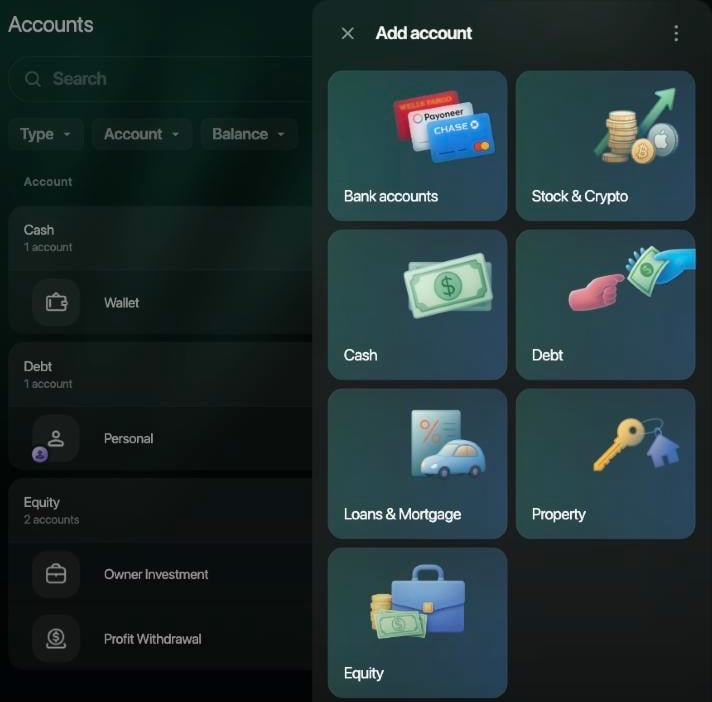
| **Add account** | Adds **Equity**, for owners' money such as investments and dividends, on the web and iOS. **Rewards** isn't offered. |
| Reports | **Profit & Loss** on the web and iOS, and **Balance Sheet** on the web, next to **Expenses**, **Income** and **Cash Flow**. The web and iOS don't show **Net Worth** or the **Financial Plan** in a business space. |
| Not available | Family access, budgets, and rewards and loyalty points. |
| Zero Inbox | In the space settings on Android and iOS; the web doesn't show it in a business space. |
| Members | You can invite people and give them roles, such as admin, accountant or viewer, on the web; iOS shows the list of members. Each extra member needs a paid seat; see [Business spaces and extra members](/account/manage-subscription#business). |
Pay business costs from your Personal space
When you create a business space, finerd links it to your Personal space with a pair of **Debt** accounts: one named after the business in your Personal space, and one named **Personal** in the business space.
Use them when you pay for something for the business with your own money:
1. In your Personal space, record the expense from the card or account you paid with, and in **To** choose the business's account under **Debts & Reimbursements**.
2. finerd copies the payment to the business space, where it comes from **Personal**. Choose the business category there if finerd hasn't already.
For example, a €40 desk paid with your own card appears in the business space as €40 from **Personal** to **Equipment**, and the business's account in your Personal space shows that the business owes you €40.
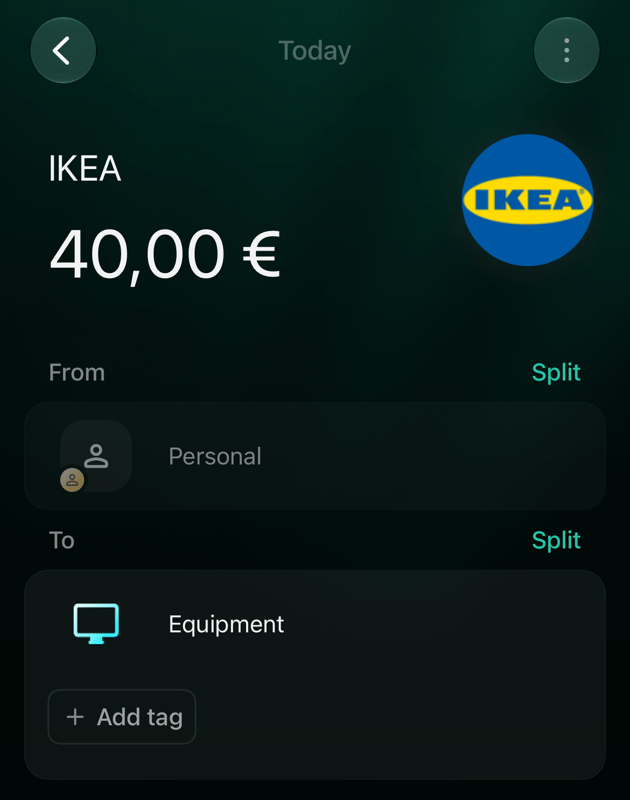 The copy can't be deleted in the business space; change or delete the original in your Personal space, and the copy follows.
Pay for a business space
A business space has its own subscription, separate from your Personal space: Pro in your Personal space doesn't cover the business, and the other way round.
* **Trial.** A new business space gets a 34-day Pro trial for its owner, with no card needed. The days left appear at the top of the space menu on the web.
* **After the trial,** the business space locks until it's paid for. Nothing is deleted. The web shows **Your subscription has ended**, iOS **Account is inactive** and Android **Space is inactive**.
* **Paying.** You pay for a business space on the web, in the space settings under **Billing**. The Android and iOS apps can't take payment for it. Each extra member needs a paid seat.
See [Manage your finerd subscription](/account/manage-subscription#business) for prices, seats and cancelling.
Rename or delete a business space
You can change the name and the picture of a space at any time:
Select your profile at the bottom of the sidebar, then the settings icon. Select the name at the top to edit it, or the picture to choose another icon or image, then select **Save**. **Save** appears once you've changed something.
Tap the space avatar at the top of the screen, then **Space settings**. Edit the name, or tap the picture to choose another icon or take a photo, then tap **Save**.
Open **More** and tap the space icon in the top-right corner. Tap the name to edit it, or the picture for **Upload image**, **Take a photo** or **Select icon**, then tap **Save**.
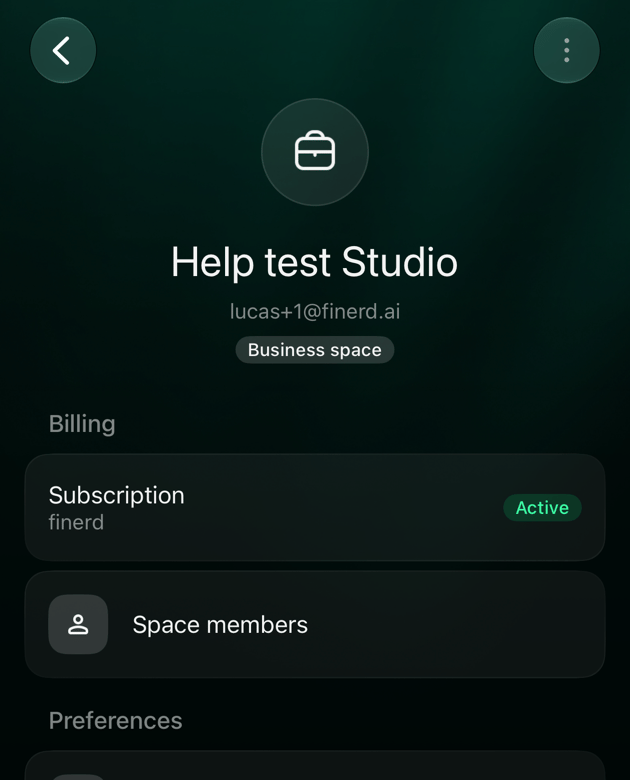 **Delete space** is at the bottom of the space settings on the web and Android, and in the **⋯** menu on iOS. Only the owner can delete a business space, and only when no other members are left in it. Deleting removes the space and everything in it and can't be undone, so [export your data](/account/export-data) first. Your Personal space can't be deleted while you have business spaces.
Related articles
* [Manage your finerd subscription](/account/manage-subscription)
* [Create and set up an account](/accounts/create-account)
* [Add or edit a transaction](/transactions/add-transaction)
* [Export your data from finerd](/account/export-data)
* [Set up family accounting](/family-accounting)
This documentation is built and hosted on [Mintlify](https://mintlify.com), a developer documentation platform.