> ## Documentation Index
> Fetch the complete documentation index at: https://help.finerd.ai/llms.txt
> Use this file to discover all available pages before exploring further.
# Create and track a budget
> Plan monthly income and expenses by category in finerd, then follow planned, actual and remaining amounts, spending outside the plan and past months.
A budget in finerd is a monthly plan: you set how much you expect to spend and earn, split it by category, and finerd compares the plan with your real transactions as the month goes on. One budget covers one calendar month and carries over to the next months until you change it.
Budgets are free and work on the web, Android and iOS, in personal spaces. All amounts are in your space's [primary currency](/getting-started/initial-setup#primary-currency).
Create a budget
A budget has two sides: **Expenses**, which is required, and **Income**, which you can leave empty. Each side has a total, and you can split the total into categories. The part of the total you don't give to any category goes to **Other** ([see below](#other)).
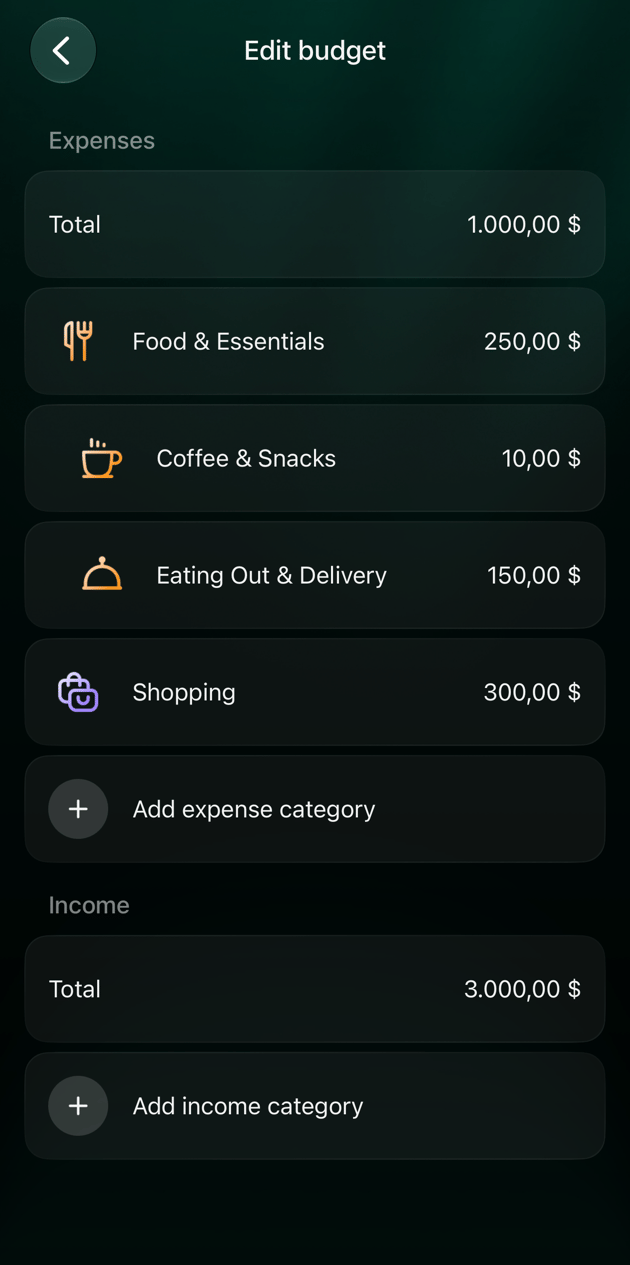
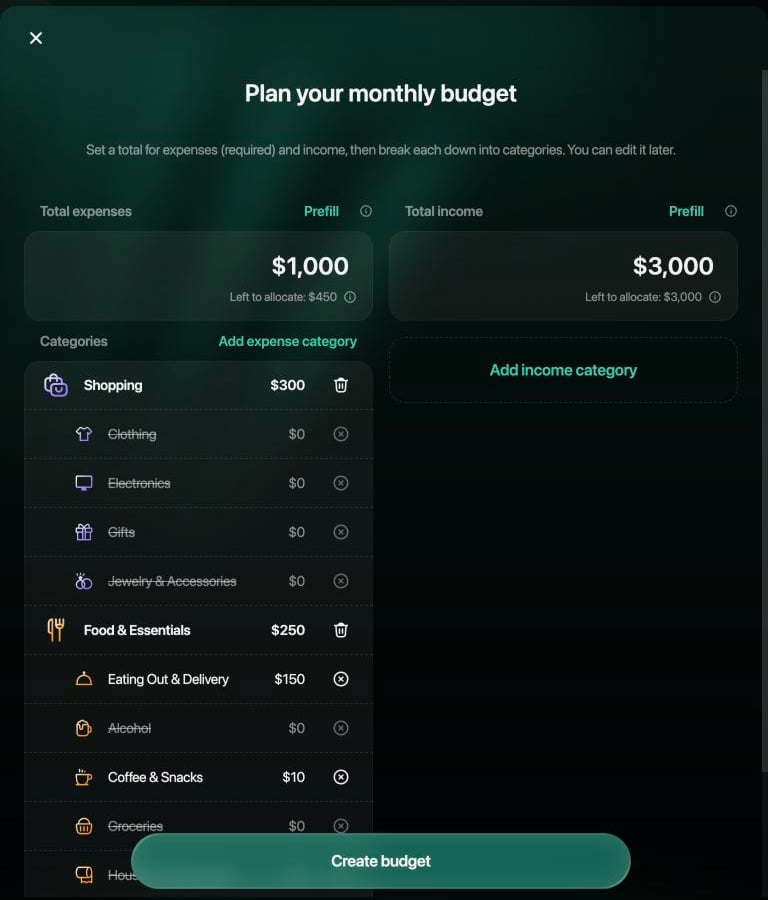
Example: expenses of $1,000 a month, with **Shopping** at $300 and **Food & Essentials** at $250, and income of $3,000.
1. In the sidebar, select **Budget**, then **Create your first budget**.
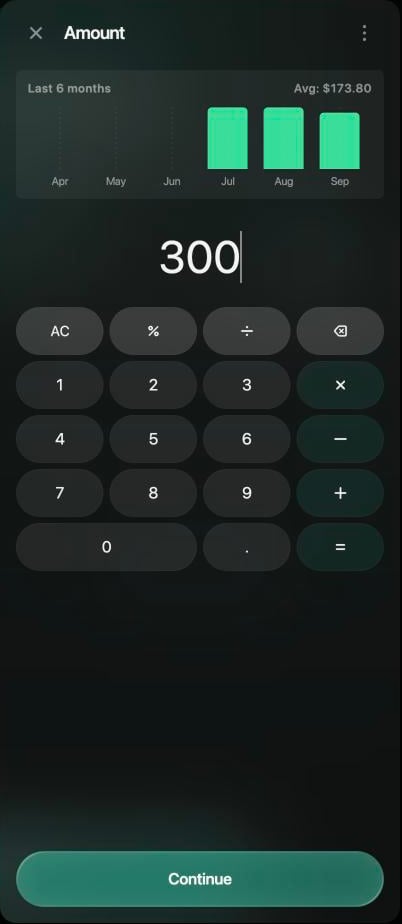
2. Under **Total expenses**, select the amount and enter the total for the month, for example \$1,000. The chart above the calculator shows your spending in each of the last 6 months.
3. Select **Add expense category**, choose a category, enter its amount and select **Continue**. Repeat for each category you want to plan. **Left to allocate** shows how much of the total is still free.
4. To plan income, do the same under **Total income**.
5. Select **Create budget**.
To start from your own history instead, select **Prefill** above a total. finerd fills in the total and the categories with suggested amounts based on your spending or income in recent months, replacing what you entered on that side. Change any amount before you create the budget.
 To see this month's budget on **Dashboard**, add the **Budget** widget from the dashboard's **⋮** menu. It's titled **Expense budget**, or **Income budget** if you set its **Type** to **Income**.
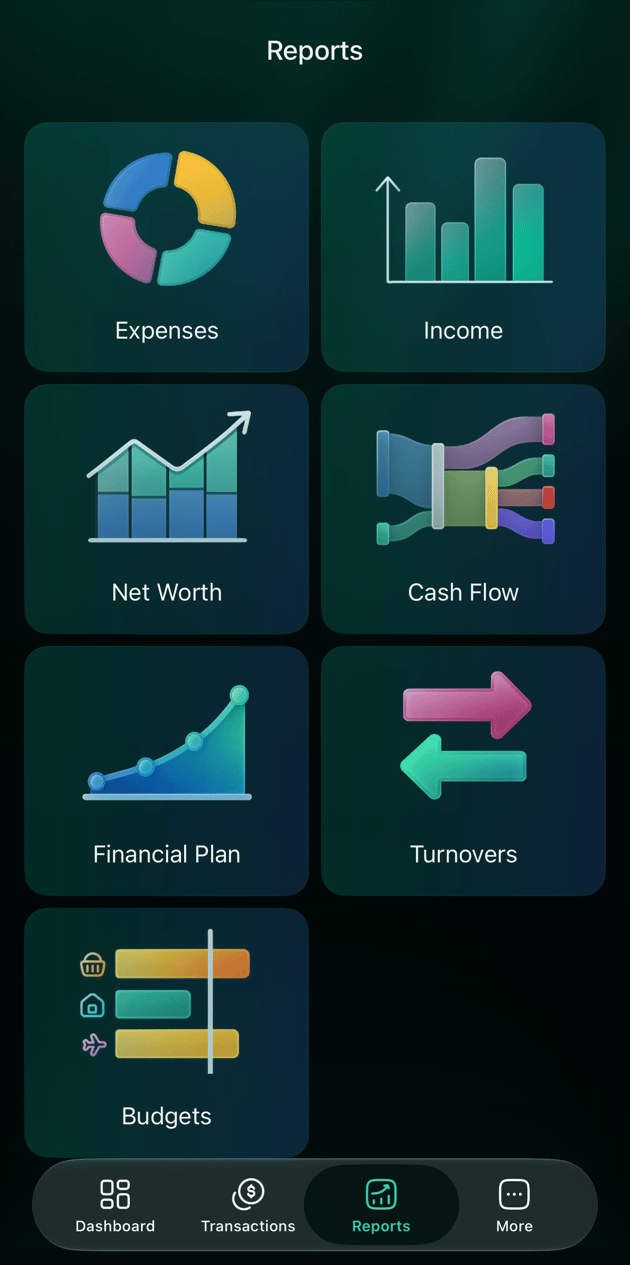
1. Open **Reports** and tap **Budget**, then **Create budget**.
2. Under **Expenses**, tap **Total** and enter the total for the month. The chart shows your spending in recent months. Tap **Save**.
3. Tap **Add expense category**, choose a category, enter its amount and tap **Save**. Repeat for each category you want to plan.
4. To plan income, tap **Add income** and enter the total. Add income categories with **Add income category**.
5. Tap **Save**.
You can also open the budget from the **Budget** widget on **Dashboard**, if you've added it.
1. Open **Reports** and tap **Budgets**, then **Create budget**.
2. finerd opens **Set total expenses**. Enter the total for the month and tap **Save**. The chart shows your spending in recent months.
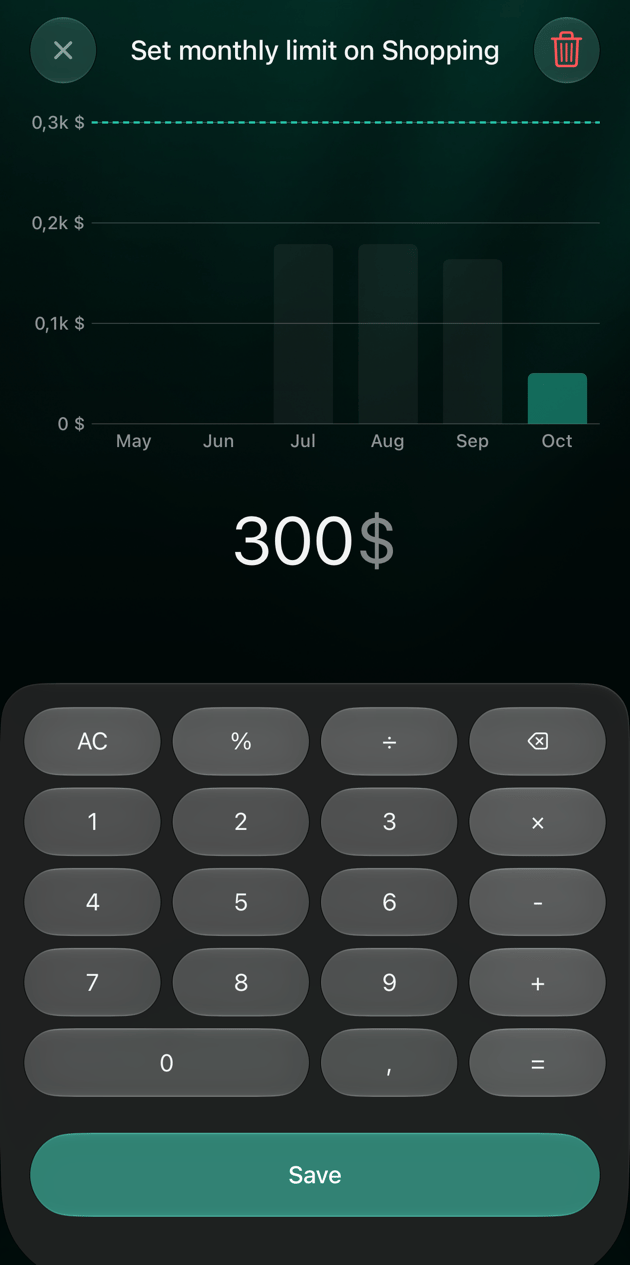
3. Tap **Add expense category**, choose a category, enter its amount on **Set monthly limit on** and tap **Save**. Repeat for each category you want to plan.
4. To plan income, tap **Add income** and enter the total. Add income categories with **Add income category**.
5. Tap **Create budget**.
The **Budget** widget on **Dashboard** shows how much you've spent of the plan this month; tap it to open the budget.
To see this month's budget on **Dashboard**, add the **Budget** widget from the dashboard's **⋮** menu. It's titled **Expense budget**, or **Income budget** if you set its **Type** to **Income**.
1. Open **Reports** and tap **Budget**, then **Create budget**.
2. Under **Expenses**, tap **Total** and enter the total for the month. The chart shows your spending in recent months. Tap **Save**.
3. Tap **Add expense category**, choose a category, enter its amount and tap **Save**. Repeat for each category you want to plan.
4. To plan income, tap **Add income** and enter the total. Add income categories with **Add income category**.
5. Tap **Save**.
You can also open the budget from the **Budget** widget on **Dashboard**, if you've added it.
1. Open **Reports** and tap **Budgets**, then **Create budget**.
2. finerd opens **Set total expenses**. Enter the total for the month and tap **Save**. The chart shows your spending in recent months.
3. Tap **Add expense category**, choose a category, enter its amount on **Set monthly limit on** and tap **Save**. Repeat for each category you want to plan.
4. To plan income, tap **Add income** and enter the total. Add income categories with **Add income category**.
5. Tap **Create budget**.
The **Budget** widget on **Dashboard** shows how much you've spent of the plan this month; tap it to open the budget.
 You create a budget for the current month or a later one. Past months can't be planned or changed.
Plan by category
Categories in finerd have two levels, such as **Food & Essentials** with **Groceries** and **Coffee & Snacks** under it, and you can plan either level:
* **Choose a parent category** to plan the whole group with one amount.
* **Choose a subcategory** to plan it separately. finerd adds its parent too, and the parent's amount can't be lower than its planned subcategories together.
In the example, **Eating Out & Delivery** $150 and **Coffee & Snacks** $10 are planned inside **Food & Essentials** $250. The remaining $90 of the group covers its other subcategories, such as **Groceries**.
When you choose a category, its subcategories appear under it at $0. Leave them at $0 if you don't plan them separately: they aren't saved and their spending counts in the parent. To remove a category, select the bin next to it; for a subcategory, the cross clears its amount.
 Picking a parent category adds its subcategories at 0; categories you leave at 0 aren't saved. To remove a category, tap the bin next to it. Removing a parent removes its subcategories too.
Picking a parent category adds its subcategories at 0; categories you leave at 0 aren't saved. To remove a category, tap it and then the bin at the top of the amount screen. Removing a parent removes its subcategories too.
Picking a parent category adds its subcategories at 0; categories you leave at 0 aren't saved. To remove a category, tap the bin next to it. Removing a parent removes its subcategories too.
Picking a parent category adds its subcategories at 0; categories you leave at 0 aren't saved. To remove a category, tap it and then the bin at the top of the amount screen. Removing a parent removes its subcategories too.
Planned, actual and remaining
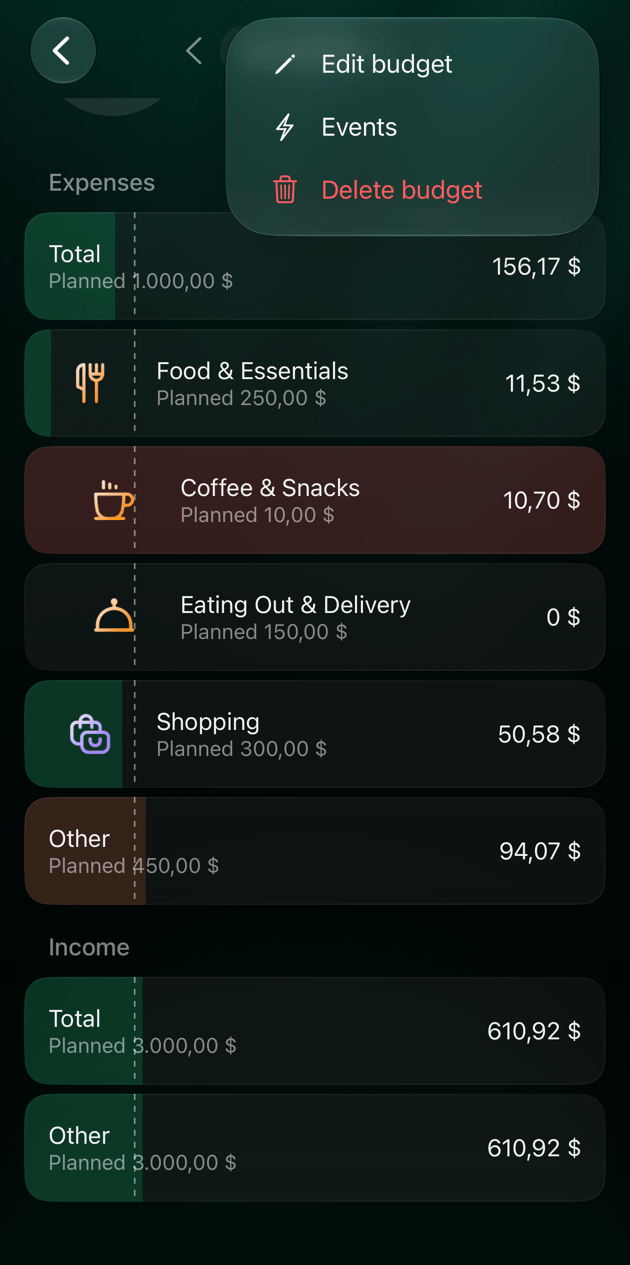
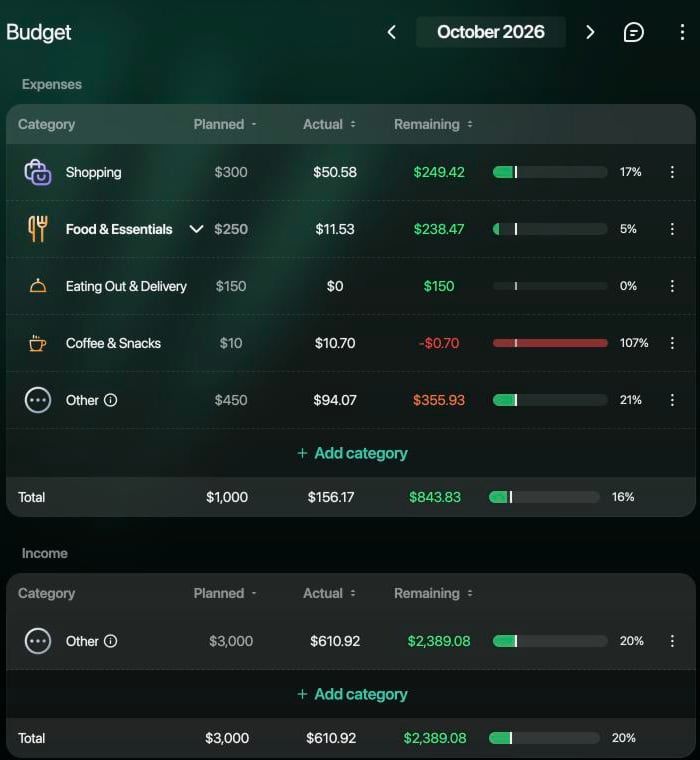
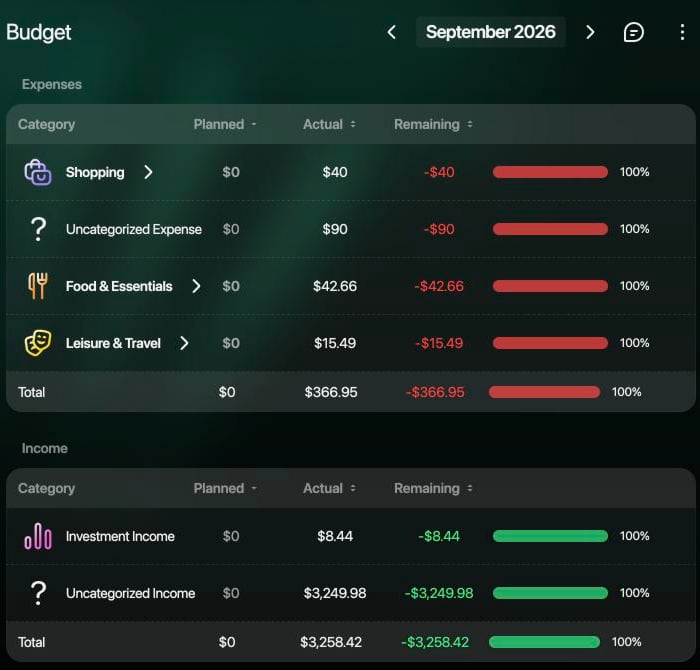
The budget page shows each planned category with three amounts:
* **Planned**: the amount you set for the month.
* **Actual**: what you've spent or received in that category this month.
* **Remaining**: planned minus actual. A negative amount means you've gone over the plan.
**Actual** follows your transactions:
* A transaction counts in the month of its **accrual month**, or of its date if it has none, so an expense you moved to another month counts there.
* Transfers between your accounts don't count.
* A refund in the same category reduces its actual amount.
* Each part of a [split transaction](/transactions/split-transaction) counts in its own category.
* Pending bank transactions already count.
* Amounts in other currencies are converted to your primary currency.
The progress bar shows how much of the plan you've used. In the current month, a thin line marks how far through the month you are:
* **Green**: spending is within the plan and on pace for the month.
* **Orange**: you're spending faster than the month is passing.
* **Red**: you've reached or passed the planned amount.
For income it works the other way round: orange means you've received less than expected so far, and green at 100% means you've reached the plan.
Select or tap a row to open **Transactions** with that category and month already filtered; a parent category includes its subcategories.
**Expenses** and **Income** are tables with **Planned**, **Actual** and **Remaining** columns; select a column header to sort by it. Select the arrow next to a parent category to show its planned subcategories. **Summary** shows the total for expenses: the percentage used, **Planned**, **Actual** and **Remaining**.
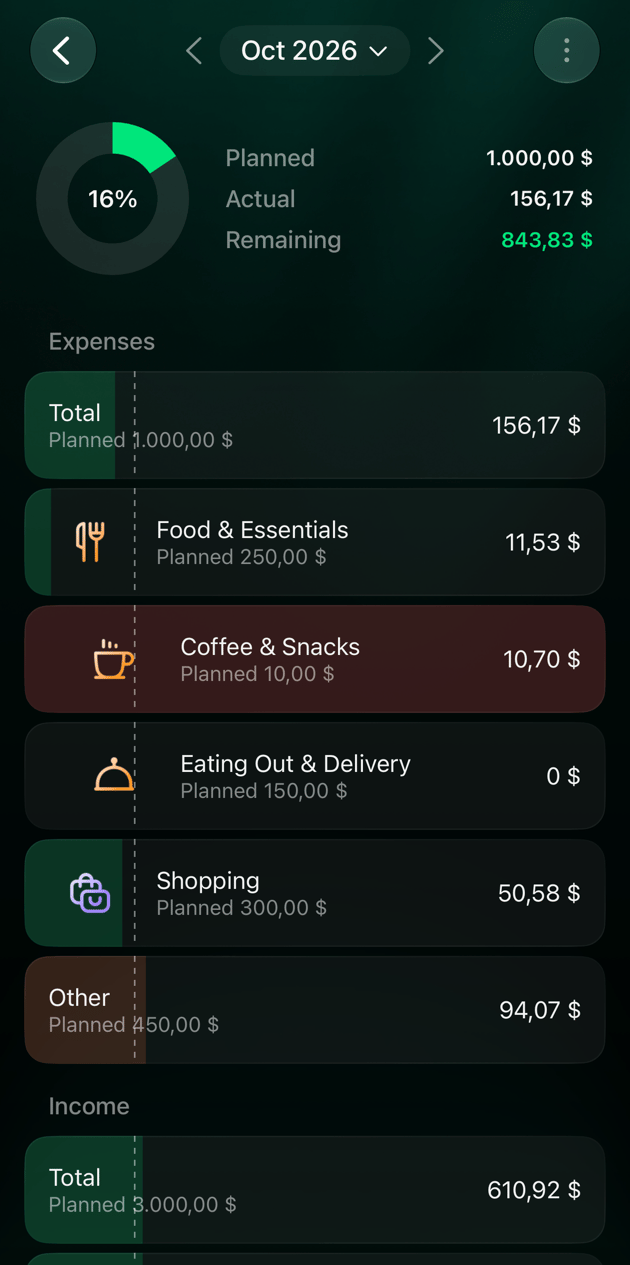
 The top of the budget shows the expense total: the percentage used, **Planned**, **Actual** and **Remaining**. Each row shows the actual amount on the right and the plan under the name, such as **of \$300**; the remaining amount appears only in the summary.
The top of the budget shows the expense total: the percentage used, **Planned**, **Actual** and **Remaining**. Each row shows the actual amount on the right and **Planned** under the name; the remaining amount appears only in the summary.
The top of the budget shows the expense total: the percentage used, **Planned**, **Actual** and **Remaining**. Each row shows the actual amount on the right and the plan under the name, such as **of \$300**; the remaining amount appears only in the summary.
The top of the budget shows the expense total: the percentage used, **Planned**, **Actual** and **Remaining**. Each row shows the actual amount on the right and **Planned** under the name; the remaining amount appears only in the summary.
Spending outside your planned categories
**Other** collects everything you didn't plan by category, so the budget still adds up to the total:
* **Planned** for **Other** is the part of the total you didn't give to any category: $1,000 − $300 − $250 = $450 in the example.
* **Actual** for **Other** is what you spent in every category that isn't in the budget, and isn't a subcategory of a planned one, for example **Leisure & Travel** or **Garden**.
Select or tap **Other** to see those transactions. If a category in **Other** keeps growing, add it to the budget with its own amount: its amount then comes out of **Other**, and the total stays the same until the categories need more than it has.
**Other** is shown only when it has a planned or actual amount. Income has its own **Other** for income categories you didn't plan.
Next months and past budgets
Use the arrows next to the month, or select the month itself, to move between months.
* **Next months**: your budget carries over to the following months with the same plan, so you don't create it again each month. If you change a future month, the change applies from that month on; earlier months keep their plan.
* **Past months**: you can open them to compare the plan with what happened, but you can't edit them. A past month that had no budget shows only what you spent and received, with nothing planned.
To decide on an amount, look at the chart in the amount editor: it shows the category's spending in each of the last 6 months.
Change or delete a budget
You can change the budget of the current month or a later one. Past months can't be changed.
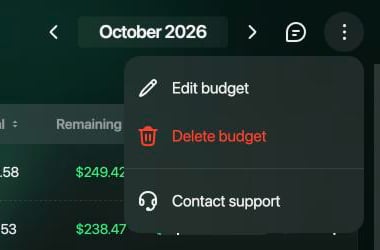
* **Change the whole plan:** select **⋮** at the top of the page, then **Edit budget**. Change the amounts and select **Save**.
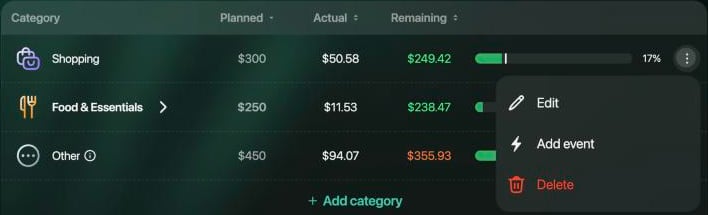
* **Change one category:** select **⋮** in its row, then **Edit**, enter the new amount and select **Continue**.
* **Add a category:** select **Add category** under the table.
* **Remove a category:** select **⋮** in its row, then **Delete**. Its amount goes back to **Other**.
* **Delete the budget:** select **⋮** at the top of the page, then **Delete budget**.
 Tap **⋮** at the top of the budget:
* **Edit budget** opens the plan: tap an amount to change it, **Add expense category** to add one, or the bin to remove one. Tap **Save**.
* **Delete budget** asks **Delete this budget and all future months?**
Tap **⋮** at the top of the budget:
* **Edit budget** opens the plan: tap a row to change its amount, **Add expense category** to add one, or a row and then the bin to remove it. Tap **Save**.
* **Delete budget** asks **Delete this budget and all future months?**
Deleting a budget removes it from the month you're viewing and from every month after it. Earlier months keep their budgets.
To handle a one-off expense, move budget between categories for one month or resolve a budget alert, see [Adjust your budget when plans change](/budget/adjust-budget).
## Related articles
* [Adjust your budget when plans change](/budget/adjust-budget): add a one-off amount, move budget between categories and resolve budget alerts.
* [Split a transaction](/transactions/split-transaction): each part counts in its own category of the budget.
* [Add a transaction](/transactions/add-transaction): record cash spending so the budget sees it.
* [Customize your dashboard](/getting-started/customize-dashboard): add the **Budget** widget.
* [Set up categories, merchants and tags](/transactions/categories-merchants-tags#categories): create or rearrange the categories you plan.
* [Track recurring payments](/recurring/track-recurring-payments): see the subscriptions and bills that come back every month.
This documentation is built and hosted on [Mintlify](https://mintlify.com), a developer documentation platform.
Tap **⋮** at the top of the budget:
* **Edit budget** opens the plan: tap an amount to change it, **Add expense category** to add one, or the bin to remove one. Tap **Save**.
* **Delete budget** asks **Delete this budget and all future months?**
Tap **⋮** at the top of the budget:
* **Edit budget** opens the plan: tap a row to change its amount, **Add expense category** to add one, or a row and then the bin to remove it. Tap **Save**.
* **Delete budget** asks **Delete this budget and all future months?**
Deleting a budget removes it from the month you're viewing and from every month after it. Earlier months keep their budgets.
To handle a one-off expense, move budget between categories for one month or resolve a budget alert, see [Adjust your budget when plans change](/budget/adjust-budget).
## Related articles
* [Adjust your budget when plans change](/budget/adjust-budget): add a one-off amount, move budget between categories and resolve budget alerts.
* [Split a transaction](/transactions/split-transaction): each part counts in its own category of the budget.
* [Add a transaction](/transactions/add-transaction): record cash spending so the budget sees it.
* [Customize your dashboard](/getting-started/customize-dashboard): add the **Budget** widget.
* [Set up categories, merchants and tags](/transactions/categories-merchants-tags#categories): create or rearrange the categories you plan.
* [Track recurring payments](/recurring/track-recurring-payments): see the subscriptions and bills that come back every month.
This documentation is built and hosted on [Mintlify](https://mintlify.com), a developer documentation platform.