> ## Documentation Index
> Fetch the complete documentation index at: https://help.finerd.ai/llms.txt
> Use this file to discover all available pages before exploring further.
# Track Apple Pay payments
> Set up one iPhone automation and every Apple Pay tap lands in finerd as a transaction — no bank connection needed.
> *"Half the cards in my wallet aren't covered by any bank sync. Do I really have to add every coffee by hand?"*
You don't. Your iPhone already knows the moment you tap — the merchant, the amount, all of it. Set up one automation in Apple's **Shortcuts** app and from then on every Apple Pay payment is emailed to your personal finerd address and recorded as a transaction, whichever card you paid with.
It takes a few minutes, and you do it once.
Apple Pay tracking lives on the iPhone: the Shortcuts automation behind it has no equivalent on Android or the web.
## Before you start
* The **Mail** app on your iPhone needs a working account — the automation sends each payment through it.
* Each card needs its own **bank account** in finerd — that's what the **Select account** screen lists. If the right one isn't there yet, create it on that screen. That way balances stay accurate and you can see what each card actually spends.
* A personal finerd forwarding address. finerd creates it for you during setup — nothing to prepare.
## Choose the account in finerd
1. Open **More → Apple Pay tracking**.
2. Tap **Set up automation**.
3. Choose the account your Apple Pay payments will be recorded into. To make a new one on the spot, tap **+** and name it.
4. Tap **Continue**. finerd opens the step-by-step guide, with three buttons you'll need in a minute: **Copy template**, **Copy subject**, and **Copy email**.
Keep the finerd guide open while you work in Shortcuts. The template holds the id of the account you picked and the address is yours alone, so neither can be printed here — you copy both straight from the app.
## Build the automation in Shortcuts
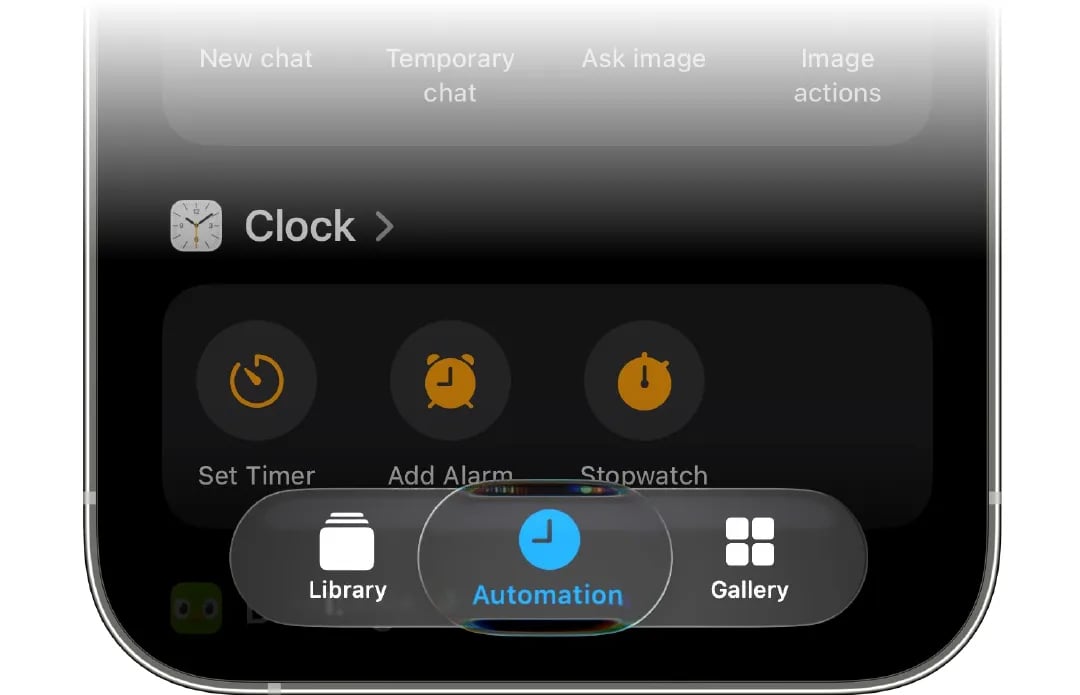
Open the **Shortcuts** app, switch to the **Automation** tab and tap **New Automation**.
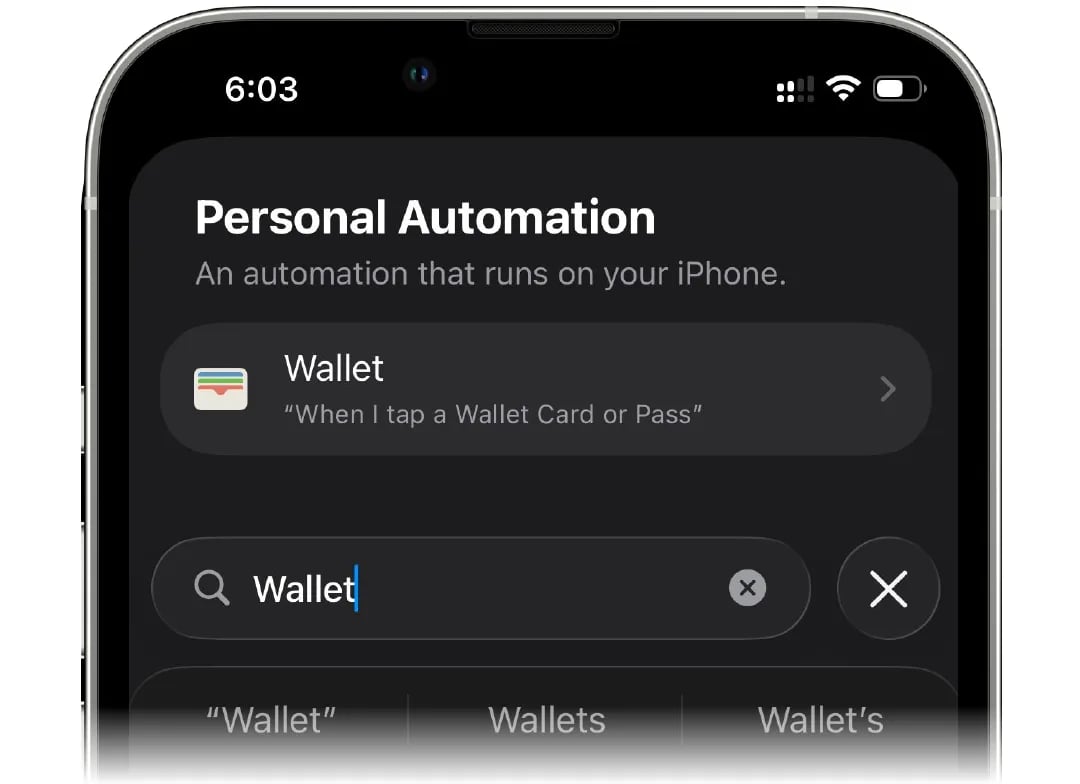
 Search for the **Wallet** app and pick it as the trigger.
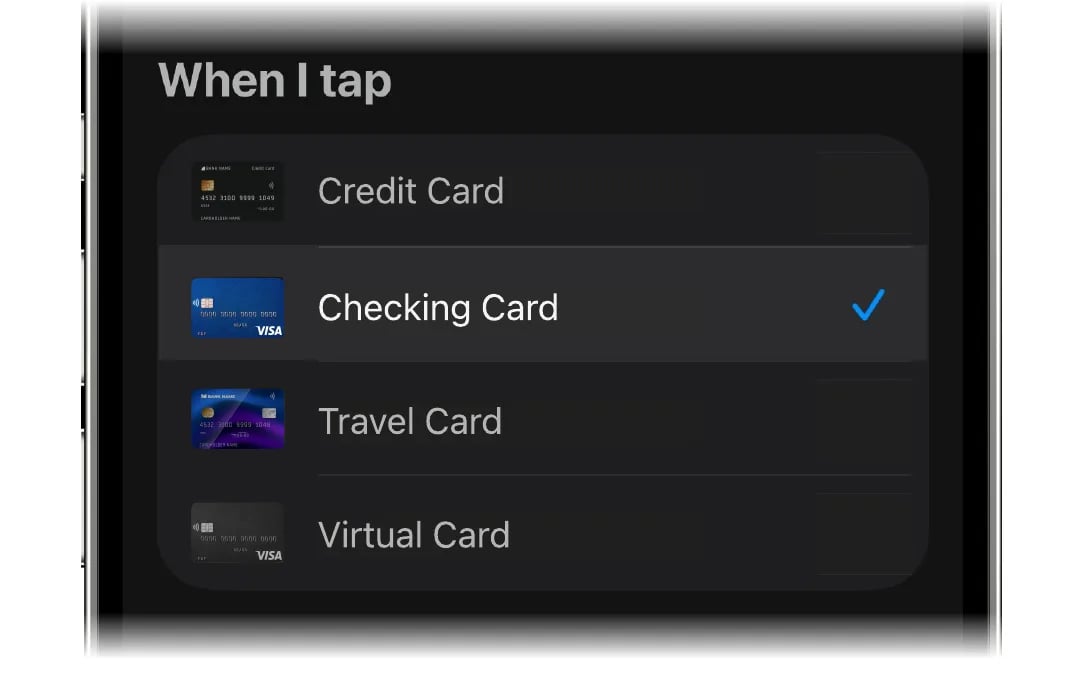
 Select the card that matches the account you picked in finerd. Got more cards to track? Run the whole setup again for each one, so every card keeps its own account.
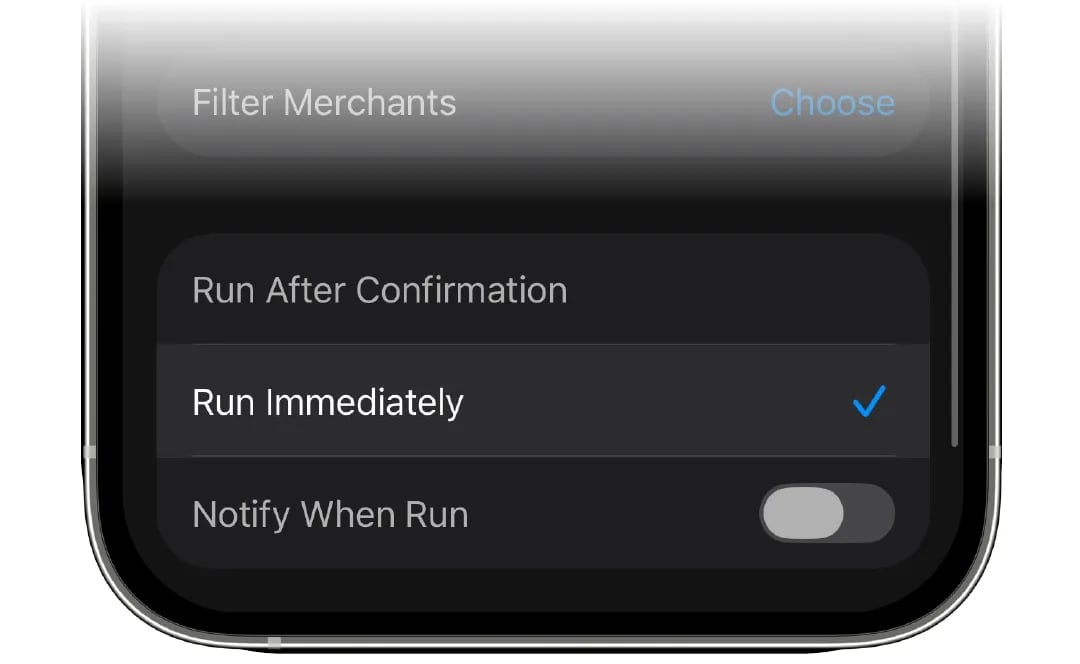
 Scroll down and select **Run Immediately**, so the automation fires without asking you first.
 Tap **Create New Shortcut**.
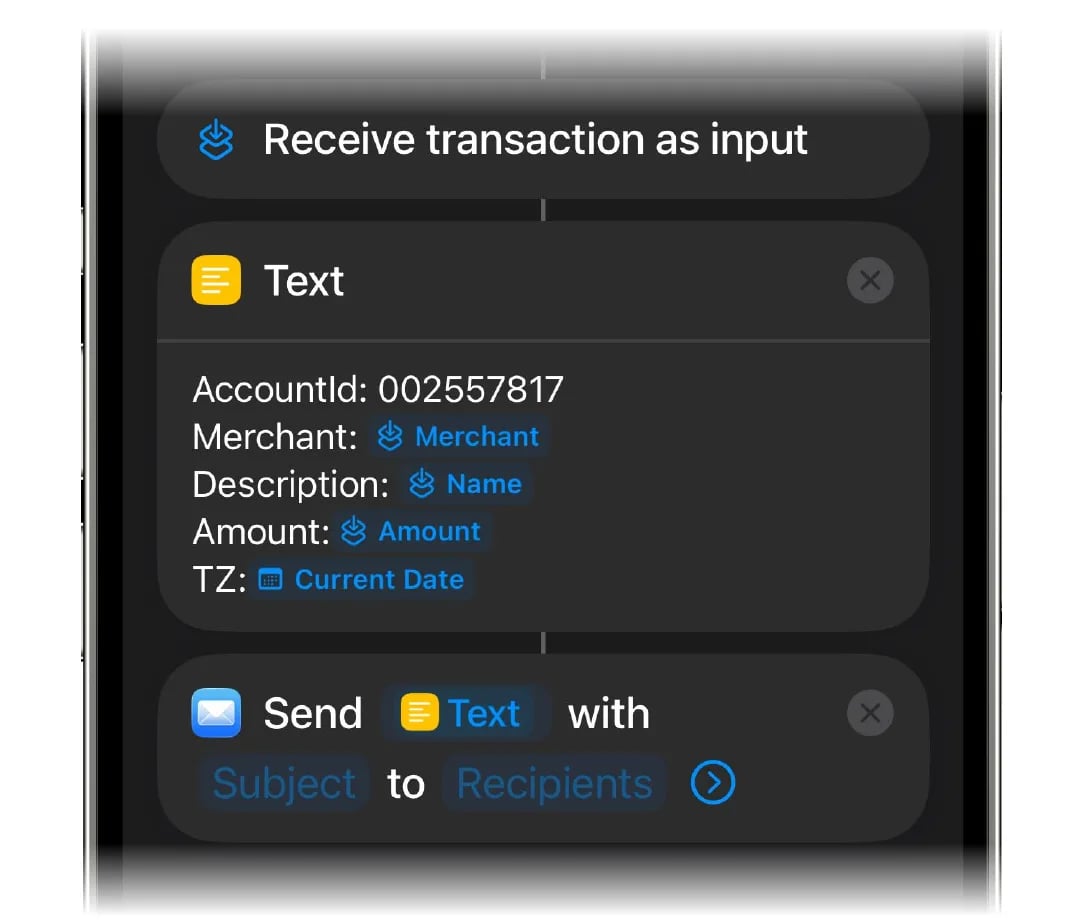
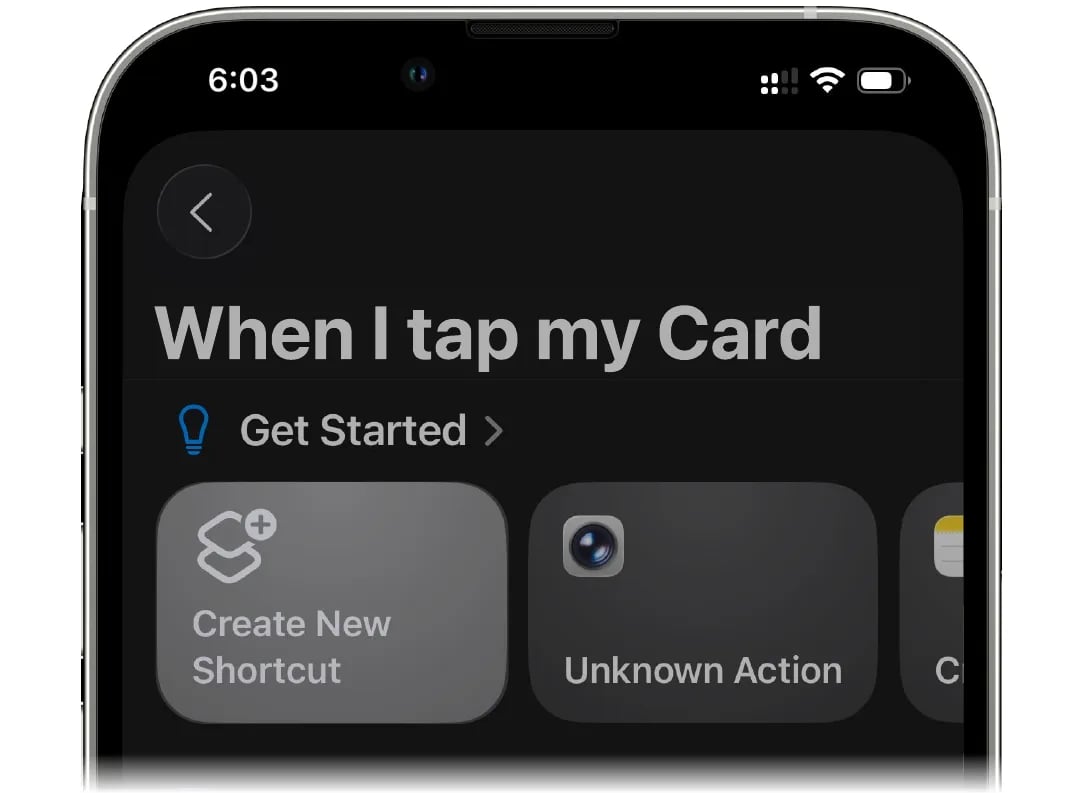 Add the **Text** action. Tap **Copy template** in finerd, then paste it into the text field.
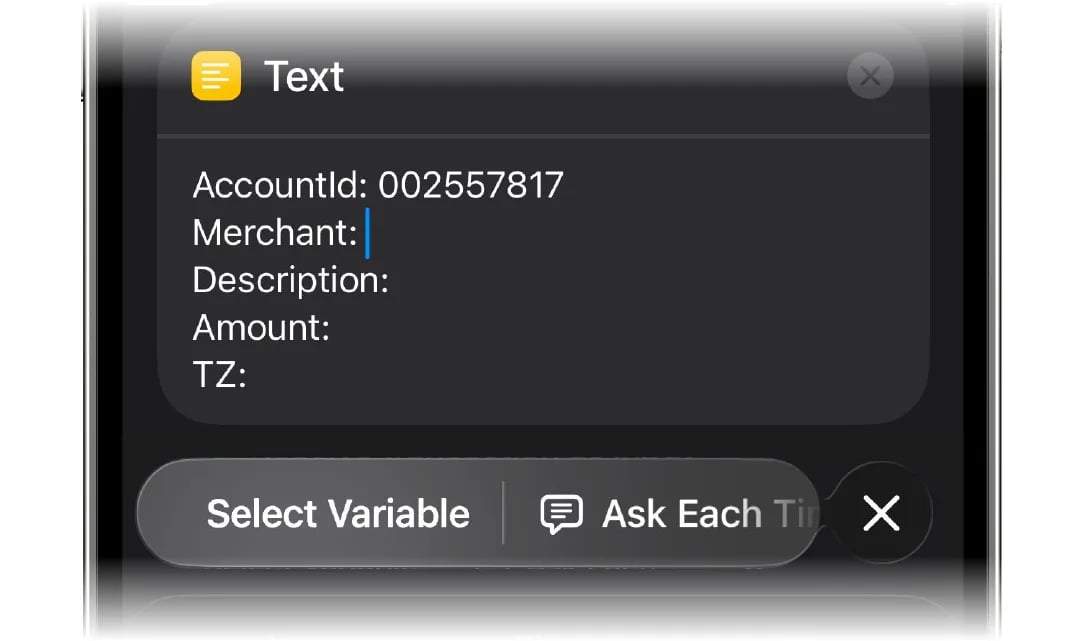
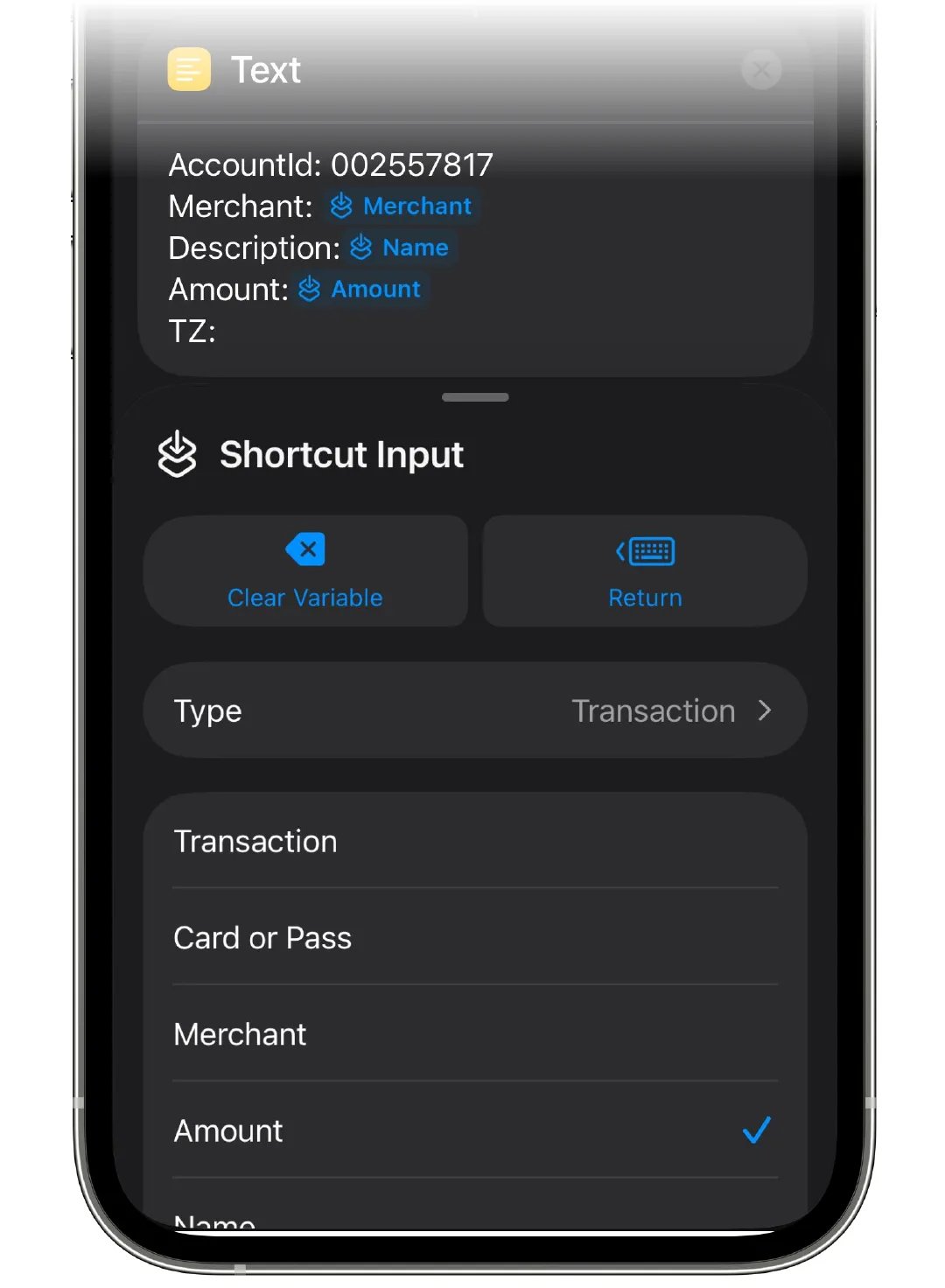
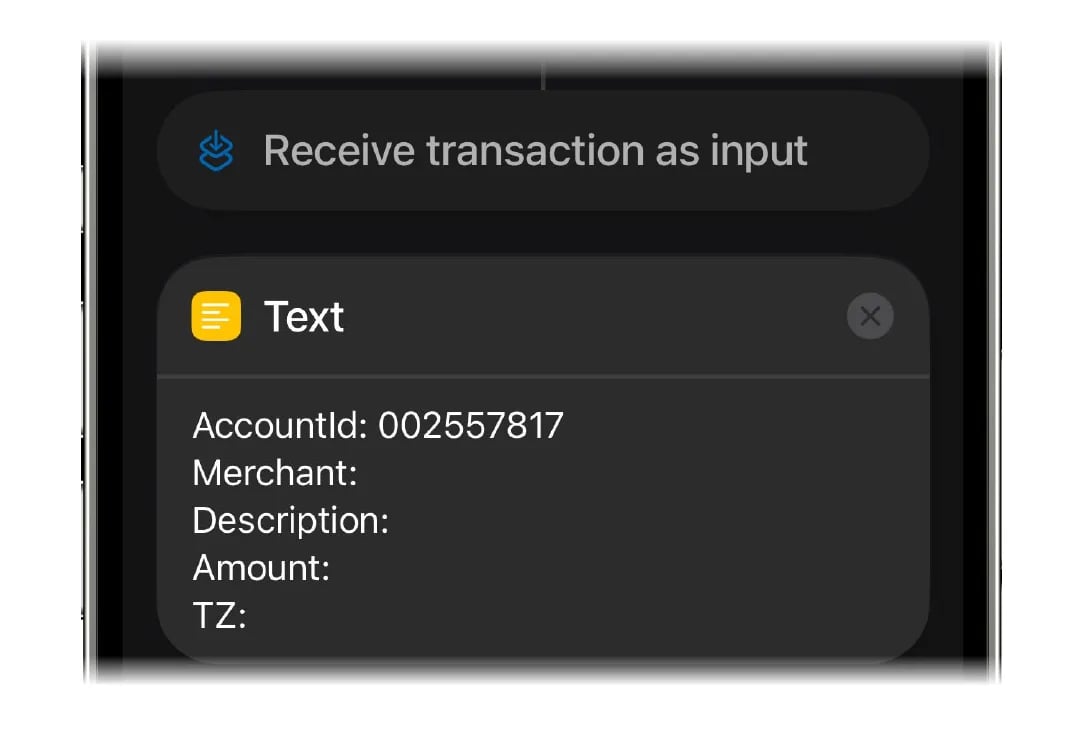 Place the cursor after `Merchant:` and tap **Select Variable**, then choose **Shortcut Input**. Repeat for `Description:` and `Amount:`.
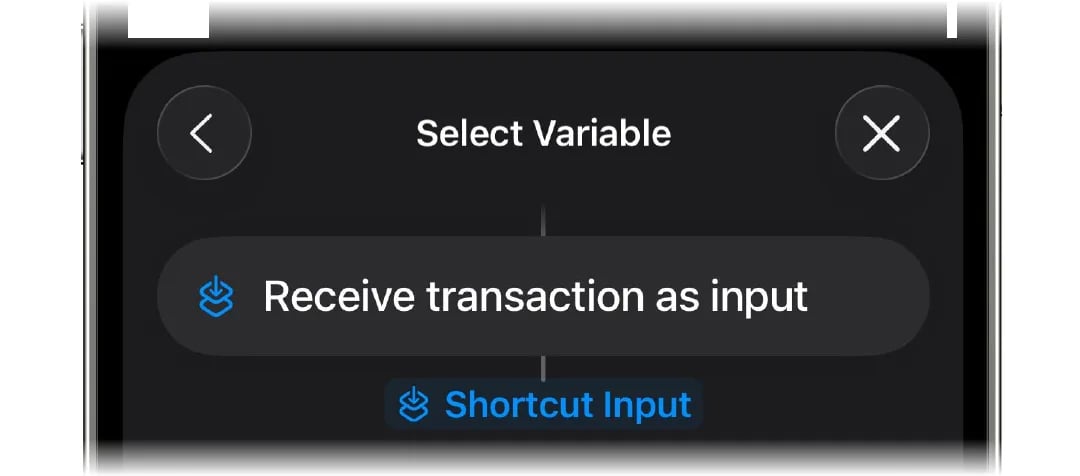 Tap each variable you inserted and pick the property it should carry: **Merchant** for `Merchant`, **Name** for `Description`, and **Amount** for `Amount`.
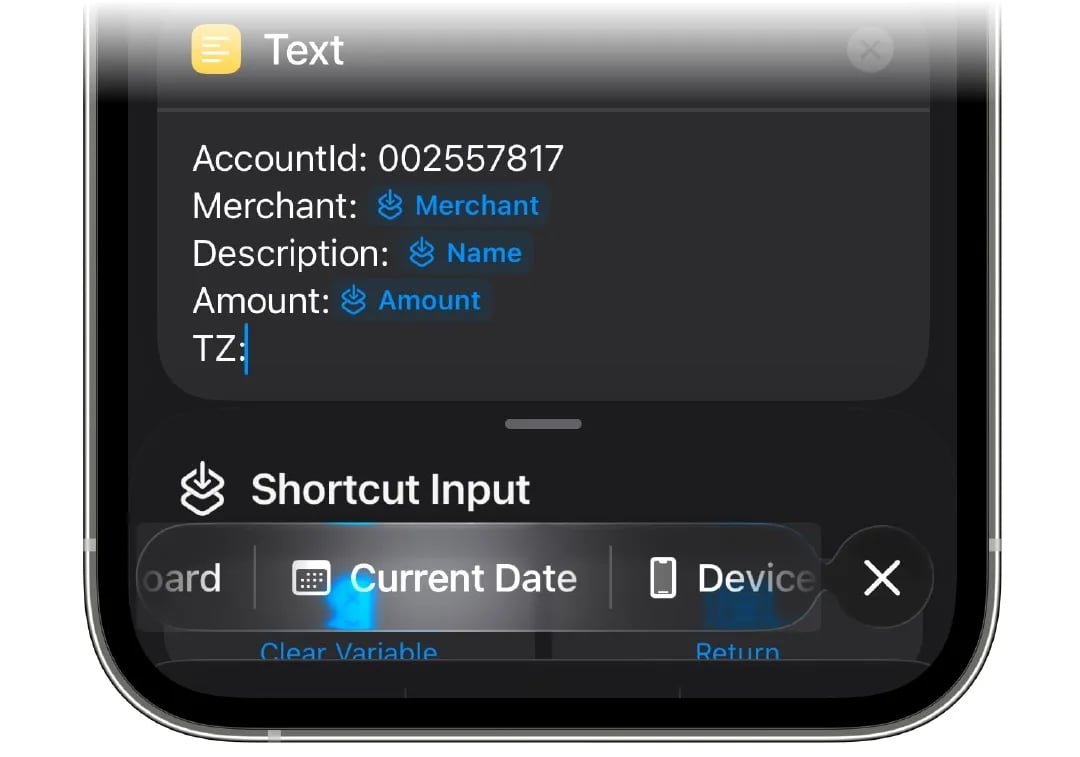
 For the **TZ** parameter choose **Current Date**.
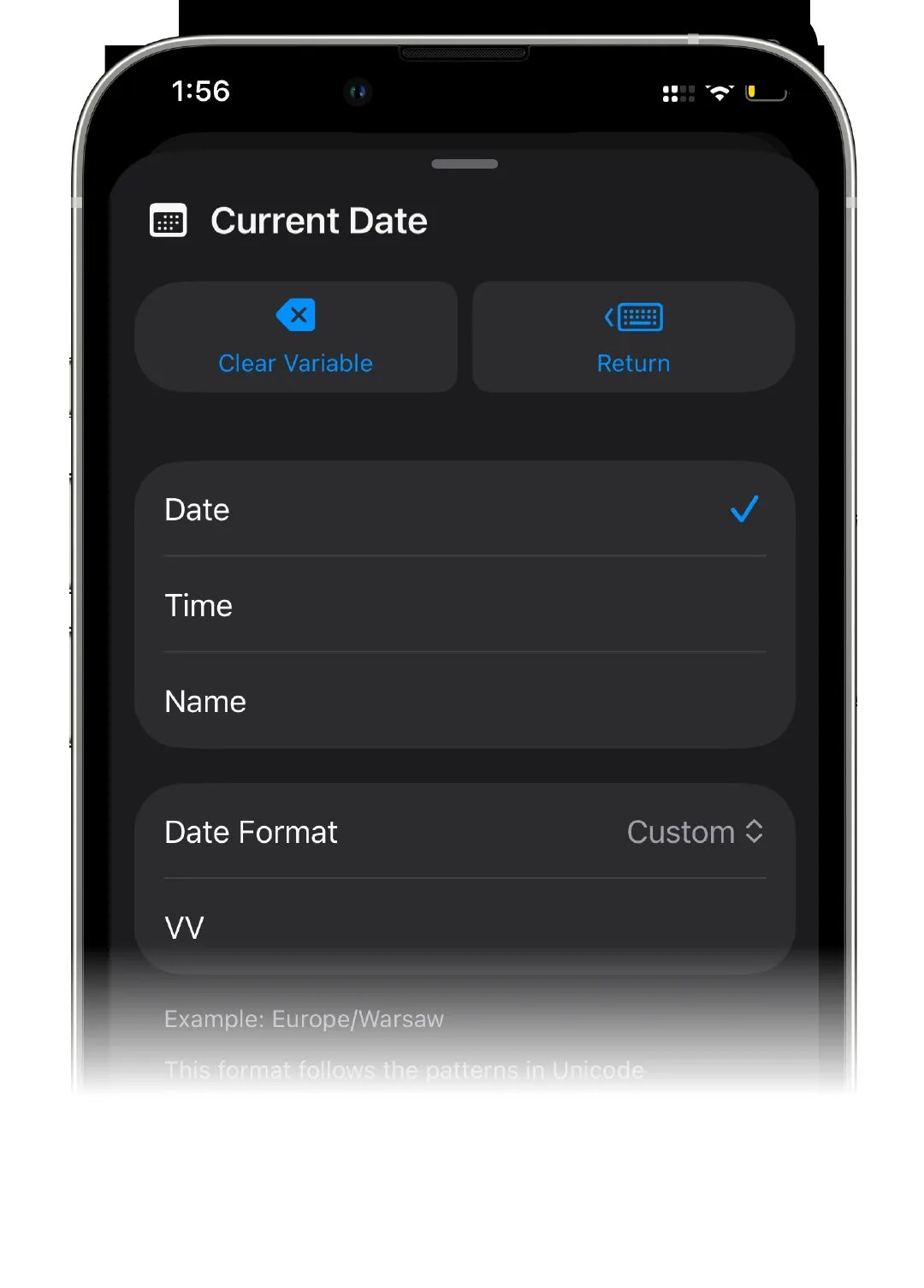
 Tap the date you just added, set **Date Format** to **Custom**, and replace the suggested format with **VV** — two capital Vs, nothing else. The example under the field should turn into a time zone such as `Europe/Warsaw`.
 Use **Search Actions** to find and add the **Send Email** action.
 Paste the subject into the **Subject** field. It is the same for everyone, and finerd routes the email by it:
```
finerd-automation / add-transaction
```
Tap **Copy subject** in finerd if you'd rather not type it.
Tap **Copy email** in finerd and paste your forwarding address into the **To** field.
Paste the subject into the **Subject** field. It is the same for everyone, and finerd routes the email by it:
```
finerd-automation / add-transaction
```
Tap **Copy subject** in finerd if you'd rather not type it.
Tap **Copy email** in finerd and paste your forwarding address into the **To** field.
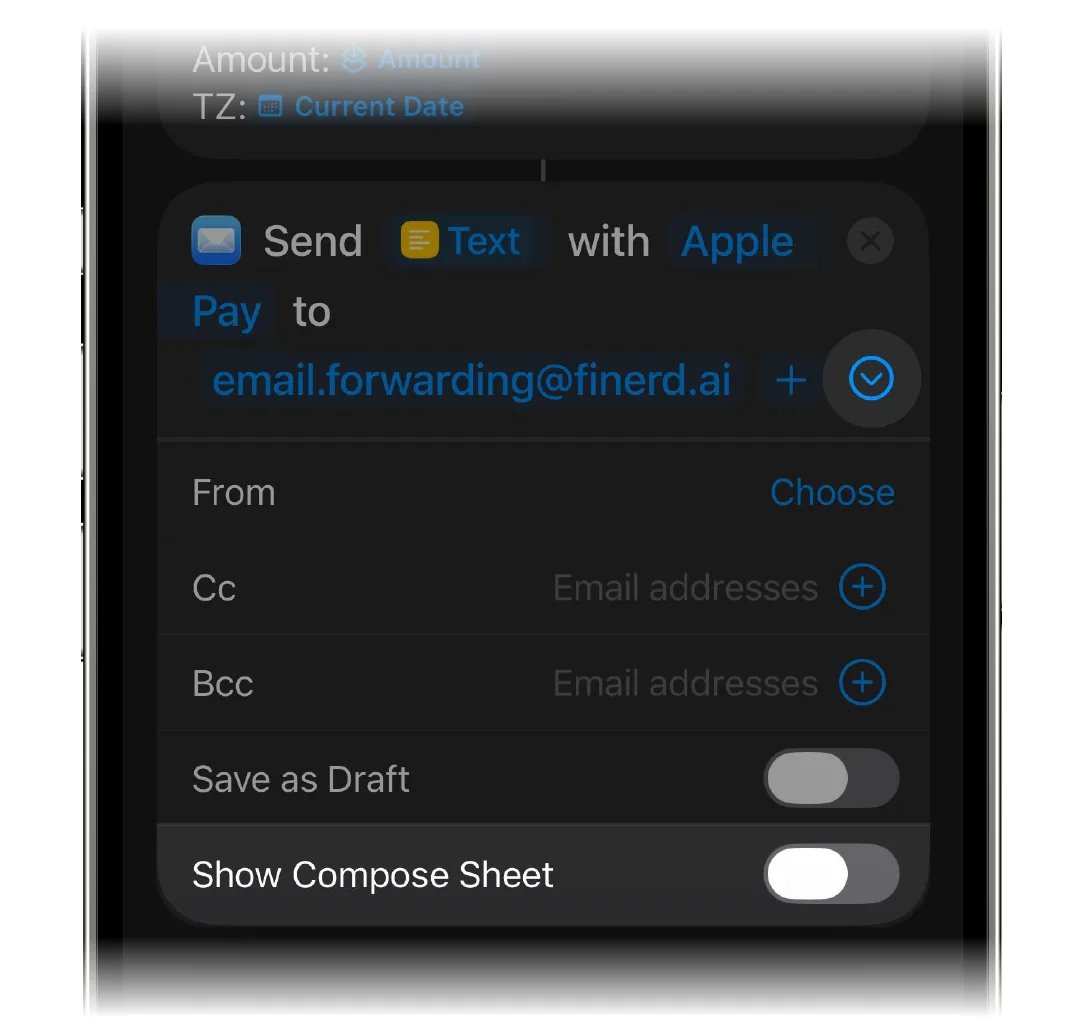
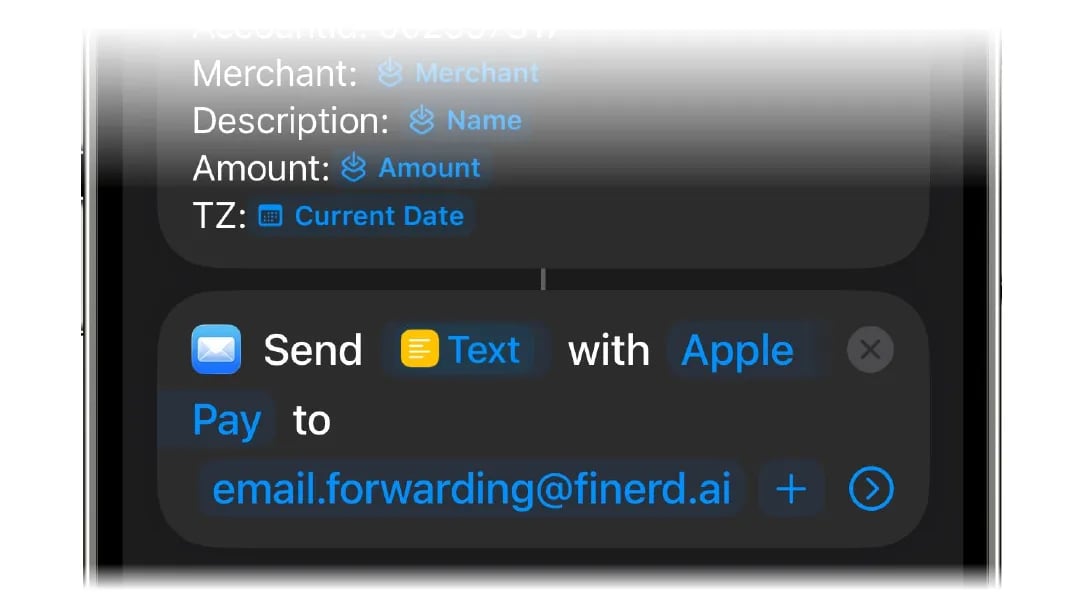 Scroll down in the Send Email action and turn **Show Compose Sheet** off.
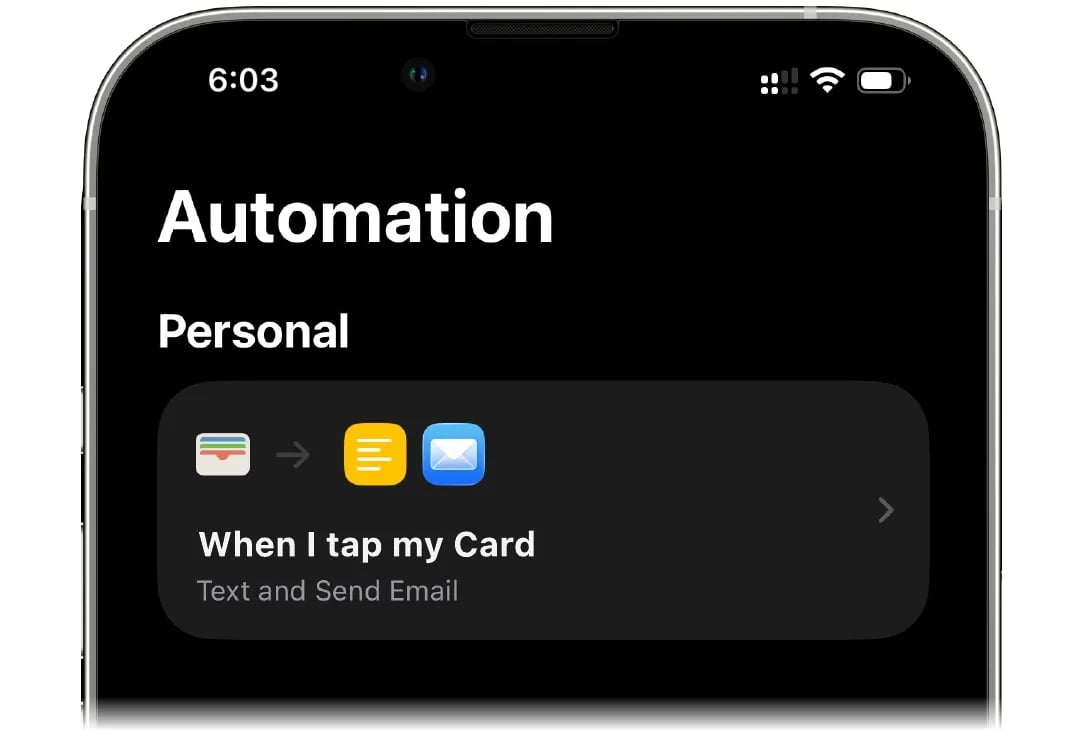
 Save the automation. That's it — make any Apple Pay payment and the transaction shows up in finerd.
 ## Good to know
* **Leave Show Compose Sheet off.** With it on, Mail opens a draft and waits for you to press Send — which never happens while your phone is in your pocket. This is the most common reason payments don't arrive.
* **The play button doesn't prove anything.** Running the shortcut by hand executes it without a payment, so merchant and amount come through empty and finerd can't record it. Test with a real purchase instead.
* **Cards your bank already syncs don't need this.** Those transactions reach finerd on their own.
## If payments don't show up
1. Open **Sent** in Mail. No `finerd-automation` messages there? The automation isn't firing — check that **Show Compose Sheet** is off and that the card you tapped is one of the cards you ticked.
2. The messages are there but nothing appears in finerd? Send us the date and amount of one payment and we'll trace it.
## Good to know
* **Leave Show Compose Sheet off.** With it on, Mail opens a draft and waits for you to press Send — which never happens while your phone is in your pocket. This is the most common reason payments don't arrive.
* **The play button doesn't prove anything.** Running the shortcut by hand executes it without a payment, so merchant and amount come through empty and finerd can't record it. Test with a real purchase instead.
* **Cards your bank already syncs don't need this.** Those transactions reach finerd on their own.
## If payments don't show up
1. Open **Sent** in Mail. No `finerd-automation` messages there? The automation isn't firing — check that **Show Compose Sheet** is off and that the card you tapped is one of the cards you ticked.
2. The messages are there but nothing appears in finerd? Send us the date and amount of one payment and we'll trace it.