> ## Documentation Index
> Fetch the complete documentation index at: https://help.finerd.ai/llms.txt
> Use this file to discover all available pages before exploring further.
# Track cash in finerd
> Track cash in one or more currencies, set your starting balances, and record spending and transfers on web, Android, or iOS.
A cash account tracks the notes and coins you keep in your wallet or elsewhere. Cash doesn't send notifications, so finerd only knows what you record: add the amount you have now, then record money as it comes in or goes out.
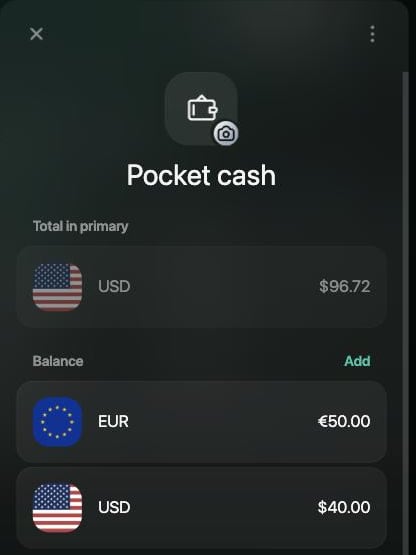
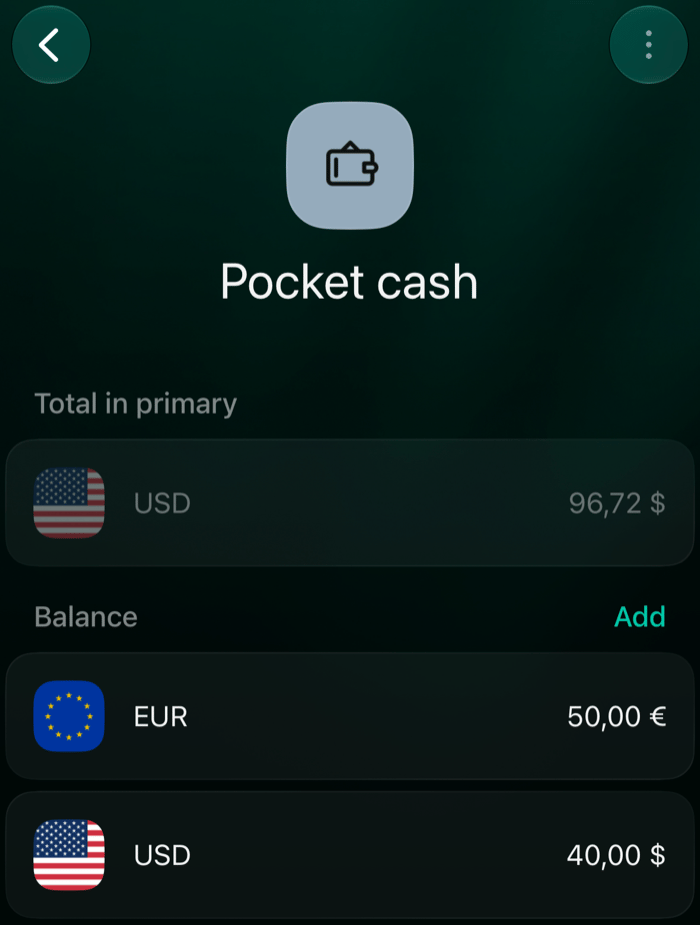
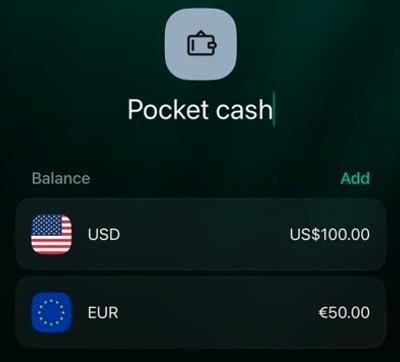
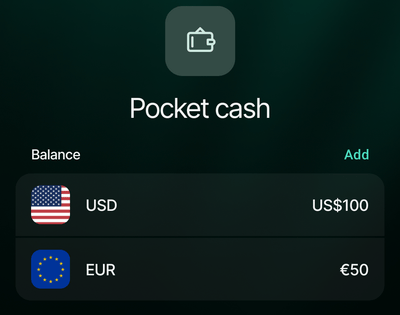
One cash account can hold **multiple currencies**. For example, **Pocket cash** can track **100 USD** and **50 EUR** as separate balances. You don't need a separate account for each currency — not even for the coins left over from your last trip.
Sign in to the space where you want to track your cash, then choose your platform below.
Add a cash account
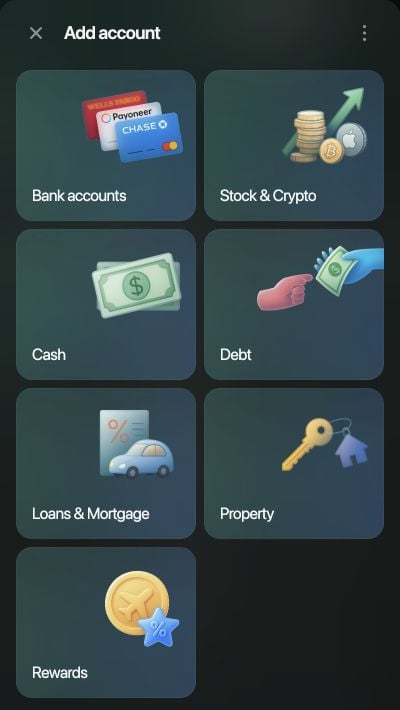
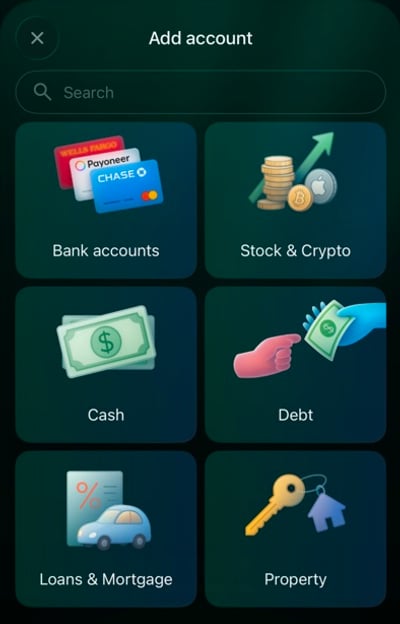
1. Open **Accounts**, select **Add account**, then choose **Cash**.
2. Enter a name you'll recognize, such as **Pocket cash**, then select **Continue**.
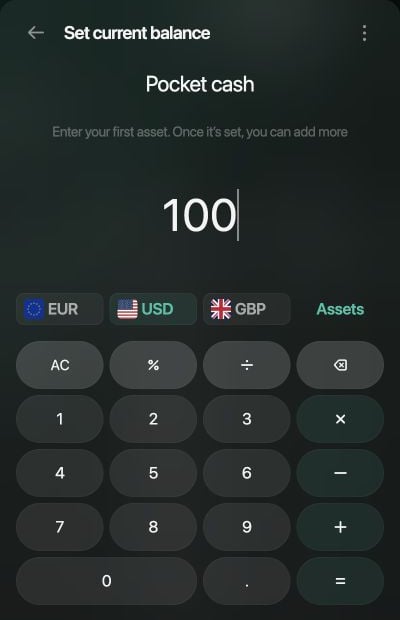
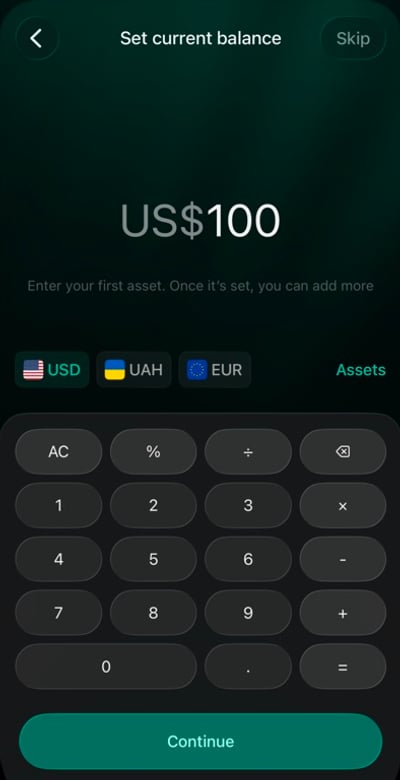
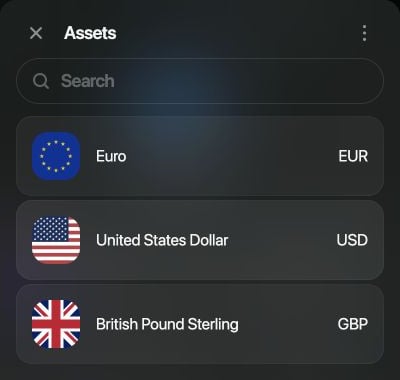
3. On **Set current balance**, choose the currency and enter the cash you have now. Use **Assets** if the currency isn't shown. For example, select **USD**, enter **100**, and select **Continue**. If you're starting with no cash, select **Skip**.
4. Select **Save**.
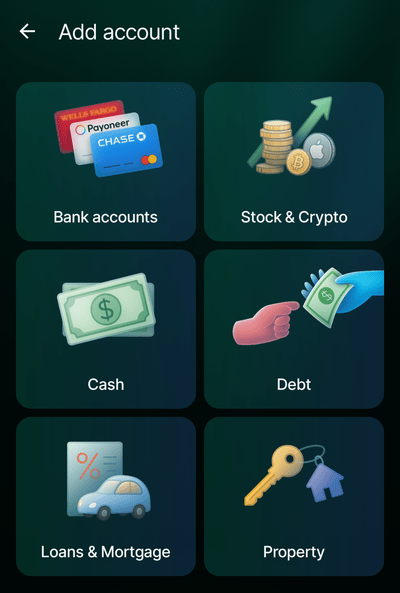
1. Open **Accounts** from **More** or the tab bar, tap **+**, then choose **Cash**.
2. Enter a name you'll recognize, such as **Pocket cash**.
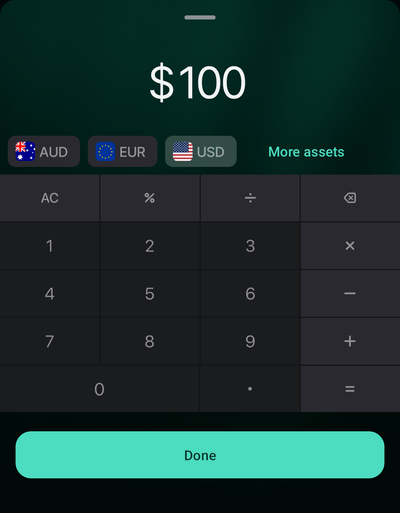
3. finerd adds a zero balance in your space's primary currency. Tap that row under **Balance**, choose the currency, and enter the cash you have now. Tap **More assets** if the currency isn't shown, then tap **Done**. If you're starting with no cash, leave the balance at zero.
4. Tap **Save**.
Before saving, you can remove an unused zero balance: touch and hold its row, then tap **Delete**.
1. Open **Accounts** from **More** or the tab bar, tap **+**, then choose **Cash**.
2. Enter a name you'll recognize, such as **Pocket cash**, then tap **Save**.
3. On **Set current balance**, choose the currency and enter the cash you have now. Tap **Assets** if the currency isn't shown. Tap **Continue**, or **Skip** if you're starting with no cash.
4. Review the account and tap **Save**.
Your account appears under **Cash** in **Accounts**. The amount you enter is saved as the account's first [verified balance](/verified-balance#balance-types), so you can later compare your cash with it.
Track cash in more than one currency
Keep each currency in its own balance within the same account. If your wallet contains **100 USD** and **50 EUR**, add both amounts to **Pocket cash**:
| Currency | Cash on hand |
| - | - |
| USD | 100 |
| EUR | 50 |
To add another currency to an existing account:
1. Open your cash account in **Accounts**.
2. Select **Add** beside **Balance**.
3. Choose the currency. Use **Search** if it isn't listed.
4. Enter the cash you hold in that currency, then select **Save**.
1. Open your cash account from **Accounts** in **More** or the tab bar.
2. Tap **Add** beside **Balance** and choose the currency.
3. Add a [verified balance](/verified-balance#add-a-verified-balance) for that currency, using the amount of cash you have now.
You can also add currencies before saving a new account: tap **Add** beside **Balance**, choose a currency, enter its amount, then tap **Done**. Repeat for each currency and tap **Save** on the account.
 1. Open your cash account from **Accounts** in **More** or the tab bar.
2. Tap **Add** beside **Balance**.
3. In **Select account asset**, choose the currency, enter the cash you hold in it, then tap **Done**.
You can also add currencies on the account review screen before the final **Save**.
Each currency keeps its own balance, and each amount you add this way is saved as a [verified balance](/verified-balance#balance-types) for that currency. **Total in primary** shows their combined value in your space's primary currency, and the **Accounts** list shows that total with the number of assets, for example “in 2 assets.”
When recording a cash transaction, choose the currency you actually used. Spending **12 USD** from this example leaves **88 USD** and **50 EUR** in the account.
1. Open your cash account from **Accounts** in **More** or the tab bar.
2. Tap **Add** beside **Balance**.
3. In **Select account asset**, choose the currency, enter the cash you hold in it, then tap **Done**.
You can also add currencies on the account review screen before the final **Save**.
Each currency keeps its own balance, and each amount you add this way is saved as a [verified balance](/verified-balance#balance-types) for that currency. **Total in primary** shows their combined value in your space's primary currency, and the **Accounts** list shows that total with the number of assets, for example “in 2 assets.”
When recording a cash transaction, choose the currency you actually used. Spending **12 USD** from this example leaves **88 USD** and **50 EUR** in the account.
Record money in and out
To add a movement manually, start a new transaction — **Add transaction** on the web, **+** in the mobile apps — and choose the type that matches what happened. When reviewing the transaction, make sure it uses your cash account and the correct currency, amount, and date.
| What happened | Choose | How to record it |
| - | - | - |
| You paid for something with cash | **Expense** | Use your cash account as the source and choose a category for the purchase. |
| You received cash as income | **Income** | Use your cash account as the destination and choose the income category. |
| You withdrew money from your bank | **Internal transfer or ATM** | Move the amount from your bank account to your cash account. |
| You deposited cash into your bank | **Internal transfer or ATM** | Move the amount from your cash account to your bank account. |
An ATM withdrawal isn't spending yet: your money just moved from the card to your wallet. Record the expense when you spend that cash. For example, withdrawing **50 USD** and then spending **12 USD** means one transfer of **50 USD** and one expense of **12 USD**.
If a connected bank has already imported a withdrawal or deposit, check that transaction before adding another record of the same movement. [Withdraw or deposit cash](/transactions/transfer-or-exchange#cash) shows how to turn it into a transfer to your cash account and how to record an ATM fee.
Check the balance
Count your cash from time to time and compare it with the balance in finerd, one currency at a time. To record what you counted, [add a verified balance](/verified-balance#add-a-verified-balance).
If what you counted differs from finerd, the check gets a **Balance correction** for the difference. Look for missing transactions or incorrect amounts, including transfers; [Review a discrepancy](/verified-balance#review-a-discrepancy) shows how to find them.
This documentation is built and hosted on [Mintlify](https://mintlify.com), a developer documentation platform.