> ## Documentation Index
> Fetch the complete documentation index at: https://help.finerd.ai/llms.txt
> Use this file to discover all available pages before exploring further.
# Manage your finerd subscription
> What Free and Pro include, how the free trial works, and how to subscribe, check, cancel or restore Pro on the web, Android and iOS.
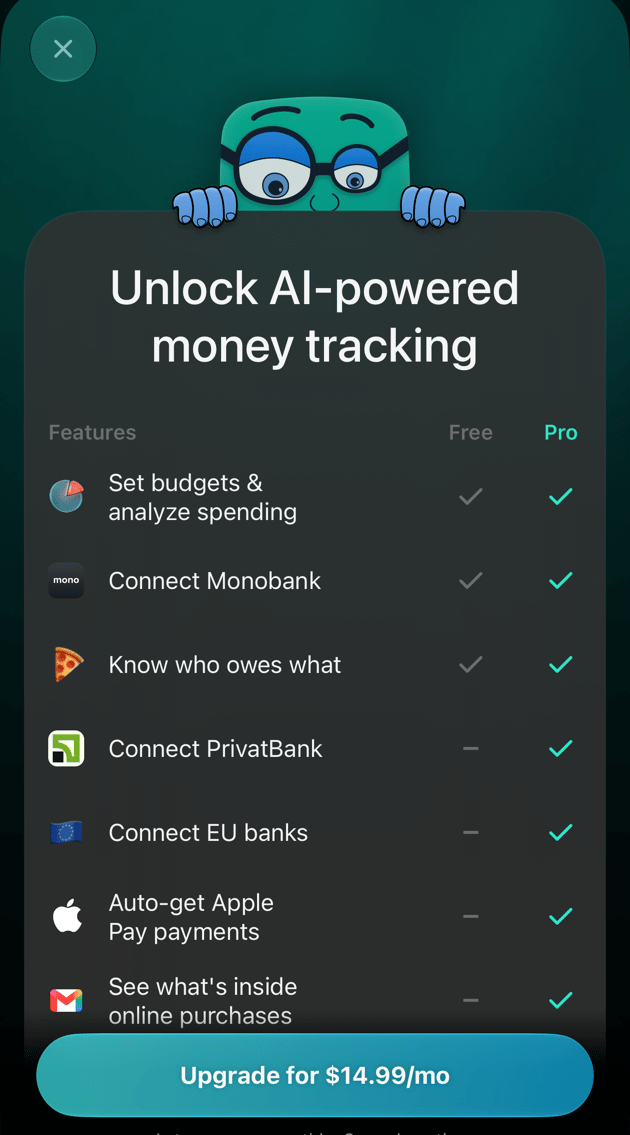
finerd has two plans: **Free** and **Pro**. Free covers manual tracking, budgets, debts, Monobank and the main reports; Pro adds bank connections beyond Monobank, AI assistants, family access, receipts, recurring payments and more. Pro is a monthly subscription that belongs to one space, and you pay for it on the web (by card through Stripe), in the App Store or in Google Play.
Every new Personal space starts with a free 34-day Pro trial, with no card needed. Subscribing, checking and cancelling work on the web, Android and iOS, but each platform manages only the subscriptions it sold: you cancel where you paid. Business spaces and their extra members are paid on the web.
Free and Pro
A subscription belongs to a space, not to you as a person. If you have a Personal space and a Business space, each has its own plan, and paying for one doesn't unlock the other.
| Plan | What it includes |
| - | - |
| **Free** (Personal space) | Accounts and balances, manual transactions, categories, merchants and tags, reviewing imported transactions, budgets, debts and CheckPie, connecting Monobank, the Expenses, Income, Cash Flow and Net Worth reports, and [exporting your data](/account/export-data). |
| **Pro** | Everything in Free, plus: connecting PrivatBank, EU and other banks, investment and crypto platforms; asking ChatGPT or Claude about your money; family access with your partner; the Telegram bot; the Financial Plan; Apple Pay and Google Wallet payments; receipts from email and scanned receipts; recurring payments; Zero Inbox; and importing bank statements. |
A feature that needs Pro shows a **Pro** badge. Selecting it opens the plan comparison with the subscribe button.
Pro is billed monthly and renews automatically until you cancel. The app shows the price in your currency before you pay; App Store and Google Play prices depend on your store country.
A Business space has no free plan: its accounts, transactions and reports need a paid subscription. See [Business spaces and extra members](#business).
Free trial
Your Personal space gets a **34-day Pro trial** when you finish the first setup and choose your primary currency. A new Business space starts its trial when you create it; there, the trial covers only the owner. Each space gets one trial.
* **No card is needed.** The trial isn't connected to Stripe, the App Store or Google Play, so nothing is charged when it ends.
* **The days left** appear at the top of the space menu on the web and at the top of **More** on Android and iOS: **Pro · 12 free days left**. On the web, **Billing** shows the **Trial** badge and the **Trial ends** date.
* **A reminder email** arrives 3 days before the trial ends.
* **When it ends,** the space returns to Free unless you subscribe. Your data stays; see [When Pro ends](#ends).
You can subscribe before the trial is over. The paid subscription starts straight away and replaces the trial.
Subscribe to Pro
The subscription is attached to the space that's open when you pay. If you have more than one space, switch to the one you want to upgrade first.
1. Select your profile at the bottom of the sidebar, then the settings icon next to your space.
2. Select **Billing**.
3. Select **Subscribe**. During the trial the button is under **Trial ends**; after it, select any **Pro** badge and then **Upgrade for** in the plan comparison.
4. finerd opens a secure Stripe checkout page with the monthly price. Enter your card details there and confirm.
If this space has paid by card before, **Upgrade for** opens your Stripe billing page instead of a new checkout. Renew the subscription there.
When the payment goes through, you return to finerd and **Billing** shows **Active**, the **Next payment** date and amount, and your **Payment method**.
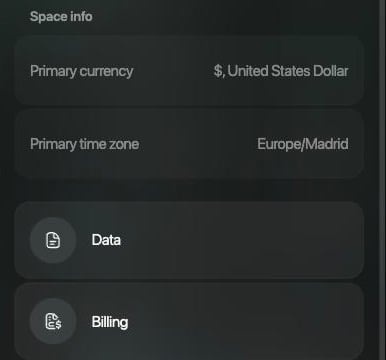
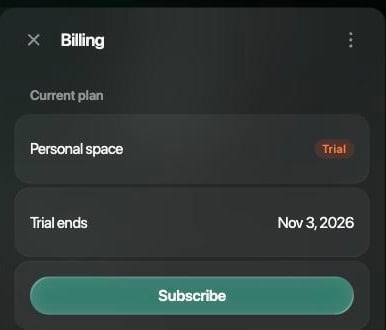 To open **Billing** faster, search for *Billing* in the command palette.
1. Tap your space icon at the top of the screen, then **Space settings**.
2. Under **Subscription**, tap the subscription row. During the trial it reads **Trial**.
3. In the plan comparison, tap **Upgrade for** with the monthly price.
4. Confirm the purchase in Google Play.
The row then shows **Android** and **Active**. You can also start from any **Pro** badge, such as **Bills** or **Recurring** in **More**.
If Google Play charged you but finerd didn't switch on Pro, open the plan comparison again: it offers **Activate subscription** for the purchase it found.
1. Open **More** and tap the space icon at the top right.
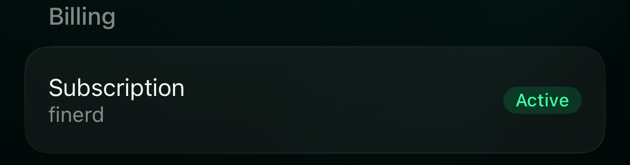
2. Under **Billing**, tap **Subscription**. During the trial it reads **finerd** and **Active**.
3. In the plan comparison, tap **Upgrade for** with the monthly price.
4. Confirm the purchase with your Apple Account.
The row then shows **App Store** and **Active**. You can also start from any **Pro** badge, such as **Bills** or **Recurring** in **More**.
If you already pay for this space through the App Store, for example on a new iPhone, tap **Restore** at the bottom of the plan comparison instead of buying again.
To open **Billing** faster, search for *Billing* in the command palette.
1. Tap your space icon at the top of the screen, then **Space settings**.
2. Under **Subscription**, tap the subscription row. During the trial it reads **Trial**.
3. In the plan comparison, tap **Upgrade for** with the monthly price.
4. Confirm the purchase in Google Play.
The row then shows **Android** and **Active**. You can also start from any **Pro** badge, such as **Bills** or **Recurring** in **More**.
If Google Play charged you but finerd didn't switch on Pro, open the plan comparison again: it offers **Activate subscription** for the purchase it found.
1. Open **More** and tap the space icon at the top right.
2. Under **Billing**, tap **Subscription**. During the trial it reads **finerd** and **Active**.
3. In the plan comparison, tap **Upgrade for** with the monthly price.
4. Confirm the purchase with your Apple Account.
The row then shows **App Store** and **Active**. You can also start from any **Pro** badge, such as **Bills** or **Recurring** in **More**.
If you already pay for this space through the App Store, for example on a new iPhone, tap **Restore** at the bottom of the plan comparison instead of buying again.
 A space can have one subscription at a time. If it's already paid on another platform, Android and iOS say **Your space is already active** instead of offering a purchase. On Android, buying while the space has a subscription elsewhere shows **Subscription already active**: cancel the other one first.
Check your subscription
The subscription screen shows where the space's Pro comes from and whether it's active.
Open **Billing** in the space settings. Under **Current plan** you see the space type and a status: **Trial**, **Active**, **Canceled** or **Inactive**. A web subscription also shows **Next payment** and **Payment method**. A subscription bought on a phone says **Subscribed through Apple** or **Subscribed through Google Play**.
For a card subscription, **Manage** next to **Current plan** opens your Stripe billing page, where you change the card or cancel. You can also enter a discount under **Promo code** and select **Apply**; promo codes work only for subscriptions paid on the web.
Tap your space icon, then **Space settings**. The **Subscription** row shows where Pro comes from (**Web**, **iOS**, **Android**, **Trial** or **Family access**) and **Active** or **Inactive**. It doesn't show prices or dates.
Tapping the row opens your Google Play subscriptions when you paid there. For a subscription from the web, iOS or a family, the row does nothing: manage it where it was bought.
Open **More**, tap the space icon, then look under **Billing**. **Subscription** shows where Pro comes from (**App Store**, **Web**, **Google Play**, **Family plan** or **finerd** for the trial) and **Active** or **Inactive**.
Tapping it opens Apple's subscription settings when you paid in the App Store. For a subscription from the web, Google Play or a family, the row does nothing: manage it where it was bought.
Cancel your subscription
Cancel in the same place you subscribed. Deleting the finerd app doesn't cancel an App Store or Google Play subscription.
| You subscribed | Cancel in |
| - | - |
| On the web, by card | finerd on the web: **Billing** → **Manage** → your Stripe billing page |
| In the App Store | Your iPhone: **Settings** → your name → **Subscriptions**, or finerd for iOS: **Billing** → **Subscription** |
| In Google Play | Google Play: **Payments & subscriptions** → **Subscriptions**, or finerd for Android: **Space settings** → **Subscription** |
After you cancel, Pro stays until the end of the period you've paid for. On the web, **Billing** marks the plan **Canceled** and says until which date you have access. Then the space returns to Free.
A free trial doesn't need cancelling: it ends by itself.
Family subscription
When you have Pro in your Personal space and invite a partner to [family accounting](/family-accounting), your partner's Personal space gets Pro too, for free, for as long as yours lasts. Only the person who invites pays.
Your partner sees where their Pro comes from:
* **Web:** **Billing** shows **Family subscription**, **Shared by your partner** and the **Active until** date.
* **iOS:** **Subscription** reads **Family plan**.
* **Android:** **Subscription** reads **Family access**.
Your partner can't cancel or change it; you manage it from your own space. If your Pro ends, your partner's space returns to Free too, and finerd ends the family automatically after 7 days unless you subscribe again.
Business spaces and extra members
A [Business space](/business/create-business-space) has its own subscription, separate from your Personal space. It includes one seat for the owner; each extra member who should see the space's data needs a paid seat. You pay for a Business space and its seats on the web. Android can't take payment for a Business space and asks you to activate it on app.finerd.ai.
In a Business space, **Billing** is available to the **Owner** and **Admins**.
To add or remove paid seats on the web:
1. Open the space settings and select **Space members**.
2. Select **Manage paid seats**. With only the owner's seat, select **Invite member** instead.
3. Change the number of seats with **−** and **+**. The window shows the price per additional seat, **Today's charge (prorated)** and the new monthly total.
4. Select **Confirm & pay** to add seats, or **Confirm** to reduce them.
You can't go below the number of seats in use; remove members first. During the trial, inviting a member opens the plan comparison instead.
When Pro ends
Pro ends when you cancel and the paid period is over, when a renewal payment fails for good, or when the trial ends without a subscription.
**In a Personal space,** finerd returns to Free:
* Your accounts, transactions and reports stay. Free features keep working; Pro features show the **Pro** badge again.
* Connected banks, except Monobank, are disconnected **7 days later**. finerd sends a notification when Pro ends and another when the banks are disconnected.
* If you invited a partner, the family ends **7 days later**.
Subscribe again within those 7 days and your bank connections and family carry on. After that, [connect your banks again](/institutions/connect-institution) and re-invite your partner.
**In a Business space,** nothing is deleted, but the space locks until someone renews it. The web shows **Your subscription has ended** with **Subscribe**, **Switch space** and **Delete your space**; iOS shows **Account is inactive**. Members without billing rights see **Ask admin or owner to renew**.
To get Pro back, subscribe again as described in [Subscribe to Pro](#subscribe), in the space you want to restore. If the space paid by card before, the web takes you to your Stripe billing page; if it doesn't offer to renew, [contact us](/contact-us). On iOS, **Restore** brings back an App Store subscription that's still active.
Related articles
* [Connect a bank](/institutions/connect-institution)
* [Set up family accounting](/family-accounting)
* [Track recurring payments](/recurring/track-recurring-payments)
* [Review imported transactions: Zero Inbox](/transactions/review-imported-transactions#zero-inbox)
* [Contact us](/contact-us)
This documentation is built and hosted on [Mintlify](https://mintlify.com), a developer documentation platform.